
Ticket Viewer
Troubleshooting Tools
Troubleshooting tools help you understand, validate, and debug your AI assistant’s behavior. They are especially useful for identifying configuration issues in your setup and determining whether any configuration changes are required.
Ticket Viewer: Overview and Functionality
The Ticket Viewer is a troubleshooting tool designed to help you test and validate your ITSM configuration. It allows you to fetch a single ticket from your configured ticketing system by providing a ticket ID.
Using Ticket Viewer, you can:
- Verify that the correct ticket is returned for a given ticket ID
- Confirm that the ticket data is returned in the expected format
- Understand what data is pulled from the external ticketing system
- See how that data is mapped to the Moveworks Ticket object
This tool provides clear visibility into the end-to-end data flow from your ITSM system into Moveworks.
Where to Find Ticket Viewer
The Ticket Viewer application is available in the Advanced section under Troubleshooting Tools.
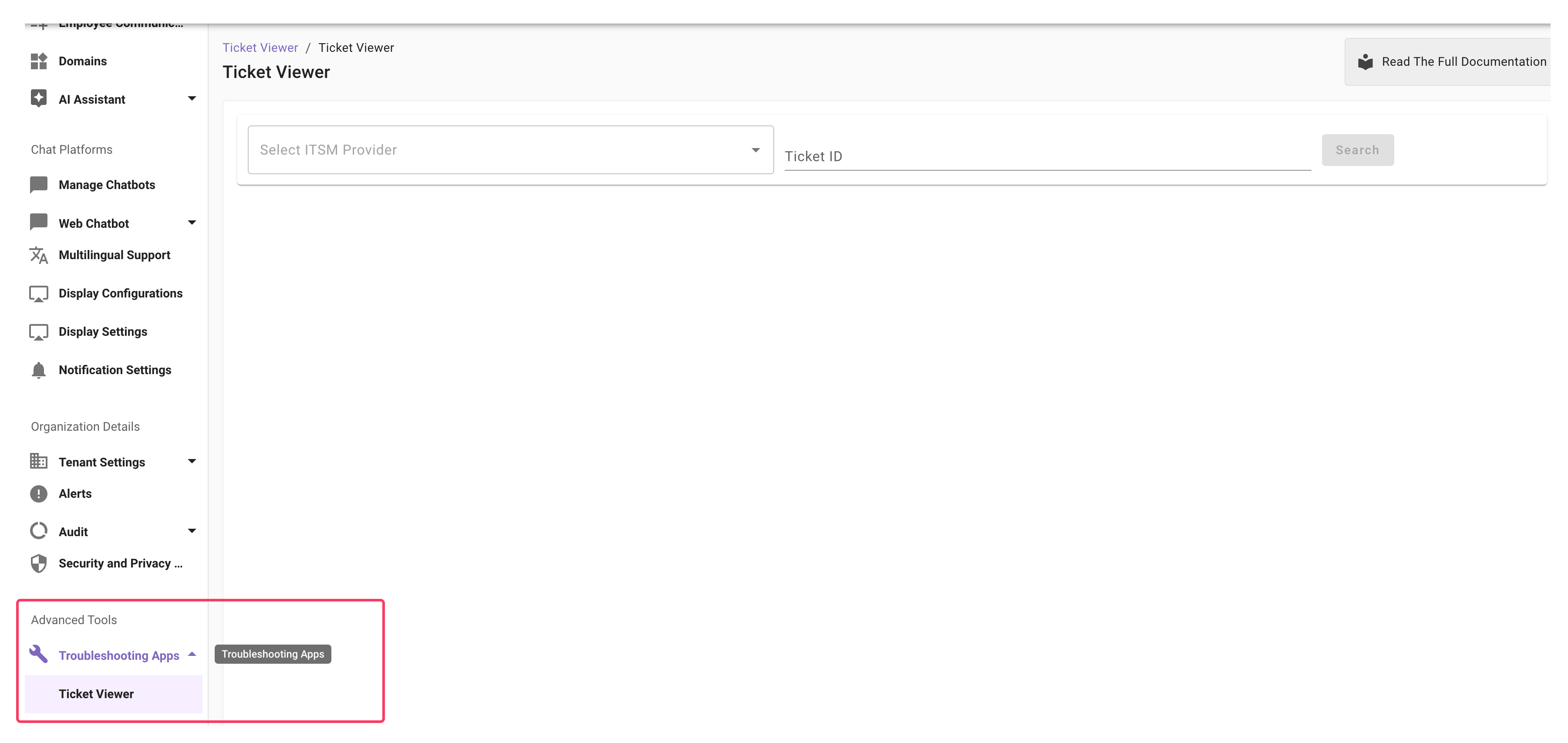
Who Can Use Ticket Viewer?
Access to Ticket Viewer is restricted to:
- Super Admins, or
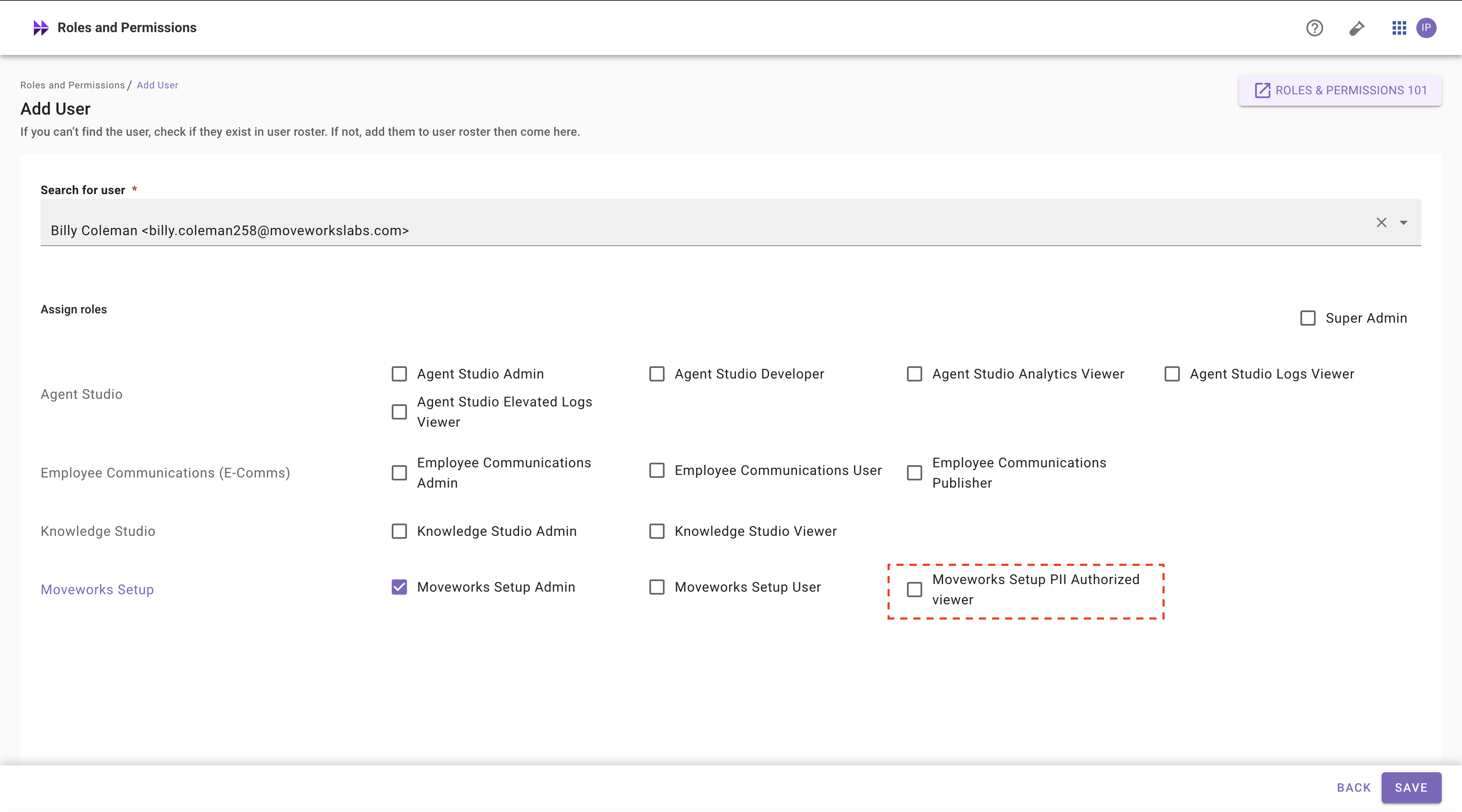
- Users with Moveworks Setup Admin/Moveworks Setup User plus Moveworks Setup PII Authorized Viewer
Super Admins can grant the Moveworks Setup PII Authorized Viewer role to other users through the Roles and Permissions application.
What Data Does Ticket Viewer Provide?
Ticket Viewer returns detailed ticket information mapped to the Moveworks Ticket object. This includes all available ticket attributes retrieved from the connected ITSM system.
When to Use Ticket Viewer
You can use the Fetch Single Ticket action in the following scenarios:
-
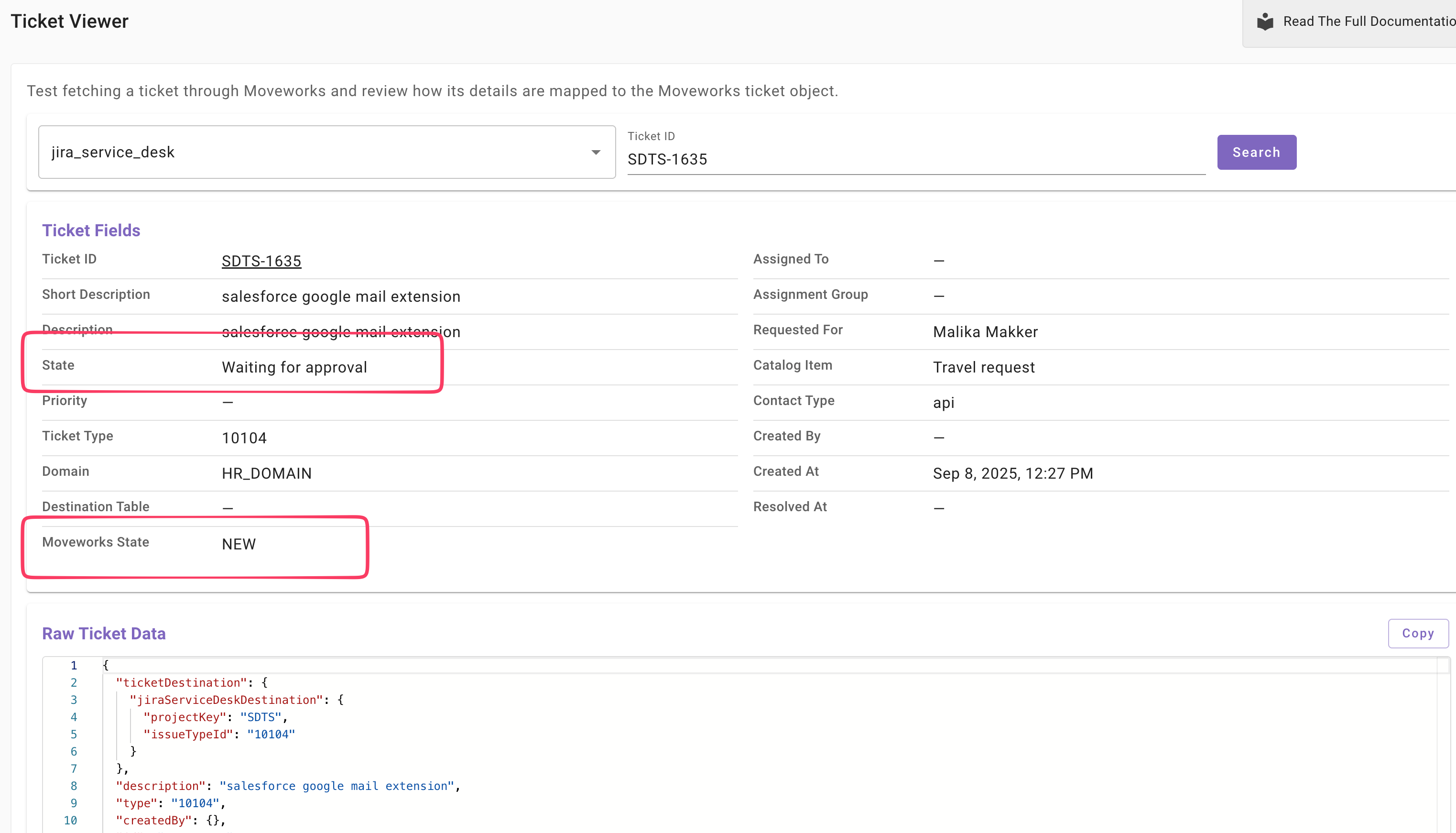
View the latest ticket status to ensure state mappings are working as expected
-
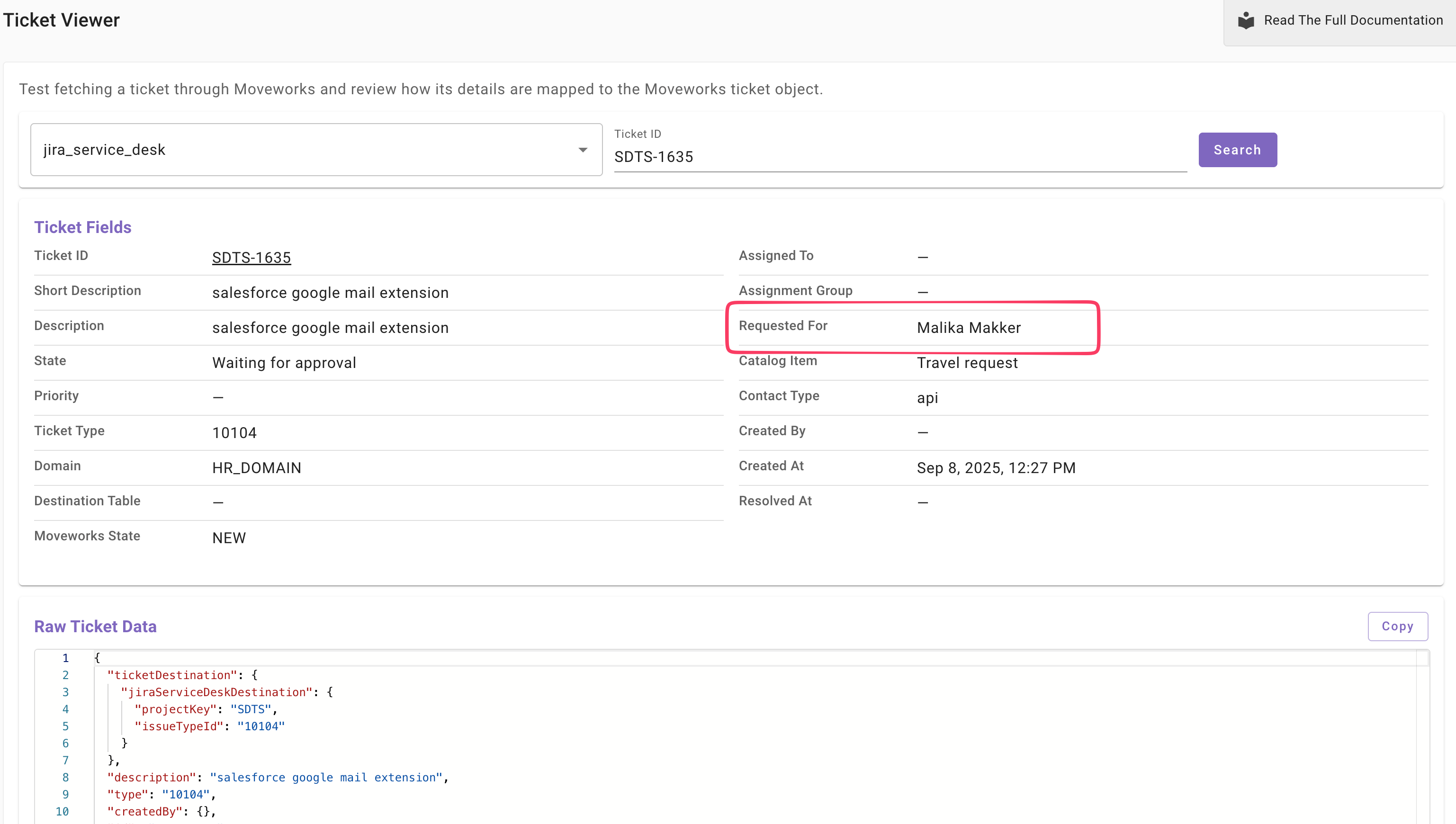
Check the requested_for field to confirm which user should receive the notification
-
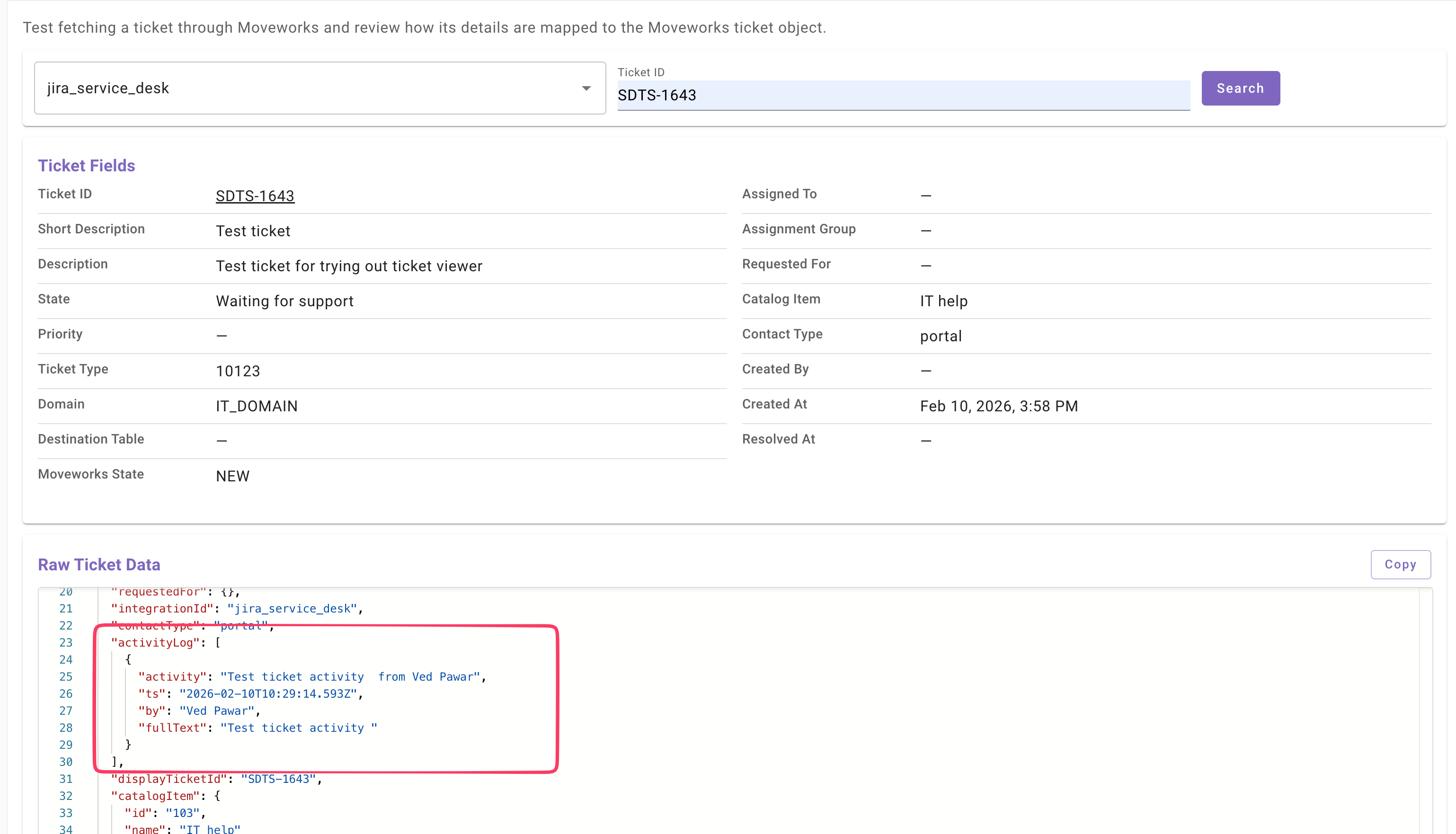
Review work notes or comment logs to determine whether a customer-facing comment was added by an agent through activity logs
-
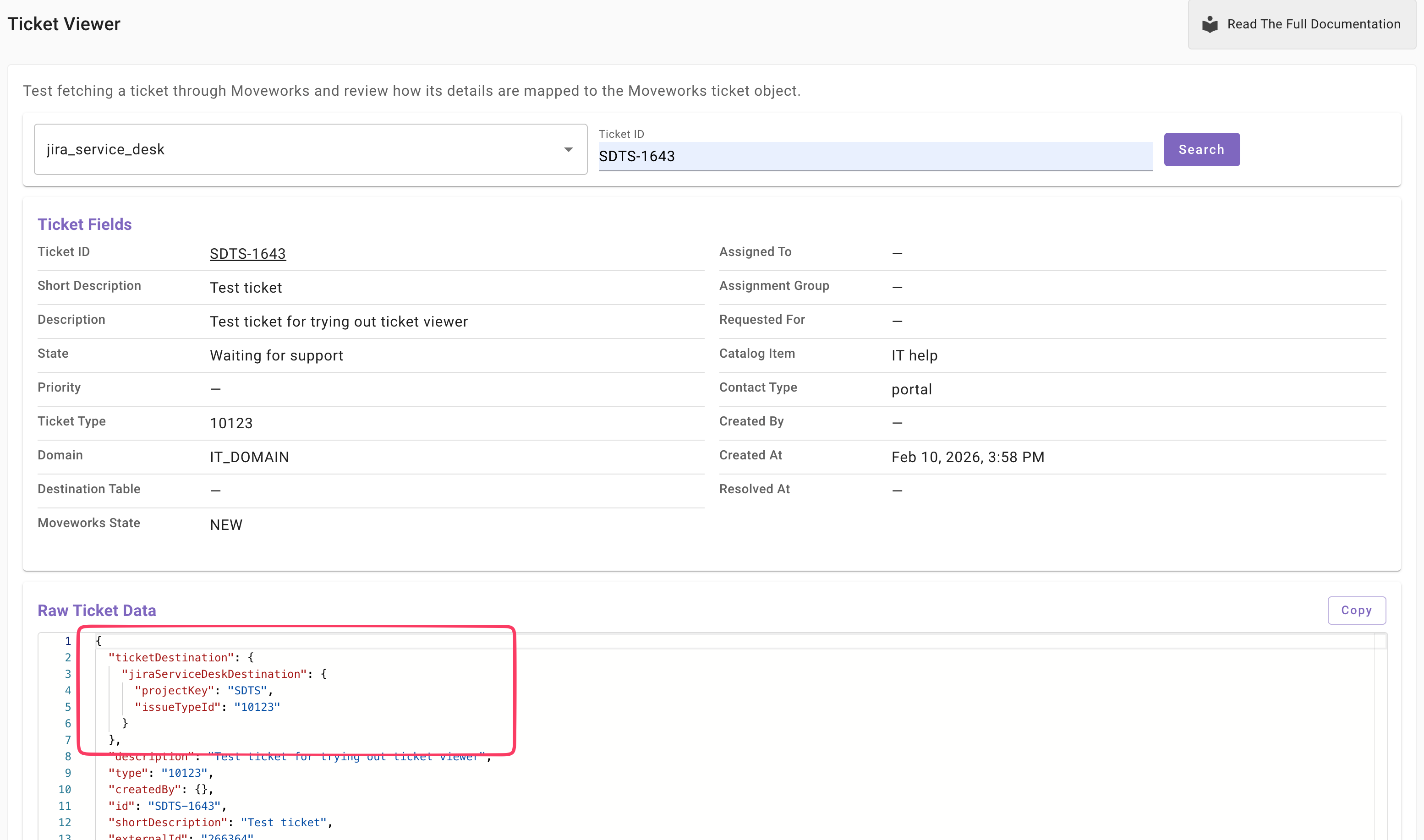
Identify the internal destination mapped to a specific ticket
-
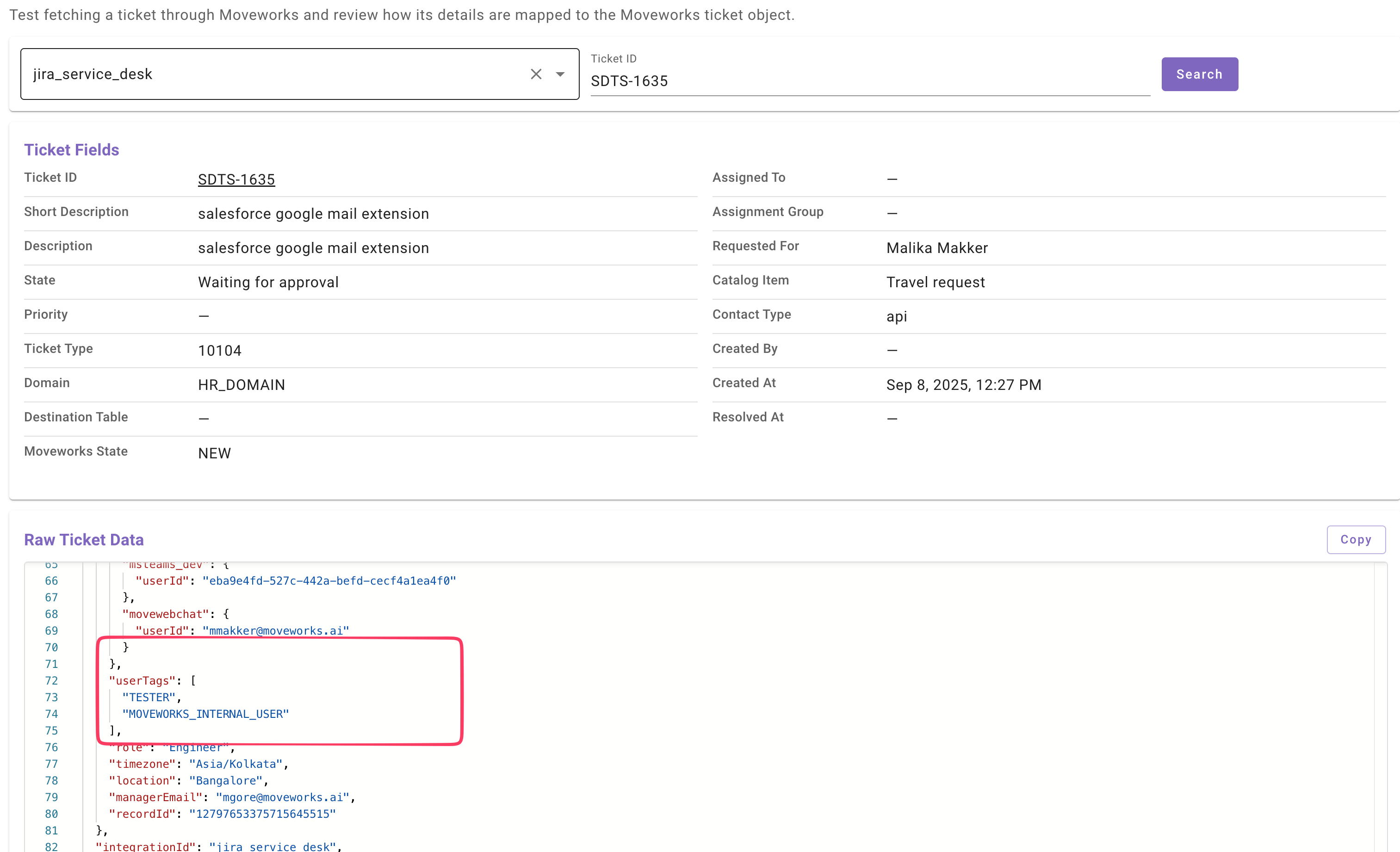
Review user details (such as user tags) to determine whether any DSL rules affect the ticket workflow
How to Use Ticket Viewer
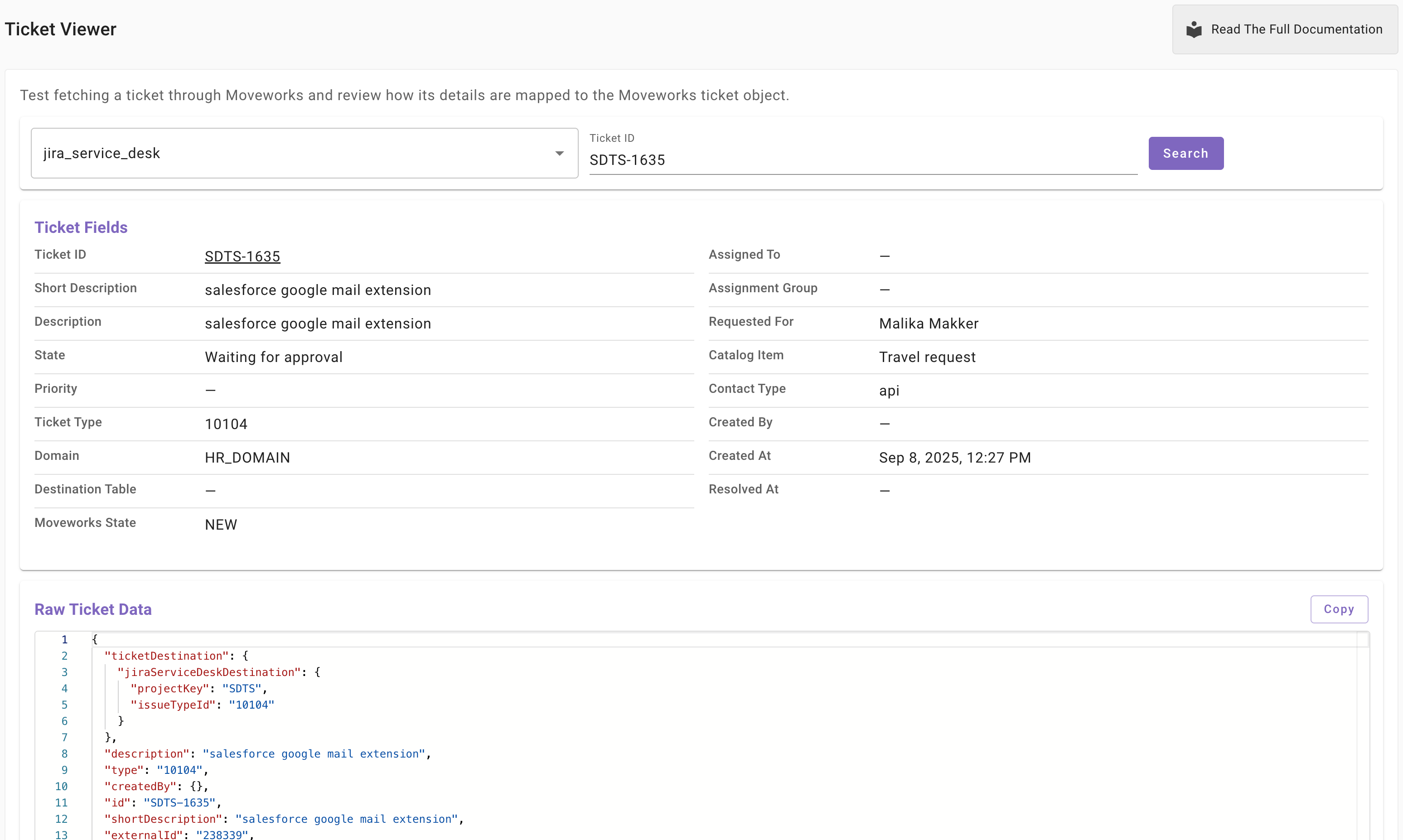
- Open the Ticket Viewer application.
- In the ITSM Provider dropdown, select the connector used for your ticketing system. This connector must already be configured under Ticket Mapping Configurations.
- In the Ticket ID field, enter the ticket ID, including the required prefix (for example,
SR-778). - Click Search.
This action triggers a Fetch Single Ticket request using the selected ITSM connector. The response displays the ticket mapped into the Moveworks Ticket object.
Updated 3 days ago