
Advanced Config Editor (only for Partners and Customer Success Teams)
What is Advanced Config Editor?
Advanced Config Editor allows Moveworks Partners and Customer Success teams to edit Setup configurations directly as JSON, which is helpful in the following scenarios:
- Bulk operations - Upload, replace, or copy-paste multiple configurations at once
- Configuration duplication - Easily replicate existing setups for new implementations
- Environment migration - Quickly move configurations from sandbox to production
- Troubleshooting - Direct access to entire configuration for faster issue resolution
Important Note: Raw JSON mode is intended for Moveworks Partners and Customer Success teams only. We do not recommend admins use this mode as it directly modifies live configurations and can break existing functionality—use the standard UI instead.
How to access Advanced Config Editor?
Navigate to Advanced Details → Troubleshooting Tools → Advanced Config Editor in the left navigation.
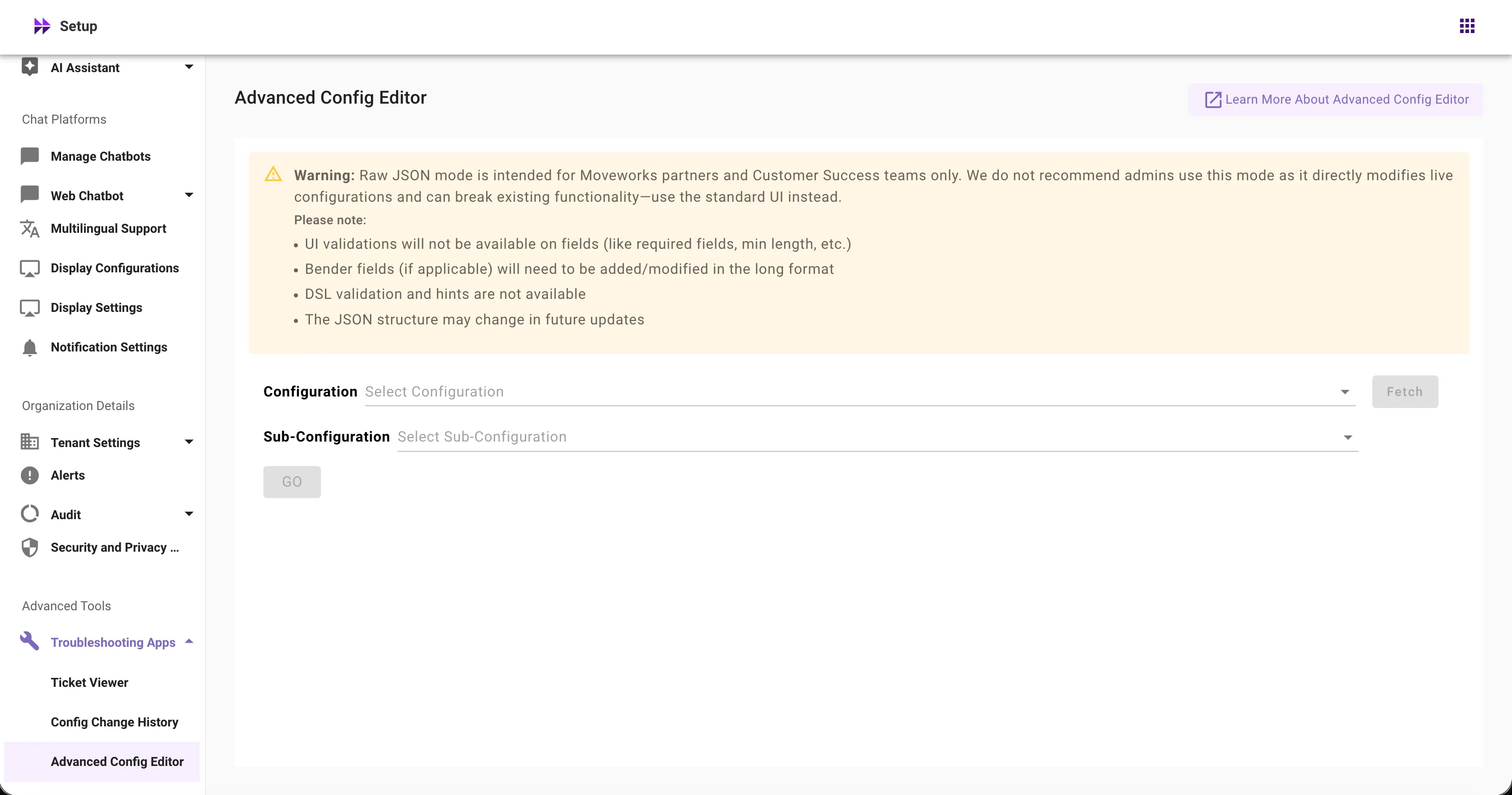
How to use Advanced Config Editor?
What are configuration and sub-configuration in Advanced Config Editor?
Configuration: A complete Moveworks Setup page converted to editable JSON format. This includes all settings, fields, and options from that page - even if the original page uses a multi-step wizard interface, the entire configuration is presented as one editable JSON object.
Sub-configuration: Individual instances of a configuration. For example, if you have multiple connectors (Jira, Slack, SharePoint), each connector setup would be a separate sub-configuration within the broader "Connectors" configuration. Some configuration types only allow one instance (like User Identity), while others support multiple instances.
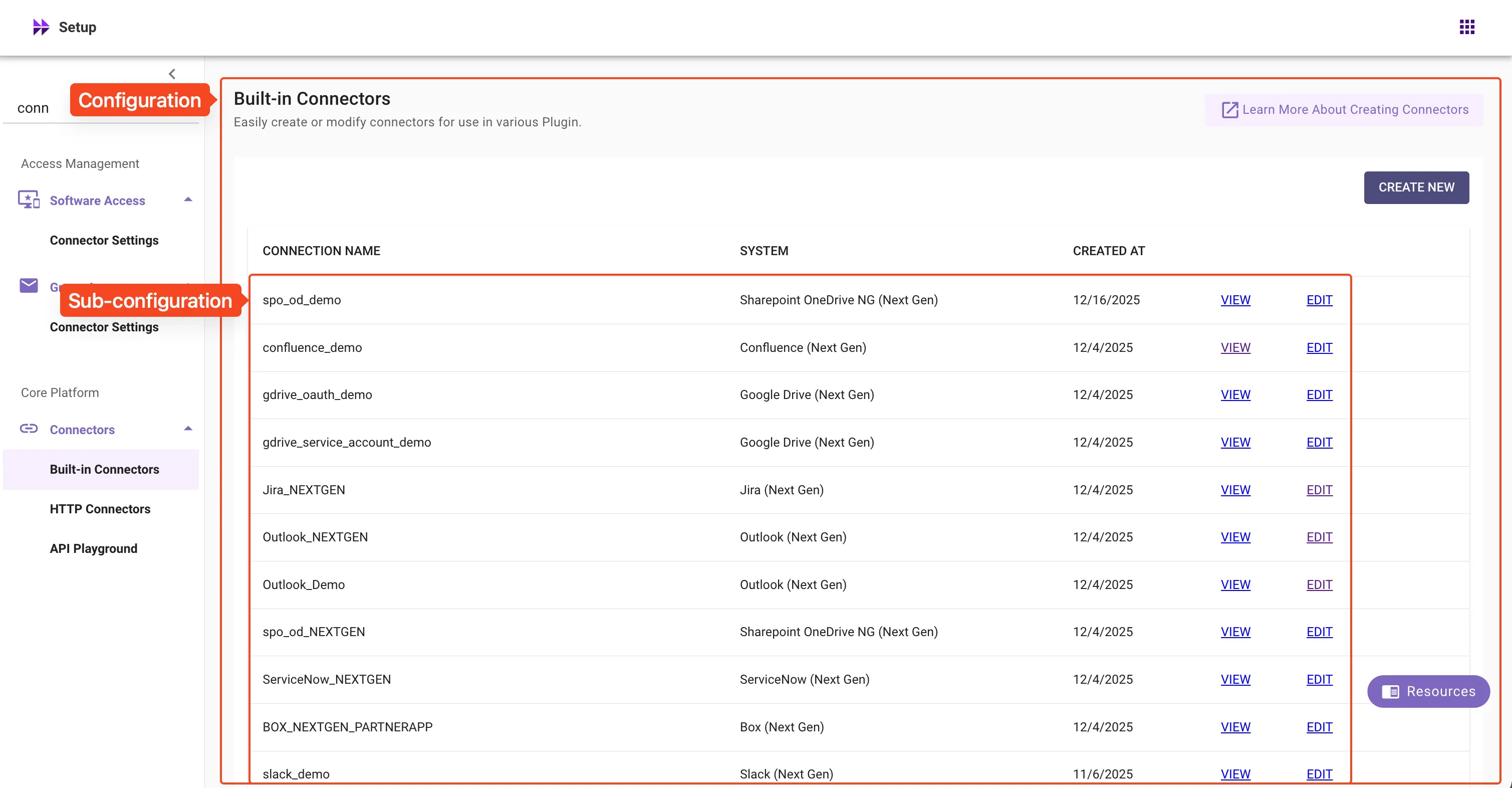
Please follow below steps to edit configs
-
Select the configuration you want to create or update
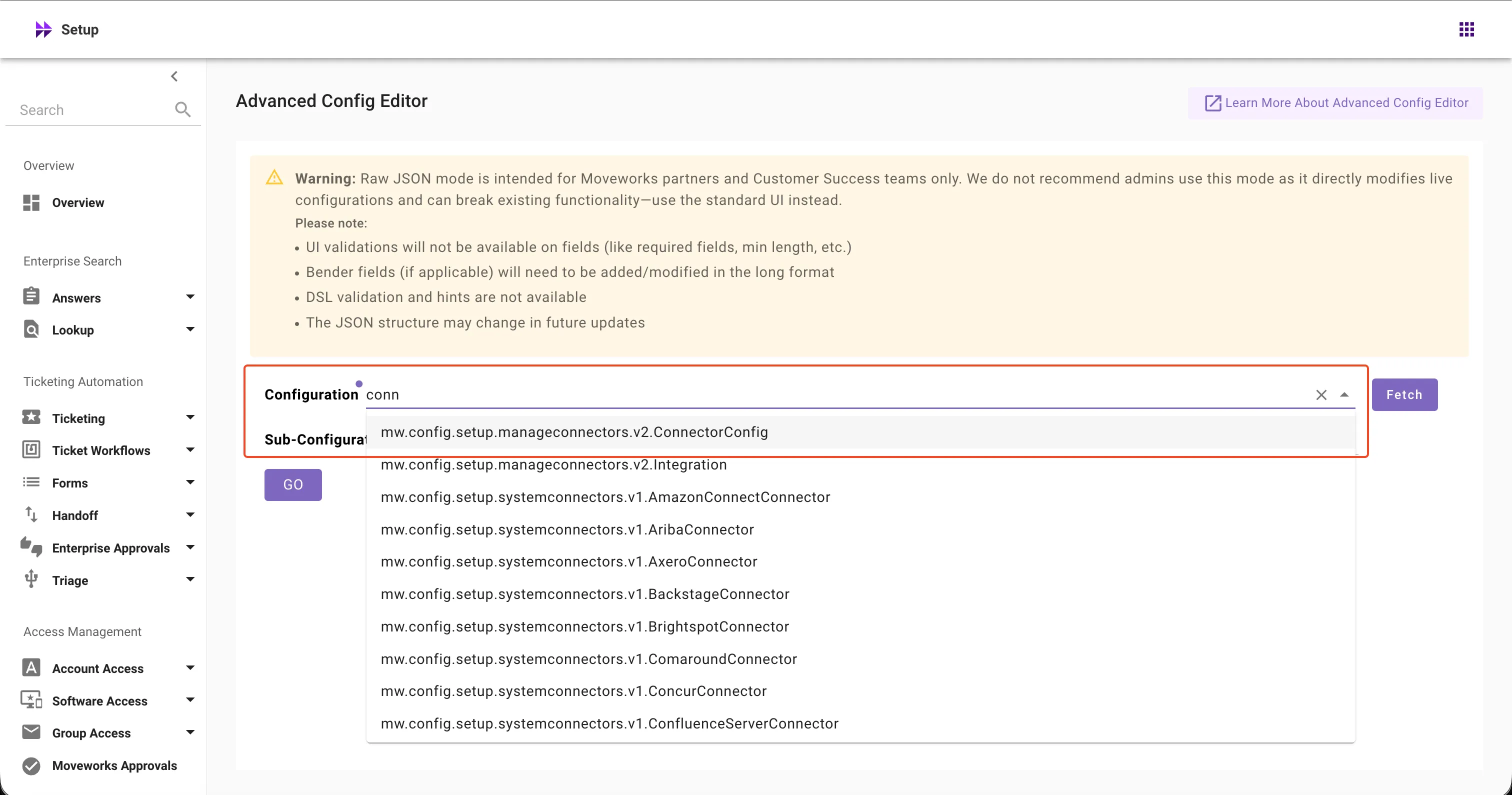
-
Click Fetch to get all available sub-configurations
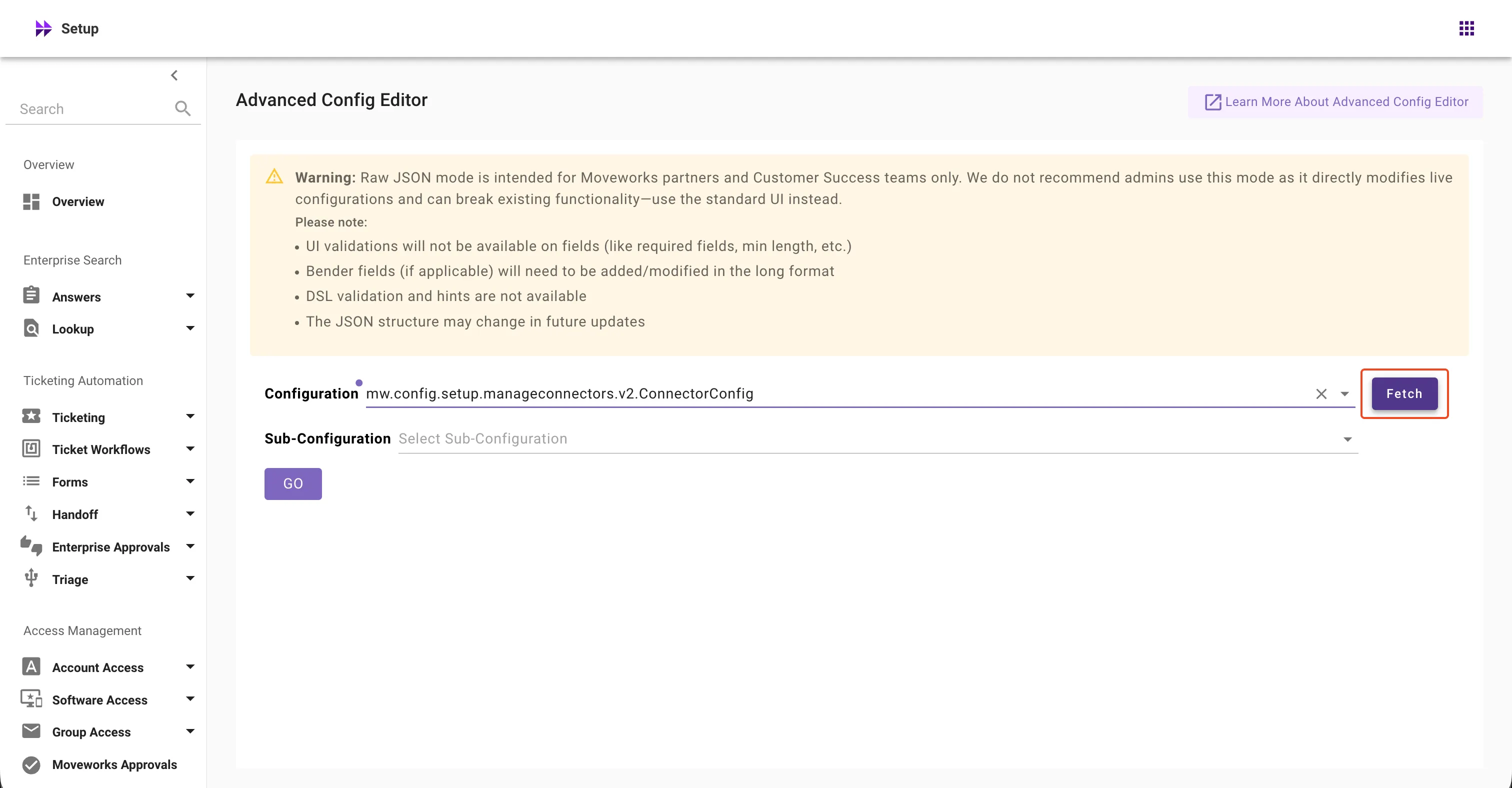
-
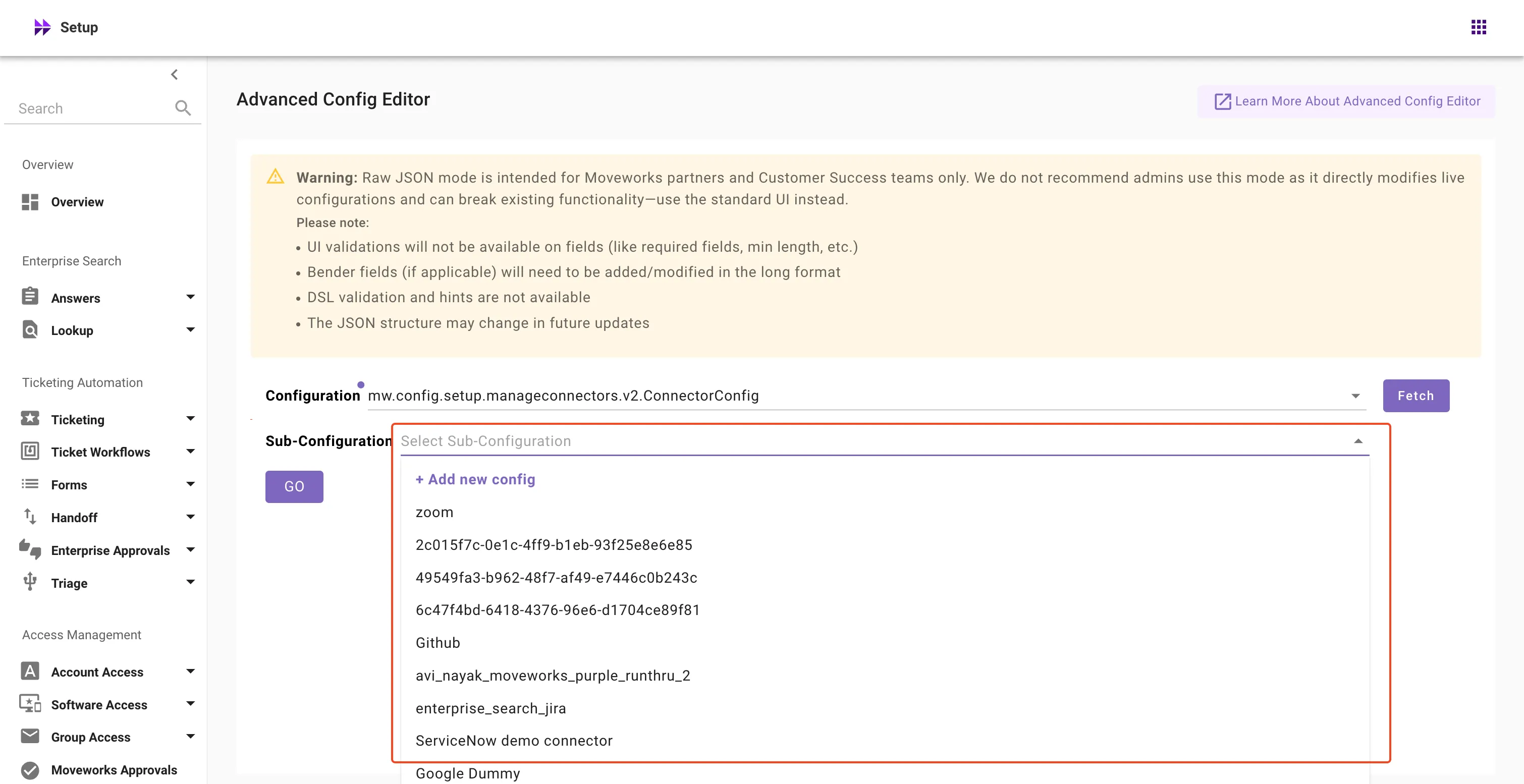
Choose sub-configurations you want to edit (you can create new ones if needed)
-
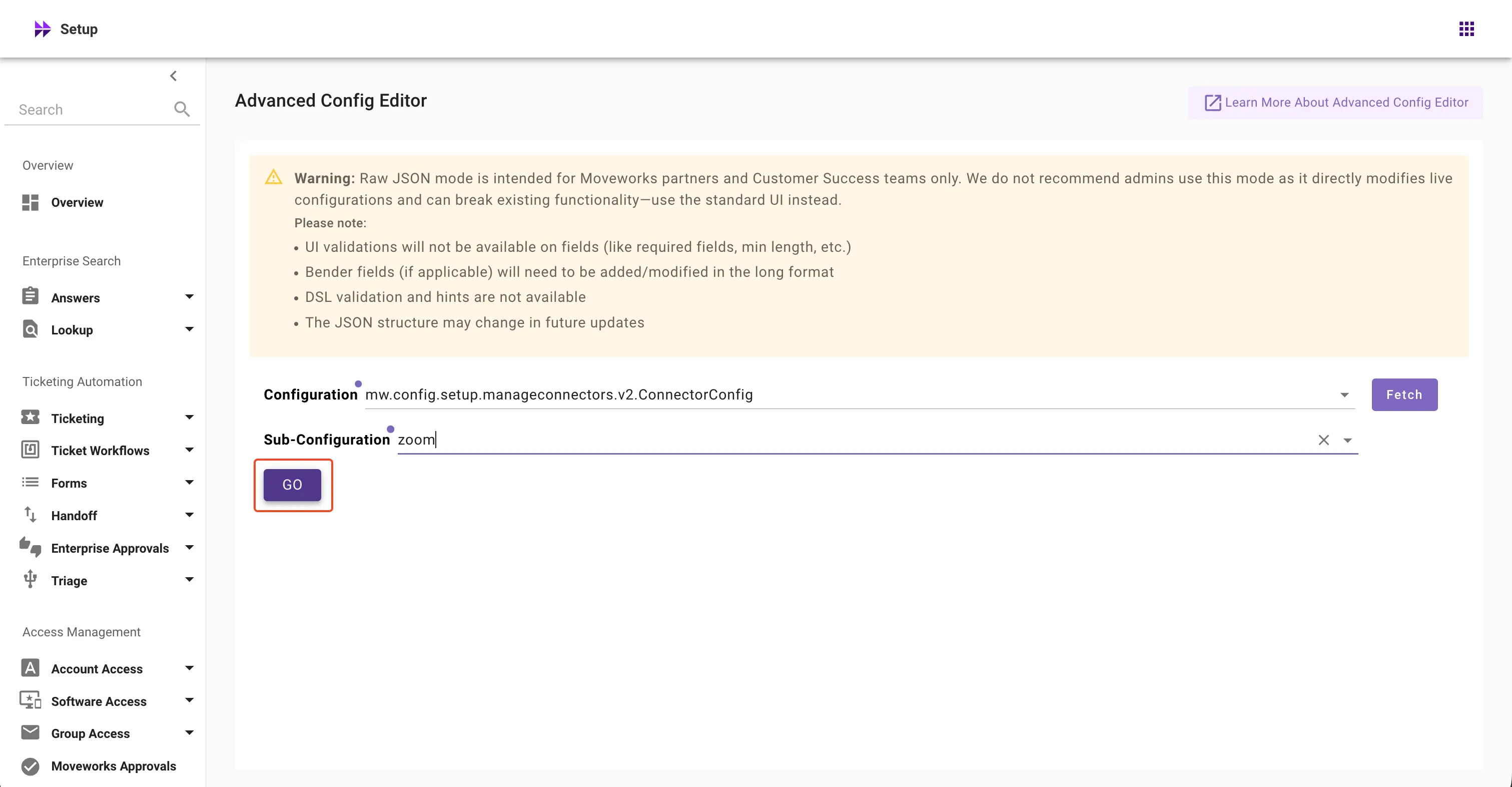
Click Go to open the JSON editor
-
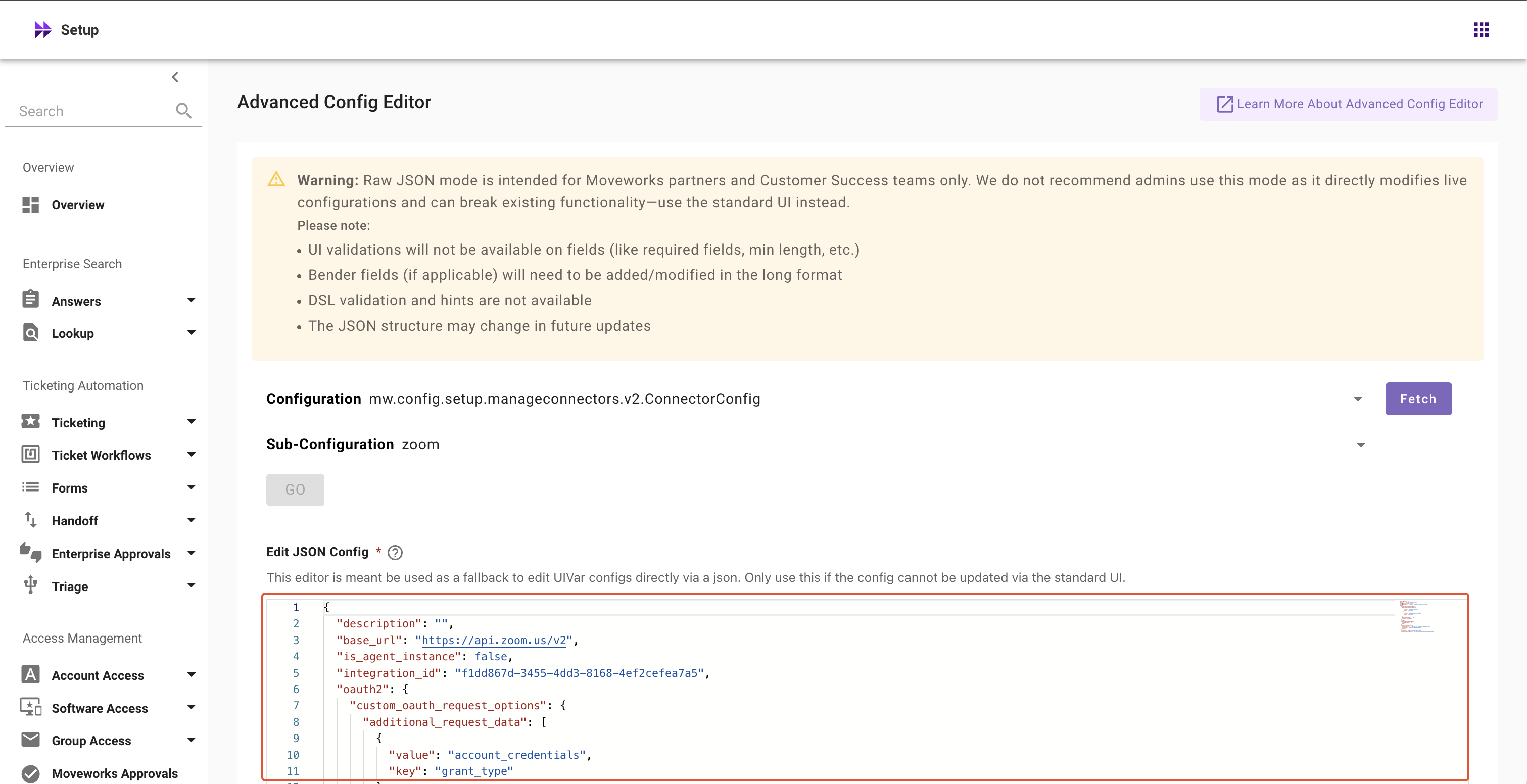
Edit the JSON configuration - be extremely careful as if not done correctly, this may break functionalities
-
Click Submit to save your changes
FAQs
Can customer admins use Advanced Config Editor?
- We recommend customer admins use the standard Setup interface rather than Advanced Config Editor. This tool requires specialized JSON configuration knowledge and is designed for Moveworks Partners and Customer Success teams. The standard interface provides all the configuration options admins need with user-friendly guidance.
When should I use the standard UI versus Advanced Config Editor?
- For most cases, use the standard Setup interface. Advanced Config Editor should only be used for a few scenarios such as:
- Bulk configuration operations
- Duplicating (copy/pasting) configurations
- Environment migrations (sandbox to production)
- Complex troubleshooting scenarios requiring direct JSON access
I'm a partner and don't understand which configurations to use - what should I do?
- Contact Customer Success team for guidance. They can help identify the appropriate configurations for your specific implementation and provide training on proper usage.
What happens if I make an error in the JSON configuration?
- Incorrect JSON configurations can break functionality. Always:
- Keep backups of working configurations
- Validate JSON syntax before submitting
- Test changes after updating JSON configurations
Can I undo changes made in Advanced Config Editor?
- There's no built-in undo function. You'll need to restore manually correct the configuration. This is why we strongly recommend keeping backups before making changes.
How do I know what fields are required vs optional in the JSON?
- Required fields are typically those marked as required in the standard Setup UI. No hints or validations are available in Advanced Config Editor, so exercise caution with any changes.
Can I create a new sub-configuration?
- Yes, you can create new sub-configurations using Advanced Config Editor. Select the configuration type, then click the "Add new config" button from the dropdown menu.
Updated 20 days ago