
Multilingual Support Troubleshooting
This guide outlines the common issue scenarios with the Moveworks AI Assistant's multilingual functionality and provides key solutions to ensure accurate and effective communication across different languages.
Assistant Incorrectly Translating Words
Sometimes, the default translation from the Moveworks Engine might not be the best fit for certain UI elements—especially short strings like “Submit” or “Cancel” or "Closed" in the Target Locale. In these scenarios we can use Override Configs to change this behaviour.
Translation Overrides Config
Using this configuration, you can define exact translations for specific source strings. This is especially useful for short, frequently repeated text such as button labels or form titles.
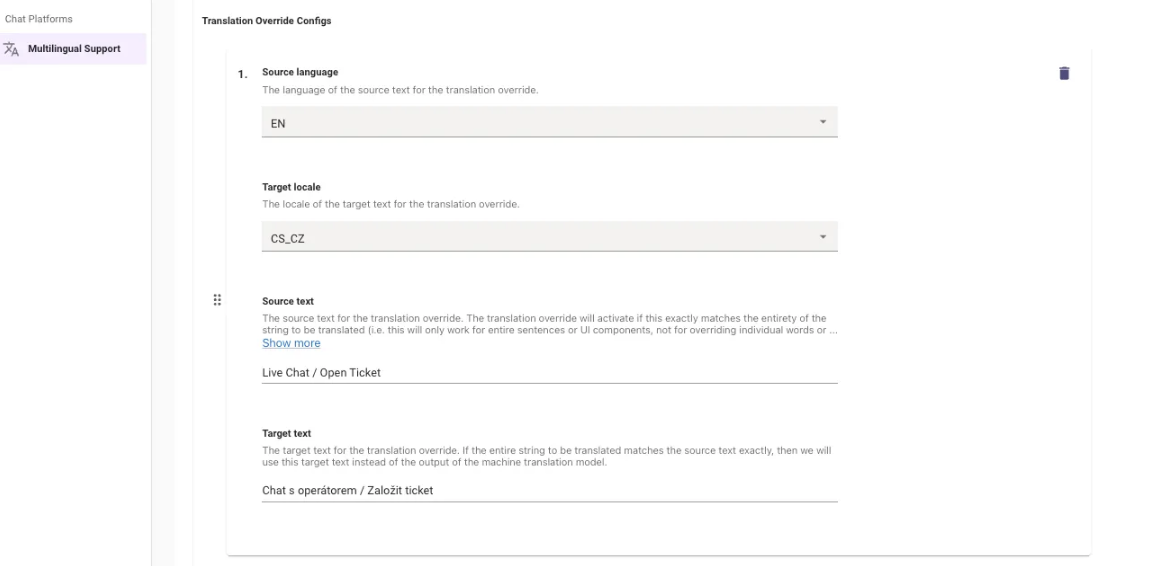
- Navigate to Multilingual Support under Chat Platform Module.
- Here you will find the Translation Override Configs under Additional Controls
- How it works: You specify the original string and the exact translation you want the system to use.
- For Ex: Here we are defining the Translation for the text "Live Chat" from English to Czech and by explicitly what the Target Text should be.
- This is best used for - Short, standalone phrases that occur in isolation (e.g., a button labeled “Submit”).
- Note: Overrides only apply to exact string matches. For example, an override for “Submit” will affect a button labeled “Submit” but not “Submit ticket.” This approach gives you precise control over translations for critical UI elements and avoiding mis-translations.
Disable Translations Config
In some scenarios, when users are communicating with a Live Agent in a different Country or Locale, There is a requirement for the Assistant to present certain text without any translation.
A common scenario is when an IT agent sends a URL and wants to avoid the Translation to the end user’s preferred language as this breaks the URL. This is where we can leverage the Disable Translation Config.
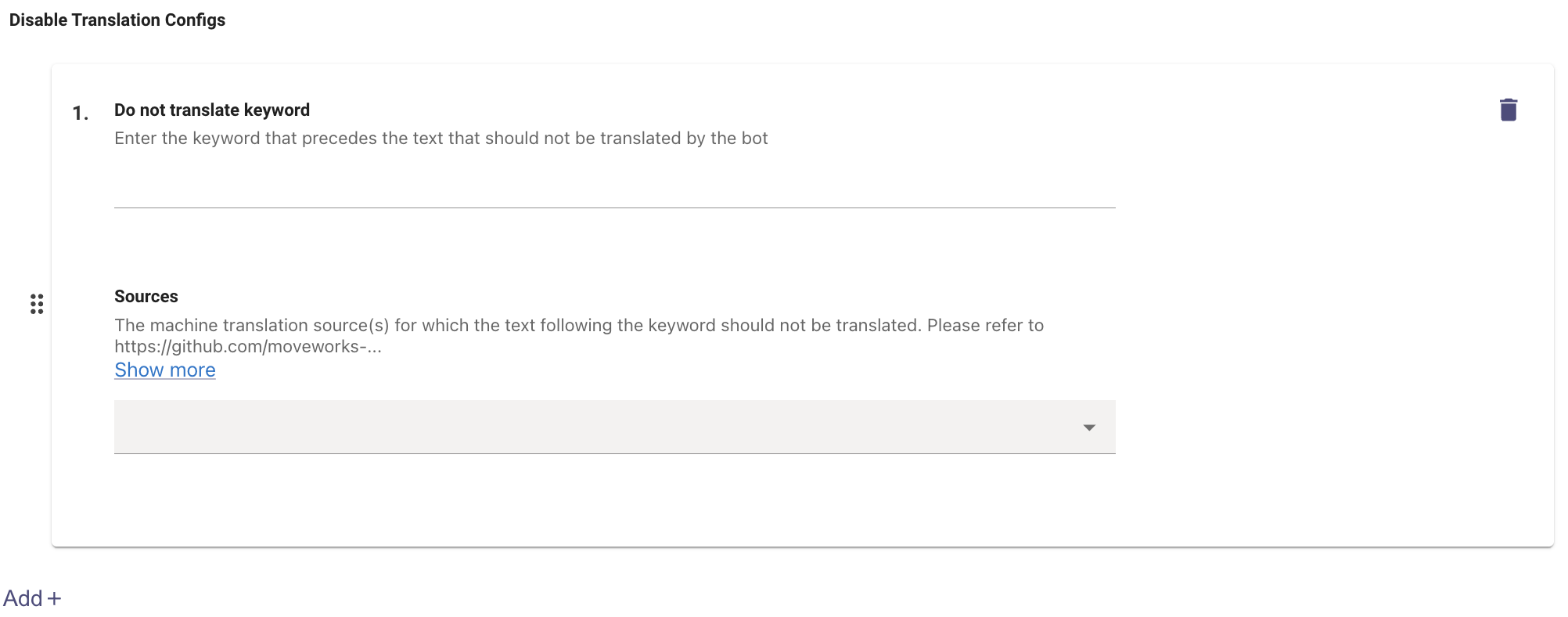
-
Navigate to Multilingual Support under Chat Platform Module.
-
Here you will find the Disable Translation Configs under Additional Controls
-
How it works: You specify a keyword here, which when preceded by any text will instruct the AI Assistant to not translate the content that follows. The Keyword acts as a signal to the AI Assistant to disable its translation function for that particular text.
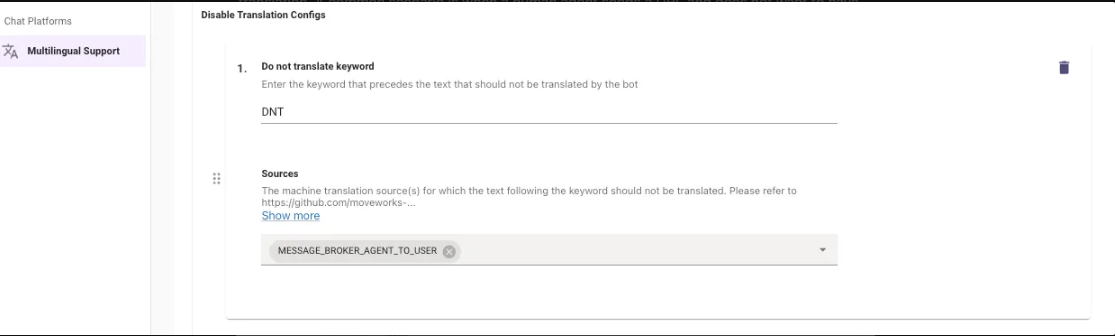
-
For Ex: If an agent types
DNT /users/moveworks/aug2024/file.pdf, then this will not be translated and the same text /users/moveworks/aug2024/file.pdf will be sent to the user. -
Here DNT is the Keyword and then you can Define the Source from which the message will be sent, there is a dropdown that has a few options but the main ones are :
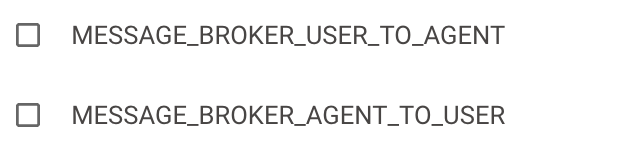
-
-
Providing this keyword is crucial for seamless transitions to live agents or for preserving text.
Prompt Override Formality Tone in the Assistant
Different languages and regions have their own expectations for tone and formality. The default tone used by the AI Assistant might not always suit every audience. Moveworks provides flexibility where we can prompt the LLM to change this.
-
Navigate to Multilingual Support under Chat Platform Module.
-
Here you will find the Locale Prompt Override Configs under Additional Controls
-
Here you can adjust the Assistant’s tone and formality based on the target language or locale. This is done by adding a specific prompt that instructs the LLM to translate in a particular style.
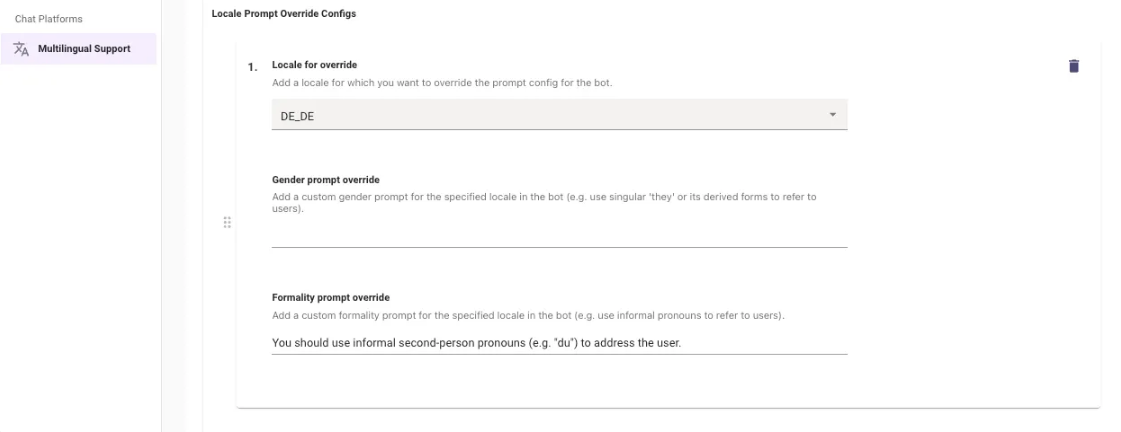
-
How it works: When the source string is detected, an extra prompt is added to guide the translation to be more formal, casual, or follow a chosen linguistic style.
- For Ex: You could set an override so that responses in German are translated in a more formal and polite tone, or alternatively, make them more casual and conversational.
- This gives you finer control over how translations sound to different audiences, ensuring they match local communication norms.
Change Translation of Single Strings based on Context
Sometimes, a word or phrase can have several correct translations, and the appropriate choice depends on how it’s used in context.
In these cases, the AI Assistant might select a translation that’s technically accurate but not the best fit for the situation. To Improve this we can use the Entity Catalog.
- The Entity Catalog enables more precise, context-aware translations. By adding an entry for a specific term, you can control how it’s translated depending on the surrounding text.
-
The creation of these entities can only be carried out by the Moveworks Support Team.
- How it works: When the system detects the source string within a larger sentence, it uses an additional LLM prompt to produce the correct, context-specific translation.
- For Ex: The term “HR” can be translated into Spanish as either “HR” or “RRHH”. Different organisations may prefer one version over the other.
- With the Entity Catalog, you can ensure the preferred translation is always applied.
Updated 3 months ago