
Google Drive Setup for Enterprise Search
This page is for the Google Drive (Next Gen) connector and it can only be configured within the new enterprise search configuration experience explained below.
Please visit this documentation to learn more about Next Gen and Classic connectors.
System Overview
Google Drive is your organization’s primary file storage and collaboration platform. From an enterprise search perspective, it is a rich corpus of documents (Docs, Slides, PDFs, etc.) across Shared Drives, My Drive and Shared with me. Moveworks connects to Google Drive to ingest and index content with its metadata and permissions, ensuring users only see results they’re authorized to view.
Authentication
Moveworks supports two authentication methods. You will configure one Moveworks Google Drive connector using either method based on your requirements.
- OAuth 2.0 – Authorization Code Grant (Recommended)
- Uses a Custom Super Admin to authorize Moveworks.
- Enables ingestion of Shared Drives by default. Private user content (My Drive and Shared with me) is ingested only after explicit end-user OAuth consent.
- Requires a Client ID and Client Secret from your Google Cloud OAuth app.
- Service Account (without Domain-Wide Delegation)
- Uses a Service Account key (JSON) without impersonation.
- Ingests Shared Drive files explicitly shared with the Service Account.
- Does not ingest private user content.
Permissions Enforcement
Moveworks honors Google Drive ACLs end-to-end:
- OAuth 2.0 flow:
- Shared Drive content is ingested under the Custom Super Admin’s access.
- Private content ingestion is opt-in: A user’s files(My Drive and Shared with me) are included only if that specific user grants consent; results are always filtered by the requester’s effective permissions.
- Service Account (no DWD):
- Only content from Shared Drives (explicitly shared with the Service Account) is ingested.
- No user impersonation; private user files are never ingested.
Content Types
The Google Drive connector for Moveworks supports file-based content including Docs, Slides, and PDFs along with associated metadata such as titles, MIME types, owners, and permissions.
Access Requirements
Moveworks supports two authentication methods for connecting to your Google Drive instance—OAuth 2.0 Authorization Code Grant and Service Account without Domain-Wide Delegation. Both methods securely ingest content from Shared Drives; however, Moveworks recommends OAuth 2.0 because it also enables ingestion of private user content with user consent. Choose the option that best aligns with your organization requirements.
Pre-requisites
Before you get started, make sure you have everything you need:
-
Admin permissions
- Google Cloud Console admin access so you can create a Service Account, set up an OAuth 2.0 app, and enable required APIs (Drive API, Admin SDK).
- Google Admin Console admin access so you can create a Custom Super Admin (for OAuth) and a custom admin role (for the Service Account).
-
List of Shared Drives to ingest
- Prepare a list of all Shared Drives you want Moveworks to index. This helps you grant access efficiently in one go. Add the Service Account email or Custom Super Admin email to each required Shared Drive with the Content Manager role.
Setting Up Google Cloud Project and APIs
Before configuring authentication, you’ll need to create and prepare a Google Cloud Project. All subsequent setup steps (Service Account or OAuth 2.0) will be performed within this project.
-
Create a New Google Cloud Project
-
Visit the Google Cloud Console.
-
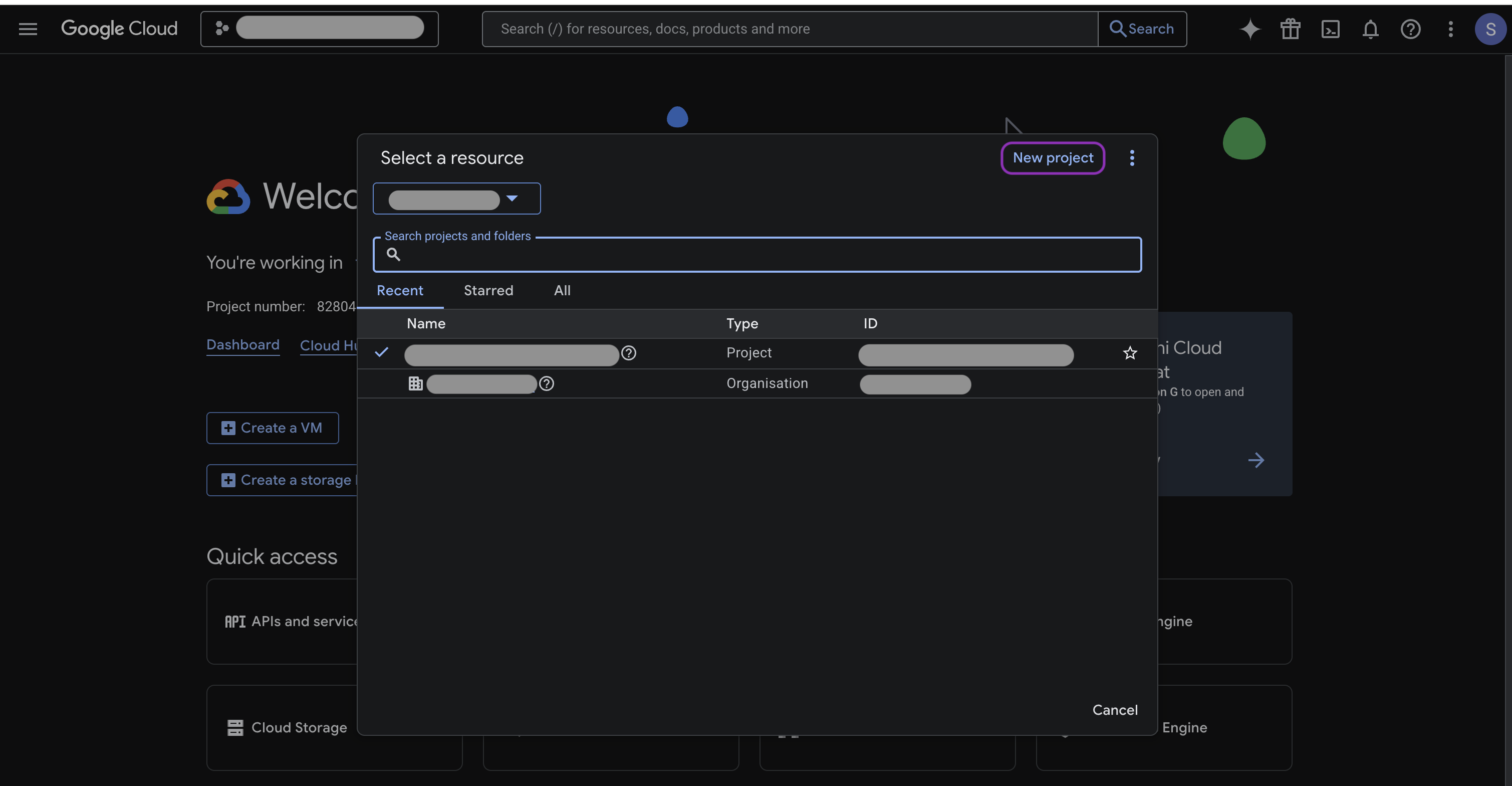
Under your organization, click New Project.
-
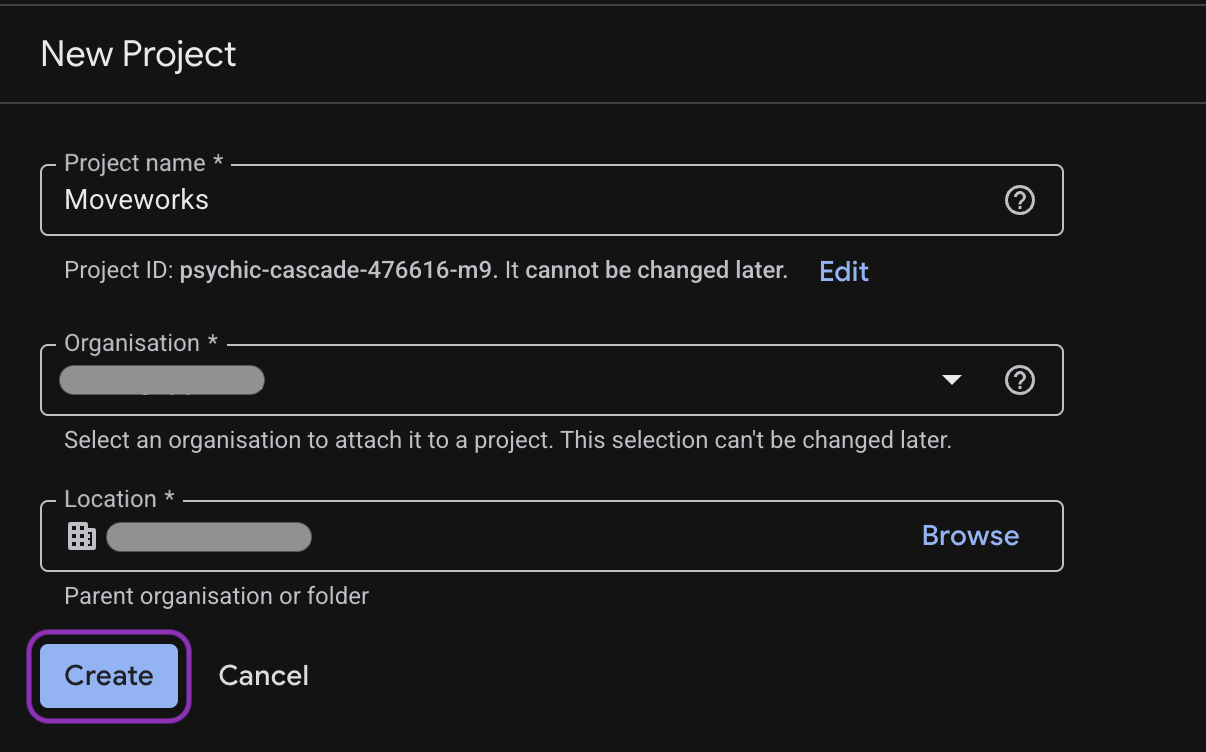
Enter a project name (for example, Moveworks), select your organization and click Create.
-
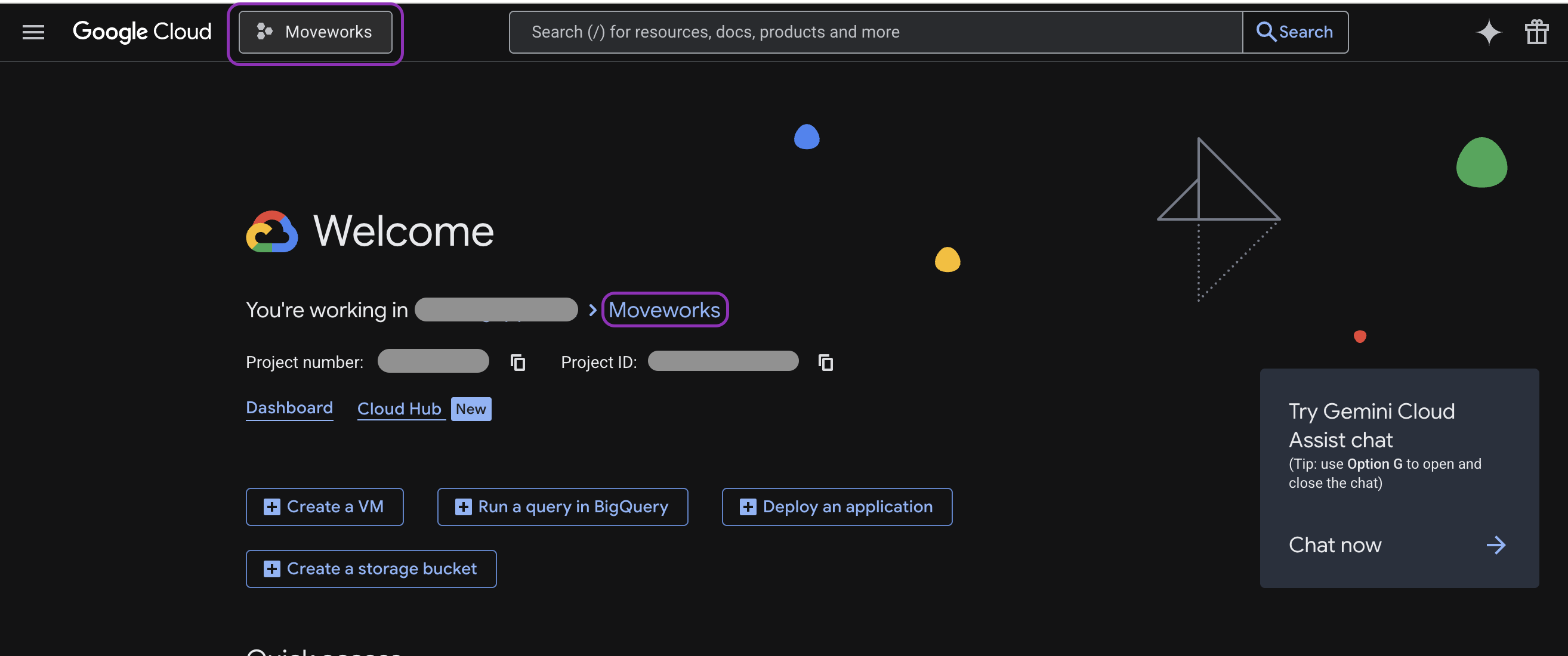
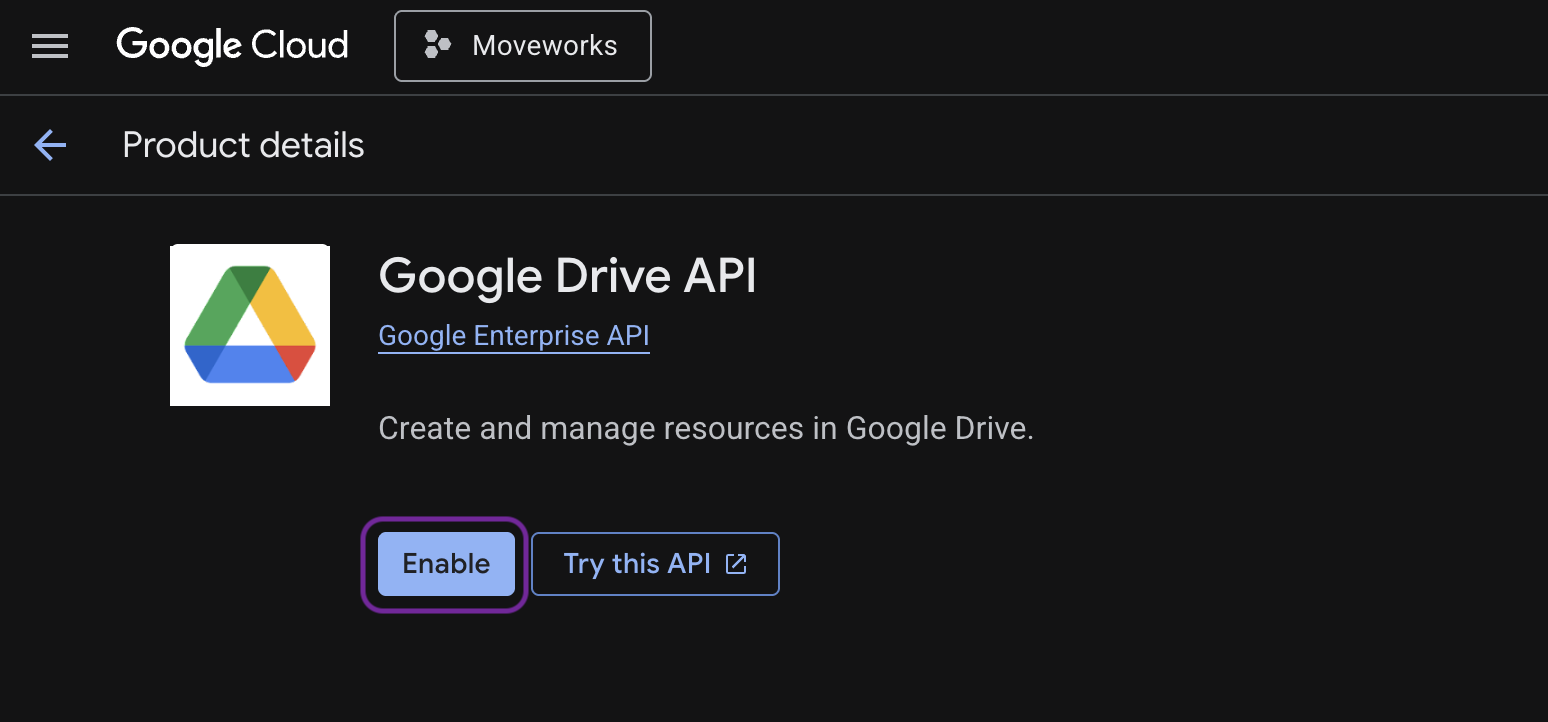
Now that you’ve created your project, the next step is to enable the Google Drive API for it. For all subsequent operations, please make sure you are performing them within the “Moveworks” project, as shown below.
-
-
Enable Required APIs
After creating your project, you must enable APIs required for Moveworks integration.
-
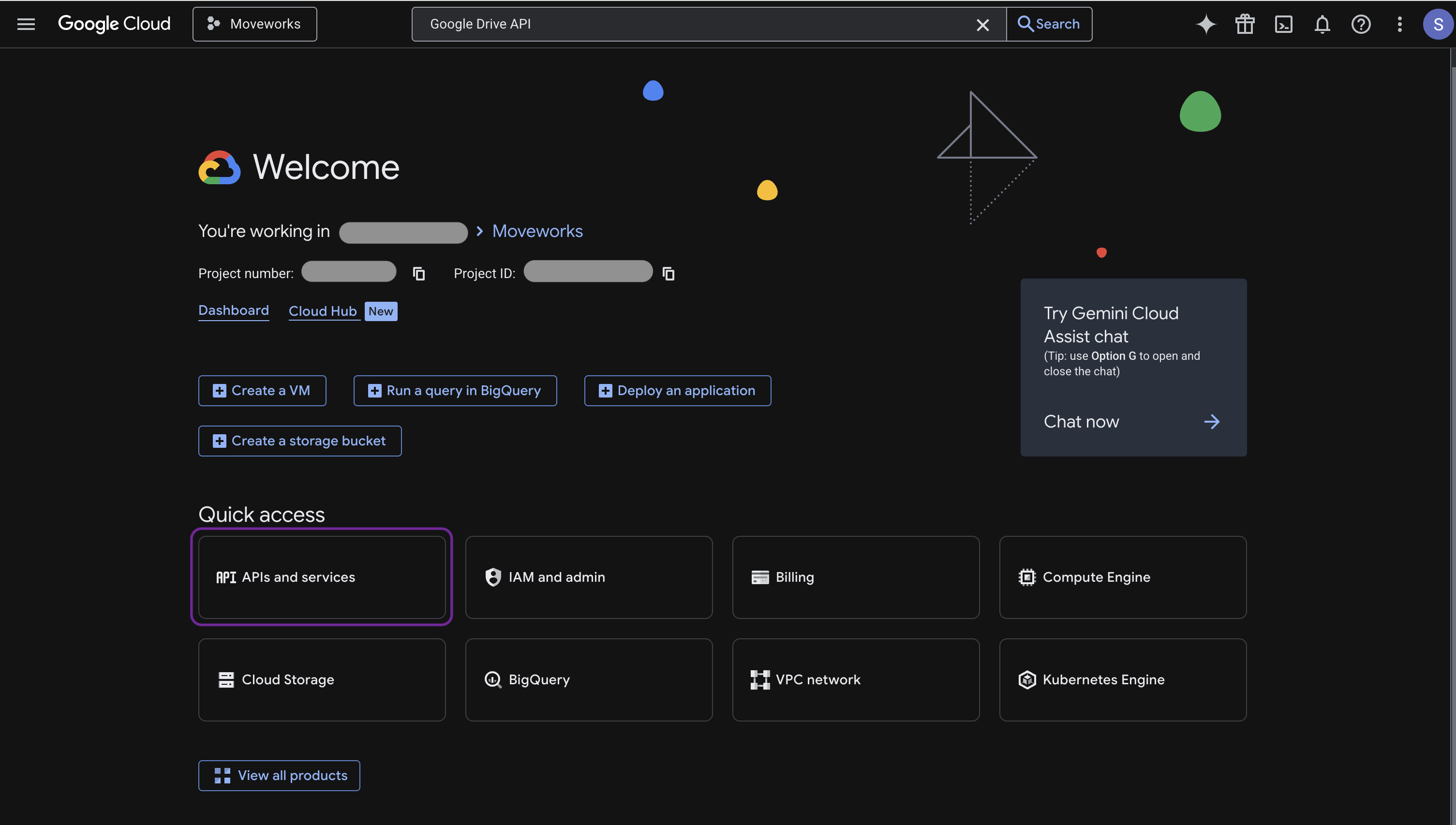
Go to APIs & Services→ Library.
-
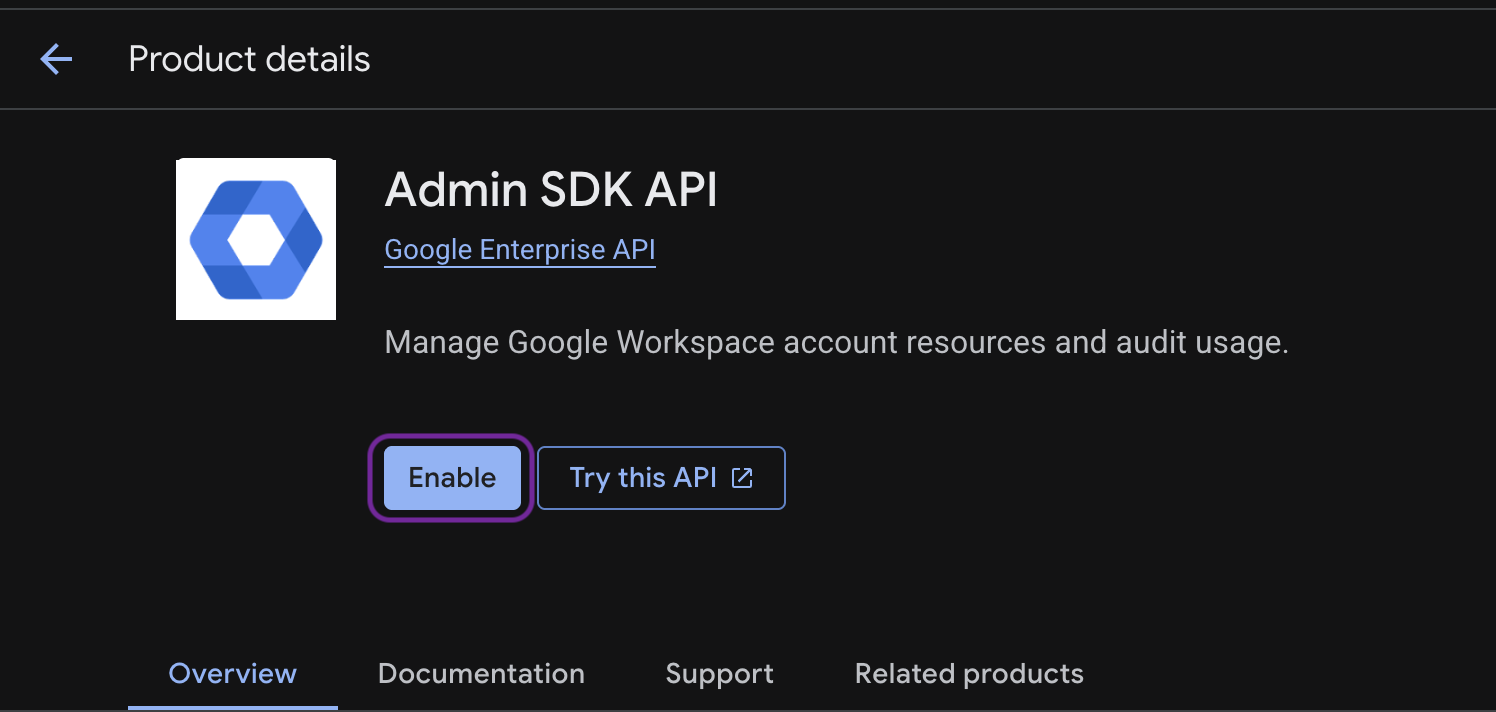
Search for and enable the following APIs:
-
Google Drive API
-
Admin SDK API Once enabled, these APIs allow Moveworks to access shared content, read permissions and handle incremental updates.
-
-
-
Generate Credentials
Depending on your authentication method, you’ll generate either an OAuth 2.0 Client or a Service Account key.
Option 1: OAuth 2.0 Authorization Code Grant
The OAuth 2.0 method allows you to ingest shared content by default and optionally include private user content with explicit consent.
-
Setup Custom Super Admin
You’ll need to create a dedicated Custom Super Admin user within your Google Workspace domain. This user will be used to authorize the Moveworks connector and access shared content.
Steps:
- Log in to the Google Admin Console using your Google Workspace admin credentials.
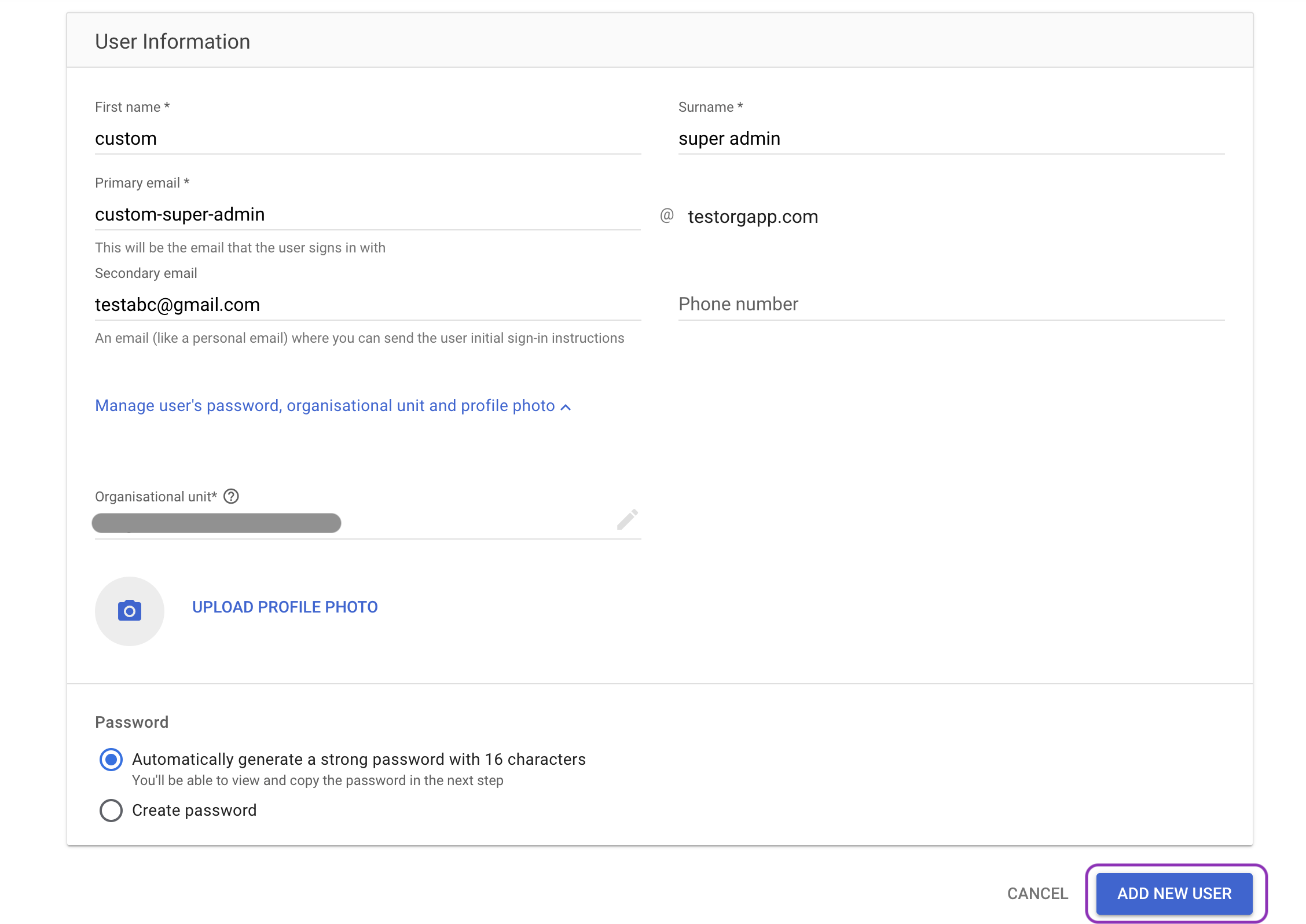
- Create the dedicated admin user
-
Go to Directory → Users → Add new user.

-
Enter the user’s first name, last name, and primary email.
-
(Recommended) Add a recovery/secondary email for account recovery.
-
Choose a password option: auto-generate a strong password or create a password; store it securely.
-
Click Add new user.
-
Keep the new user’s sign-in email handy; you’ll assign the Super Admin role in the next step.
-
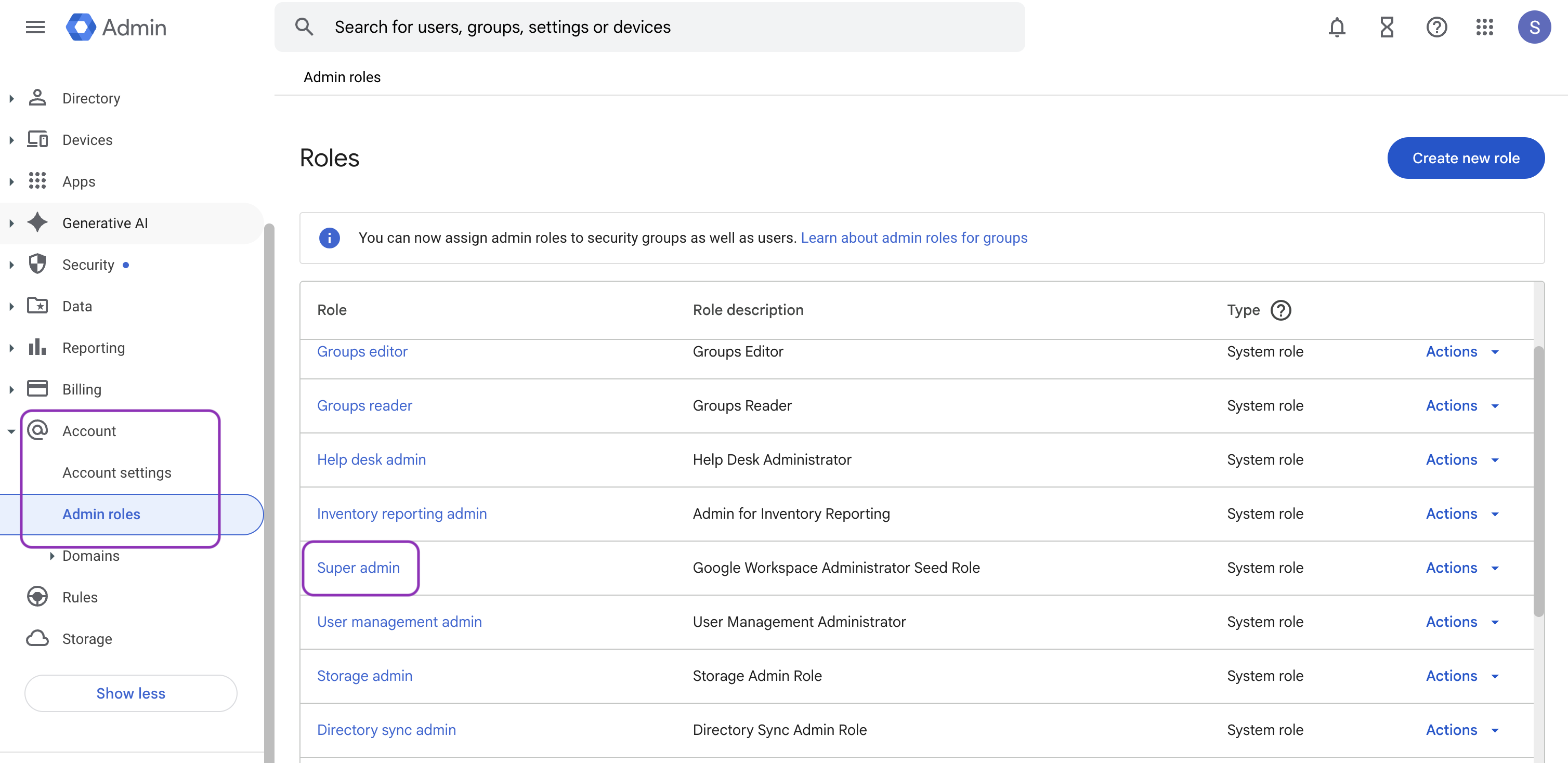
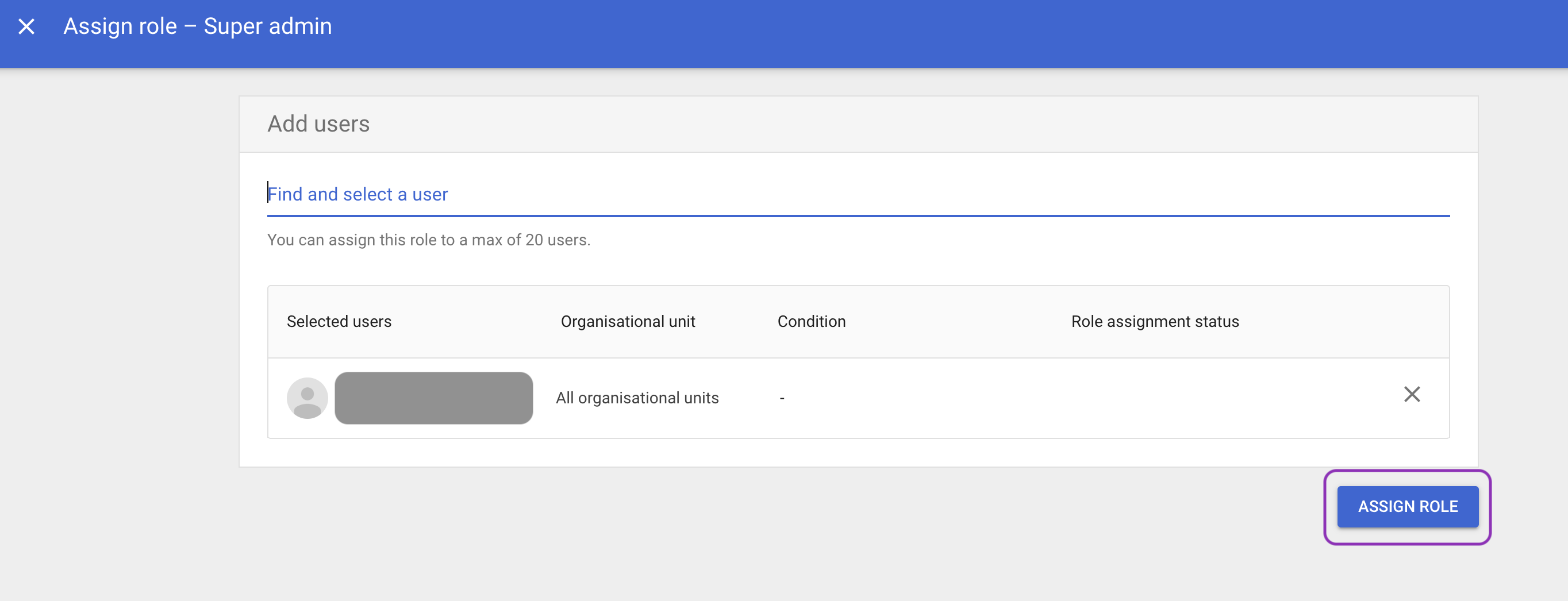
- Assign Super Admin role
-
Go to Account → Admin roles.
-
Select Super Admin, then open the Admins section.
-
Click Assign users, enter the user’s sign-in email and click Assign role.
-
-
Grant Access to Shared Drives
Grant the Custom Super Admin access to every Shared Drive you want Moveworks to index.
- In Google Drive, for each required Shared Drive, click Manage members, add the Custom Super Admin’s email and assign Content Manager access.
-
Configure OAuth 2.0 Application
- Configure OAuth Consent Screen:
-
Visit the Google Cloud Console
-
Go to APIs & Services → OAuth Consent Screen
-
In the Overview section, click Get started.
-
Under App information, enter:
- App name (e.g Moveworks)
- User support email (e.g Google super admin email)
-
Audience: select Internal (only users in your Google Workspace domain)
-
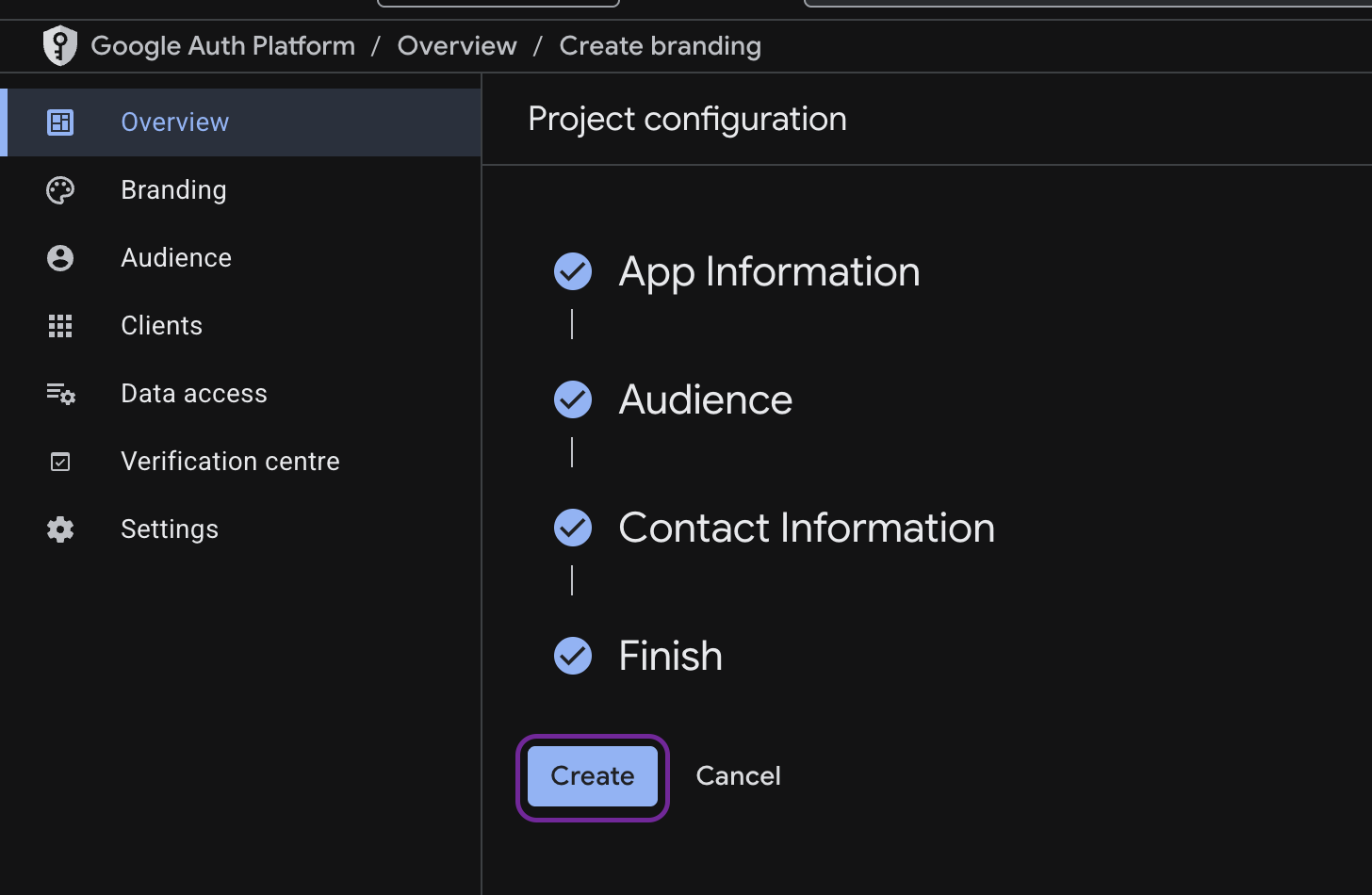
Enter your Google super admin email under Contact Information.
-
Check the Google API Services User Data Policy acknowledgment.
-
Click Continue, then Create.
-
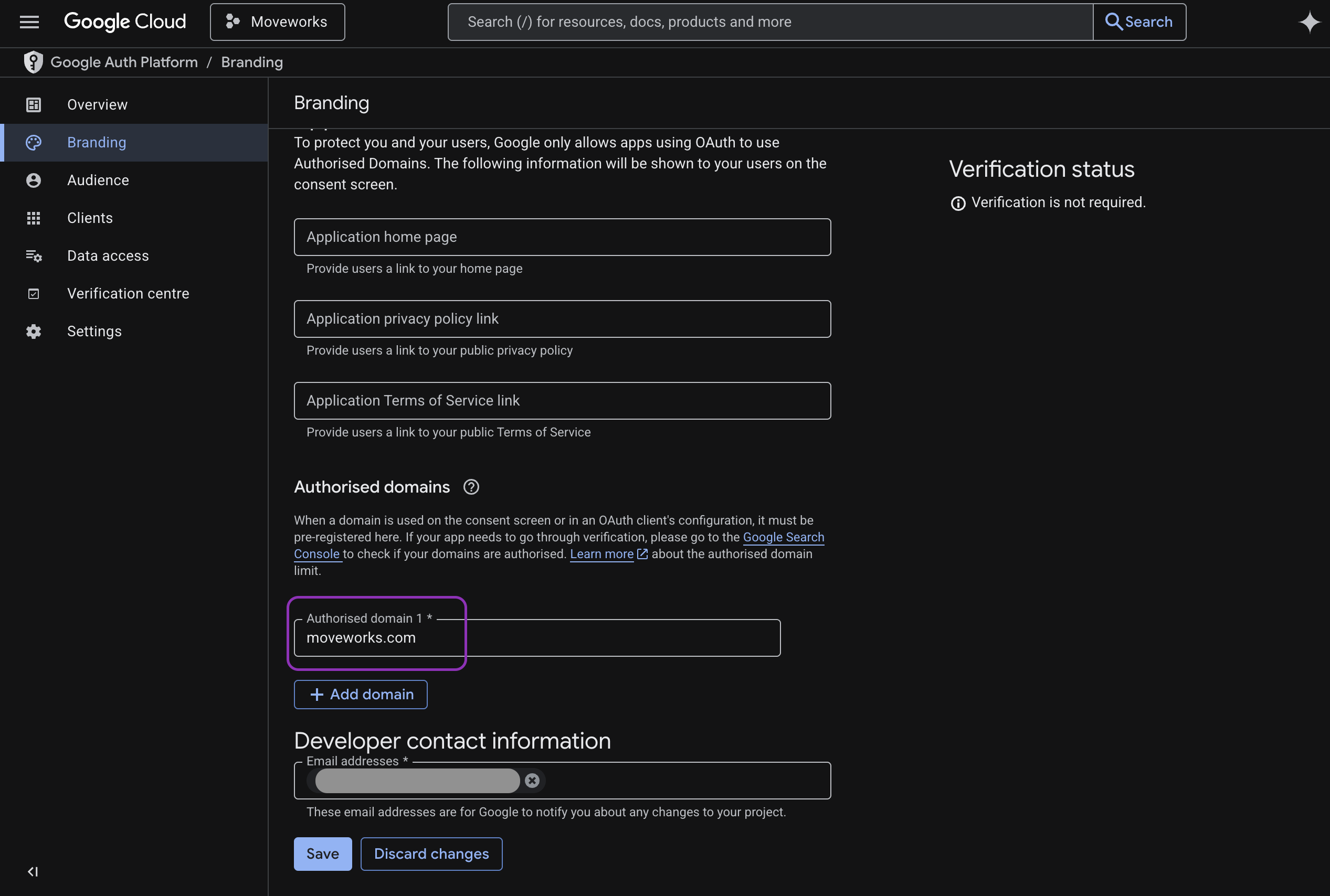
Go to OAuth Consent Screen → Branding
-
Click +Add Domain, then add moveworks.com as an authorized domain.
-
Add Developer contact information (e.g. Google admin email)
-
Click Save
-
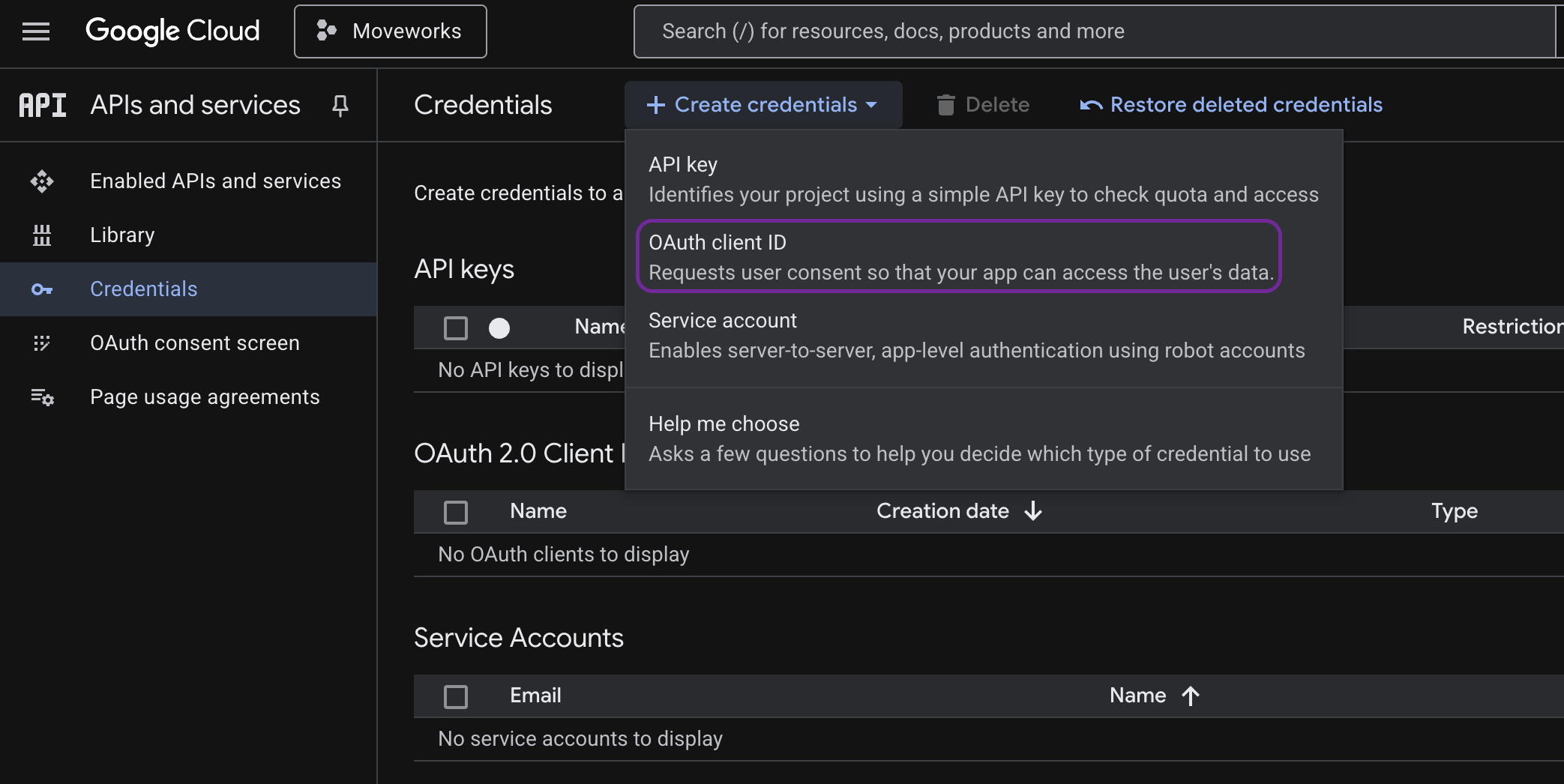
- Create OAuth 2.0 Client ID:
-
Go to APIs & Services → Credentials → Create Credentials → OAuth Client ID
-
Application Type: Web Application
-
OAuth 2.0 client Name: Moveworks App
-
Add Redirect URI's mentioned below:
- https://www.moveworks.com
- https://
<your_org_name>.moveworks.com/auth/oauthCallbackReplace
<your_org_name>with with your Moveworks organization name. (e.g.https://acme.moveworks.com/auth/oauthCallback)
-
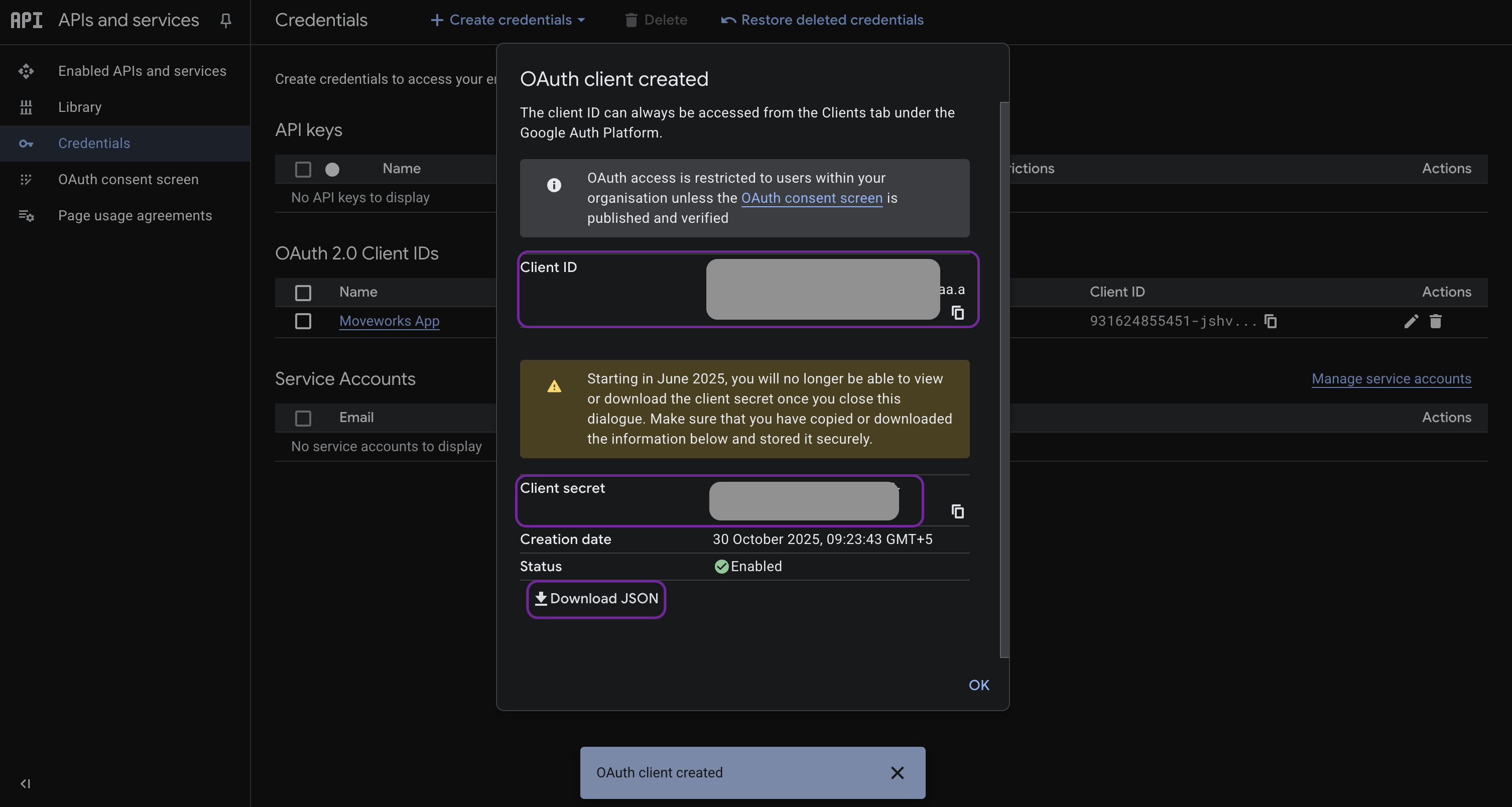
Once complete, a confirmation modal should display your client ID and client secret. Download the JSON file to a secure environment (e.g. your work laptop).
-
- Configure OAuth Consent Screen:
-
Connect Moveworks to Google Drive (Manual OAuth Setup)
The OAuth 2.0 authorization process for Google Drive is performed manually by your administrator. This process generates a refresh token for your Custom Super Admin account, which must later be entered in the Moveworks Setup Dashboard during connector configuration.
Follow the steps below to generate and verify your OAuth credentials.
Step 1: Initiate OAuth 2.0 Authorization Code Flow
You will manually initiate the OAuth flow to authorize your Custom Super Admin user account and retrieve an authorization code.
-
Construct the Authorization URL
Use the following Google OAuth 2.0 Authorization endpoint and scopes:
https://accounts.google.com/o/oauth2/v2/auth?scope=https://www.googleapis.com/auth/drive.readonly%20https://www.googleapis.com/auth/admin.directory.user.readonly%20https://www.googleapis.com/auth/admin.directory.group.member.readonly%20https://www.googleapis.com/auth/admin.directory.group.readonly&access_type=offline&include_granted_scopes=true&response_type=code&redirect_uri=https://www.moveworks.com&client_id=YOUR_CLIENT_ID&prompt=consent -
Why These Scopes Are Required
When initiating the OAuth 2.0 Authorization Code Flow, Moveworks requests the following scopes to ensure comprehensive ingestion of Google Drive content and accurate permissions mapping.Scope
Purpose
Grants Moveworks read-only access to files, folders, and shared drives. This enables ingestion of metadata and file content without the ability to modify or delete any data.
https://www.googleapis.com/auth/admin.directory.user.readonly
Allows Moveworks to read user information (e.g., names, emails, org units) to associate Drive permissions with actual users in your workspace.
https://www.googleapis.com/auth/admin.directory.group.readonly
Enables Moveworks to read Google Groups used in Drive ACLs (e.g., “[email protected] ”), ensuring proper permissions enforcement during search.
https://www.googleapis.com/auth/admin.directory.group.member.readonly
Provides visibility into group memberships so Moveworks can determine which users have access through nested group permissions.
-
Authorize and Retrieve the Authorization Code
-
Open the constructed URL in a new browser tab.
-
Sign in using your Custom Super Admin credentials.
-
Grant the requested permissions when prompted.
-
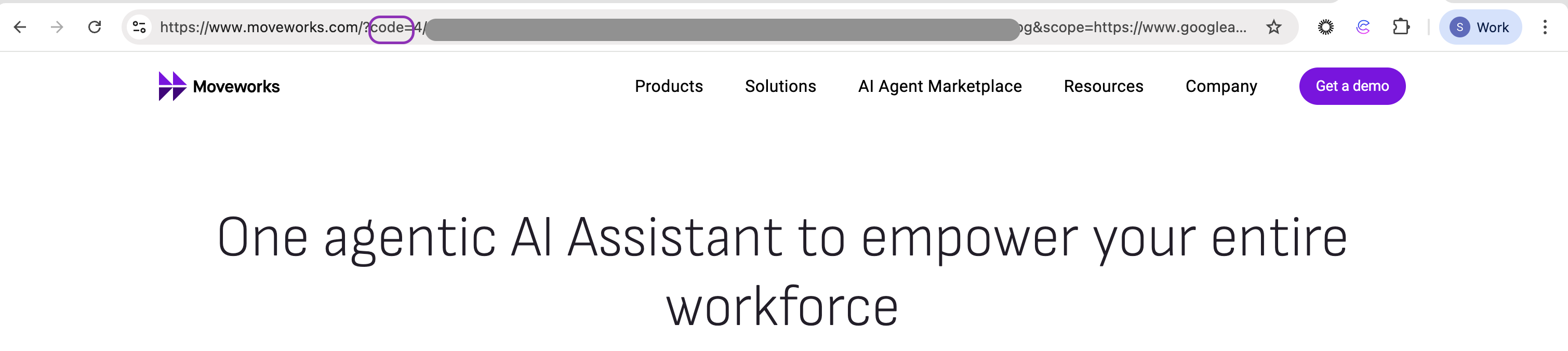
After successful authorization, Google will redirect you to:
-
Copy the authorization code value from the URL — you’ll need it in the next step.
-
Step 2: Exchange Authorization Code for Access & Refresh Tokens
Use the authorization code to obtain the access token and refresh token. You can perform this request using cURL or Postman.
POST Request:
curl --location 'https://oauth2.googleapis.com/token' \
--header 'Content-Type: application/x-www-form-urlencoded' \
--data-urlencode 'grant_type=authorization_code' \
--data-urlencode 'code=AUTHORIZATION_CODE' \
--data-urlencode 'redirect_uri=https://www.moveworks.com' \
--data-urlencode 'client_id=YOUR_CLIENT_ID' \
--data-urlencode 'client_secret=YOUR_CLIENT_SECRET'
Parameters Explained:
- grant_type: Always authorization_code
- code: The authorization code obtained from Step 1
- redirect_uri: Must be https://www.moveworks.com
- client_id: Client ID from your Google Cloud OAuth app
- client_secret: Client Secret from your Google Cloud OAuth app
Save the refresh_token securely — it will be required when configuring the Moveworks connector.
-
-
Testing Your OAuth App Refresh Token Access (Optional)
You can verify that your refresh token and scopes work correctly before proceeding.
-
Get Access Token Using Refresh Token
Use your saved refresh token to generate a new access token.
POST Request:curl --location 'https://oauth2.googleapis.com/token' \ --header 'Content-Type: application/x-www-form-urlencoded' \ --user 'YOUR_CLIENT_ID:YOUR_CLIENT_SECRET' \ --data-urlencode 'grant_type=refresh_token' \ --data-urlencode 'refresh_token=YOUR_REFRESH_TOKEN'Sample Response:
{ "access_token": "ya29.a0AfH6SMAHhC_SomeNewAccessToken", "expires_in": 3600, "token_type": "Bearer" } -
Validate API Access
Once you have a valid access token, test your setup using the following sample API calls.
-
List Files
curl --location 'https://www.googleapis.com/drive/v3/files' \
  --header 'Authorization: Bearer YOUR_ACCESS_TOKEN' \
  --get \
  --data-urlencode 'pageSize=100' \
  --data-urlencode 'fields=nextPageToken,files(id,name,mimeType,owners(emailAddress,displayName))' \
  --data-urlencode 'includeItemsFromAllDrives=true' \
  --data-urlencode 'supportsAllDrives=true'
Once you have successfully hit the /files API and retrieved a file list, copy one of the returned file IDs and use it in the following cURL request to validate file-level permissions.
-
Get File Permissions
curl --location 'https://www.googleapis.com/drive/v3/files/FILE_ID/permissions' \ --header 'Authorization: Bearer YOUR_ACCESS_TOKEN' \ --get \ --data-urlencode 'fields=permissions(id,type,role,emailAddress,domain,allowFileDiscovery)' \ --data-urlencode 'supportsAllDrives=true' -
List Users
curl --location 'https://admin.googleapis.com/admin/directory/v1/users' \ --header 'Authorization: Bearer YOUR_ACCESS_TOKEN' \ --get \ --data-urlencode 'customer=my_customer' \ --data-urlencode 'maxResults=100' \ --data-urlencode 'orderBy=email' \ --data-urlencode 'projection=full' -
List Groups
curl --location 'https://admin.googleapis.com/admin/directory/v1/groups' \
  --header 'Authorization: Bearer YOUR_ACCESS_TOKEN' \
  --get \
  --data-urlencode 'customer=my_customer' \
  --data-urlencode 'maxResults=100'
-
-
Option 2: Service Account without Domain-Wide Delegation
Use this method to ingest Shared Drives and files explicitly shared with a Service Account — no user impersonation or consent required.
-
**Create Service Account **
-
Visit the Google Cloud Console
-
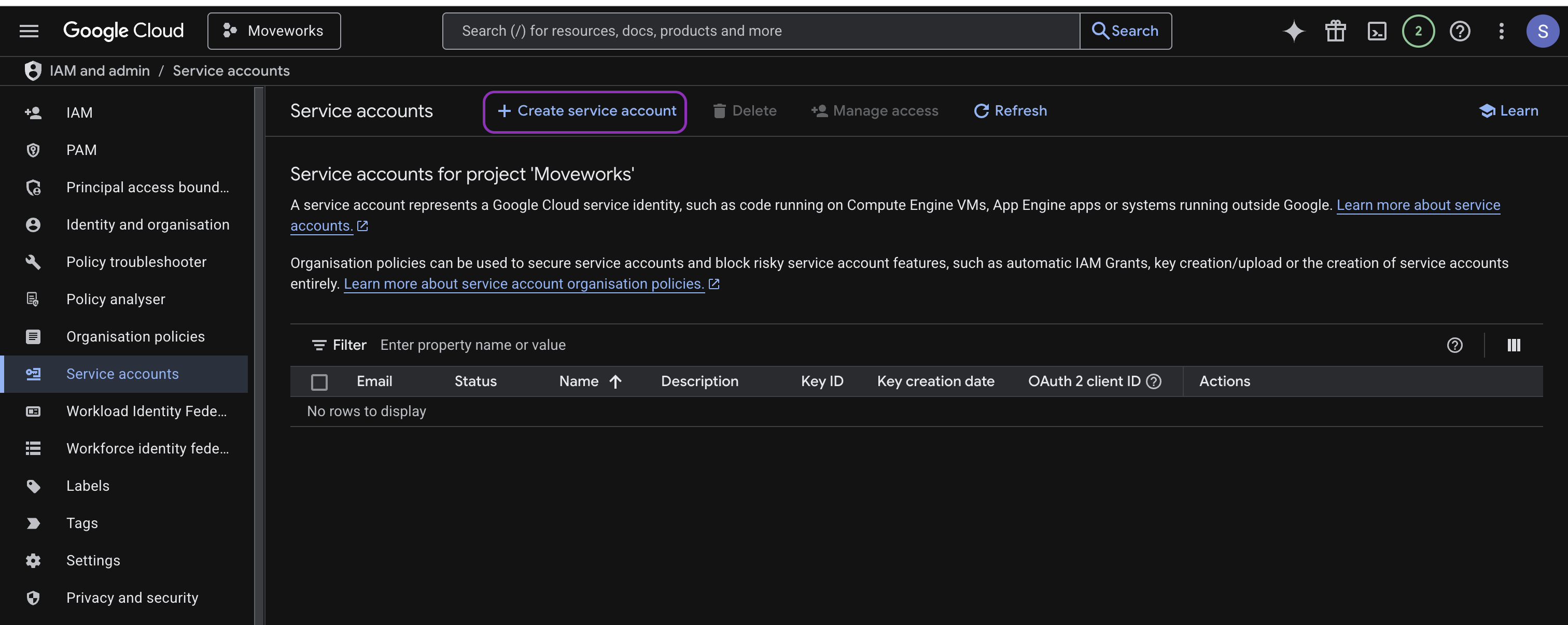
Go to IAM & Admin → Service Accounts.
-
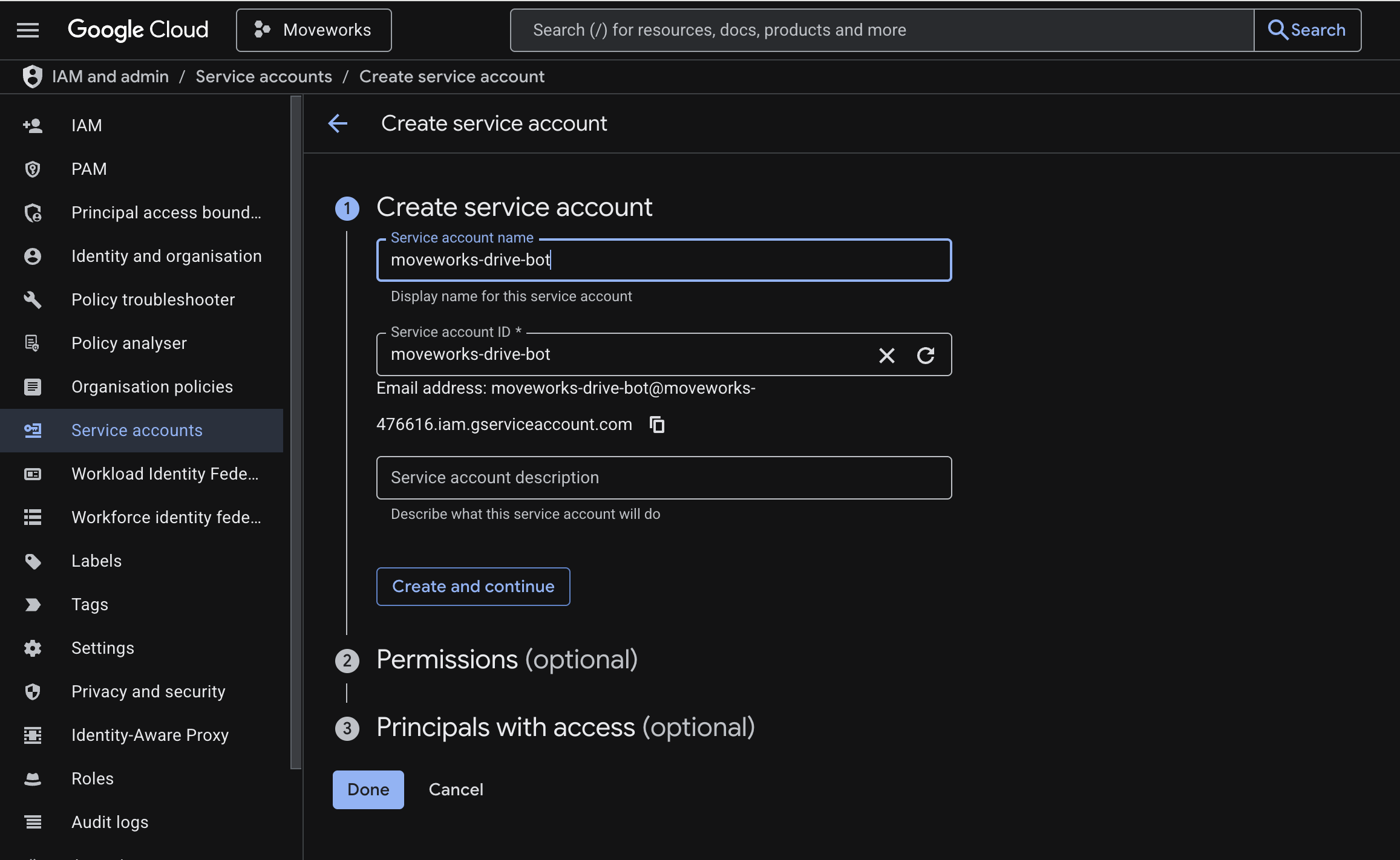
Click Create Service Account.
-
Name it (e.g., moveworks-drive-bot)
-
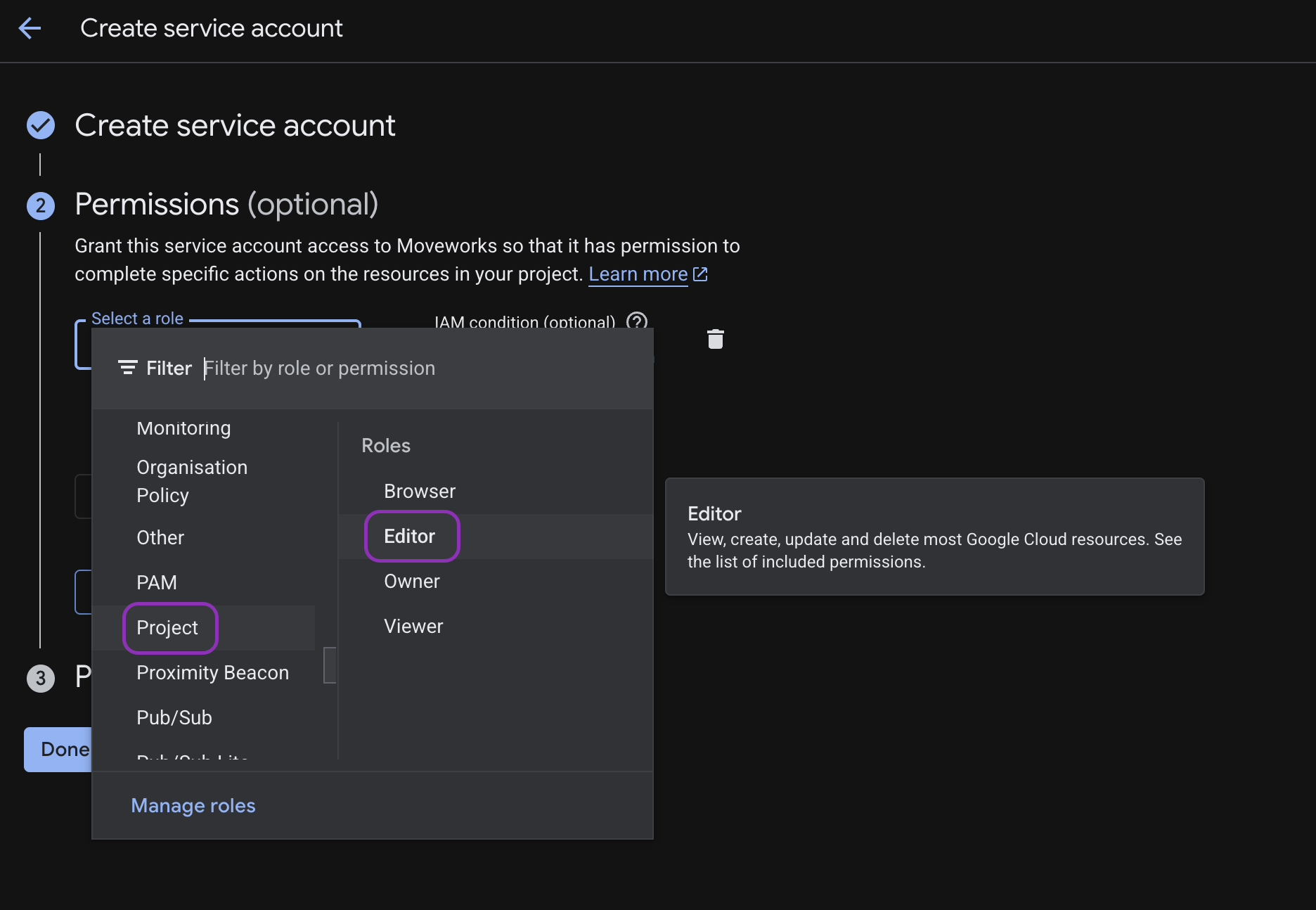
Assign the role Project → Editor (can be reduced later).
-
-
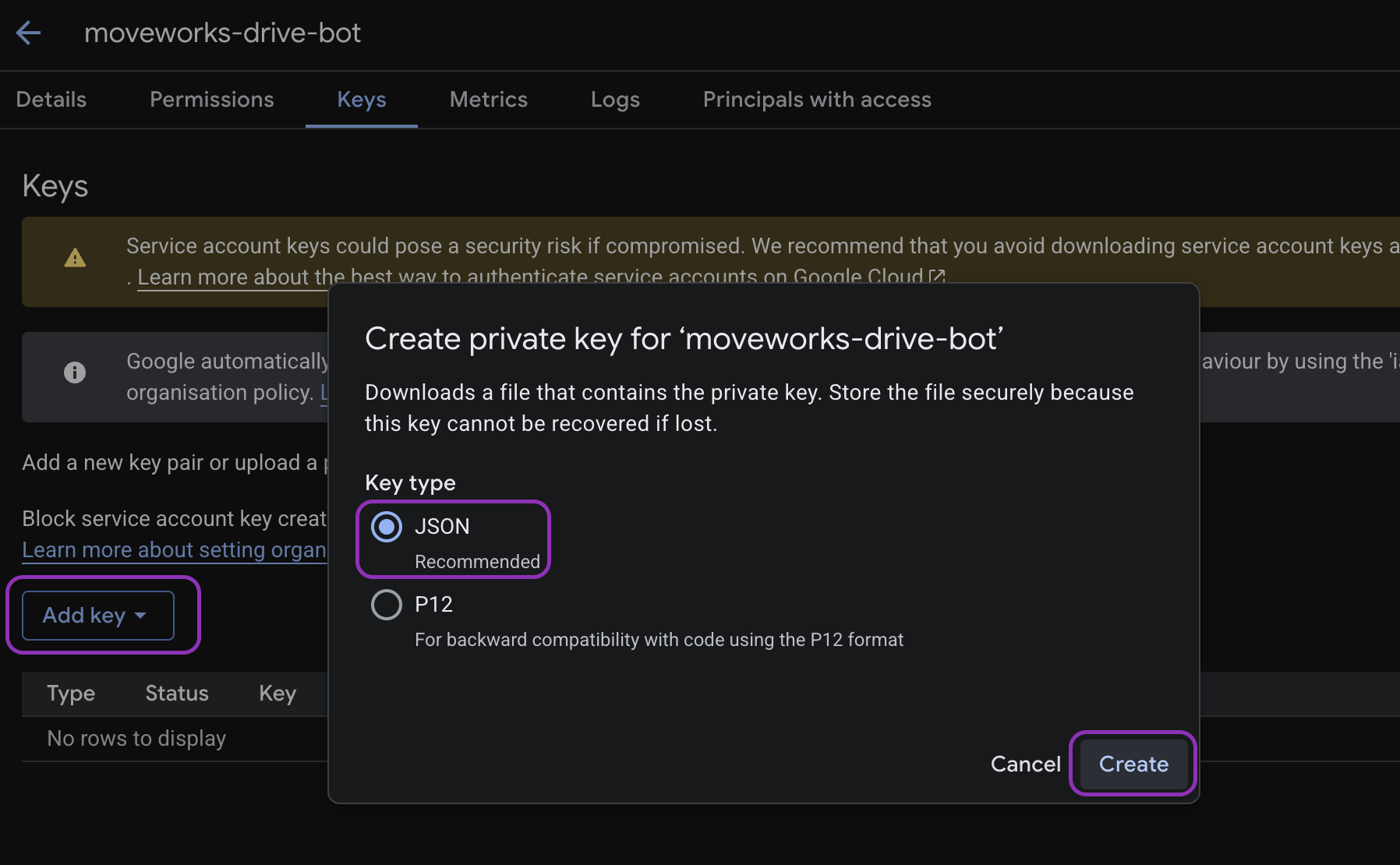
Select the newly created service account → go to Keys → Add Key → Create new key → JSON.
-
Click Create and save the downloaded JSON file securely.
-
-
-
Create Custom Admin Role
-
Log in to the Google Admin Console using your Google Workspace admin credentials.
-
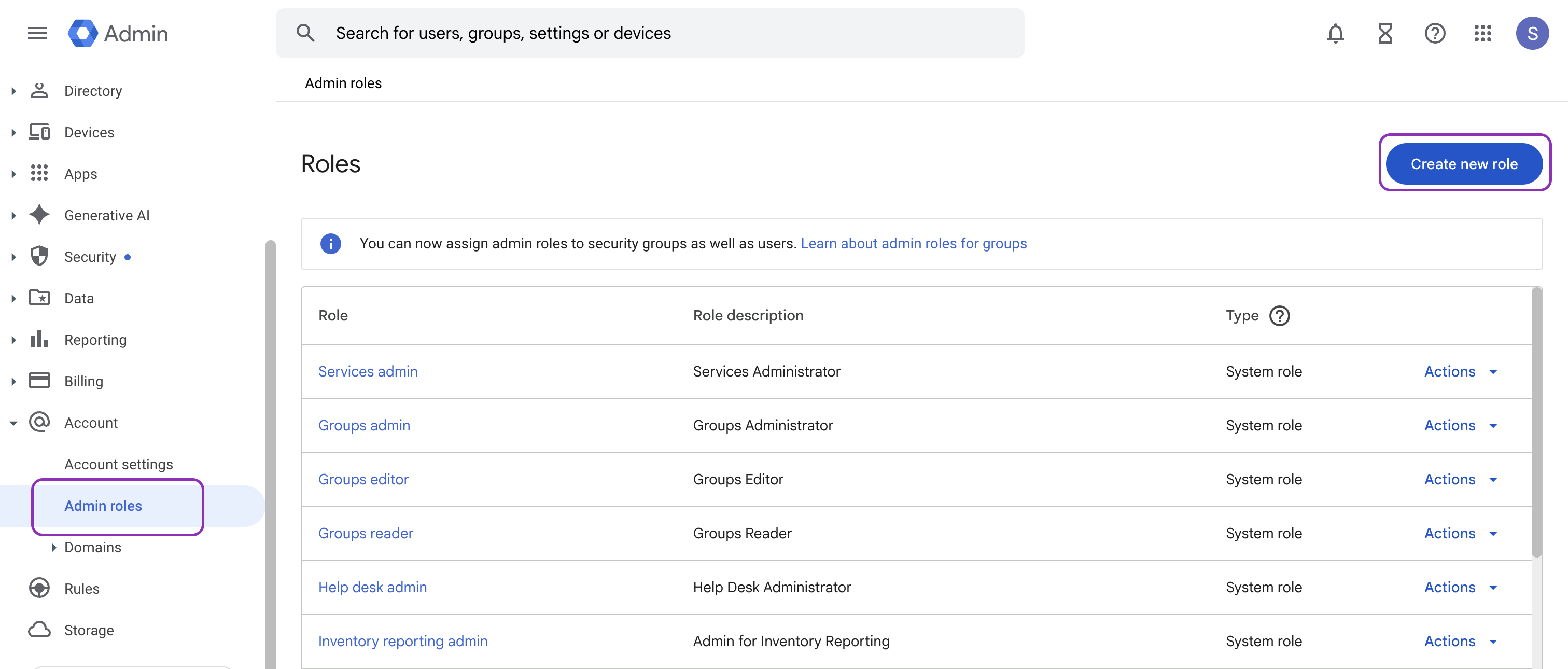
Go to Account → Admin roles → Create new role.
-
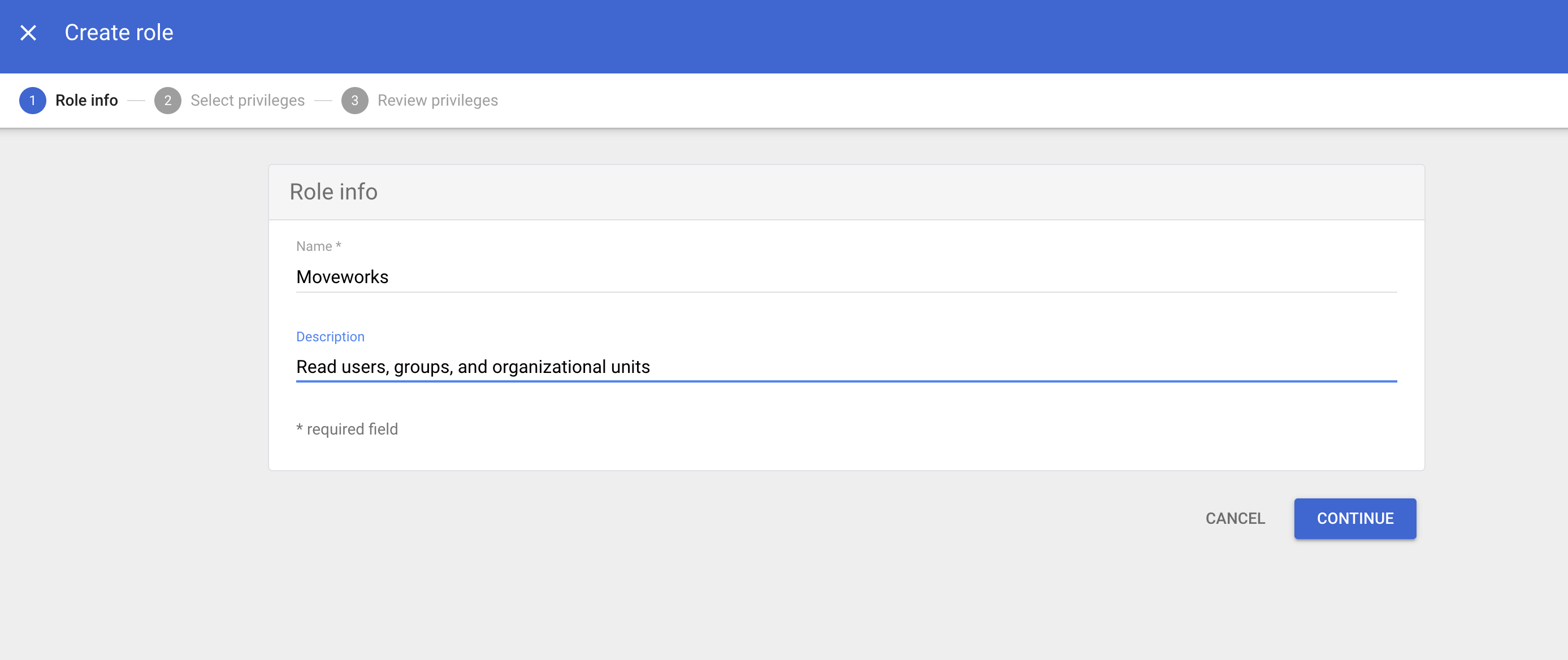
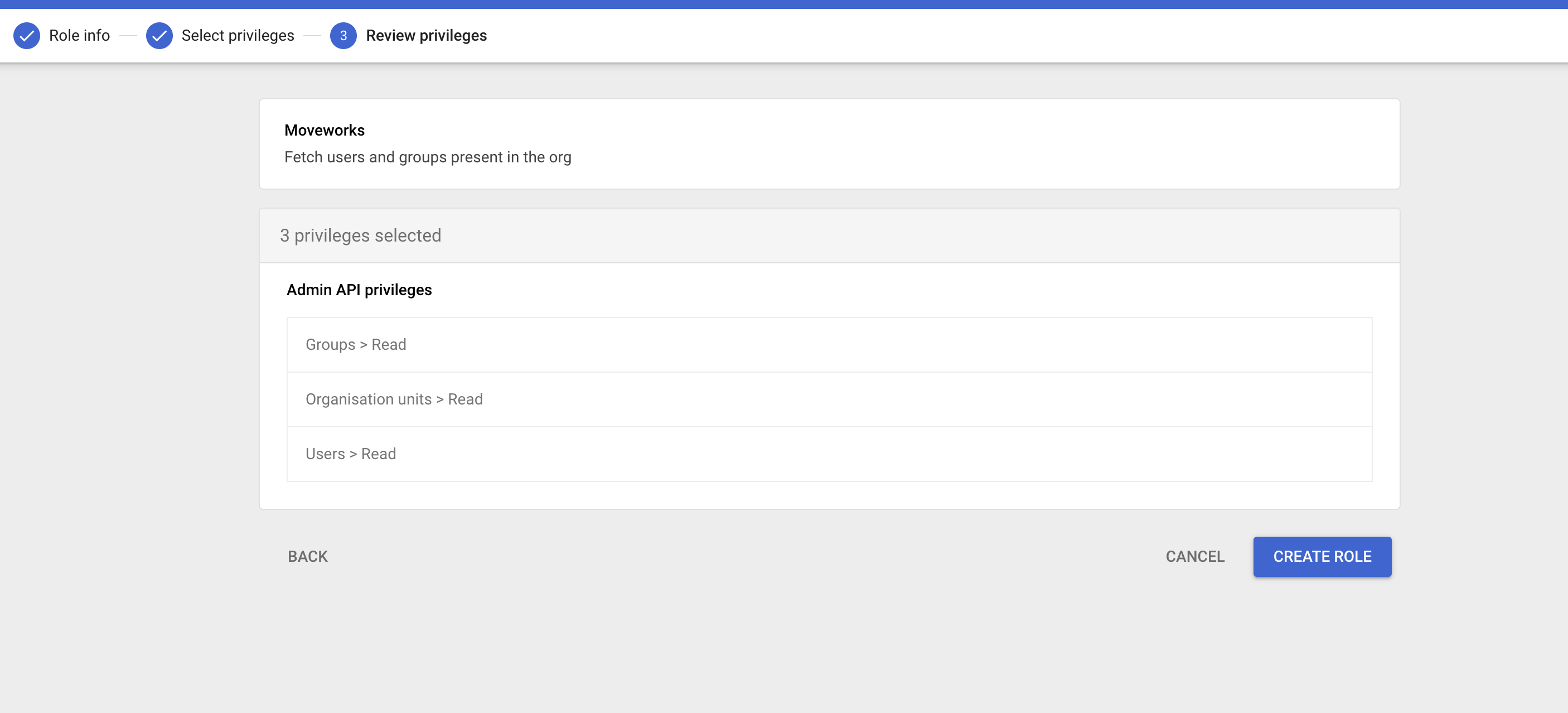
Enter the role info:
-
Name: Moveworks
-
Description: Read users, groups, and organizational units
-
-
Under Admin API Privileges, grant:
- Organization Units → Read
- Users → Read
- Groups → Read
-
Click Continue, then Create role.
-
Assign the service account to the role
-
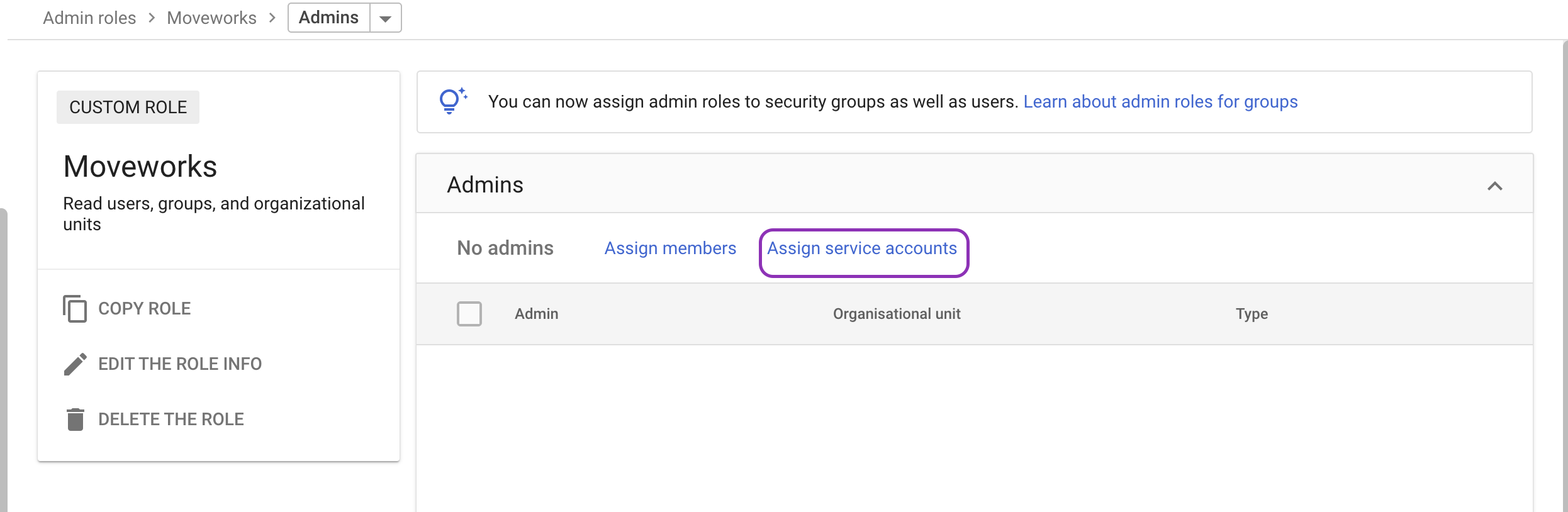
Open the custom role you created.
-
Click Assign service accounts.
-
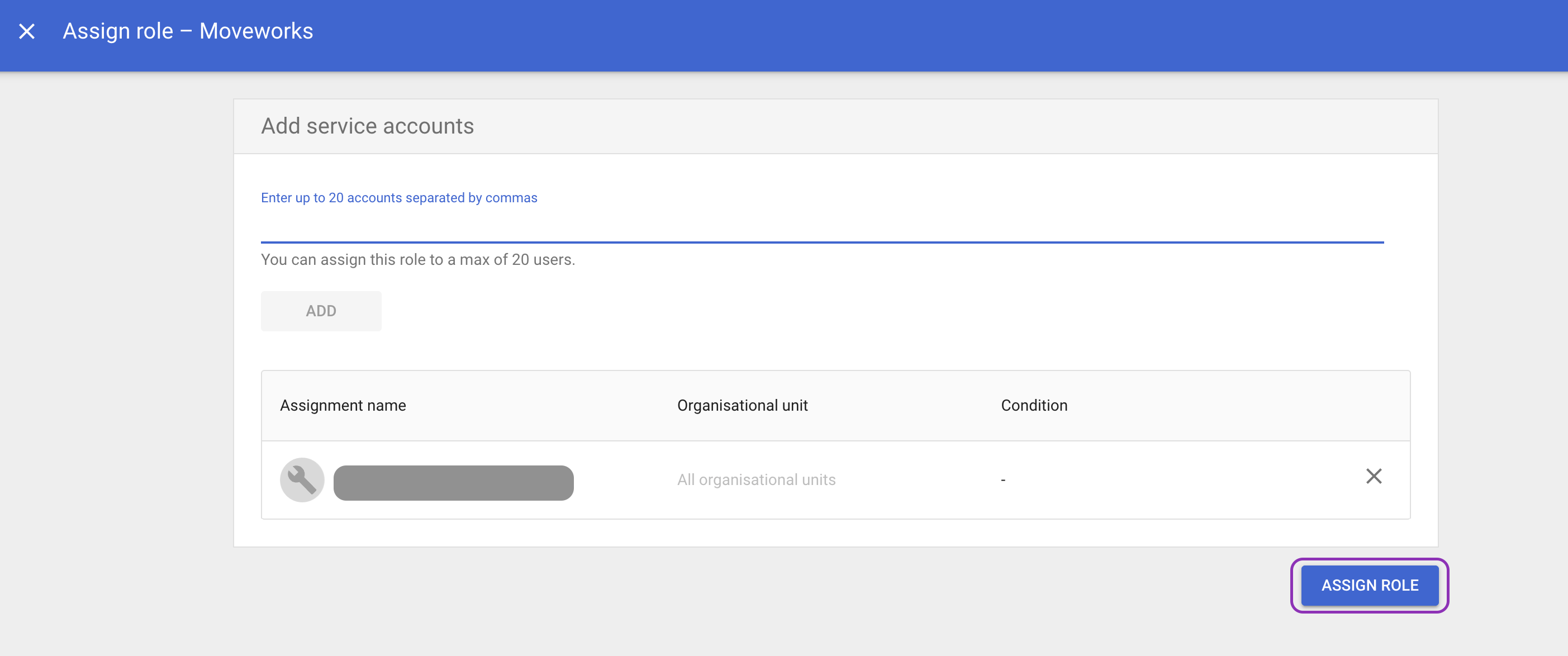
Enter the service account email.
-
Click Add, then Assign role.
-
-
-
Customer ID Reference
When using the Service Account without Domain-Wide Delegation, Moveworks also requires your Google Workspace Customer ID to look up user and group metadata via the Admin SDK endpoints (/users and /groups).
This value ensures that Moveworks can correctly associate Drive permissions with your organization’s directory users and groups during Enterprise Search configuration.
How to Find Your Customer ID
- Log in to https://admin.google.com/ using your Super Admin account.
- Go to Account → Account Settings → Profile.
- Under Account Information, locate your Customer ID — it usually starts with a capital C followed by a string of letters and numbers (for example, C03ab4xyz).
- Save this value securely; Moveworks will request it when setting up Enterprise Search for Google Drive.
-
Grant Shared Drive Access
- Log in to Google Drive as a user with access to the required Shared Drives.
- Click each Shared Drive → Manage Members → Add the Service Account email.
- Assign Content Manager permissions.
-
Setup in Moveworks
Connector Creation
- Log in to your org's MyMoveworks portal
- Navigate to Moveworks Setup > Connectors > Built-in Connectors
- Click Create New
- Search and Select Google Drive (Next Gen)
- Click on Next: Add Creds
- Choose your Authentication Type and fill in the fields as described below.
Option 1: OAuth 2.0 – Refresh Token Grant (Recommended)
This method enables ingestion of Shared Drives and optionally, private user content (when end-user consent is granted).
Fill out the following fields:
- Connector Name — Name this connector for your reference. Once set, this name cannot be changed.
- Client ID — The Client ID from your Google Cloud OAuth 2.0 app credentials, used for authorization.
- Client Secret — The Client Secret from your Google Cloud OAuth 2.0 app credentials, used to securely exchange tokens.
- Refresh Token — The Refresh Token generated during the OAuth 2.0 flow for your Custom Super Admin account.
Option 2: Service Account Authentication without Domain-Wide Delegation
This method ingests content only from Shared Drives or files explicitly shared with the Service Account. It does not impersonate users or ingest private user data.
Fill out the following fields:
-
Connector Name — Name this connector for your reference. Once set, this name cannot be changed.
-
Service Account Email — The email ID of your Service Account (
<service-account>@<project>.iam.gserviceaccount.com). -
Private Key File Upload — Upload a
.pemfile that contains only the private key (without any line breaks).Example Conversion Steps-
Open the JSON file in a text editor (e.g., VS Code or Notepad++).
-
Copy the string under
"private_key". -
Remove all
\nline breaks so the key becomes a single continuous line. -
Save the result in a new file named
gdrive_private_key.pem.-
Example .pem File Content
-----BEGIN PRIVATE KEY-----
MIIE*********gboAj4
JIKS*********nmoOsk
-----END PRIVATE KEY-----
-
-
Configuring Google Drive for Enterprise Search
Initialising setup
- Log in to your org's MyMoveworks portal
- Navigate to Moveworks Setup > Answers > Ingestion > Enterprise Search
- Click on Create New or Get Started
- Select Google Drive from the dropdown list and click on Get Started
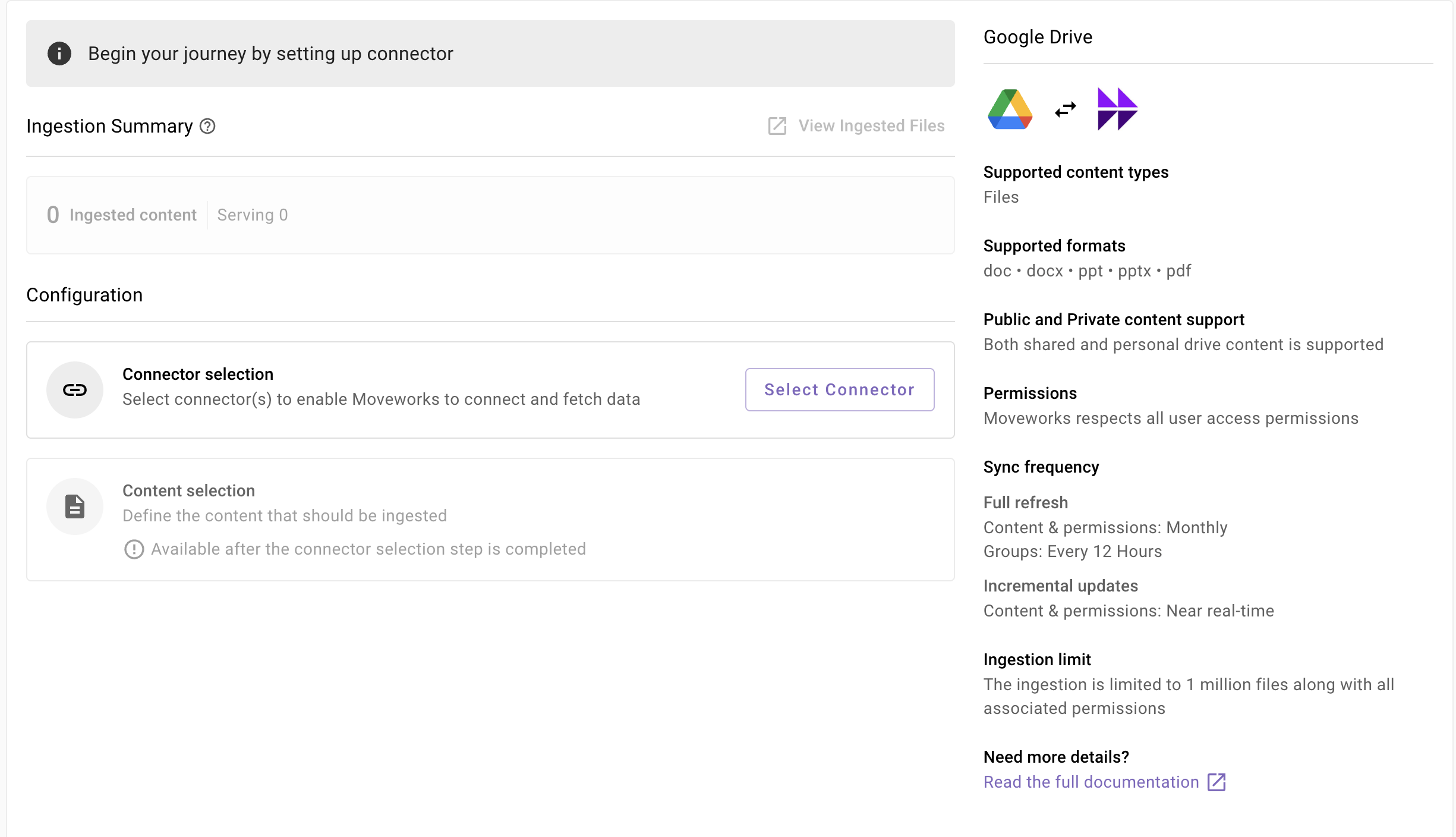
- You will be redirected to the Google Drive ingestion overview page. In the overview page, you will find few info blocks and few configuration blocks.
-
System Overview: This presents an overview of Google Drive support from Moveworks
-
Ingestion Summary: This provides information on the count of records that has been ingested and serving. The values will appear after the first successful ingestion run.
-
Connector Selection: In this configuration block, you are required to select the required connector to enable Moveworks to connect and fetch data
-
Content Selection: In this configuration block, you are required to define the content that should be ingested within Moveworks
Connector selection and validation-
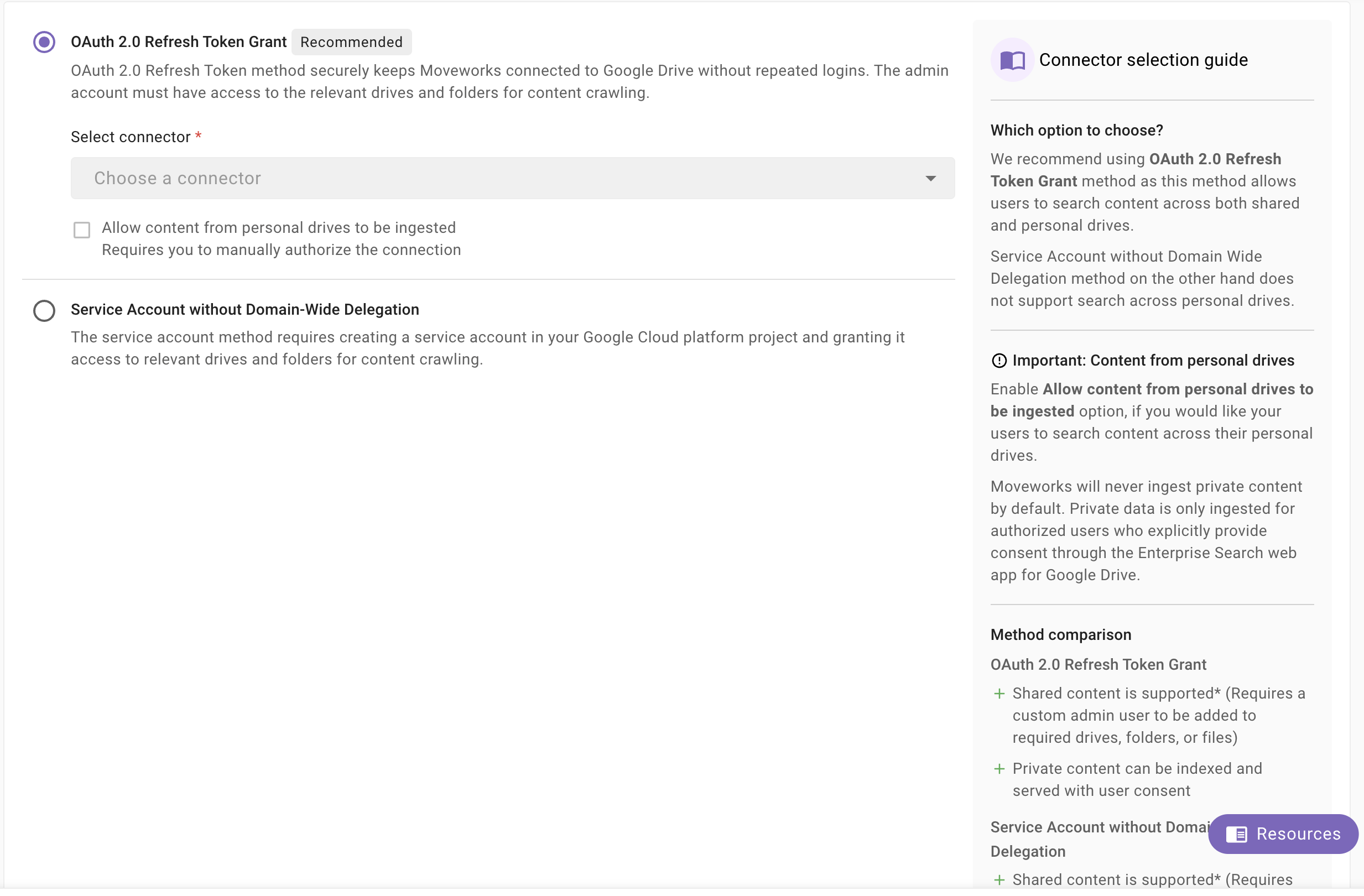
Once you click on Select Connector, a connector setup screen will appear as follows
-
Select the connector (from the dropdown) that you have created in the Connector Creation step.
Please note: Only the Google Drive (Next Gen) connectors will appear in this list.
-
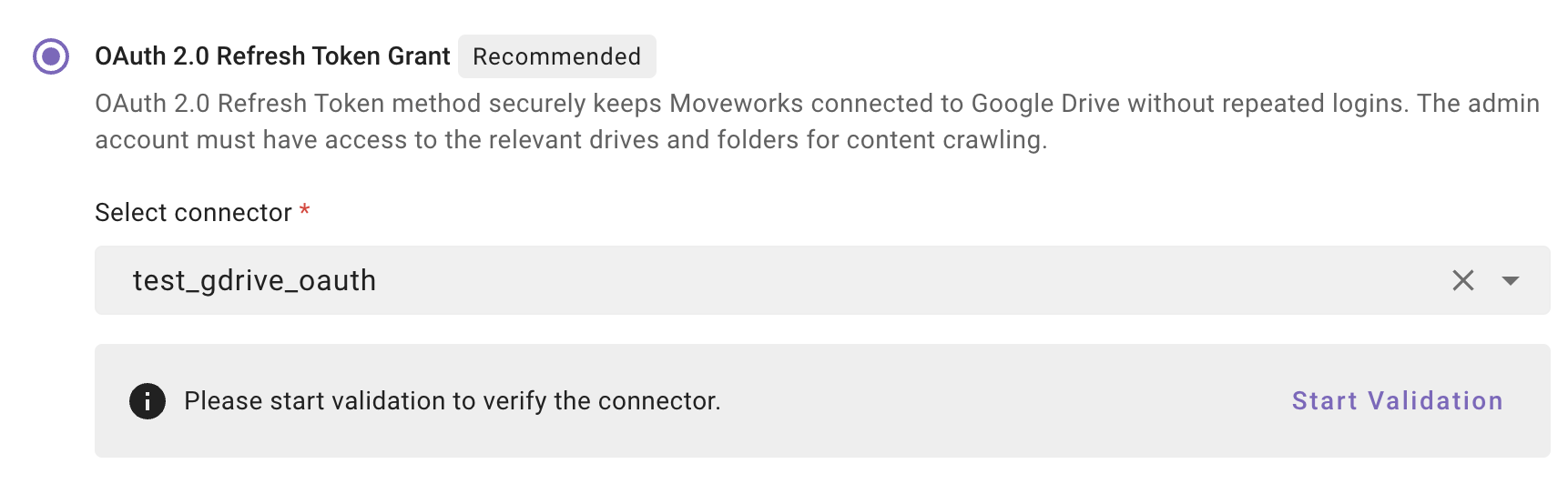
Once the connector is selected, you need to click on Start Validation to validate the connector credentials and required scope.
Connector Validation
This is a mandatory step in order to save the configuration and move to the next step.
Moveworks validates the selected connector to check:
- Auth: Moveworks validates if the connector has right credentials to authenticate
- Content: Moveworks validates if connector has right scopes to fetch content
- Permissions: Moveworks validates if connector has right scopes to fetch user permissions
- Users: Moveworks validates if connector has right scopes to fetch user data
- Groups: Moveworks validates if connector has right scopes to fetch user groups data.
If you’re using Service Account authentication, make sure to enter your Google Workspace Customer ID before starting validation. This allows Moveworks to verify user and group access correctly.
-
If the connector is validated successfully, you will see a green info banner as follows
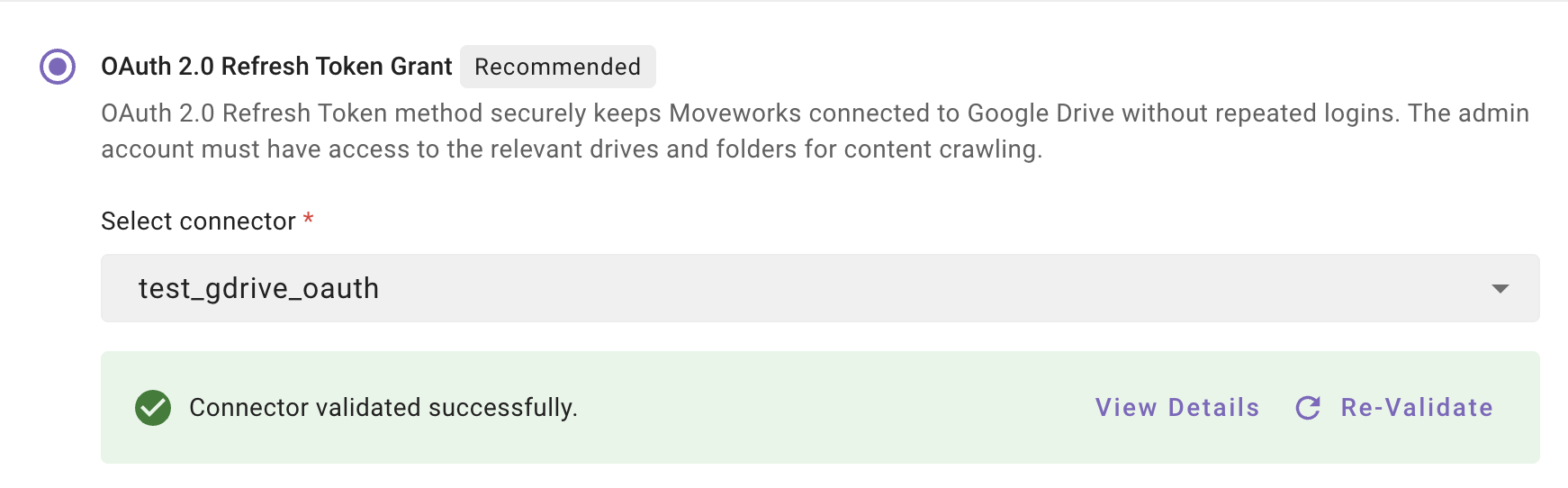
- If there are any credentials or scope issues, you will receive an error message. Click on View Details to identify the issue. Refer to this step-by-troubleshoot guide (link to be added) to rectify any validation errors.
-
Once the connector is validated successfully, you will be able to Save the configuration.
-
Input the unique configuration name and Save.
-
Once the configuration is saved, you can view the unique configuration name at the top of the screen. You can also click the pencil 🖊️ icon to edit the configuration name.

-
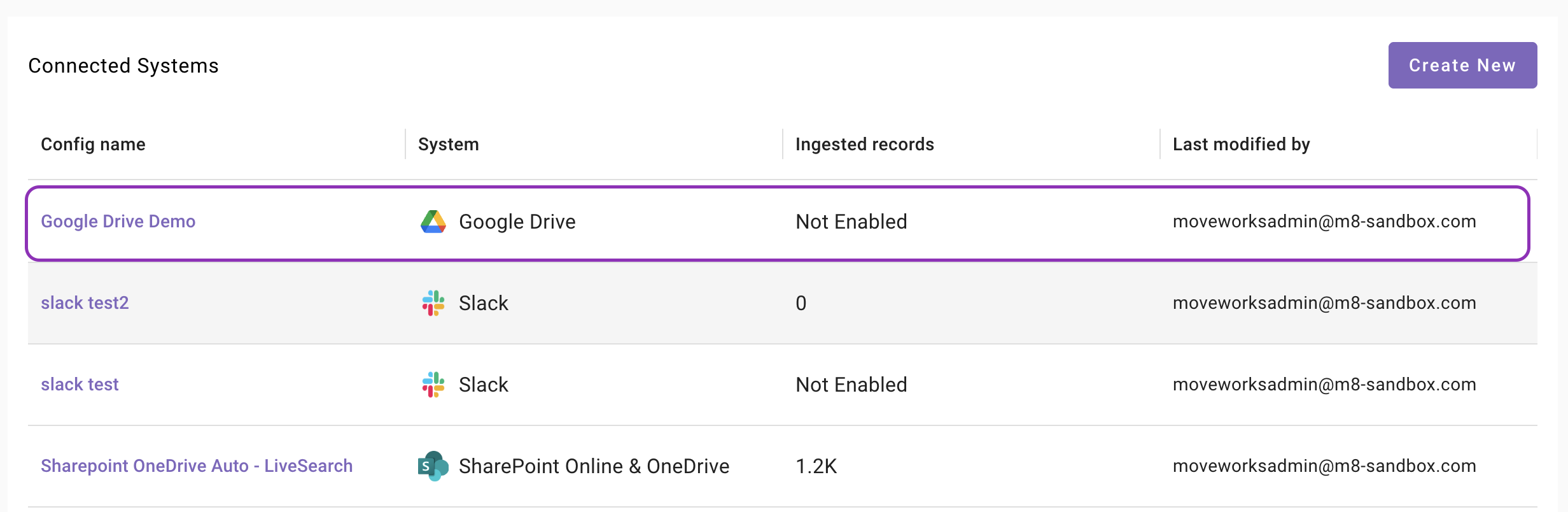
Additionally, you will start seeing an entry of your configuration in the Enterprise Search home page. You can click on your configuration to go to edit/ complete the configuration.
-
-
Content Selection
Once the connector selection step is complete and the configuration is saved, you will now be required to define the scope of content that will be ingested in Moveworks.
-
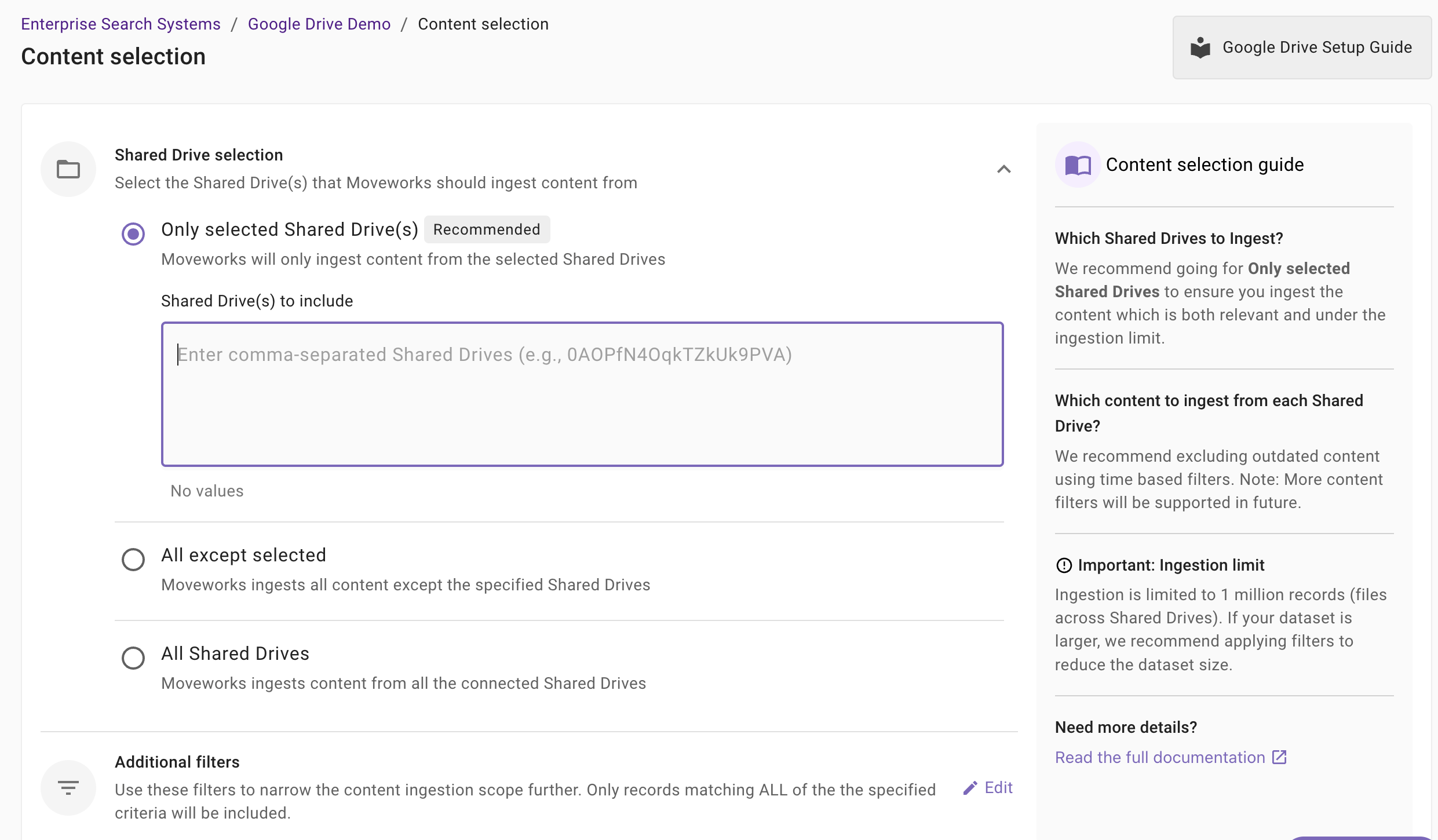
Once you click on Select Content, a content selection screen will appear as follows
-
In this screen, you are required to define the Shared Drives from which Moveworks will ingest content and apply filters (optionally) to filter down the content further.
-
Shared Drive Selection: This is a mandatory configuration. This configuration defines which shared drives Moveworks will crawl and ingest content from. As an admin, you get three option
-
Only selected shared drives (Recommended): Moveworks will ingest content only from the specified shared drives.
When to choose this option?
Choose this option if you want content to be served only from a subset of Shared Drives that are accessible to the Service Account or Custom Super Admin. For example — let’s assume your Service Account or Custom Super Admin has access to 15 Shared Drives, but you only want Moveworks to index 5 of them. In that case, choose this method.
Important Note: The Service Account (or Super Admin account used for OAuth) must have Content Manager access to each specified Shared Drive in order for Moveworks to crawl it successfully.
How to configure? Enter comma-separated Shared Drive IDs or names in the configuration field.
-
All except selected Moveworks will ingest content from all shared drives except the ones specified.
When to choose this option?
Choose this option if you want Moveworks to index almost all Shared Drives except a few shared drives. For example — let’s assume your Service Account or Custom Super Admin has access to 60 Shared Drives, but you want Moveworks to index only 58 of them. Choose this method and specify the 2 drives you want to exclude.
Important Note: The Service Account (or Super Admin account used for OAuth) must have Content Manager access to each specified Shared Drive in order for Moveworks to crawl it successfully.
How to configure? Enter comma-separated Shared Drive IDs or names in the configuration field.
-
All Shared Drives: Moveworks will ingest content from all applicable shared drives.
When to choose this option?
Choose this option if you want Moveworks to index content from every Shared Drive available to your Service Account or Custom Super Admin. For example — if your Service Account or Custom Super Admin has access to 20 Shared Drives and you want content from all 20 to be searchable, this method is the simplest choice.
Important Note: The Service Account (or Super Admin account used for OAuth) must have Content Manager access to each specified Shared Drive in order for Moveworks to crawl it successfully.
How to configure? Select this option. You are not required to specify Shared Drive IDs in this case.
-
-
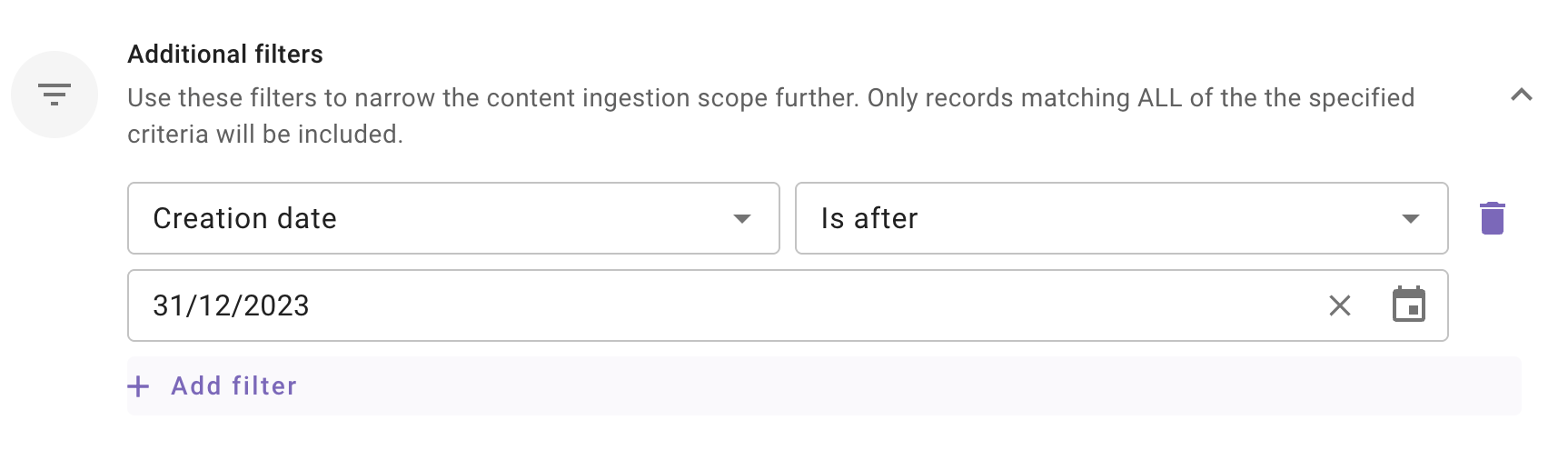
Additional Filters: Use these filters to narrow the content ingestion scope further. Only records matching ALL of the the specified criteria will be included.
Currently following filters are supported:
- Modified date: Use this filter to include only those content records whose Modified date is after a specified date.
- Created date: Use this filter to include only those content records whose Created date is after a specified date.
Note: We support absolute dates only. Relative ranges (e.g., “last 7 days,” “older than 1 year”) are not supported.
Save and Start Ingestion
Once Shared Drives selection is configured, you have two options:
-
Save: Clicking this will just save the configuration and not initiate the first ingestion crawl. Use this option, if you would want to complete your configuration in multiple sessions/ sittings.
-
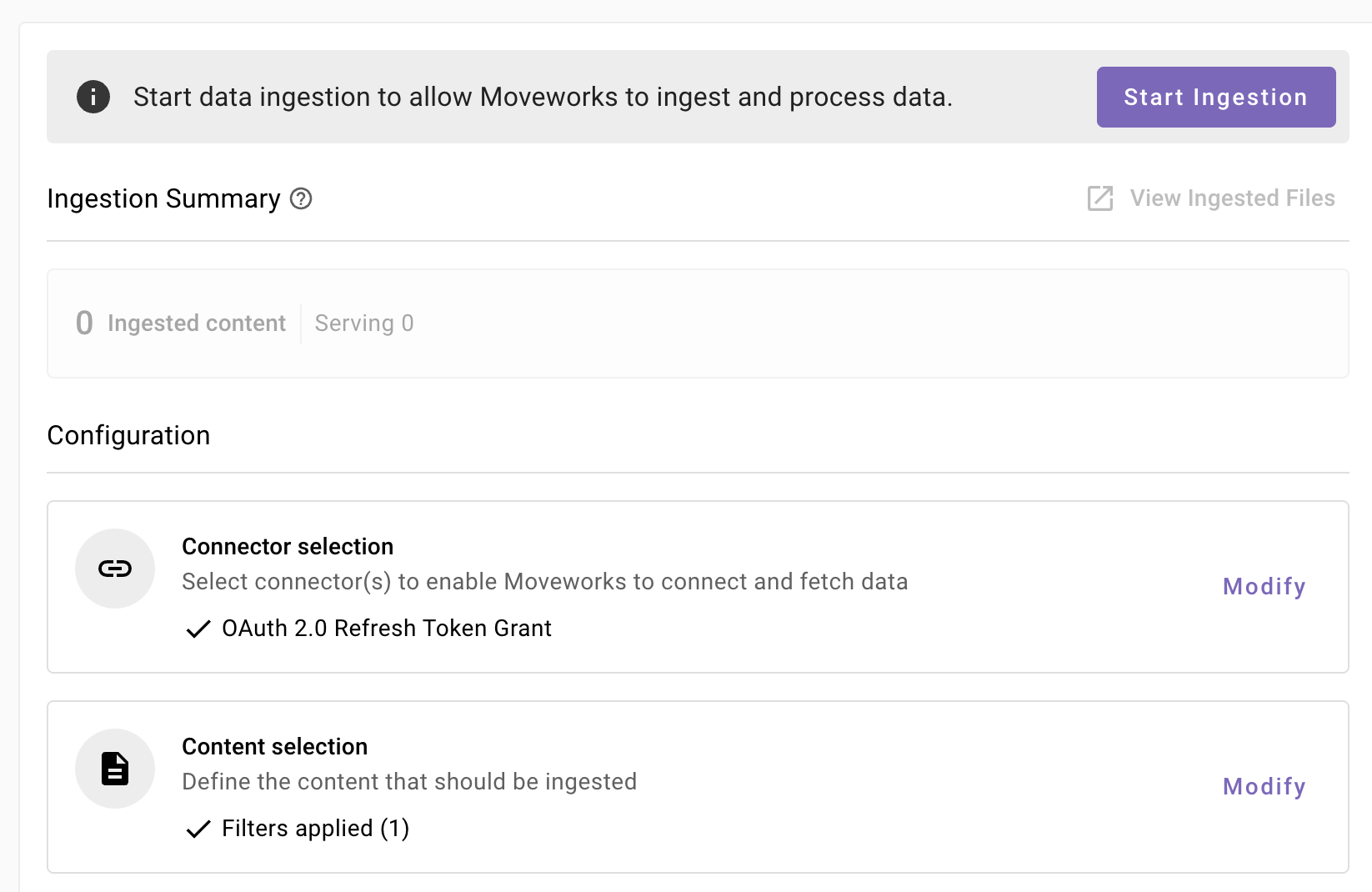
Once you click on Save, you will be redirected to the Google Drive overview screen
-
You will notice a banner that prompts you to Start Ingestion
-
Once you are satisfied with your configuration, you can click on Start Ingestion
-
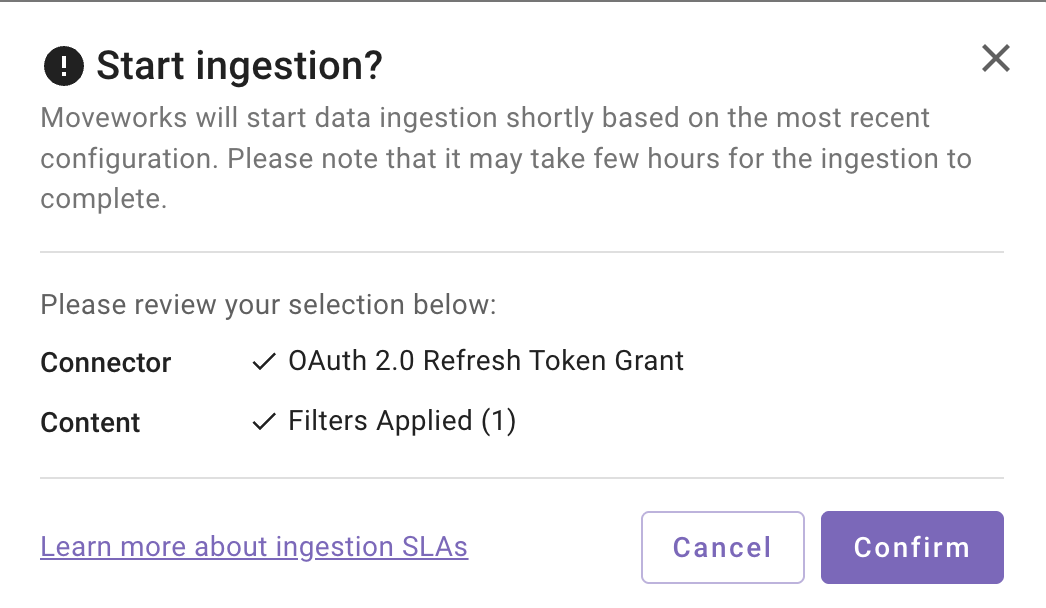
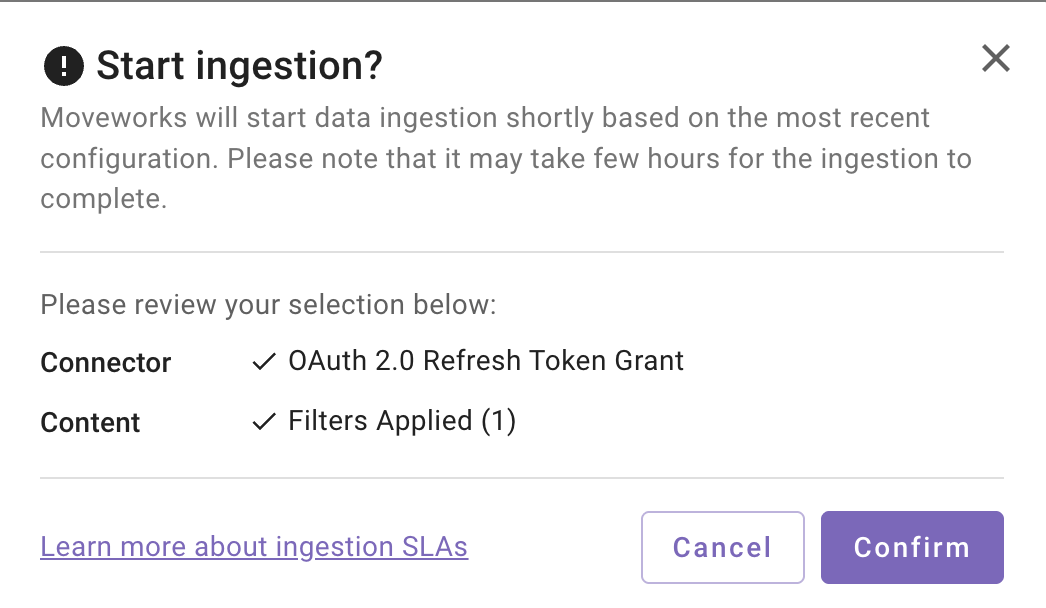
A confirmation popup will come that provides a summary of the configuration
-
Click on Confirm
-
After you click on Confirm, ingestion will start shortly.
-
For the first crawl to complete, this generally takes anywhere from few hours to 48 hours depending upon the size of the data.
-
-
Save and Start Ingestion: Click this option if you have completed and validated your content selection configuration and you are ready to initiate the first ingestion crawl.
-
A confirmation popup will come that provides a summary of the configuration
-
Click on Confirm
-
After you click on Confirm, ingestion will start shortly.
Important Note for Admins:
- It generally takes anywhere from few hours to 48 hours for the first crawl to complete depending upon the size of the data.
- You can review the status of ingestion via Data Ingestion Viewer and view ingested record in the Ingested File and Ingested Knowledge screens.
-
Troubleshooting Guides
This section helps you resolve common issues related to credentials or scopes when validating your Google Drive connector in Enterprise Search configuration.
Note: The troubleshooting steps apply to both Service Account and OAuth 2.0 authentication methods unless explicitly mentioned in the steps.
Invalid Credentials
Error Message(s):
- "Validation failed: Invalid credentials or missing required scopes."
Possible Cause(s):
- Incorrect or missing authentication credentials
- Expired or invalid tokens
- Configuration mismatch between authentication methods
Resolution Steps:
Check Connector Configuration:
- Navigate to Moveworks Setup > Connectors > [Your Google Drive Connector]
- Review the authentication method and required fields:
- For Service Account (without Domain-Wide Delegation):
- Confirm whether Service Account Email is correct
- Verify Private Key is properly formatted and valid
- Ensure the private key matches the service account
- For OAuth 2.0:
- Check Client ID is correct
- Verify Client Secret is correctly entered
- Confirm Refresh Token is valid
- For Service Account (without Domain-Wide Delegation):
- For any credential issues: Contact your Google Workspace administrator to verify service account setup or OAuth application configuration.
Missing Required Scopes
Content
Error Message(s):
- "Validation failed: Invalid credentials or missing required scopes."
Possible Causes(s)
- Service Account or custom super admin account not added to any shared drives
- No files present in your Google Drive content system
Resolution Steps
Test your Google Drive connector in API Playground
- Navigate to Moveworks Setup > Connectors > API Playground
- Import the Google Drive connector used for Enterprise Search
- Test the files API endpoint (with query parameters included):
- Shared Ingestion:
/drive/v3/files?corpora=allDrives&supportsAllDrives=true&includeItemsFromAllDrives=true - Private Ingestion:
/drive/v3/files?q='me'+in+owners
- Shared Ingestion:
- Verify Results:
- Expected response: List of files returned in the API response
- If no files returned: Check that files exist in the shared drives and the service account or custom super admin account have been added to the drives
- If API call fails: Check connector authentication and configuration settings
Permissions
Error Message(s):
- "Validation failed: Invalid credentials or missing required scopes."
Possible Causes(s)
- Insufficient permissions: Service Account or custom super admin account has viewer access instead of the required content manager access on shared drives
- Service Account or custom super admin account not added to any shared drives
- No files present in your Google Drive content system
Resolution Steps
- Verify Service Account Permissions
-
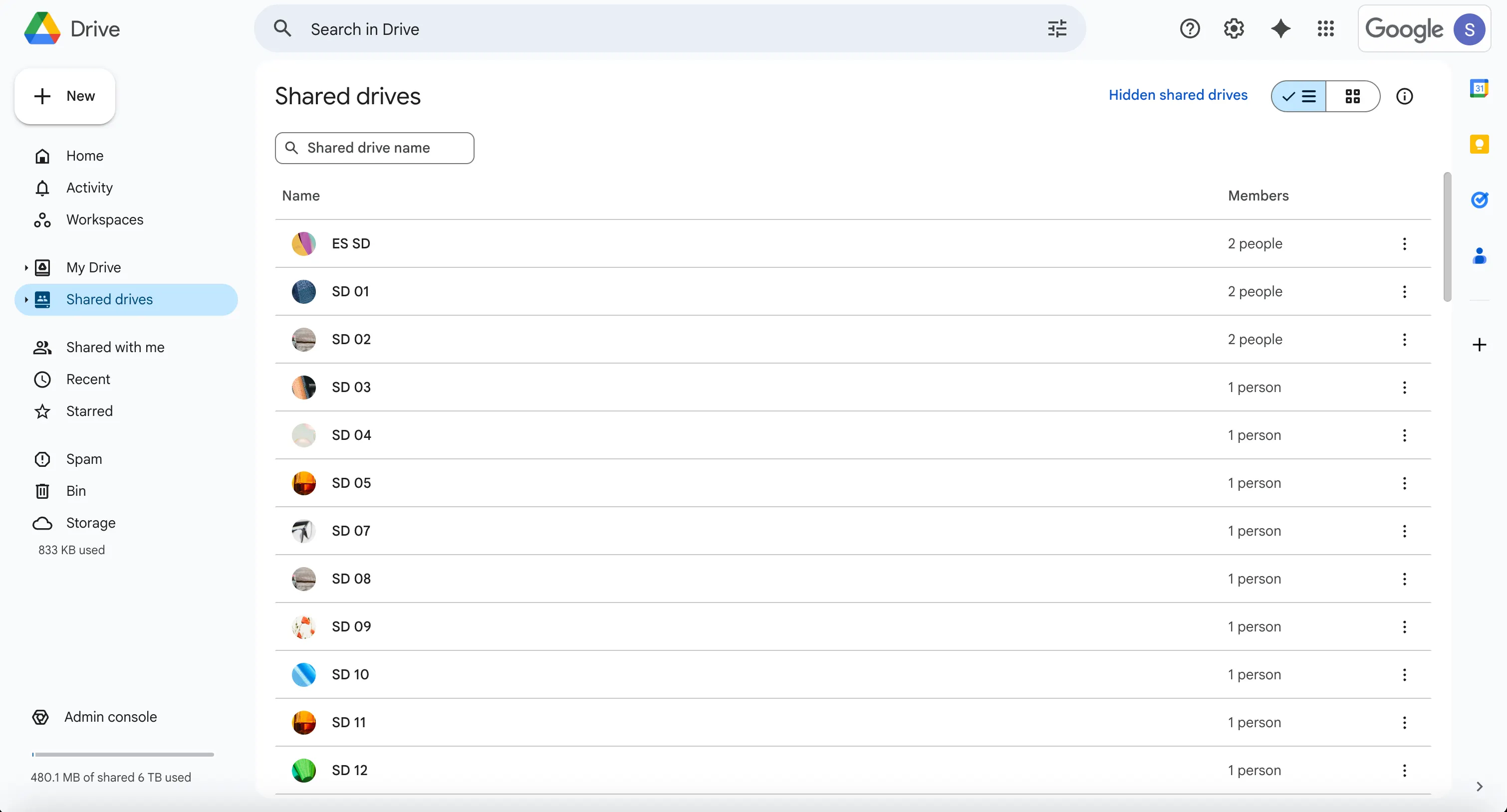
Navigate to Google Drive > Shared drives
-
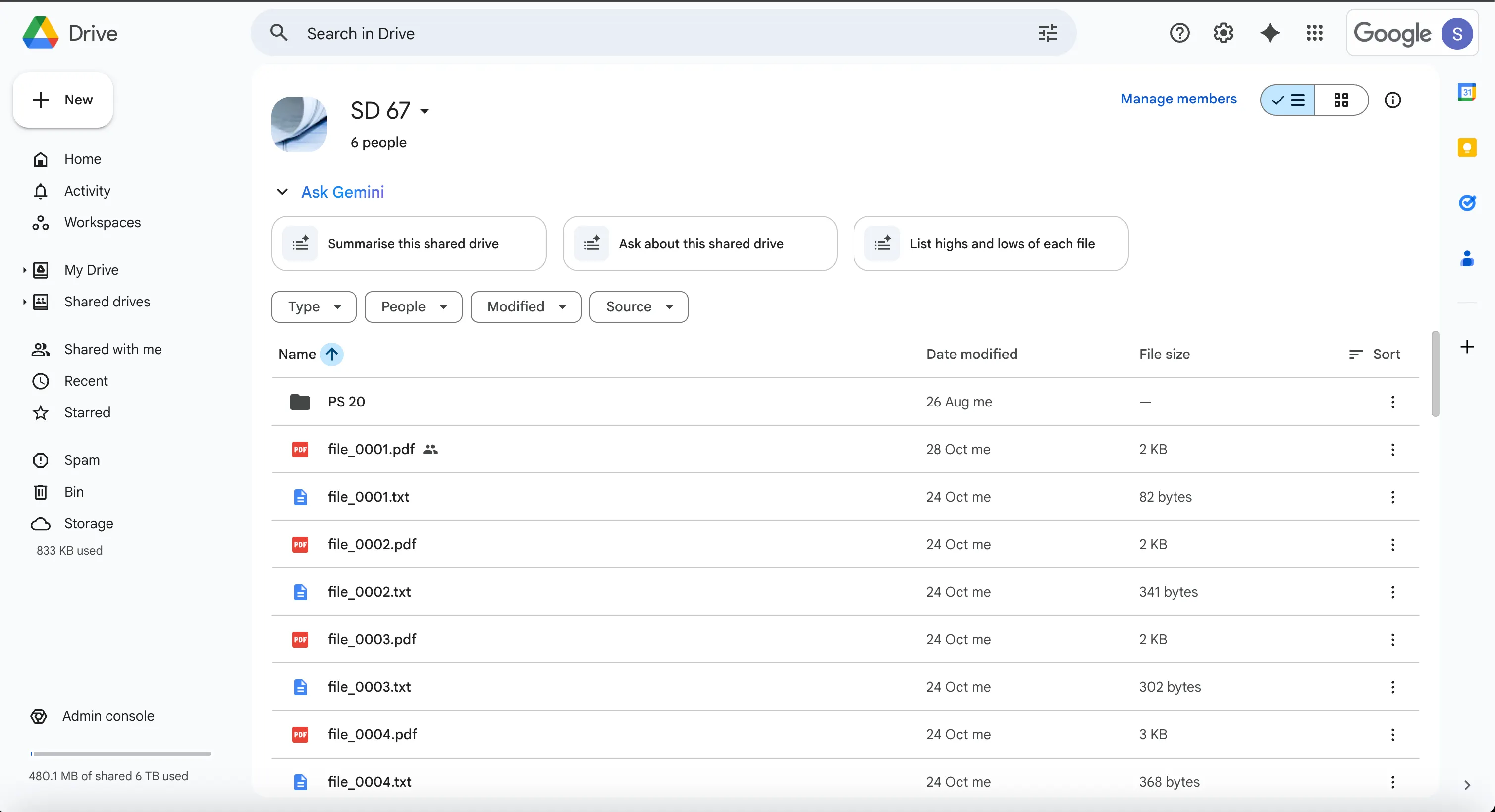
Select a shared drive where you granted Service Account access
-
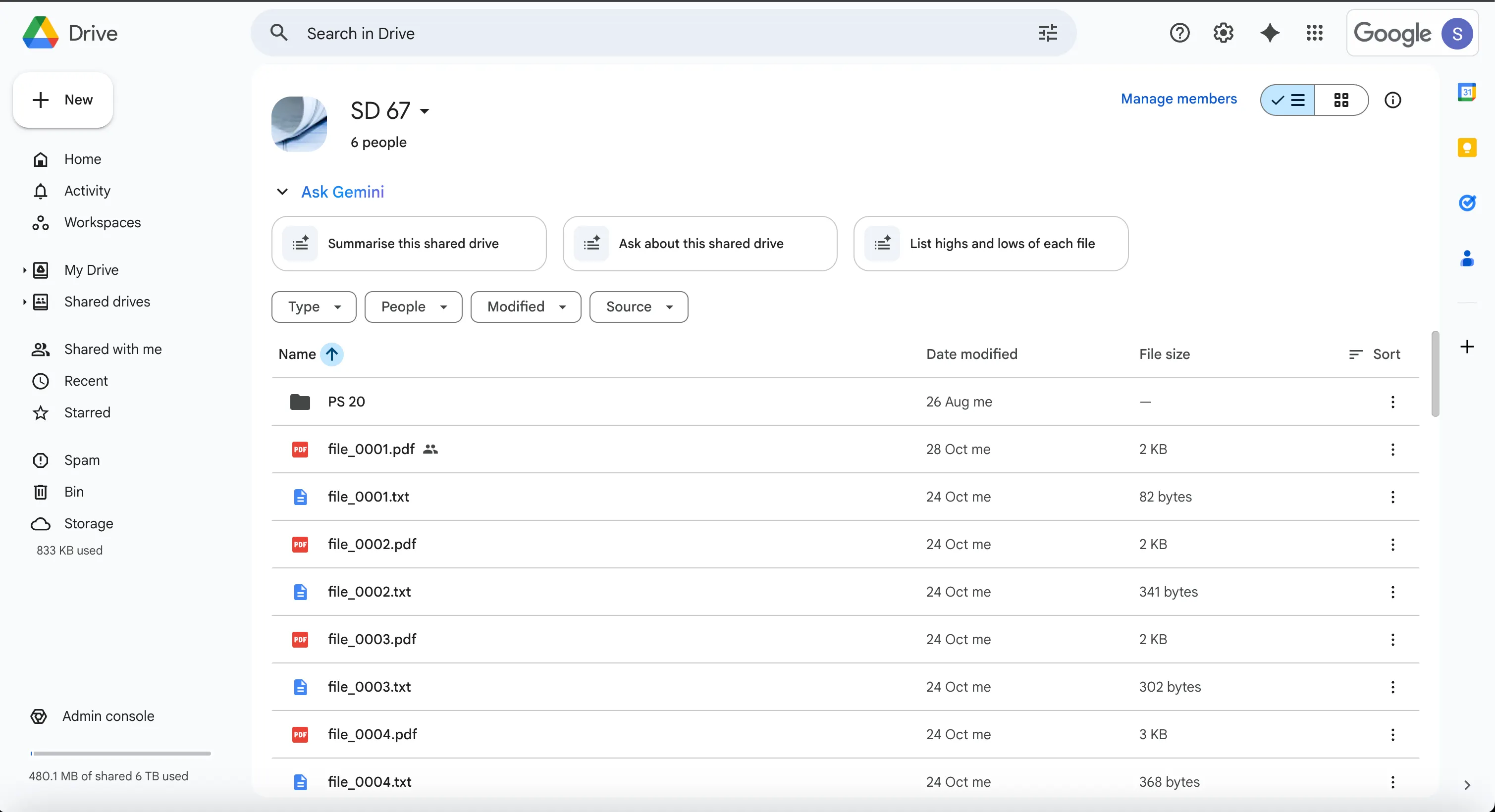
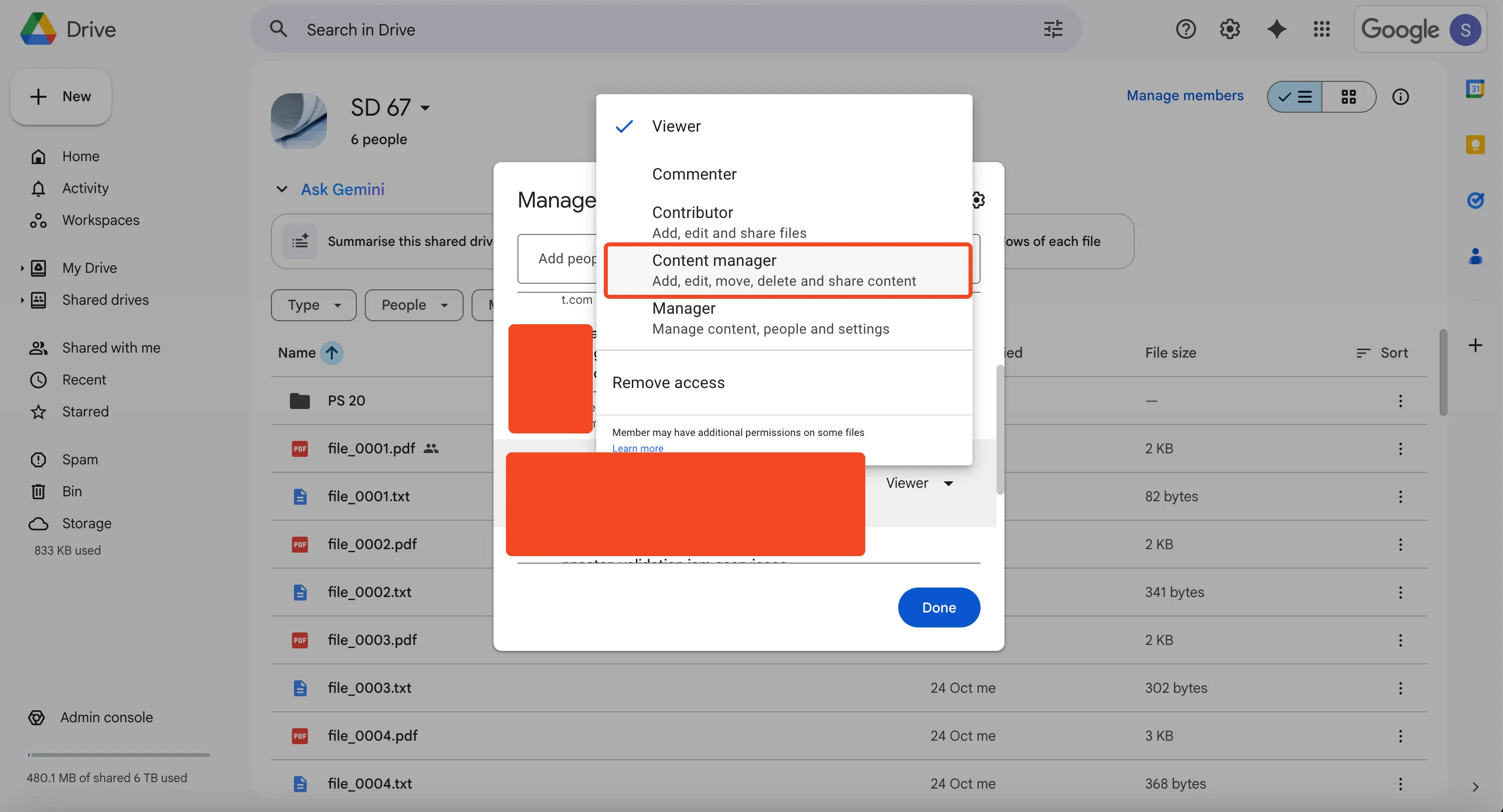
Click Manage members
-
Confirm the Service Account has Content manager access (not just viewer)
-
- Test File Access
-
Go to Moveworks Setup > Connectors > API Playground
-
Import the Google Drive connector used for Enterprise Search
-
Fetch content with files API endpoint (with query parameters):
/drive/v3/files?corpora=allDrives&supportsAllDrives=true&includeItemsFromAllDrives=truecURL for reference
curl --location 'https://www.googleapis.com/drive/v3/files?corpora=allDrives&supportsAllDrives=true&includeItemsFromAllDrives=true' \ --header 'Authorization: Bearer {{auth_token}}' -
Copy the
idof any file from the API response -
Fetch permissions for the file with the permissions API endpoint:
/drive/v3/files/{{id}}/permissions?supportsAllDrives=truecURL for reference
curl --location 'https://www.googleapis.com/drive/v3/files/{{id}}/permissions?supportsAllDrives=true' \
--header 'Authorization: Bearer {{auth_token}}'
-
- Verify Results
- Expected response: List of permissions in returned in the API response
- If no files returned: Check that files exist in the shared drives and Service Account has proper access
- If API call(s) fail: Check connector authentication and configuration settings
Groups
Error Message(s):
- "Validation failed: Invalid credentials or missing required scopes."
Possible Causes(s)
- Insufficient scopes:
groups > readscope not included in the admin console (only for Service Account auth method) - Service Account not assigned proper admin roles (only for Service Account auth method)
- Super admin role not assigned to the customer user account created (only for Oauth 2.0 auth method)
- No groups present in the Google Drive content system
- No group members present in groups
Resolution Steps
- Check Admin Role Assignment:
- Go to Google Admin Console > Account > Admin roles
- Verify the Service Account has been assigned
groups > readin the custom admin role (created following the Moveworks access requirements guide)
- Test Groups API Access:
-
Go to Moveworks Setup > Connectors > API Playground
-
Import the Google Groups connector used for Enterprise Search
-
Test the groups API endpoint:
/groups?customer={{customer_id}}and copy the group email ID of the first groupcURL (for Service Account without Domain Wide Delegation)
curl --location 'https://admin.googleapis.com/admin/directory/v1/groups?customer={{customer_id}}' \
   --header 'Authorization: Bearer {{auth_token}}'
cURL (for Oauth 2.0 with refresh token grant)
curl --location 'https://admin.googleapis.com/admin/directory/v1/groups?customer=my_customer' \ --header 'Authorization: Bearer {{auth_token}}' -
Test the group members:
cURL for reference
curl --location 'https://admin.googleapis.com/admin/directory/v1/groups/{{email}}/members' \
--header 'Authorization: Bearer {{auth_token}}'
-
- Verify Results
- Expected response: List of groups returned in the API response
- If 403 Forbidden: Check admin role assignments
- If 200 OK but no groups: Verify groups exist in your Google Workspace
- If 200 OK but no group members: Please add google members in your Google Workspace
- If API call(s) fail: Check connector authentication and configuration settings
Users
Error Message(s):
- "Validation failed: Invalid credentials or missing required scopes."
Possible Causes(s)
- Insufficient scopes:
users > readscope not included in the admin console (only for Service Account auth method) - Service Account not assigned proper admin roles (only for Service Account auth method)
- Super admin role not assigned to the customer user account created (only for Oauth 2.0 auth method)
- No users present in the external system
Resolution Steps
- Check Admin Role Assignment:
- Go to Google Admin Console > Account > Admin roles
- Verify the Service Account has been assigned
users > readin the custom admin role (created following the Moveworks access requirements guide) - Ensure the Service Account has permissions to read user information
- Test Users API Access:
-
Go to Moveworks Setup > Connectors > API Playground
-
Import the Google Users connector used for Enterprise Search
-
Test the users API endpoint:
/admin/directory/v1/users?customer={{customer_id}}cURL for reference (for Service Account without Domain Wide Delegation)
curl --location 'https://admin.googleapis.com/admin/directory/v1/users?customer={{customer_id}}' \
   --header 'Authorization: Bearer {{auth_token}}'
cURL for reference (for Oauth 2.0 with refresh token grant)
curl --location 'https://admin.googleapis.com/admin/directory/v1/groups?customer=my_customer' \
   --header 'Authorization: Bearer {{auth_token}}'
-
- Verify Results:
- Expected response: List of users returned in the API response
- If 403 Forbidden: Check scopes and admin role assignments
- If 200 OK but no users: Verify users exist in your Google Workspace
- If API call(s) fail: Check connector authentication and configuration settings
Updated 27 days ago