
Embedded AI Assistant SSO Configuration - OneLogin (OIDC)
Prerequisites
OneLogin SSO Prerequisites
- Have administrator access to OneLogin. You should be able to access your portal at
https://{{your_subdomain}}.onelogin.com/admin2
Configuration Steps
Create OIDC Application
-
Go to Applications > Applications and click Add App
-
Search for OpenId Connect (OIDC) in the application search
-
Click OpenId Connect (OIDC) & fill out the details
-
Name:
Moveworks Embedded AI Assistant -
Icon:
-
Rectangular

-
Square

-
-
-
Click Save
-
Navigate to the Configuration page within the application you created and enter the following:
-
Redirect URI: Choose the URL below that corresponds to your Moveworks Environment Region:
Commercial Environment:
https://webchat-kprod.moveworks.io/login/sso/oidcGovCloud Environment:
https://webchat.prod.am-usge1.moveworks.io/login/sso/oidcEU Environment:
https://webchat.prod.am-euc1.moveworks.io/login/sso/oidcCanada Environment:
https://webchat.prod.am-cac1.moveworks.io/login/sso/oidc -
Login URL: Choose the URL below that corresponds to your Moveworks Environment Region:
Commercial Environment:
https://webchat-kprod.moveworks.ioGovCloud Environment:
https://webchat.prod.am-usge1.moveworks.ioEU Environment:
https://webchat.prod.am-euc1.moveworks.ioCanada Environment:
https://webchat.prod.am-cac1.moveworks.io
- Navigate to the SSO page within the application settings and set Token Endpoint Authentication Methodto POST
Add SSO Configuration in MyMoveworks
-
Note down your OIDC Configuration Variables from OneLogin
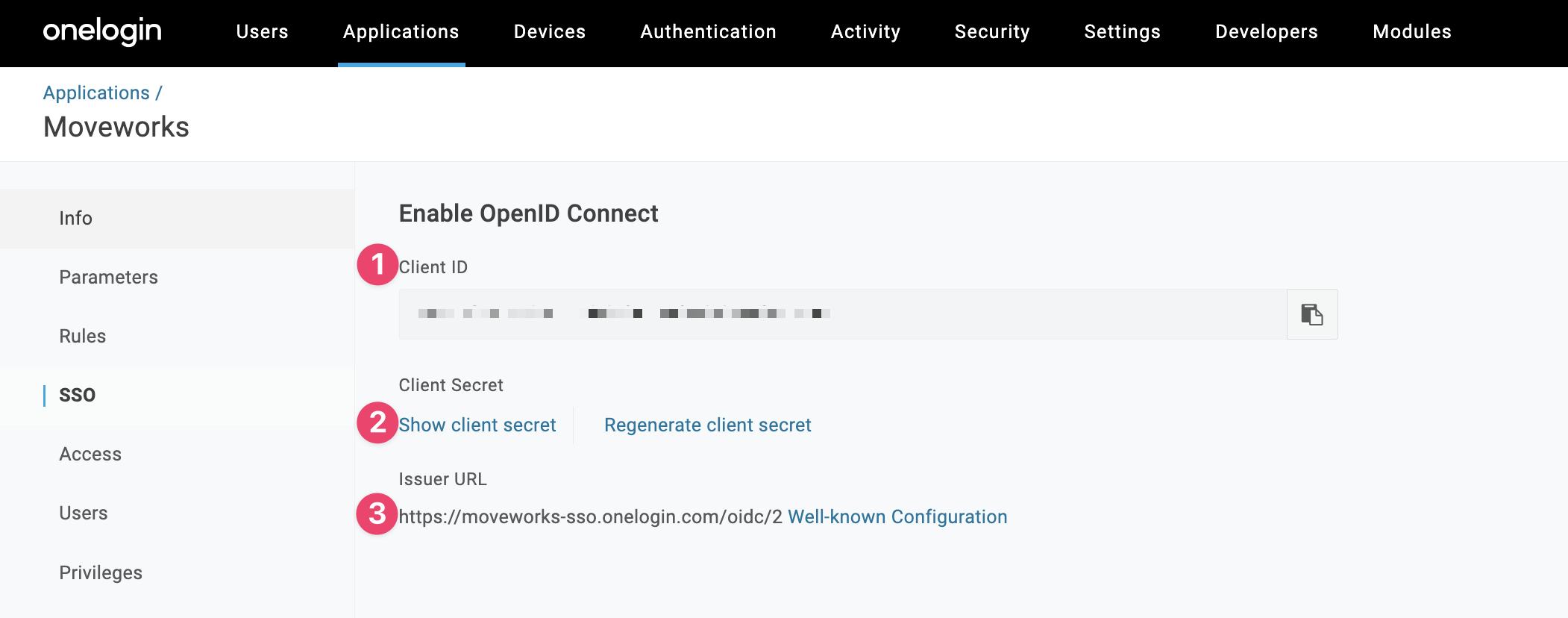
- Client ID: Record this value to populate the Client ID field in Moveworks Setup
- Show client secret: Click this to see your Client Secret
- Issuer URL: This is the value for the IDP Issuer field in Moveworks Setup
-
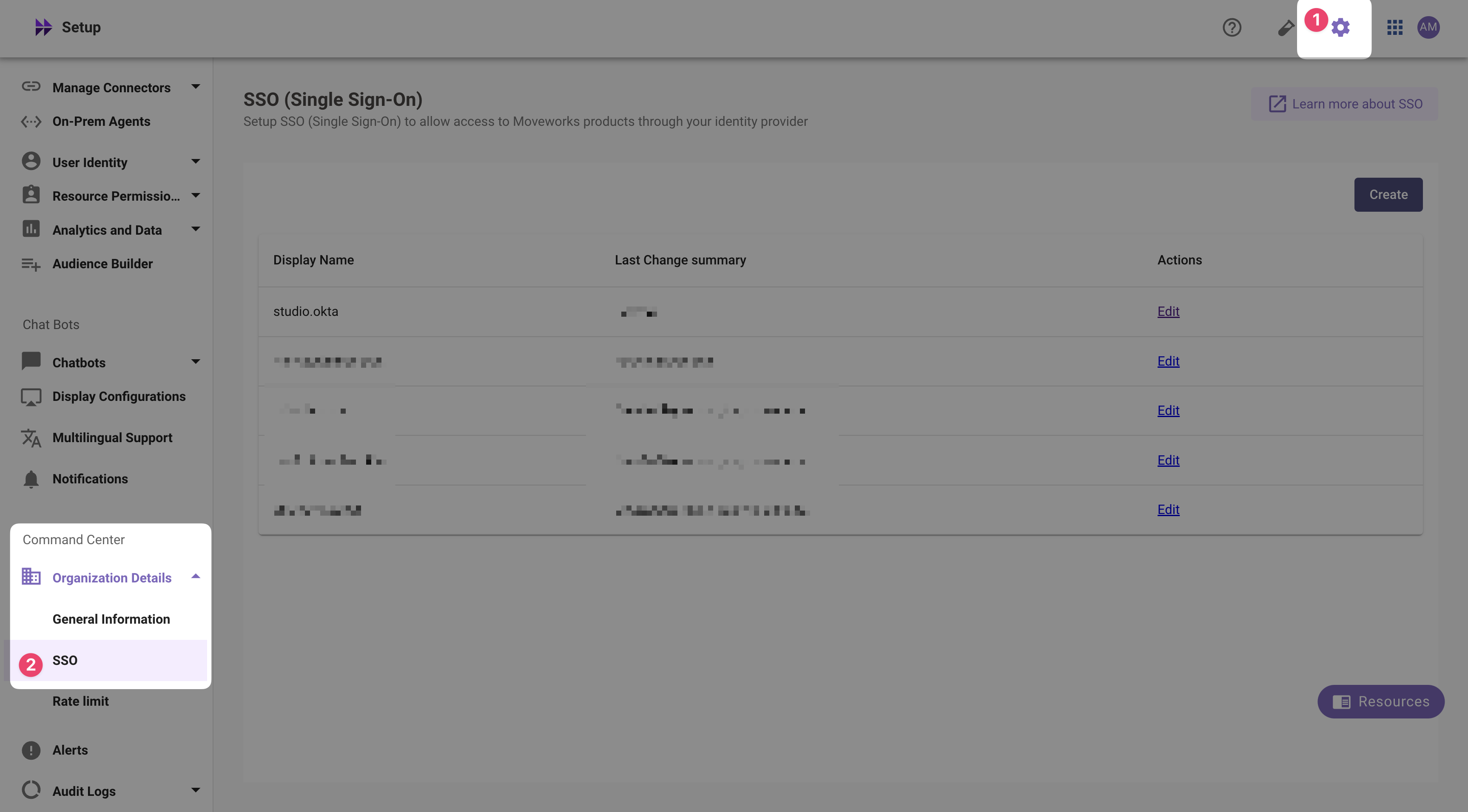
Navigate to SSO Settings in MyMoveworks
-
Click Create.
-
Add your configuration using the values you've noted above
- Moveworks Product:
Movewebchat - Select Connector:
Moveworks - Authentication Protocol:
OIDC - IDP Redirect URL: Input the Redirect URL you configured in step 5
- IDP Issuer:
idp_issuer(from Step 1) - IDP Client Id:
idp_client_id - IDP Client Secret:
idp_client_secret
- Moveworks Product:
-
Leave the remaining fields empty to inherit the recommended default settings and click Submit
Create Moveworks Setup Authentication Configuration
- Within Moveworks Setup, Navigate to Web Chatbot > Authentication and click create to create a new authentication record
- Set Auth Config to Generic SSO
- Set SSO Config to the SSO configuration record you created in the previous section of this guide.
- Set Auth Key to defaultfor single SSO authentication setups. For setups where you have multiple SSO systems users use to authenticate, follow the Multi SSO Configuration Guide
Configure the Embedded AI Assistant
You will need to follow the Embedded AI Assistant Configuration Guide to complete the remaining setup steps if you have not done so already.
Updated about 1 month ago