
AI Assistant on Web: Getting Started
Before getting started, make sure your organization has completed the Configuration steps. Only employees who have been assigned the My Moveworks app (or your organization’s equivalent app name) through SSO will be able to access the Assistant on Web.
How to Access and Interact with the Assistant
-
Go to your company’s Assistant URL
Open your browser and navigate to your organization’s Assistant on Web page. Your org's login URL is dependent on your region. Replace
org_namewith the name of your Moveworks org name.Data Center Login URL United States (default) https://org_name.moveworks.com Canada https://org_name.am-ca-central.moveworks.com EU https://org_name.am-eu-central.moveworks.com Australia / Asia Pacific https://org_name.am-ap-southeast.moveworks.com Government Secure Cloud https://org_name.moveworksgov.com -
Click on your AI Assistant
You’ll land directly in your Assistant workspace, where you can start chatting right away.
-
Ask away
Just start typing. The Assistant understands full questions, quick prompts, and even short keywords.
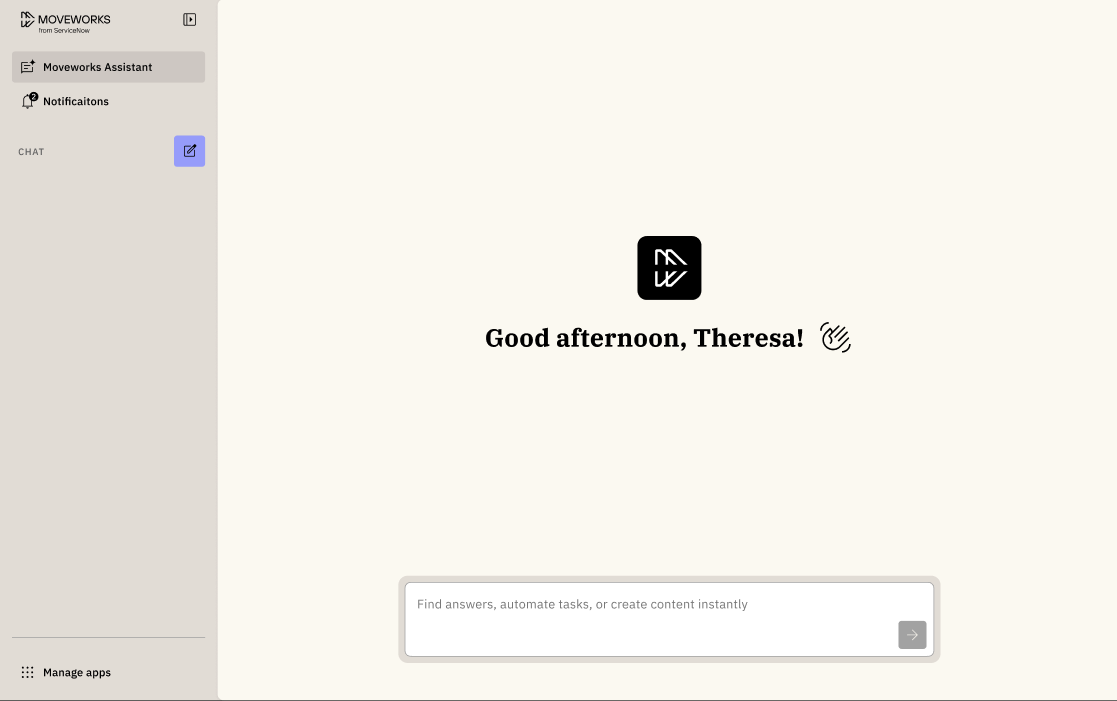
Example utterances to ask:
- “What are our company holidays?”
- “I need to file a new ticket, I spilled coffee on my laptop.”
- “What’s the process for expense reimbursements?”
Our web experience does have a file attachment icon.
The attachment icon you see in the Assistant on Web interface is part of our standard UI and is not customizable at this time.
Currently, the attachment button will only work for customers who have one of the following features enabled: • Live Agent – Files uploaded by the user are routed to the live agent during an active chat session. • Brief Me – Coming soon to Assistant on Web. Once available, users will be able to upload supported files for Q&A, summarization, and comparison.
For customers without Live Agent or Brief Me enabled, attachments cannot be used today.
Spreading the Word to Employees
Once Assistant on Web is ready, encourage your employees to start using it. Below are a few ways to make sure everyone knows where to find it.
1. Employee Communications 📣
Use Employee Communications to share the update across your company. Here are a few message templates.
Option 1 – Short and direct
Button Recommendations:
- Give a try! – link to
mycompany.moveworks.com/assistant
Audience:
- All users
Employee Comms Template:
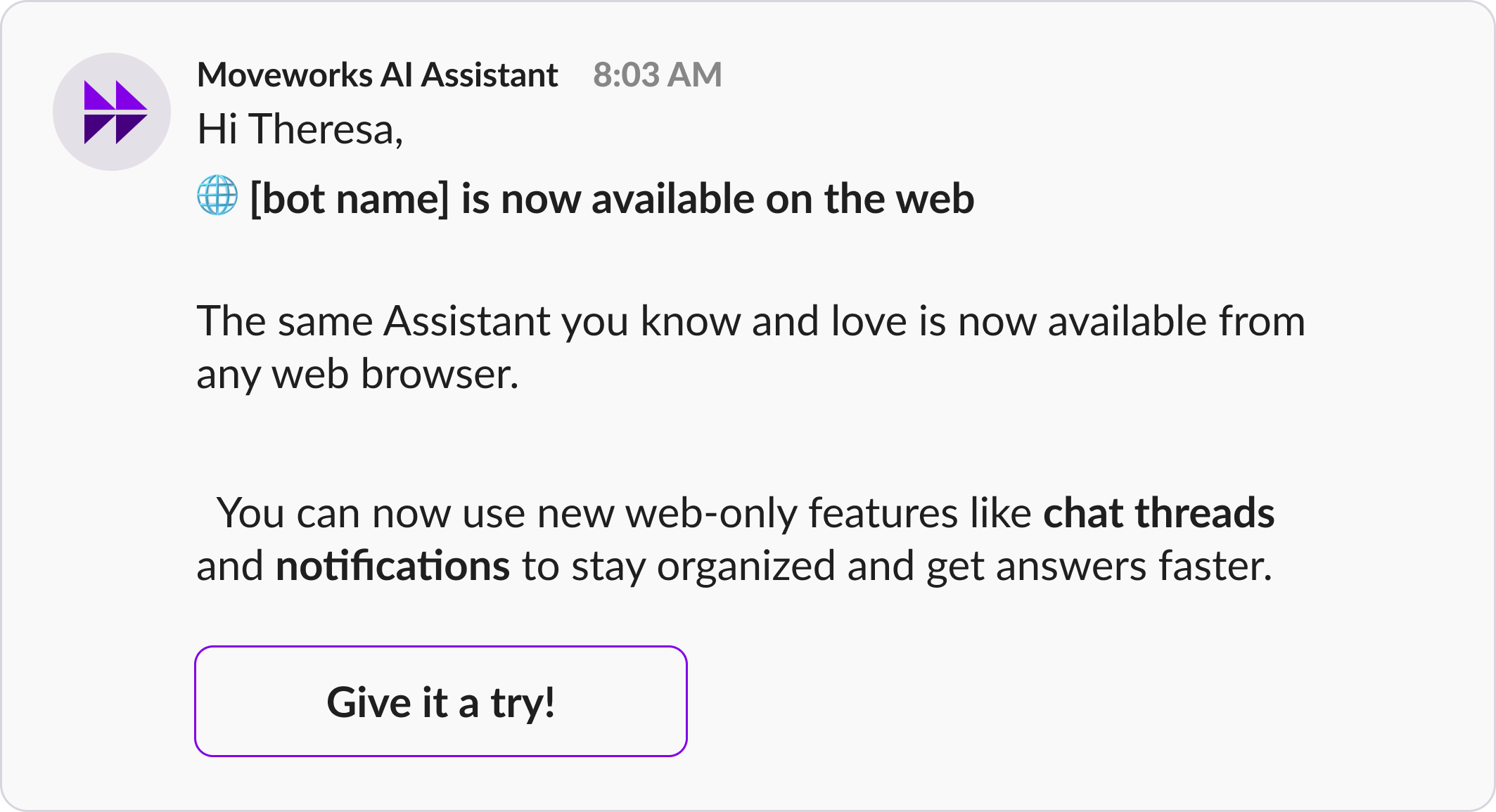
Copy Template Below:🌐 [bot name] is now available on the web
The same Assistant you know and love is now available from any web browser.
You can now use new web-only features like chat threads and notifications to stay organized and get answers faster.
Try it today!
Option 2 – Detailed version
Button Recommendations:
- Try Assistant on Web – link to
mycompany.moveworks.com/assistant
Audience:
- All users
Employee Comms Template:
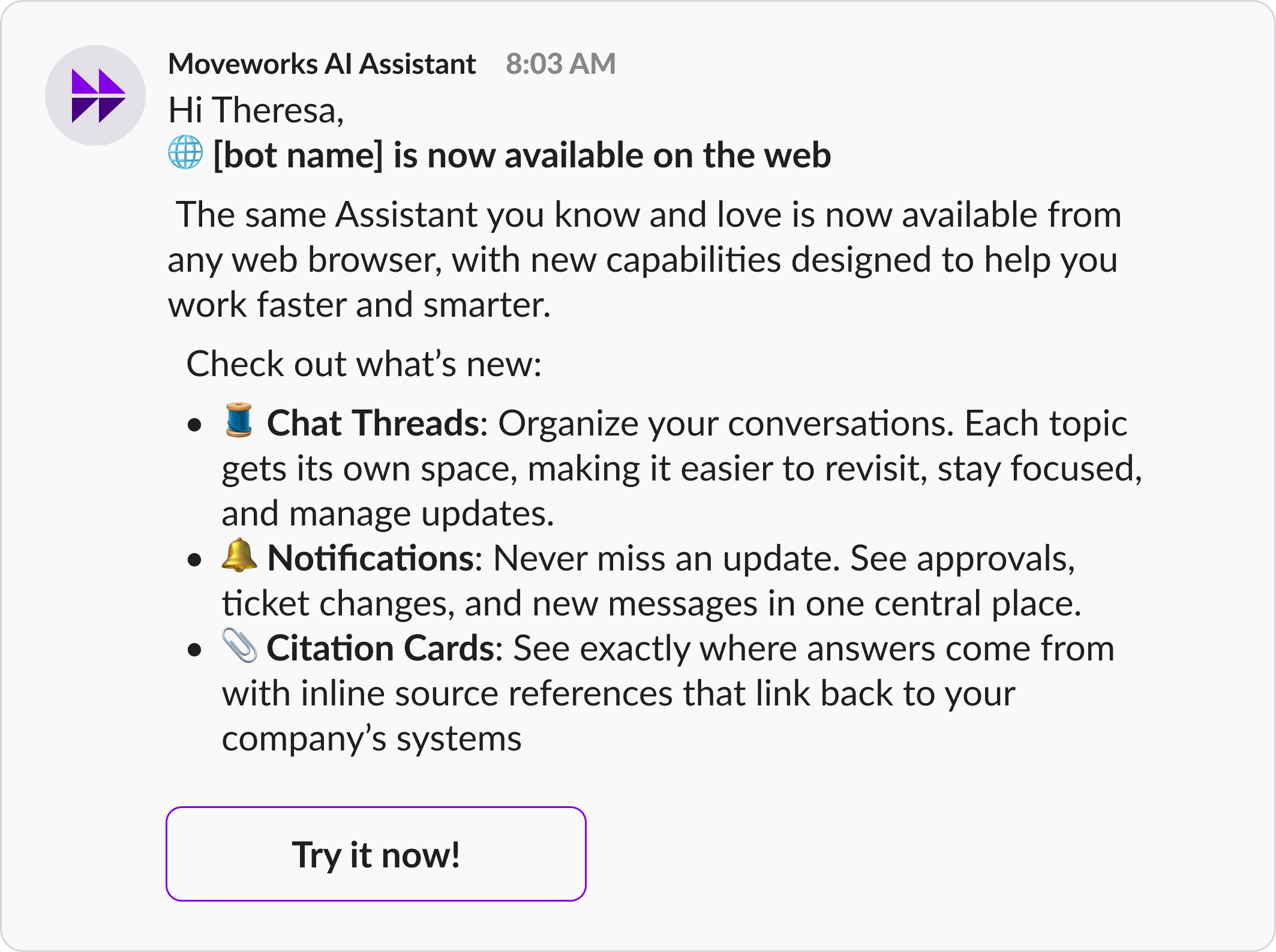
Copy Template Below:🌐 [bot name] is now available on the web
The same Assistant you know and love is now available from any web browser, with new capabilities designed to help you work faster and smarter.
Check out what’s new:
- 🧵 Chat Threads: Organize your conversations. Each topic gets its own space, making it easier to revisit, stay focused, and manage updates.
- 🔔 Notifications: Never miss an update. See approvals, ticket changes, and new messages in one central place.
- 📎 Citation Cards: See exactly where answers come from with inline source references that link back to your company’s systems
2. Update Your AI Disclaimer
Update your existing AI Assistant disclaimer to include this new surface. You can add a line to draw attention to the Assistant on Web availability.
If your organization is using the AI Disclaimer to include a legal or compliance requirements, make sure you maintain that language when modifying your disclaimer
Examples of disclaimer additions:
- Try [assistant name: url] on Web
- Check out [assistant name: url] on Web
- 🌐 [assistant name: url] is now on Web
To update your AI disclaimer follow these steps.
Updated about 1 month ago