
Slack (Live) Setup for Enterprise Search
This page is for the Slack (Next Gen) connector and it can only be configured within the new enterprise search configuration experience explained below.
This connector cannot be used to set up a Chat Platform integration under Manage Chatbots in Moveworks Setup.
Please visit this documentation to learn more about Next Gen and Classic connectors.
System Overview
Slack is the collaboration hub where employees communicate and share files. From an enterprise search perspective, Slack serves as both a conversational surface (for engaging with the Moveworks AI Assistant) and a content source (via Slack Live search) that Moveworks can query in real time to return message and file results that users are permitted to view.
Authentication
Slack requires two separate Slack apps in your tenant: one for the Chatbot Integration and another for Live Search Integration. You will configure a single Moveworks Slack (next Gen) connector that accepts credentials for both flows.
- Chatbot Integration (Bot Token + Signing Secret)
- Slack bot token (starts with
xoxb-) obtained from a Slack app installed by an admin. - Slack Signing Secret used to verify incoming events and interactivity payloads.
- Slack bot token (starts with
- Live Search Integration (OAuth 2.0 – Authorization Code Grant)
- Slack Client ID and Client Secret of a separate Slack app.
- End users authorize the app at runtime; Moveworks receives a user token with the
search:readuser scope to perform searches on behalf of the user.
Permissions Enforcement
Moveworks honors Slack’s permission boundaries at all times:
- Chatbot Integration: Messages, reactions, and channel metadata accessible to the bot are constrained by the bot’s membership and scopes.
- Live Search Integration: Search results are scoped to the authorizing user’s access; Moveworks only returns items the user can view in Slack.
Chatbot Integration (bot token scopes):
im:history,chat:write,chat:write.customize,im:read,im:writeteam:read,users:read,users:read.email,users.profile:readapp_mentions:readchannels:history,channels:readgroups:history,groups:readmpim:history,mpim:readreactions:read,reactions:writeemoji:read,files:read,usergroups:read
Live Search Integration (user token scope):
search:read
Content Types
Slack coverage for Live Search
- Messages from public channels, private channels, DMs, and multi-DMs that the authorizing user is permitted to view.
Chatbot integration
- Provides the real-time conversational interface—DMs with the bot, @mentions, and interactive components—and returns relevant message context based on the bot’s scopes and channel memberships.
Access Requirements
Moveworks requires two Slack applications to connect with your Slack workspace(s) — one for Chatbot Integration and another for Live Search Integration. These two apps provide distinct functionalities but are managed through a single connector configuration in Moveworks. Each app requires specific credentials and scopes to enable the Moveworks AI Assistant and Enterprise Search experiences.
Pre-requisites
Before you get started, make sure you have everything you need:
-
Admin permissions
- Slack Workspace Admin or Org Admin permissions are required to create and install Slack apps in your enterprise workspace.
- For Enterprise Grid customers, ensure that you can install apps either at the Org level or across specific workspaces.
-
App setup requirements
You will need to create two Slack applications, each with specific scopes and configurations:
- App A — Chatbot Integration (Bot Token + Signing Secret)
- Provides real-time communication and event handling for the Moveworks AI Assistant in Slack.
- Uses a bot token (starts with
xoxb-) and a signing secret. - Must include all relevant bot scopes (e.g.,
chat:write,channels:history,users:read,im:history, etc.).
- App B — Live Search Integration (OAuth 2.0 with User Token)
-
Enables Moveworks to perform Slack searches on behalf of users via the
search:readuser scope. -
Uses OAuth 2.0 Client ID and Client Secret.
-
Redirect URI's must be configured as:
https://<your-org>.moveworks.com/auth/oauthCallback- https://www.moveworks.com
-
Setup Slack AppsCreate the Chatbot Integration App (App A)-
Create the app from a manifest
-
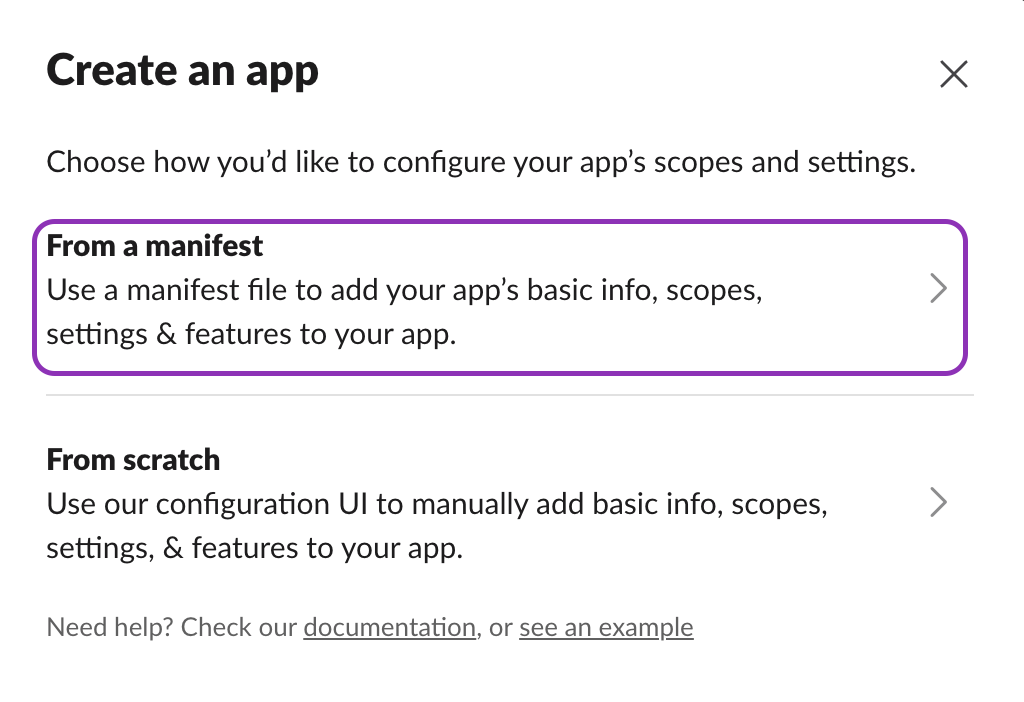
Visit https://api.slack.com/apps and click Create New App → From an App Manifest.
-
-
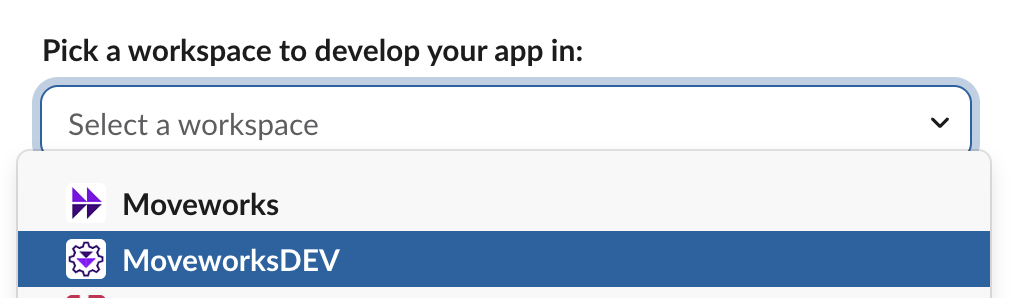
Select the appropriate workspace.
-
Paste the manifest below into the JSON tab.
-
If you already know your bot’s name, update:
display_information.namefeatures.bot_user.display_name
-
Leave the three placeholder URLs as-is for now (https://app.moveworks.ai/Bxxxxx/slack/*). You’ll replace Bxxxxx with your real Bot ID after install.
{
    "_metadata": {
        "major_version": 1,
        "minor_version": 1
    },
    "display_information": {
        "name": "MoveworksBot",
        "description": "I'm MoveworksBot an AI trained by the IT team"
    },
    "features": {
        "app_home": {
            "home_tab_enabled": false,
            "messages_tab_enabled": true,
            "messages_tab_read_only_enabled": false
        },
        "bot_user": {
            "display_name": "MoveworksAIAssistant",
            "always_online": true
        }
    },
    "oauth_config": {
        "scopes": {
            "bot": [
                "im:history",
                "chat:write",
                "chat:write.customize",
                "im:read",
                "im:write",
                "team:read",
                "users:read",
                "users:read.email",
                "app_mentions:read",
                "users.profile:read",
                "channels:history",
                "channels:read",
                "groups:history",
                "groups:read",
                "reactions:read",
                "reactions:write",
                "emoji:read",
                "mpim:history",
                "mpim:read",
                "files:read",
								"usergroups:read"
            ]
        }
    },
    "settings": {
        "event_subscriptions": {
            "request_url": "https://app.moveworks.ai/Bxxxxx/slack/events",
            "bot_events": [
                "message.im",
                "member_joined_channel",
                "member_left_channel",
                "message.channels",
                "message.groups",
                "message.mpim",
                "reaction_added",
                "reaction_removed"
            ]
        },
        "interactivity": {
            "is_enabled": true,
            "request_url": "https://app.moveworks.ai/Bxxxxx/slack/actions",
            "message_menu_options_url": "https://app.moveworks.ai/Bxxxxx/slack/select_options"
        },
        "org_deploy_enabled": true,
        "socket_mode_enabled": false,
        "is_hosted": false
    }
}
-
-
Copy your Signing Secret
-
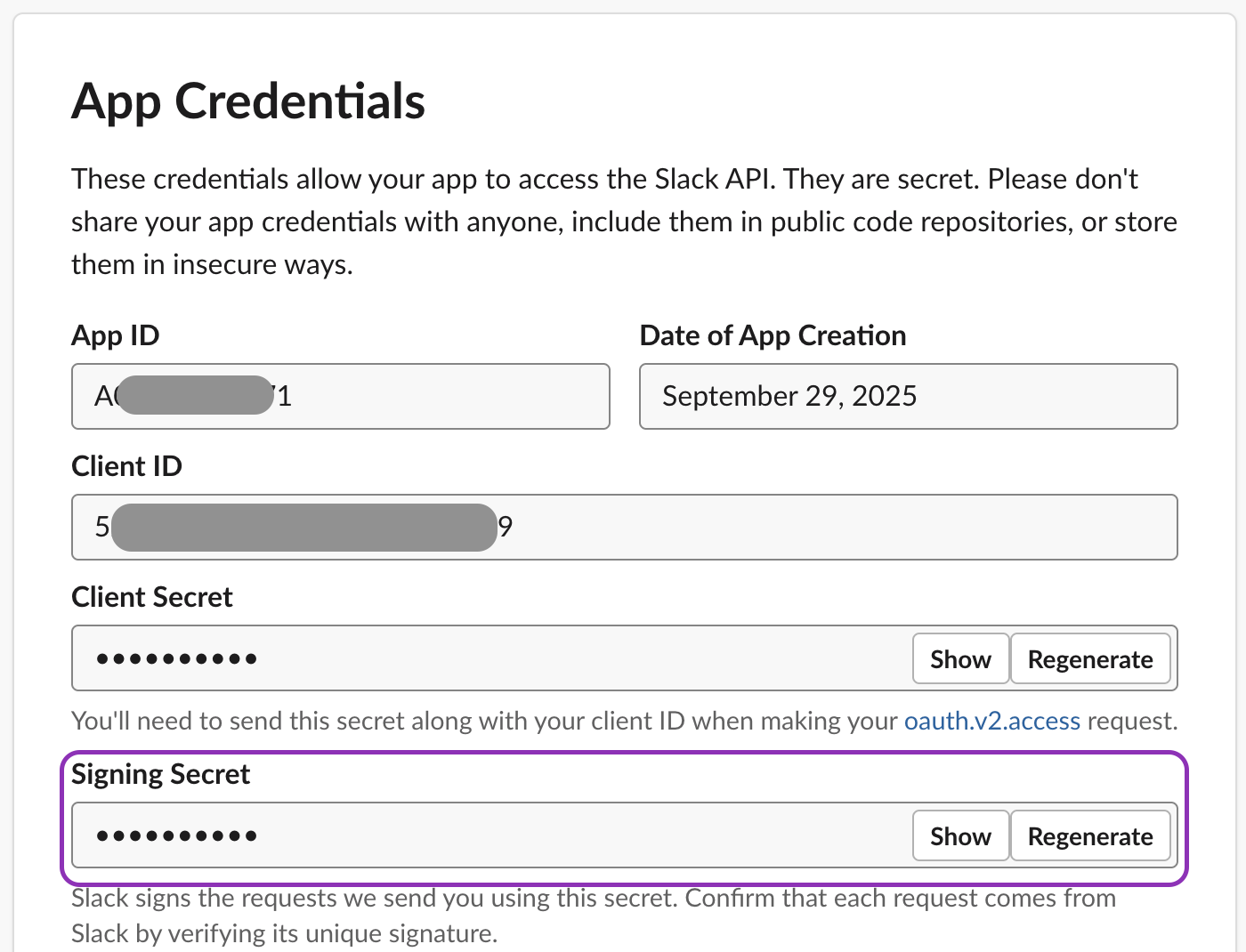
After creation, navigate to Basic Information → App Credentials → Signing Secret → Reveal → copy and store securely. You’ll enter this in Moveworks Setup later.
-
-
Install the app
-
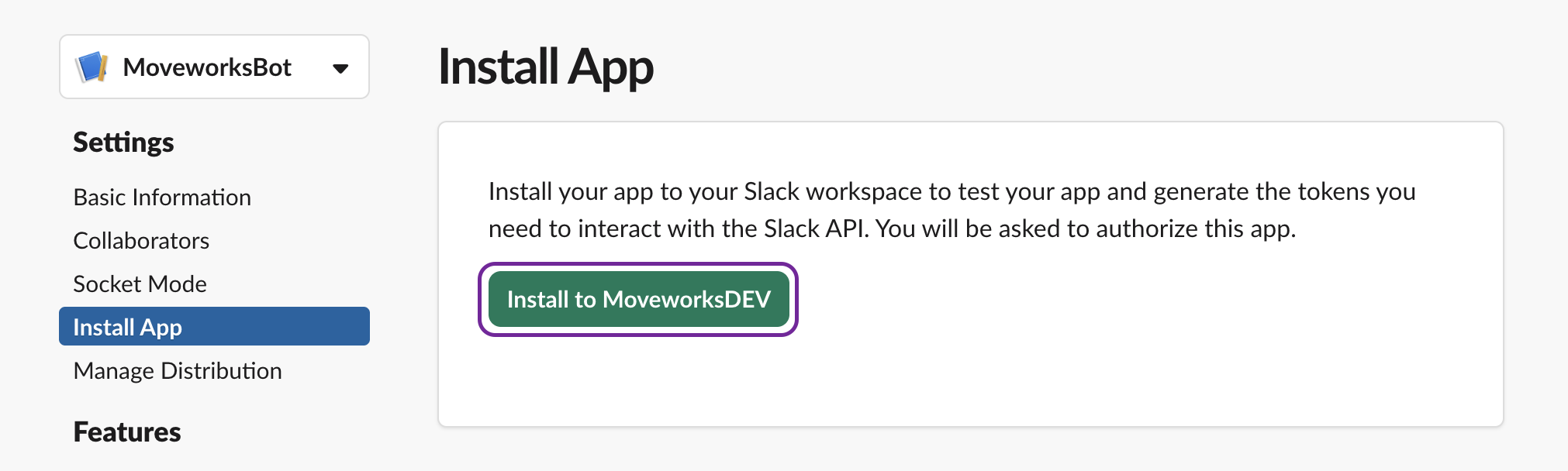
Navigate to the Install App section in your Slack app’s left-hand menu.
-
Click Install to [Your Workspace Name] (for example, Install to MoveworksDEV).
For Slack Enterprise Grid customers only:
- In the Slack Admin Console, go to Org Level Apps and opt in to the Org Apps program (if not already).
- Return to your app → Install App → authorize the install at the organization level.
-
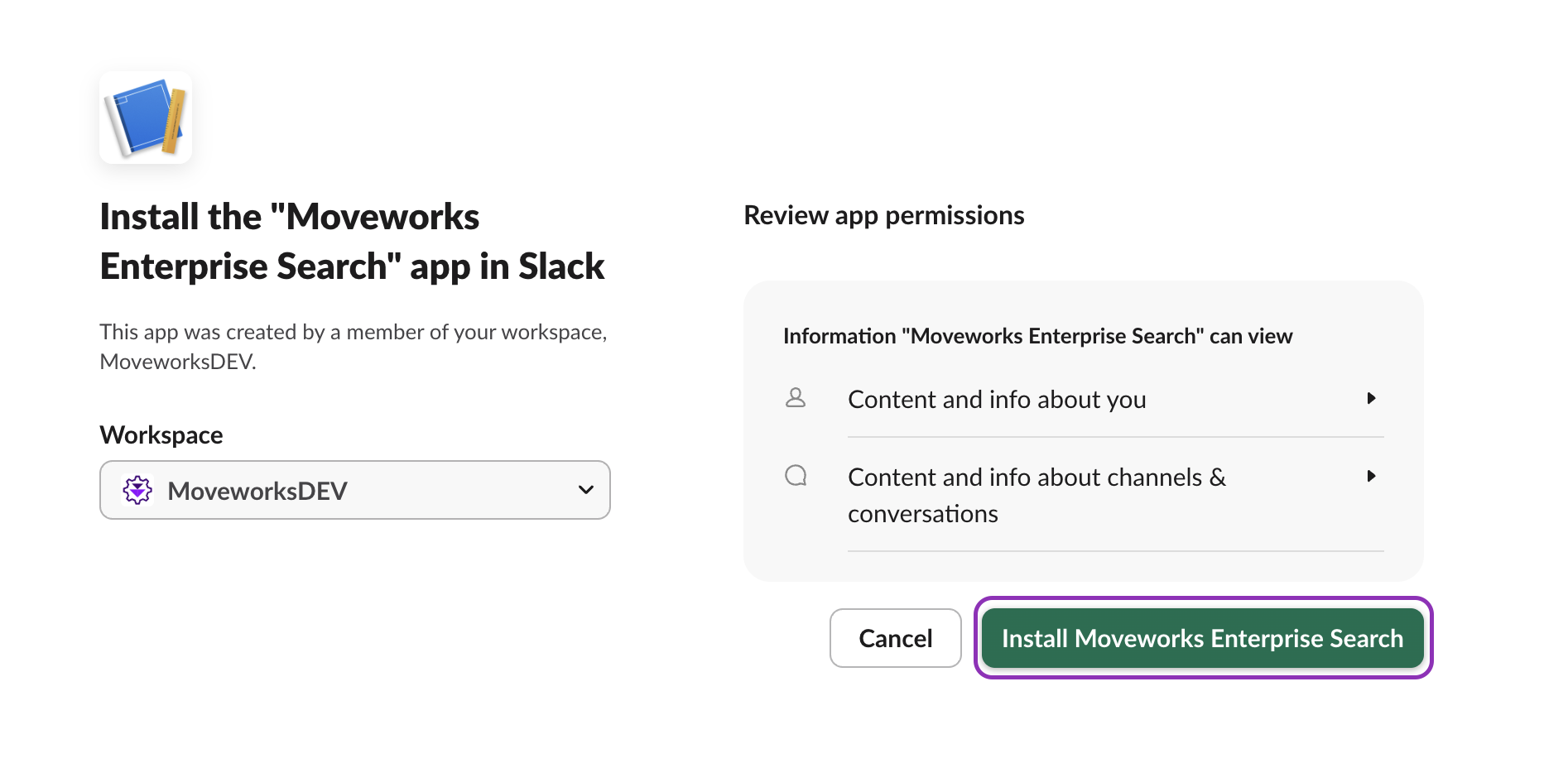
This will open an Authorize page if you are logged in as an admin. Review the permissions and click Install to [Your Workspace Name] to continue.
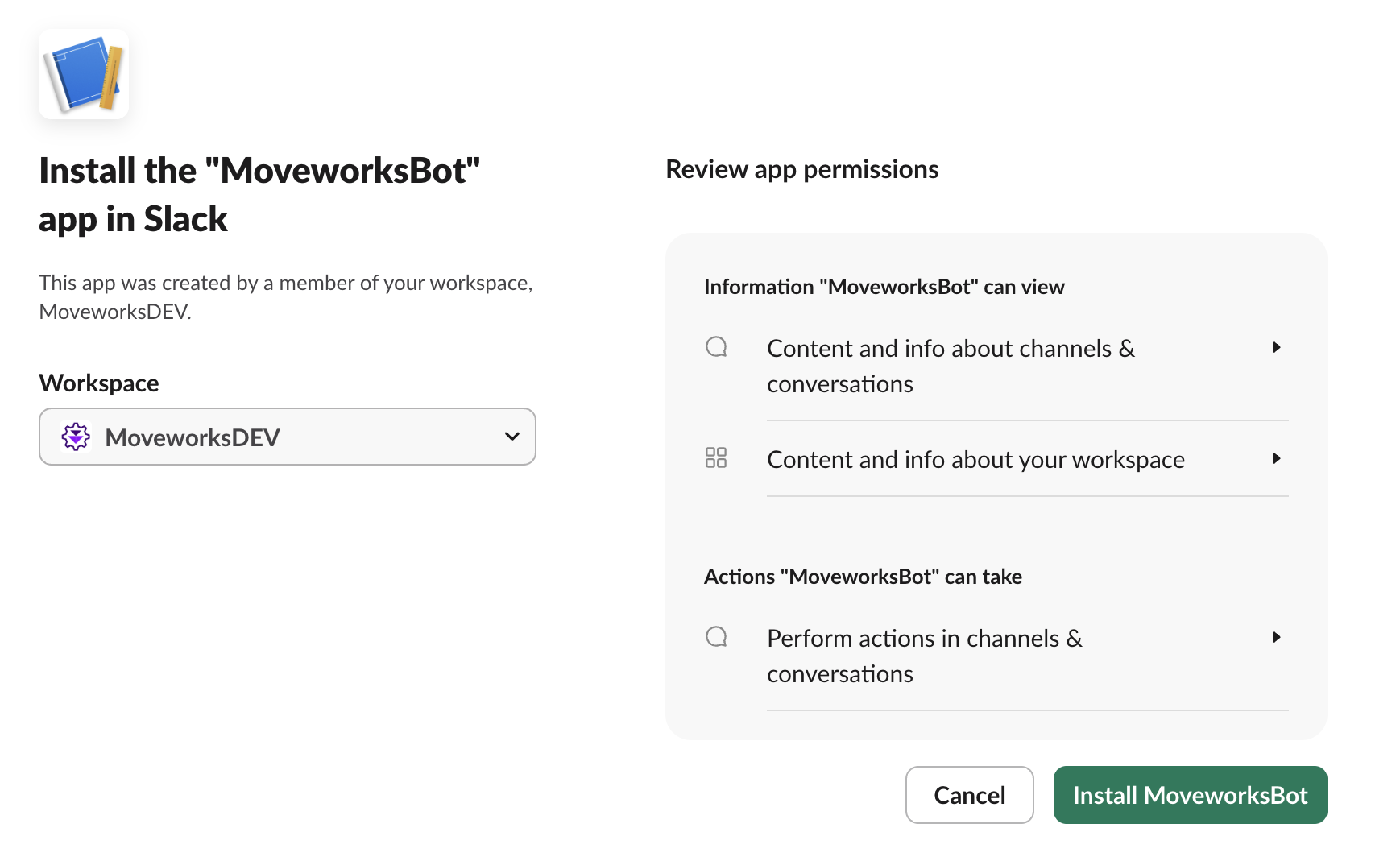
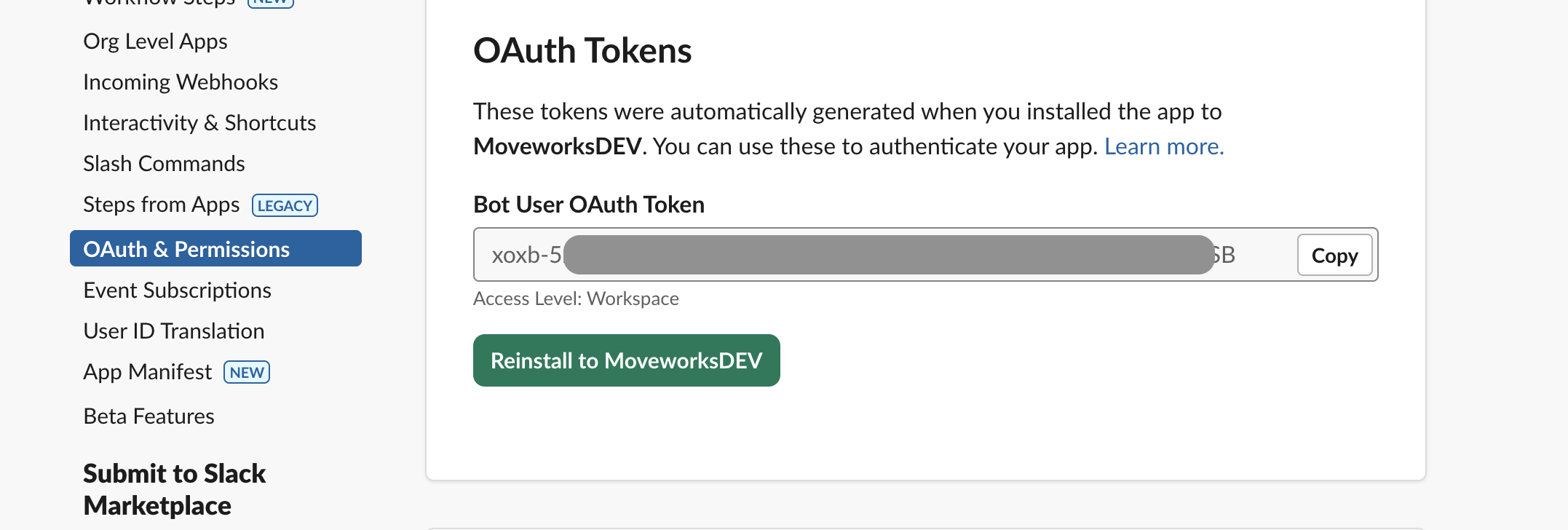
After installation, your Bot User OAuth Token (starting with xoxb-) will appear under OAuth & Permissions → Tokens for Your Workspace. Make sure you copy and store it securely — this token is required for your Moveworks bot setup
-
-
Retrieve Bot information
- Use curl or Postman with the xoxb token to get your bot information:
curl --location 'https://slack.com/api/auth.test' \ --header 'Authorization: Bearer xoxb-bot70k3N'-
You will get a response like the following, note down the bot_id, as it will be required later when setting up the Slack connector in Moveworks Setup.
{
    "ok": true,
    "url": "https://org.slack.com/",
    "team": "org",
    "user": "ai-assitant-name",
    "team_id": "T123MW45" OR "E123MW45",
    "user_id": "U123MW45",
    "bot_id": "Bxxxxx",
    "is_enterprise_install": false or true
}
-
- If your team_id starts with an E, you are using Enterprise Grid and will need to make an additional call:
curl --location 'https://slack.com/api/auth.teams.list?limit=1000' \ --header 'Authorization: Bearer xoxb-bot70k3N'- The response will look like below :
{ "ok": true, "teams": [ { "id": "T123MW45", "name": "CS Org" }, { "id": "T098MW78", "name": "All Company" }, ] } - You might notice multiple teams listed in the response. One of the team_id values corresponds to the entire workspace. Setting up the Slack ChatBot with this ID will enable the bot in both workspaces. Make sure to note down this team_id, as it will be required later when setting up the Slack connector in Moveworks Setup.
- The response will look like below :
- Use curl or Postman with the xoxb token to get your bot information:
-
Update URLs with your Bot ID
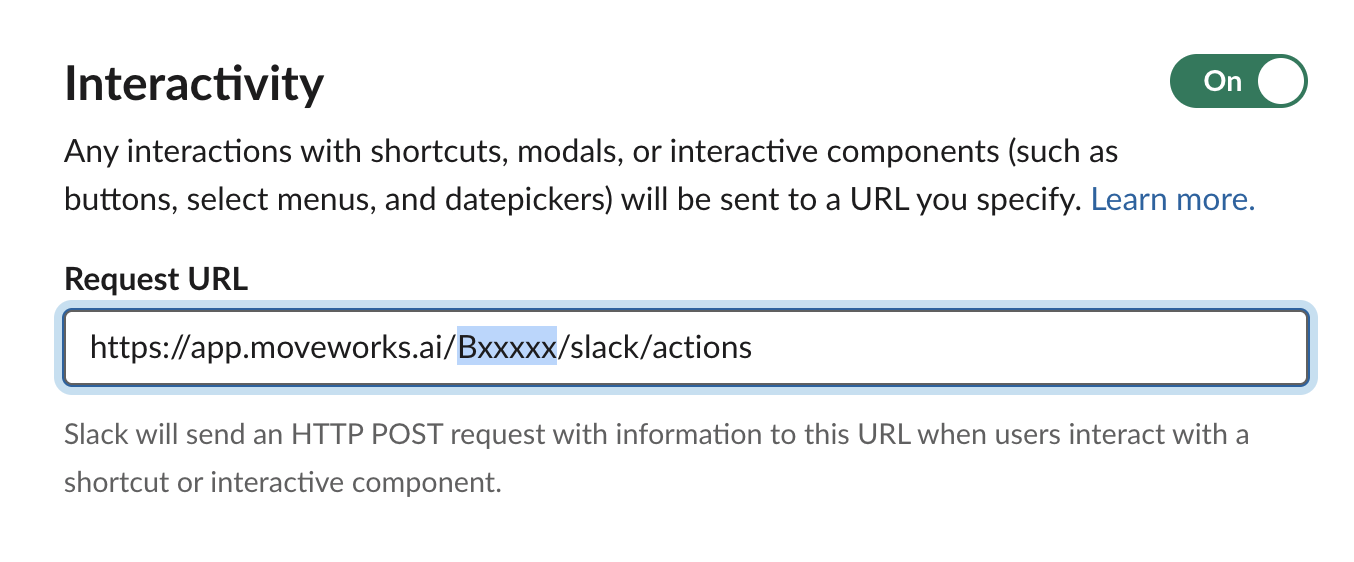
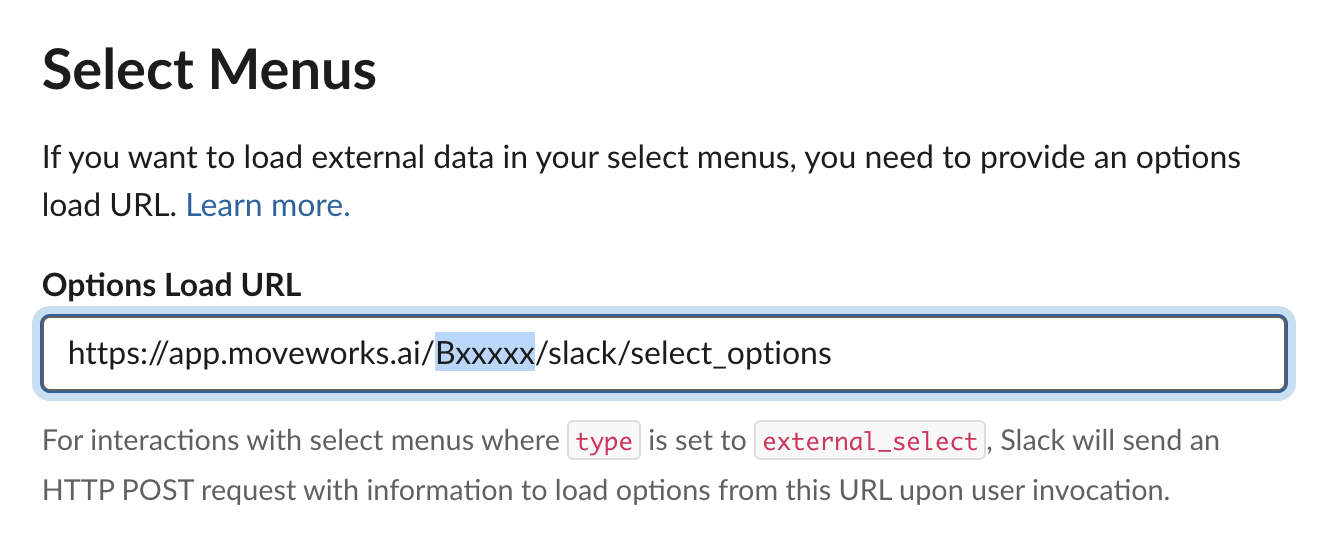
Update the placeholders to ensure that the Bxxxxx in the template URL has been replaced with your bot_id fetched from Step 6.
- Interactivity & Shortcuts
-
Request URL: https://app.moveworks.ai/Bxxxxx/slack/actions
-
Options Load URL: https://app.moveworks.ai/Bxxxxx/slack/select_options
-
- Event Subscriptions
-
Request URL: https://app.moveworks.ai/Bxxxxx/slack/events
-
The link will not be editable in the display field. Click the change button to display the change field.
-
Copy the existing link or the example above into the change field
-
Ensure that you change the placeholder with your bot_id and click on Save Changes
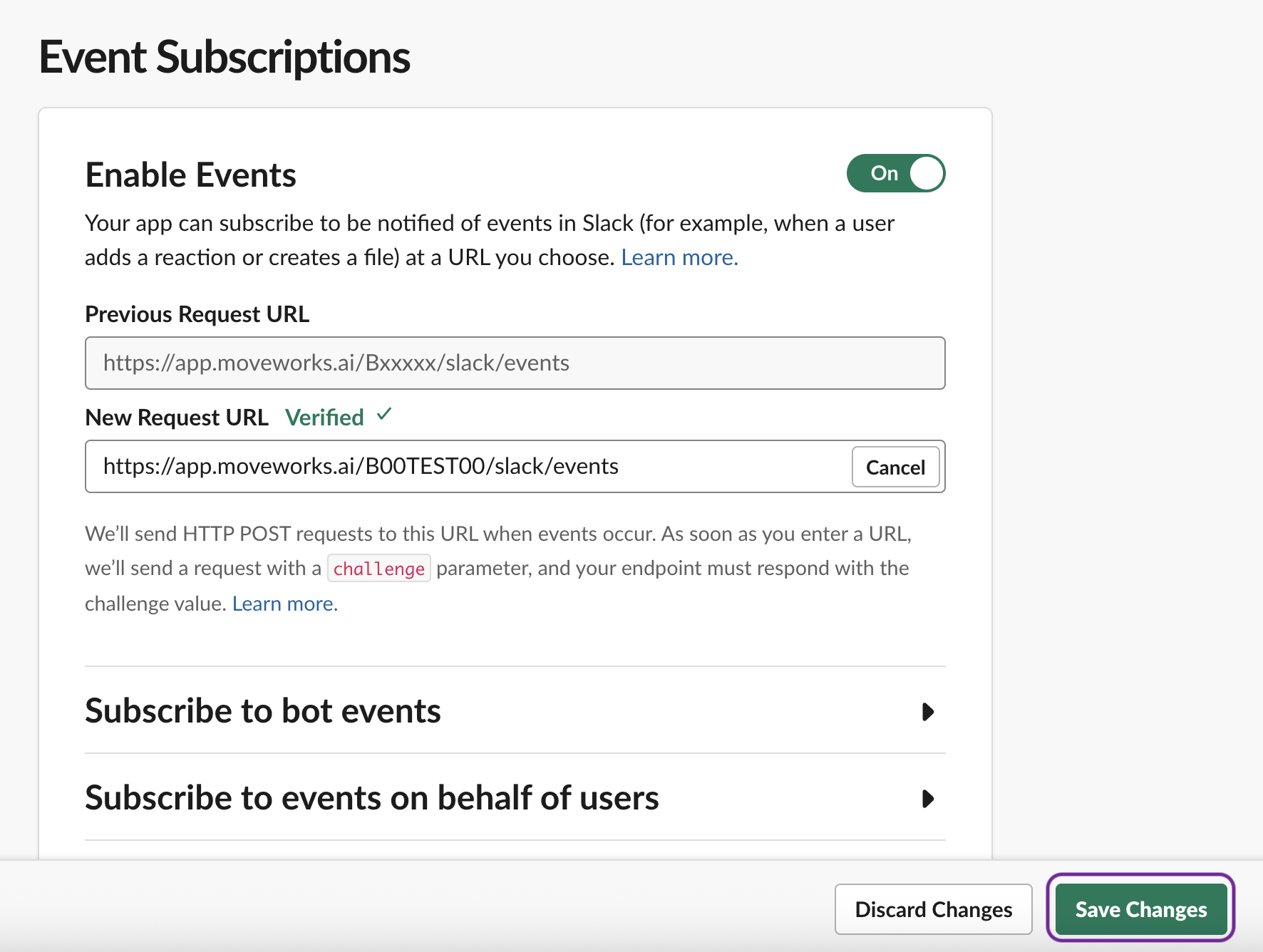
If you are configuring Moveworks for GovCloud, EU, or any other environment be sure to update the base URLs from https://app.moveworks.ai to the correct URL based on your environment.
US Commercial Region: https://app.moveworks.ai US GovCloud Region: https://app.moveworksgov.ai EU Region: https://app.am-eu-central.moveworks.ai Canada Region: https://app.am-ca-central.moveworks.ai
-
- Interactivity & Shortcuts
-
Additional Steps for Slack Enterprise Grid customers
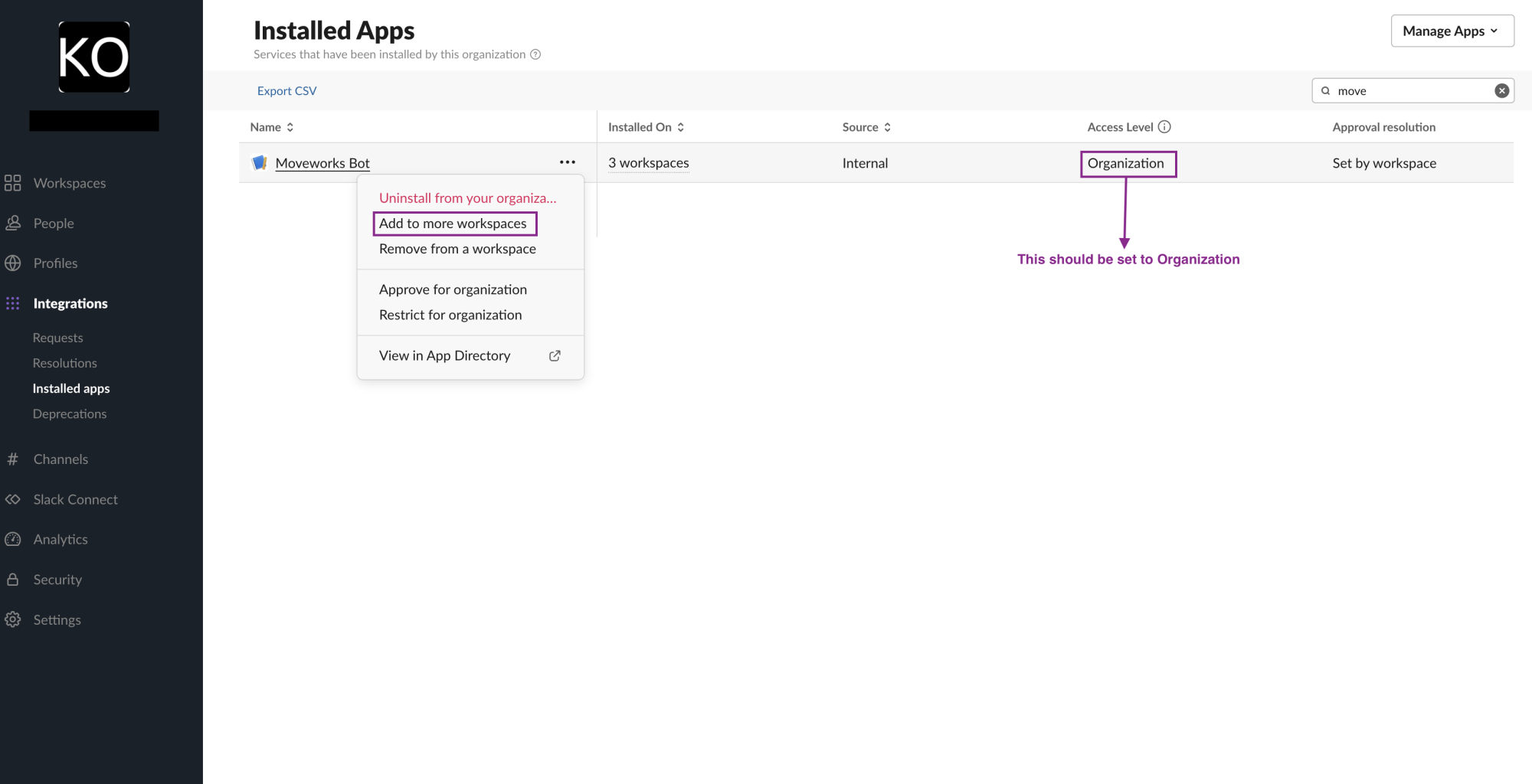
- Navigate to the Slack Admin console and select which workspaces to install the AI Assistant. Select Default for future workspaces so all new workspaces will have access to the app.
- Confirm by clicking Add App
- App A — Chatbot Integration (Bot Token + Signing Secret)
Create the Live Search Integration App (App B)
-
Visit https://api.slack.com/apps and click Create New App → From an App Manifest.
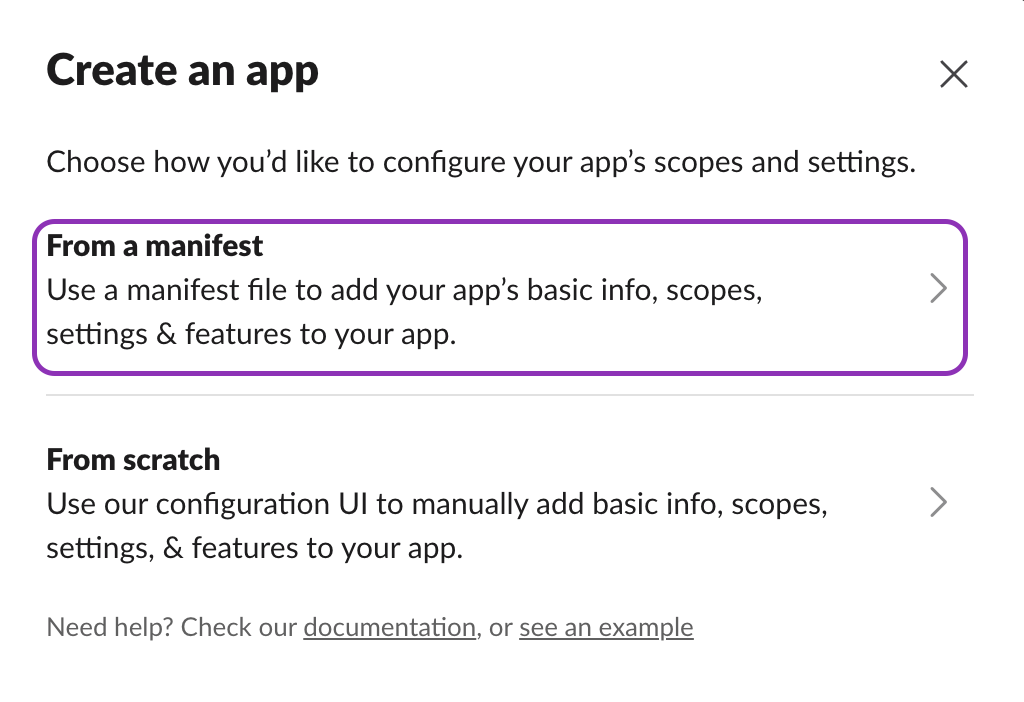
-
Select your workspace and paste the following manifest, replacing
{org}with your Moveworks organization name. ((e.g.https://acme.moveworks.com/auth/oauthCallback ){ "display_information": { "name": "Moveworks Enterprise Search" }, "oauth_config": { "redirect_urls": [ "https://{org}.moveworks.com/auth/oauthCallback", "https://www.moveworks.com" ], "scopes": { "user": [ "search:read" ] } }, "settings": { "org_deploy_enabled": false, "socket_mode_enabled": false, "token_rotation_enabled": false } } -
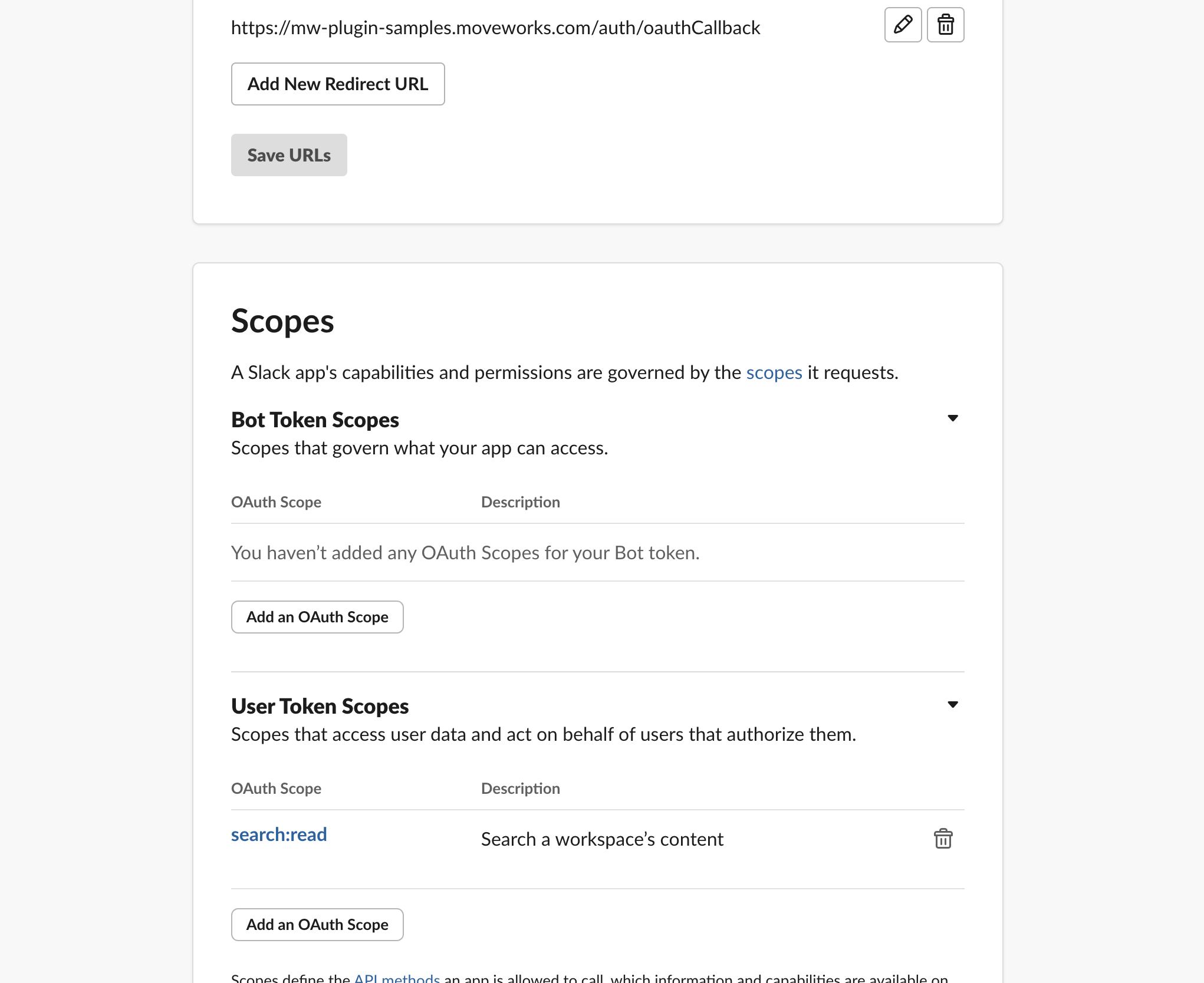
After creating the app, navigate to OAuth & Permissions:
-
Confirm that
search:readis present under User Token Scopes. -
Verify that the redirect URI matches your Moveworks org callback URL.
-
-
Navigate to the Install App section in your Slack app’s left-hand menu and install the app to your workspace.
-
Retrieve the Client ID and Client Secret from Basic Information section. These will be required later when setting up the Slack connector in Moveworks Setup.
Generating and Testing Tokens
Once both Slack apps are configured, collect and validate your credentials.
Testing your credentials (Optional)
You can validate access by running the following Slack API calls:
-
Validate ChatBot Token
Query the following endpoint using the Bot User OAuth Token (starting with xoxb-) that you copied earlier.
curl --location 'https://slack.com/api/auth.test' \
  --header 'Authorization: Bearer xoxb-<bot_token>'
If your credentials are valid, the API will return a JSON response containing your workspace and bot user information, for example:
{
  "ok": true,
  "url": "https://yourworkspace.slack.com/",
  "team": "Your Workspace Name",
  "user": "your-bot-name",
  "team_id": "T12345678",
  "user_id": "U12345678"
}
If "ok": true appears in the response, your bot token is active and authorized.
-
Validate Live Search Scope
Authorize the Live Search app for a test user, then complete the OAuth 2.0 flow to obtain a user token and validate it:
-
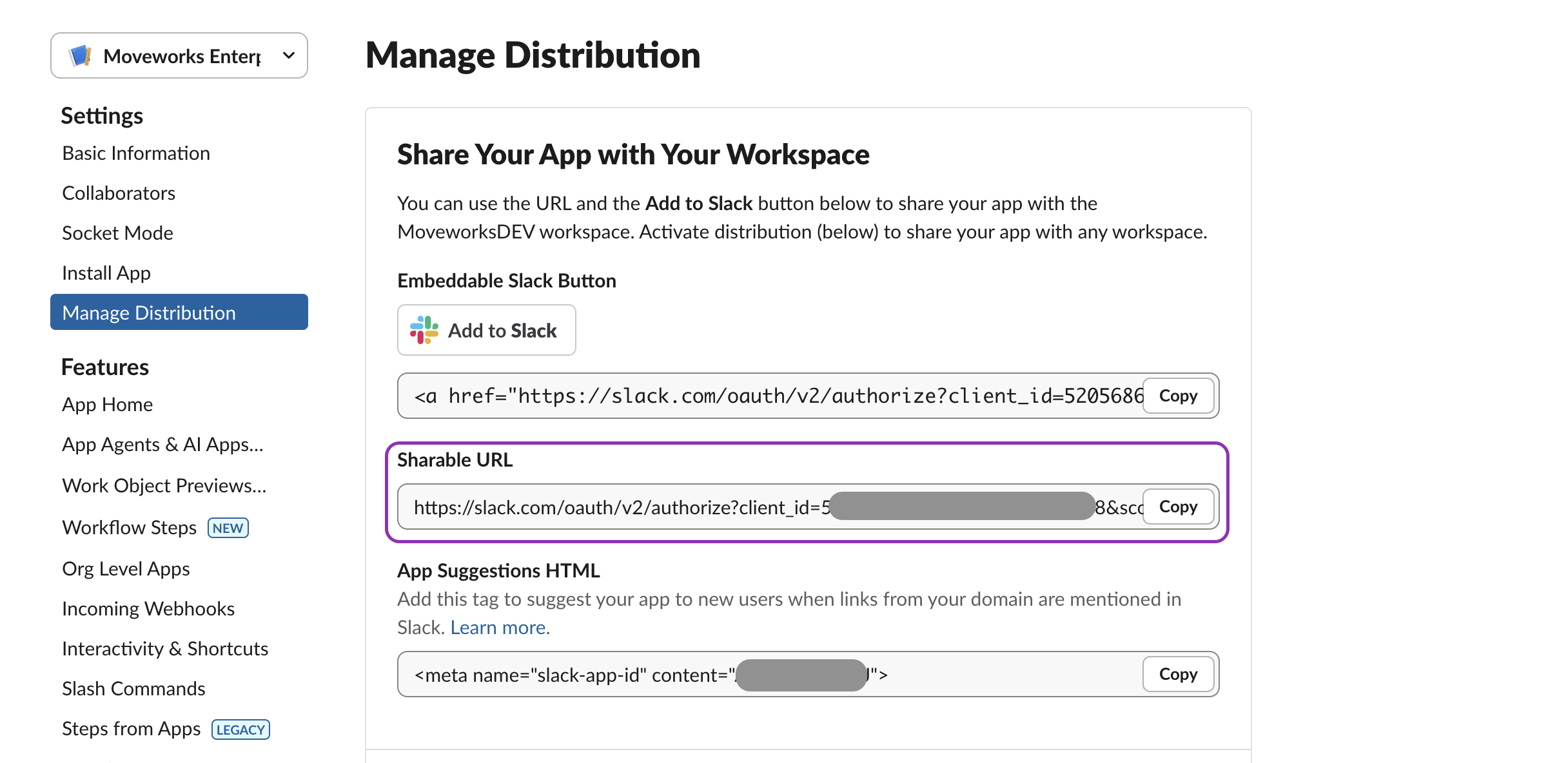
Get the Authorization (Sharable) URL
-
Go to your Live Search app in the Slack API dashboard.
-
Under **Manage Distribution → copy the Sharable URL.
-
It will look like this:
https://slack.com/oauth/v2/authorize?client_id=<CLIENT_ID>&user_scope=search:read -
Paste this URL into your browser and authorize the app using a Slack account from your workspace.
-
After authorizing, you will be redirected to your Moveworks callback URL:
https://www.moveworks.comCopy the value of
<AUTH_CODE>from the URL — you’ll use it in the next step.
-
-
Exchange the Authorization Code for a User Token
Run the following cURL command to exchange the authorization code for a user token:
curl --location 'https://slack.com/api/oauth.v2.access' \
  --header 'Content-Type: application/x-www-form-urlencoded' \
  --data-urlencode 'client_id=<CLIENT_ID>' \
  --data-urlencode 'client_secret=<CLIENT_SECRET>' \
  --data-urlencode 'code=<AUTH_CODE>'
You will receive a JSON response similar to:
{
  "ok": true,
  "authed_user": {
    "id": "U12345",
    "access_token": "xoxp-user1234567890"
  },
  "scope": "search:read",
  "token_type": "user"
}
Copy the authed_user.access_token value — this is the user access token that Moveworks will use for search queries.
-
Validate the Token
Test that the token has the correct
search:readscope by running:curl --location 'https://slack.com/api/search.messages?query=test' \ --header 'Authorization: Bearer <user_access_token>'If successful, a JSON response with matching messages will be returned.
-
Setup in Moveworks
Connector Creation
- Log in to your org's MyMoveworks portal
- Navigate to Moveworks Setup > Connectors > Built-in Connectors
- Click Create New
- Search and Select Slack (Next Gen)
- Click on Next: Add Creds
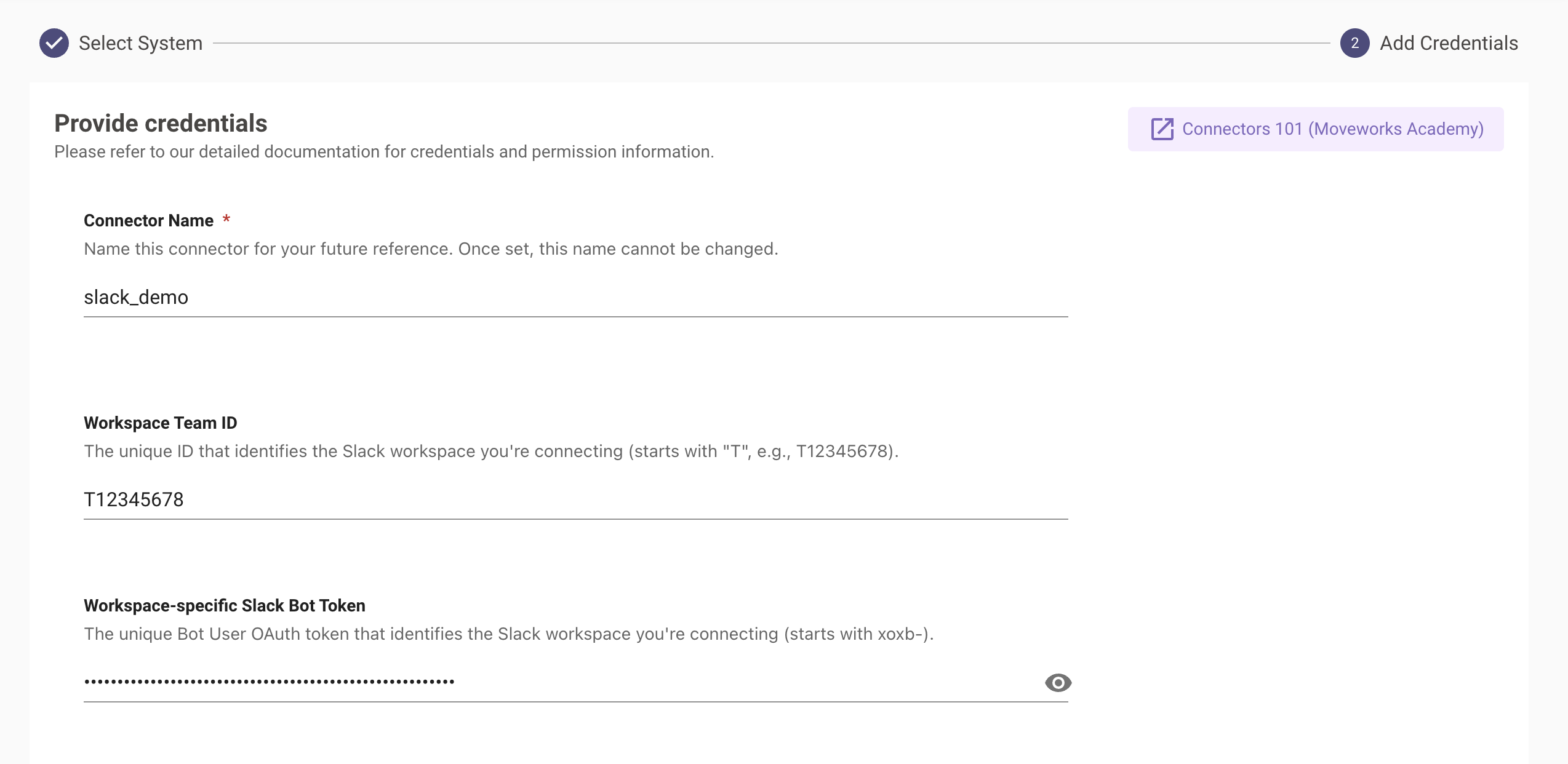
- Input the following details and click Save
-
Connector Name : Name this connector for your future reference. Once set, this name cannot be changed.
-
Workspace Team ID: Paste the Team ID you copied earlier (starts with T, e.g., T12345678).
-
Workspace-specific Slack Bot Token: Paste the Bot User OAuth token you copied earlier (must start with xoxb-).
-
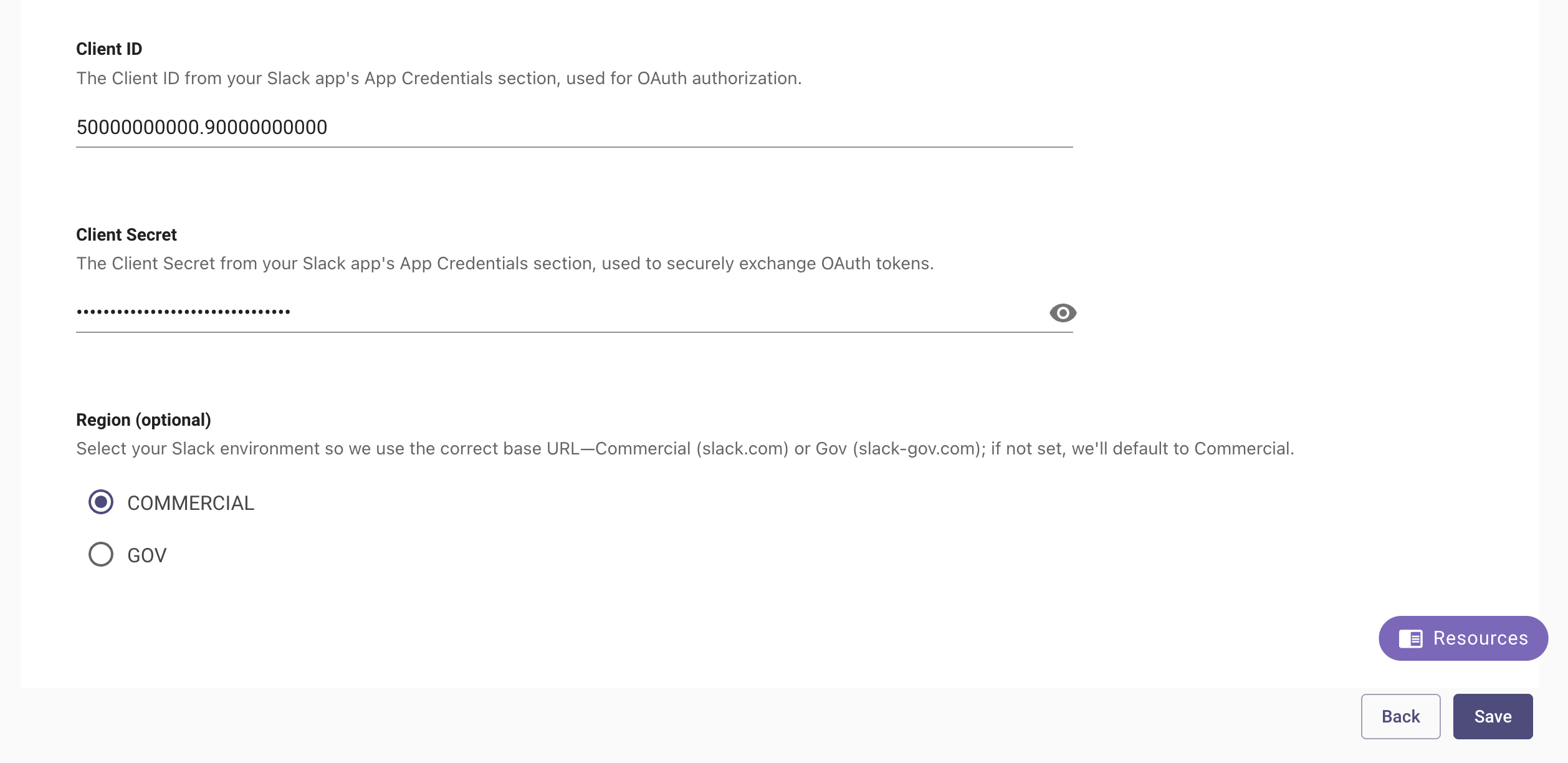
Client ID: Paste the Client ID you copied earlier from the Live Search Slack app (App Credentials).
-
Client Secret: Paste the Client Secret you copied earlier from the Live Search Slack app (App Credentials).
-
Region (optional): Select Commercial or GOV to match your Slack environment.
-
Initialising setup
- Log in to your org's MyMoveworks portal
- Navigate to Moveworks Setup > Answers > Ingestion > Enterprise Search
- Click on Create New or Get Started
- Select Slack from the dropdown list and click on Get Started
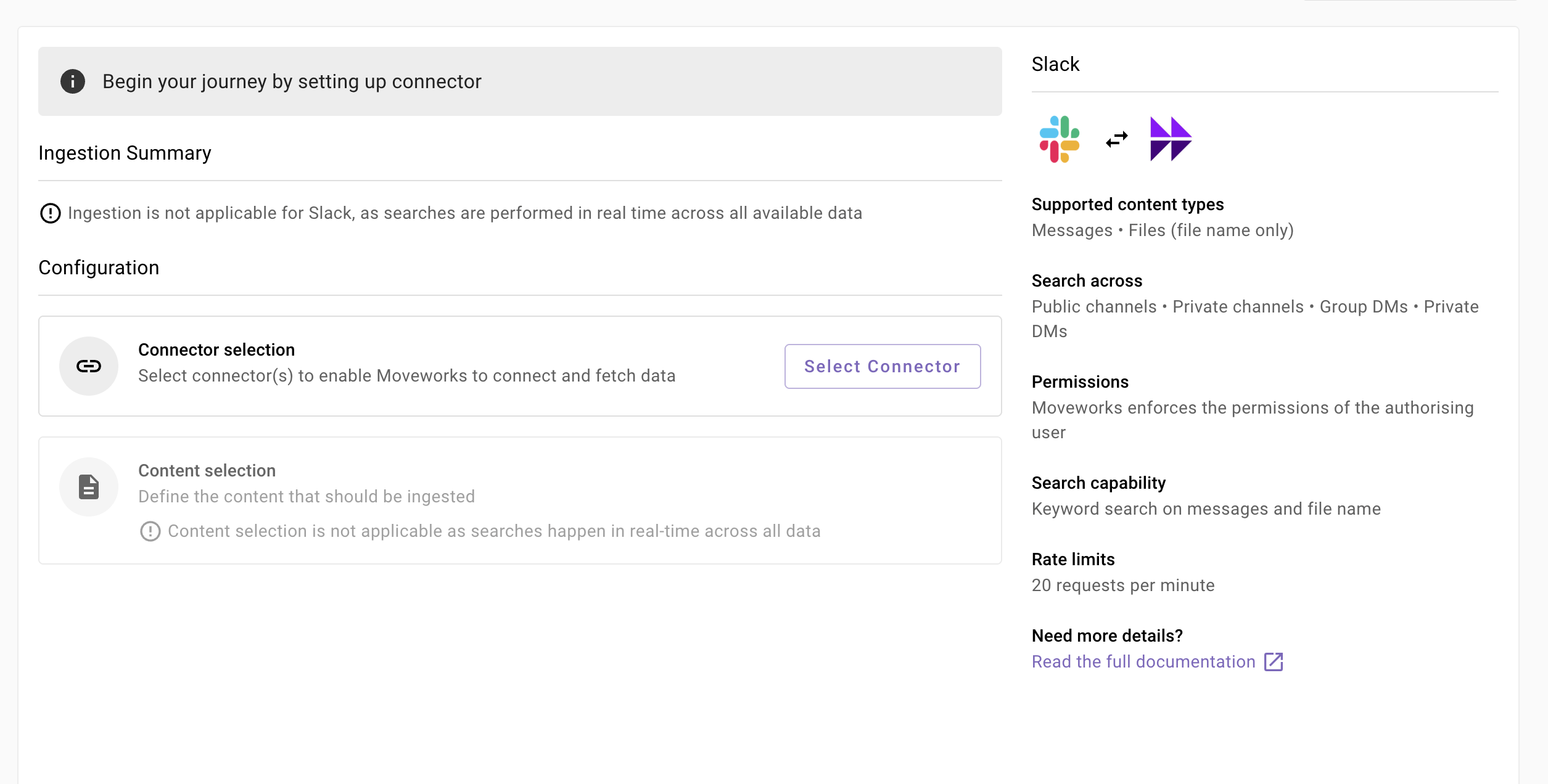
- You will be redirected to the Slack ingestion overview page. In the overview page, you will find few info blocks and few configuration blocks.
-
System Overview: This presents an overview of Slack support from Moveworks
-
Connector Selection: In this configuration block, you are required to select the required connector to enable Moveworks to connect and fetch data
-
Configuring Slack for Enterprise Search
Connector selection and validation
-
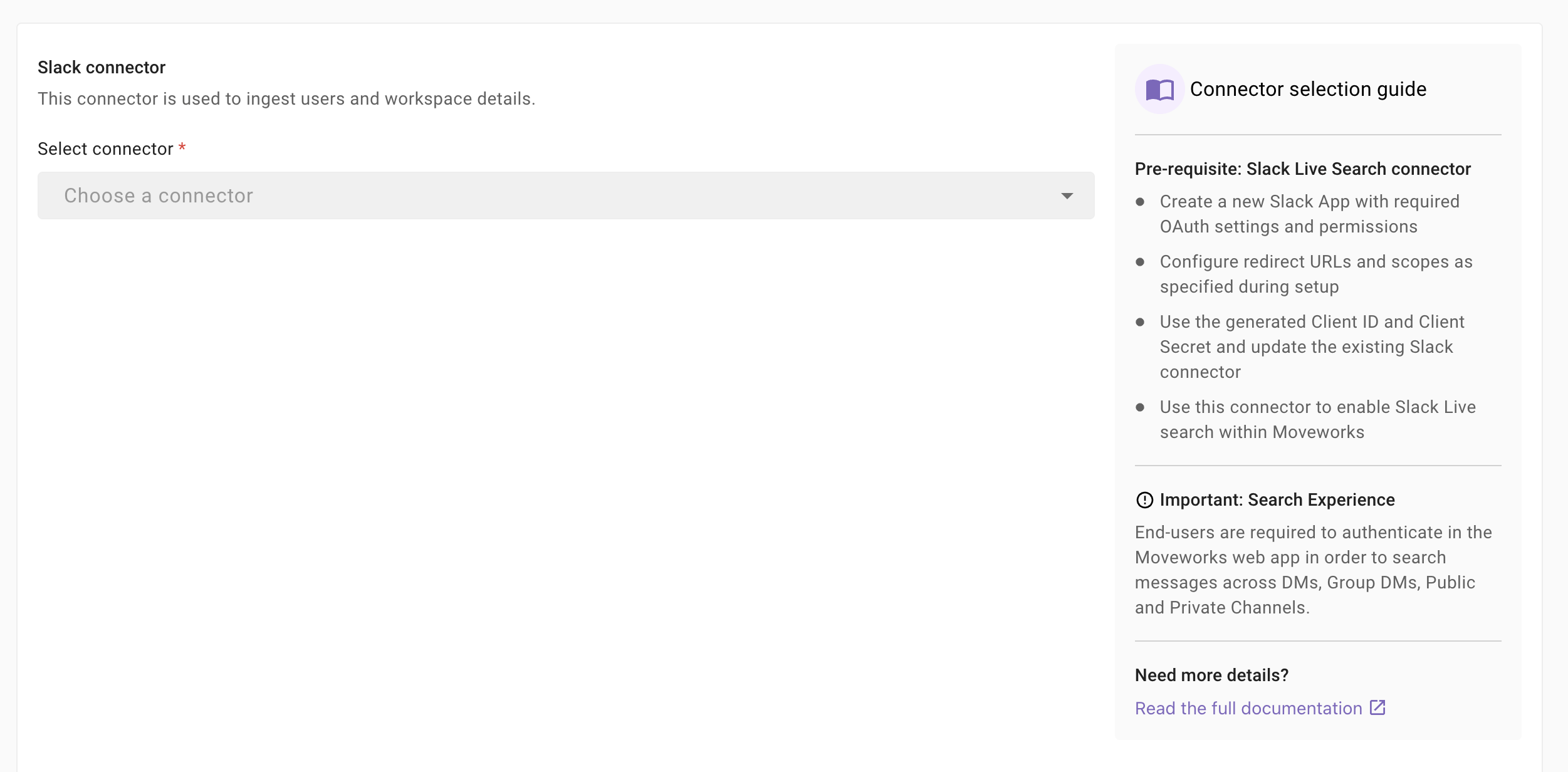
Once you click on Select Connector, a connector setup screen will appear as follows
-
Select the connector (from the dropdown) that you have created in the Connector Creation step.
Please note: Only the Slack (Next Gen) connectors will appear in this list.
-
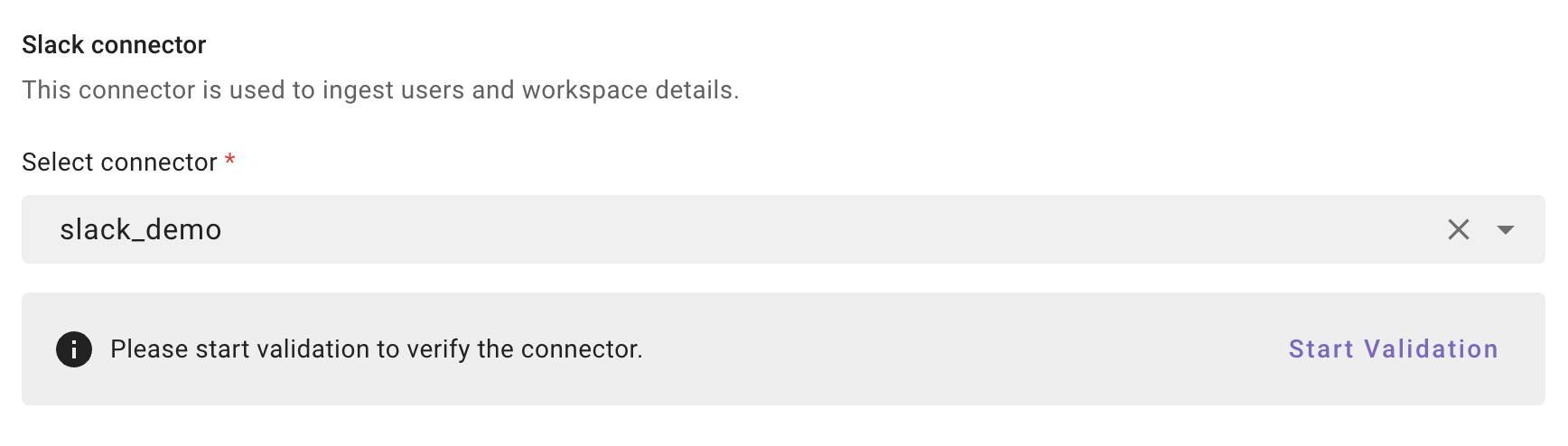
Once the connector is selected, you need to click on Start Validation to validate the connector credentials and required scope.
Connector Validation
This is a mandatory step in order to save the configuration and move to the next step.
Moveworks validates the selected connector to check:
- Channels: Moveworks validates if connector has right scopes to fetch channels information
- Users: Moveworks validates if connector has right scopes to fetch user data
- Groups: Moveworks validates if connector has right scopes to fetch user groups data
-
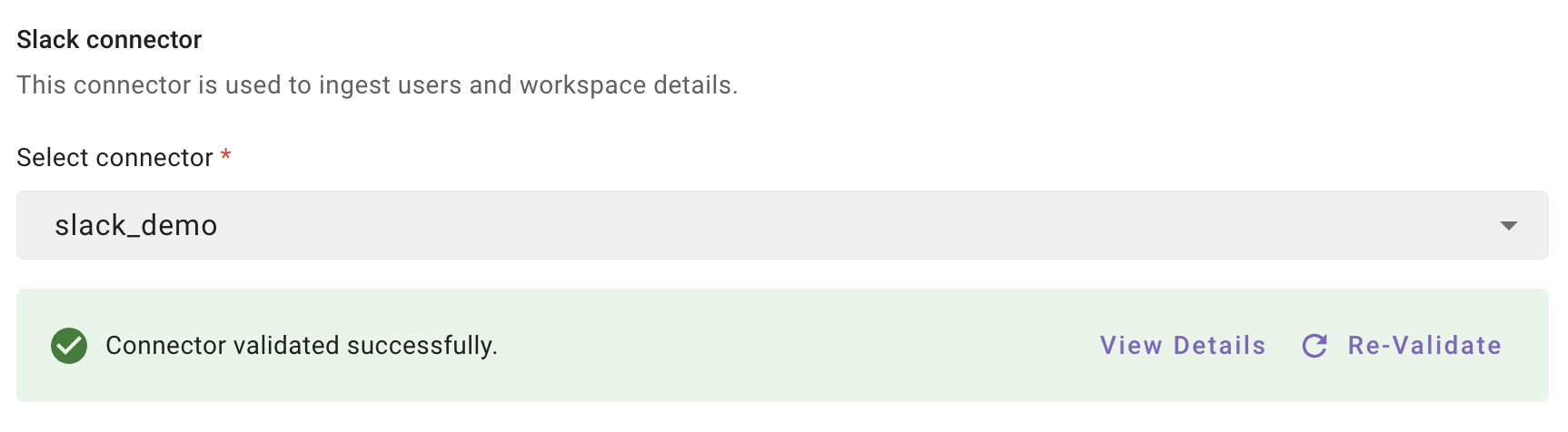
If the connector is validated successfully, you will see a green info banner as follows.
- If there are any credentials or scope issues, you will receive an error message as follows. Click on View Details to identify the issue. Refer to this step-by-troubleshoot guide (link to be added) to rectify any validation errors.
-
Once the connector is validated successfully, you will be able to Save the configuration.
-
Input the unique configuration name and Save.
-
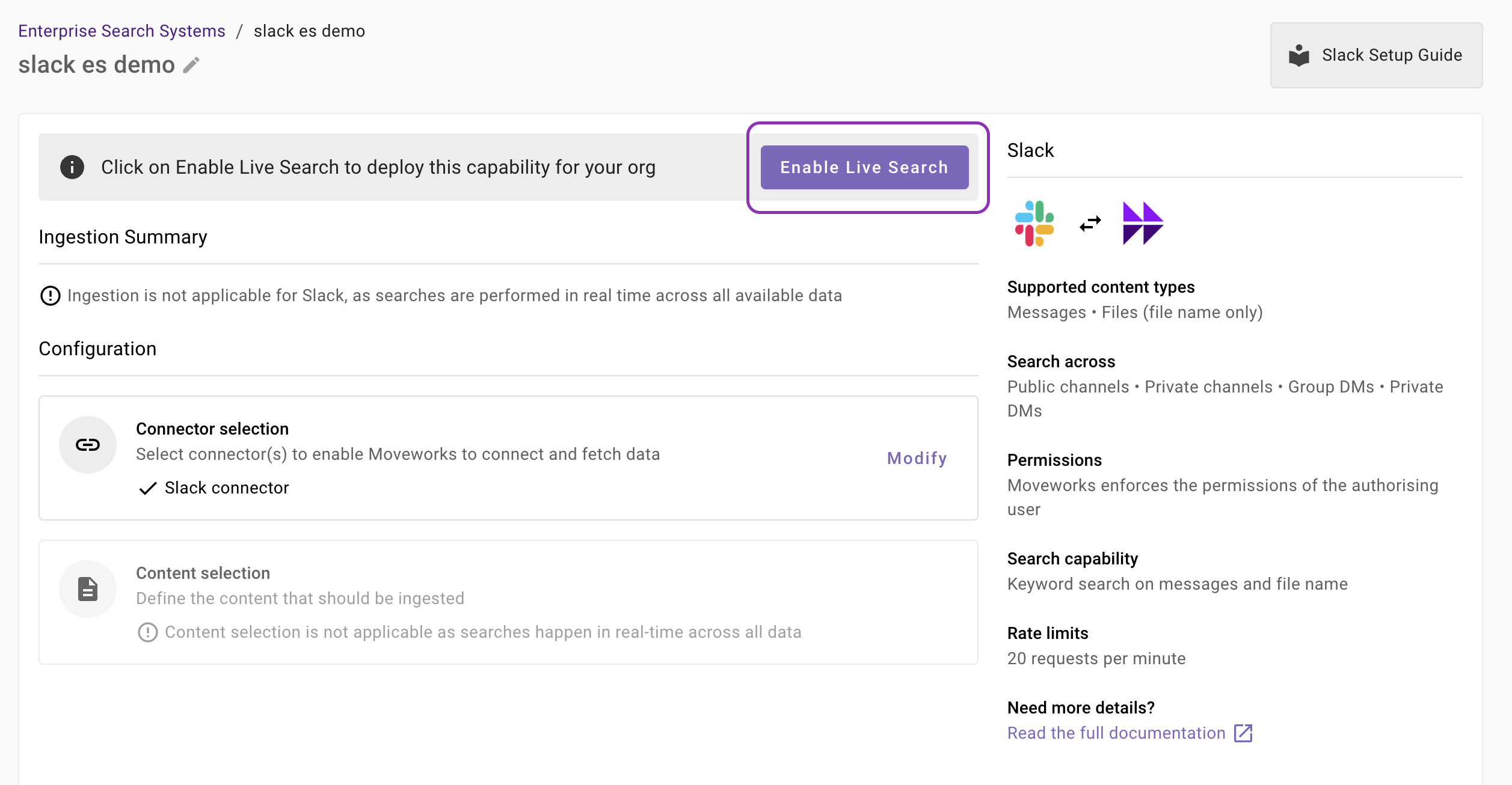
Once the configuration is saved, you can view the unique configuration name at the top of the screen. You can also click the pencil 🖊️ icon to edit the configuration name.

-
Additionally, you will see a banner at the top of the screen with an Enable Live Search button. Click it to activate the Slack Live Search feature for your Enterprise Search web application.
Updated 25 days ago