
[New] Configure Ticketing for ServiceNow
This guide walks you through configuring ServiceNow as a ticketing system in Moveworks. Once configured, employees can create, view and manage ServiceNow tickets directly through the Moveworks AI Assistant. Moveworks supports all default ServiceNow ticketing tables as well as the custom tables configured in your environment.
Pre-Requisites
- Please ensure the required ServiceNow Connector has been created with the necessary permissions to support ticket actions. Please refer the ServiceNow Access Requirements Doc for details.
- Please ensure a the Service Account configuration in Moveworks setup exists if not please use this guide to configure it.
- Please ensure the Service Account being used for connecting to ServiceNow has access to the Ticketing tables you want to enable with the ticketing skill. Moveworks will be able Query/ Create/ Update/ Resolve/ Reopen actions
- Please setup the identity configuration for ServiceNow so the users can be ingested with their external system ID. Refer to this section for a dedicated guide to setup user identity for ServiceNow.
- Please setup the Service Portal configuration for your ServiceNow employee portal. This is the link to the end user portal. Refer to this section for dedicated guide to set this up. Please ensure you configure this before testing ticketing actions in Moveworks AI Assistant.
- Please ensure you have completed the chat configurations for AI Assistant. This is necessary to have a conversation with your AI Assistant and test the ticketing actions.
Ensure you complete the actions above to seamlessly test ServiceNow ticketing integration in Moveworks AI Assistant. These are necessary for the Moveworks Ticketing skill to work
Navigate to the new ticketing wizard
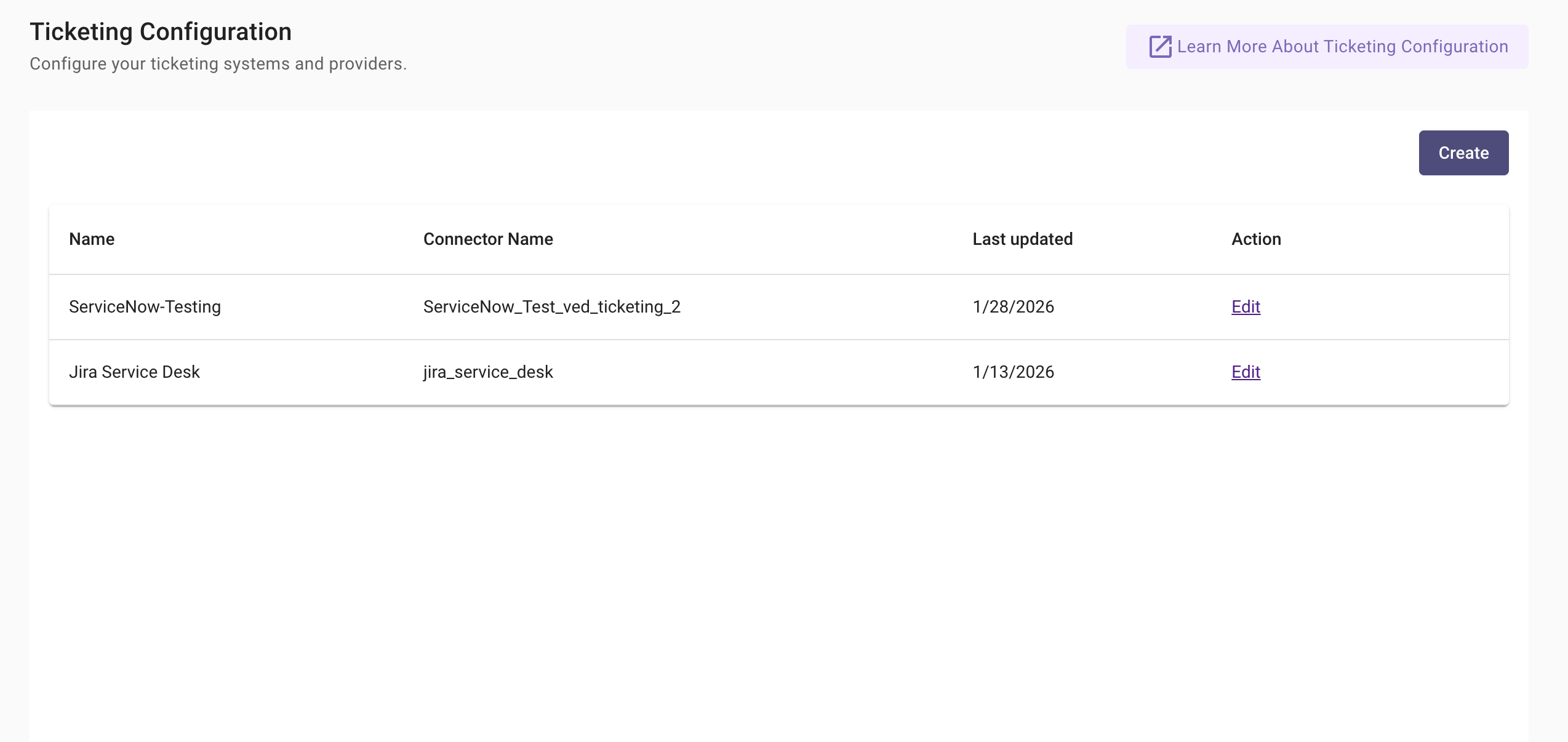
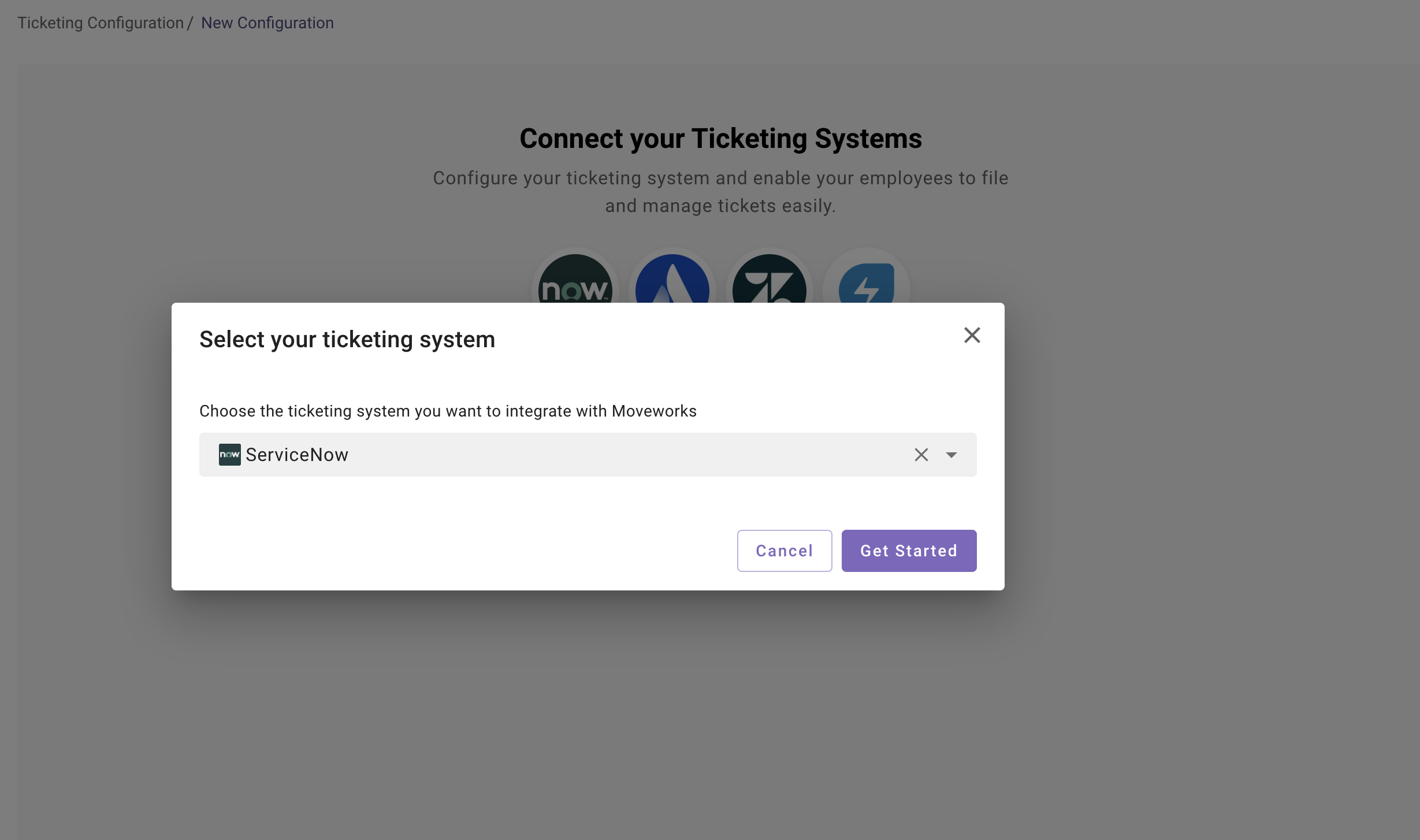
Start by navigating to Ticketing Automation > Ticketing Configuration, where you can create and manage ticketing configurations for ServiceNow. If you are configuring ticketing for the first time or adding a new ticketing system, click Create to set up a new ticketing configuration.
If you want to add a new ticket tables or update settings for an existing configuration, click Edit next to the relevant ServiceNow configuration.
Configuration Structure
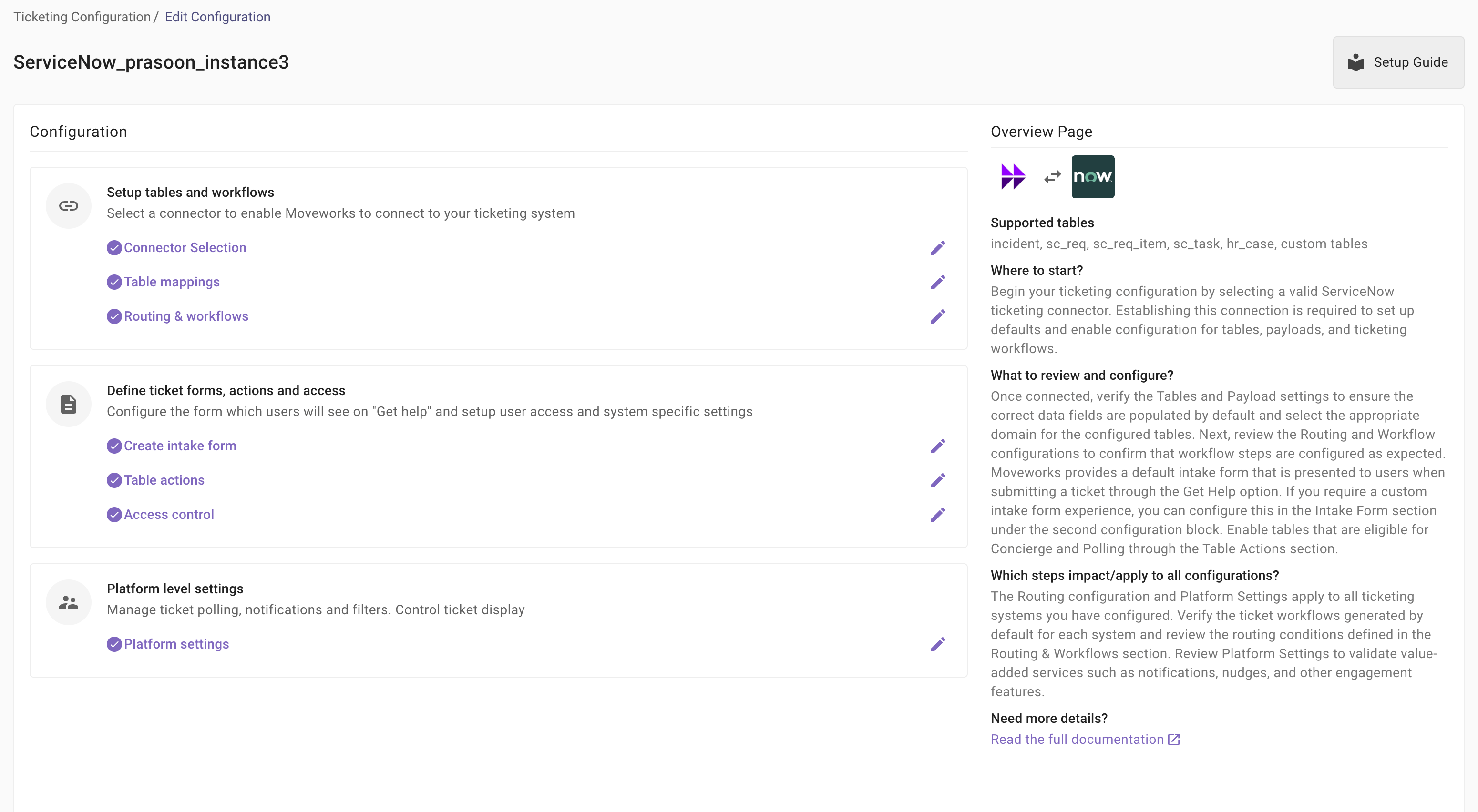
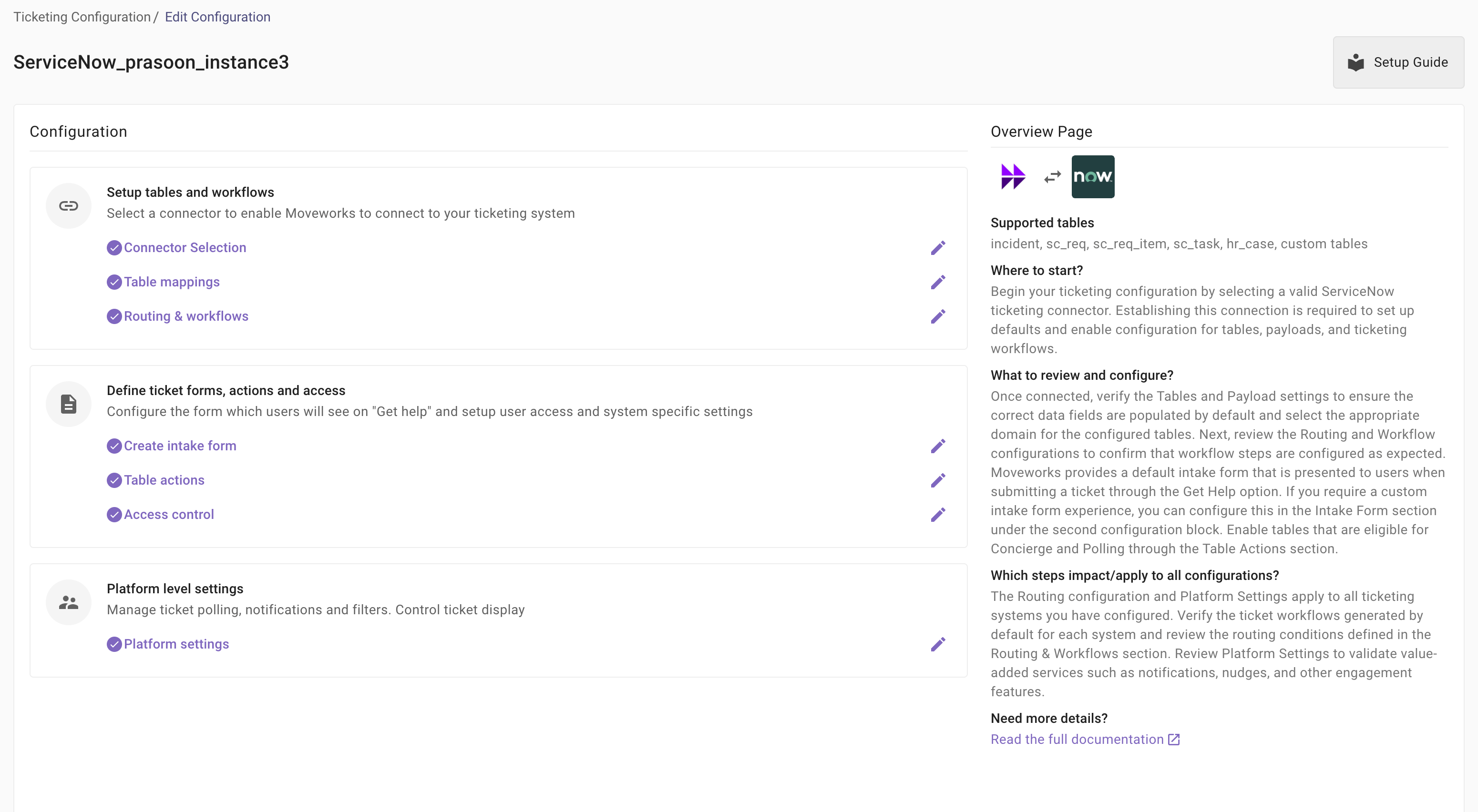
Ticketing configuration is organized into three sections, which should be completed in order:
-
Setup tables and workflows
Connect to your ServiceNow instance and enable default tables and workflows. Configure any custom tables that you need to enable for ticketing and setup custom workflows and routing
-
Define ticket forms, actions and access
Configure the ticket intake form. By default Moveworks already has a default intake form served to end users. Enable tables for concierge updates and polling and enable the ticketing integration for your end users
-
Platform settings
Manage the platform level ticketing configurations - Setup ticket polling filters, Notifications and nudge settings.
1. Setup connector and defaults
-
Select the ServiceNow connector that Moveworks will use to integrate with your ServiceNow instance. Follow the help documentation to learn about the connector setup
-
The connector enables Moveworks to:
- Create tickets
- Retrieve ticket status and updates
- Access ticket fields and metadata
- Perform ticket actions on behalf of users
-
Please select “Mark this system as primary” if this is your first ticketing system.
-
Provide a configuration name to help the configuration at later point in time.
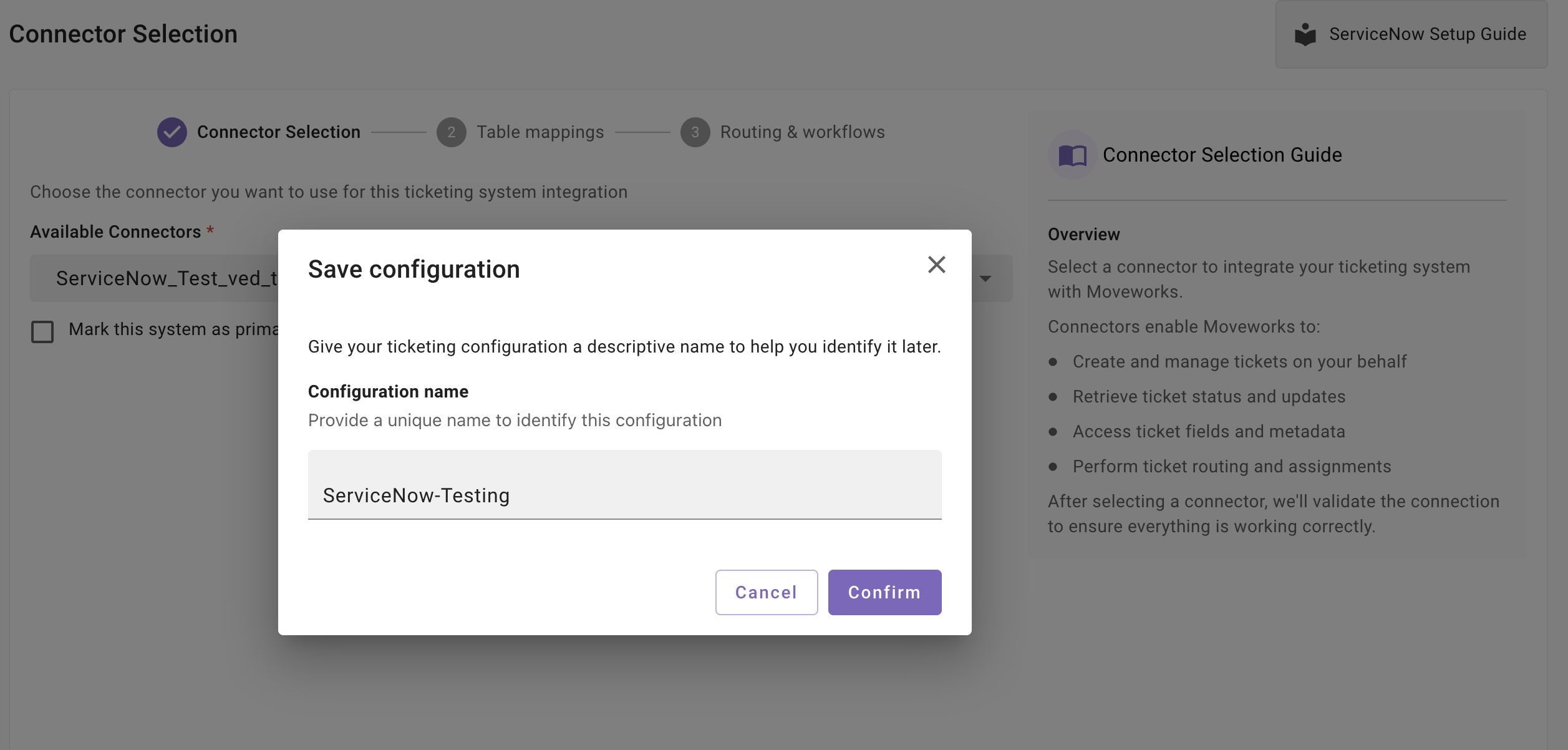
Common mistakes
- Not marking the system as primary - If there is no ticketing system configured for this organization
- The new configuration journey will throw a error if you have not marked this system as primary. This is require to identify primary ticketing system which will be used in the Moveworks ticketing platform
- Not configuring a Service Account configuration.
- The new configuration journey will throw a error if you have not configured a service account configuration for the connector that you have selected in this journey. please visit the pre-requisite guide in order to go through the setup.
- Selecting a previous configured connector
- The new configuration journey will throw an error if you try to configure a new ticketing setup for a previously used ticketing connector. Please ensure that you do not have any ticketing configurations even in the legacy configs with the same connector. This journey requires a new connector to set up the ticketing skill.
1.1 Enabling defaults
Once you have completed the connector setup, you can now start setting up the defaults. The saving connector will redirect you to the homepage where you will now be able to see a setup defaults section on the top of the configuration homepage.
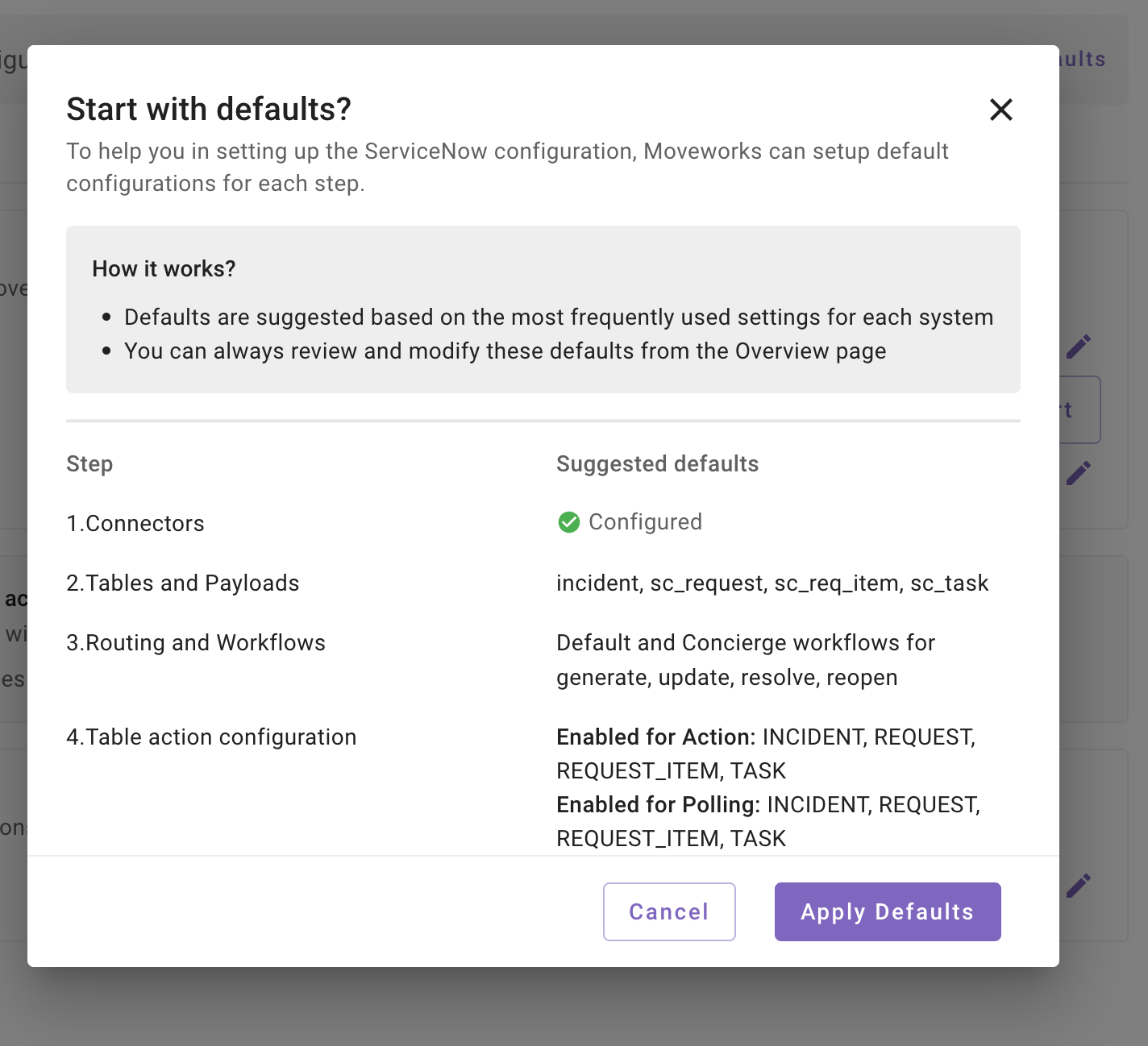
Click on the setup defaults button. This will open up a modal where you can review the configurations that are going to be added as a part of the defaults.
Please note that Moveworks creates default tables that are applicable in ServiceNow and the default workflows that are applicable in ServiceNow.
In case if this is your first ServiceNow implementation, Moveworks will also set the workflows under routing conditions. Please review the workflows once just to make sure that those are correct.
The following steps we will go through section-by-section to understand how to review the defaults and what updates you need to make in order to start testing the default ticketing workflows.
Please note that in case this is your secondary ticketing system, you will already see the routing and payload section configured as well as the Intake form settings already enabled for you. This is due to routing and payloads are a shared configuration between all of the ticketing configurations.
You can edit them individually from each journey and any changes that are made on this section will be reflected in other configurations as well
2. Review default created destinations
Navigate to the table action section here. You will see there are four tables that are created by ServiceNow for ServiceNow by Moveworks:
- incident
- sc_request
- sc_request_item
- sc_task
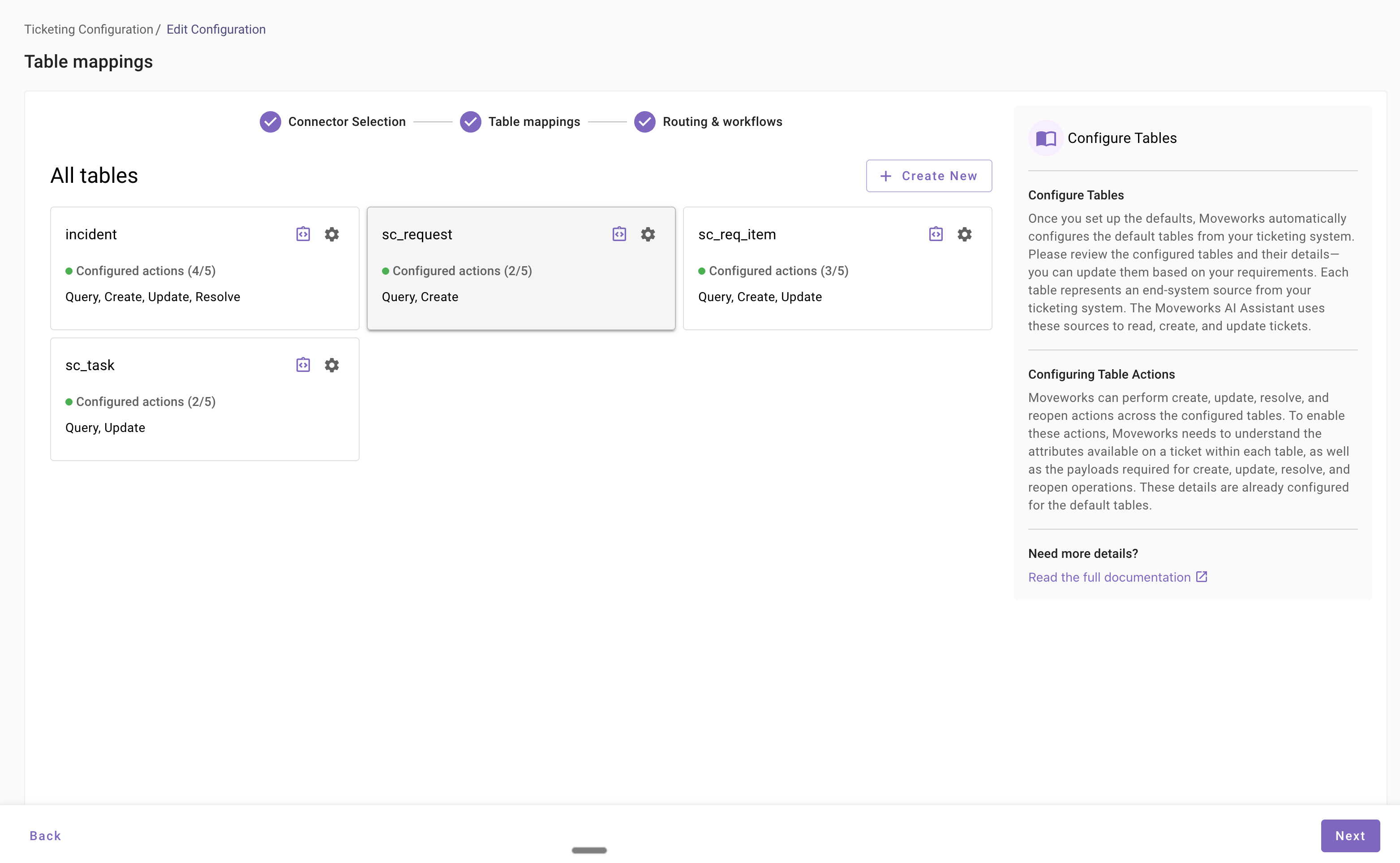
Moveworks has already populated the table details and also configured the state mapping and the attribute mapping for each action which is query, create, update, resolve, and reopen. Please validate it once if those are configured correctly.
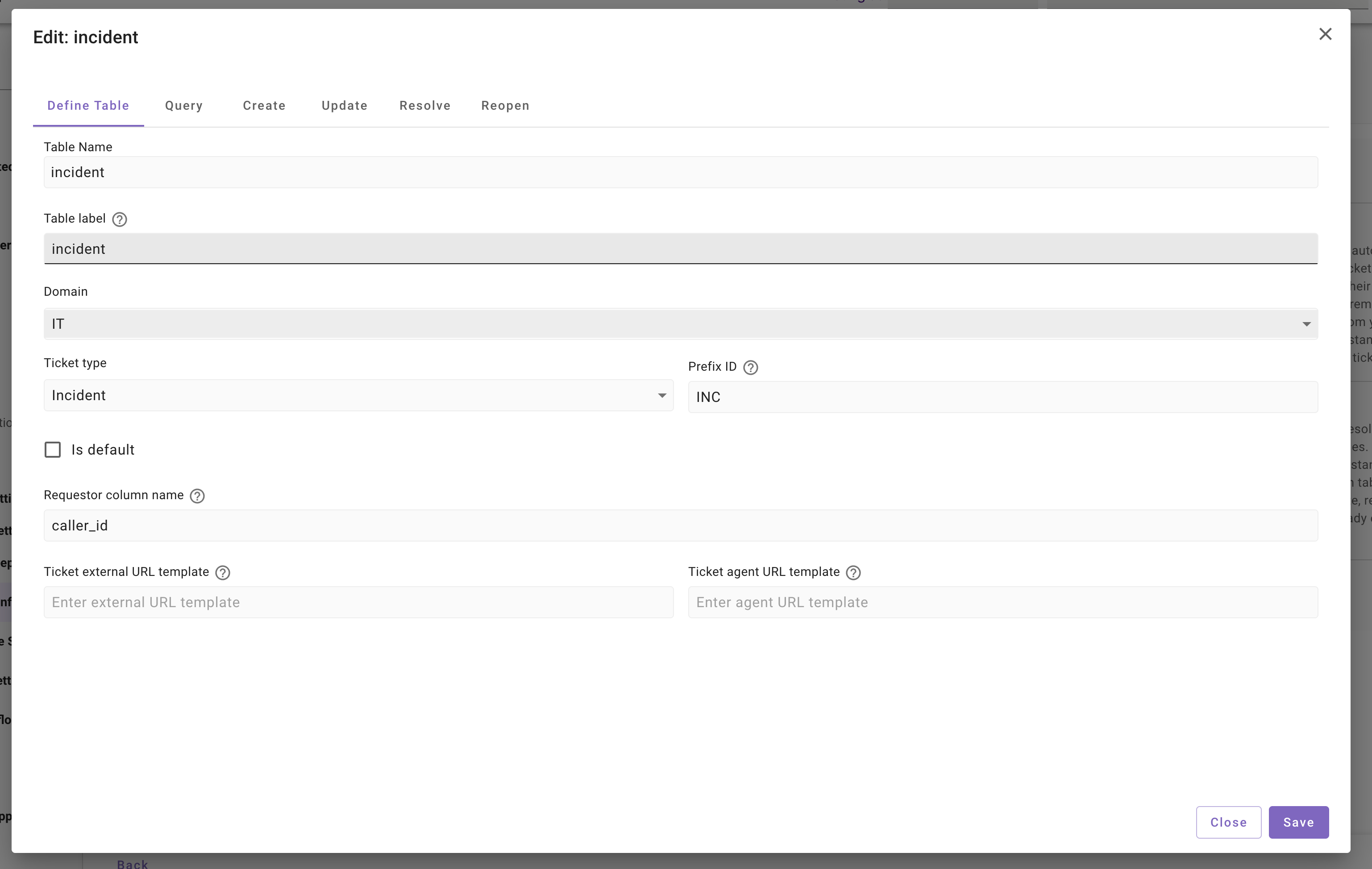
Refer to this section to understand the details on how to add a new destination and also to understand what does each field represent in this configuration.
3. Review ticket workflows and routing
Once you click on the next button available here, you will land on the Routing and Workflows section.
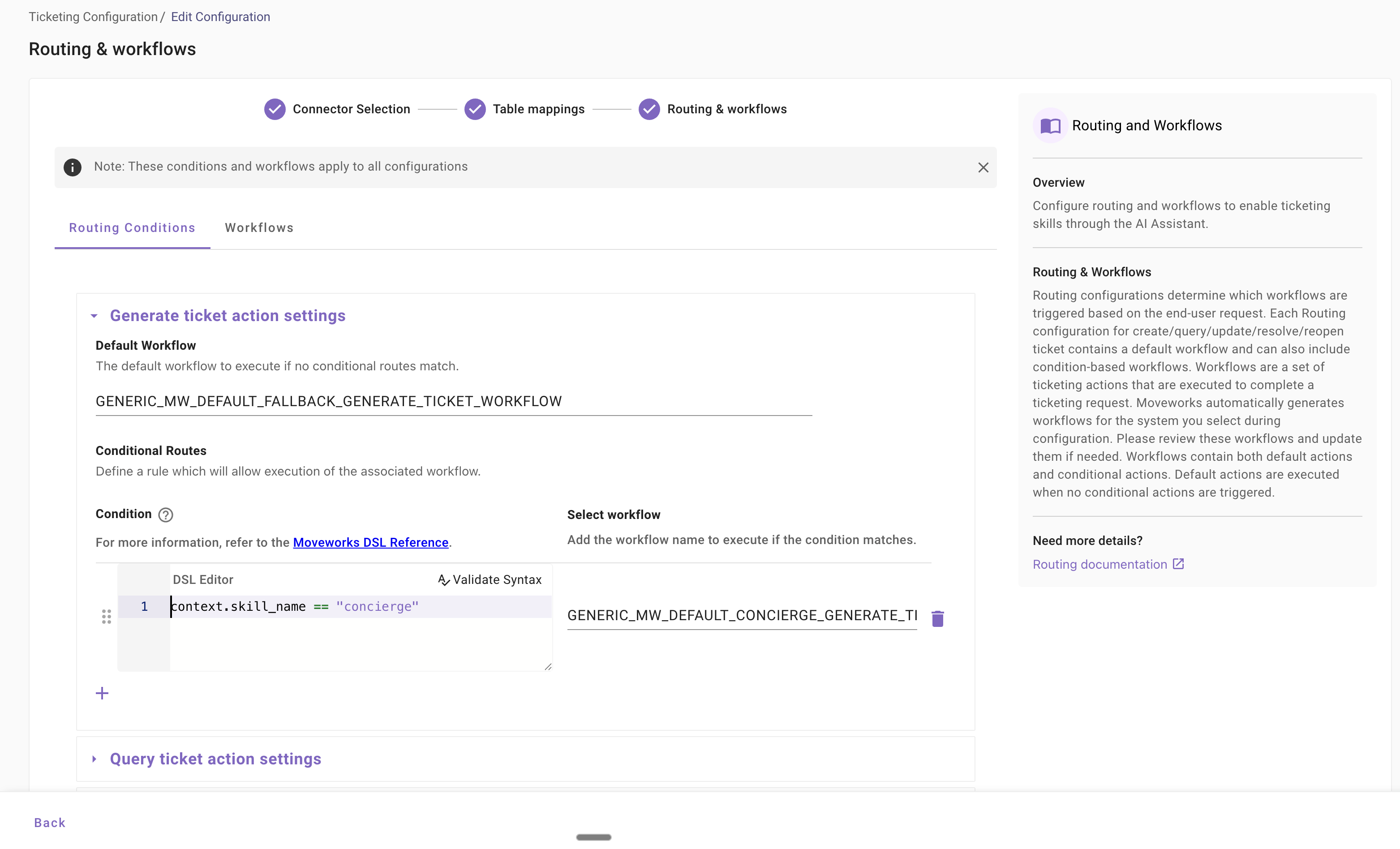
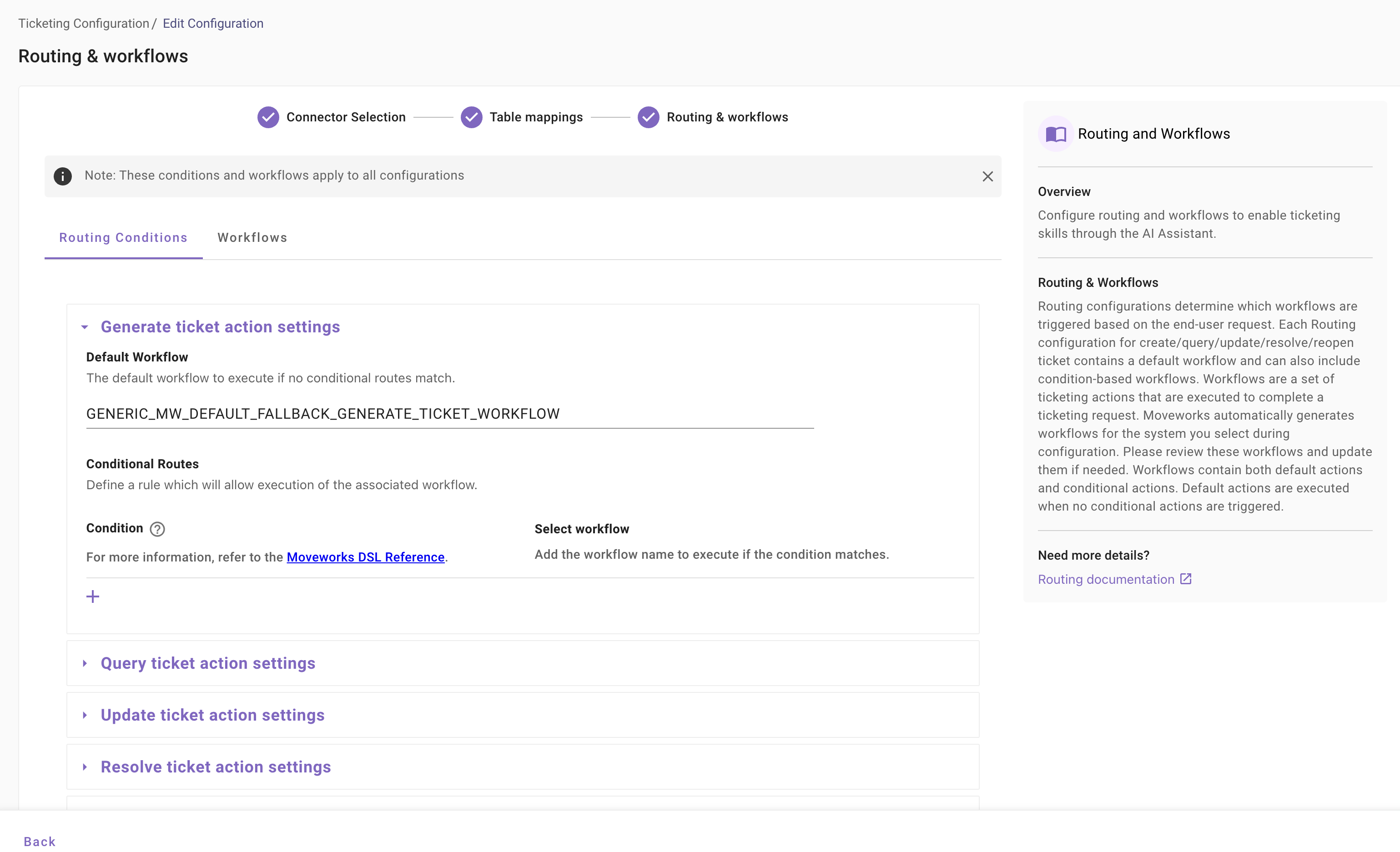
Here in the Routing and Workflows section, you will be able to see the details of Routing composite actions: query, generate, update, resolve, reopen, and the designated default workflows that are selected within those as well as any conditional workflows. Moveworks only sets the default workflow in case if this is your primary ticketing setup. In case this is your secondary ticketing setup, Moveworks will not override any default workflows that are already in place. You will be able to add more conditions and workflows in the Workflows section
Move over to the workflows section to see what are the workflows that are generated by the default for any connector. Moveworks generates a default workflow for each action which can contain multiple steps.
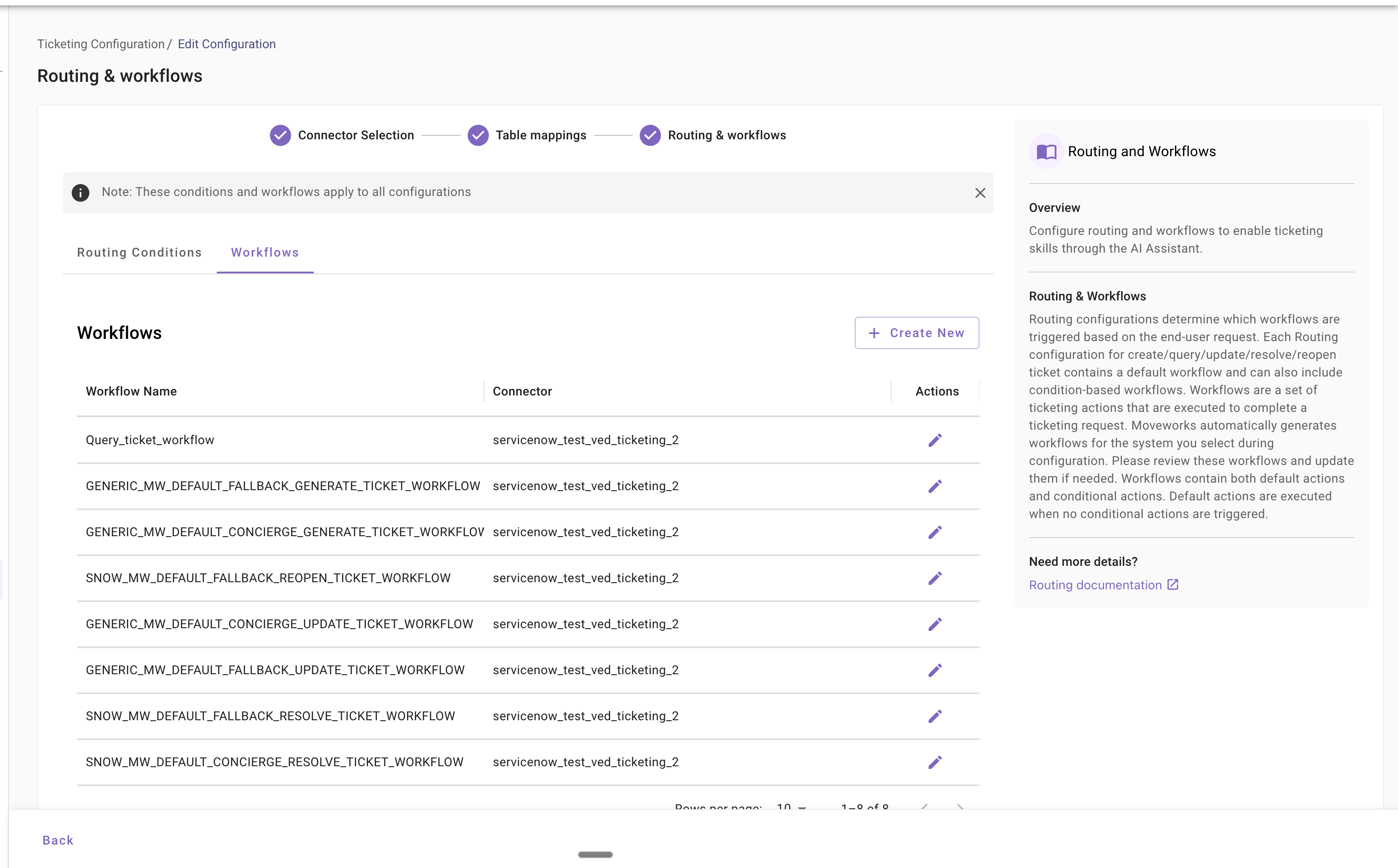
3.1 Updating the default workflows
Setup destination for ticket creation
In order to continue testing the default actions within MoveWorks ticketing skills, you will need to put in some few updates on the default generated workflows.
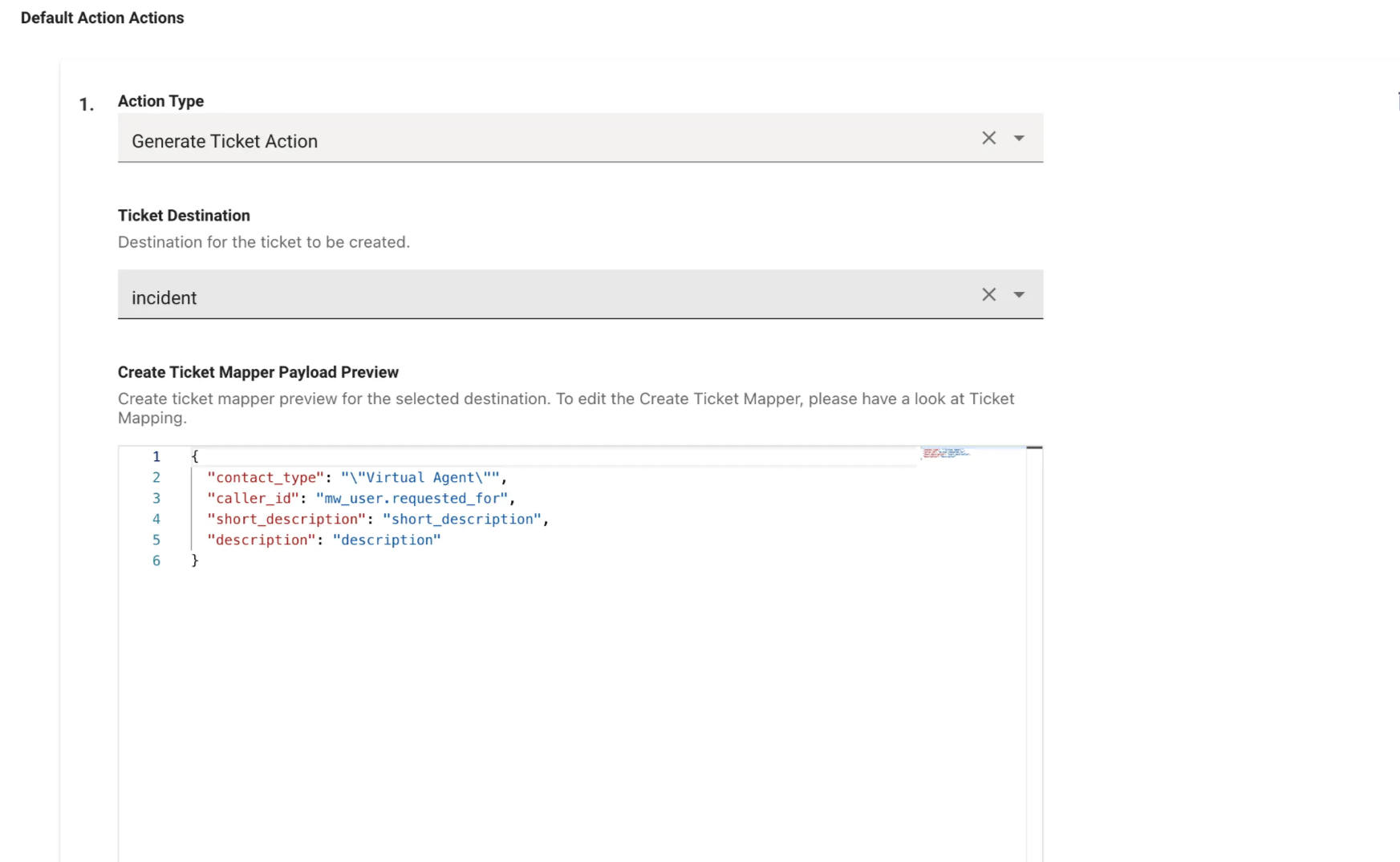
First of all, navigate to the workflows section and select the GENERIC_MW_DEFAULT_FALLBACK_GENERATE_TICKET_WORKFLOW . In this you will find a generate ticket action Select the destination ID that you want the ticket to be filed in.
By default Moveworks supports out-of-the-box incident filing. Please select the destination as incident so you'll be able to test the incident creation in the next step
4. Test the defaults that are created for your organization
Let's test out two scenarios to check if the defaults are working as expected. Before trying out ensure that you have completed the user ingestion and also have the Service Portal configured for ServiceNow. If not please refer to this pre-requisite guide and then come back to this section to start testing
Before you start testing the file ticket flow, we will also need a handoff configuration. In order to setup this please refer to the handoff guide in Moveworks setup to understand more.
The org creation process would have already created an IT file ticket hand-off for you. Please visit the hand-off configurations to confirm if this is the case .
- Test file incident
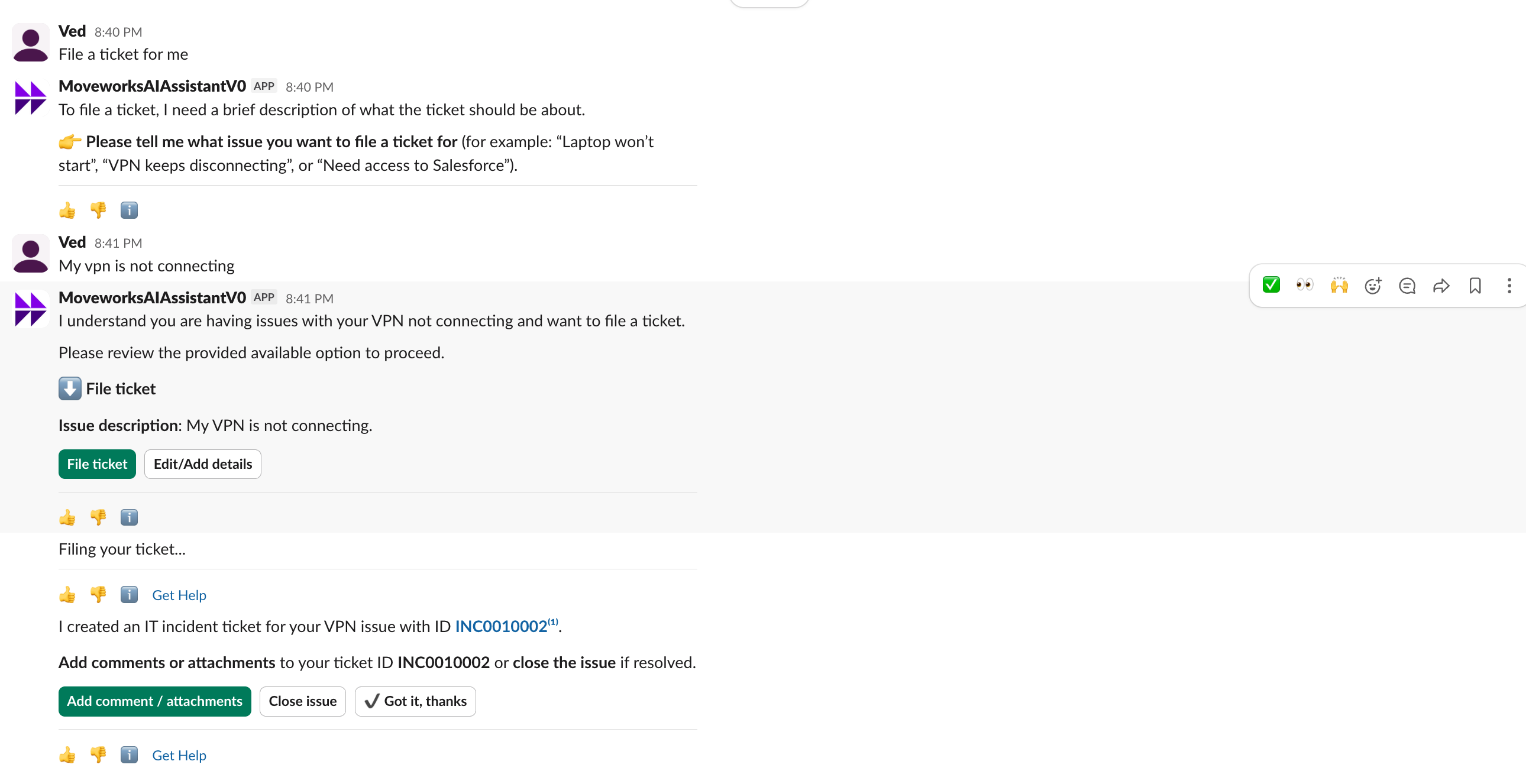
Ask Moveworks AI Assistant to file a ticket for you. Define any sample issues like "my VPN is not connecting" and then click on the "File Ticket" button. This will allow you to create an incident ticket in your ServiceNow instance
5. How to add a new table ?
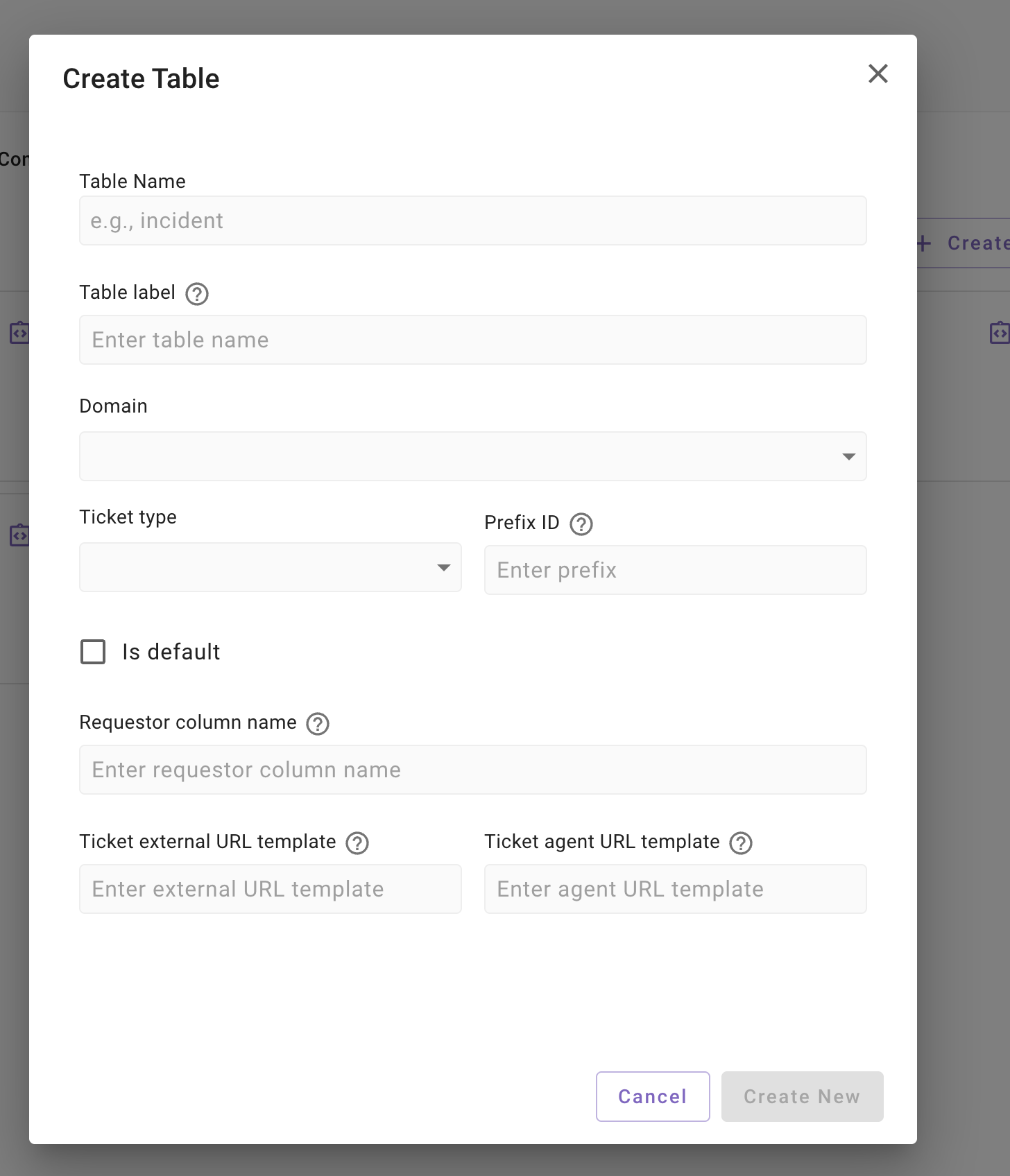
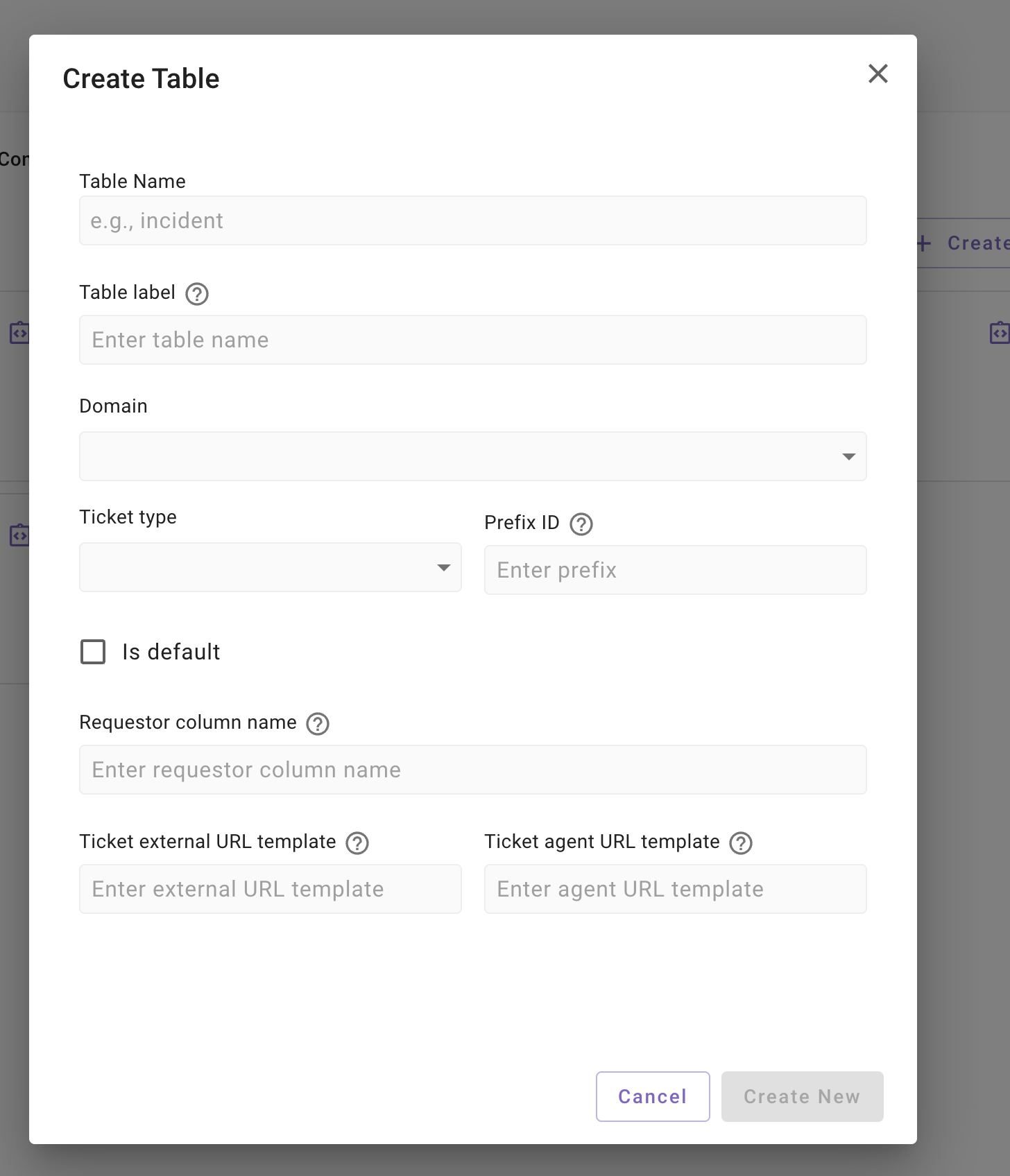
Let’s go through the process to add a new table in the ticketing configuration. After a sucessfull test of defaults you can expand the ticketing use-cases according to requirements. In order to add a new table - Click on the “Create New” button on the top right. This will open up a table creation flow for adding a new table
Field details
- Table name : Table name in Service Now where you want to read tickets from : For example
hr_case - Table label : This is a Moveworks specific construct where you have to re-enter the table name in order to tie it with the Create/Update/Resolve/Reopen. Re-enter the same table name here in this field
- Domain : This refers to the business domain to which this destination belongs to - Select the domain from the dropdown here
- Prefix-ID : Configure a prefix for the tickets that are being created or fetched from this table. For example
hr-xyzhere “hr” is the prefix ID. - Requestor column name : Each ticket is created by a user this field refers to that end user. Go through the ServiceNow API to figure out this field For example :
requested_forin case of incidents. - Ticket external URL template & Agent URL template : Moveworks will pick up the default in case of ServiceNow so you don't need to fill this at a destination level. I
Once the table is created you will see new entry for it in the Table mappings page. Let’s start populating details for a new table such as the state mapping and payload to Query / Create / Update / Resolve / Reopen table
-
State mapping
Each ticket in your ServiceNow instance goes through a workflow starting from state as “New” to “Resolved”. Map each to a Moveworks internal state and capture the following fields
- Name : These Moveworks internal states - Select one from the dropdown
- Form External State values : Enter the state name from your external system matching to the internal Moveworks state that you have selected.
- Proto state field to use : Moveworks needs to understand the external field from the API response where the state is mapped. In case of servicenow this is mapped to
statefield - To External State column : Enter the column name from the table that you want Moveworks to make changes while updating the ticket state in ServiceNow. The standard value for this field is
state - To External State value : Enter a state name that you would want Moveworks to send to your external system while transitioning a ticket in ServiceNow.
-
Ticket Attribute Mapping
Moveworks needs to understand the structure of ticket from your table. Thus, you would need to map the external ticket fields to the internal Moveworks ticket field. Refer to this doc to understand the Moveworks ticket data object. Check out this example for the incident table. The keys refer to the Moveworks ticket object fields and values refer to the fields from your ServiceNow table.
There are two ways to add this mapping
- Use same as : This will use the details from a previous table if you have configured it previously
- Define manually : In this you will need to enter a JSON mapping of fields from the ServiceNow ticket to Moveworks ticket object. Check the example below for the incident table.
{ "created_at": "$TIMECONV((sys_created_on).value.$TRIM(), \"%Y-%m-%d %H:%M:%S\")", "contact_type": "$TRIM(IF contact_type THEN contact_type.display_value OR \"\" ELSE NULL)", "assignment_group": "$TRIM(IF assignment_group THEN assignment_group.display_value OR \"\" ELSE NULL)", "close_notes": "$TRIM(IF close_notes THEN close_notes.display_value OR \"\" ELSE NULL)", "resolved_by": { "CONDITIONAL()": { "condition": "resolved_by", "on_pass": { "user_id_info.user_itsm_id_info": [ { "full_name": "resolved_by.display_value", "itsm_user_id": "resolved_by.value", "external_id": "resolved_by.value" } ], "full_name": "resolved_by.display_value", "external_system_identities.unknown_system": { "user_id": "resolved_by.value", "external_id": "resolved_by.value" } } } }, "display_ticket_id": "$TRIM(IF number THEN number.display_value OR \"\" ELSE NULL)", "type": "(sys_class_name).value.$TRIM()", "opened_by": { "CONDITIONAL()": { "condition": "opened_by", "on_pass": { "user_id_info.user_itsm_id_info": [ { "full_name": "opened_by.display_value", "itsm_user_id": "opened_by.value", "external_id": "opened_by.value" } ], "full_name": "opened_by.display_value", "external_system_identities.unknown_system": { "user_id": "opened_by.value", "external_id": "opened_by.value" } } } }, "activity_log": "$TRIM(IF comments THEN comments.display_value OR \"\" ELSE NULL)", "opened_at": "$TIMECONV((opened_at).value.$TRIM(), \"%Y-%m-%d %H:%M:%S\")", "work_note_log": "$TRIM(IF work_notes THEN work_notes.display_value OR \"\" ELSE NULL)", "updated_at": "$TIMECONV((sys_updated_on).value.$TRIM(), \"%Y-%m-%d %H:%M:%S\")", "subcategory": "$TRIM(IF subcategory THEN subcategory.display_value OR \"\" ELSE NULL)", "custom_data.assignment_group": "$TRIM($TEXT($TRIM(IF assignment_group THEN assignment_group.display_value OR \"\" ELSE NULL)))", "resolved_at": "$TIMECONV((resolved_at).value.$TRIM(), \"%Y-%m-%d %H:%M:%S\")", "close_note_log": "$TRIM(IF close_notes THEN close_notes.display_value OR \"\" ELSE NULL)", "snow_info.reassignment_count": "$INTEGER($TRIM(((reassignment_count).value.$TRIM()) OR NULL) or null)", "short_description": "$TRIM(IF short_description THEN short_description.display_value OR \"\" ELSE NULL)", "priority": "$TRIM(IF priority THEN priority.display_value OR \"\" ELSE NULL)", "configuration_item_sys_id": "(cmdb_ci).value.$TRIM()", "description": "$TRIM(IF description THEN description.display_value OR \"\" ELSE NULL)", "configuration_item": "$TRIM(IF cmdb_ci THEN cmdb_ci.display_value OR \"\" ELSE NULL)", "requested_for": { "CONDITIONAL()": { "condition": "caller_id", "on_pass": { "user_id_info.user_itsm_id_info": [ { "full_name": "caller_id.display_value", "itsm_user_id": "caller_id.value", "external_id": "caller_id.value" } ], "full_name": "caller_id.display_value", "external_system_identities.unknown_system": { "user_id": "caller_id.value", "external_id": "caller_id.value" } } } }, "id": "$TRIM(IF number THEN number.display_value OR \"\" ELSE NULL)", "closed_at": "$TIMECONV((closed_at).value.$TRIM(), \"%Y-%m-%d %H:%M:%S\")", "assigned_to_user": { "CONDITIONAL()": { "condition": "assigned_to", "on_pass": { "user_id_info.user_itsm_id_info": [ { "full_name": "assigned_to.display_value", "itsm_user_id": "assigned_to.value", "external_id": "assigned_to.value" } ], "full_name": "assigned_to.display_value", "external_system_identities.unknown_system": { "user_id": "assigned_to.value", "external_id": "assigned_to.value" } } } }, "custom_data.cmdb_ci_sys_id": "$TRIM($TEXT((cmdb_ci).value.$TRIM()))", "updated_by": { "CONDITIONAL()": { "condition": "sys_updated_by", "on_pass": { "user_id_info.user_itsm_id_info": [ { "full_name": "sys_updated_by.display_value", "itsm_user_id": "sys_updated_by.value", "external_id": "sys_updated_by.value" } ], "full_name": "sys_updated_by.display_value", "external_system_identities.unknown_system": { "user_id": "sys_updated_by.value", "external_id": "sys_updated_by.value" } } } }, "assignment_group_sys_id": "(assignment_group).value.$TRIM()", "non_proto_field2": "parent", "non_proto_field3": "watch_list", "category": "$TRIM(IF category THEN category.display_value OR \"\" ELSE NULL)", "external_id": "$TRIM(IF sys_id THEN sys_id.display_value OR \"\" ELSE NULL)", "created_by": { "CONDITIONAL()": { "condition": "sys_created_by", "on_pass": { "user_id_info.user_itsm_id_info": [ { "full_name": "sys_created_by.display_value", "itsm_user_id": "sys_created_by.value", "external_id": "sys_created_by.value" } ], "full_name": "sys_created_by.display_value", "external_system_identities.unknown_system": { "user_id": "sys_created_by.value", "external_id": "sys_created_by.value" } } } }, "hold_reason": "$TRIM(IF hold_reason THEN hold_reason.display_value OR \"\" ELSE NULL)", "custom_data.assignment_group_sys_id": "$TRIM($TEXT((assignment_group).value.$TRIM()))", "closed_by": { "CONDITIONAL()": { "condition": "closed_by", "on_pass": { "user_id_info.user_itsm_id_info": [ { "full_name": "closed_by.display_value", "itsm_user_id": "closed_by.value", "external_id": "closed_by.value" } ], "full_name": "closed_by.display_value", "external_system_identities.unknown_system": { "user_id": "closed_by.value", "external_id": "closed_by.value" } } } }, "snow_info.sys_id": "$TRIM(IF sys_id THEN sys_id.display_value OR \"\" ELSE NULL)", "state": "$TRIM(IF state THEN state.display_value OR \"\" ELSE NULL)" } -
Create ticket payload
Moveworks create a ticket in your ServiceNow system and sends fields to the create ticket API. These fields needs to be configured here so Moveworks can populate them, this can also be configured in two methods
- Use same as : This will use the details from a previous table if you have configured it previously
- Define manually : In this you will need to enter a JSON mapping of fields from the ServiceNow ticket to Moveworks ticket object. Check the example below for the incident table.
{ "description": "description", "caller_id": "mw_user.requested_for", "short_description": "short_description", "contact_type": "\"Virtual Agent\"" } -
Update ticket payload
Moveworks updates ticket in your ServiceNow instances in various scenarios like updating ticketing state, assignment group etc. The payload for the Update ticket API needs to be configured here so Moveworks can send that data to your ServiceNow system. This can also be configured in two methods
- Use same as : This will use the details from a previous table if you have configured it previously
- Define manually : In this you will need to enter a JSON mapping of fields from the ServiceNow ticket to Moveworks ticket object. Check the example below for the incident table.
{ "description": "description", "assignment_group": "assignment_group", "comments": "$TRIM((comments) OR NULL)", "work_notes": "$TRIM((work_notes) OR NULL)", "parent": "$TRIM((parent) OR NULL)", "assigned_to": "assigned_to", "short_description": "short_description" } -
Resolve ticket payload
Moveworks can also resolve ticket based on the end users request. While resolving a ticket ServiceNow expects the resolution code to be configured :
close_codeneeds to be set in the payload. Moveworks can also update fields if those are empty while resolving a ticket this is needed when your ServiceNow instance expects a assignee to be present before the ticket is marked as resolved. By default Moveworks will pick-up the “To external” state for theResolvedstate to update the state of the ticket. Please ensure this is mapped for this action to work seamlesslyThese payload can also be configured in two methods
-
Use same as : This will use the details from a previous table if you have configured it previously
-
Define manually : In this you will need to enter a JSON mapping of fields from the ServiceNow ticket to Moveworks ticket object. Check the examples below for the incident table.
-
Resolve ticket payload
{ "close_notes": "\"User selected to resolve issue via Moveworks\"", "close_code": "\"Resolved by Caller\"" } -
Update if empty payload
{
  "assigned_to": "\"svc_moveworks\""
}
-
-
Reopen ticket payload
Moveworks will be able to reopen the ticket based on end user request. While reopening a ticket Moveworks can update fields in the ticket. By default Moveworks will update the state of the ticket to the “To external state” mapped in the state mapping for the table. This can also be configured in two methods
- Use same as : This will use the details from a previous table if you have configured it previously
- Define manually : In this you will need to enter a JSON mapping of fields from the ServiceNow ticket to Moveworks ticket object.
6. How to enable generate ticketing action for a new table ?
The first part to setup ticketing action you will need to setup the table first. The above step guides you in doing the same. Let’s go through now to setup the generate ticket actions for a newly configured table.
Let’s consider you have added sc_req table and configured the create ticket payload for this. In case you want to now also have a ticket filed as generic service request you can do the same in the Routing and workflows section
Navigate to the routing screen to understand actions that can be performed and workflows that needs to be mapped. Go to the generate ticket action and check which workflow is configured in the settings
Let’s to the workflow and check what actions are configured in the same
We have to configure a default generate ticket action and select the destination where the ticket should be created
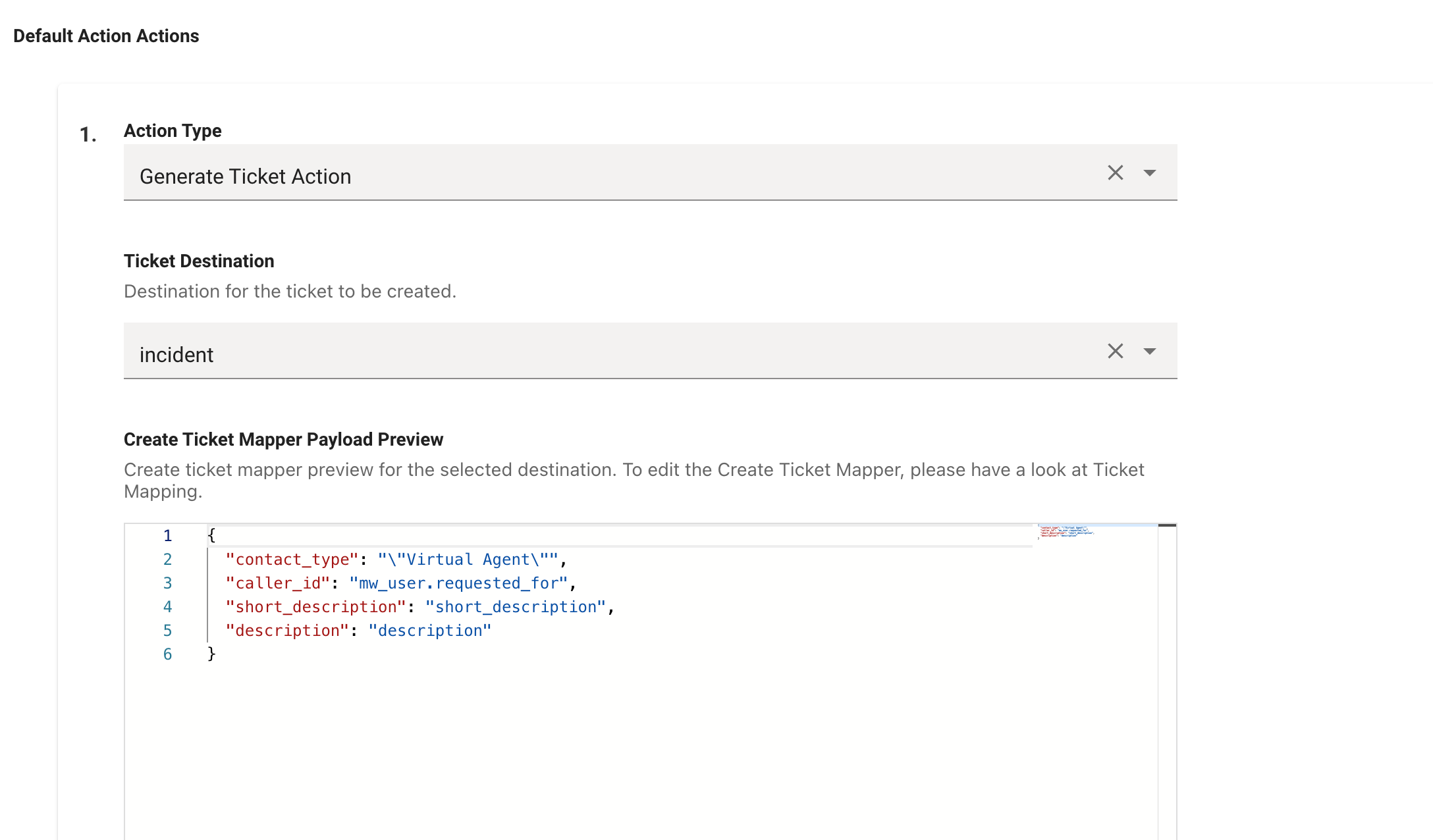
Now as we have added a new table which is sc_req and we want to enable ticket filing for this when the Moveworks has predicted the ticket of type = Request we will need to add a new condition action and then select the step for the same. Click on the Add button in the Conditional Action section and configure the following items
-
Add the following condition in the DSL box
(context.system_context.domain == "IT_DOMAIN" AND context.system_context.ticket_type == "REQUEST") -
Select the generate ticket action and from the dropdown select the destination as
sc_req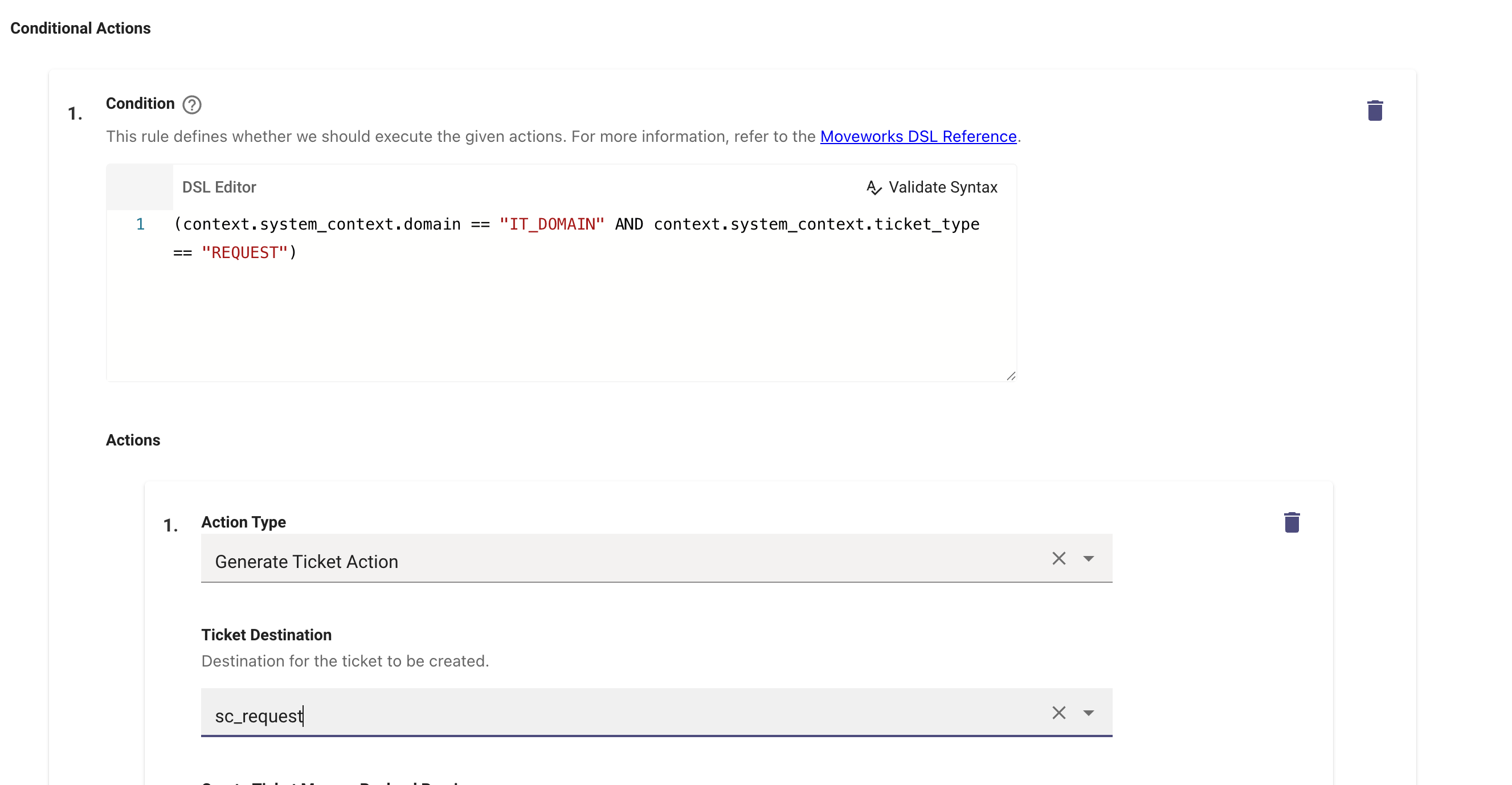
Once this is done the new ticket table is configured for ticketing use-case through the Moveworks AI Assistant. Now you have mulitple options to change this behaviour
- You can potentially add a condition in the routing configuration and create a entirely new workflow to file a ticket
- You can also create a new entry in the Handoff configuration to initiate a file ticket for your use-case. We will cover how to create a new RTF form in the next section.
Go through this doc in detail to understand what is routing & workflows : https://help.moveworks.com/docs/workflows-and-workflows-triggering
7. How to create a new Intake form and enable ticketing filing through it ?
What a Intake form - Intake form provides you ability to take structured input from the users while filing a ticket in ServiceNow. This is also know as RTF in Moveworks
Go through guide to understand how intake forms work in Moveworks : https://help.moveworks.com/docs/best-practices-rich-ticket-filing
Let’s go through the steps of creating a RTF form and enabling ticketing filing through it
Moveworks helps employees solve many routine issues instantly. But often, uncategorised issues require manual support and lack a dedicated form. In such cases, employees file generic tickets via Moveworks for help (synonymous with filing tickets in the backstop/via the bot).
Without a Rich Ticket Filing form, every ticket filed via the AI Assistant only includes:
- Short Description
- More Details
- Attachments
By using Rich Ticket Filing (RTF), you can configure a form-based ticket filing experience that collects structured information from users at the time of filing. This makes ticket routing and triage far more efficient.
1. Setup Ticket Destination Mapping
Before we start setting up the RTF, we need to setup the ITSM connection for the Destination where the RTF will create the ticket.
-
Navigate to Ticketing > Ticket Settings > Ticket Mapping Configuration under the Ticketing Automation Module.
- Edit the configuration and go to the Configure Ticket Type step where you can add the new Destination table. Follow this guide to setup Ticketing for a new Table.
-
In the Create Ticket Payload, you will need to define the attributes which are required to make a successful API call to create the Ticket.
-
The Attributes in Red are what the ITSM expects to see in the Payload, while the Attributes in Blue are Moveworks based and can also be hardcoded.

-
Here you will notice some attributes are repeated on both ends, for example
"cmdb_ci": "cmdb_ci"these are defined as placeholders which can be fulfilled when executing the Workflow. -
These Attributes can now be leveraged to create the RTF in the next step.
If you are always going to use an RTF for a specific Ticket Destination, Then it is recommended to define fallback values if a field is empty.
{
  "urgency": "urgency_rtf OR \"Low\"",
  "short_description": "short_description",
  "description": "description"
}
2. Create a Rich Ticket Filing Form
-
Navigate to ”Create intake form” section in the new ticketing journey configuraiton
-
Click on Create to setup a new form.
-
You will start by selecting the domain, and provide a unique ID for the form. (This ID will be used in multiple other configurations). Ensure that each form has a unique ID. Duplicate IDs will cause conflicts.

-
Add the following details:
- Form Title – e.g., “Submit a Ticket” or “Ask HR a Question”
- Description & Short Description – user-facing help text on how to fill the Form.
- Fields – information you need from the user.
Required fieldsRich Ticket Filing forms must have at least one field with Field Name
descriptionorshort_description. If neither of these fields are included in a Rich Ticket Filing form, ticket creation will fail.If only 1 needs to be available, use
short_description, as that is required for user's chat context to be passed into the ticket creation form.
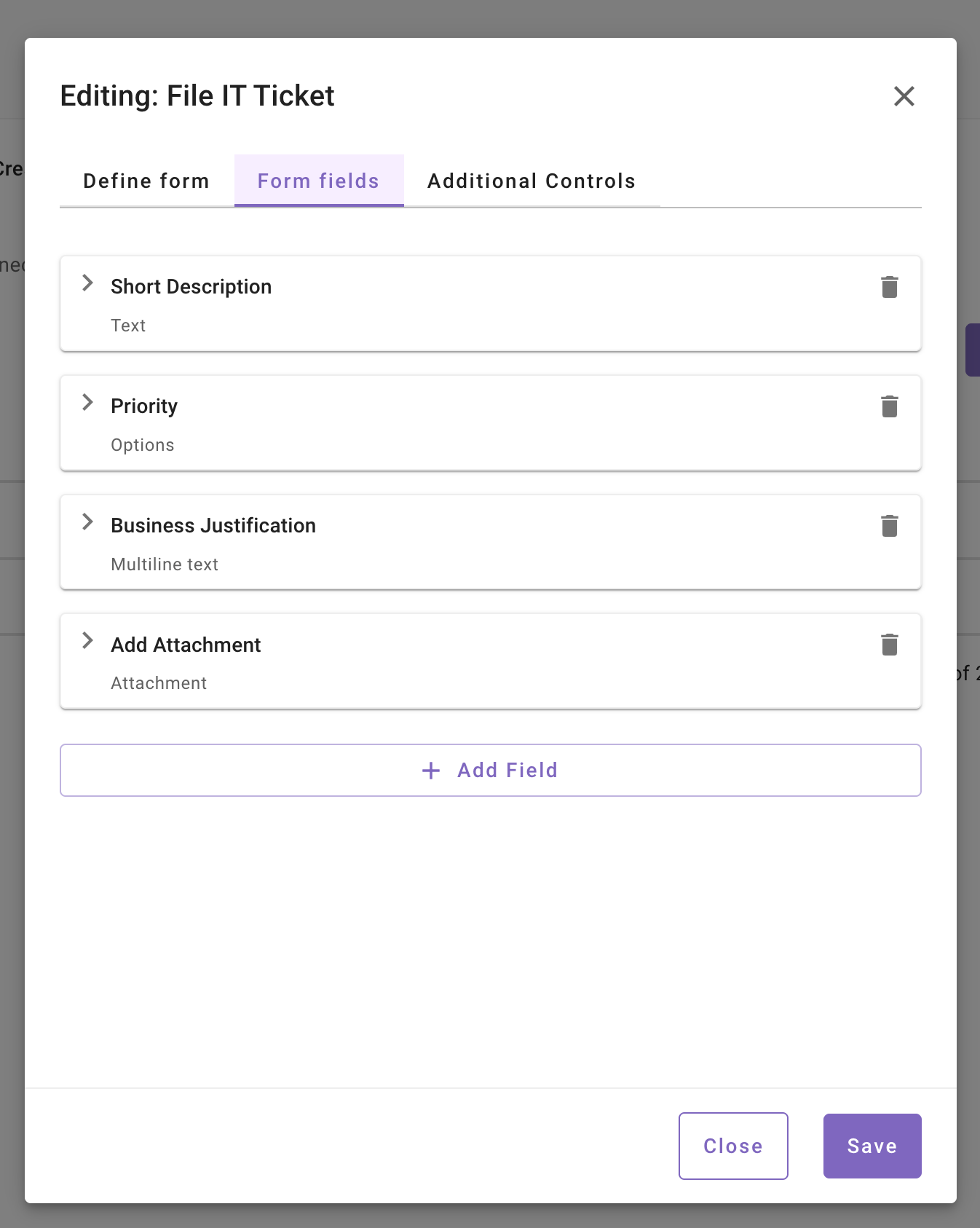
3. Add Fields to the Form
Rich Ticket Filing supports the following field types:
- Single-line text
- Multi-line text
- Single-options dropdown (max 100 options unless the field type is USER)
- Checkboxes
- Datetime fields (MS Teams only)
- Attachments (MS Teams only)
For each field, configure:
- Field Label – user-facing name.
- Field Name – internal identifier. This must be noted for mapping to ITSM fields later.
- Unmapped fields will be sent to the ticket description by default.
- Field Type
- Description– optional tooltip help text.
- Required/Read Only
- Auto-population (if any)
- Dropdown Options (for option fields):
-
Label – shown to the user.
-
Value – backend value accepted by ServiceNow (must match sys_choice or table values).
When configuring the OPTIONS field type, it is mandatory that each Label-Value pair is unique. Duplication within these pairs may lead to logic inconsistencies during system processing.
-
Example: For an Travel & Expense dropdown, add values for Travel and Expense. The selected value will determine which workflow runs based on the condition satisfied.
4. Linking RTF to Handoff Configuration
Now that the RTF has been configured, we need to create the display settings associated with it in order to Render it in the Assistant Chat Platform UI.
- Navigate to Handoff > Handoff Settings under Ticketing Automation.
- Create a new Category, or setup a new Item in an existing Category so we can link it to the RTF.
- Deflection Action → UI Form Id
- UI Form Id → unique ID of RTF we set earlier.
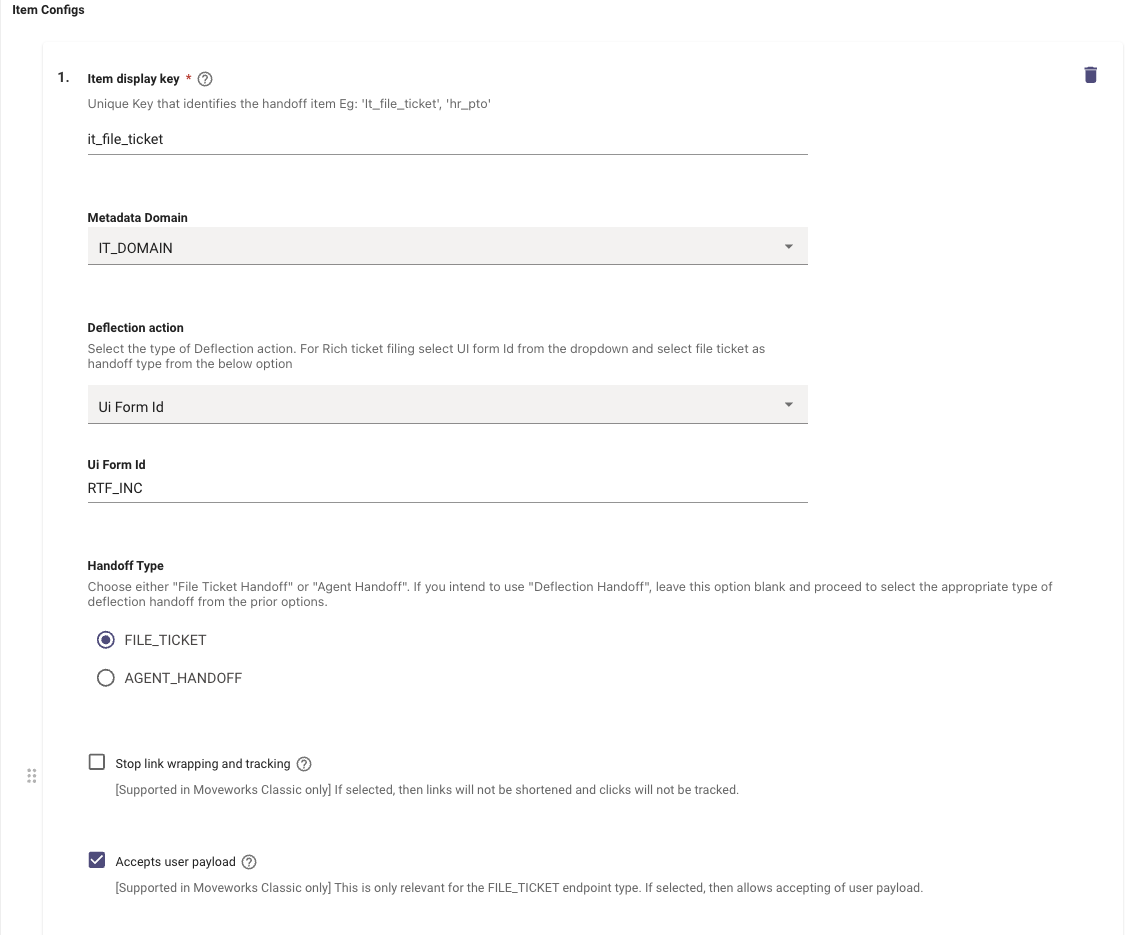
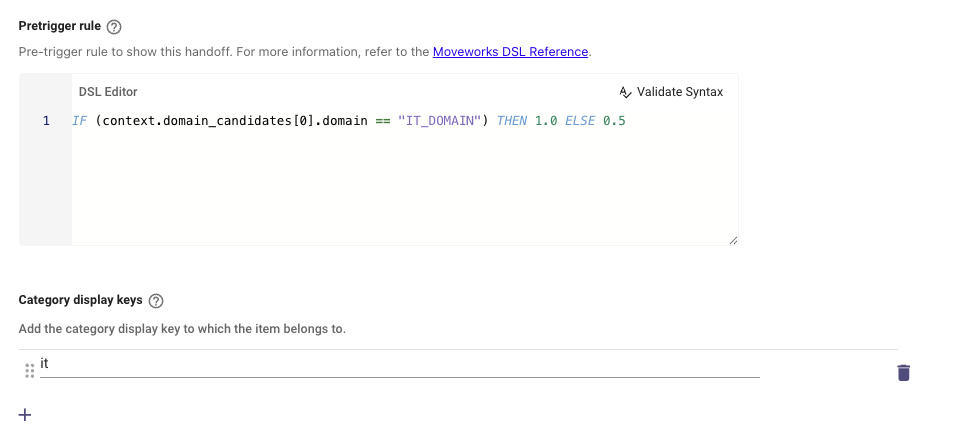
Always ensure the Pre-Trigger being provided here is based on the Domain the RTF was defined under.
5. Setting up Display Configuration
Once the Handoff is created, We need to provide some metadata to it, in order to define the details like name and description to the Item which was created for the Handoff.
You can follow this Guide on How To Configure the Display Fields for Handoff Items
- Configure Ticket Action Workflows
In order to define which payload is used to Generate the ticket for an RTF, we can use Ticket Workflows condition actions.
-
The Ticket Workflows have the ability to leverage the option a user has selected in an RTF by referencing the field name as part of a DSL Rule.
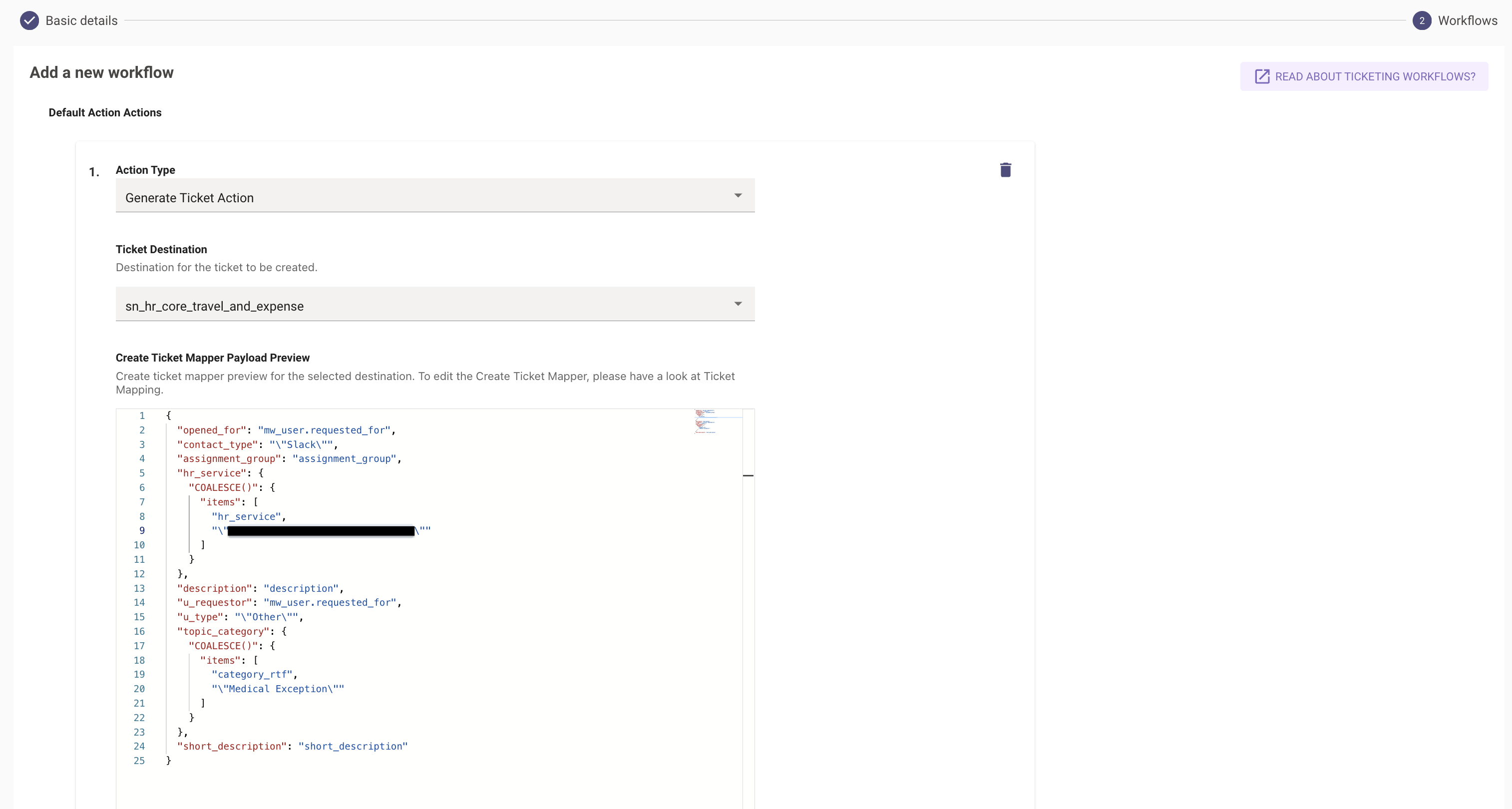
-
When you create a new Workflow, the Default Action will define the Generate Ticket Action with the default payload which has been set for a Destination.
-
Then comes the Conditional Action section, which allows you to define a DSL rule, based on which you can define Generate Ticket Action with multiple different Payloads. Here we can leverage the RTF Field value which has been configured earlier.
-
In the below example,
ticket_type_rtfis the RTF field which can be used for evaluating the condition.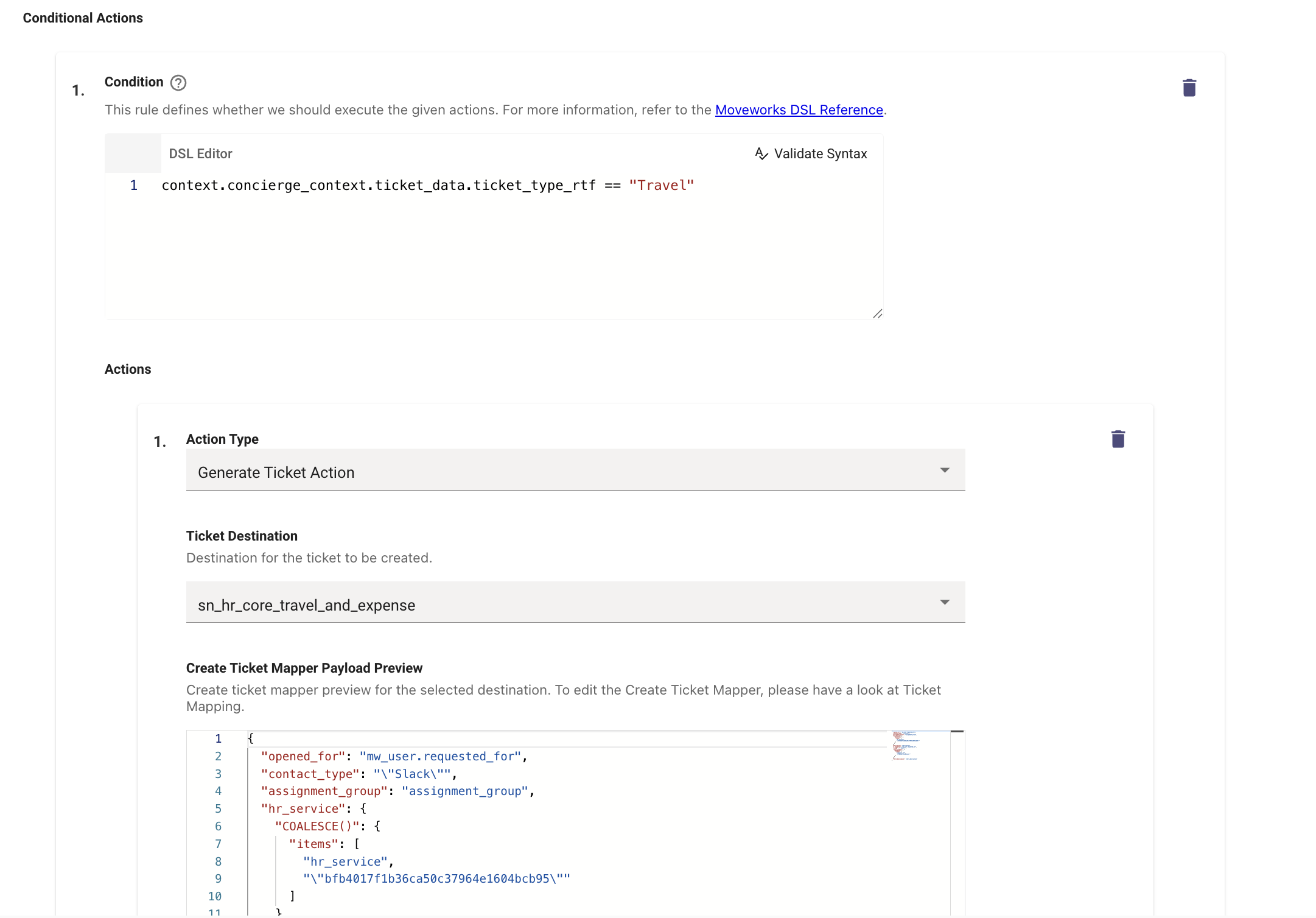
-
When writing the DSL Rule, we need to ensure both ticket_data & ticket.ticket_vars are included for the Condition to be Evaluated accurately
-
You can add more conditions here using different RTF fields in the DSL Rule in order to use the required payload.
(context.system_context.domain == "HR_DOMAIN" AND ((context.concierge_context.ticket_data.rtf_hr_service.$LENGTH() > 0) OR (context.system_context.ticket.ticket_vars.rtf_hr_service.$LENGTH() > 0)))Workflow Conditions is the only place where the RTF field context is available. These rule conventions should only be used here.
You should now be able to test this by clicking on the Get Help option, and then selecting the Handoff Category which the RTF belongs to.
Common questions
Q: For a User Type field, what if multiple users have the same name?
A: Moveworks will show Name: <Email> for USER type fields dropdown in the form, so even if they have multiple names, you can disambiguate using name + email pair.
8. How to enable ticket polling and concierge updates ?
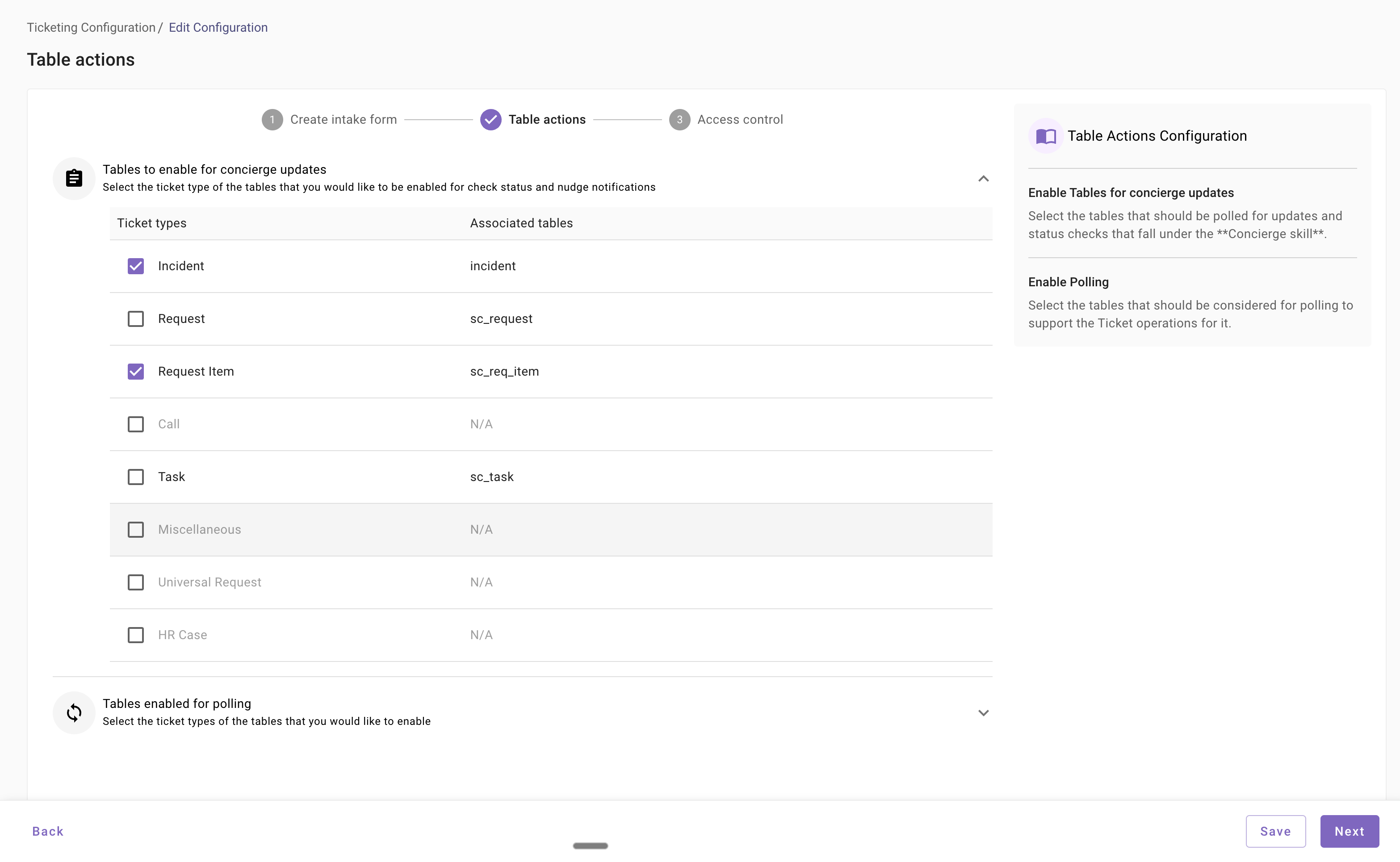
Moveworks automatically polls your ServiceNow to provide Concierge updates such as notifications and nudges, and to enable ticket-related actions.
You must specify which tables, issue types, or request types are eligible for these actions. Configure this in the Table Actions or Issue and Request Type Actions section by selecting the corresponding ticket destinations.
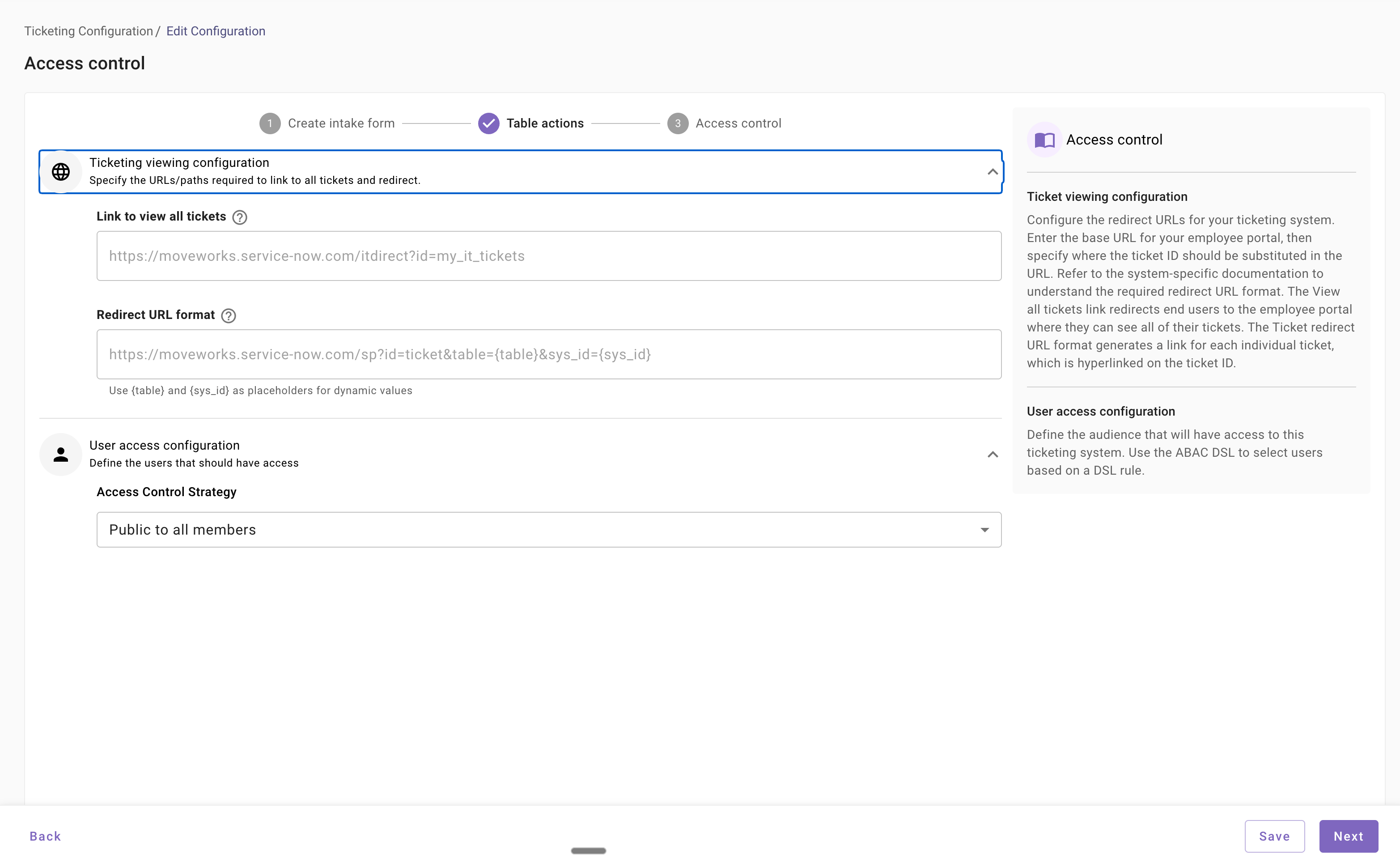
Access control
You must define which users can access the ticketing integration. Two access control options are available:
- Public: Accessible to all members.
- ABAC (Attribute-Based Access Control): Define a custom DSL rule to control access based on user attributes.
9. Enabling platform level settings for ticketing
Manage ticket polling, notifications and filters. Control ticket display
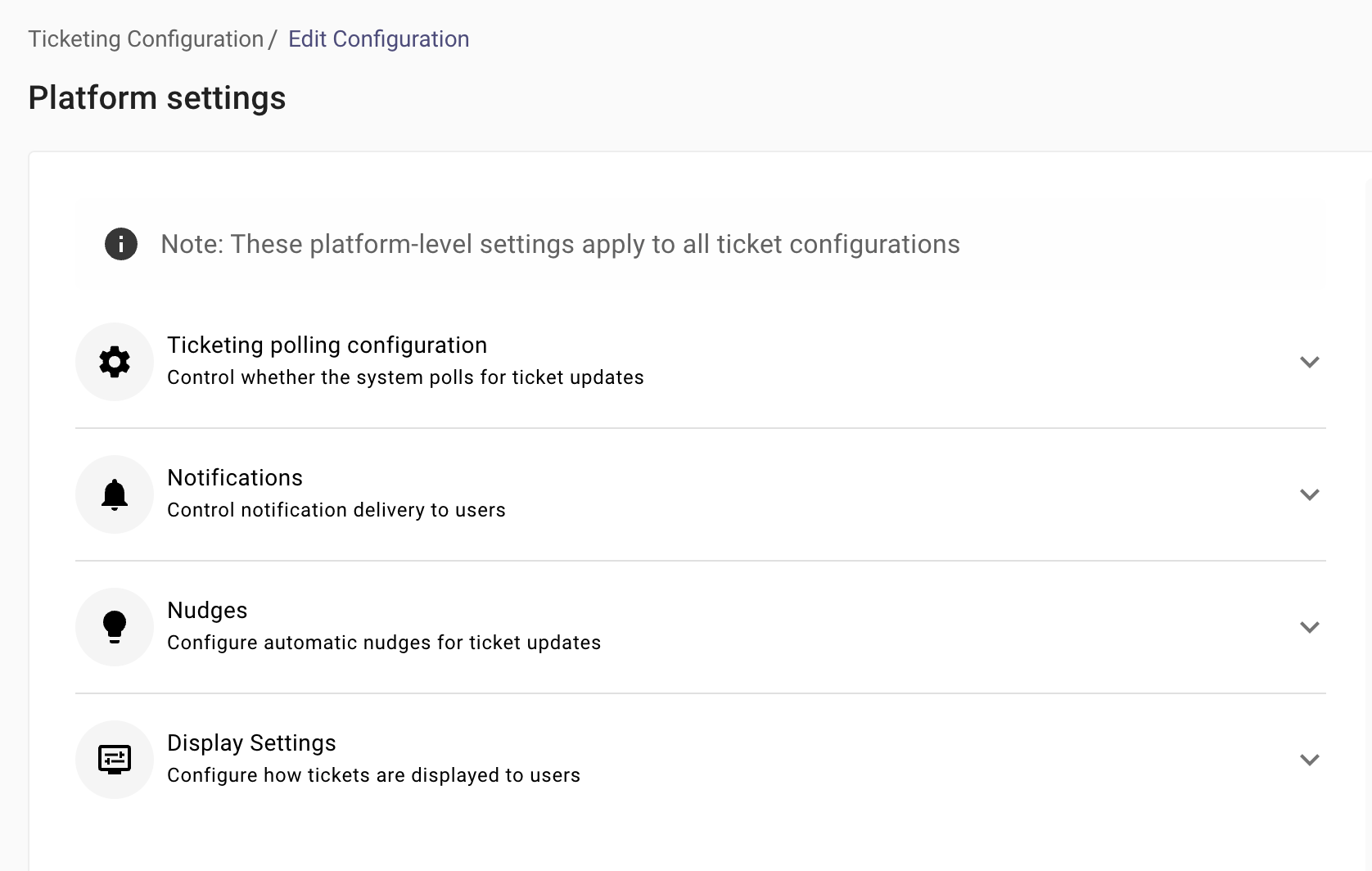
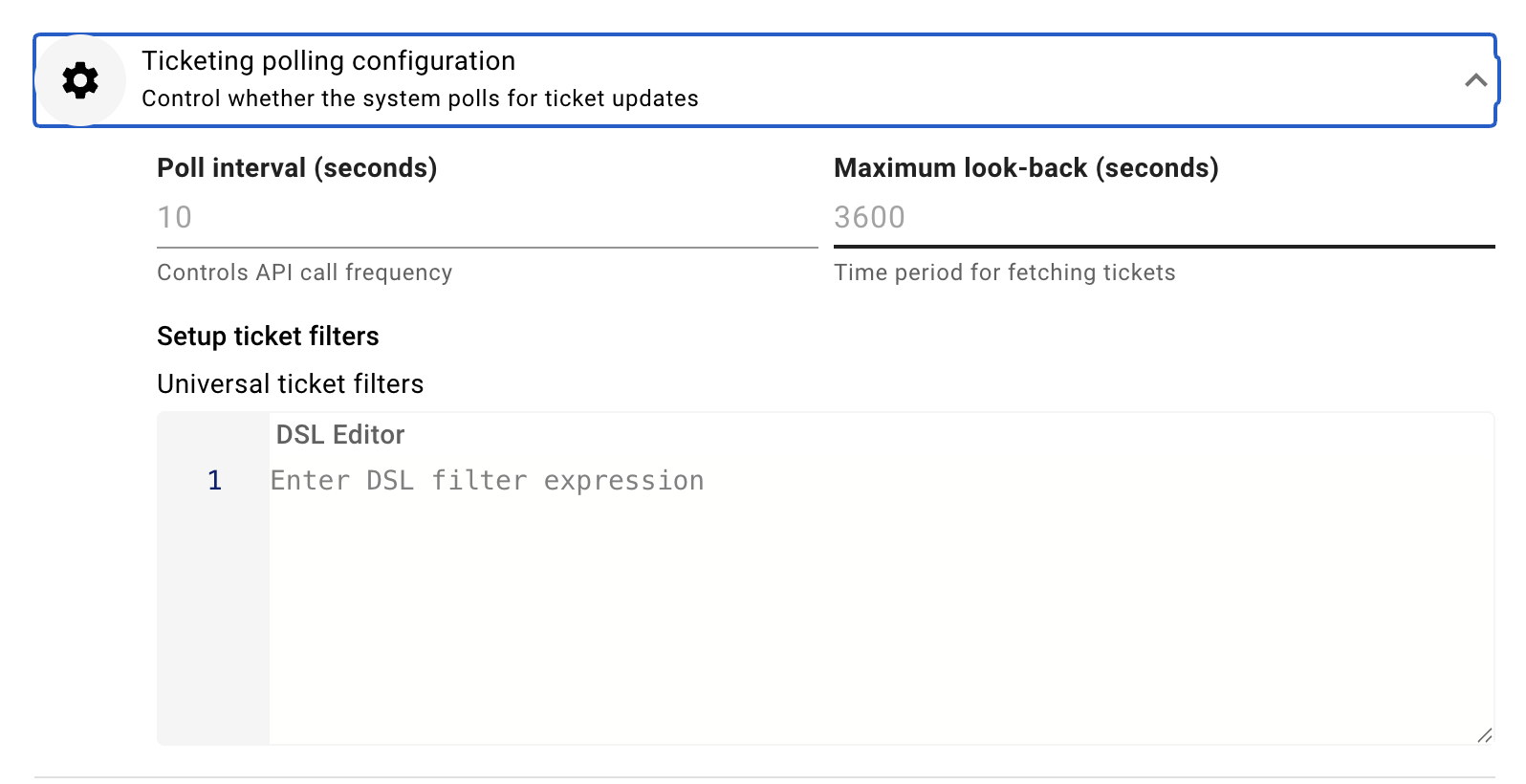
Ticketing Polling Configuration
-
Configure how frequently Moveworks polls ServiceNow for ticket updates.
-
Define:
- Poll interval (in seconds)
- Maximum look-back window
-
Apply universal ticket filters using DSL to limit which tickets are considered.
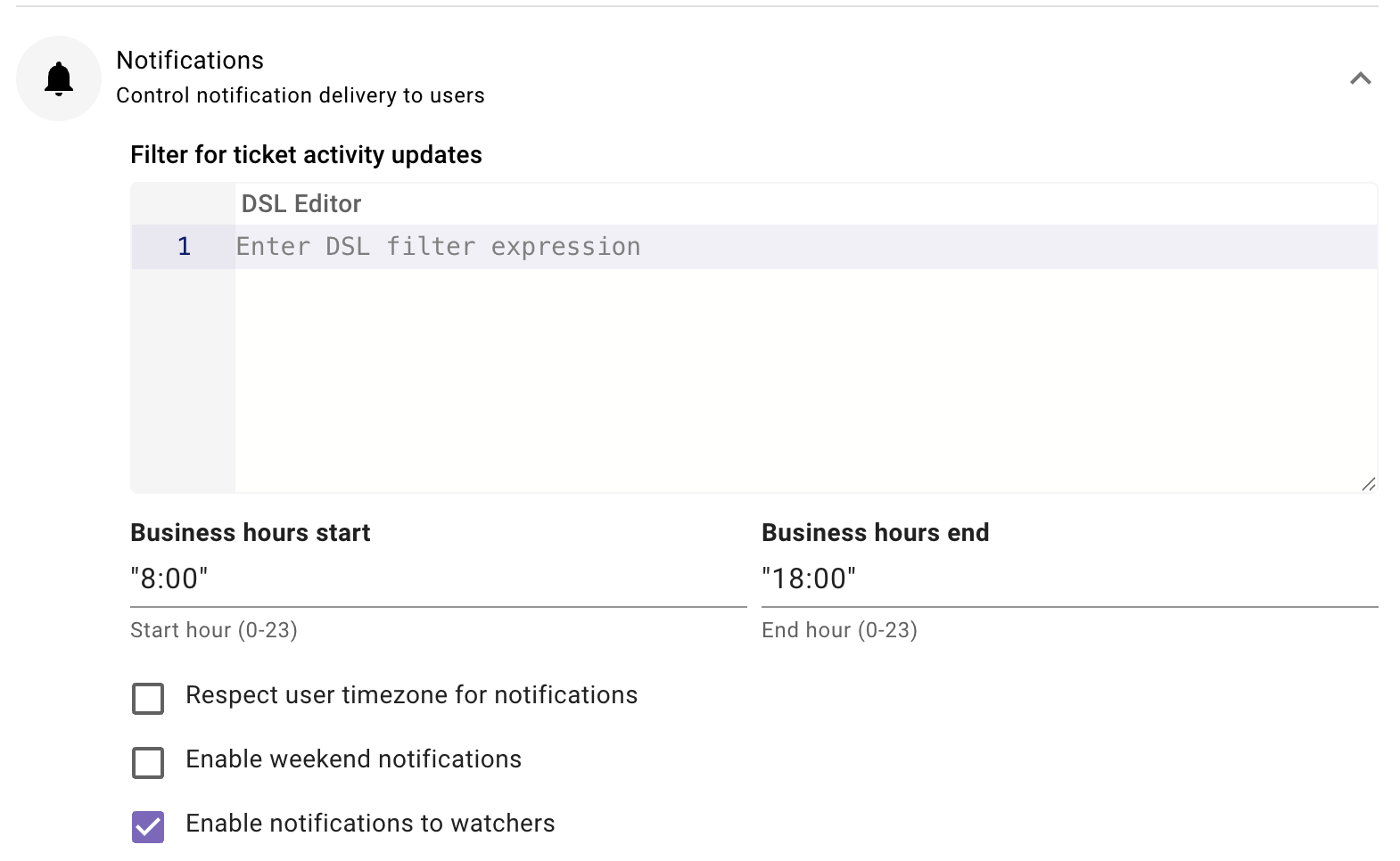
Notifications
-
Control how and when users receive ticket notifications.
-
Configure notification filters using DSL.
-
Restrict notifications to business hours if required.
-
Optionally:
- Respect user time zones
- Enable weekend notifications
- Notify watchers on ticket updates
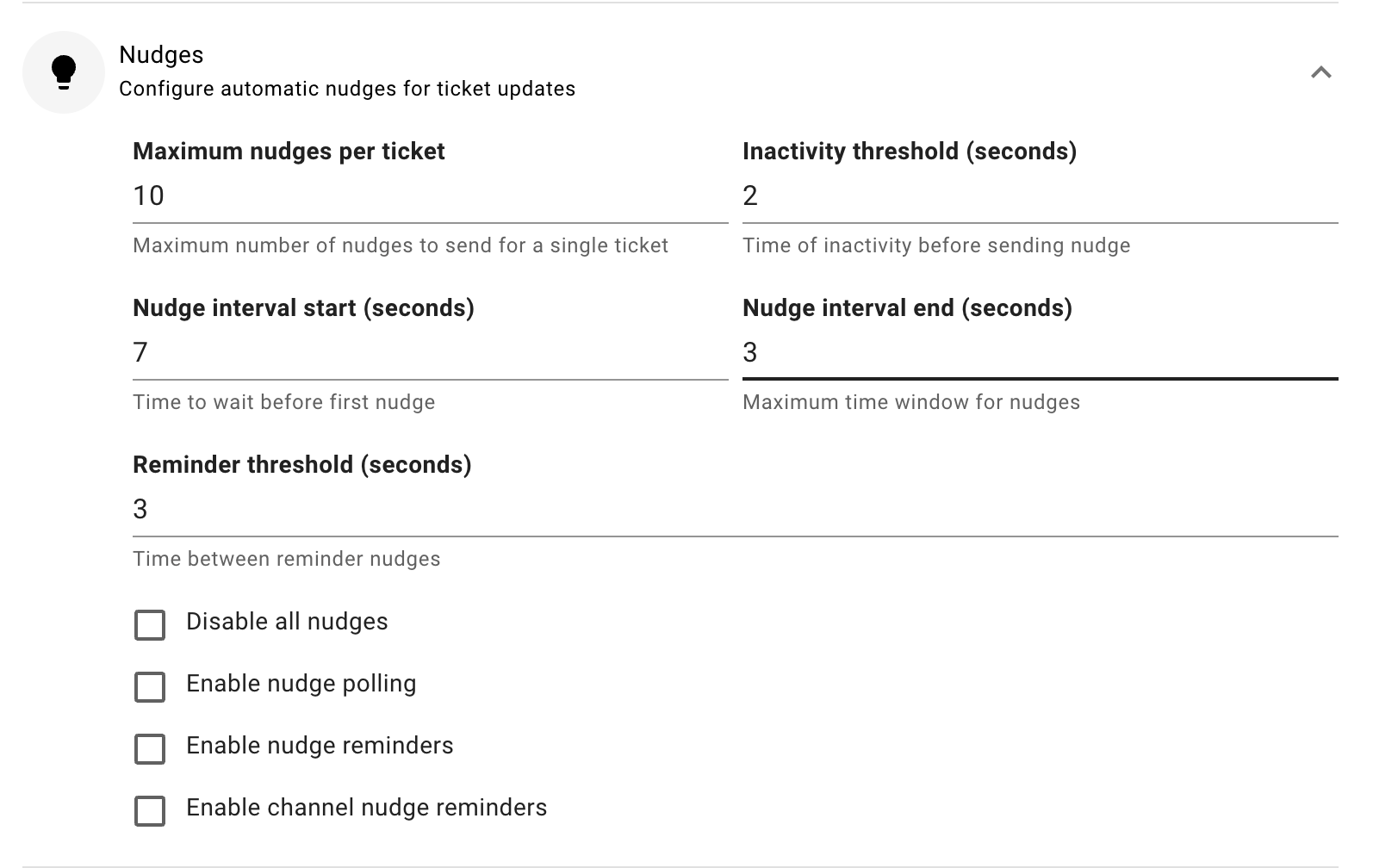
Nudges
-
Configure automated reminders for inactive tickets.
-
Define:
- Inactivity threshold
- Nudge interval
- Maximum nudges per ticket
-
Enable or disable polling-based and channel-based nudges as needed.
Display Settings
- Control how ticket information is displayed in Moveworks.
- Configure options such as:
- Displaying ticket state
- Showing assignee information
- Allowing attachment uploads
- Requiring comments before reopening tickets
- Hiding the reopen option for closed tickets
10. How to enable ticketing for HR case ?
WIP
Detailed Pre-requisite guide
Updated 6 days ago