
BrainStorm Access Requirements [NEW!]
Moveworks’ integration with BrainStorm allows the Moveworks AI Assistant to index learning content from your BrainStorm tenant so employees can discover and launch training directly from chat.
This guide explains what access you need in BrainStorm and which credentials you must use to create the connector in Moveworks.
Prerequisites
Before you begin, make sure you have:
- Administrator or Developer access to the BrainStorm Admin Portal
- API feature access enabled for your organization
- A secure way to store your Client ID and Client Secret (for example, a secret manager or password vault)
Generate BrainStorm API credentials
Moveworks uses BrainStorm’s OAuth-based API, which requires an access token. To get that token, you first need to generate a Client ID and Client Secret in BrainStorm.
-
Sign in to the BrainStorm Admin Portal using an account with Admin or Developer permissions.
-
In the BrainStorm Admin Portal, click the settings icon at the bottom of the left sidebar.
Note: If your organization logo appears there instead, click it — it opens the same menu.
-
Select API.
-
Toggle Read Only Access.
-
This will generate a new set of API credentials:
- Client ID
- Client Secret
-
Copy and store these credentials in a safe and secure storage to use it next to setup the connector within Moveworks Setup.
Secrets are valid for 12 months. Please make sure to rotate these credentials from BrainStorm as well as within Moveworks once expired to continue content search.
Setup the Connector in Moveworks Setup
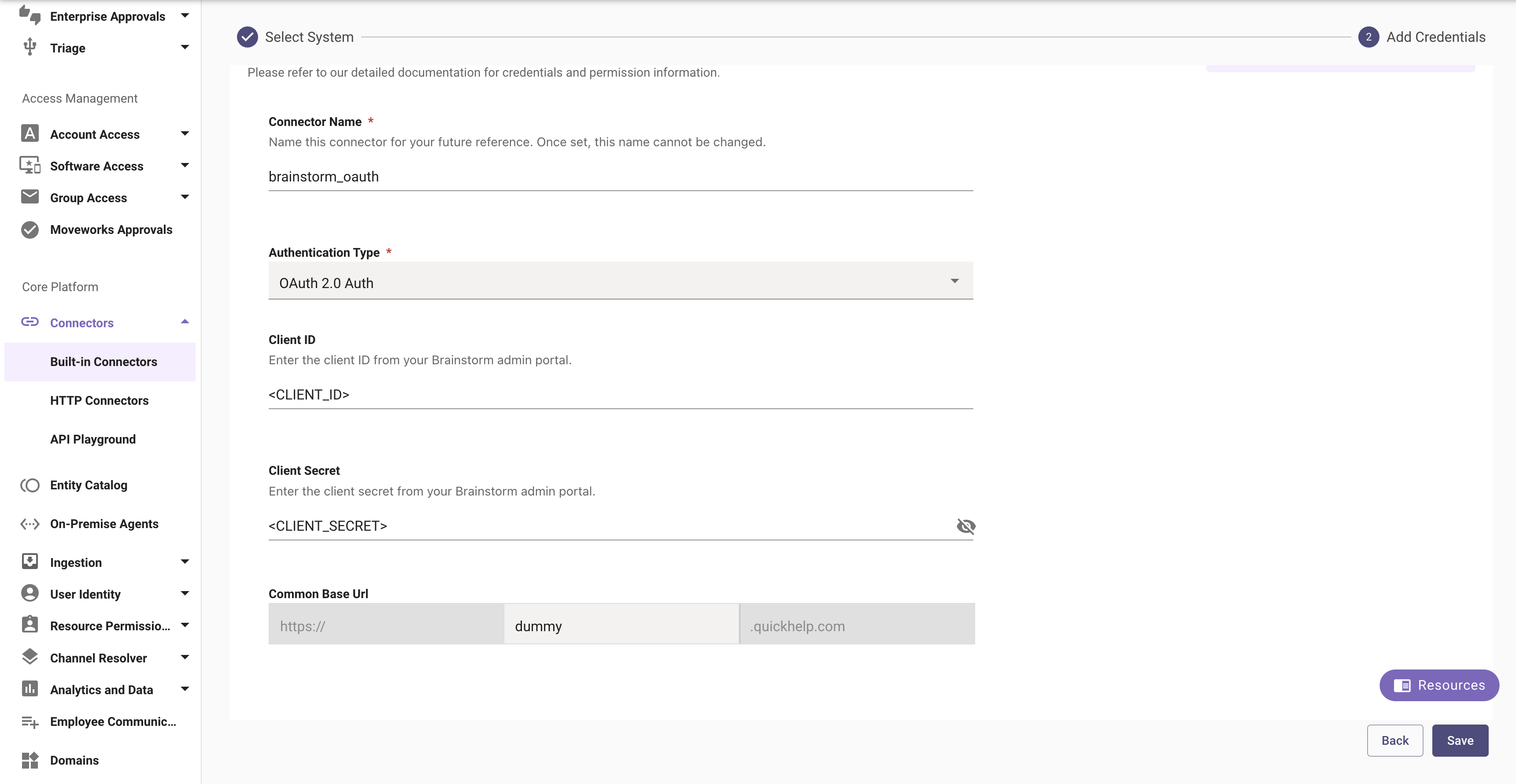
Navigate to Core Platform > Connectors > Built-In Connectors and create a new connector. Select Brainstorm and enter the information below:
- Connection Name: brainstorm_oauth (recommended)
- Authentication Type: OAuth 2.0 Auth
- Client ID: Enter the Client ID generated above
- Client Secret: Enter the Client Secret generated above
- Common Base Url: This is not required anymore, please add any dummy value here. This will be deprecated in future.
-
Updated 2 months ago