
For AI agents: a documentation index is available at the root level at /llms.txt and /llms-full.txt. Append /llms.txt to any URL for a page-level index, or .md for the markdown version of any page.
Logo
DeveloperAcademyCommunityStatus
  • Getting Started
    • Welcome to Moveworks
    • Roadmap & Release Notes
    • Moveworks Best Practices
    • Labs
      • AI Assistant Lab
      • Agent Studio v1 Labs
      • Salesforce Lab
      • ServiceNow Lab
      • Agent Studio v2 Challenges
        • Coupa - Lookup and Modify PO Headers
        • SAP Concur - Lookup and Create Expense Reports
    • Professional Services
    • Support
  • AI Assistant
    • AI Assistant Overview
    • Capabilities
    • Web Experiences
    • Analytics & Performance
  • Enterprise Search
    • Overview
    • Agentic RAG Overview
    • Content Ingestion Platform
    • Profile Boosting
    • Retrieval
    • Permissions Platform
    • Built-in Content Connectors
    • Build your own Content Connectors
    • Configure Search
    • Configure Enterprise Search
    • Vetted Content
    • Writing AI-Ready KB Articles
    • Document Chunking and Snippetization Overview
  • Productivity Boost
    • Overview
    • Configure Productivity Boost
    • Quick GPT
    • Calendar Management
    • Brief Me
DeveloperAcademyCommunityStatus
On this page
  • Scenario
  • NOTE: You are provided a SAP Concur Sandbox instance in order to do this. You see an “SAP Concur” connector in Agent Studio that has already been setup to make API calls. You will also be granted a login to the SAP Concur instance in the Okta Portal indicated by this icon.
  • Tips
  • Things to Know
  • Actions
  • Concur API Specifics
Getting StartedLabsAgent Studio v2 Challenges

SAP Concur - Lookup and Create Expense Reports

In addition, add an expense item to an existing report
||View as Markdown|
Was this page helpful?
Edit this page
Previous

Professional Services

Next
Built with

Scenario

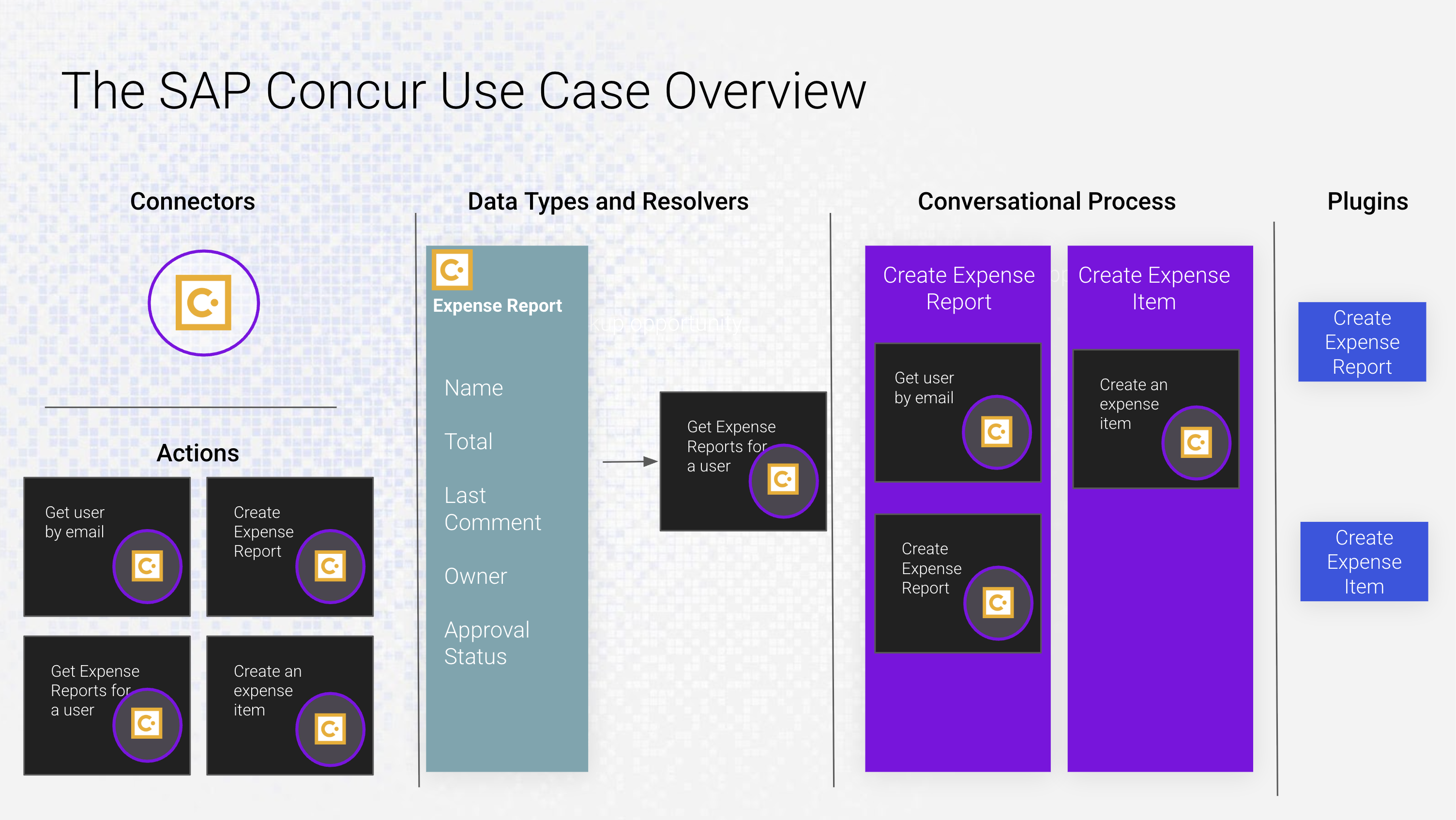
In this case we will build the ability for a user to create a new expense report, look up existing expense reports, and also add an expense item to an expense report, all without having to login to Concur.

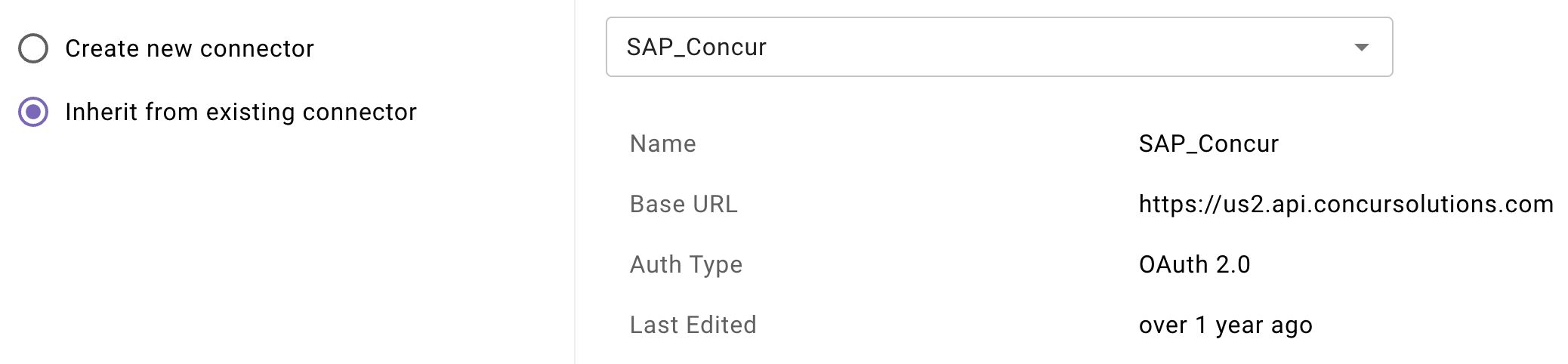
NOTE: You are provided a SAP Concur Sandbox instance in order to do this. You see an “SAP Concur” connector in Agent Studio that has already been setup to make API calls. You will also be granted a login to the SAP Concur instance in the Okta Portal indicated by this icon.

Tips

  1. You’ll be using the SAP Concur connector for this exercise
  2. Start with building your actions first. These are the building blocks that will be the foundation of your use case. You can find all the cURL commands listed below.
  3. Leverage the HTTP Action testbed and keep those tabs open. You’re going to need the values returned in those payloads to execute other actions when testing. For instance, you’ll need the unique user ID in order to create an expense report.
  4. There is a scenario where you’ll have to determine expense code from a list of values. Those values are listed below in the notes section. This is best solved with Static Resolvers
  5. Remember the “Import JSON” feature when you create your Expense Report object. This comes in handy.

Things to Know

Actions

  1. Get user id from email
    curl --location 'https://us2.api.concursolutions.com/profile/identity/v4/users?filter=userName eq "{{EMAIL_ADDR}}" \
    --header 'Accept: application/json' \
  2. Get Expense Reports for a User
    curl --location 'https://us2.api.concursolutions.com/api/v3.0/expense/reports?user={{EMAIL_ADDR}}' \
    --header 'Accept: application/json' \
  3. Create Expense Report
    curl --location 'https://us2.api.concursolutions.com/expensereports/v4/users/{{concur_user_id}}/context/TRAVELER/reports' \
    --header 'Accept: application/json' \
    --header 'Content-Type: application/json' \
    --data '{
    "policyId": "A6D42A825114472FAF402180E20B3751",
    "businessPurpose":"{{business_purpose}}",
    "comment": "{{comment}}",
    "name": "{{report_name}}"
    }'
  4. Create an Expense Item in an Expense Report
    curl --location 'https://us2.api.concursolutions.com/api/v3.0/expense/entries?user={{EMAIL_ADDR}}' \
    --header 'Accept: application/json' \
    --header 'Content-Type: application/json' \
    --data '{
    "ExpenseTypeCode": "{{code}}",
    "PaymentTypeID": "gWqVl5luZIS$p2GDptAHMavgx7CHH9",
    "ReportID": "{{report_id}}",
    "TransactionDate": "{{date}}",
    "TransactionAmount": "{{amount}}",
    "TransactionCurrencyCode": "USD"
    }'

Concur API Specifics

  1. You’ll notice some values above are hard-coded, specially the PaymentTypeID and the policyId. You can leave these hard-coded as is. We hardcoded these because of our specific instance of SAP Concur sandbox. While possible to take that as input as well, for simplicity sake we hardcode them.
  2. For TransactionDate the date must be in the format of YYYY-MM-DD
  3. The only valid fields for ExpenseTypeCode are:
    LODNG, BUSML, TRAIN, ONLIN, MISCL
    The above stands for Lodging, Meals, Train, Internet, and Miscellaneous respectively
  4. When using a Static Resolver for the ExpenseTypeCode field, you will reference it with .value in order to get the raw value. So for instance, if you called your slot code, you’d reference the value by data.code.value.