
AI Assistant on Web: Configuration
Overview
Assistant on Web uses your organization’s existing My Moveworks SSO setup to determine who can access the experience. If your company already uses My Moveworks, anyone who has been assigned that app through your SSO provider (ex. Okta) will automatically have access to Assistant on Web.
Note: The “My Moveworks” app name and subdomain (e.g.
m8.moveworks.com) may differ depending on how your organization configured the SSO given that both are configurable. In most cases, customers have kept the name “My Moveworks” as their app name and are using the name of their company, “org_name”, as the subdomain (org_name.moveworks.com/assistant)This is also a good opportunity to consider changing the name of your “My Moveworks” app within your SSO setup given that all your employees will find this application within their SSO landing page. We recommend renaming the “My Moveworks” app to your bot name (ex. If your bot name is “Shelly” then replace the name “My Moveworks” to “Shelly” so your employees can easily find the application.
What is my login URL to My Moveworks?
Your org’s login URL is dependent on your region. Replace org_name with the name of your Moveworks org name.
Steps to verify if you have access to Assistant on Web
To verify if you have access to your My Moveworks app try accessing Assistant on Web. You can access the Assistant on Web experience in several ways:
- Via your My Moveworks landing page
Go to your organization’s My Moveworks URL (for example,org_name.moveworks.com).
You’ll automatically be redirected to the Assistant experience at:
org_name.moveworks.com/assistant
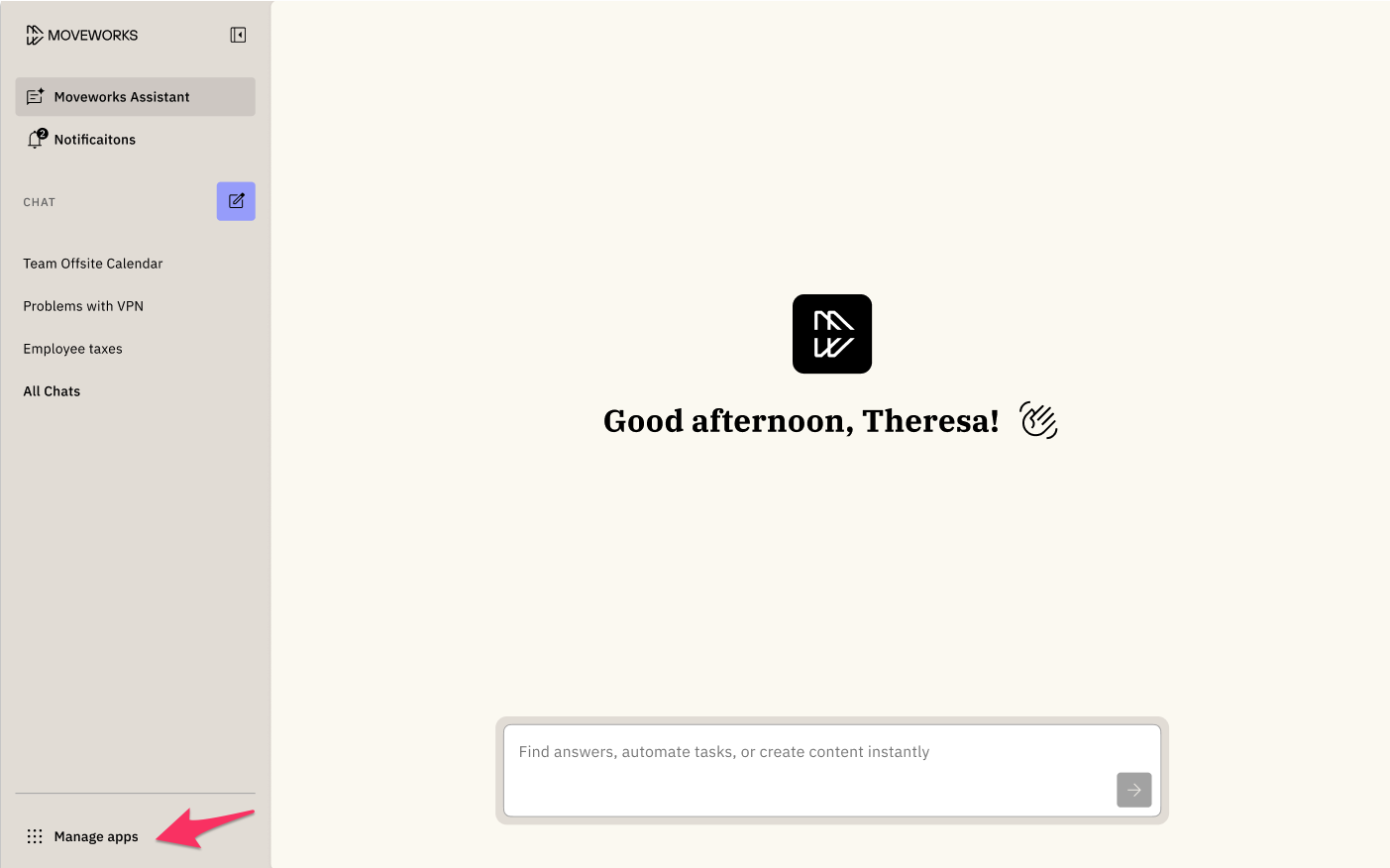
ℹ️ Note: As part of the Assistant on Web launch, the default landing page experience has changed. Previously, this URL opened the My Moveworks stakeholder experience (a page that displayed entry points to your stakeholder applications like Agent Studio).
We’ve intentionally updated this behavior so that all users now land directly in the Assistant experience, reflecting our focus on making the AI Assistant the central hub of work.
Stakeholder applications remain accessible from new landing assistant page, via “Manage Apps” within the left nav.
- Direct URL access
You can also go directly to your Assistant on Web URL:
https://www.org_name.moveworks.com/assistant
- Through your company’s SSO dashboard
If your organization uses Okta, Entra (Azure AD), OneLogin, or Google Workspace, you can find and launch the app directly from your SSO dashboard (ex. at Moveworks since we use Okta our SSO dashboard is moveworks.okta.com).
If you don’t have access or want to add additional users please coordinate with your IT or Identity team
- You’ll need to identify who in your organization manages Identity and Access Management (IAM) or SSO provisioning (for example, your IT Admin or ITAM). If you’re unsure who owns this process, start by checking with your IT or HR systems team.
- You’ll need their help to confirm user assignments and make updates in your SSO provider (e.g., Okta, Microsoft Entra, OneLogin, Google Workspace).
Who has access to Assistant on Web?
Access to Assistant on Web is determined by your organization’s SSO provisioning rules. Make sure all employees who should have access to the Assistant on Web have been provisioned the “My Moveworks” app (or your organization’s equivalent app name) through your SSO provider. Moveworks has no visibility into who within your organization has currently been provisioned your My Moveworks application given that the information lives within your SSO provider.
- Only provisioned users will be able to sign in once the Assistant on Web experience. In most cases at this moment only employees within your organization who have access to a stakeholder application (ex. Agent Studio) have currently been provisioned the “My Moveworks” app within your SSO provider.
- Any employee who has been assigned your organization’s My Moveworks app (or its equivalent name) through your identity provider (IdP) can sign in to Assistant on Web.
Rolling out Assistant on Web to all your employees
When you are ready to enable this new platform for all our your employees, you’ll need to coordinate this change with your IT or Identity team.
**Who do I assign the My Moveworks app to? **
- You’ll want to assign the My Moveworks application to the same users who currently have access to your assistant on your chat platforms (ex. Slack/ Microsoft Teams).
- Access to assistant on web is limited to the same set of users who currently have access to the AI Assistant through your chat platforms (e.g., Slack or Microsoft Teams).
- Only users with a valid AI Assistant user license can start using the Assistant.
When I assign the My Moveworks app to my entire organization do I need to change any settings on the Moveworks Setup “Roles and permissions” page?
- No, you will not need to make any changes on the “Roles and permissions” page. If you want to grant them access to one of your stakeholder applications, then you will need to make this change on your “Roles and permissions” page.
- By default the new users that are being provisioned the “My Moveworks” application within your SSO application will not have access to any of your stakeholder applications unless you’d like them to.
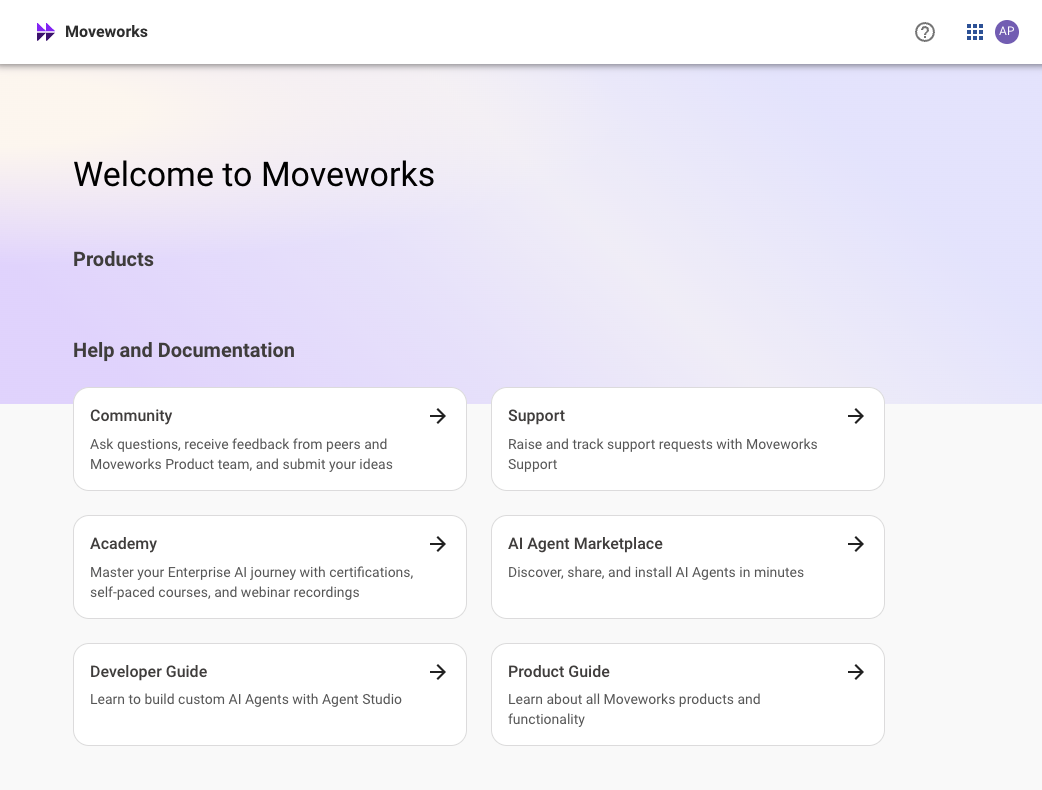
- While the new users will not able to access your stakeholder applications, they will be able to access the
/managewebpage (ex.https://www.org_name.moveworks.com/manage) . This webpage does contain web links to Community and Moveworks Academy. We are making a future improvement so that in the future only users with access to stakeholder applications can access to/managewebpage. This is what users who don’t have access to any stakeholder applications will see.
What happens if an employee gets provisioned the My Moveworks application but does not have a user license to use assistant (ex. they don’t currently have access to assistant on a chat platform)?
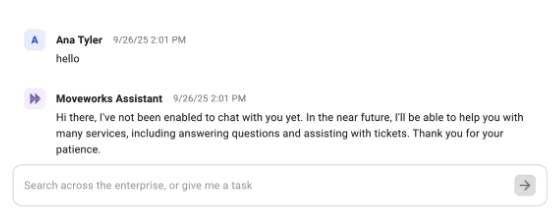
- If an unlicensed user logs in, they’ll be able to access the experience but will be unable to chat with your AI Assistant. Assistant will say something like, “I’m sorry I’m unable to help you with your request”.
How can I assign the My Moveworks app to all our employees?
Assigning the app is handled within your organization’s SSO or Identity Provider (IdP) — for example, Okta.
Tip: Completing these steps early ensures your employees can access Assistant on Web as soon as it’s available, no delays or additional setup required.
This is a standard process used to control who can access enterprise applications. Moveworks does not manage this step — it’s typically owned by your IT admin or IAM team.
Change Management Note
You may need to work with your IT administrators to ensure the My Moveworks app (or your custom Moveworks app name) is assigned to all employees who should have access to the Assistant on Web experience.
To learn how to assign users to an enterprise application, follow your SSO provider’s latest documentation below:
Branding Support Configuration
Assistant on Web will automatically inherit your organization’s existing Assistant branding settings from Moveworks Setup. This help ensures a consistent experience across all platforms (ex. Slack, Teams, and Web) without requiring you to reconfigure your Assistant’s appearance.
Your Assistant on Web will display the same:
- Assistant image
- Assistant name
- Customize colors
Note: The Assistant name, image, and color are configured once within Moveworks Setup and apply automatically across all surfaces. You do not need to upload a new image or re-enter these details for the web experience. Changes can be made within Moveworks Setup, but will apply to all platforms.
Customizations Offered
- Assistant Image (Assistant on Web & Embedded Assistant)
- Assistant Name (Assistant on Web & Embedded Assistant)
- Upload A Customer Brand Logo (Assistant on Web only)
- Set A Background App Color (Assistant on Web, Embedded Assistant, Reference Page)
- Primary Color (Assistant on Web & Embedded Assistant)
- Set A Secondary Color (Assistant on Web, Embedded Assistant)
- Select A Font Style (Assistant on Web, Embedded Assistant, Reference Page)
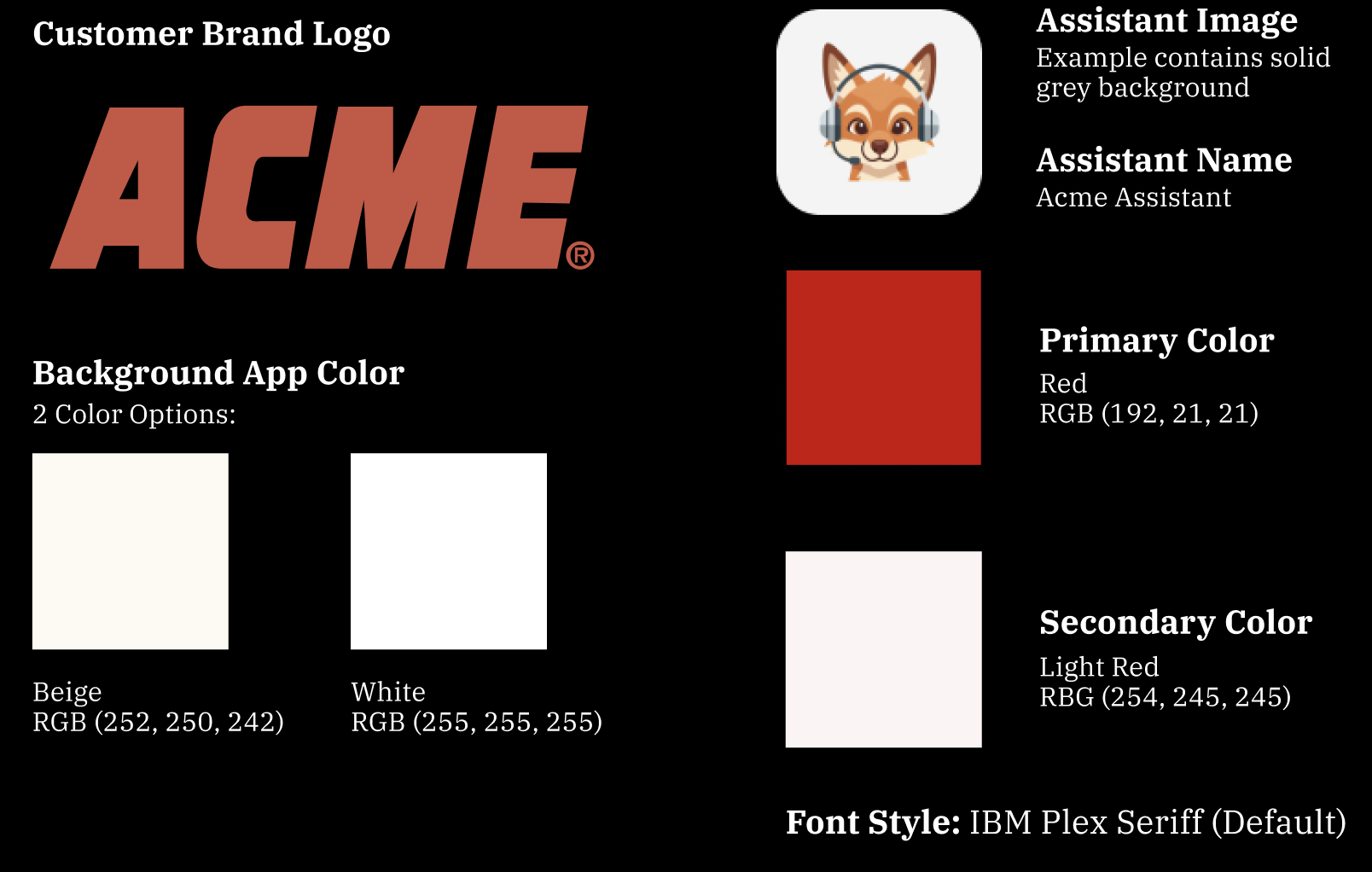
To help you visualize these new customizations, we’re using the following customization settings unless otherwise specified:
1. Assistant Image (Assistant on Web & Embedded Assistant)
The assistant image that’s for Assistant on Web and Embedded Assistant are separate configs.
Assistant on Web
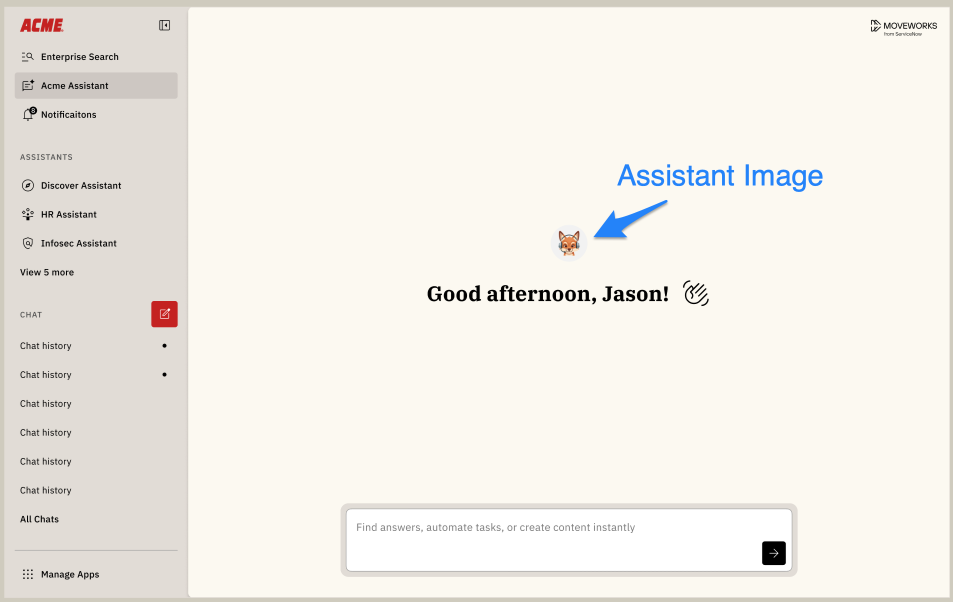
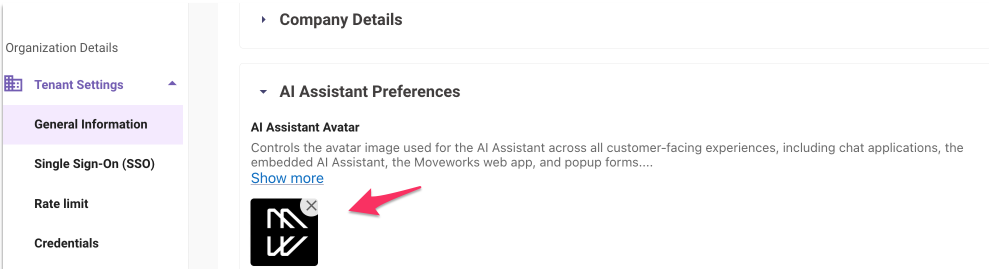
Within Moveworks Setup, navigate to the following configuration page to verify the image that’s being used as your assistant avatar:
- Find the “Organization Details” section
- Expand the “Tenant Settings” section
- Click on “General Information”
- Expand the “AI Assistant Preferences” section
- Look at the image that appears within “AI Assistant Avatar”
Embedded Assistant
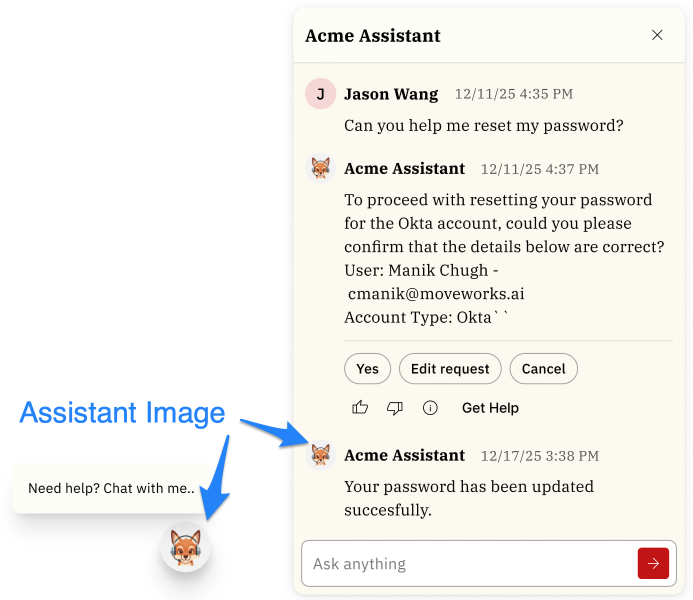
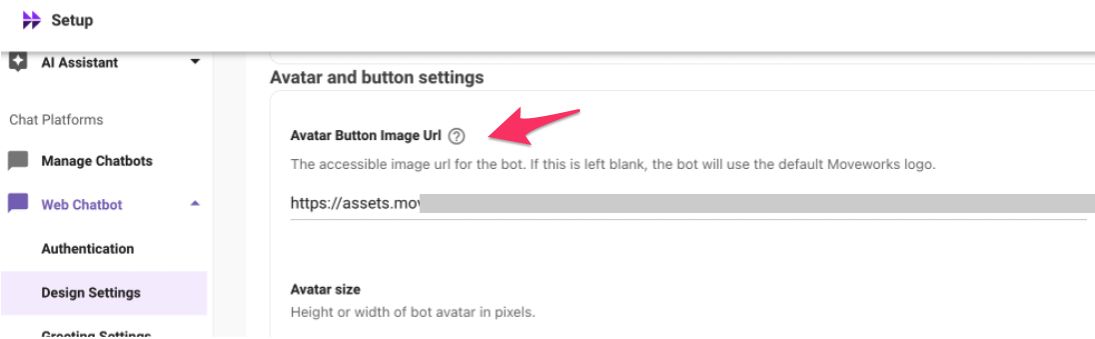
Within Moveworks Setup, navigate to the following configuration page to verify the image that’s being used as your assistant avatar:
- Find the “Organization Details” section
- Click on “Tenant Settings”
- Expand the “Company Details” section
- Expand the “AI Assistant Preferences” section
- Look at the image that appears within “
Avatar Button Image Url”
2. Assistant Name (Assistant on Web & Embedded Assistant)
Your Assistant’s name (aka bot name) is also inherited from Moveworks Setup.
For example: If your AI Assistant is called, “Ask Maya” in Microsoft Teams, it will also appear as “Ask Maya” on Web.
The assistant name appears on
- The left navigation panel and
- on the landing page for your AI Assistant
To update your Assistant’s name across all platforms following the following steps:
- Login to Moveworks Setup
- On the left nav find the “Chat Platforms” section and click on “Manage Chatbots”
- You will see all the applicable platforms you’ve setup. You’ll need to click on “edit” for each platform and modify the
Bot Friendly Namefield.
3. Upload A Customer Brand Logo (Assistant on Web only)
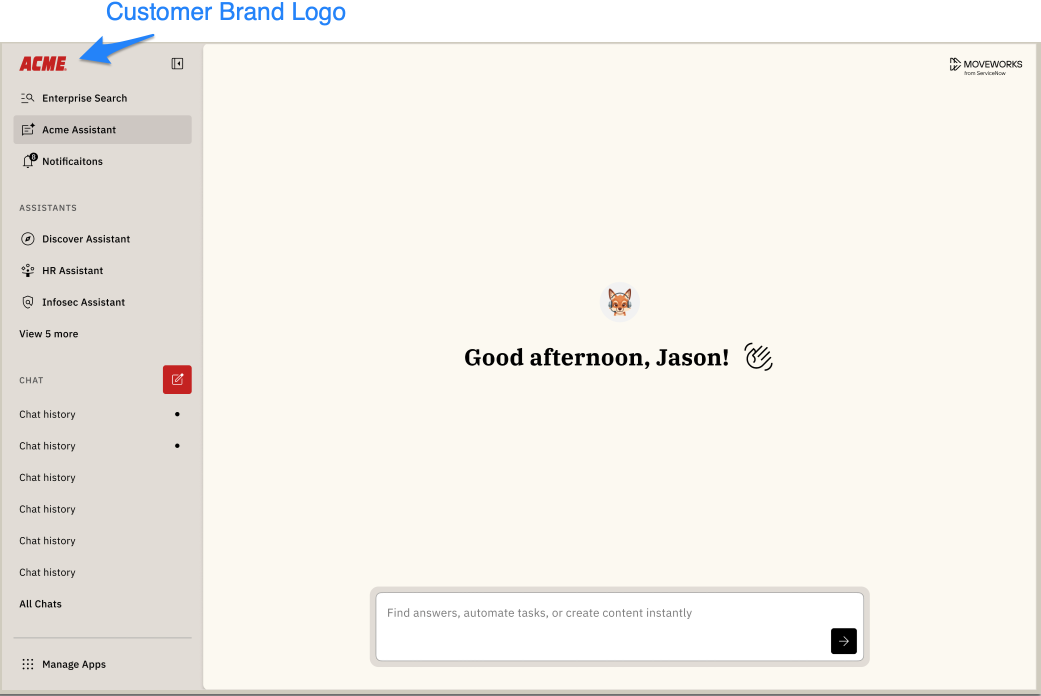
We’re giving you more control over your brand on Assistant on Web and allowing you to upload your own company brand logo which will be displayed within the left navigation bar.
How to upload your customer brand logo?
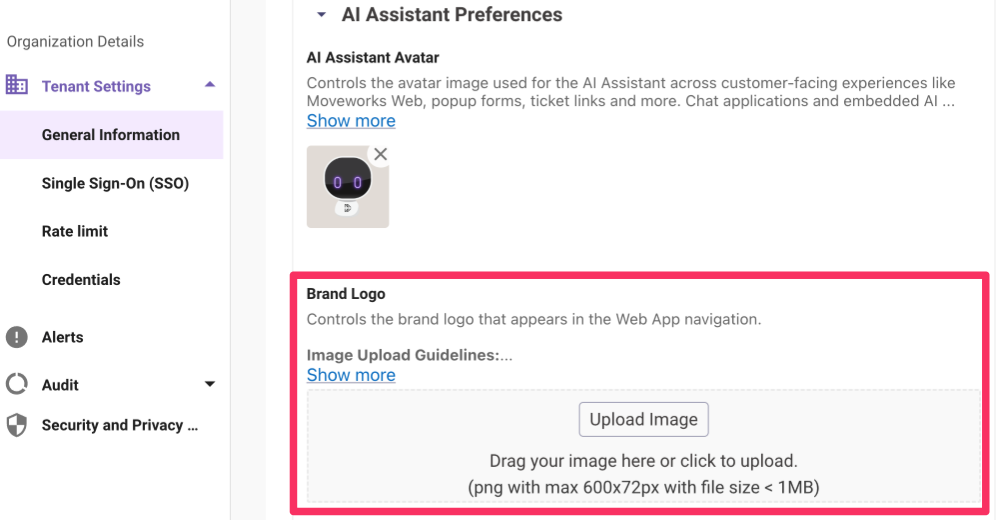
Within Moveworks Setup, navigate to the following configuration page to upload or change the customer brand logo:
- Find the “Organization Details” section
- Expand the “Tenant Settings” section
- Click on “General Information”
- Expand the “AI Assistant Preferences” section
- Find the “
Brand Logo” section and upload an image.
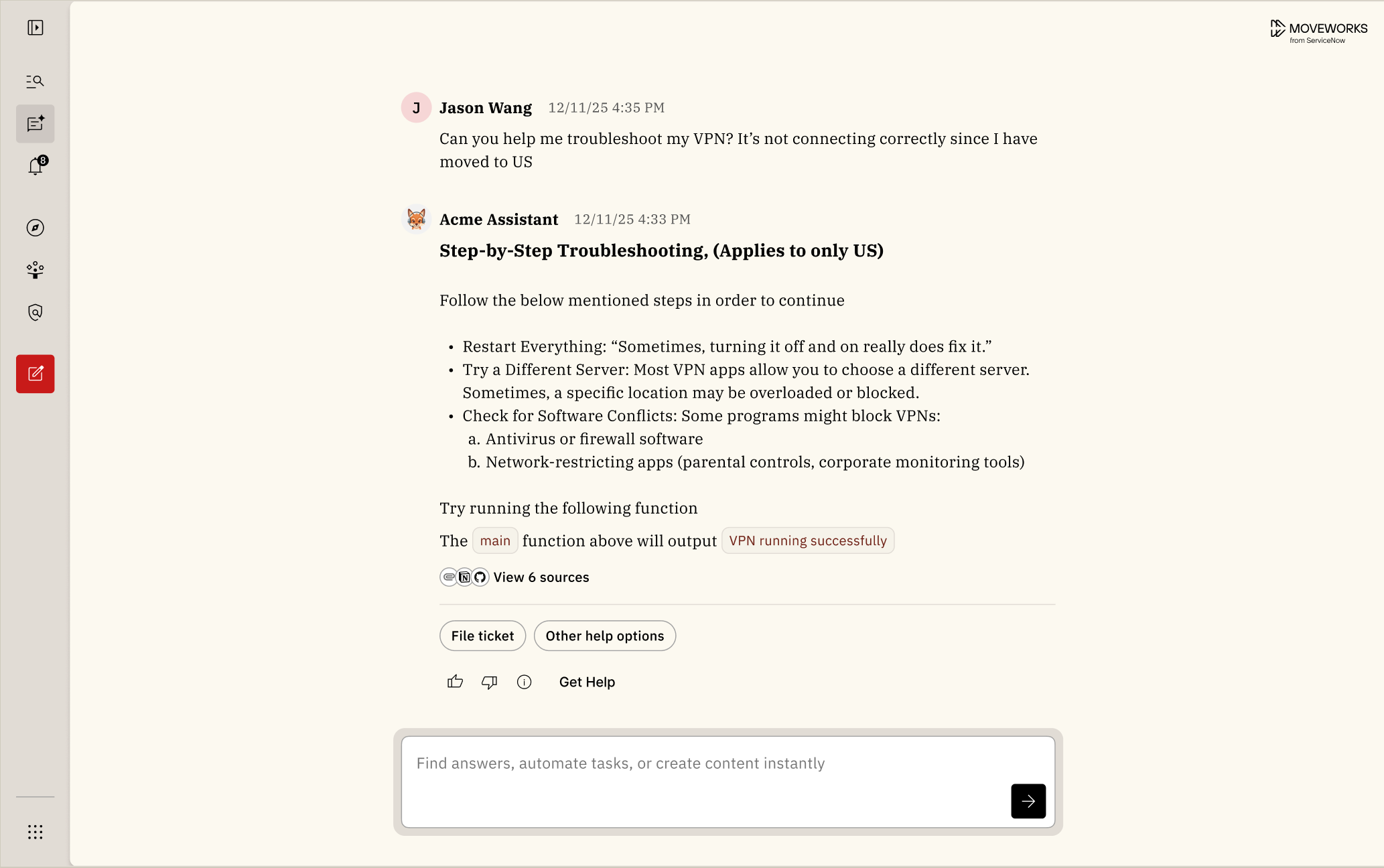
Below are visual examples showing how the customer brand logo will appear within the experience with the following customizations:
- Background app color: Beige (Default)
- Primary color: Red
- Secondary color: None (Default)
Left Navigation Bar Expanded
Note that our “Moveworks from ServiceNow” brand logo will stay within the experience and displayed on the right hand side of the experience.
Left Navigation Bar Collapsed
Recommendations for your customer brand logo:
- Image File Size: 500 KB – 1 MB, max size 1MB
- File Format: PNG (Preferred)*
- Max Width / Height: 200px / 24px (Auto-scaled) *SVG and JPEG images will not be supported.
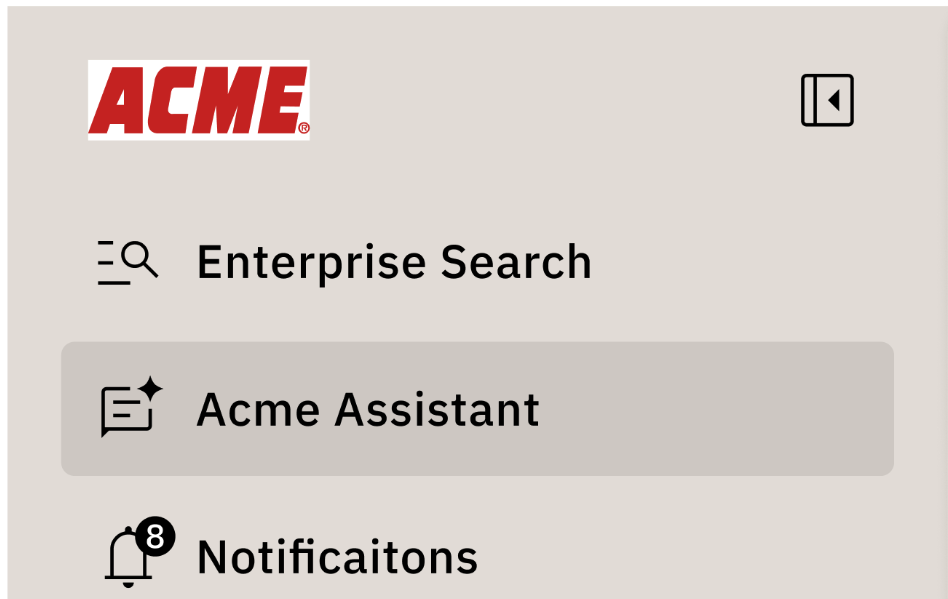
Variations of the customer bot logo we will support:
- Transparent background: (Preferred) We’d prefer customer bot logos to include a transparent background so that the logo appears as if it’s part of the native experience.
- Logo with solid background: If the image contains a solid colored background, then that color will be displayed within the left nav.
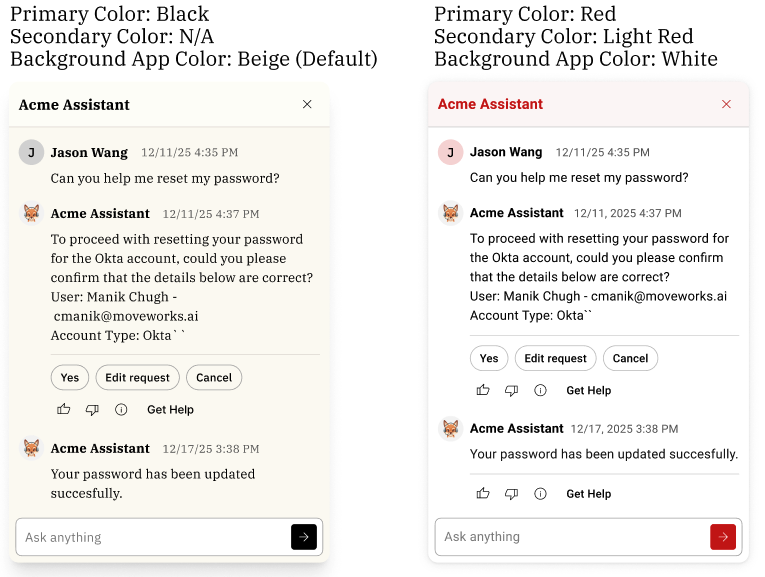
4. Set A Background App Color (Assistant on Web, Embedded Assistant, & Reference Page)
The default out of the box Assistant should be the existing Beige UI, and customers can further customize the Assistant with the following customization options.
Customer can select one of 2 options:
- Beige background: Our signature default, thoughtfully designed to align with the core MW platform brand and style.
- White background: A clean, versatile option designed to blend seamlessly with almost any customer brand identity.
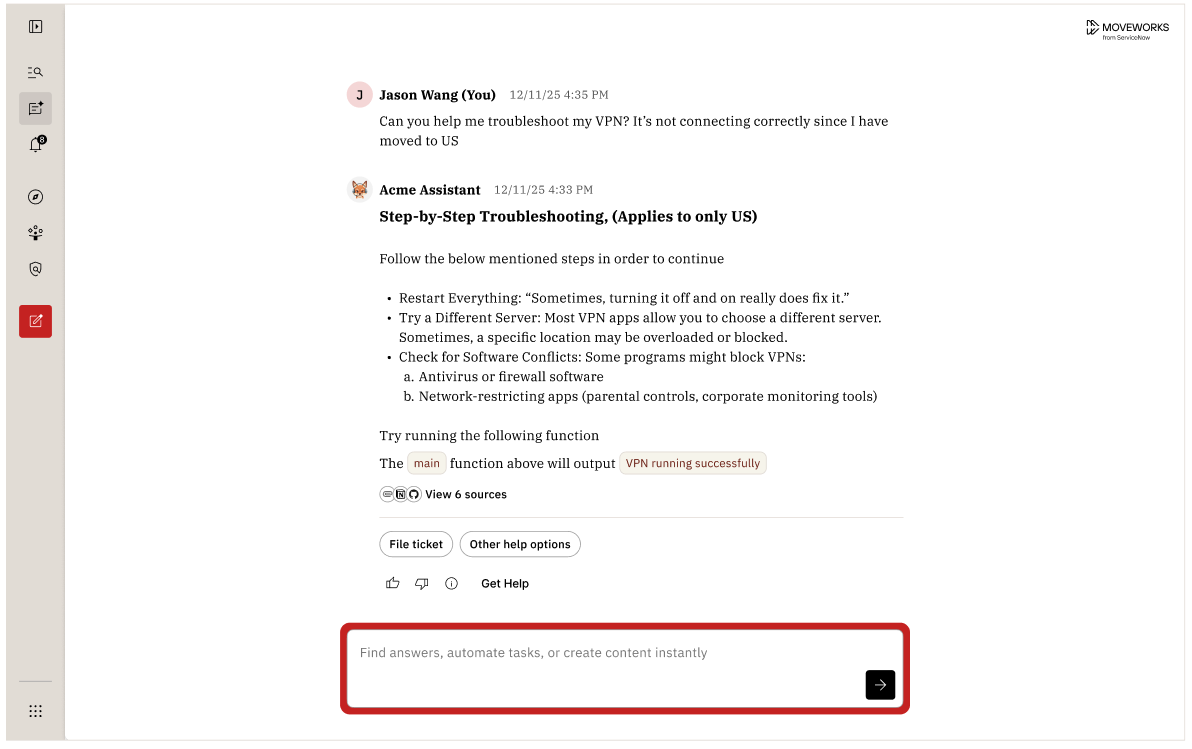
Examples shown below:
Embedded Assistant (Customizations Variations Below)
Assistant on Web
Reference Page Variations
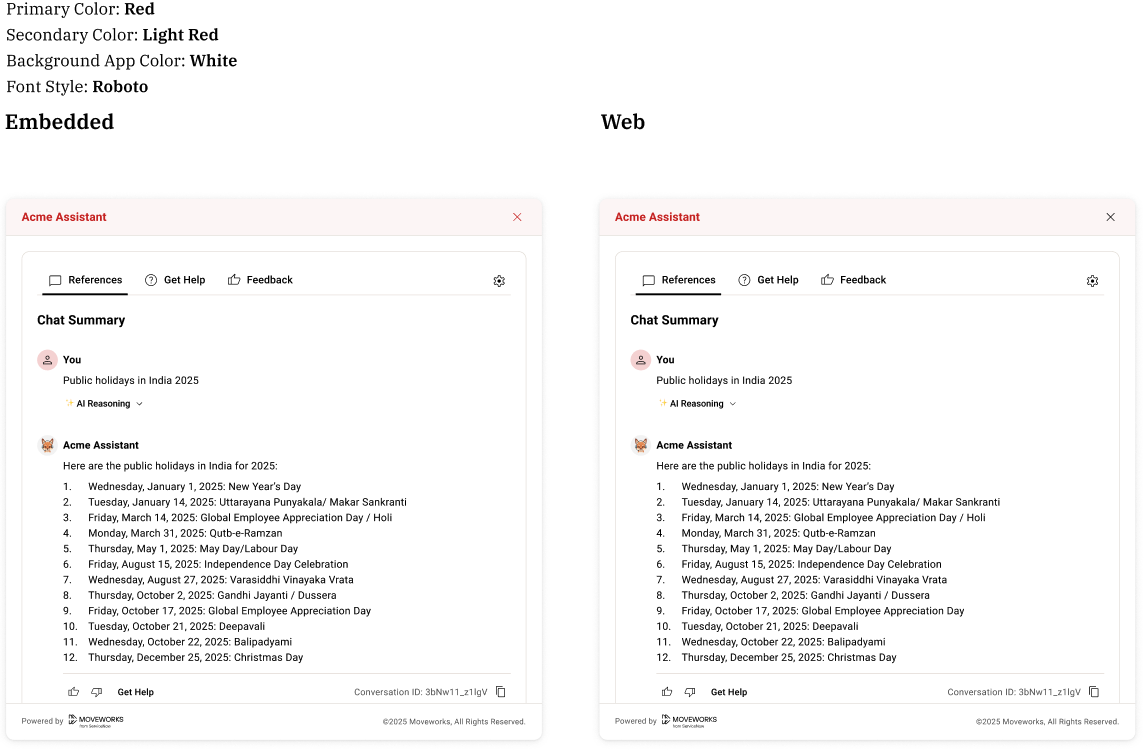
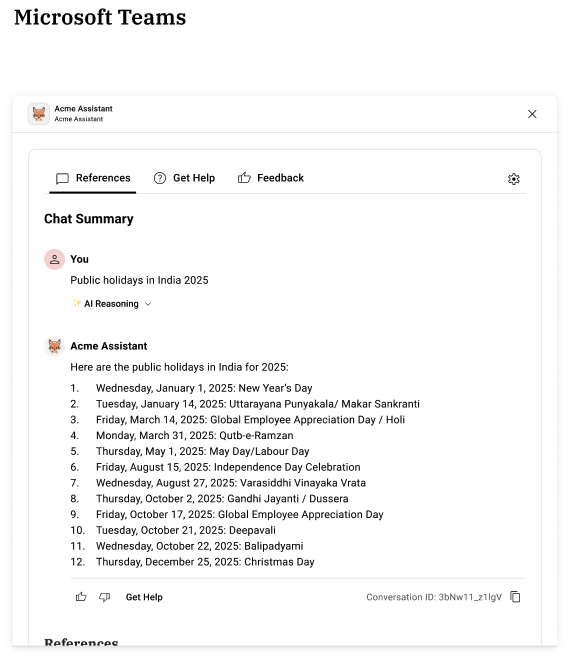
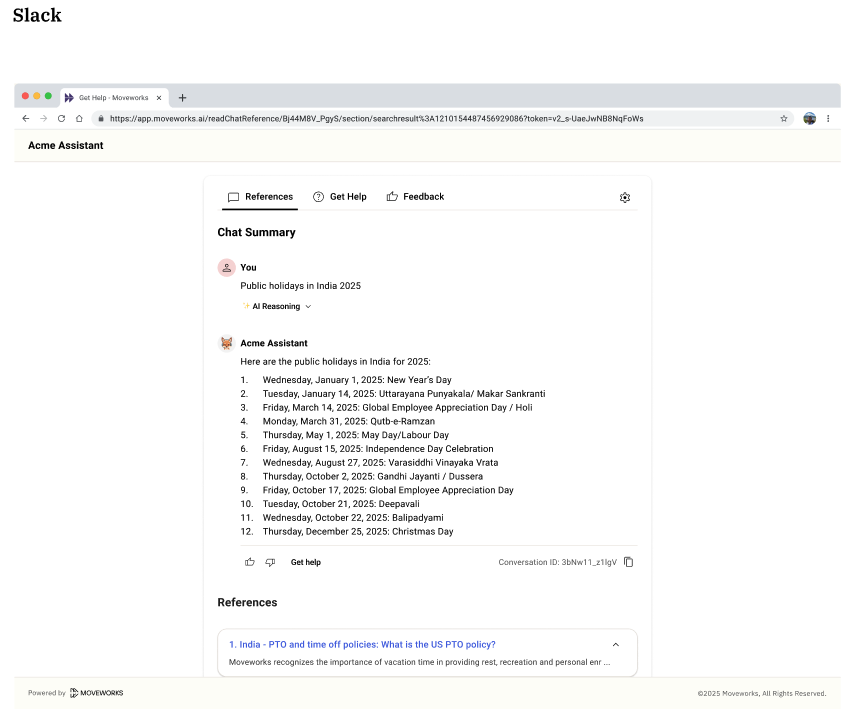
The header and text color for the header on the reference page is using the primary and secondary colors, but only for Web and Embedded Assistant. This type of customizations is not available for chat platforms (Microsoft Teams or Slack).
5. Primary Color (Assistant on Web & Embedded Assistant)
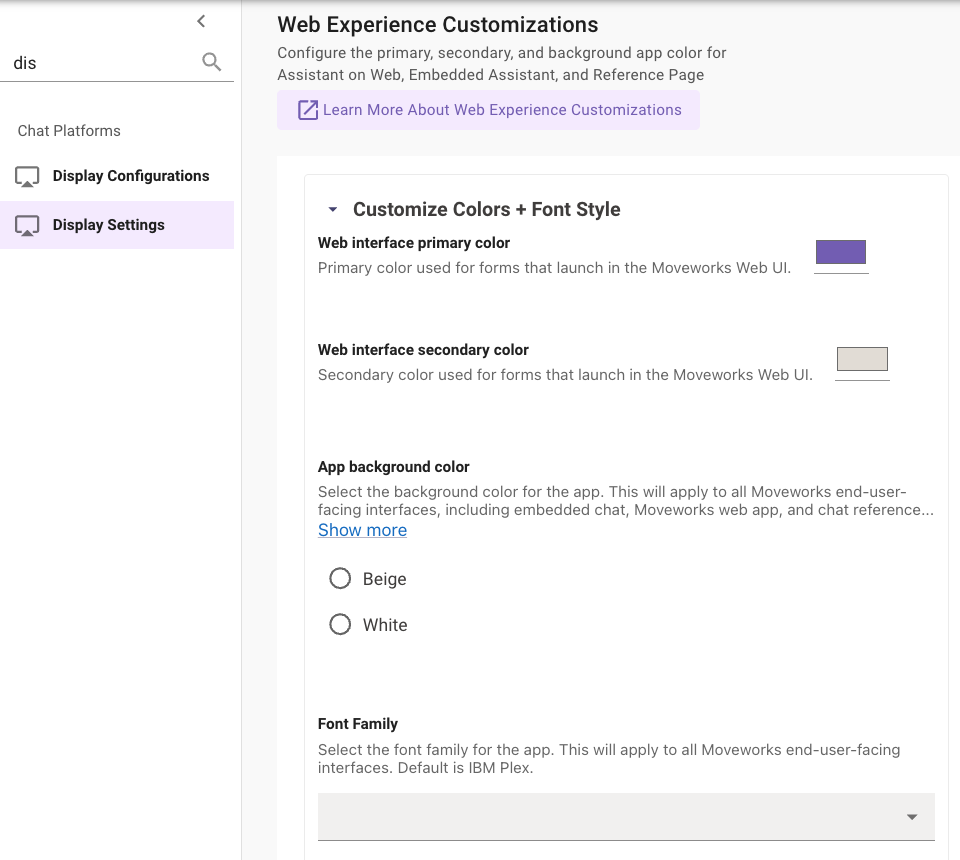
To modify the primary color navigate to the following config within Moveworks Setup:
- Find the “Chat Platform” section
- Click on “Display Settings”
- Expand the “Customize Colors + Font Style” section
- Modify the “Web interface primary color”
Web interface primary color: This primary color will apply to Assistant on Web and Embedded Assistant
Below is the logic for how we use Primary Color within our experiences:
UI Elements Shown Below:
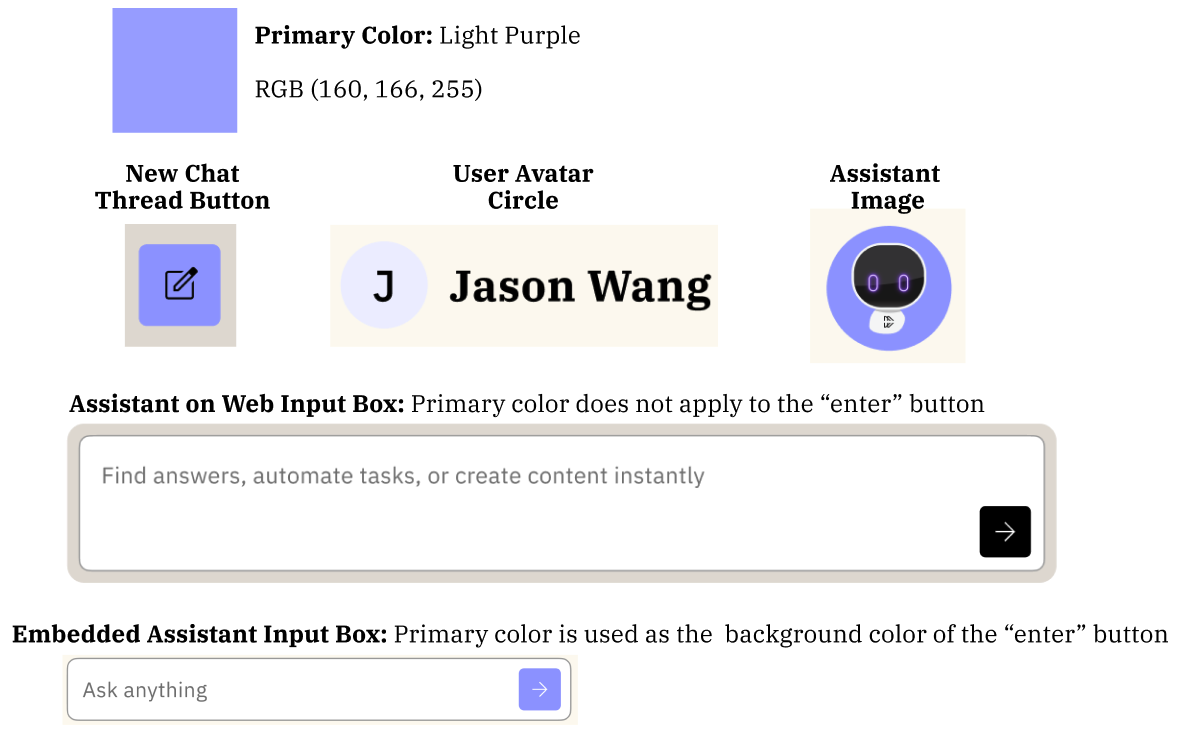
Examples showing how primary color impacts the assistant images
This next section is about how primary color impacts the assistant image you upload. It’s showing a different primary color color, light purple.
Example 1: The uploaded image has a white logo (our Moveworks logo) with a transparent background.
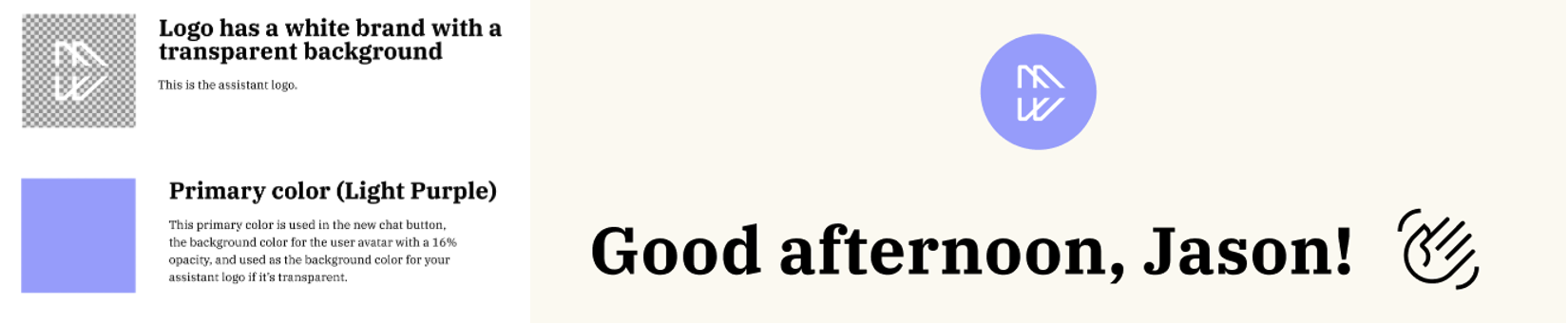
Example 2: The uploaded image has a object (our m8 bot) with a transparent background.

Example 3: The uploaded image has a grey solid background with an object (our m8 bot).

Reference page (Web + Embedded Assistant)
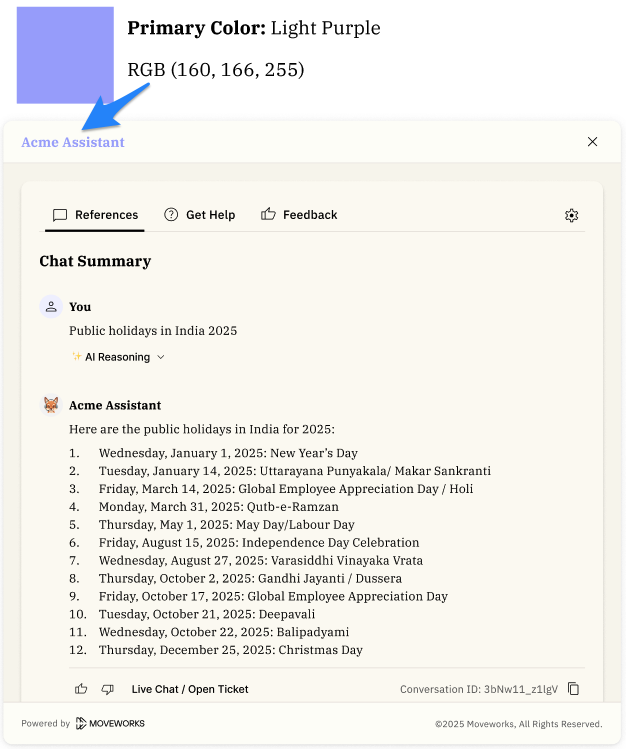
The primary color you select will be used as the text color for the “Assistant Name” that appears within the header.
As of March 12, 2026 given that we’ve introduced new use cases for the primary color, there are some visual changes you will notice. The applies only to Web + Embedded Assistant.
Assistant on Web
The primary color you’ve already selected will be used as the text color for the header on the Reference Page. See blue arrow.
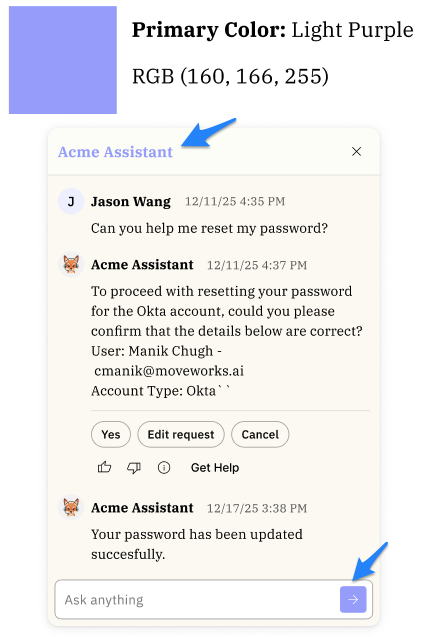
Embedded Assistant
The primary color you’ve already selected will be used as the text color for the header on Embedded Assistant + Reference Page. See blue arrows.
6. Set A Secondary Color (Assistant on Web, Embedded Assistant)
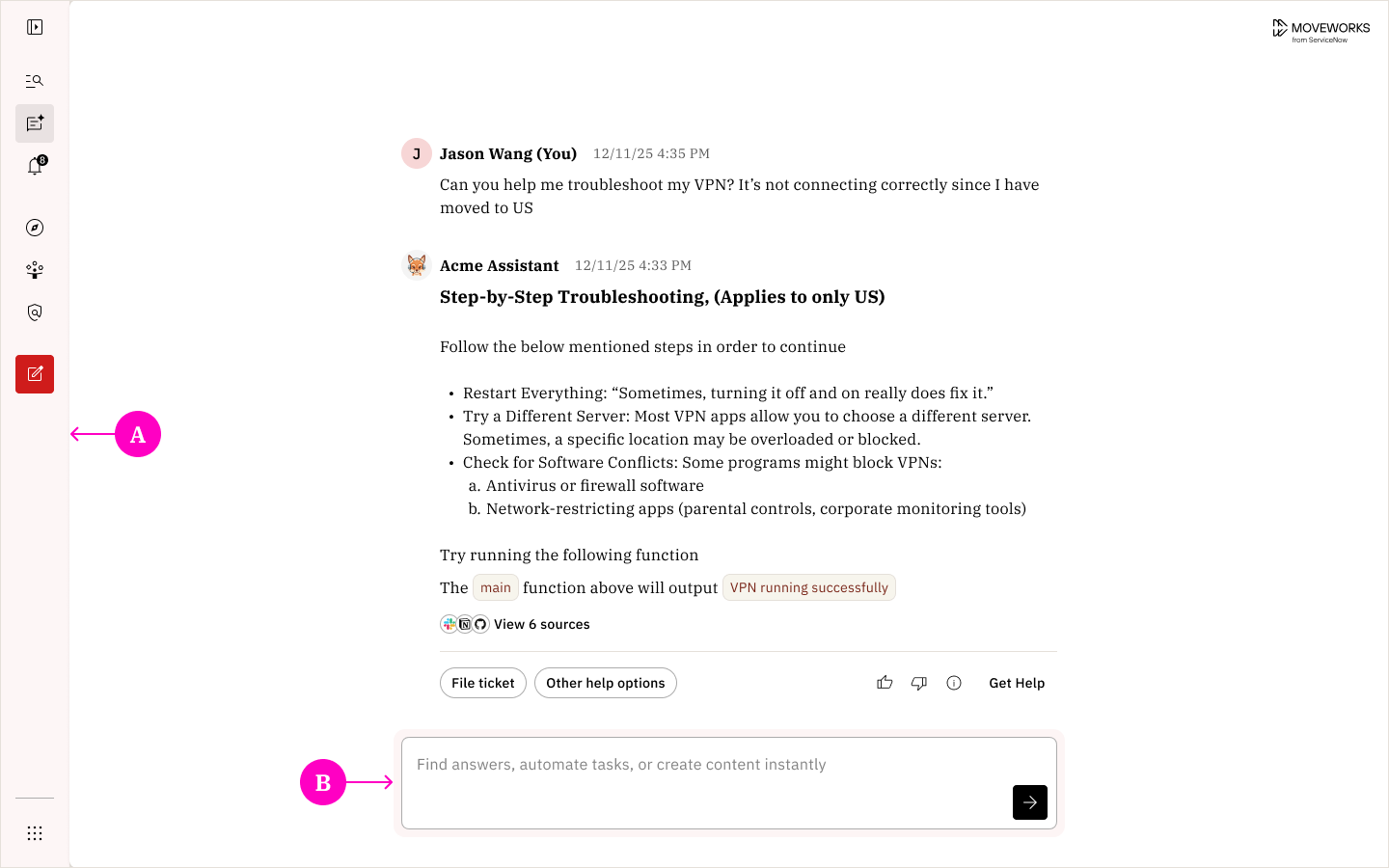
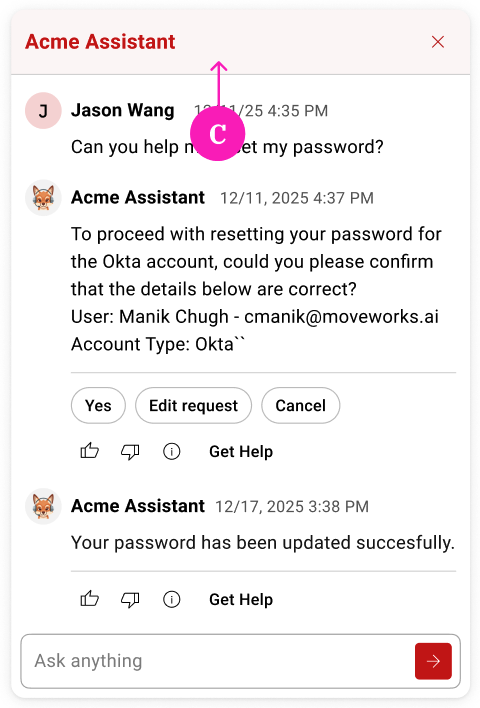
In addition to primary color, now you’ll be able to specify a secondary color. The secondary color will be used within the following UI elements across Assistant on Web and Embedded Assistant.
A. Background color of the left navigation bar (Assistant on Web only)
B. Outline color of the input (Assistant on Web only)
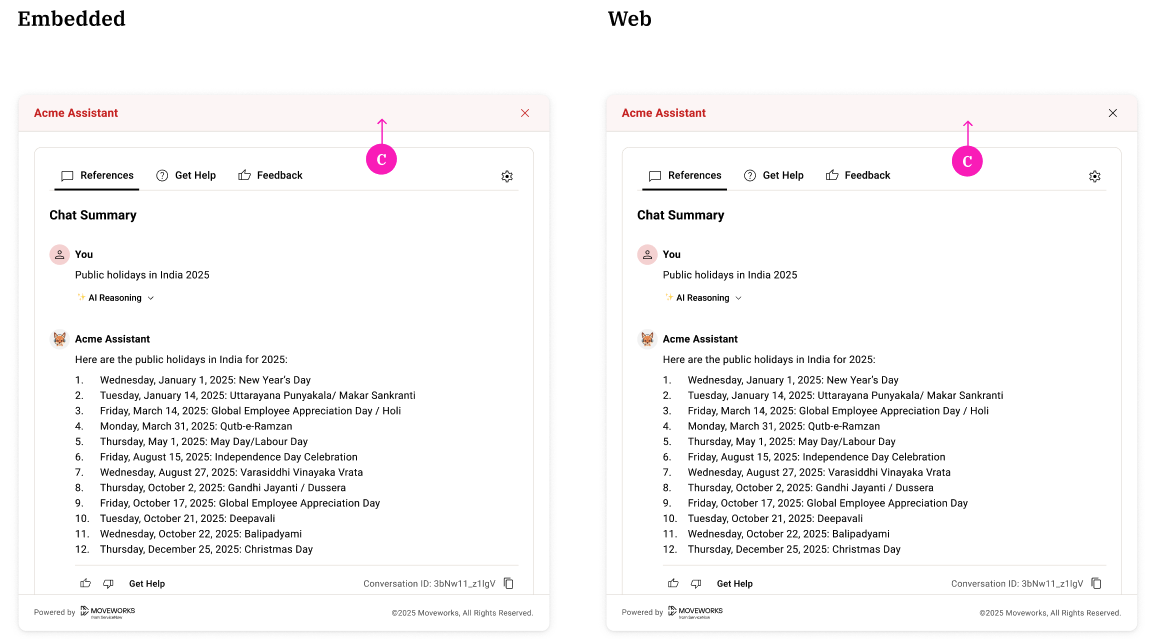
C. Background color of the header (Assistant on Web + Embedded Assistant)
D. Background color of the header on Reference Page (Assistant on Web + Embedded Assistant)
Customizations selected for examples below:
- Background app color: White
- Primary color: Red
- Secondary color: Light Red
Assistant on Web:
Embedded Assistant:
Reference Page:
7. Set A Font Style (Assistant on Web, Embedded Assistant, & Reference Page)
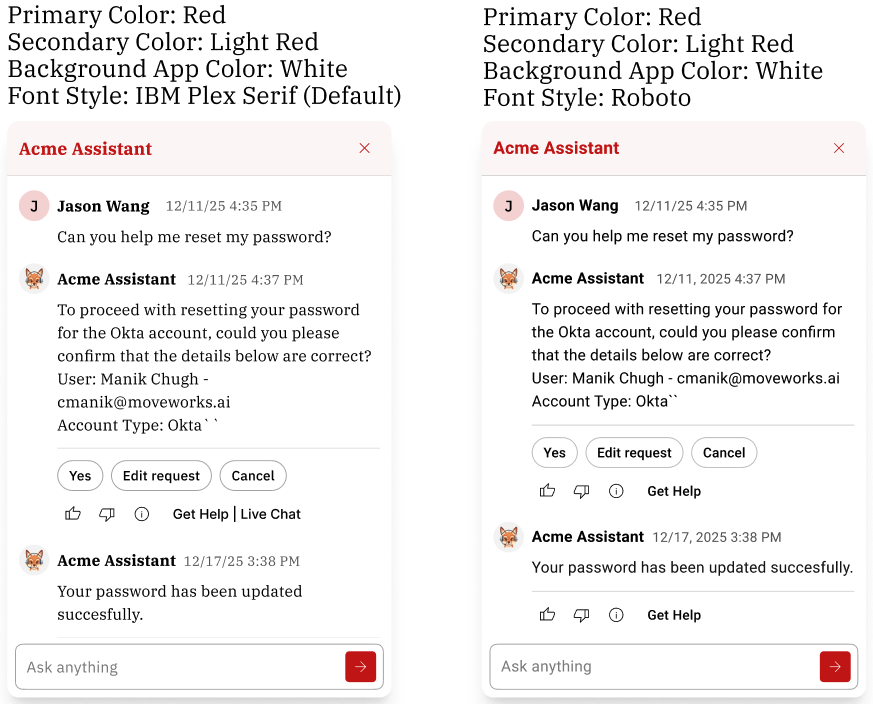
Customers can select a font style within Moveworks Setup. You can select a font style from a list of supported font styles. The selected font style (ex. Tahoma) will appear across all of our web experiences. The same font style will be used for headers and body text. We will apply a different font weight depending on whether its a header or body text.
Which font styles are supported?
- IBM Plex
- Arial
- Helvetica
- Verdana
- Tahoma
- Trebuchet MS
- Georgia
- Times New Roman
- Palatino
- Garamond
- Courier New
- Consolas
- Monaco
- Menlo
- Impact
- Comic Sans MS
- Century Gothic
- Copperplate
Can I upload my own font style?
No, this is not supported at this time.
How does weights get applied to the experiences?
- Headers: Since headers are bold by default, any new font you pick will also be bold.
- Body Text: Since body text is normally regular weight, any new font you pick will stay in that regular weight.
Examples shown below:
Embedded Assistant
FAQs
Q: Can I change the name of “My Moveworks” app or my URL subdomain?
Yes, both the app name and subdomain are configurable . You can configure the “My Moveworks” app name via your SSO provider website. The subdomain within the url can also be configured via your Moveworks Setup too if you’ve like to change it.
Q: What happens if a user isn’t assigned the My Moveworks app?
The user will not be able to access the website. Once the app is assigned via your SSO provider, they can sign in successfully.
Q: Does Assistant on Web require Enterprise Search?
No. Assistant on Web is included at no additional cost and can be used independently of Enterprise Search.
Q: Can I preview how my Assistant will look on Web?
Yes. Once you have access to Assistant on Web, open your organization’s URL (for example, mycompany.moveworks.com/assistant) to see your live branding applied.
Q: Can I access assistant on web on mobile devices?
Yes, however it depends on whether or not your organization has mobile access enabled for your SSO applications. If the organization’s IT team has enabled mobile access for your My Moveworks app, your employees will be able to open Assistant on Web from a mobile device.