
How to Configure ServiceNow Knowledge Ingestion
This page applies to existing Classic ServiceNow configurations.
New ServiceNow configurations are created through the Max Capacity journey; see the ServiceNow setup guide. If Max Capacity cannot meet a specific requirement for a new configuration, contact Moveworks Support.
Pre-Requisites
- Please ensure the required ServiceNow Connector has been created with the necessary permissions. Please refer the ServiceNow Access Requirements Doc for details.
- Please ensure the Service Account being used for connecting to ServiceNow has access to the Knowledge Bases users want to ingest articles from.
Configuration
Start by creating a new Ingestion under Search > Configure Search > Classic Ingestion > Internal Knowledge
- First, select the Connector created for the ingestion and then provide a name for the ingestion under Ingestion Name. Eg. snow_IT.
- Then, choose a Domain. The domain is the functional areas of employee service that is most related to the knowledge being ingested for this configuration.
- The domain is the functional areas of employee service that is most related to the knowledge being ingested for this configuration. Choosing a domain helps the bot to serve relevant knowledge to the user.
- Moveworks supports up to eight domains by default. You can click on Back to return to this page to change the selected domain during the knowledge configuration process, but the domain cannot be changed after you submit the configuration.

Setup Knowledge Bases - Wizard Mode
- Moveworks will now make a live API call to your knowledge management system’s instance and show you a list of all the knowledge bases or categories of knowledge articles available.
- These categories can be different for different systems. For example, it can be knowledge bases for ServiceNow, or spaces for Confluence.

Select all the categories of articles that you want to ingest. For some systems like ServiceNow basic filtering options like selection of tables and default filtering options are provided. You can click on the edit icon on right side to have a look at these options.
Note: Basic filtering in wizard flow is only supported for some systems. You might not find edit icon for all the systems.
Note: For few systems like Zendesk, content needs to exist in the category else these categories might not show up in this view.
For example, in the case of ServiceNow the following options are available:

- Moveworks supports the following default filters.
Note: that these filters will be on by default.
- Workflow status = Published (Ingest only published article. These filters allow you to exclude draft, archived articles to be ingested and served to your employees)
- Active = True
- Valid_to > BeginningOfToday
- Active = True
- Workflow status = Published (Ingest only published article. These filters allow you to exclude draft, archived articles to be ingested and served to your employees)
- Moveworks supports the following Tables selections for each knowledge base. By default, the kb_knowlege table will be turned on for every base selected. You may choose other tables as required.
- kb_template_how_to
- kb_template_kcs_article
- kb_template_faq
- kb_template_what_is
Depending on your use case, you may choose to use Advance mode to ingest your knowledge base. You should use Advance mode if you need custom tables as part of the configuration, or if you require custom filtering of articles. To use Advance mode, click on the toggle next to Advance mode, and proceed to the Advance mode section of this guide to learn how to setup your knowledge in this mode.
Now that you’ve selected your KBs, click on Next: Sample URL to provide the sample article URL.
Provide a sample URL
In this step you will be asked to provide a sample URL, this is the end user facing article URL. Whenever your queries are answered by Moveworks, a user facing link to the article it referred to is also provided so that the user can be redirected to the complete article.
Here is how you get a sample URL for ServiceNow:
- Go to your ServiceNow instance.
- Go to any article that you want to ingest.
- Copy the URL in your browser’s address bar.
- Go back to Moveworks Setup, and paste this URL into the field under Paste a URL from an existing article.
Note: This step might not be present for systems where it is not possible for us to fetch sample URL automatically.
Now that you’ve provided a sample article URL, click on Next: Review Samples to go to the final step which is Validation.
Review Samples
Here you can confirm whether the configurations you made are correct. You can always click on Back and make changes.
This page also displays the article count is the total number of articles that will be ingested into Moveworks based on the configurations you just completed. This is not a sample count.

Setup Knowledge Bases - Advanced Mode
By using Advance mode you have greater control over which articles to ingest. For example, you can define who can access these articles, or you can use customize filters for various knowledge categories.
How to get to Advance mode?
You will find a toggle on the top right corner on the Setup Knowledge Bases step. Toggle this on and you will be taken to Advance mode. Please note that once you switch to Advance mode, all your current progress will be lost.

Note : Some systems that do not support wizard flow will directly take you to Advance mode.
What can you do in Advance mode ? There are multiple controls offered in Advance mode. You can look at the descriptions and make the configurations yourself. Apart from the multiple controls that you discover on this page, there is one major feature of Advance mode:
-
Select Ingestion System - Moveworks has a wide list of systems that support knowledge ingestion from which will be listed here. We will be selecting SNOW Config for this example.
-
Start URLs - In order to ingest the Articles from a Knowledge base, the user would need to explicitly mention the complete URL which will be used in the API call. They commonly follow the below structure :

-
Knowledge Article Filter Rule - This DSL field can be used to filter out Articles in the source system from being ingested. The steps of how to configure this can be followed here.
-
Field Overrides > Article Url Override - This is the URL template Moveworks will leverage when generating hyperlinks to the article in the source platform in order to generate this for all the ingested Articles.
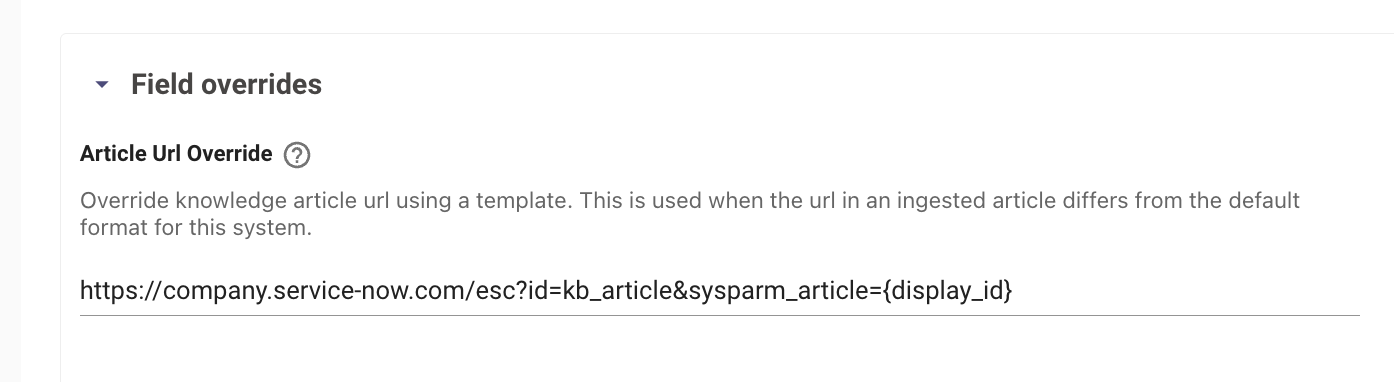
Variables accessible in Article URL override config:
- article_id - By default this points to sys_id of the article in Moveworks.
- display_id - the external facing value for the article e.g: KBXXXXX
- record.original_id - The sys_id of the ServiceNow article.
Per ServiceNow’s Guidance, when versioning is enabled, the article_id is what should be used in the URL template.
In some cases you may want to use the sys_id instead. In these cases, your URL may look like:
Validation
- Once you have submitted the Knowledge ingestion configuration, it will kick off the Ingestion pipeline in the background, the status of the same can be tracked on the Indexed Content View
- You can search for the Articles with their Titles here, and if they are listed on the Console that means they have been ingested successfully.
How To Mirror Permissions for Knowledge from ServiceNow
Pre-Requisites
In order to Mirror Permissions from ServiceNow for the associated Knowledge, Moveworks also needs to ingest the User Criteria linked to the Knowledge Articles.
- To ingest the user criteria for knowledge, users need to install the update sets mentioned here on the ServiceNow side, Follow the Guide here to complete this.
- Admins need to ensure the BASE and ACL update steps has been installed for the appropriate permissions to be set.
- If you want to learn more about how this is setup, the steps are covered in the ServiceNow User Criteria Guide.
Configuration
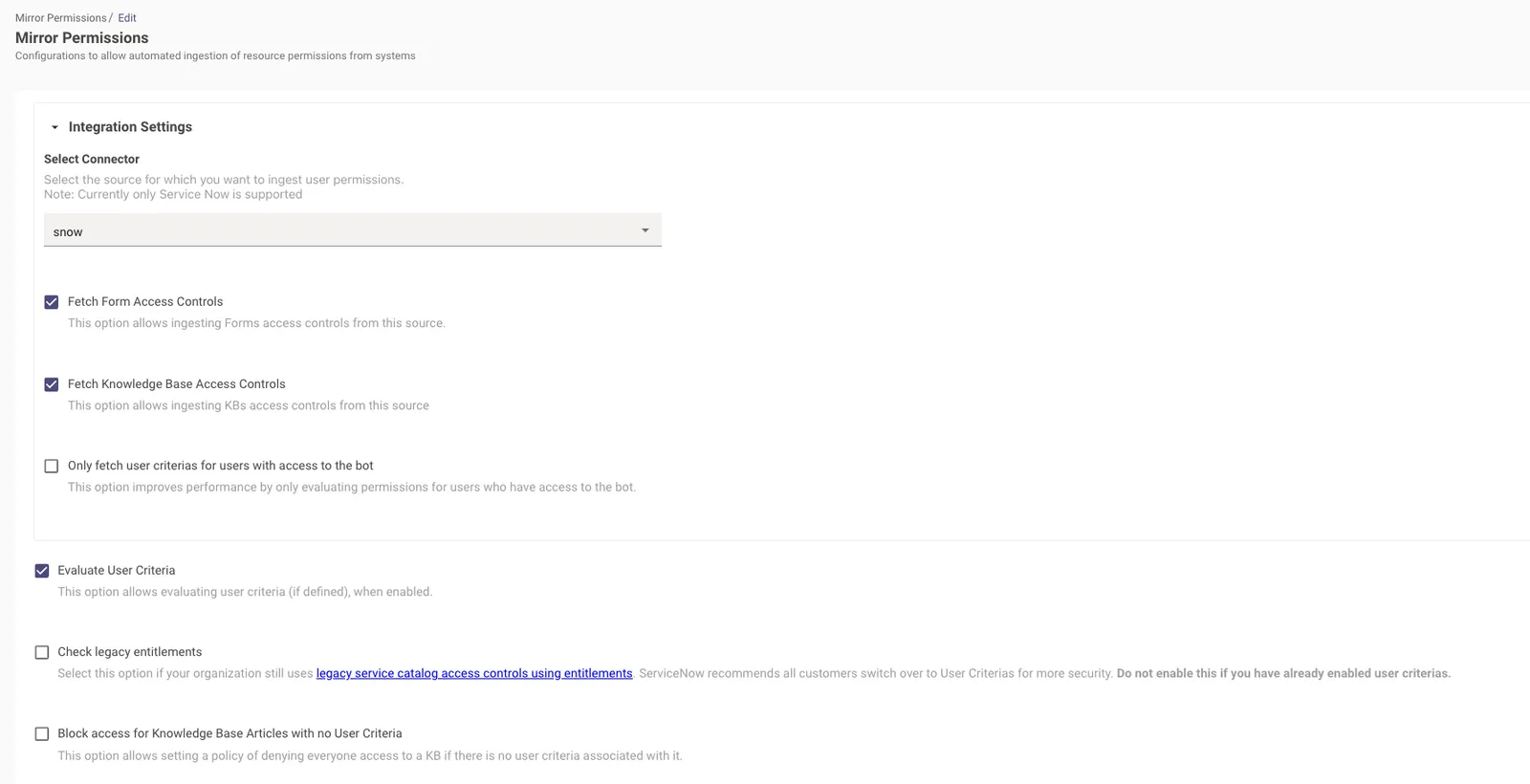
Start by creating the User Criteria Ingestion Config which is under Core Platform > Resource Permissions > Mirror Permissions
- Select Connector - Choose the ServiceNow Connector for ingesting User Criteria from.
- Fetch Form Access Controls - Enabling this ingests user criteria associated with Catalog Items or Forms in ServiceNow.
- Fetch Knowledge Base Access Controls - Enabling this ingests user criteria associated with Knowledge Articles in ServiceNow.
- Evaluate User Criteria - Enabling this ensures, that once the user criteria has been ingested, it can then be evaluated on the Moveworks end before serving to the user.
Finally, navigate to Resource Permissions > Permissions Rules under the Core Platform section in the left navbar. Here you will create a new Permission Rule for allowing Serving of Knowledge, ingested from an integration.
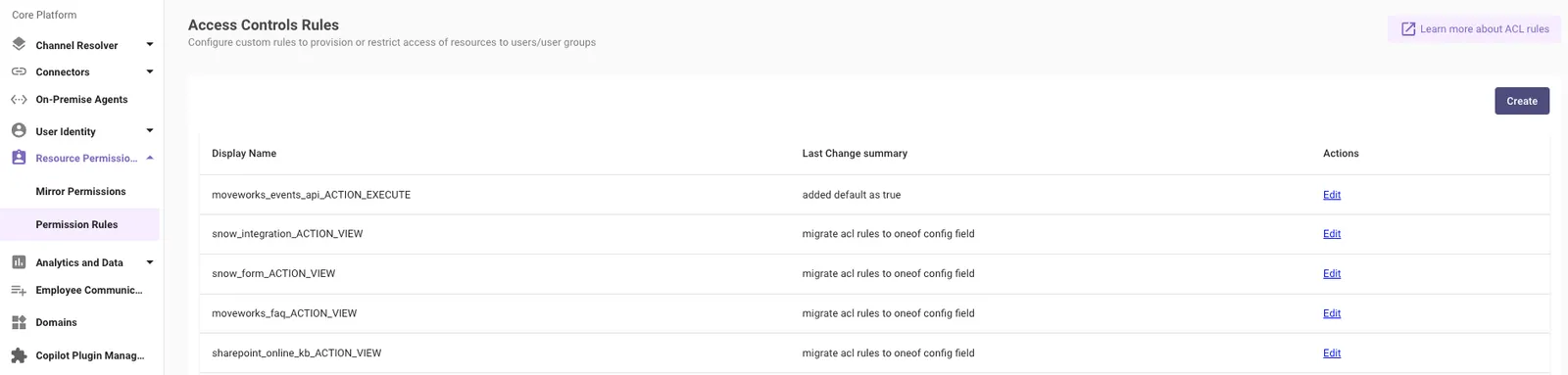
The permissions configuration requires the below details in order to serve up the respective Resource, the Rule associates with.
Always create the initial Permission Strategy to use ABAC with the Rule set to TRUE so the serving can be tested.
You can also write a DSL Rule here utilising user attributes to enable it for subset of users. Example here.
ABAC - Simple DSL Rule Evaluation
This strategy evaluates the permission rules written in Moveworks DSL Language. You can learn more about the DSL Syntax in the Guide here .
-
Resource Rule
- In this drop down users are required to select the Resource Type, on which the rule will apply. Ex. KB Rule
-
KB Rule - This is where users will write the DSL rules in the MWDSL Syntax
-
Boolean Rule
-
Ex. TRUE or FALSE
-
⚠️ This acts as the master control here where it enables or disables the serving of content for this integration completely

-
-
Attribute Rule
-
Allowing Knowledge to be served for a subset of user. Ex.
user.email_addr IN ["zeeyousuf@moveworks.ai"]
-
Allowing only certain Articles to be served within the Bot. Ex.
resource.article_id IN ["12345","5678"]
-
Allowing users who have a specific user-tag associated with their Record, access to the Articles in the Bot. Ex.
(("HAS_ACCESS_TO_BOT" IN user.user_tags) OR ("MOVEWORKS_INTERNAL_USER" IN user.user_tags))
-
-
-
Integration ID - The connector which is being used to ingest the knowledge content.
-
Resource Type - Resource Type for which the Rule will apply. Ex. kb, file etc.
-
Action - ACTION_VIEW
Ignoring to do this can result in a syntactically wrong rule being saved which could cause issues in serving knowledge
Validation
Once you have submitted the Resource Permissions ingestion configuration, it will kick off the Ingestion pipeline in the background, the details of the Ingestion times is present in the Moveworks Ingestion Schedule. It is recommended to wait a day before testing this out.
In order to validate the Permissions users would need to change the Permission Rules which were set to ABAC earlier to now use the Mirroring Strategy which is ReBac.
ReBac- Mirroring External System Permissions - This strategy mirrors the permission rules on the External Knowledge source by ingesting them on the Moveworks end. This is currently only supported for ServiceNow
-
Additional Access
-
In this drop down, Moveworks requires the user to select the Resource Type, on which the rule will apply. Ex. KB Rule
-
KB Rule - There are is where the user will write the DSL rules in the MWDSL Syntax. If the Rule is left empty it will default to TRUE.

-
-
Additional Restrictions
-
In this drop down Moveworks requires the user to select the Resource Type, on which the rule will apply. Ex. KB Rule
-
KB Rule - There are is where users will write the DSL rules in the MWDSL Syntax. If the Rule is left empty it will default to TRUE. You can also write rules utilising internal Attributes which allow knowledge from a specific knowledge base to be served and not others.

-
Integration ID - The connector which is being used to ingest the knowledge content.
-
Resource Type - Resource Type for which the Rule will apply. Ex. kb, file etc.
-
Action - ACTION_VIEW
-
You should now be good to start testing the serving of Knowledge which permissions are being mirrored from the external system.