
Embedded AI Assistant Troubleshooting Guide
Use this guide when Embedded AI Assistant doesn’t appear, doesn’t sign the user in, or doesn’t respond on your web page. Loading the chat takes several steps in a row. Once you know which step failed, you know what to fix and who owns the fix (your web team, your identity team, your network team, or Moveworks).
How Embedded AI Assistant loads
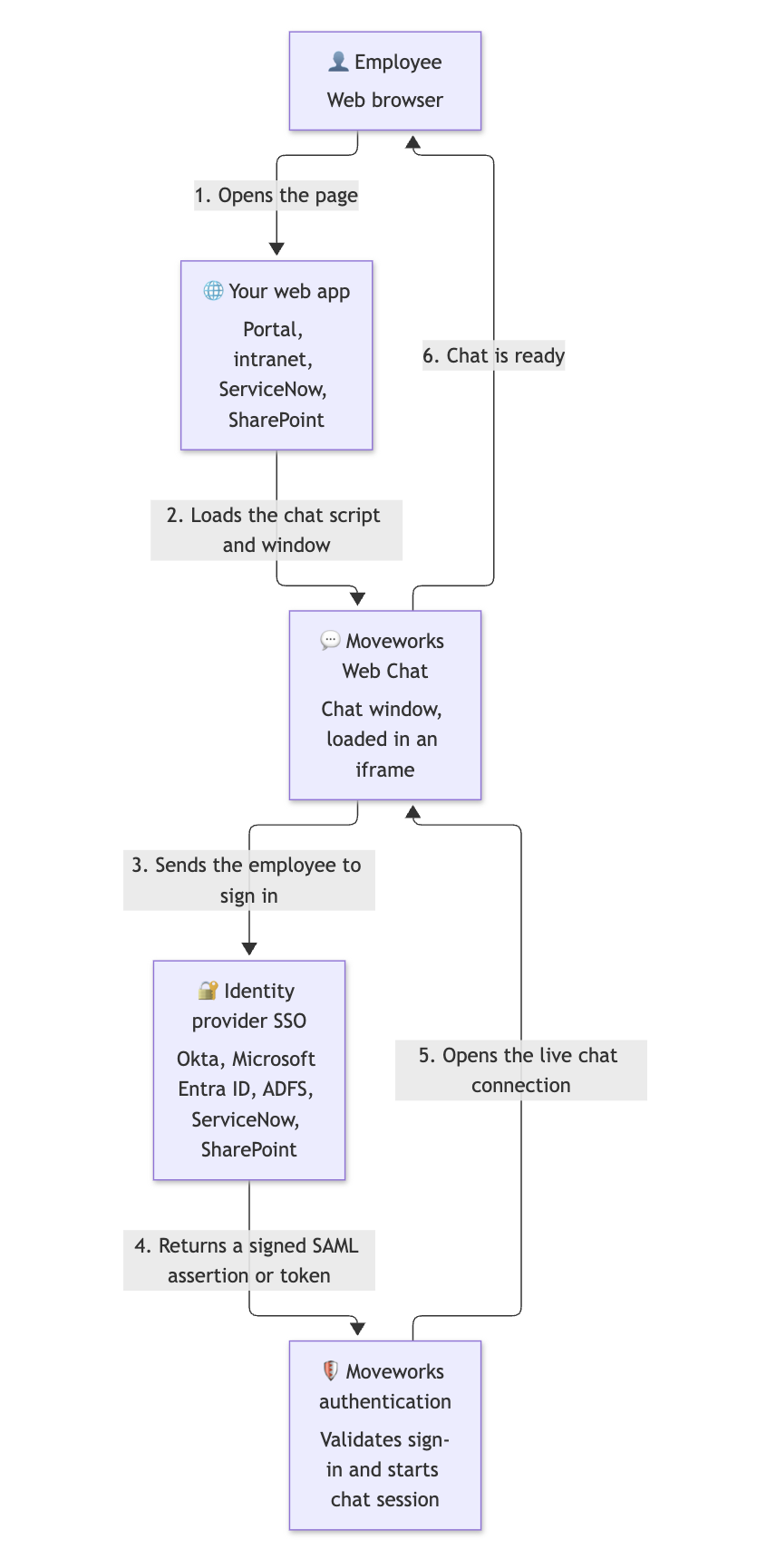
What can break at each step
Each step has a detailed section below.
Quick triage by symptom
Before you start: collect evidence from the browser
Most problems show up clearly in the browser’s developer tools. The steps below are for Chrome and Edge. Other browsers work the same way.
- Open the page where the chat should appear. Right-click anywhere and select Inspect (or press F12 on Windows, Cmd+Option+I on Mac).
- Open the Console tab and note any red errors. You can ignore messages marked
[Report Only]. They are warnings and don’t block anything. - Open the Network tab. Turn on Preserve log and Disable cache, then reload the page.
- In the Network filter box, type your web chat domain (see the table below). Look for requests with a 4xx or 5xx status, or marked (blocked) or (failed). To see the live chat connection, click the WS filter.
- Narrow it down with a few quick comparisons:
- Try an incognito or private window. If it works there, a browser extension or old cookies are likely the cause.
- Try a different browser.
- Try off VPN or on a different network. If that works, your proxy or firewall is likely the cause.
- Try a different employee. If that works, the cause is likely user-specific (app assignment or email address).
Your web chat domain
Your web chat domain is the one in your embed snippet. Use it wherever this guide says <webchat-domain>. If you’re unsure, use your region’s default:
1. The employee opens your web app
Owner: your web/portal team or Moveworks
If the avatar never appears and the Console shows no web chat errors at all, the chat was probably never asked to load.
- Is the snippet on the page? In developer tools, open the Elements tab, press Ctrl+F (Cmd+F on Mac), and search for
mw4webor your web chat domain. If nothing is found, the snippet isn’t on this page or this page template. - Is the bot ID correct? The bot ID in the snippet must match the bot ID shown in Moveworks Setup.
- Is this page allowed? In Moveworks Setup, check Display URLs Allow List and Display URLs Block List. If the Allow List has any entries, the chat appears only on those URLs. The chat never appears on URLs in the Block List.
- Is an avatar image set? Make sure Avatar Button Image Url has a value under Web Chatbot → Design Settings.
2. Your web app loads the chat script and window
Owner: your web team and network team
3. Chat window sends the employee to your identity provider
Owner: your identity (SSO) team and Moveworks
If a sign-in page appears inside the chat (or sign-in keeps looping), the chat successfully loaded but can’t complete the sign-in flow.
Refused to frame 'https://<your-tenant>.okta.com' because an ancestor violates the following Content Security Policy directive: "frame-ancestors 'self'"
- The employee may not be signed in to Okta. Go directly to
https://<your-tenant>.okta.comin the same browser and confirm the employee is signed in and assigned the Embedded AI Assistant app. - Okta may not allow iframe embedding. Confirm iframe embedding is turned on in your Okta tenant. If you use Okta’s Trusted Origins for iFrame embedding, add both your web app’s domain and your web chat domain.
- Your Okta issuer may not match. If your employees sign in on a custom Okta URL (for example
login.yourcompany.com), use that custom URL as the IdP Issuer in Moveworks Setup instead of the defaultokta.comsubdomain. This matters because Okta ties the session cookie to the sign-in URL the employee actually uses. Learn more from Okta. - The same message tagged
[Report Only]can be ignored. Keep scrolling for a version without that tag.
Refused to display 'https://login.microsoftonline.com/' in a frame because it set 'X-Frame-Options' to 'deny' (or a chrome-error://chromewebdata/ page inside the chat)
- The browser couldn’t find the employee’s Microsoft session inside the iframe. The usual cause is that third-party cookies are blocked. Ask your browser or endpoint team to allow cookies for:
https://login.microsoftonline.com(orhttps://login.microsoftonline.usfor GCC High)https://<webchat-domain>- Your identity provider’s domain, if it isn’t Microsoft
- In Chrome, you can test this under Settings → Privacy and security → Third-party cookies → Allowed to use third-party cookies.
Sign-in loops, or a sign-in prompt keeps showing up inside the chat
- This almost always means cookies are blocked. Check the cookie settings above, plus any browser policies pushed by your IT team. Safari blocks cross-site cookies by default.
- Check your identity provider’s sign-in logs for this employee at the time of the attempt. Look for failed sign-ins, MFA challenges, or Conditional Access or device-compliance policies that block sign-in from an embedded frame.
4. Your identity provider returns the sign-in to Moveworks
Owner: your identity (SSO) team, and your Moveworks admin
If this step fails, you’ll usually see a 401 error on https://<webchat-domain>/auth/ in the Console or Network tab.
Start with your identity provider’s sign-in logs. If the sign-in failed there, fix it in your identity provider. If it succeeded there but you still get a 401, the values in Moveworks Setup probably don’t match your identity provider. Check the items below.
- Assignment: the employee (or a group they belong to) is assigned to the Embedded AI Assistant SSO application.
- Credentials not expired: the SAML signing certificate or OIDC client secret hasn’t expired. If you rotated it, update the new value in Moveworks Setup → Single Sign-on (SSO), or contact support@moveworks.ai for help.
- Values in Moveworks Setup match your identity provider: under Single Sign-on (SSO), check that the IdP Sign On / SSO URL, IdP Issuer / Identifier ID, and IdP Public Certificate exactly match what your identity provider shows.
- SAML app settings (SAML only):
- The Single sign-on URL is the one for your region. For example, US Commercial uses
https://webchat-kprod.moveworks.io/login/sso/saml. - The Audience URI is
https://www.moveworks.com/. - The Default Relay State is the customer identifier string Moveworks gave you.
- The Name ID format is Email address.
- The Single sign-on URL is the one for your region. For example, US Commercial uses
- Email matches: the email address your identity provider sends is the same one Moveworks has for the employee from your employee directory. A mismatch here, such as an alias or a different domain, is a common reason chat works for some employees but not others.
- Authentication record exists: under Web Chatbot → Authentication, there’s a record with Auth Config set to Generic SSO, pointing to your SSO configuration, with Auth Key set to
default(unless you use multiple SSO providers).
5. Moveworks opens the live chat connection
Owner: your network team
After sign-in, the chat uses a WebSocket (wss://) connection to send and receive messages.
WebSocket connection to 'wss://<webchat-domain>/socket.io/?...&transport=websocket' failed: a proxy or firewall is blocking or inspecting the connection. Ask your network team to exclude<webchat-domain>from SSL/TLS inspection and to allow WebSocket traffic to it.- In the Network tab under the WS filter, a healthy connection shows status 101 Switching Protocols and stays open. If the connection opens and then keeps closing and reopening, look for a proxy idle timeout or a network appliance that ends long-running connections.
6. The chat is ready
Owner: your Moveworks admin
- The chat loads, but the AI Assistant doesn’t seem to know who the employee is, or it works for some employees but not others: confirm the employee exists in the employee directory that Moveworks reads from, and that their email address matches the one sent at sign-in (see step 4). If both look right, contact support with the affected email addresses.
- The chat works at first, then asks the employee to sign in again: check your identity provider’s session lifetime. On ServiceNow, also check the token lifetime described below.
Platform-specific checks
ServiceNow (ServiceNow JWT provider)
- Confirm the widget is on the portal page. Follow Step 4 - Place the widget on your portal pages in the ServiceNow configuration guide. In developer tools, search the Elements tab for
mw4web_iframeto confirm it loaded. - Check ServiceNow System Logs. If you see
Access Denied to cryptographic module, apply the workaround in ServiceNow KB1115784. - 401 errors on
/auth/: ServiceNow is acting as your identity provider here. Confirm the JWT provider referenced by the Moveworks web chat app is active and its signing key hasn’t expired. If the 401 error mentions a domain other than your production web chat domain, contact support. - Then work through steps 2, 3 and 5 above. CSP, firewall and WebSocket problems apply to ServiceNow too.
SharePoint Online
blocked by CORS policy: your SharePoint site’s URL needs to be added to the Moveworks allowlist. Send the error and the SharePoint URL to support@moveworks.ai.- The avatar doesn’t appear: make sure Avatar Button Image Url has a value under Web Chatbot → Design Settings.
Mobile devices
Embedded AI Assistant isn’t officially supported on mobile browsers.
Contacting Moveworks Support
If you’ve followed the steps above and the problem continues, email support@moveworks.ai with:
- The step in the diagram (1 to 6) where you think it’s breaking
- The page URL where the chat should appear, and your bot ID
- The email addresses of affected employees, and whether it affects everyone or only some employees
- The date, time and time zone of a failed attempt
- The browser and version, operating system, and network (office, VPN or home)
- A screenshot of the Console errors
- A HAR file from the Network tab (right-click any request and choose Save all as HAR). HAR files can contain cookies and tokens, so export a sanitized HAR if your browser offers one, and share it only through your support ticket.
- Results from your comparison tests (incognito, other browser, other network, other employee)
- The matching entry from your identity provider’s sign-in log, if you have one