
AI Assistant on Web: Features & Capabilities
Assistant on Web brings everything the Moveworks Assistant can do into one web experience. Employees can ask questions, take action, and revisit past work. All plugins, automations, and enterprise capabilities included in your pricing and packaging are available here, along with new features built specifically for the web experience.
This section highlights web-exclusive capabilities that make the experience richer and more persistent than chat platforms.
Web Exclusive Features
1. Citation Cards
Citation Cards make every Assistant answer transparent and trustworthy. Employees can see the “why” and “where” behind each answer, directly within the conversation They provide instant visibility into the sources used by the Assistant, allowing employees to validate information without interrupting their workflow.
Each citation card appears directly within the Assistant’s response and includes:
- The knowledge base system name (ex. Notion, Confluence, Service Now)
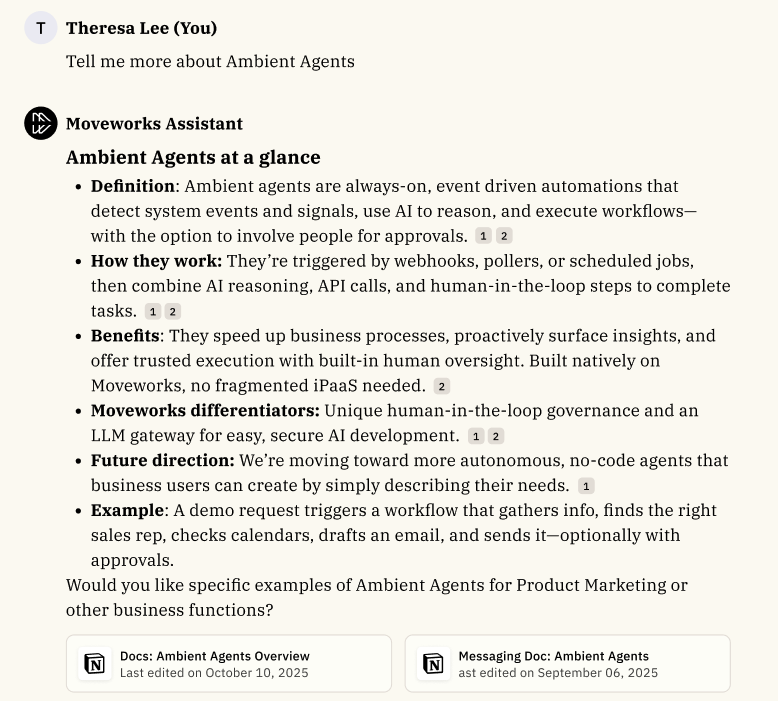
- Relevant metadata that pertains to a plugin (ex. date a doc was last modified, state of a ticket)
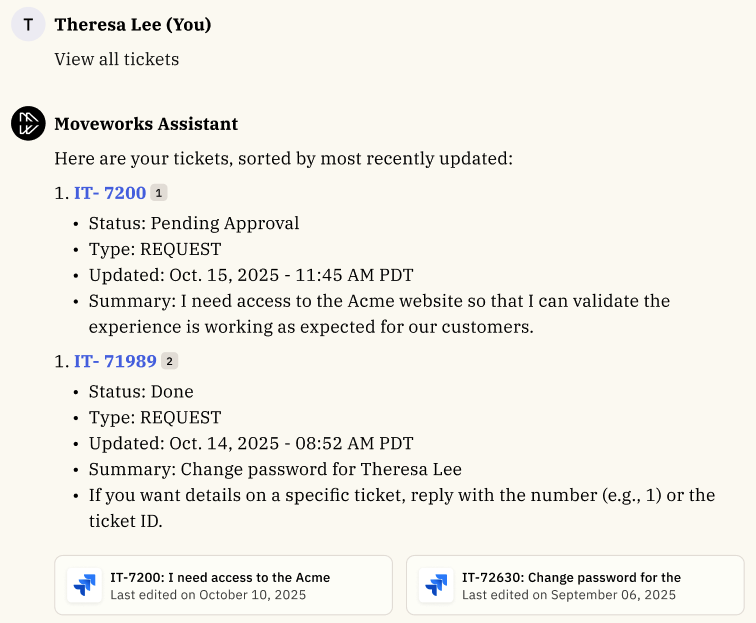
- A clickable link to open the original source in a new browser tab
These cards are interactive on Web: clicking a citation opens the linked source in a new browser tab, helping users go deeper into the material without losing their conversation thread.
2. Threads
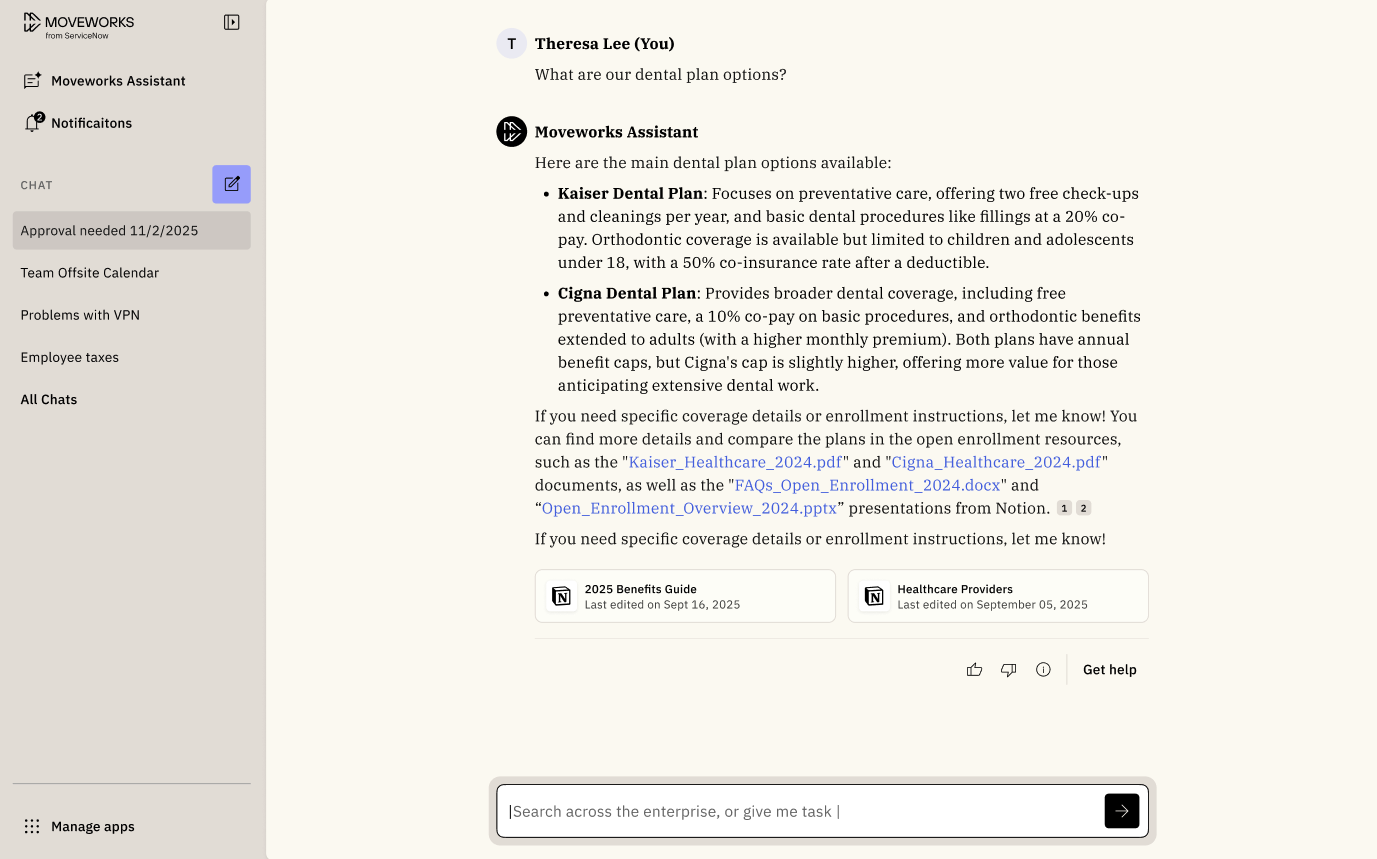
Threads let employees manage multiple conversations with the Assistant, each focused on a specific topic, task, or workflow. Every new question or intent within your AI Assistant will automatically create a dedicated thread, making it easy to keep related conversations organized and accessible. This feature is specific to our assistant on web experience.
Threads make the Assistant smarter over time by maintaining context within each conversation. When related messages live in one thread, the Assistant can understand the full picture of your previous requests, questions, and outcomes. This continuity helps it provide more relevant answers and recommendations, turning each thread into a focused workspace that remembers your goals and preferences.
What You Can Do
- Create unlimited threads. There is no limit to how many ongoing conversations a user can have.
- Revisit or resume past conversations. Each thread retains its full context so you can continue where you left off without repeating prior questions or details.
- Archive completed threads. When a task or topic is finished, you can archive the thread to keep your workspace clear. Archived threads can be restored anytime within the retention window.
Threads appear in the left-hand navigation of Assistant on Web, giving employees a structured workspace where conversations stay persistent and organized.
Data Retention for Threads
To maintain compliance and ensure a smooth user experience, threads are automatically managed based on Moveworks’ retention policy:
- Threads are retained for 30 days from the last activity date.
- After 30 days of inactivity, threads are automatically deleted across all platforms (Web). After the 30 day timeframe, you will not be able to re-access the archived thread.
- Archived threads follow the same retention timeline and can be reopened before deletion.
Example: If you last interacted with a thread on October 1, it will be deleted on October 31 unless reopened before that date.
3. Notifications Panel
Notifications in Assistant on Web are designed to keep employees informed about updates, actions, and events across all connected systems. Notifications are delivered in real time as new updates occur. You do not need to refresh the page to see them.
Where You’ll See Notifications
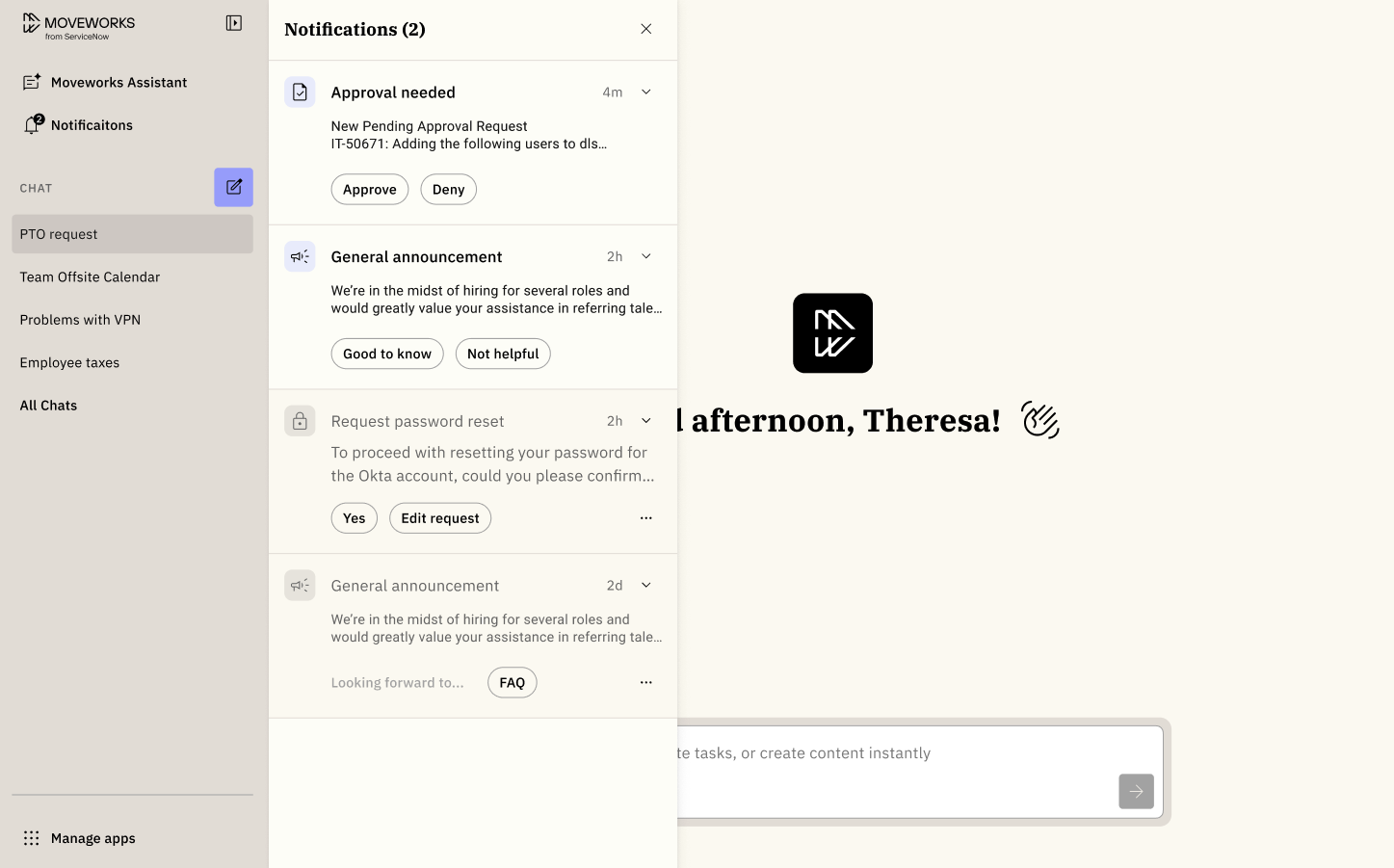
All your notifications can be accessed directly from the left-hand navigation panel. You’ll see an entry point with a bell icon called, “Notifications”. Clicking the Notifications entry point opens a panel that displays all your notifications. From here, you can:
- View new and unread notifications
- Open a notification to jump directly to the related thread or message
Notifications remain in your list until you interact with them, ensuring you can always return to important updates later.
Note: If your Assistant is also connected to Slack or Microsoft Teams, you’ll receive the same notifications there too, but the read status is tracked separately on each platform.
Types of Notifications
Different types of notifications appear in Assistant on Web each triggered by a different Moveworks plugin or automation. Each notification includes an icon, notification label, and preview of the notification so you can quickly understand where it came from and what it’s about.
We have 2 types of notifications we support today:
- Proactive notifications: These are notification triggered by a business rule (ex. your password is expired) or initiated by an organization via the Employee Communications stakeholder application. All platforms will receive this notification type. For example, all platforms will receive a notification from the Employee Communication tool if your target audience was “all users”.
- User Initiated notifications: User starts a request on assistant and that request can kick off a notification. All Moveworks platforms where your organization uses the Assistant will receive the notification alert. For example: If you’re on Assistant on Web and submitted a request to get added to a group, the web platform and all other platforms where your organization uses the Assistant (Web, Slack, and Microsoft Teams) will receive notifications about that request.
Proactive notifications
The table below outlines the different types of proactive notifications that will be displayed and how it will be rendered based on the plugin that triggered it.
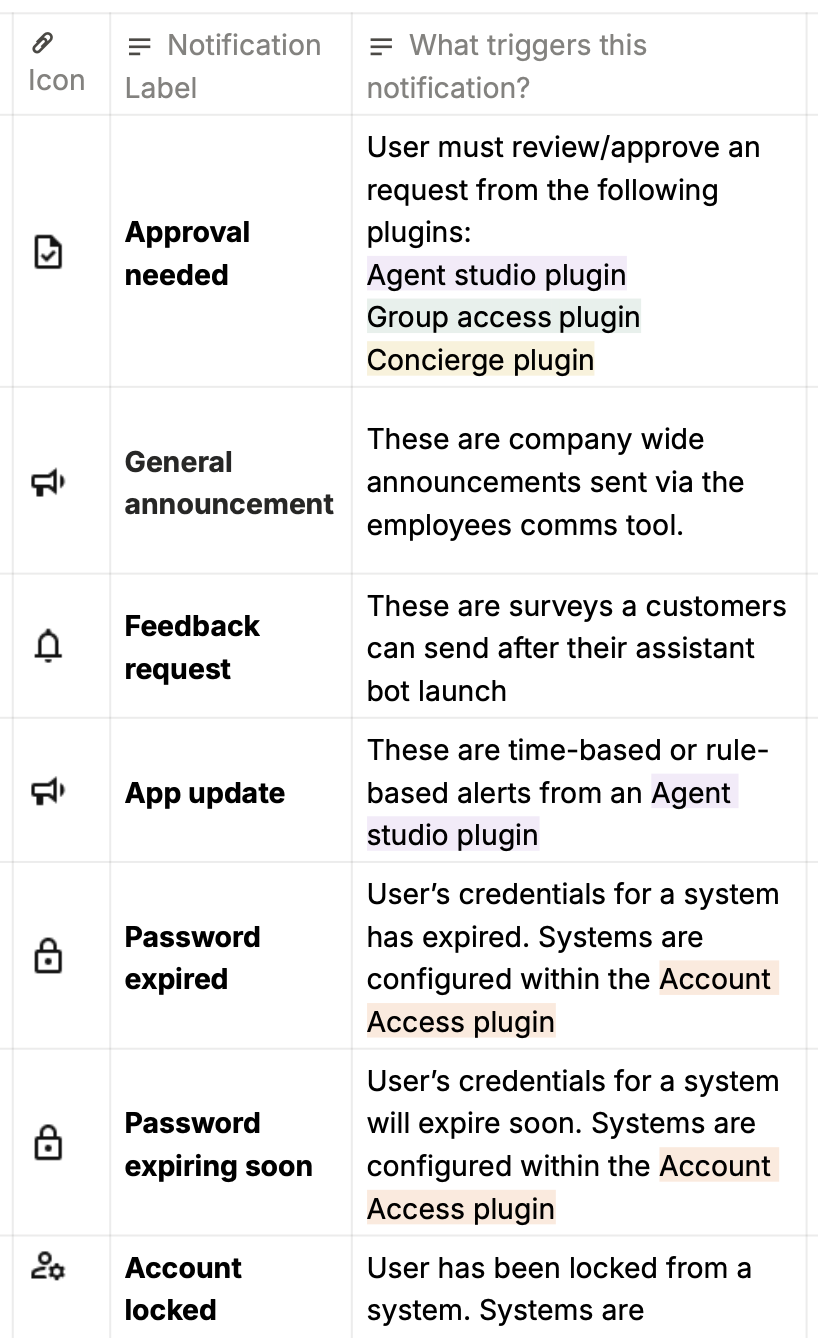
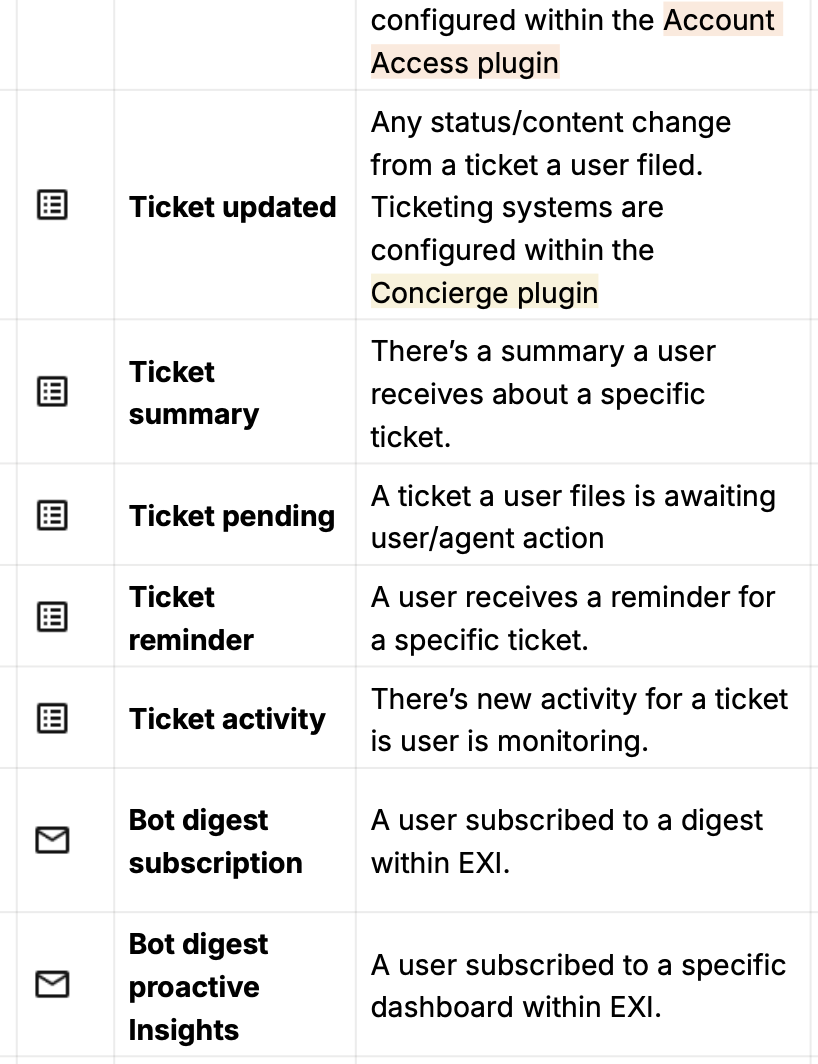
Note that proactive notifications are not automatically displayed within the “Chat” section. They will appear within the notification panel and once you’ve selected on, it will show up within your “Chat” section.
Since proactive notifications originate from systems that do not have an existing thread, you’ll find them in the notification panel. See example below:
You’ll see the “Approval needed” notification within the notification panel.
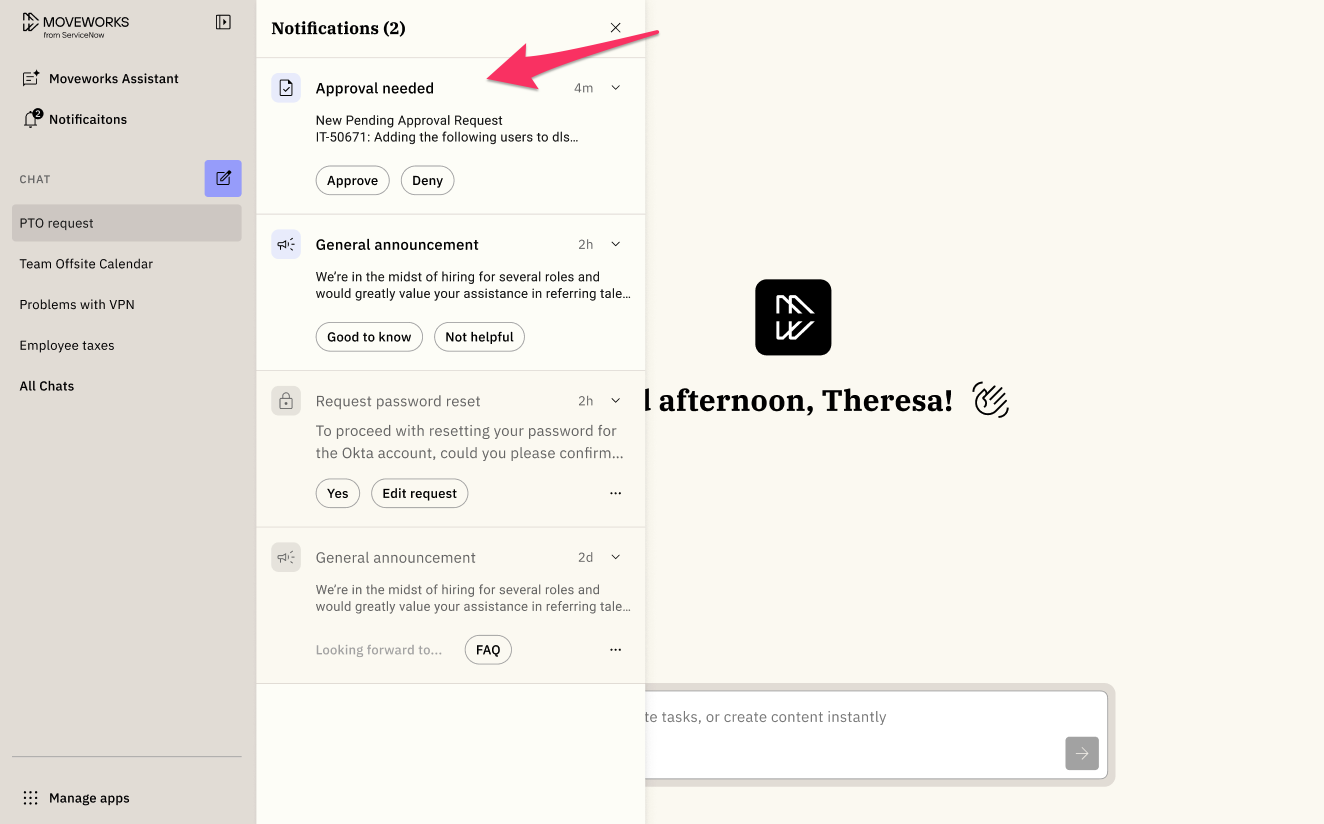
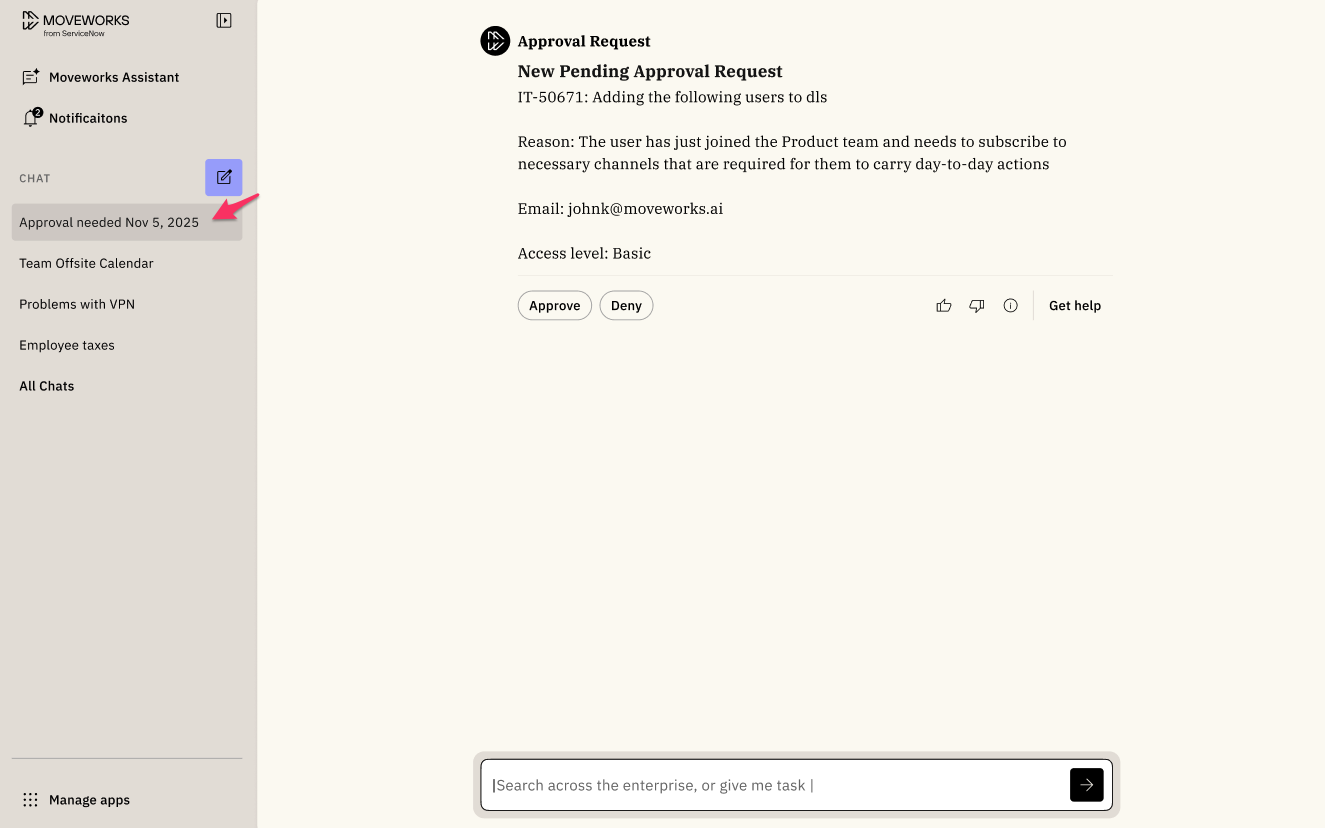
When you click on the notification within the notification panel, it will create a thread within your “Chat” section and include a timestamp.
User Initiated notifications:
The table below outlines the different types of user initiated notifications that will be displayed and how it will be rendered based on the plugin that triggered it.
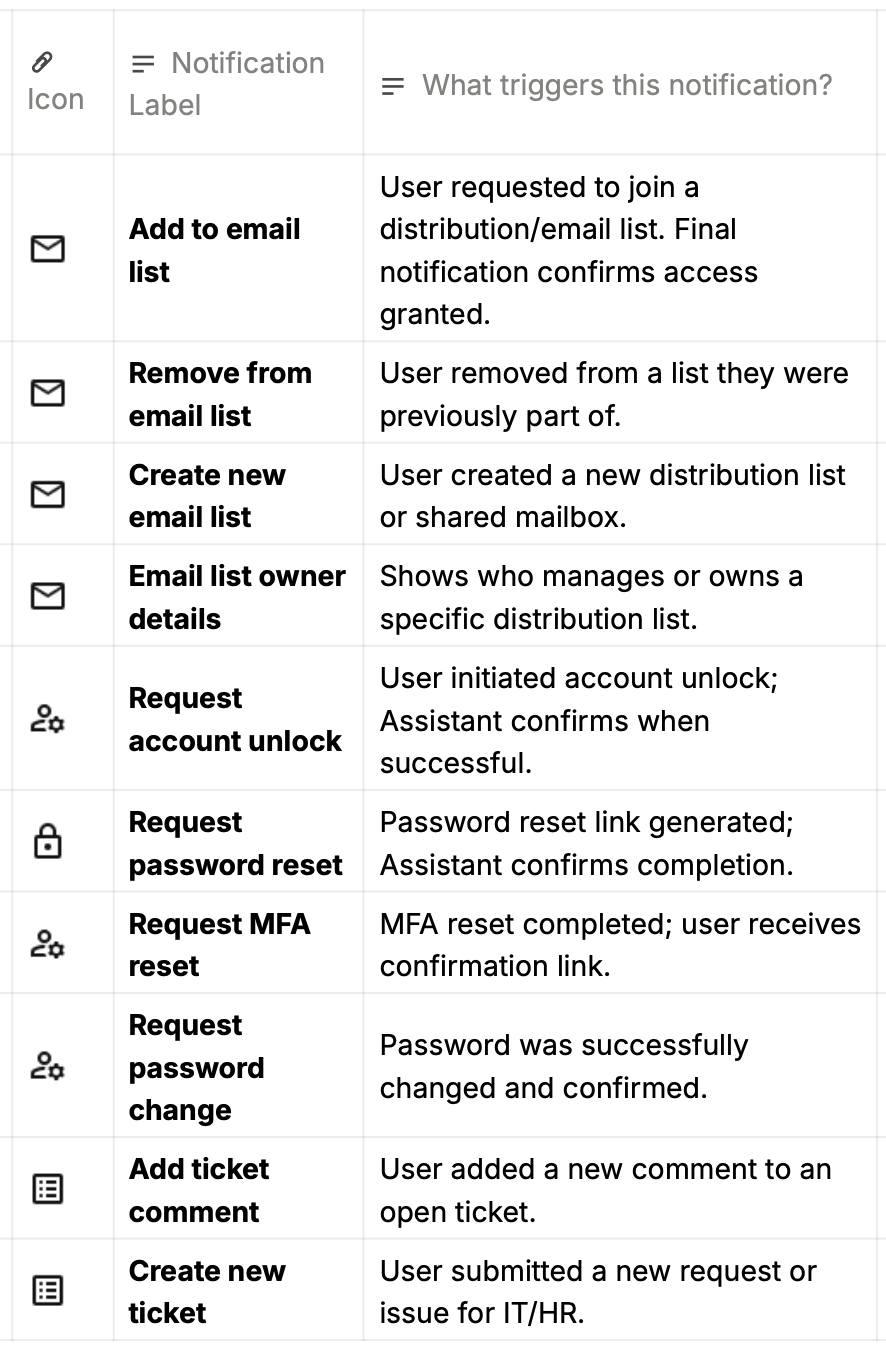
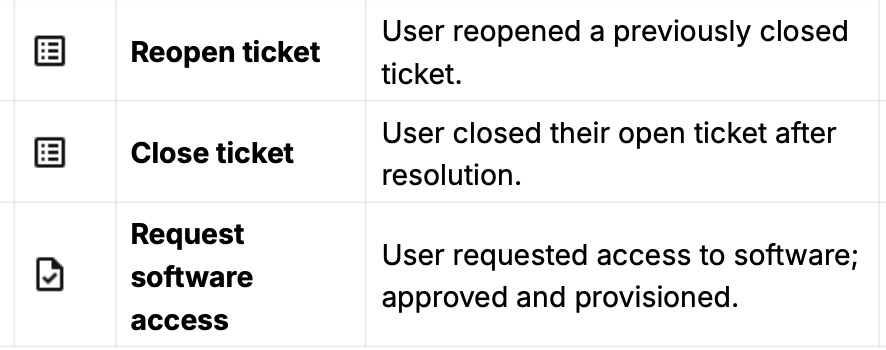
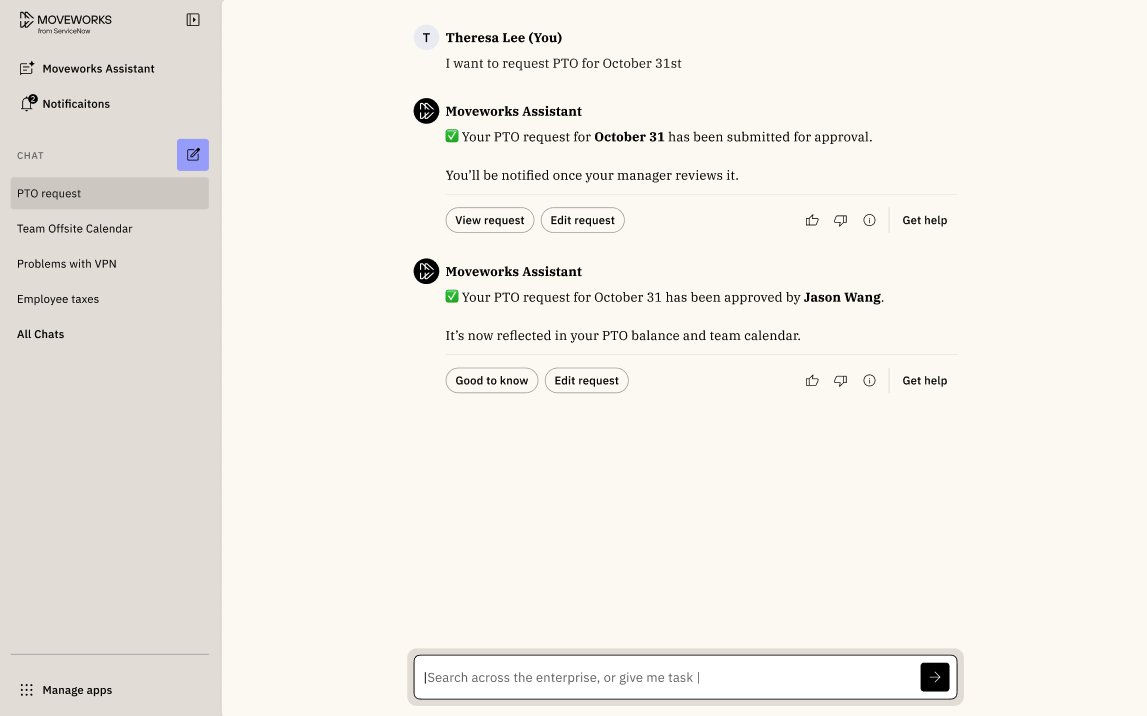
All of these notifications are connected to a thread you already have in your workspace. These occur when you start a conversation with the AI Assistant and later receive an update about a process that has completed.
For example, if you submitted a request for paid time off, you’ll get a notification in the same thread once it’s approved.
Updating a notification from “Unread” to “Read”
Notifications appear as unread until you interact with them. Once you view or take action on a notification, it automatically updates to a read state.
A notification is marked as read when:
- You click on one of the buttons for a notification item within the notification panel.
- You open the thread that contains the unread notification.
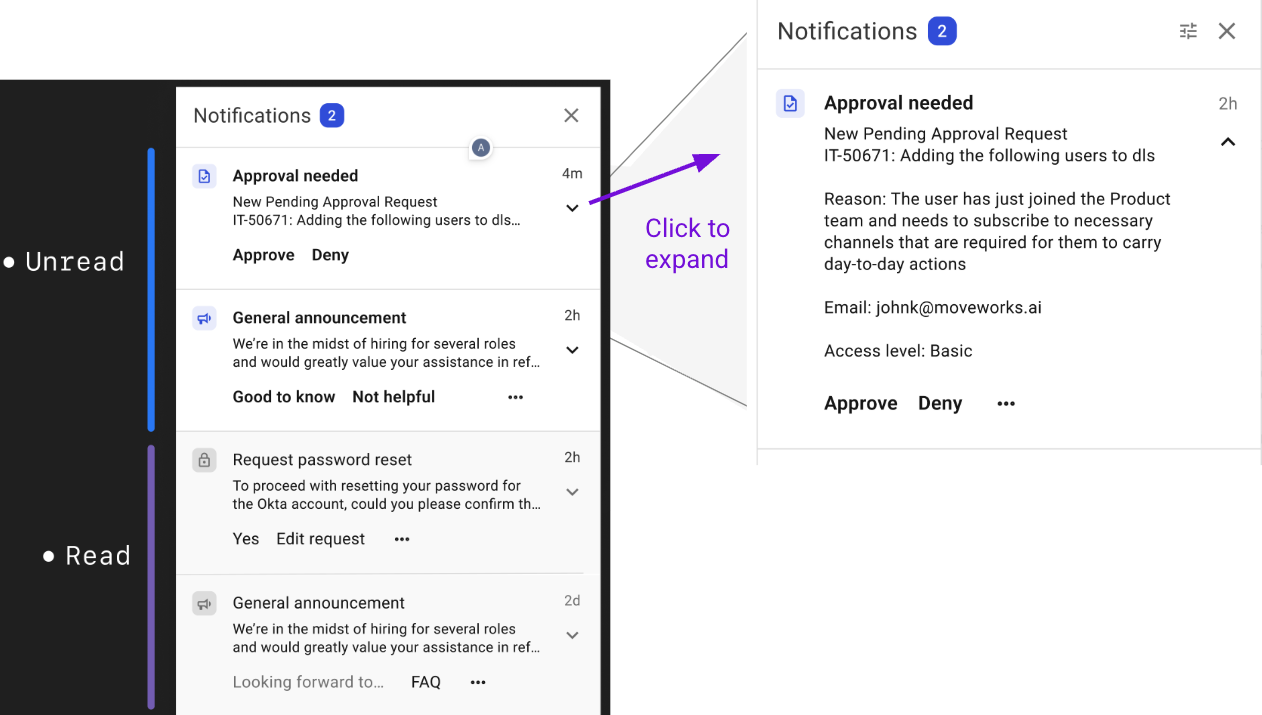
Unread notifications remain visually highlighted until they meet one of the conditions above.
Note: Reading a notification on web does not change its status on Slack or Microsoft Teams. Each platform tracks read and unread notifications separately.
Cross-Platform Behavior
All AI Assistant notifications are sent across all Moveworks platforms where your organization uses the Assistant — Web, Slack, and Microsoft Teams. However, because of platform limitations, read and unread states are not shared across systems:
- Reading a notification in a chat messaging platform (ex. Slack) does not mark it as “read” on Web or other chat messaging platforms (ex. Microsoft Teams).
- Reading it in one chat messaging platform (ex. Microsoft Teams) doesn’t sync with the other (ex. Slack).
This mean that you may see the same notification appear as unread on Web, even after viewing it in a specific chat messaging platform.
Example: If you approve a software request from a Slack notification, it will still appear as unread on Web and Teams. This is expected behavior.
3. Live Agent
If you are currently using our Live Agent experience, it is now ready to be used on our assistant on web platform.

4. Brief me (Coming soon)
Below is a visual of the experience we’re building for Brief Me.
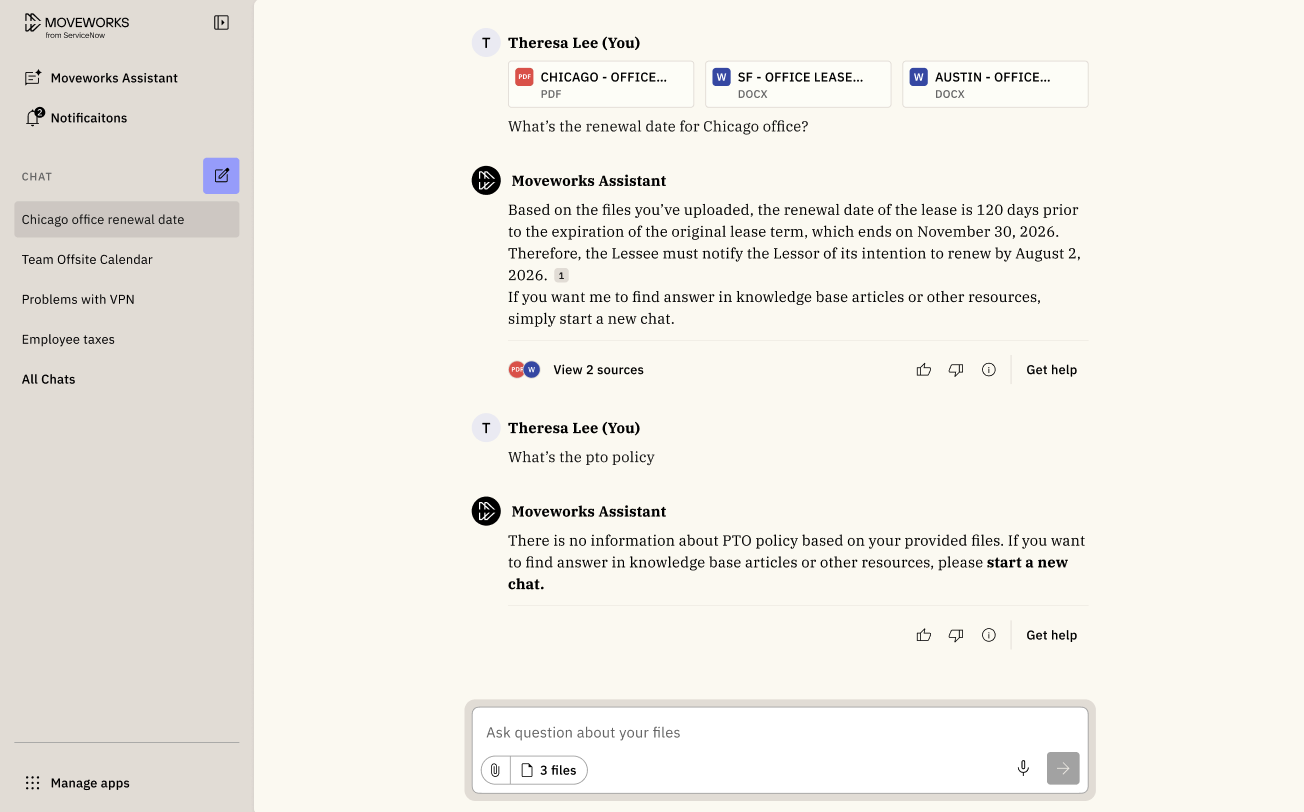
Brief Me on Web brings the same Q&A, summarization, and compare capabilities available on chat platforms directly into Assistant on Web. This new experience makes it simple to work with documents in the browser:
- Upload local files from your desktop, up to 5 at once.
- Review your selection before pressing Enter.
- The Assistant processes your files automatically.
- Start asking questions, viewing summaries, and comparing files instantly.
To see how Brief Me works today, visit the Brief Me documentation. The new web experience will make it faster and more seamless to go from upload to insight given that we’ll be removing the confirmation buttons that require the user to click on “Ask question about file(s)”.
FAQs
Q: Can I disable citation cards or hide sources?
No. Citation cards are part of Moveworks’ transparency framework. They help users verify the Assistant’s responses and understand where information comes from.
Q: Why don’t some assistant answers include citation cards?
Citation cards only appear when the Assistant’s response is based on connected enterprise data source (ex. knowledge base article). If an answer doesn’t reference those sources, cards won’t be shown.
Q: Are citation cards available in Slack or Microsoft Teams?
No. Citation cards are exclusive to Assistant on Web. In chat platforms, references appear as simple links instead of interactive cards.
Q: Are threads available on Slack or Microsoft Teams?
Threads are only available on Assistant on Web. Conversations in chat messaging platforms (ex. Slack or Microsoft Teams) appear as single chats and are not organized into threads.
Q: Do my conversations in Slack or Microsoft Teams carry over to the web?
No. Conversations from your chat platforms are separate from Assistant on Web. The web experience maintains its own set of threads and context.
Q: How many threads can I create?
There’s no limit to how many threads a user can have. You can create as many as you need for different topics or workflows.
Q: How long are threads retained?
Threads are kept for 30 days from the last time you interacted with them. Reopening a thread resets the 30-day timer.
Q: What happens when I archive a thread?
Archiving a thread removes it from your active view to help keep your workspace organized. If a new update or notification is received for that thread, it will automatically reappear in your list. Threads are deleted automatically 30 days after their last activity.
Q: Do I get the same notifications in Slack or Microsoft Teams?
Yes. However this only applies to proactive notifications. Proactive notifications are sent across every Moveworks surface where your organization uses the Assistant, including Slack, Microsoft Teams, and Web. See above for details on proactive notifications.
Q: Will reading or clearing a notification on Slack mark it as read on Web?
No. Each platform manages its own read and unread states. If you open a notification on Slack, it may still appear as unread on Web or Teams.
Q: Why do I see the same notification on multiple platforms?
Because Slack, Microsoft Teams, and Web operate independently, the same update may appear in each platform’s notification view. This ensures you don’t miss an important update, even if you switch between platforms.
Q: Is MLS supported on assistant on web?
Yes, you can ask assistant to change its responses to a different language like Spanish. At this moment, only the responses that you get back from assistant will be in the language you selected. All of the other text strings that are displayed within the experience will not be translated to that language.