
Brief Me
Overview
Brief Me is a new Assistant feature that unlocks document knowledge, extracts key insights, and generates new content by chatting directly with your files. It helps users quickly get relevant information without manually searching through lengthy documents. Employees simply upload their documents into chat, and we take care of the rest.
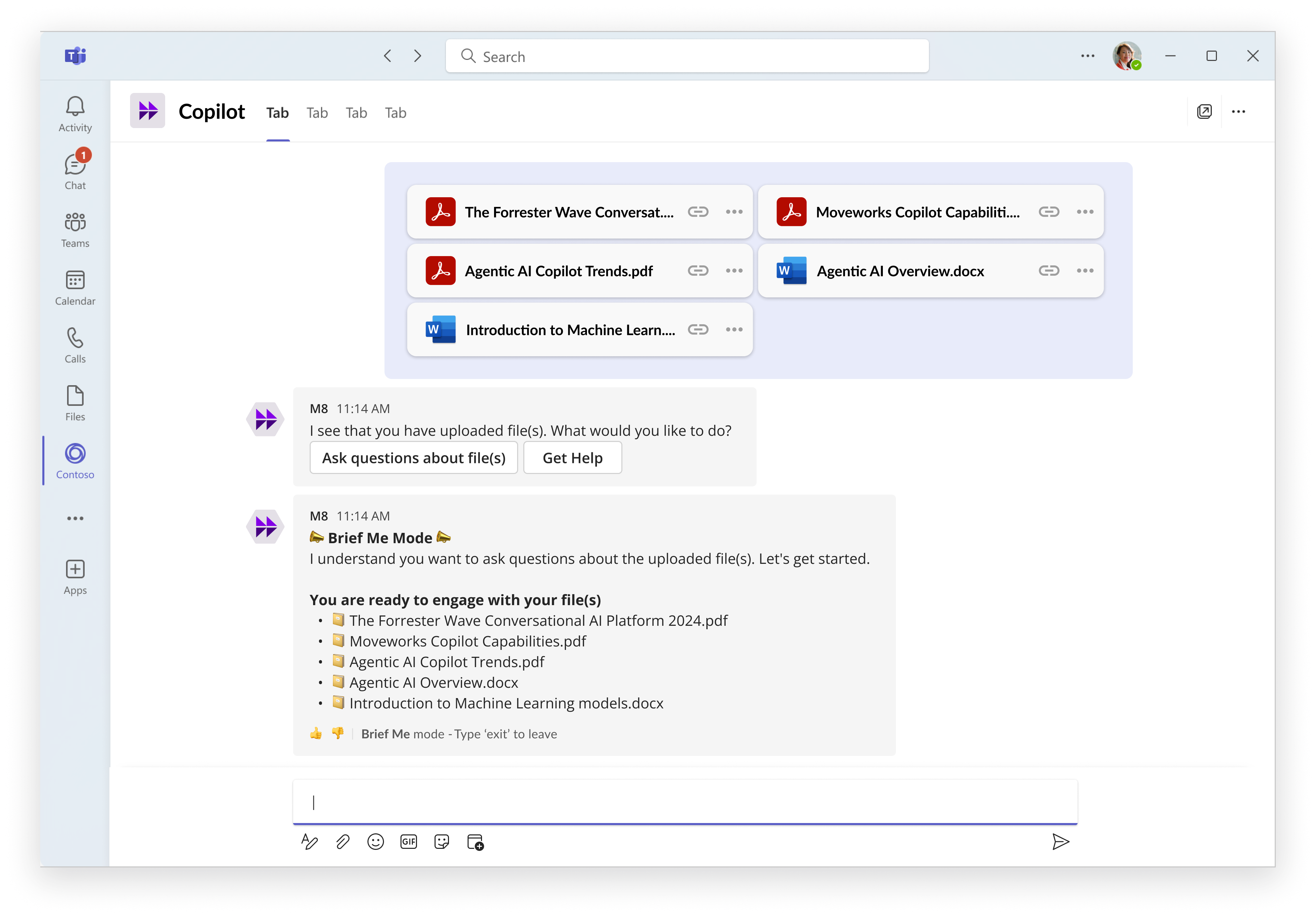
With Brief Me your employees can:
- Get key takeaways: Generate the main points of your documents quickly, without having to spend time reading everything.
- Engage in Q&A: Interact with documents through dynamic question-answering, ask questions, and get answers quickly.
- Compare topics: Compare and contrast key topics and subject matter across different documents for a smoother way to gather specific topical insights.
Platforms Supported
Brief Me can be used on the following platforms:
- Slack
- Microsoft Teams
- Assistant on web (coming soon)
- Embedded Assistant (coming soon)
Additional Capabilities Include
- Hallucination-Free Responses: Every response is sourced only from your files, ensuring accurate, trustworthy, and verifiable answers.
- Multi-doc insights: Upload up to 5 files at once and gather insights. Just tell us what information you need to be briefed on and we’ll handle the rest — we’ll get you the answer from one, multiple, or all files.
- Contextual Awareness: As you interact and ask questions, Assistant holds context from prior responses as input that shapes new responses. This personalizes the experience and helps you drill deeper into topics while ensuring you won’t have to repeatedly ask the same questions.
- Generative AI First: Use the power of generative AI to get tailored responses. The world is your oyster, with Brief Me you can:
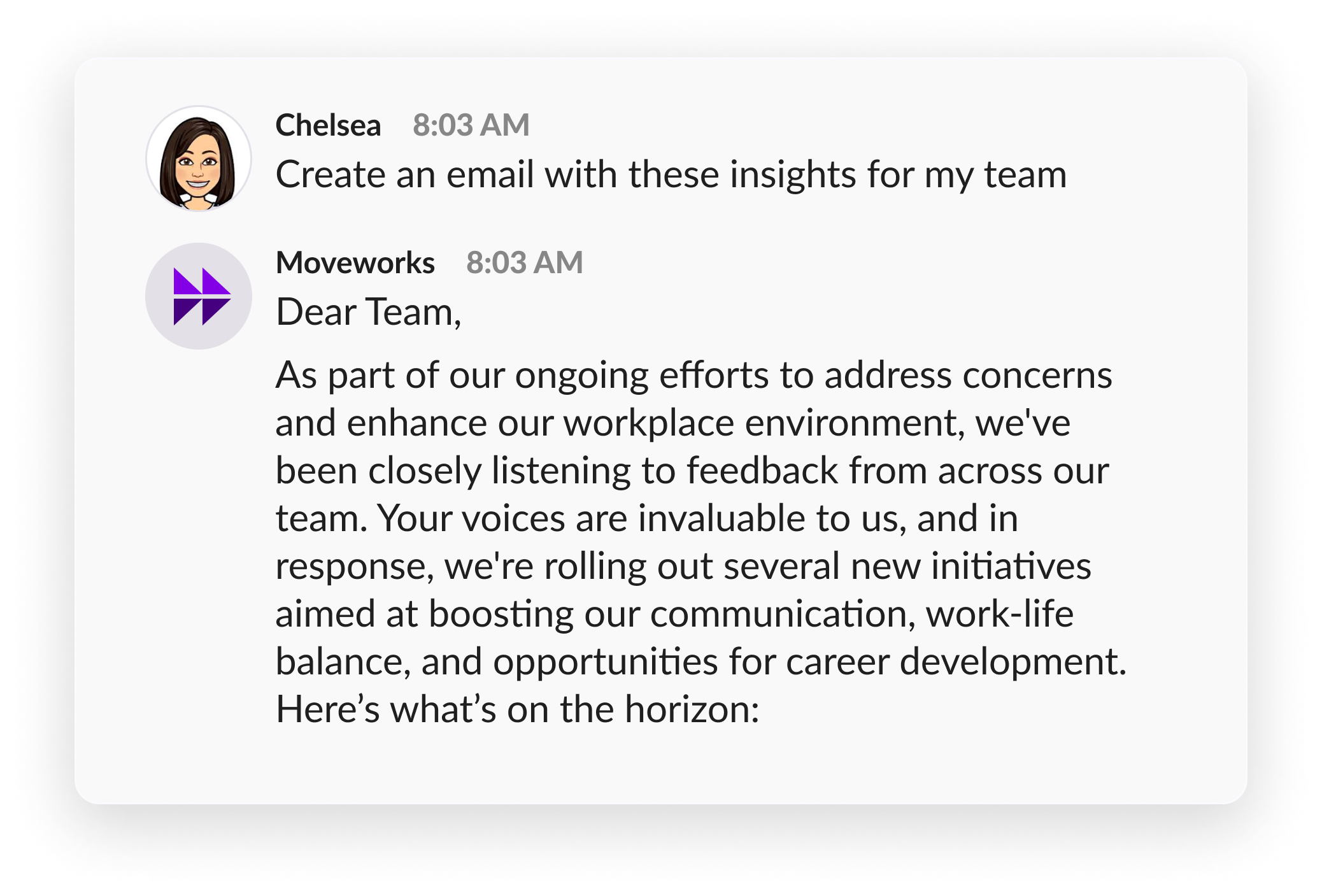
- Draft emails from your responses in seconds (ex. “create an email with these insights for my team”)
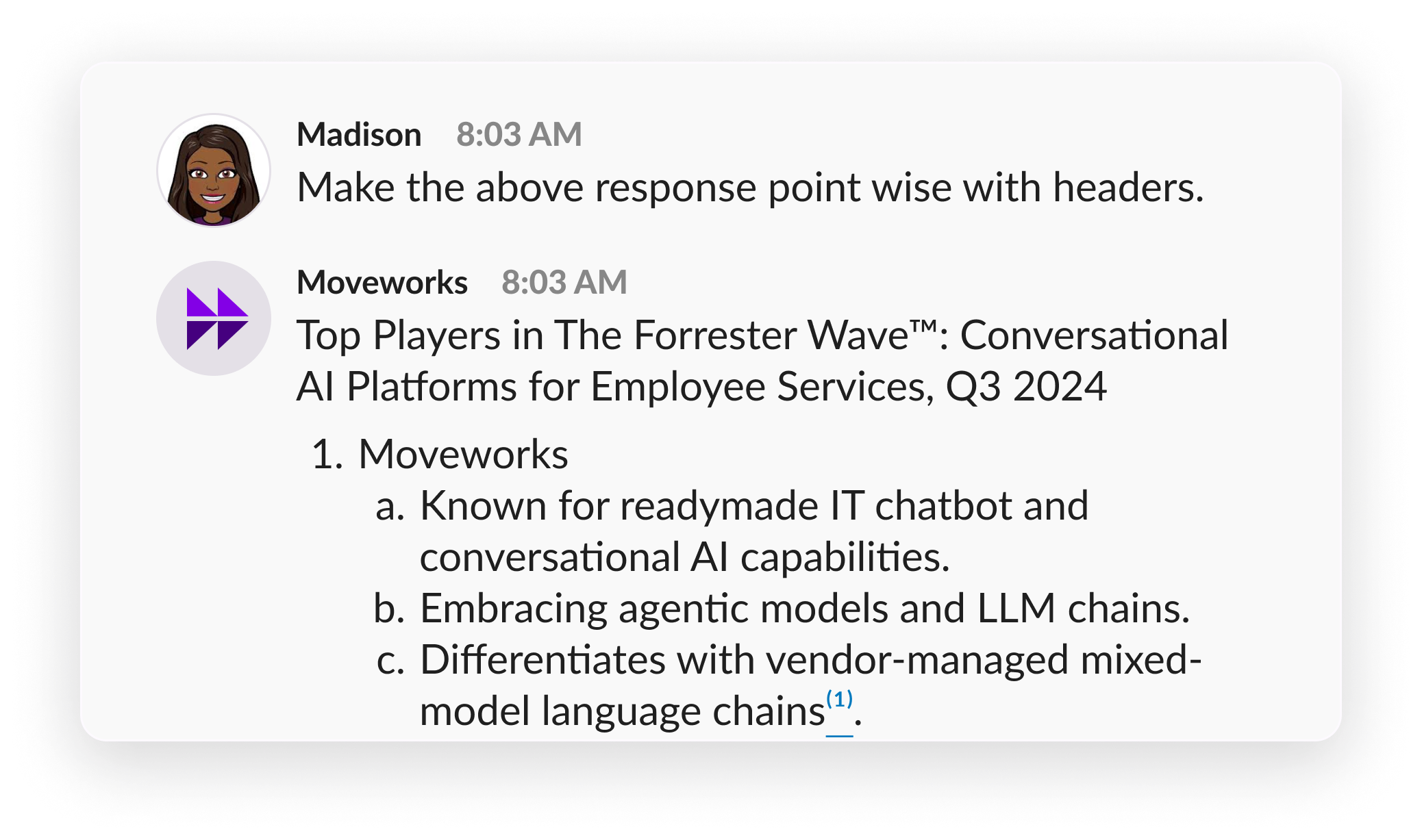
- Format the Moveworks Assistant responses (ex. ”give me 3 short bullets”)
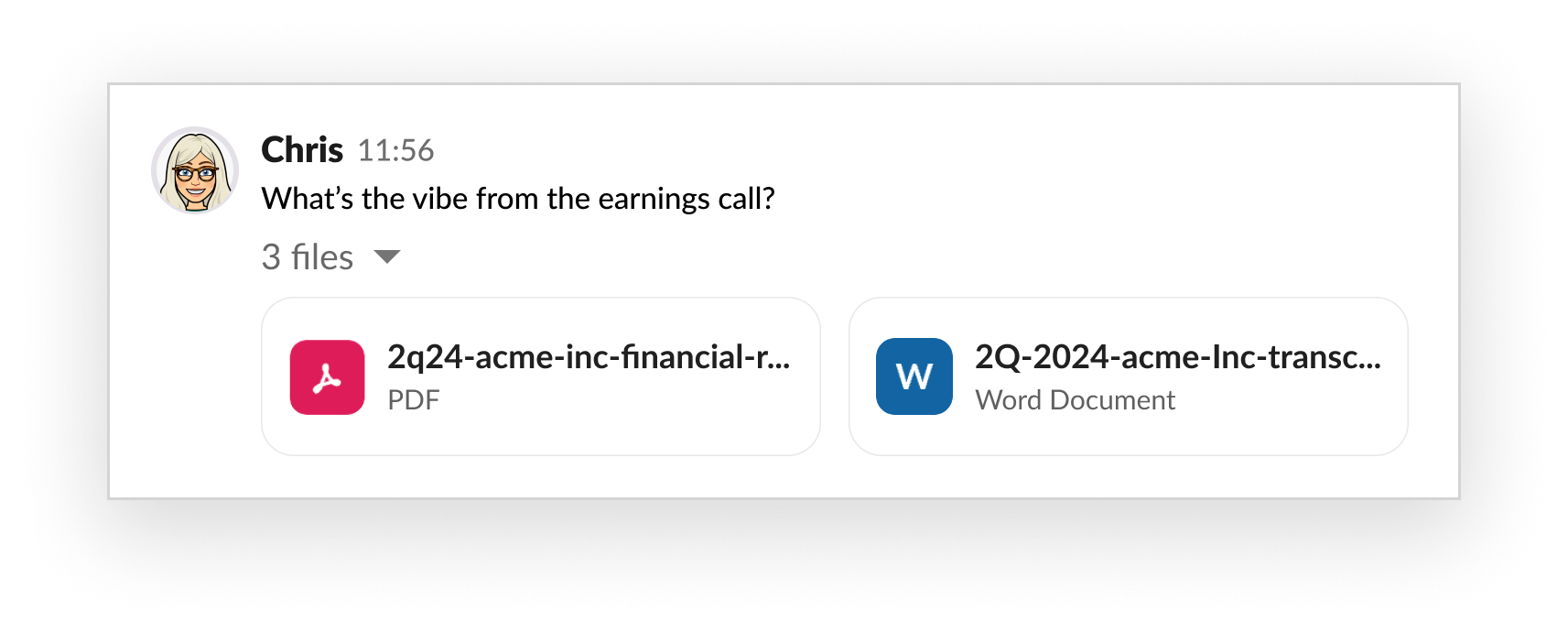
- Identify the tone of a file (ex. “what’s the vibe from the earnings call?”),
- Translate summarized responses to another language (ex. “rewrite it in Spanish for me”)
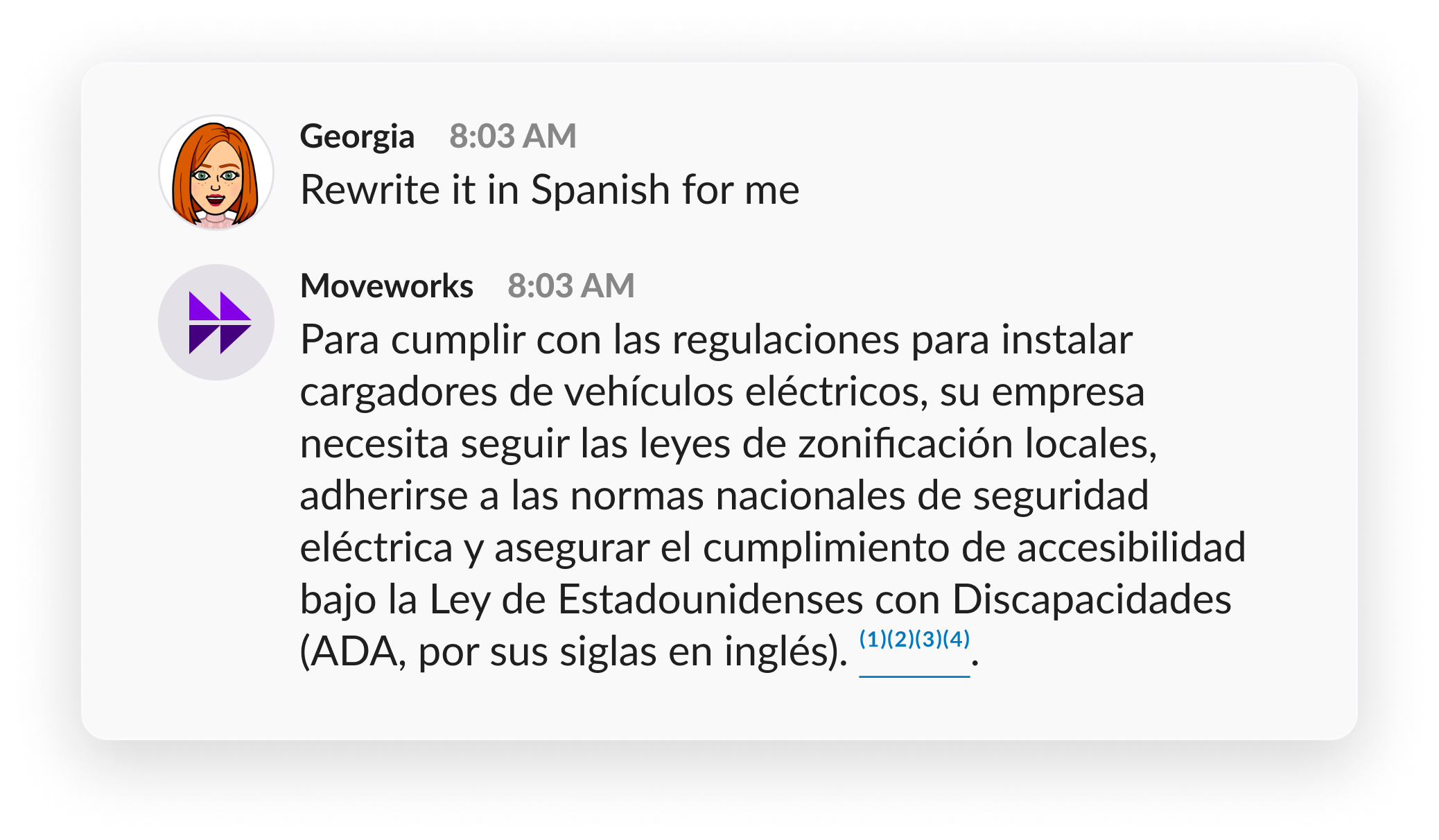
- Draft emails from your responses in seconds (ex. “create an email with these insights for my team”)
Getting started: How can I use this feature?
Brief Me is part of your Moveworks Assistant. If you don’t have a specific file in mind, download our Getting Started Guide so you can give Brief Me a try.
Step 1: Upload your files
You can upload up to 5 files - the files don’t have to be related. Find and upload the files you want to use within Assistant. Since Microsoft Teams has various ways you can upload files, we’ve added a section on this page to help you understand which file upload path is currently supported.
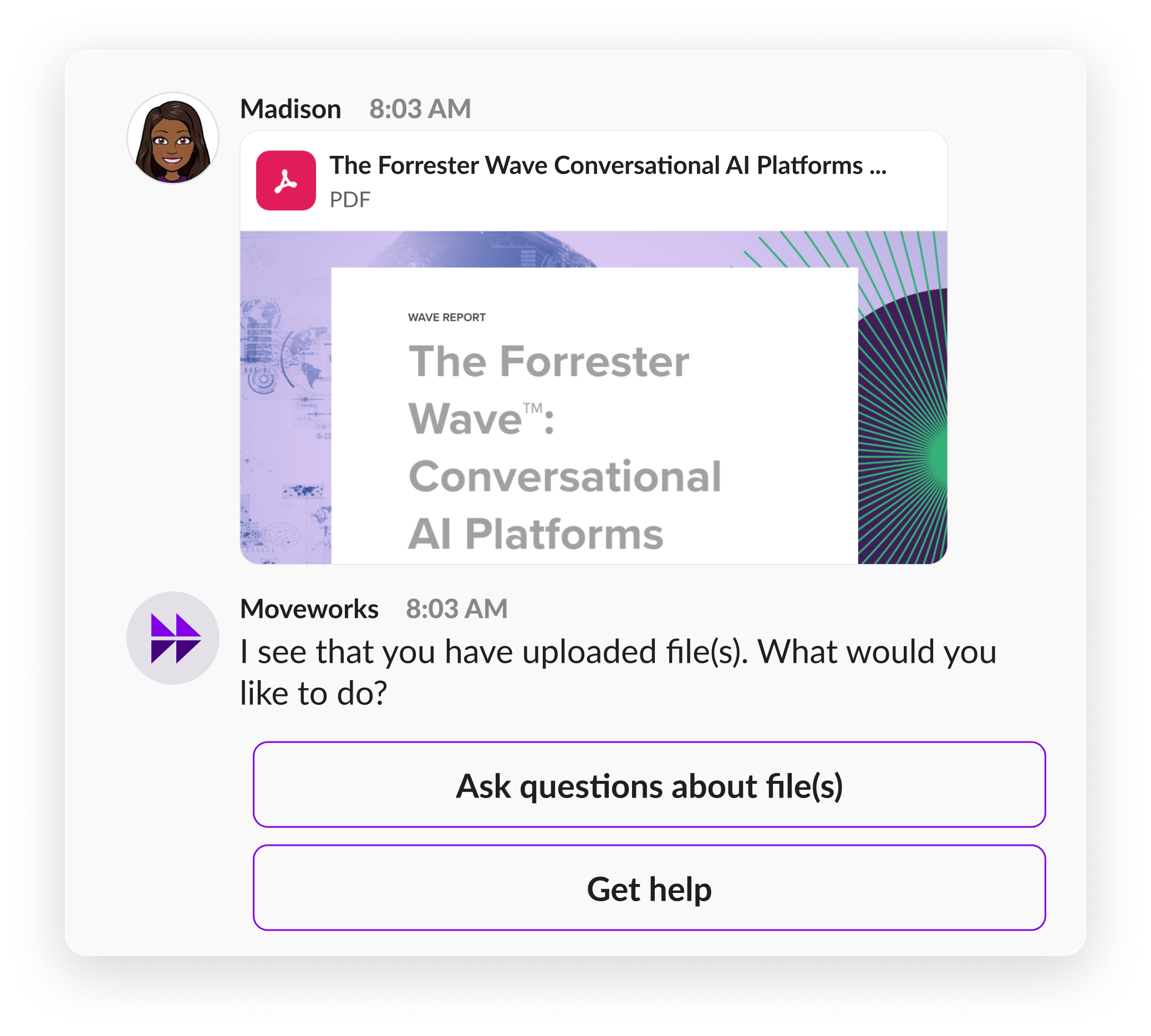
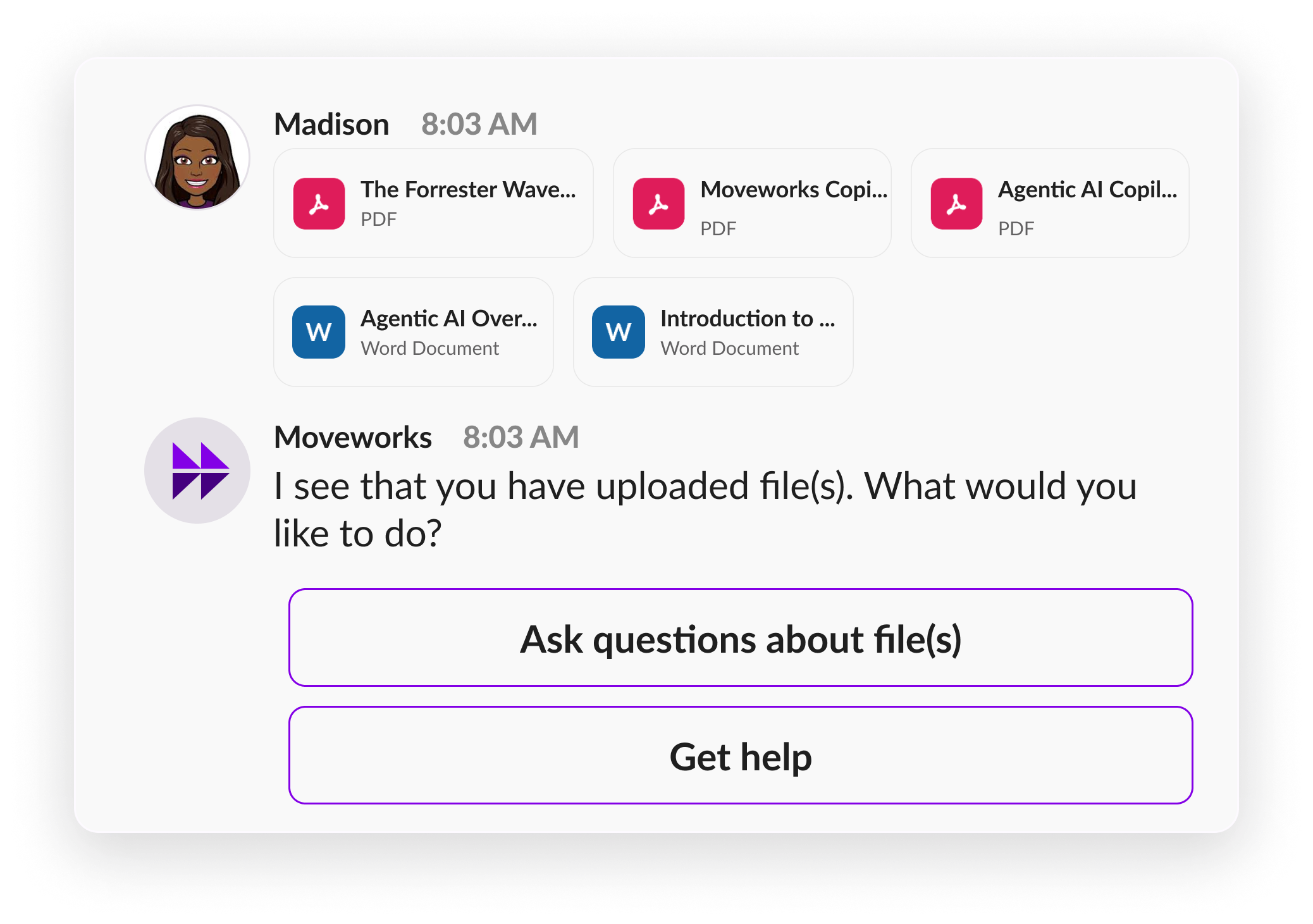
Step 2: Select “Ask questions about file(s)”
When you upload files you’ll be asked to make a selection from 2 options:
- Ask questions about file(s)
- Get Help
To start using Brief Me, you’ll select “Ask questions about file(s)”.
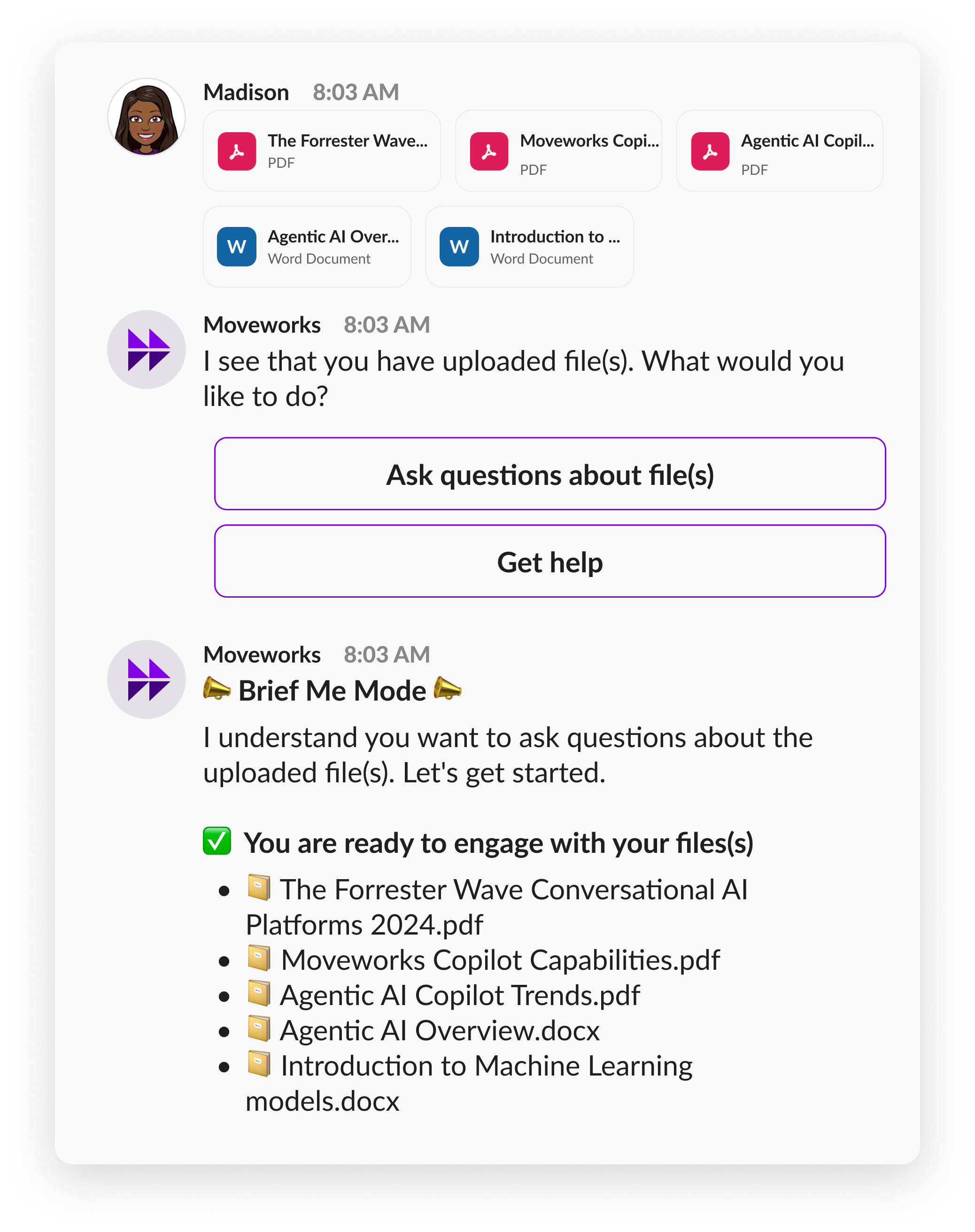
Step 3: Ask questions or generate a summary within “Brief Me”
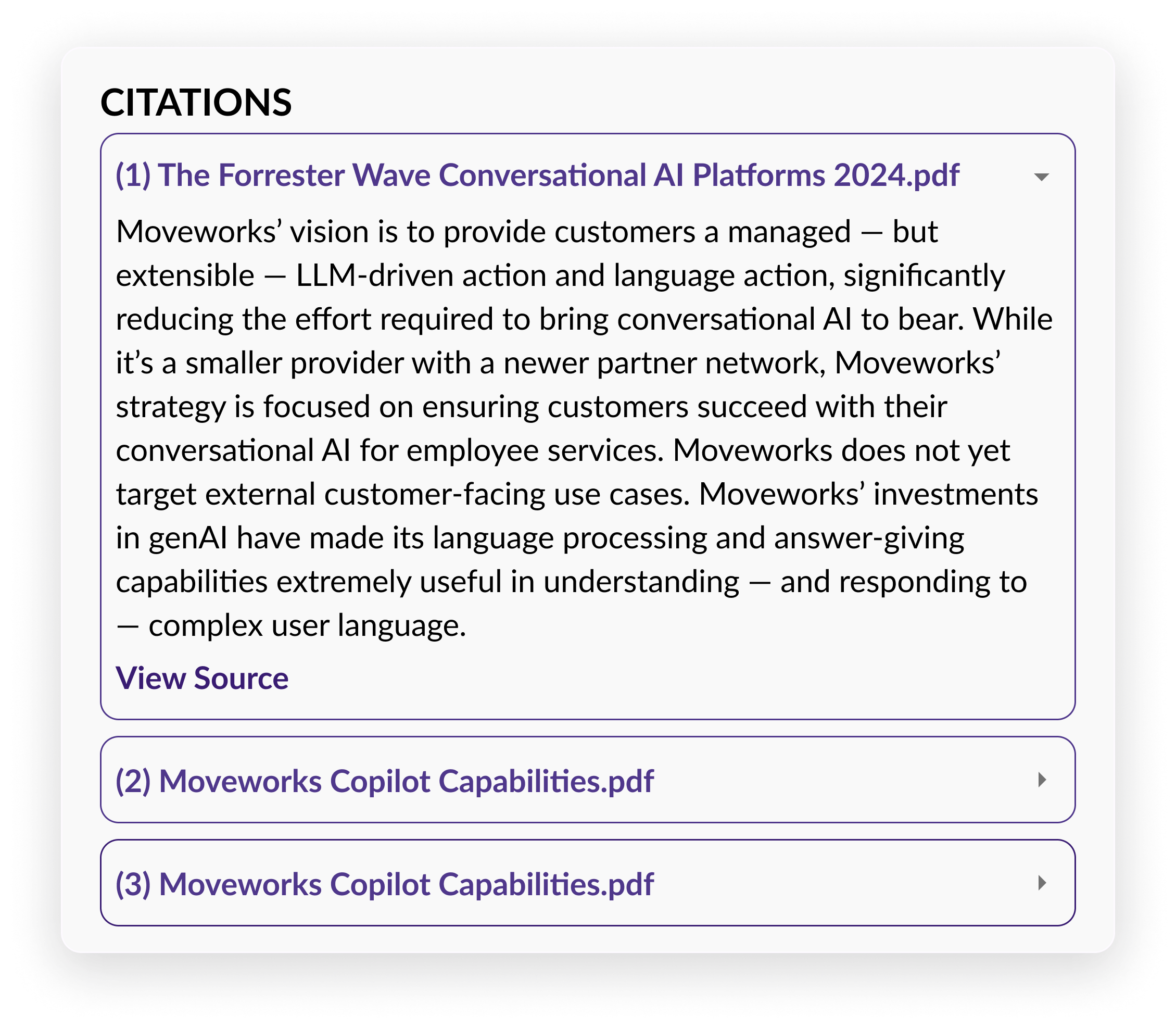
You can ask as many questions as you’d like while you’re in the “Brief Me”. When the answer to your question exists within the file(s) you upload, Moveworks Assistant will provide an answer with citations. You can click on the citations to see which snippet of the file the answer is coming from.
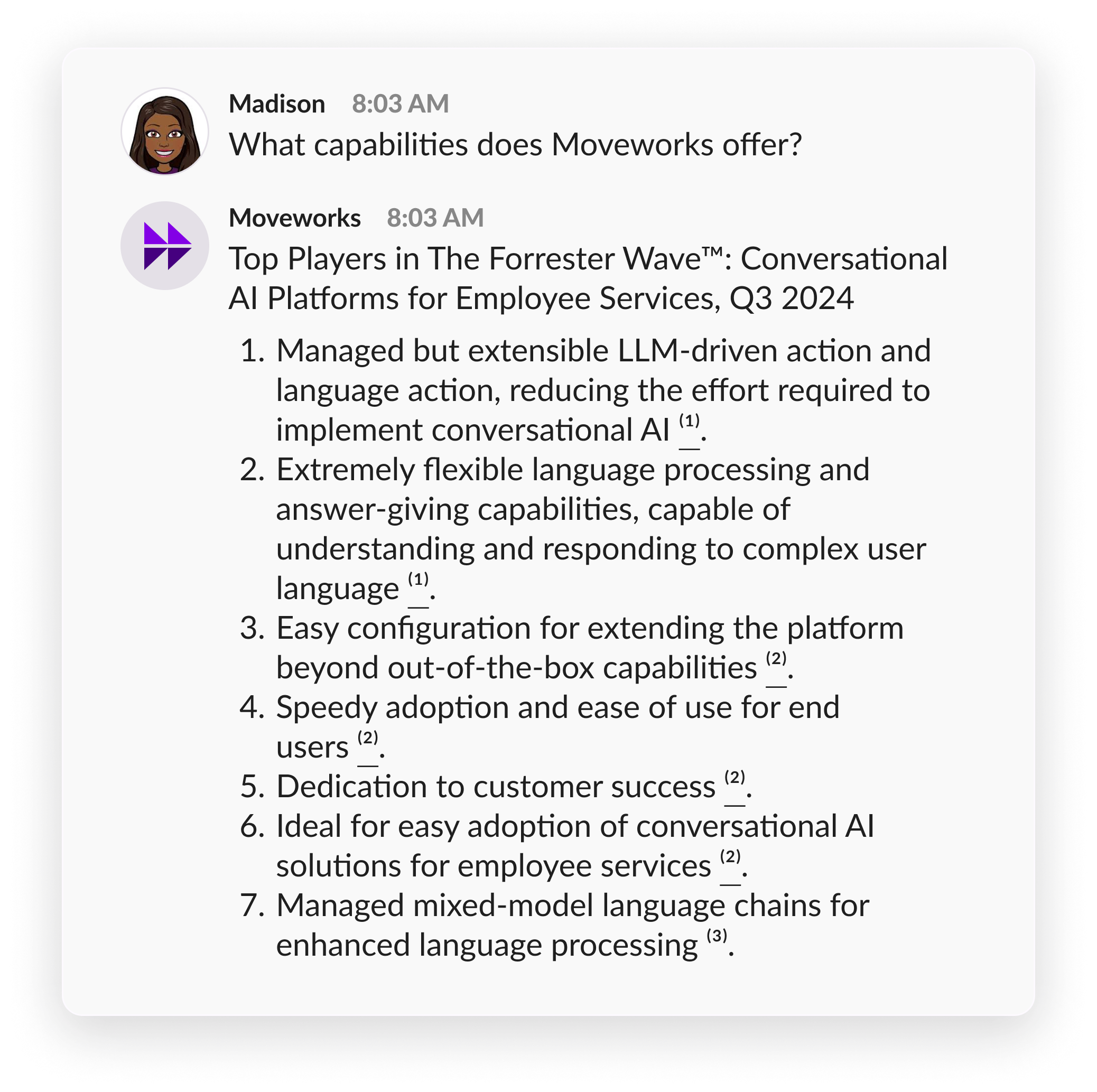
You can click on the citations to see where in the file the answer is coming from and view the surrounding snippet.
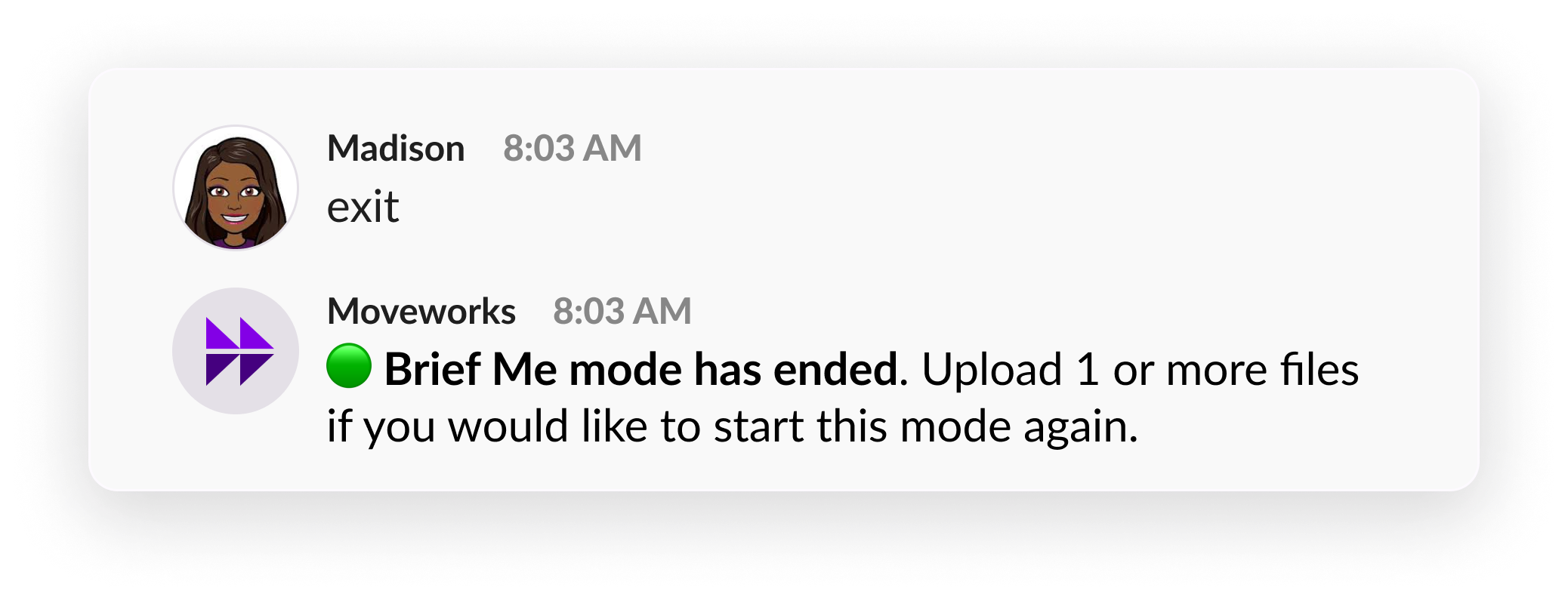
Step 4: Exit the mode when you’re done
When you’re done engaging with your files, you can exit the “Brief Me Mode” by typing “exit.”
Uploading files on Microsoft Teams
At the moment we don’t support cloud based files, “Attach cloud files”. You’ll have to upload files via the “Upload from this device” button to use Brief Me.
On Microsoft Teams there’s a few ways you can upload files:
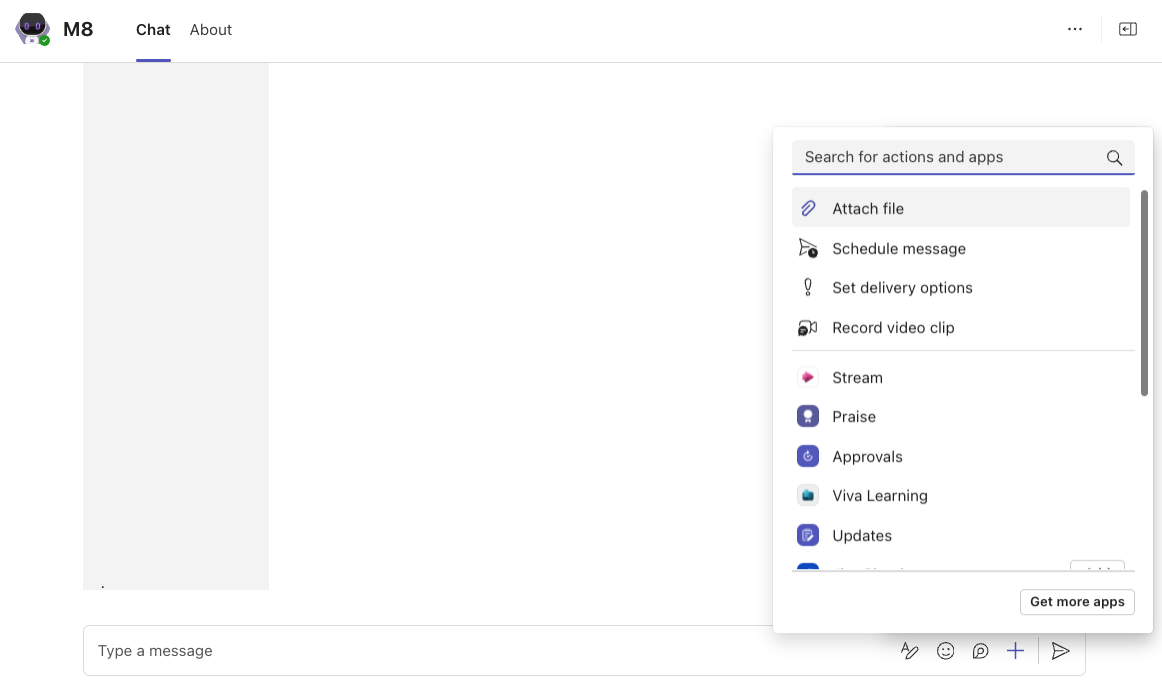
To upload files you’ll have to select the ”+” button via the chat bar and then select “Attach file”. After you’ll be presented with a few options:
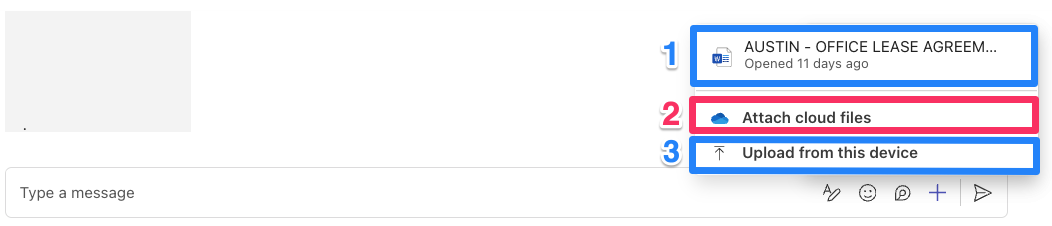
- Select a recent file: You’ll see recent files you’ve previously uploaded to Microsoft Teams and use them within your Moveworks Assistant. As long as the suggested file was previously uploaded from the device, it will work with Brief Me.
- Attach cloud files [Not currently supported]:* This option will let you pick a file your from Sharepoint location. However at the moment Brief Me does not currently support this option as we need a physical copy of the file to be uploaded. When you select this option, behind the scenes you are not physically attaching a file and only providing a URL link to a file that’s saved in your Sharepoint location. Brief Me does not currently have permissions to access the files in your SharePoint location. This is a future update we are working on.
- Upload from this device This option will let you select files that are locally saved on your machine. When using Brief Me, we recommend you use this option as your primary way to upload files within Microsoft Teams.
FAQs
Q: Which chat platforms are currently supported?
A. At the moment this feature is only available on Microsoft Teams, Slack, and Google Chat.
Q: Which types of files can I use with this feature?
A: You can upload PDF, Word Document (.docx) and PowerPoint (.pptx) files. As we expand to new types of files we will make sure to update our Moveworks Community page and update our product documentation page.
Q: Can I upload csv or Excel files with this feature?
A: At moment those files are not supported within Brief Me.
Q: How many files can I upload?
A: You can upload up to 5 files at once.
Q: Is there a limit on the size of files I can upload?
A: Yes, there is a limit on the size of files you can upload. You can upload files that are 25MB in size or less. Since you are able to upload up to 5 files, each file can be up to 25MB in size.
Q: Will my Assistant notifications be displayed within the “Brief Me Mode”?
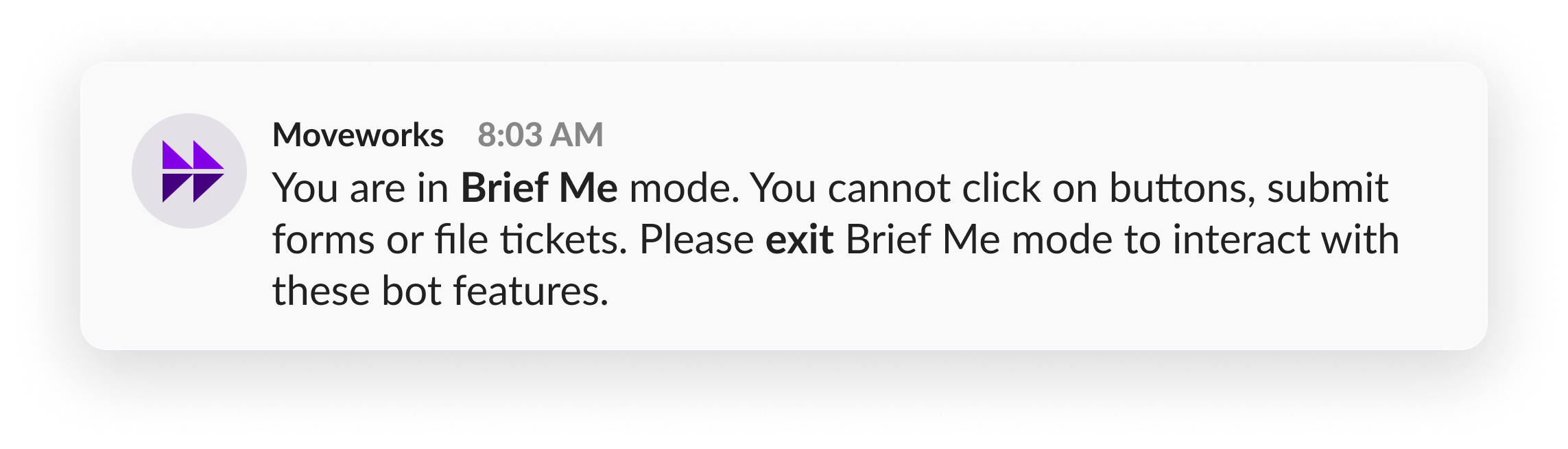
A: Yes. Assistant notifications will be displayed within the Brief Me mode. You will not be able click on the buttons. You can exit Brief Me mode to be able to click on the buttons. You will see a message that says - “You are in Brief Me mode. You cannot click on buttons, submit forms or file tickets. Please exit Brief Me mode to interact with these bot features.” You need to exit Brief Me and retry the action. Note: Actions like filling tickets using the Reference Page will also blocked in this mode.
Q: What happens if I forget to exit the “Brief Me Mode”?
A: If you forget to “exit”, the next time you use Moveworks Assistant you will notice that you will still be in the Brief Me mode. When you’re in the Brief Me mode you will not able to able to leverage other Moveworks Assistant capabilities such as filling as looking up knowledge articles or getting access to software.
Q: What does the “Get Help” button do?
A: When you upload a supported file (.pdf, .docx, .pptx) you will have the opportunity to file a ticket. If you did want to file a ticket after uploading a supported file, instead of selecting “Ask questions about files(s)” select “Get help”. After selecting “Get help” our experience will help guide you on creating a ticket.
Q: If I file a ticket will the file be automatically attached to my ticket?
A: While we will help you create a ticket when you upload a supported file, if you wanted to include the file as part of the newly created ticket you will need to manually upload the file to the ticket.
Q: What will happen if I accidentally upload a file that is too big or not supported at this time?
A: If you uploaded a large file (size >25 MB) or uploaded unsupported files, Moveworks Assistant will respond with an error message once you start Brief Me mode.