Brief Me: Enabling on Chat Platforms
Overview
We’re excited to give you access to Brief Me within Moveworks AI Assistant! In order to do so, we’ll need your help making sure the right permissions are in place regarding your chat platform. Once we’ve given you access to Brief Me we’ll be asking you to complete and validate the following steps before we roll this out to your entire organization. Please follow the steps based on which chat messaging platform you use.
Please notify the Moveworks Support Team so that we can help you resolve the issue.
[OPTIONAL] Update the intro message
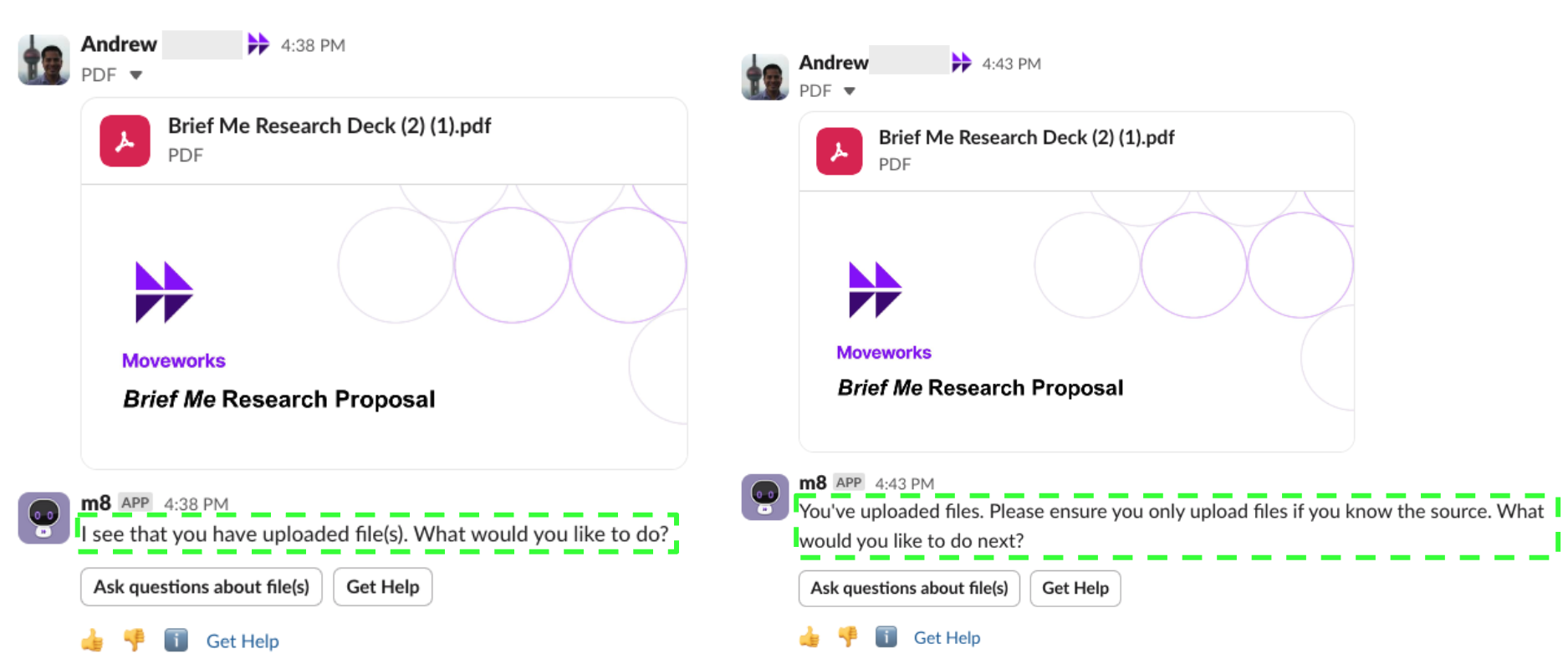
For admins who want to insert a custom message during the upload step, Moveworks provides the ability to configure within Moveworks Setup. To edit the message, go to
- AI Assistant Display Config —> “Intro message to be shown when users get into the brief me mode”
By default the message is “I see that you have uploaded file(s). What would you like to do?” . This can be overwritten completely as shown on the right image.
Enable Brief Me in Slack
In order for Brief Me within Moveworks AI Assistant to work within Slack:
- Moveworks will need permission to read the files your employees are uploading within your Moveworks AI Assistant app: Your Slack app admin will need to make the following update to your Moveworks AI Assistant Slack application.
Steps to update your Moveworks AI Assistant app:
- Navigate to https://api.slack.com/apps and select your Moveworks AI Assistant application
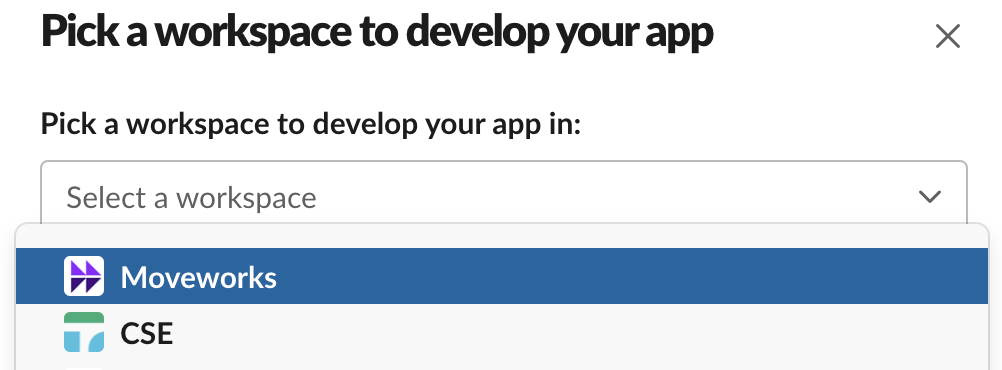 If you know your the appID for your Moveworks AI Assistant app you can navigate to the URL directly as shown below:
- Click on OAuth & Permissions on the left hand side menu
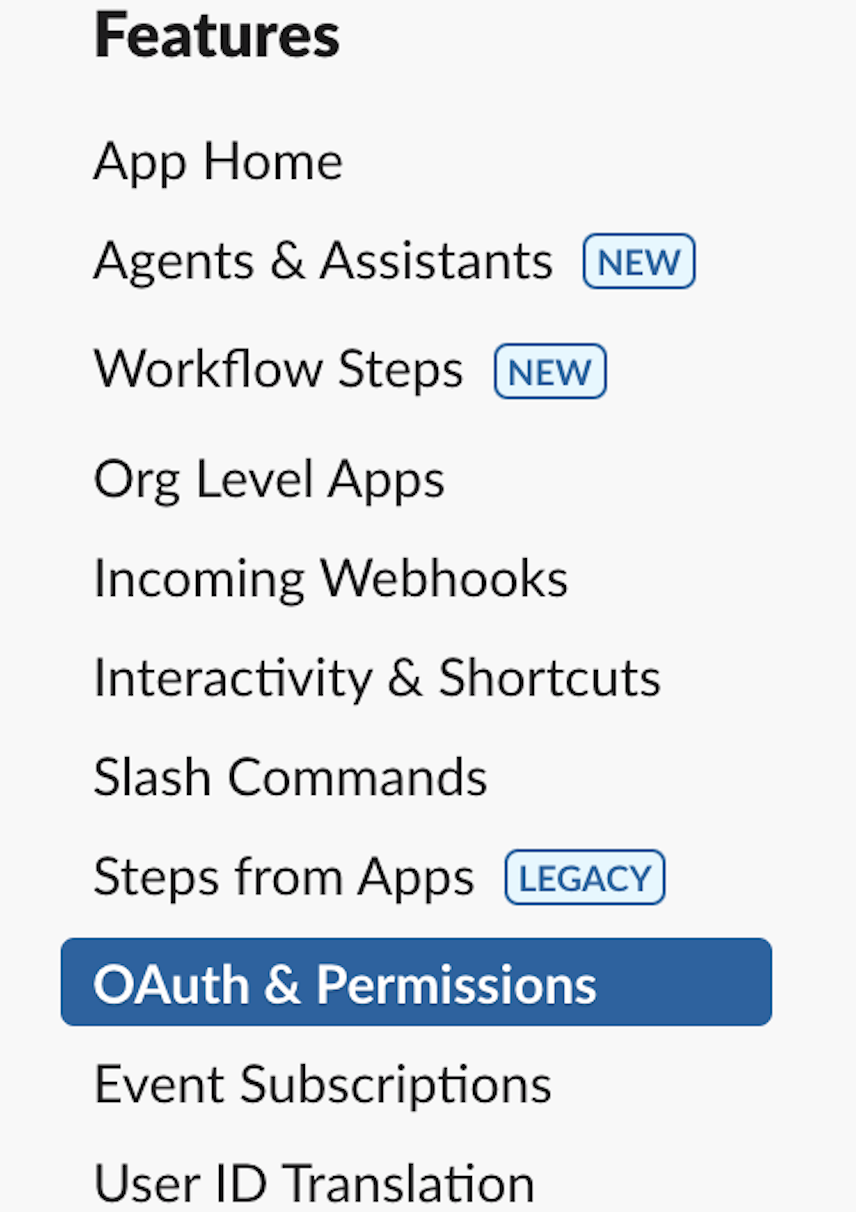
- Click Add an OAuth Scope
- Select
files:read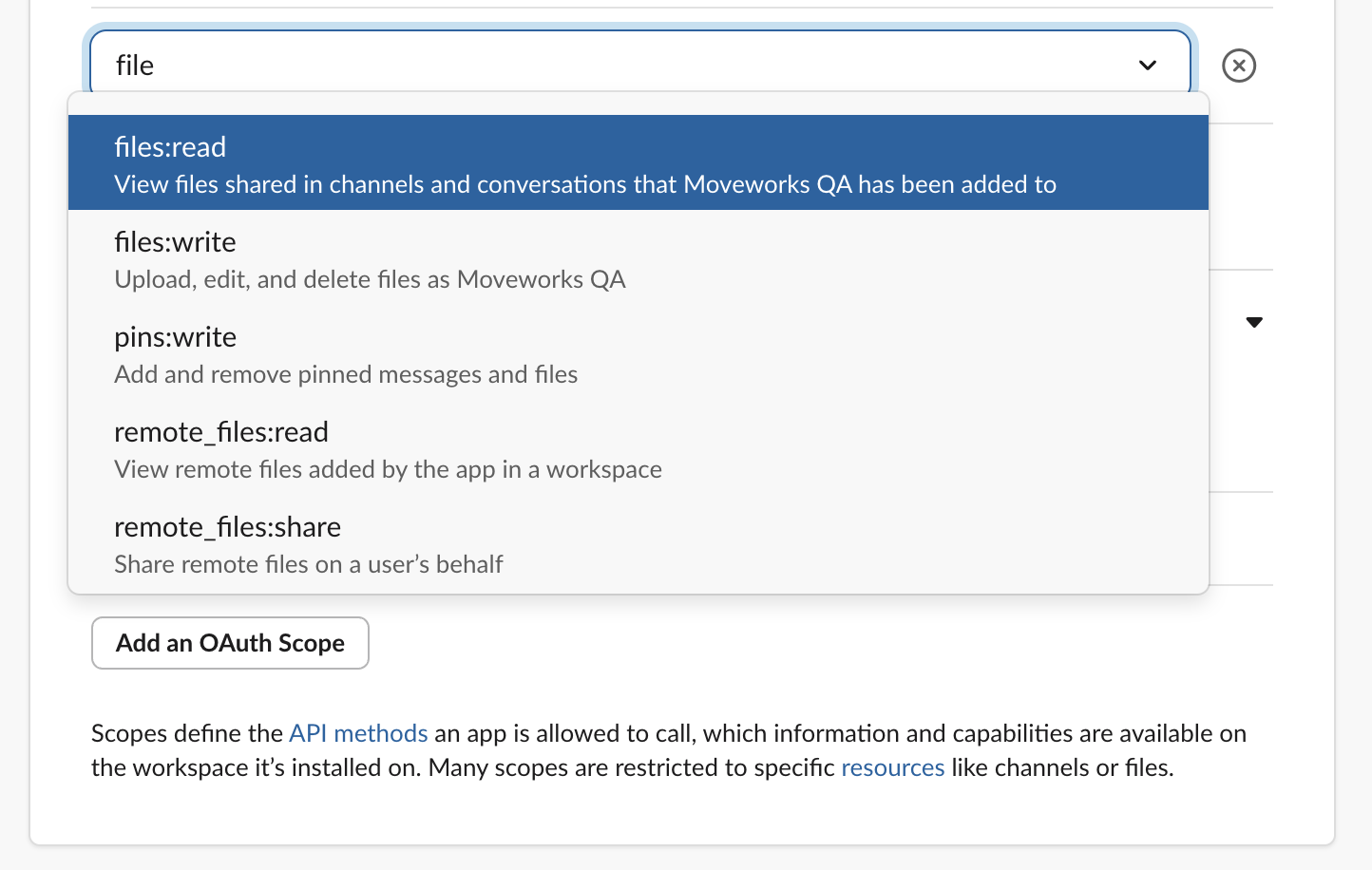
- Reinstall the app to the instance
NOTE: This step is critical for the new permission to be reflected within the Slack app.
Once you’ve restarted your Moveworks AI Assistant application, complete the following steps to make sure Brief Me is working as expected:
- Within your Moveworks AI Assistant app, click on the “attachment” icon
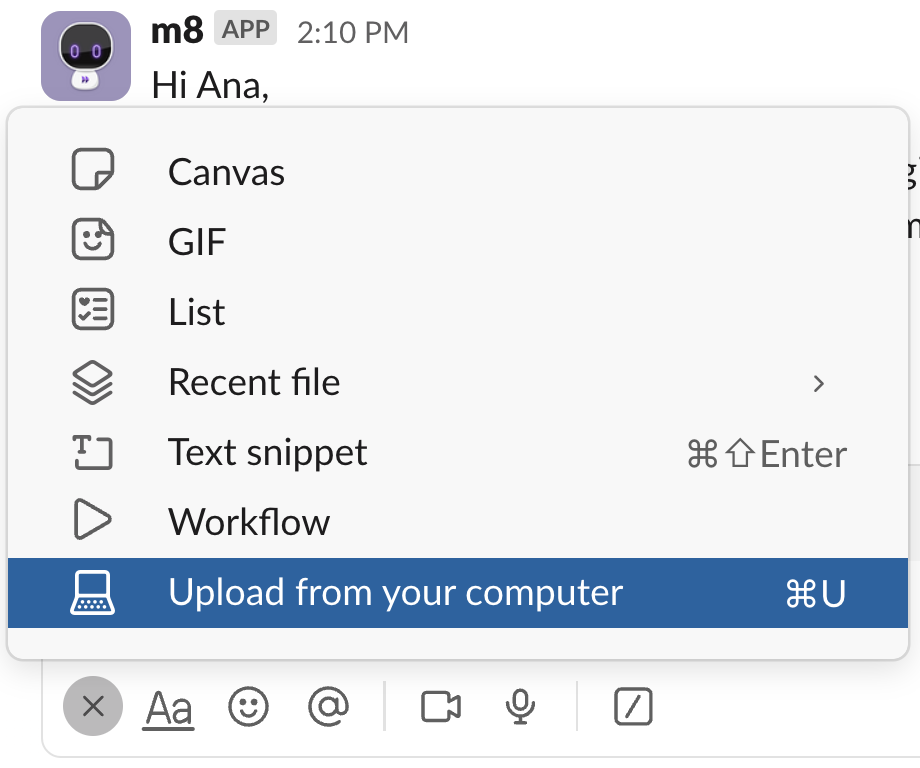
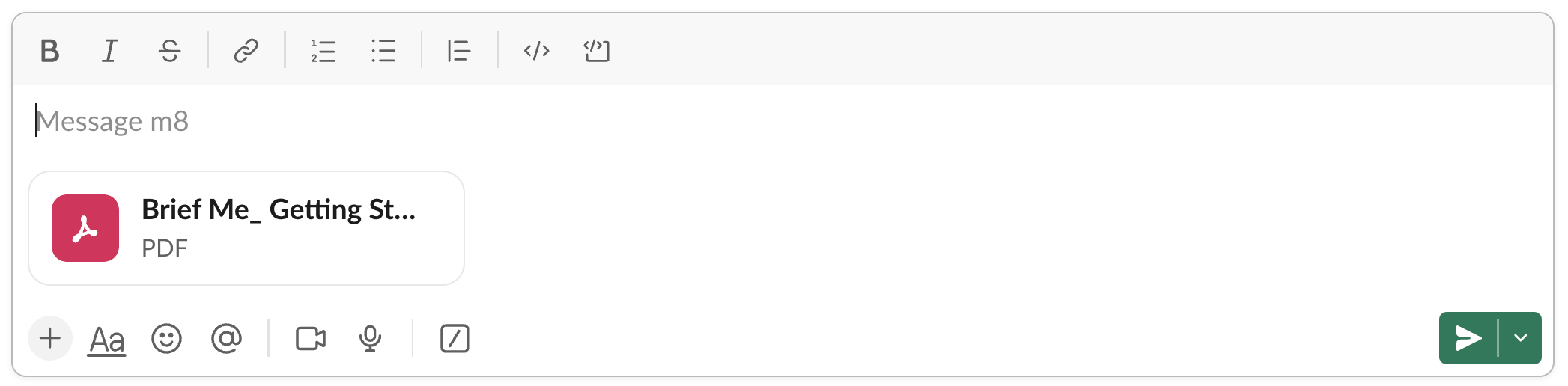
- Upload a file you’d like to engage with and press enter.
- You can download and use our Brief Me Getting Started Guide ****
- Click on “Ask questions about files”
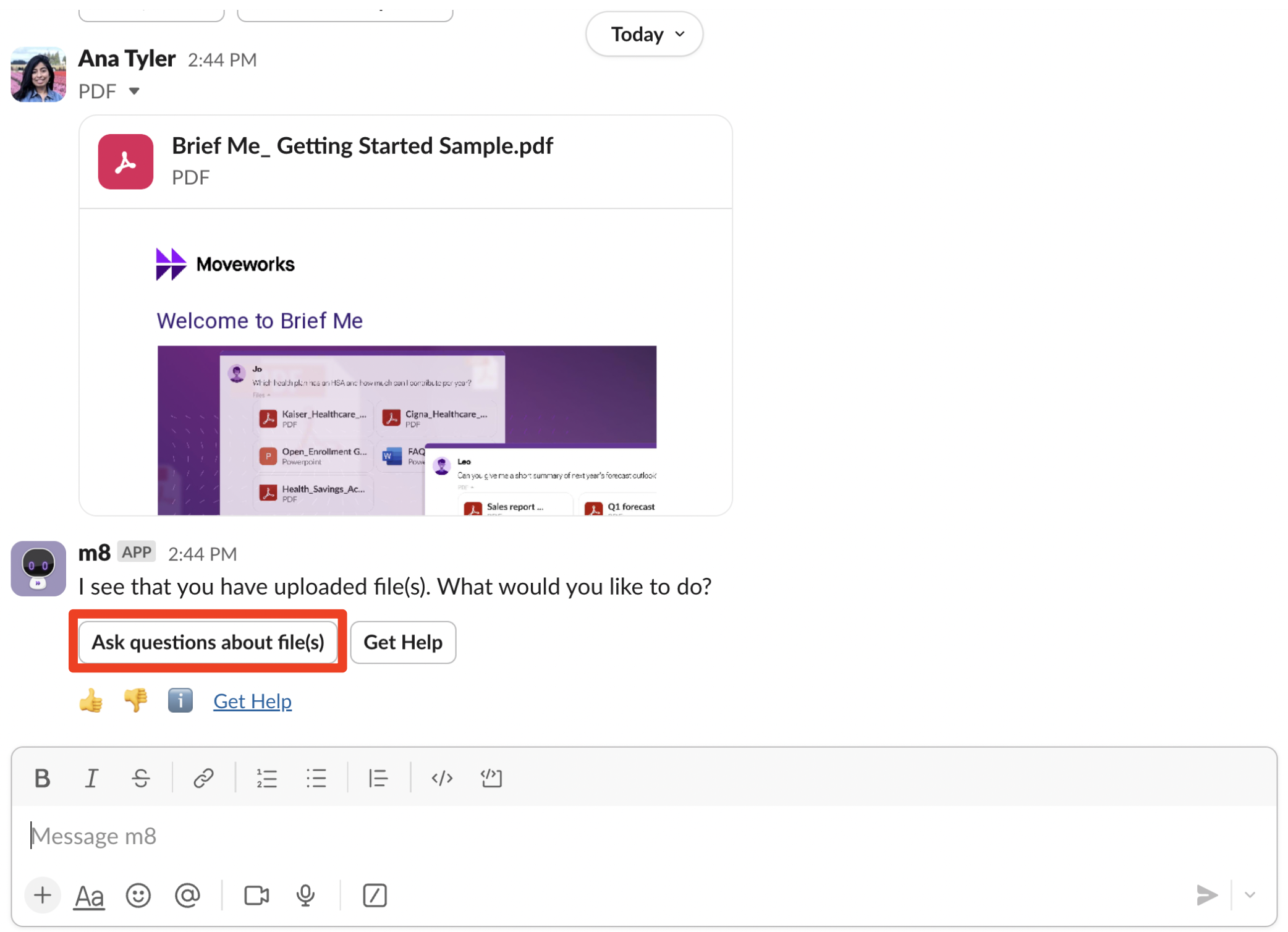
- Now ask a question, ex.
“What can I do with brief me?”and press enter. You’ll want to make sure you were able to get answer.
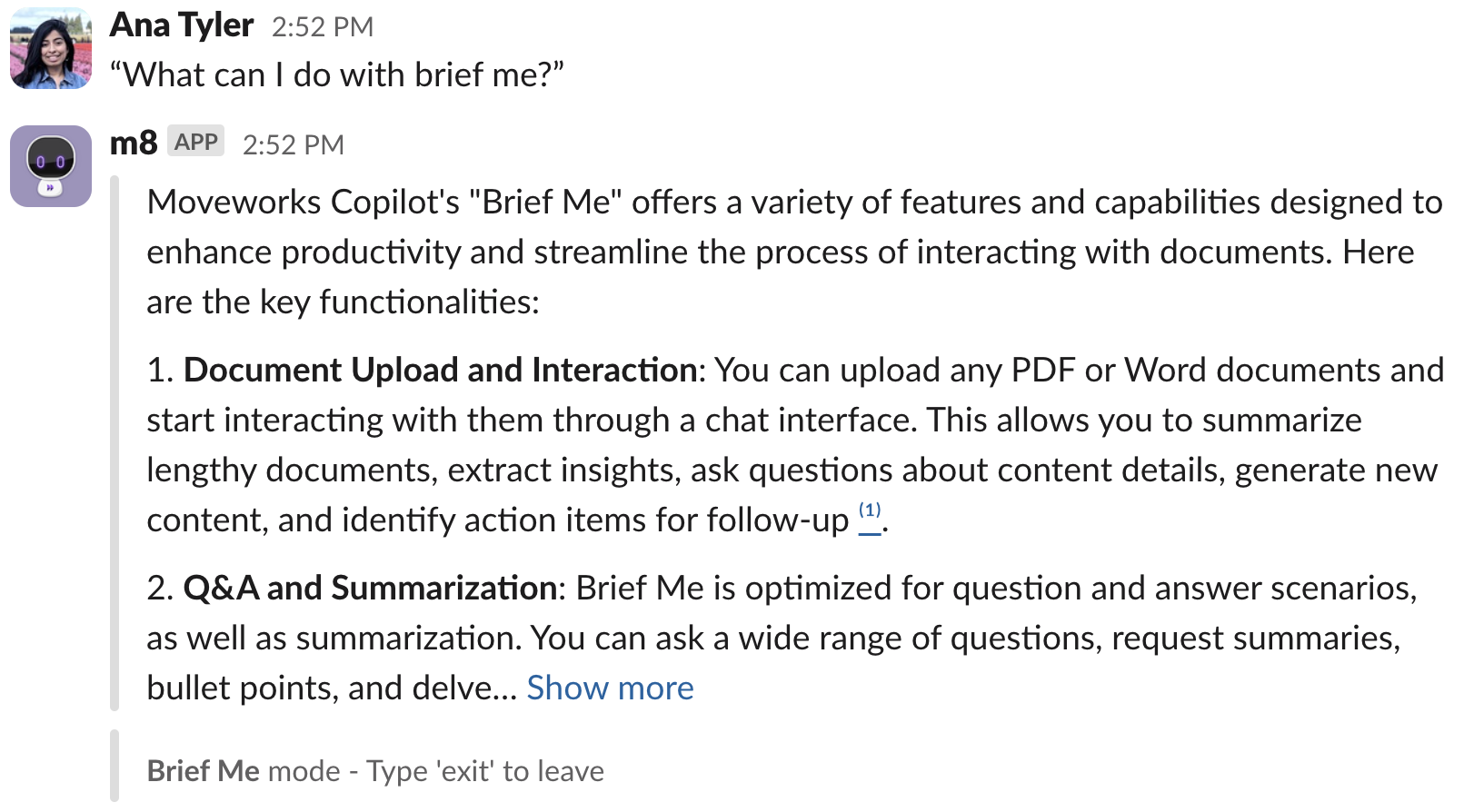
- Type “
exit” to end the session.
Enable Brief Me in Microsoft Teams
In order for Brief Me within Moveworks AI Assistant to work within your Microsoft Teams instance:
- Your employees will need a OneDrive and/or Sharepoint license: Microsoft Teams requires bot applications to have a license to a file storage solution in order for users to upload files.
- Moveworks will need permission to read the files your employees are uploading within your Moveworks AI Assistant app: This setting should be enabled by default. If this setting needs to be updated, we let you know so that we can help guide you through this update.
To make sure both of these settings don’t need to be modified, complete the following steps to make sure Brief Me is working as expected:
- Within the Moveworks AI Assistant, click on the “+” button and click on “Attach file”
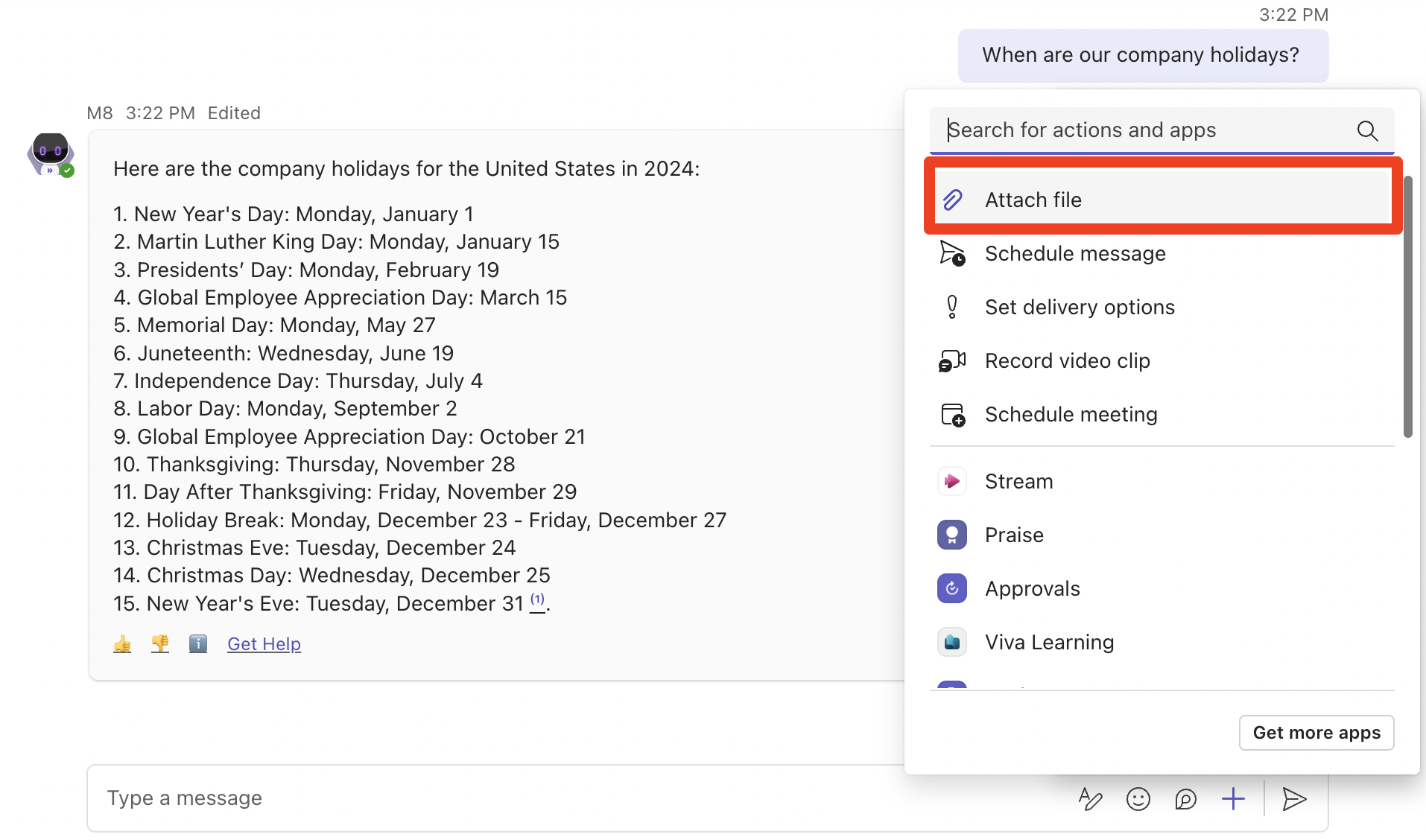
- Upload a file you’d like to engage with. To upload a file that’s on your local machine click on “Upload from this device” and press enter.
- You can download and use our Brief Me Getting Started Guide ****

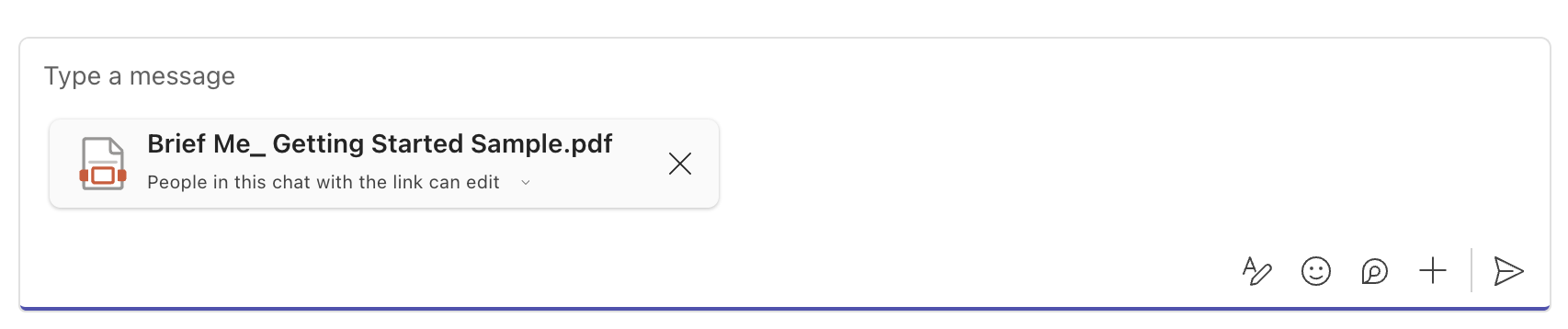
- You can download and use our Brief Me Getting Started Guide ****
- Click on “Ask questions about files”
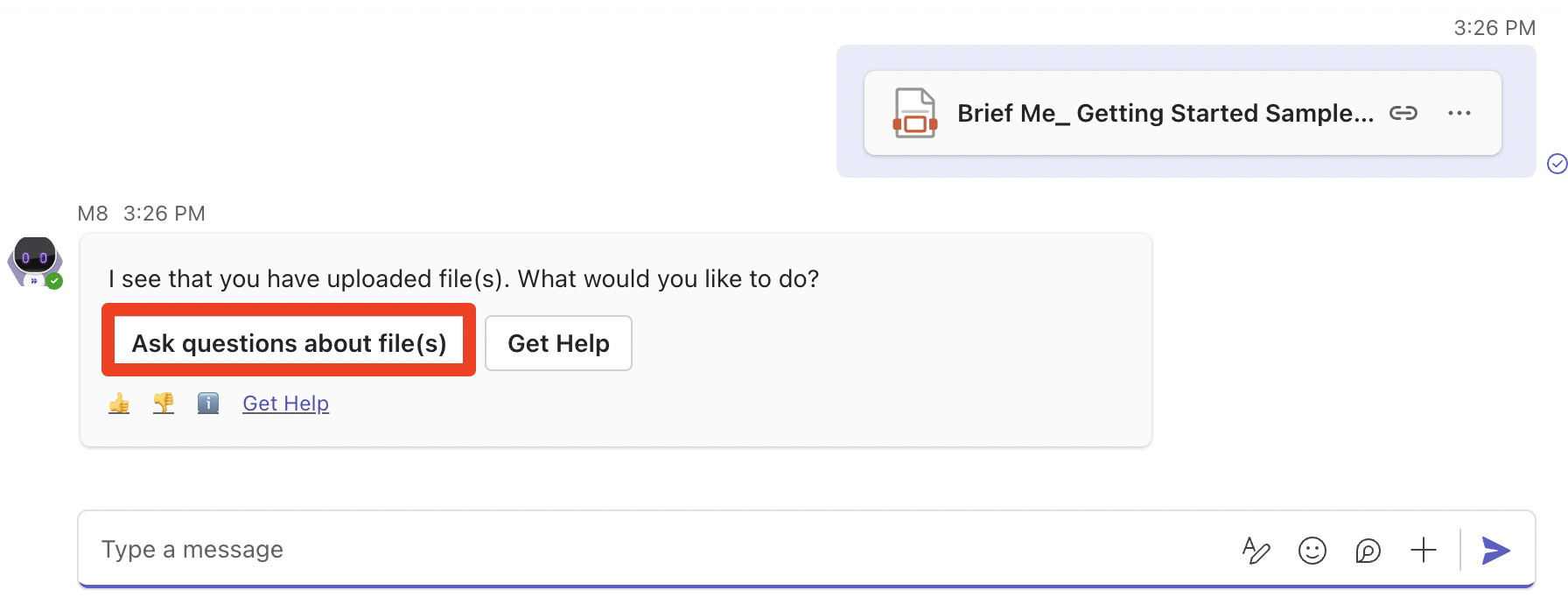
- Now ask a question, ex.
“What can I do with brief me?”and press enter. You’ll want to make sure you were able to get answer.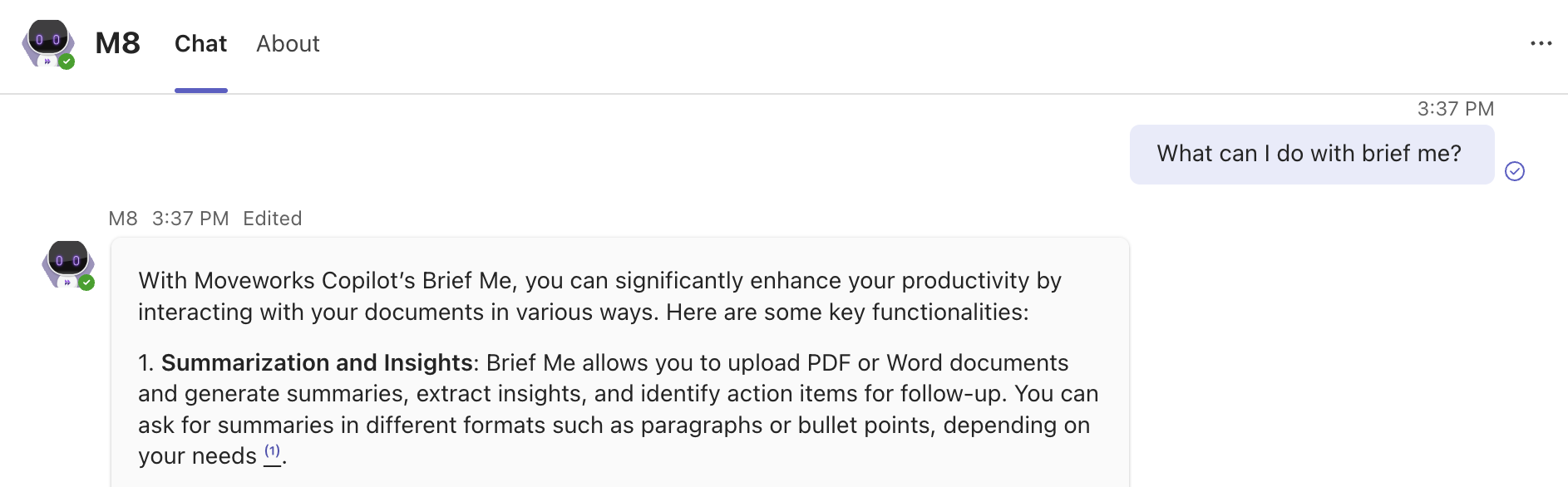
- Type “
exit” to end the session.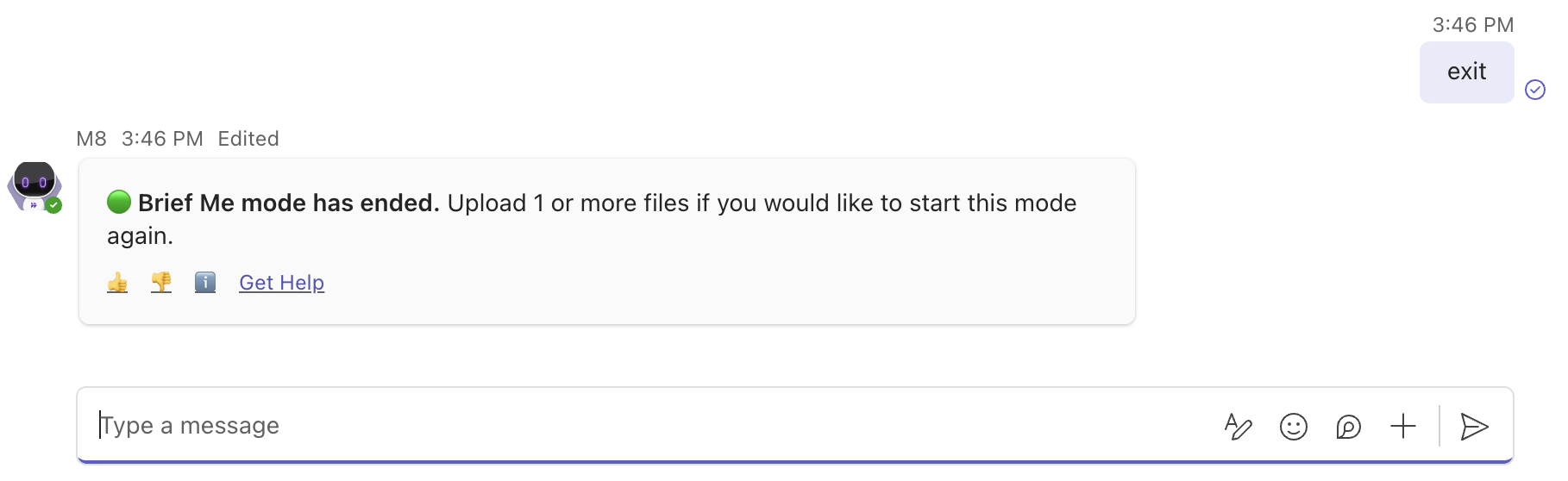
Enable Brief Me in Google Chat
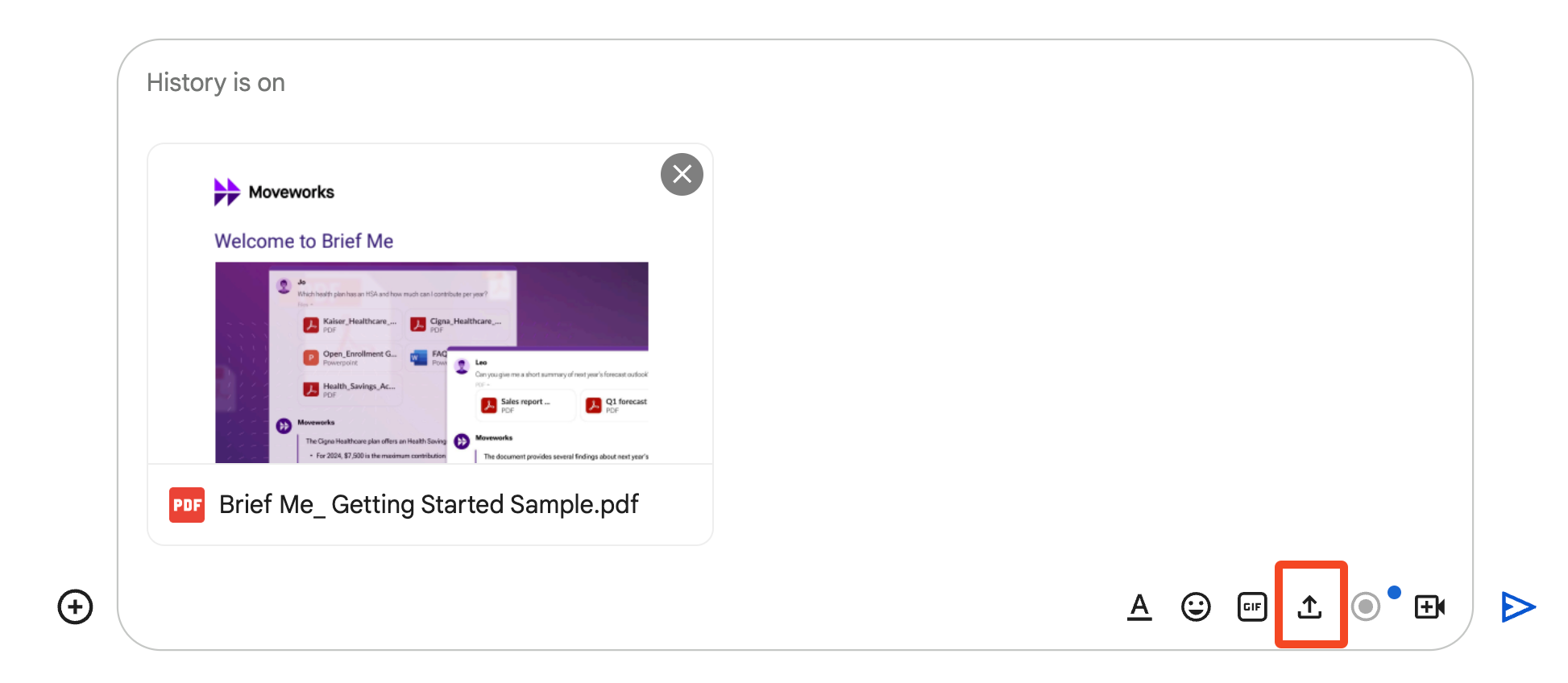
- Within the Moveworks AI Assistant, click on the “upload” icon to open the file directory.
- Upload a file you’d like to engage with. After selecting the file(s), click “Open” to load them into chat.
- You can download and use our Brief Me Getting Started Guide ****\
- NOTE: In order to upload multiple files, you must create a single ZIP file containing those files. The inability to directly upload multiple files is a limitation in Google Chat desktop (not on mobile).
- Click on “Ask questions about file(s)”
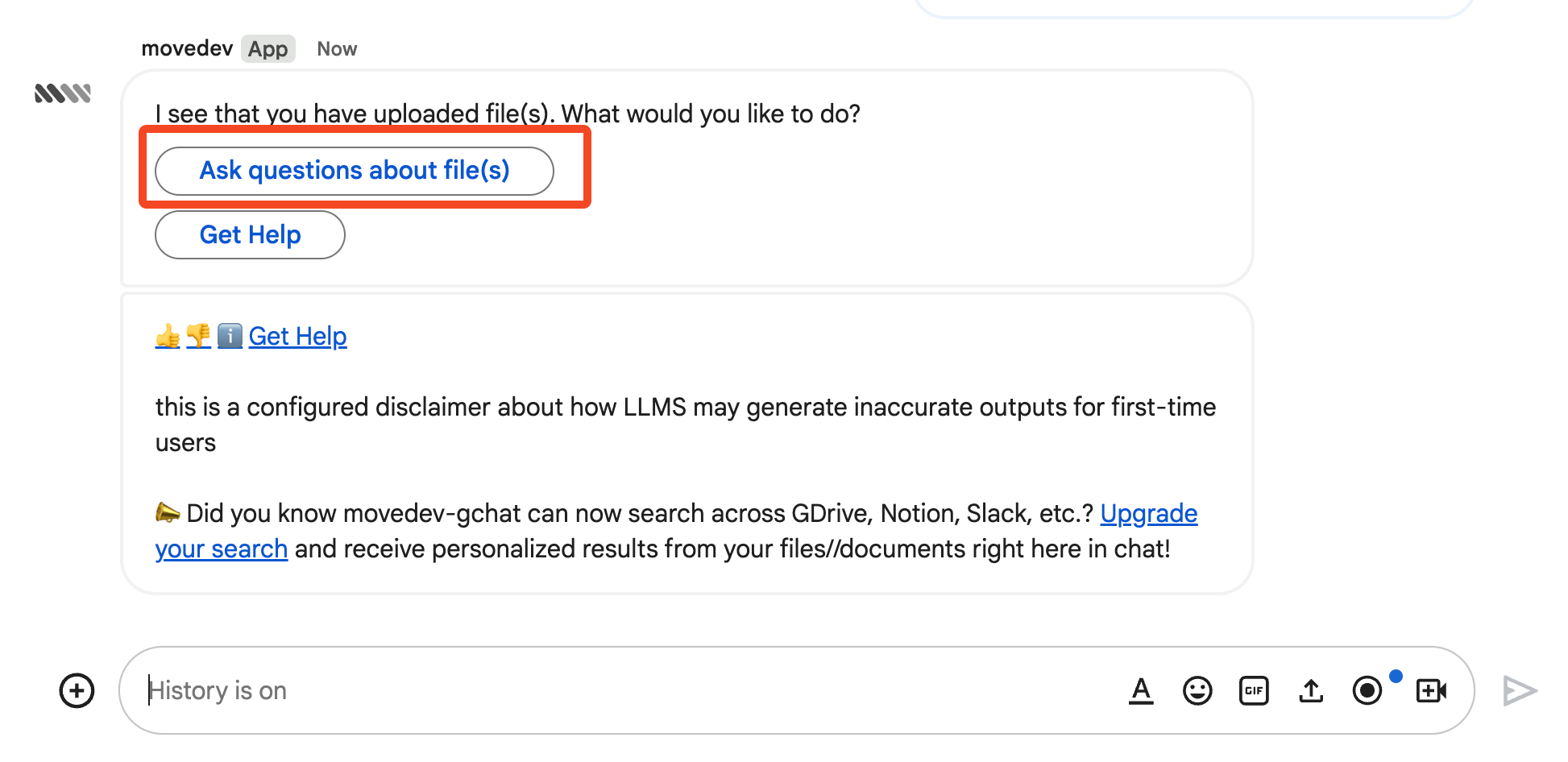
- Confirm that you see generated samples questions within Brief Me Mode.
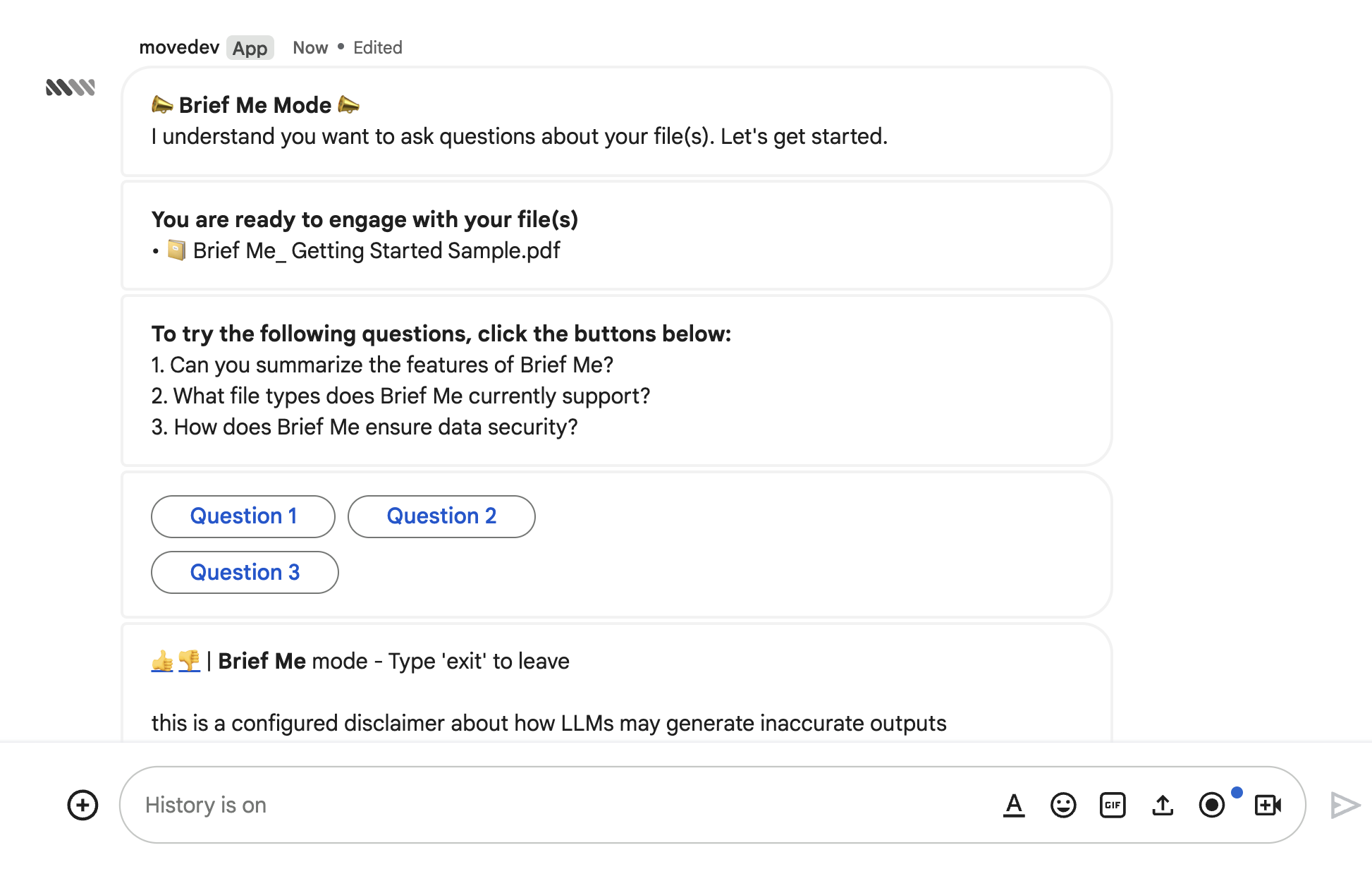
- Now ask a question, ex.
“What can I do with brief me?”and press enter or click one of the suggestions in the buttons. You’ll want to make sure you were able to get answer.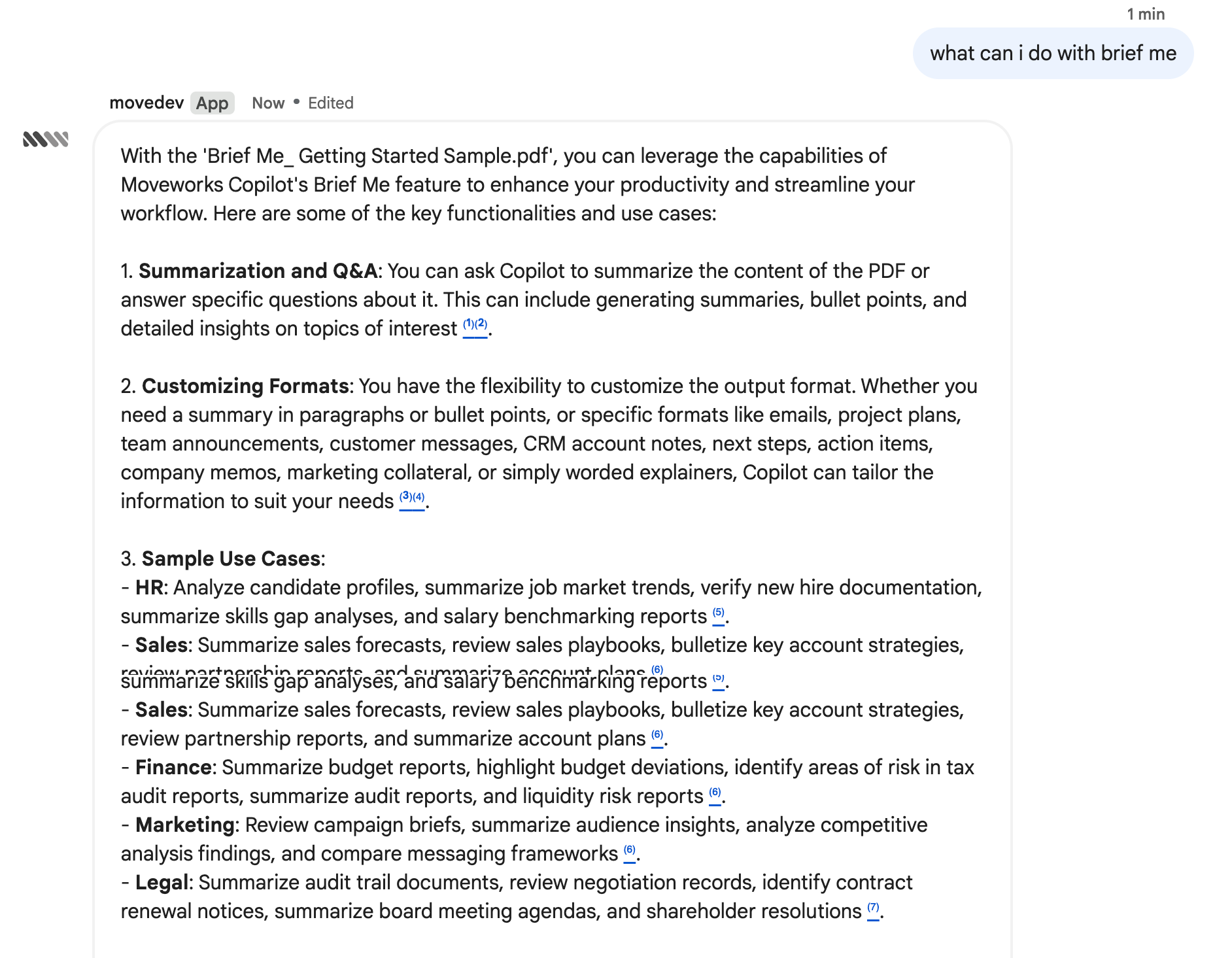
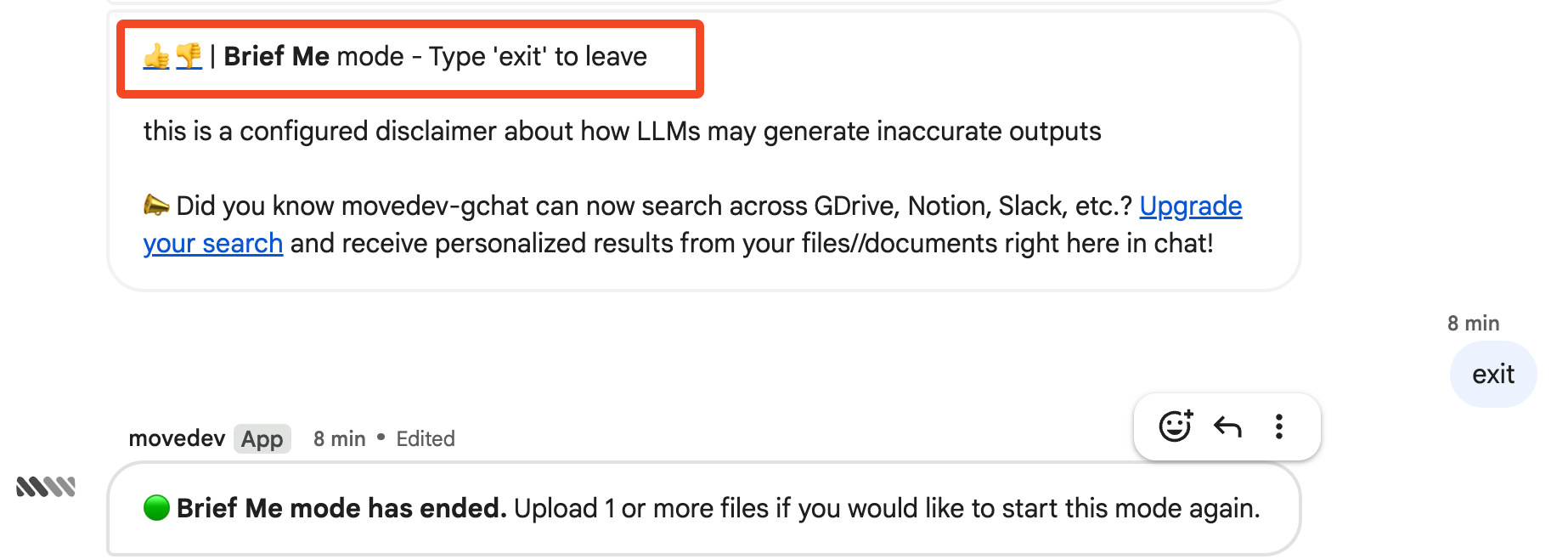
- Type “
exit” to end the session.