
For AI agents: a documentation index is available at the root level at /llms.txt and /llms-full.txt. Append /llms.txt to any URL for a page-level index, or .md for the markdown version of any page.
Logo
DeveloperAcademyCommunityStatus
  • Getting Started
    • Welcome to Moveworks
    • Roadmap & Release Notes
    • Moveworks Best Practices
    • Labs
      • AI Assistant Lab
      • Agent Studio v1 Labs
      • Salesforce Lab
      • ServiceNow Lab
      • Agent Studio v2 Challenges
        • Coupa - Lookup and Modify PO Headers
        • SAP Concur - Lookup and Create Expense Reports
    • Professional Services
    • Support
  • AI Assistant
    • AI Assistant Overview
    • Capabilities
    • Web Experiences
    • Analytics & Performance
  • Enterprise Search
    • Overview
    • Agentic RAG Overview
    • Content Ingestion Platform
    • Profile Boosting
    • Retrieval
    • Permissions Platform
    • Built-in Content Connectors
    • Build your own Content Connectors
    • Configure Search
    • Configure Enterprise Search
    • Vetted Content
    • Writing AI-Ready KB Articles
    • Document Chunking and Snippetization Overview
  • Productivity Boost
    • Overview
    • Configure Productivity Boost
    • Quick GPT
    • Calendar Management
    • Brief Me
DeveloperAcademyCommunityStatus
On this page
  • Scenario
  • NOTE: You are provided a Coupa Sandbox instance in order to do this. You see an “Coupa Sandbox” connector in Agent Studio that has already been setup to make API calls. You will also be granted a login to the Coupa instance in the Okta Portal indicated by this icon. Since SSO is not provided here, so when you click on the tile you will have to login with the same credentials again that were given to you for your Okta login.
  • Tips
  • Things to Know
  • GraphQL
  • Actions
  • Coupa Specifics You Should Know
Getting StartedLabsAgent Studio v2 Challenges

Coupa - Lookup and Modify PO Headers

||View as Markdown|
Was this page helpful?
Edit this page
Previous

SAP Concur - Lookup and Create Expense Reports

In addition, add an expense item to an existing report
Next
Built with

Scenario

In this case we will build the ability for a user to lookup purchase order headers in Coupa, as well as some ways to add and update the Order Header

NOTE: You are provided a Coupa Sandbox instance in order to do this. You see an “Coupa Sandbox” connector in Agent Studio that has already been setup to make API calls. You will also be granted a login to the Coupa instance in the Okta Portal indicated by this icon. Since SSO is not provided here, so when you click on the tile you will have to login with the same credentials again that were given to you for your Okta login.

Tips

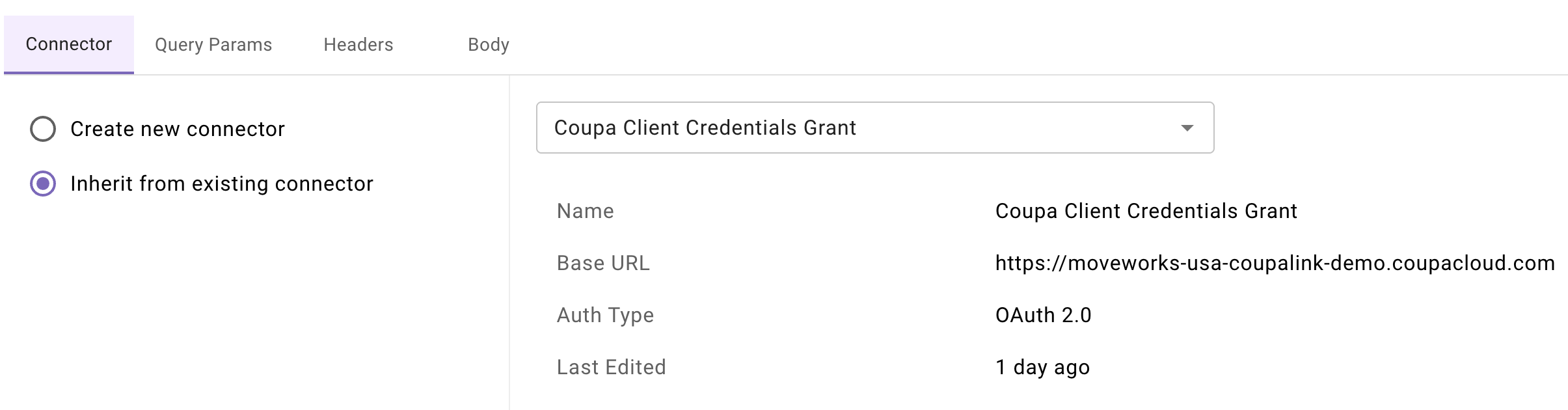
  1. You’ll be using the “Coupa Client Credentials Grant” connector for this exercise.
  2. Start with building your actions first. These are the building blocks that will be the foundation of your use case. You can find all the cURL commands listed below. You can import these cURL commands directly into the HTTP editor for HTTP actions.

  3. Remember the “Import JSON” feature when you create your Purchase Order object. This comes in handy.


Things to Know

GraphQL

Depending on the REST API call you are making to Coupa, the payload for a given object can get very large due to the amount of relational objects. For this reason, instead of directly invoking the API calls to retrieve purchase order information, we are able to leverage Coupa’s GraphQL API. This will allow us to control, refine and filter the data we receive in the response payload to display only the fields we care about for this use case.

Actions

  1. Get PO by number
    curl --request POST \
    --url https://moveworks-usa-coupalink-demo.coupacloud.com/api/graphql \
    --header 'accept: application/json' \
    --header 'content-type: application/json' \
    --data '{
    "query": "query { orderHeaders(query: \"id={{po_number}}\") { id, createdAt, shipToAttention, requisitionHeader { status }, orderLines { description, quantity }, supplier { name } } }",
    "variables": {}
    }'
  2. Get POs by Ship To Name
    curl --request POST \
    --url https://moveworks-usa-coupalink-demo.coupacloud.com/api/graphql \
    --header 'accept: application/json' \
    --header 'content-type: application/json' \
    --data '{
    "query": "query { orderHeaders(query: \"ship_to_attention={{full_name}}\") { id, createdAt, shipToAttention, requisitionHeader { status }, orderLines { description, quantity }, supplier { name } } }",
    "variables": {}
    }'
  3. Get POs Since Created Date - NOTE: Date must be in the format YYYY-MM-DD
    curl --request POST \
    --url https://moveworks-usa-coupalink-demo.coupacloud.com/api/graphql \
    --header 'accept: application/json' \
    --header 'content-type: application/json' \
    --data '{
    "query": "query { orderHeaders(query: \"created_at[gt_or_eq]={{date}}\") { id, createdAt, shipToAttention, requisitionHeader { status }, orderLines { description, quantity }, supplier { name } } }",
    "variables": {}
    }'
  4. Add a Line Item to a PO
    curl --request PUT \
    --url https://moveworks-usa-coupalink-demo.coupacloud.com/api/purchase_orders/{{po_number}} \
    --header 'accept: application/json' \
    --header 'content-type: application/json' \
    --data '{
    "order-lines": {
    "order-line": {
    "type": "OrderAmountLine",
    "description": "{{description}}",
    "quantity": "{{quantity}}",
    "price": "{{price}}",
    "currency": {
    "code": "USD"
    },
    "account": {
    "code": "SF-IT-Indirect"
    }
    }
    }
    }'
  5. Update the Ship To Person of a PO
    curl --request PUT \
    --url https://moveworks-usa-coupalink-demo.coupacloud.com/api/purchase_orders/{{po_number}} \
    --header 'accept: application/json' \
    --header 'content-type: application/json' \
    --data '{
    "ship-to-attention": "{{full_name}}"
    }'
  6. Add a comment to a PO
    curl --request POST \
    --url https://moveworks-usa-coupalink-demo.coupacloud.com/api/purchase_orders/{{po_number}}/comments \
    --header 'accept: application/json' \
    --header 'content-type: application/json' \
    --data '{
    "commentable-type": "OrderHeader",
    "comments": "{{comment}}",
    "commentable-id": "{{po_number}}"
    }'

Coupa Specifics You Should Know

  1. You’ll notice some things are hardcoded in these API calls such as “code” being “SF-IT-Indirect”. This is specific to this Sandbox instance - this can also be taken as a variable but for simplicity sake of this exercise we will hardcode it.

  2. In order to find Purchase Orders to interact with, navigate to the menu as shown on the screenshot below upon logging in. You’ll see a list of Purchase Orders here.
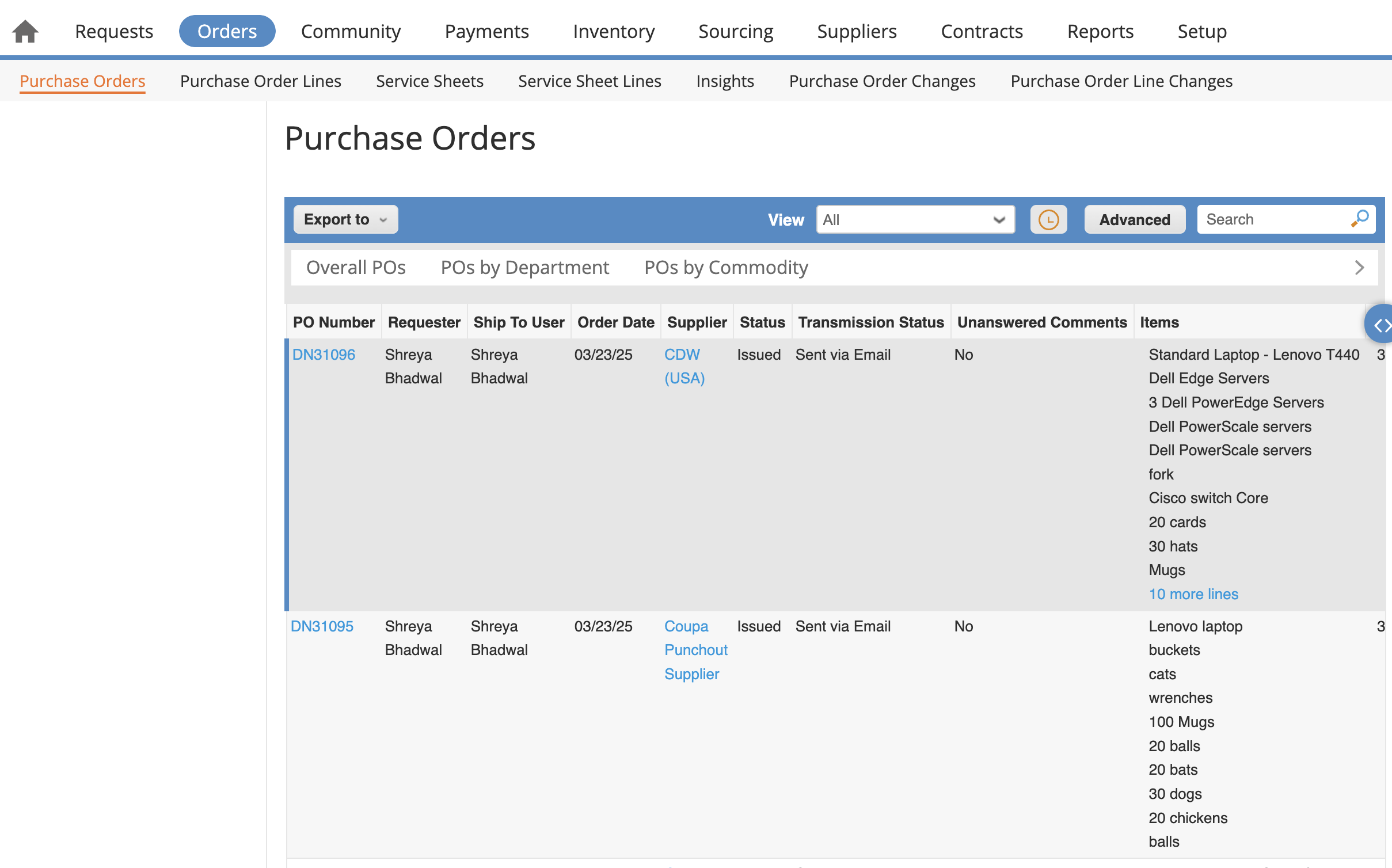
  3. You’ll notice the PO Number in the Coupa Portal starts with “DN”. When interacting with the API however, the “DN” is not used, only the number after it. Do not use the “DN” prefix when testing or taking input from the user. Have them enter simply the number because of this.