
Monitor Indexed Content
Monitor Indexed Content gives admins visibility into knowledge base articles, files, and FAQs ingested and indexed by Moveworks. Use this view to inspect individual records and troubleshoot missing or disabled content.
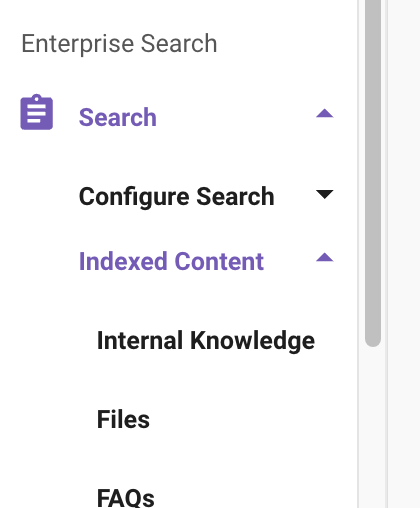
This view lives in Moveworks Setup → Search → Indexed Content. The same monitoring surface is split into three sub-pages in the UI — Internal Knowledge, Files, and FAQs — each scoped to a different content type.
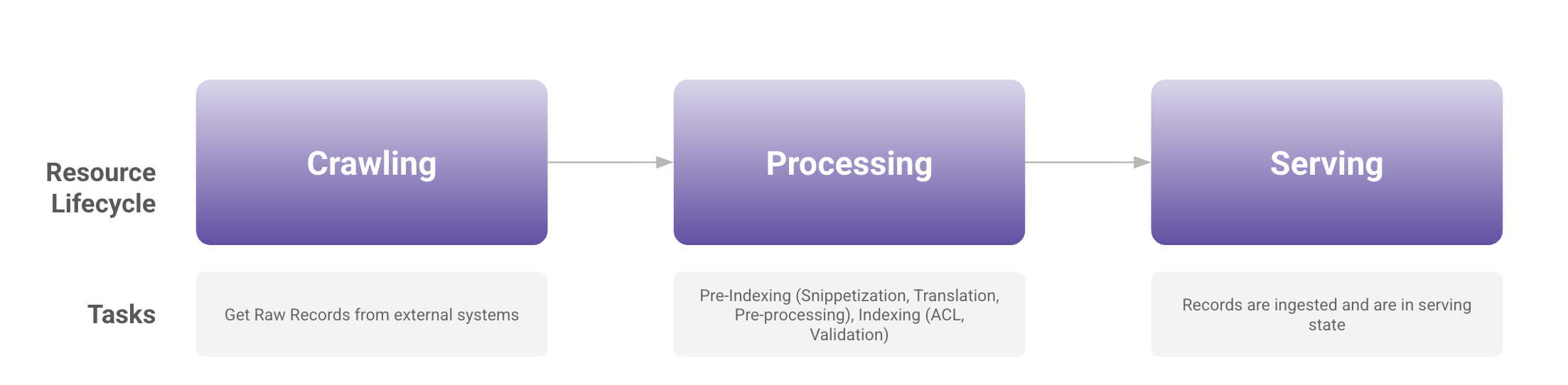
Resource Lifecycle
After connecting Moveworks to your content systems (ServiceNow, Confluence, Google Drive, and others) and setting up ingestion, raw records are pulled in, processed and validated, then indexed in Moveworks and made available for serving.
Data Crawling View and Indexed Content measure different stages of ingestion. Crawl-run logs show records fetched from a source, while Indexed Content shows record processing and indexing status. For connectors under Content (new architecture), Data Crawling View shows failed API requests, not record counts.
The crawling views opened from Internal Knowledge and Files do not include Content (new architecture). To troubleshoot a migrated connector, open Core Platform → Data Ingestion → Data Crawling, expand Content (new architecture), and select View Failed Logs. You can review failed API requests directly without first opening an ingestion run. See Investigate failed requests for the steps.
Continue using the record tables below for individual article or file details. The existing Crawling Health summaries, Last ingested values, and crawl-run dialogs on this page may not reflect a migrated connector’s current state.
Internal Knowledge
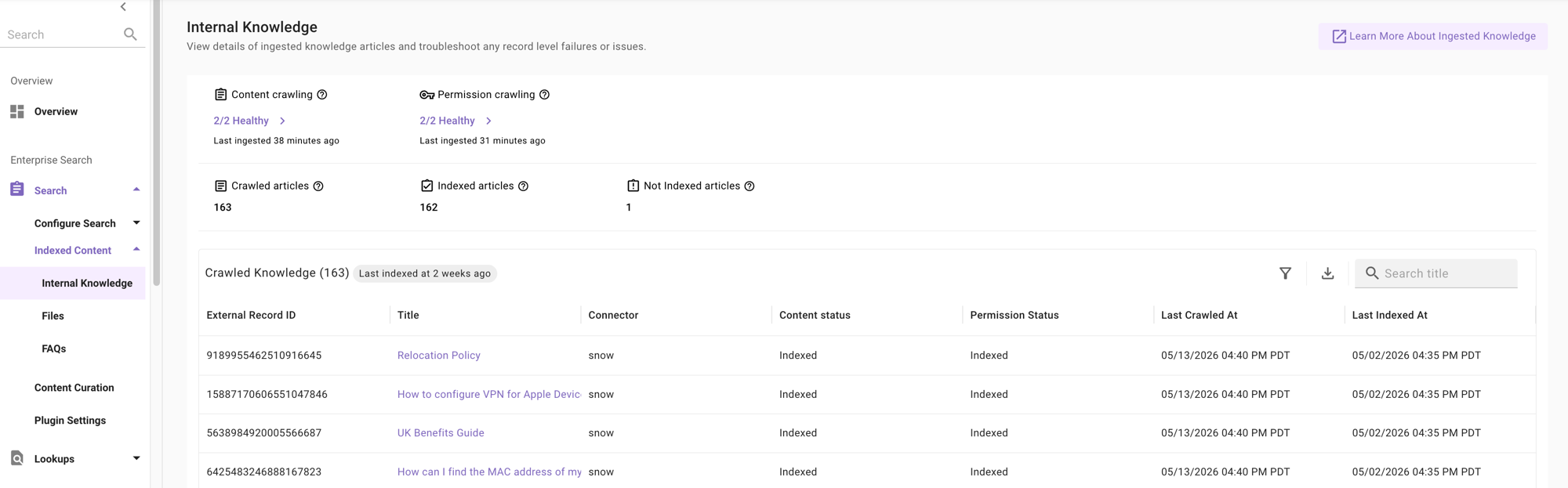
The Internal Knowledge screen in Moveworks Setup monitors knowledge base articles ingested from systems like ServiceNow, Confluence, and SharePoint.
Use it to:
- Review content and permission crawl summaries for connectors using the original crawl-run view
- Validate that articles from a newly configured system are crawled and indexed as expected
- Run periodic checks on crawled, indexed, and not-indexed record counts
- Troubleshoot missing articles and article-level issues
Key components:
- Crawling Health widgets — content and permission crawl summaries for the original crawl-run view, with run logs, schedules, errors, and access to connector and ingestion configurations.
- Crawled and Indexed Records widgets — total crawled, total indexed, and total not-indexed articles.
- Crawled Records table — per-article rows with external ID, title, connector, content status, permission status, last crawled at, and last indexed at.
- Filters — External ID, content status, connector. Filters apply to CSV exports too.
Last crawled and last indexed timestamps may differ. The index only updates when content has actually changed since the last crawl.
Files
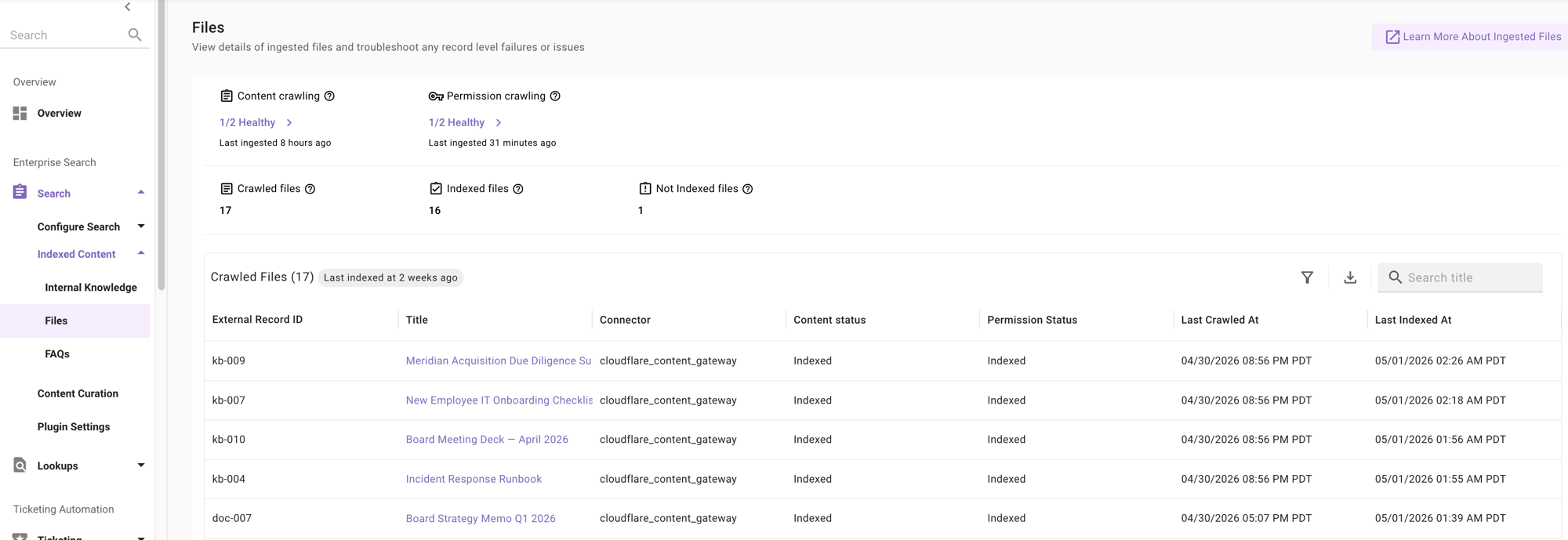
The Files screen monitors files ingested from SharePoint Online, Google Drive, Box, and other file repositories.
Use it to:
- Review crawl summaries for connectors using the original crawl-run view
- Validate that files from a newly configured system are crawled and indexed
- Track total files serving and download a full inventory via CSV export
- Troubleshoot file-level issues such as missing files or files not serving to users
Key components:
- Crawling Health widgets — content and permission crawl summaries for the original crawl-run view, with run logs and errors.
- Crawled and Indexed Records widgets — total crawled, total indexed, and total not-indexed files.
- Crawled Records table — per-file rows with external ID, title, connector, content status, permission status, last crawled at, and last indexed at.
- Filters — External ID, content status, connector.
Supported file types: .pdf, .docx, .txt, .pptx.
FAQs
The FAQs screen monitors question-and-answer pairs ingested from your configured FAQ sources (typically Google Sheets). Use it to confirm which FAQs are available, identify disabled FAQs, and troubleshoot why an FAQ isn’t being served.
Why are some available FAQs (or KB articles) disabled?
- Snippetization failed — Moveworks breaks content into snippets to surface relevant excerpts. If a record cannot be snippetized due to formatting, encoding, or structure issues, it’s ingested but not enabled.
- Snippets were dropped — A record may snippetize but produce unusable snippets (empty or malformed chunks). Moveworks drops the snippets and the record is not served.
- Override configured — An admin has explicitly blocked the record from being served via an override in Moveworks Setup.
Why does the record count in Moveworks differ from my source system?
Moveworks ingests records based on your configured spaces, labels, or filters. Records outside those filters, draft or archived records, and records your integration credentials cannot access are not ingested.
How long does it take for new or updated records to appear?
Ingestion is scheduled at regular intervals depending on your configuration. See the Ingestion Schedule for timing by content type.
Does Moveworks ingest macros in Confluence articles?
Moveworks does not ingest macros, native or 3rd-party, from Confluence. For best results, keep key information in the article body rather than inside macros.
Permission Checker
Permission Checker is available on both the Internal Knowledge and Files screens. It verifies whether a specific user has access to a specific article or file.
When to use it:
- A user reports they cannot find content they should have access to
- You changed permissions, group memberships, or ACL rules in the source system and want to confirm they reflect in Moveworks
- You updated permission rules in Moveworks and need to validate them
- You want to audit that sensitive HR, legal, or financial documents are only accessible to authorized personnel
How to access:
- Navigate to Moveworks Setup → Search → Indexed Content
- Select Internal Knowledge or Files
- Click any record in the table
- Open the Permission Checker panel
How to use:
- Review the current permission strategy shown in the panel:
- Permission Strategy: configured for the connector in Core Platform → Resource Permissions → Permission Rules → Strategy Config. ReBAC displays
Native Permissions; ABAC or “Public to all members” displaysMoveworks Enforced Permissions. - Additional Restrictions: DSL rules that layer extra access filters on top of source-mirrored permissions.
- Additional Access: DSL rules that grant access to audiences beyond mirrored permissions. (ServiceNow only.)
- For more, see Permissions.
- Permission Strategy: configured for the connector in Core Platform → Resource Permissions → Permission Rules → Strategy Config. ReBAC displays
- Click View Permission for User → select or enter the user’s email → click View Permission
- Review the result:
Has permission: True→ user can access this contentHas permission: False→ user cannot access this content- Errors:
User profile not found→ user hasn’t been ingested in User IdentityPermission data could not be found→ source-system permissions haven’t been ingested yet; check the connector’s permission diagnostics in Data Crawling ViewPermission rules not found→ no Permission Rules configured for this connectorInternal system error occurred→ retry; if persistent, contact Support
If permissions are not ingested, 0 Permission Ingested is displayed.
Record Activity Logs
Record Activity Logs surface a subset of enrichment and processing steps a record goes through after a successful crawl. Failures during enrichment can prevent records from being indexed even when the crawl succeeded.
When to use them:
- A user reports specific content isn’t being served, even though they have access
- After adding or updating content, you want to confirm processing and indexing succeeded
- Content appears outdated or incomplete and you suspect processing is blocked
- You need to share detailed processing errors with Moveworks Support
How to access:
- Navigate to Moveworks Setup → Search → Indexed Content
- Select Internal Knowledge or Files
- Click any record in the table
- Open the Record Activity Logs panel
How to interpret:
- Review logs sorted by timestamp to see enrichment steps such as Validation and Snippetization
- Success = the step completed; Failure = the step failed and may be blocking serving
- Use the Error Summary to understand failures
- If all steps show Success but the record still isn’t served, contact Moveworks Support
Record Activity Logs display only a subset of processing steps. In some cases, all visible steps show Success but the record may still fail due to issues in other enrichment steps not surfaced today.
Common error messages:
Common Questions
What does “content serving” vs “not serving” mean?
- Indexed — content was successfully processed and indexed, ready to be served
- Not Indexed — processing or indexing failed; the record is not available to users
What does the Permission Ingested column mean?
- Indexed — permissions have been successfully ingested for this record
- Not Indexed — either permissions exist but haven’t been ingested yet, or permissions don’t apply to this record type
What does “0/1 healthy” or “8/10 healthy” mean in ingestion widgets?
The fraction of systems marked healthy by the original crawl-run view. For example, 1/10 healthy means one of the ten systems included in that summary is marked healthy. For migrated connectors, open Content (new architecture) on the standalone Data Crawling page to review failed API requests.
Why is the crawled/indexed count different from the count in the Data Crawling Viewer?
These views measure different things. For connectors under Content, Data Crawling Viewer shows records fetched during individual full or incremental runs; records then go through processing and validation before indexing. For connectors under Content (new architecture), the count measures failed API requests and does not indicate how many records are indexed or missing. Use Indexed Content to inspect the available record statuses.
Does Permission Checker support ServiceNow?
Yes — Permission Checker evaluates ServiceNow content permissions, but the UI does not currently display ServiceNow ACL ingestion flow. ACL display is on the roadmap.
How long after a source permission change should I wait before retesting?
Wait for the next scheduled crawl cycle to complete. Permission Checker reflects permissions as of the last successful crawl, not real-time source state.
Can I bulk-test multiple users against the same record?
No — Permission Checker supports individual user testing only.