For AI agents: a documentation index is available at the root level at /llms.txt and /llms-full.txt. Append /llms.txt to any URL for a page-level index, or .md for the markdown version of any page.
Logo
DeveloperAcademyCommunityStatus
  • Getting Started
    • Welcome to Moveworks
    • Roadmap & Release Notes
    • Moveworks Best Practices
    • Labs
    • Professional Services
    • Support
  • AI Assistant
    • AI Assistant Overview
    • Capabilities
    • Web Experiences
      • Overview
      • Microsoft Teams
      • Slack
      • Google Chat
      • Webex Teams
      • Zoom Chat
      • Multi-Tenant Chat Moveworks Setup Guide
    • Analytics & Performance
  • Enterprise Search
    • Overview
    • Agentic RAG Overview
    • Content Ingestion Platform
    • Profile Boosting
    • Retrieval
    • Permissions Platform
    • Built-in Content Connectors
    • Build your own Content Connectors
    • Configure Search
    • Configure Enterprise Search
    • Vetted Content
    • Writing AI-Ready KB Articles
    • Document Chunking and Snippetization Overview
  • Productivity Boost
    • Overview
    • Configure Productivity Boost
    • Quick GPT
    • Calendar Management
    • Brief Me
DeveloperAcademyCommunityStatus
On this page
  • Cisco Webex Teams Access Needs
  • Webex Teams Bot Account Permissions
  • Moveworks Bot Setup Guide for Cisco Webex Teams
AI AssistantChat Platform Experiences

Webex Teams

||View as Markdown|
Was this page helpful?
Edit this page
Previous

Zoom Chat

Next
Built with

Cisco Webex Teams Access Needs

The Moveworks bot is installed in Cisco Webex Teams and is able to verify the identity of users and carry on conversations with them.

Webex Teams Bot Account Permissions

To install the Moveworks bot to Webex Teams, you will need to create a new App with an associated Bot. Once you create the app, you must provide the following values to your Moveworks Team:

  • Bot ID
  • Access Token to the Bot App.

Moveworks Bot Setup Guide for Cisco Webex Teams

  1. Setting up your Webex bot:
    1. Log into developer.webex.com using an email account tied to your Webex Teams environment.
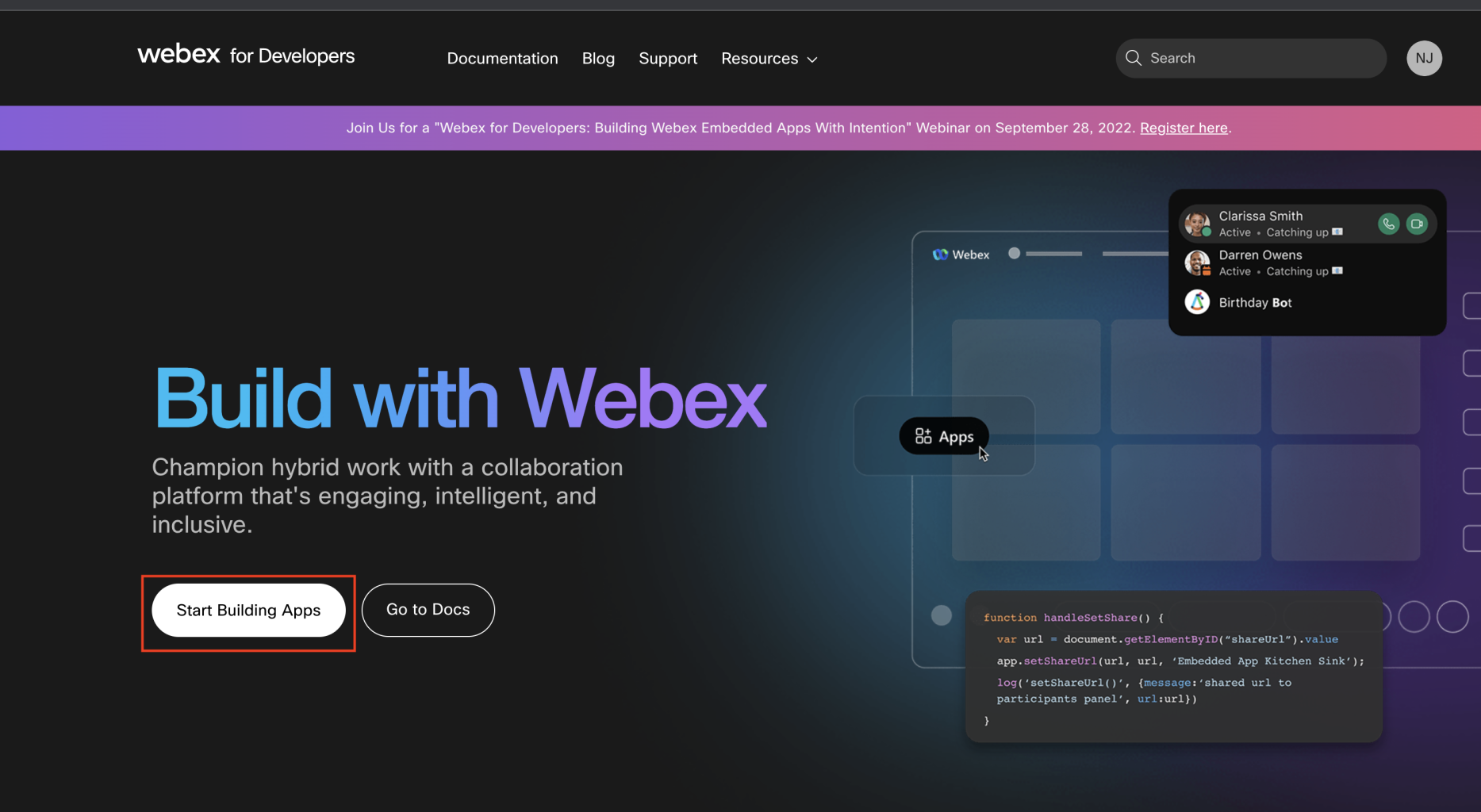
    2. Click Start Building Apps
    3. Then select Create a Bot to start the wizard.
  2. You’ll be asked to provide some basic information about the bot: bot name, bot username, icon, and description. Moveworks will help you create these details.
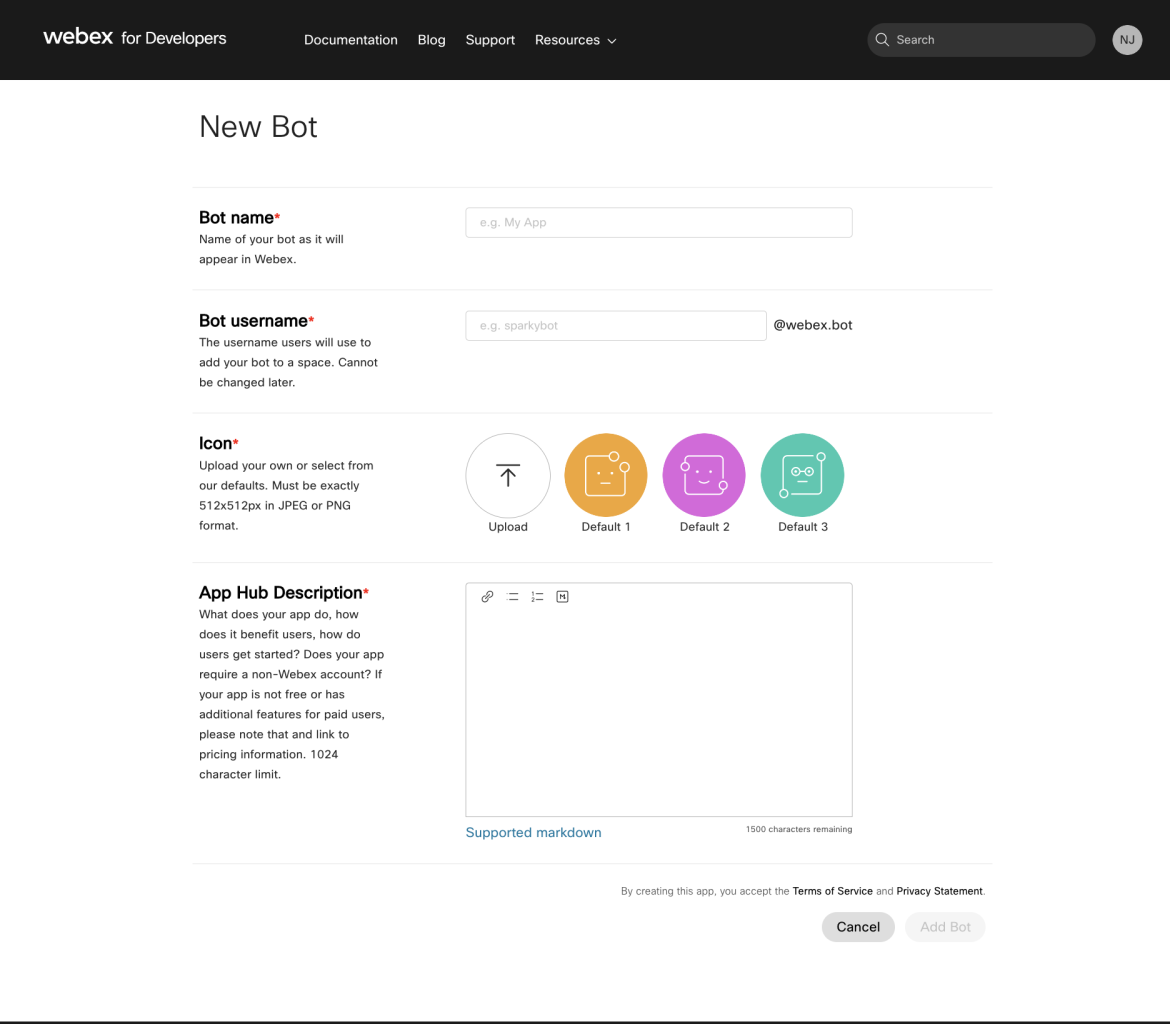
  3. Once you’ve filled out the registration form click “Add Bot.” You’ll be given an access token and bot ID for the new bot. Please provide these two items to Moveworks so we can connect to your bot.
    1. Tip: The bot’s access token will only be displayed once. Make sure to scroll down on the confirmation page, copy the token and keep it somewhere safe.
  4. That’s it! The bot will now be accessible in your chat environment.