
AI Assistant Insights
Recent announcement : Enhanced feedback telemetry is now live ! Know more here
🎥 See a walkthrough - Take the Academy course on AI Assistant Insights
Overview
AI Assistant Insights represents the latest in Moveworks analytics for the Moveworks AI Assistant , offering comprehensive visibility into end users’ interactions with the AI Assistant. This includes detailed insights into user adoption rates and AI Assistant performance, providing a transparent overview for actionable insights.
AI Assistant insights excludes metrics and interactions of test users. These users are tagged with a “tester” tag in moveworks. Please refer to user identity mapping in Moveworks Setup to understand what type of users are classified as test users.
What are the key components of AI Assistant Insights?
Interactions
AI Assistant Insights offers complete transparency into every facet of user interaction with the AI Assistant, enabling a thorough replay of each engagement for in-depth insights. This encompasses various user interaction types, including free-form text, button clicks, link clicks and AI Assistant’s responses.
User Adoption
AI Assistant Insights grants visibility into the extent and depth of user adoption for AI Assistant. Ranging from active user counts to popular plugins, the data is customizable, allowing you to analyze adoption trends across various demographic dimensions.
Performance
AI Assistant Insights offers an unbiased perspective on AI Assistant performance. Users can assess the success rates of each plugin call, delve into the underlying causes of unsuccessful interactions, and access in-chat feedback from end users for a comprehensive understanding of system efficiency.
Key definitions
Interactions: all types of engagements end users have with the AI Assistant. There are 4 types of interactions:
Plugin: The Moveworks AI Assistant is a versatile and flexible engine powered by the latest large language models. On top of the Moveworks platform, we’ve built plugins to execute specific tasks. If the AI Assistant engine is the brain of a person, these plugins are the hands and legs that carry out instructions from the AI Assistant. The AI Assistant includes over 20 out-of-the-box plugins that provide a wide range of capabilities including search and take action. Below is a list of our out-of-the-box plugins.
In addition to the out-of-the-box plugins, each Tool Studio use case will also appear as a plugin, with the use case name as the plugin name.
Plugin Call: To assist with a user request, the AI Assistant selects the relevant plugin to execute, this process is a plugin call. There can be multiple plugins called to fulfill a single user request. For example, a user could ask “Can you add my manager to the Sales group?”, and both the People Registry and the Add User to Group plugins are called.
Plugin Status: When a plugin is called, there are 3 final status that help indicate the result of the plugin call, and they are referred to as plugin status. The 3 status are:
Following the introduction of semantic layer updates, plugin statuses have been enhanced to reflect new user-focused execution details. The Plugin Distribution widget on the Overview page has been updated to display these new statuses.
What are some key questions I can answer with AI Assistant Insights?
We will dig into the AI Assistant Insights user experience by answering each of the key questions below:
What interactions did my user have with the AI Assistant?
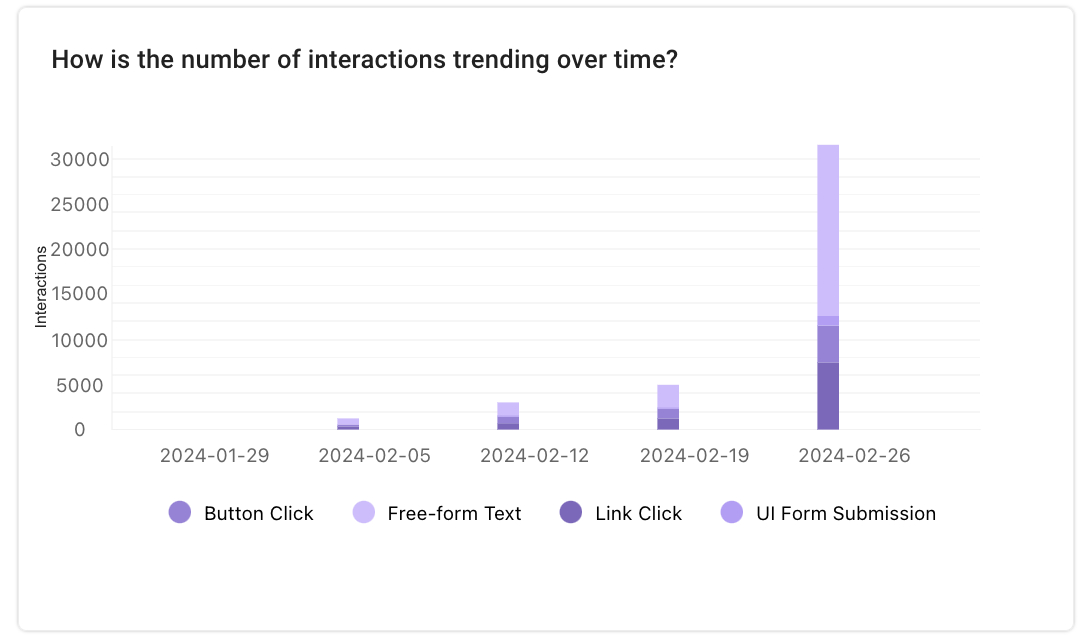
In the example below, observe an upward trend in user interactions with AI Assistant over the past few weeks. The predominant interaction type is through free-form text, indicating that users prefer engaging with AI Assistant through chat.
How is my user adoption trending over time?
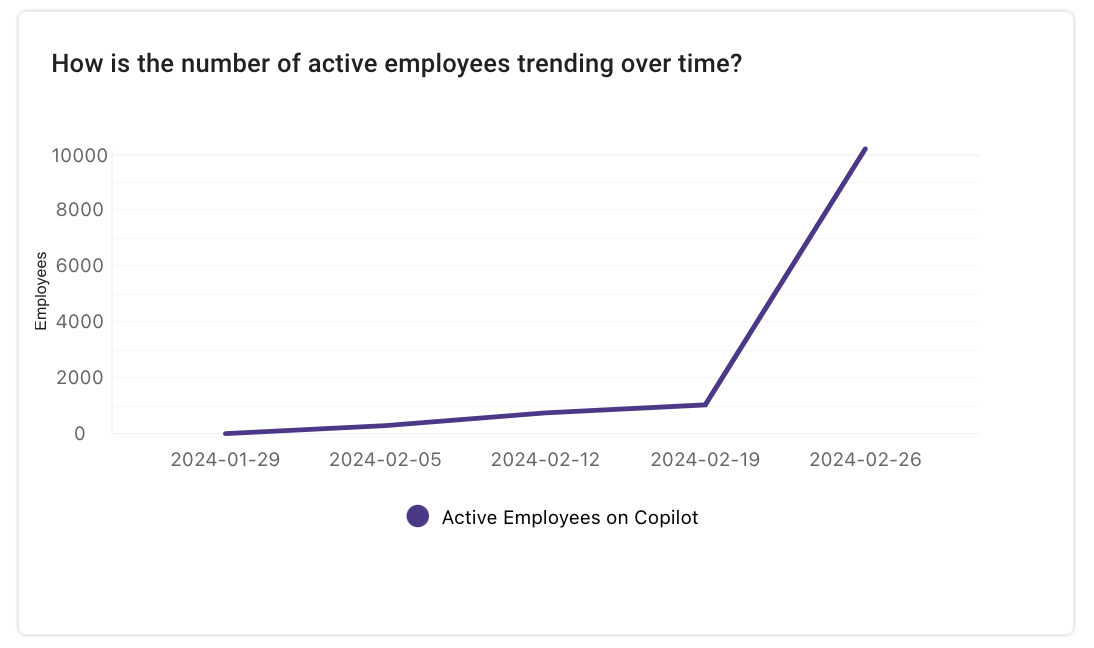
In the provided example, AI Assistant usage displayed a gradual upward trend, with a significant spike observed in the current week. This aligns with the user interactions chart above, suggesting that the surge in usage can be attributed to an increased number of users.
What are the most common asks from my user?
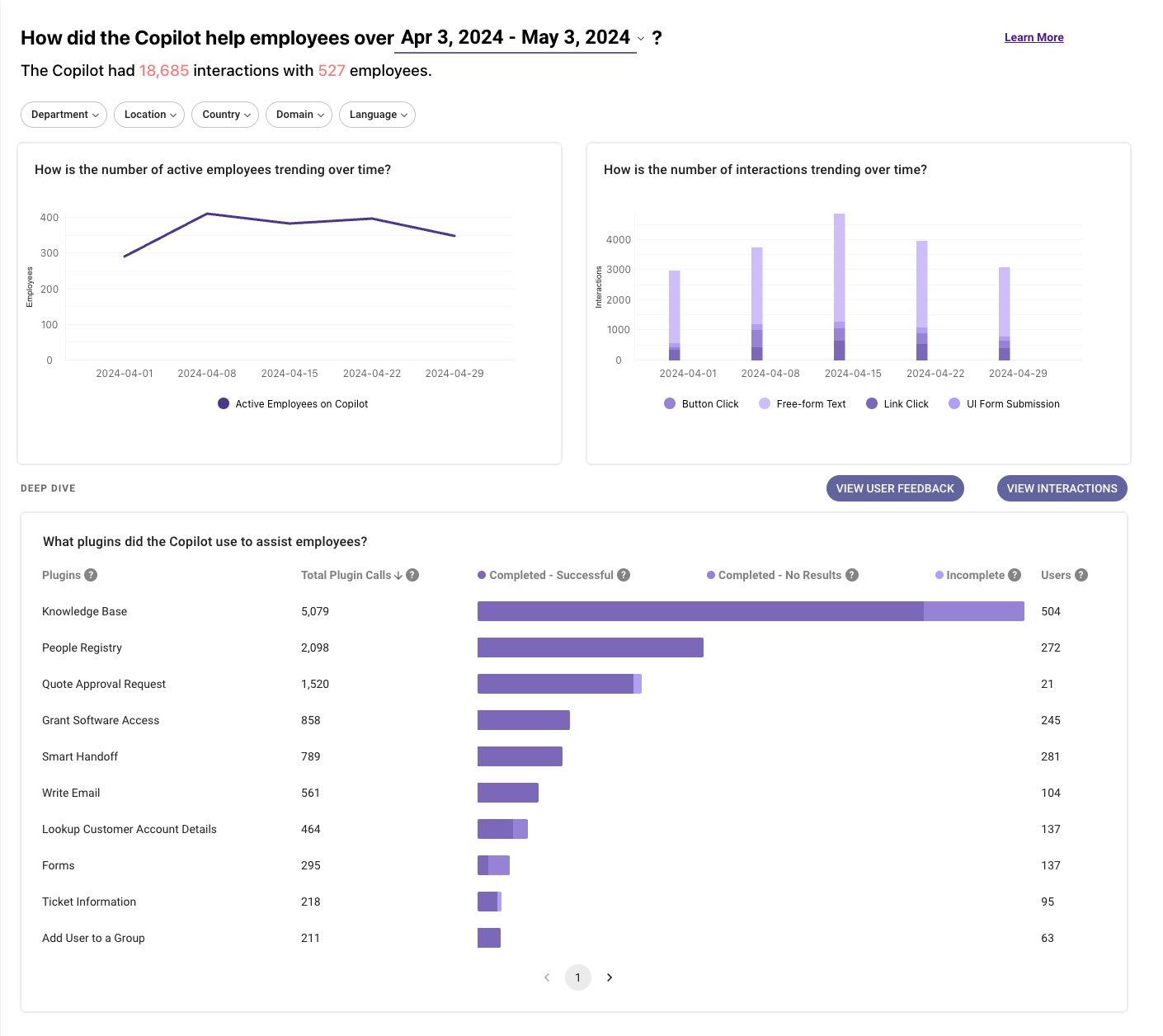
In this example, the Knowledge Plugin emerged as the most utilized, signifying that the majority of user requests were related to knowledge searches. Examining the figures, it’s noteworthy that 3,000 out of 14,000 knowledge searches did not find resources from the connected systems. For a more in-depth analysis of these user queries, refer to the next question below.
What are topics in user interactions?
Topics in the context of interactions and feedback table refer to the main subjects of communication between users and the AI Assistant. These topics emerge from free-form text interactions and utterances related to UI Form submissions where users seek specific information or assistance.
Powered by Moveworks’ entity detection model, topics are categorized into two main types:
- General Entities: Broad themes that are not specific to any company.
- Company-Specific Entities: Themes that are tailor-made from entities & terminologies specific to a particular organization.
Note: Topics are AI Generated.
For more details, see Entity Prediction.
Topic value is set to “n/a” for the general user utterance when the model is not able to find a suitable entity, for example, “Hi” or “Yes”.
The categorization into these topics is initiated when a user interacts with the AI Assistant, asking for help or information about specific items or issues.
The most common topics that users interact about are grouped into four primary themes, which help in understanding the nature of requests:
- Software Requests: Users often inquire about specific software, resulting in the software’s name being captured under this topic, for example, “Zoom” or “Microsoft Outlook”.
- Filed Form: This category includes requests for hardware or physical items such as monitors and laptops. This topic also appears on a request with a Form filed. The requested item is specifically noted, for example, “AC adapter” or “New Phone”.
- Ticket Requests: This theme is for interactions related to ticketing operations, encapsulating fixed operations like filing a ticket, fetching user tickets, or adding a comment on a ticket. This topic will appear as “Ticket Operations”.
- Other Requests: This includes any request that does not fit into the above categories, capturing the primary action or query made by the user. An example could be a question on “how to open an email on mobile,” which would be categorized under “Email.”
You can define new company-specific entities by connecting with your CS team. Once those are added the entity detection model will categorize the user interaction into those entities based on the request.
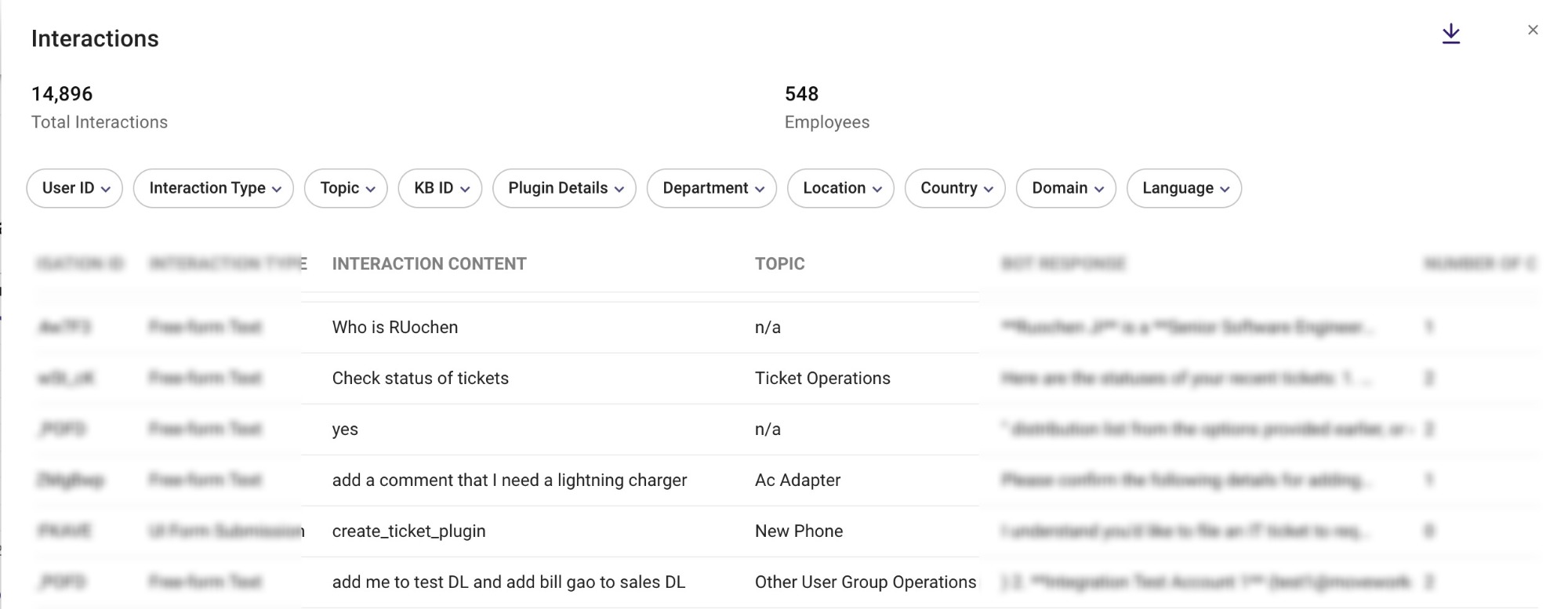
In the dashboard, one can find topic values in the Interaction data in the side panel.
What feedback did my user give?
View end users’ feedback of the AI Assistant by clicking on “View User Feedback”.
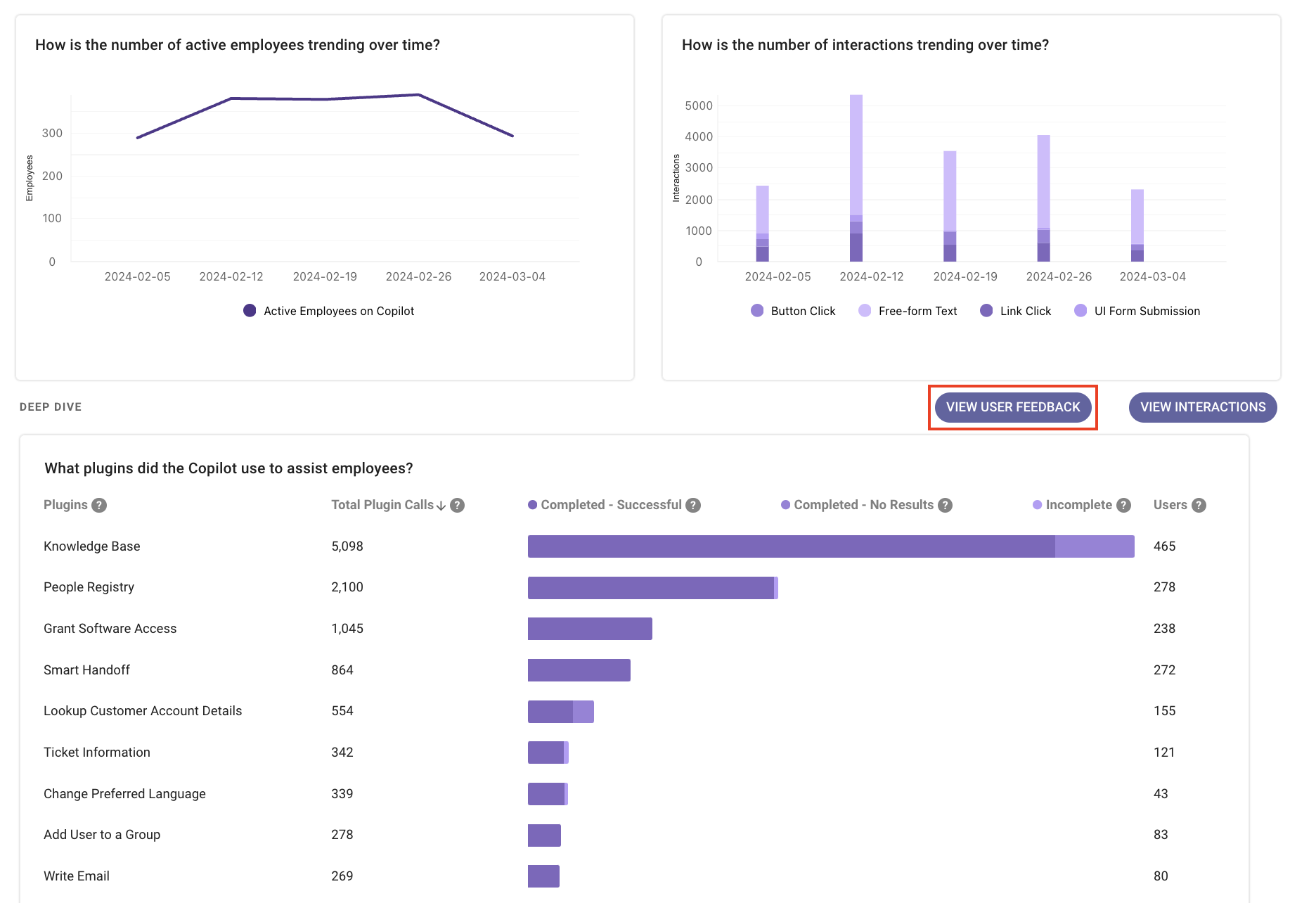
What new knowledge should I write about?
For a more in-depth analysis of knowledge searches with no results, click on ‘View Interactions’ to open the side panel containing raw interaction data.
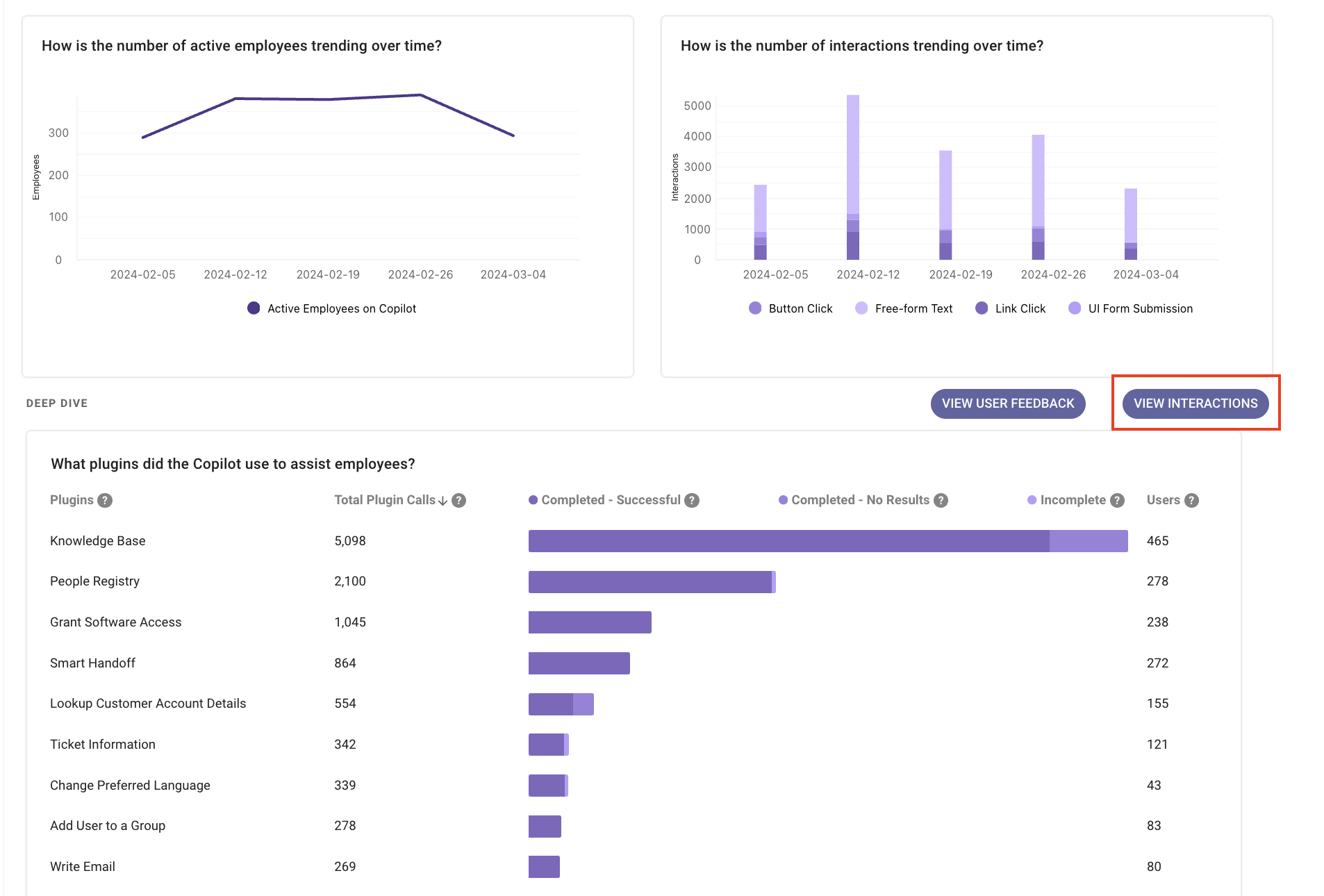
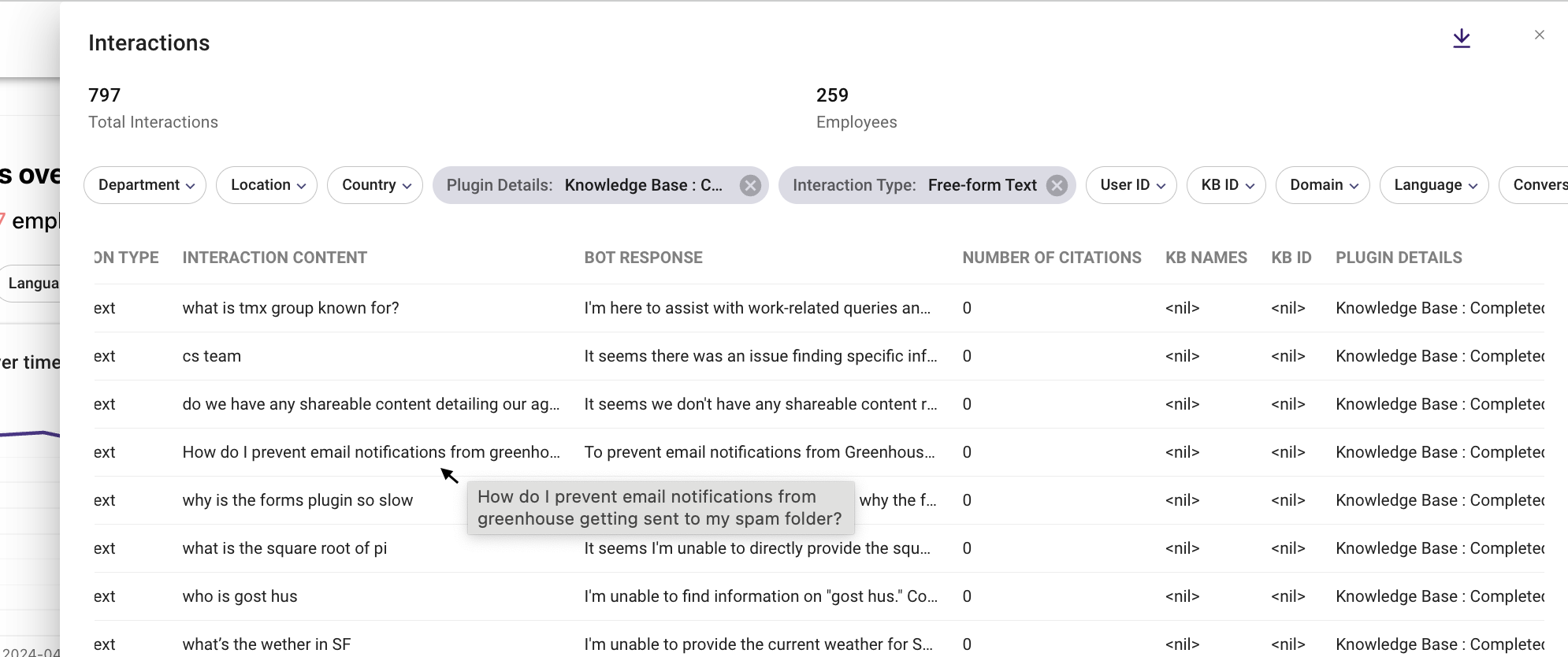
Narrow down the user interactions by applying filters of interest. For example, if you want to see users’ knowledge search that did not return any result, apply the following filters:
- Interaction type = ‘Free-form Text’
- Plugin Details = ‘Knowledge Base: Completed - No Result’, select all options that contains this value
You can review the “Interaction Content” column to understand what user queries did not receive an answer. This can help inform new knowledge to be added.
What knowledge articles should I update?
You can infer the quality of your knowledge base through end user feedback.
Open the “View User Feedback” table and filter on the unhelpful feedback. You can read through user queries, AI Assistant response, user feedback, and the KB articles associated with it. While the user feedback is not directly tied to each knowledge article, you can extract helpful insights from the feedback text.
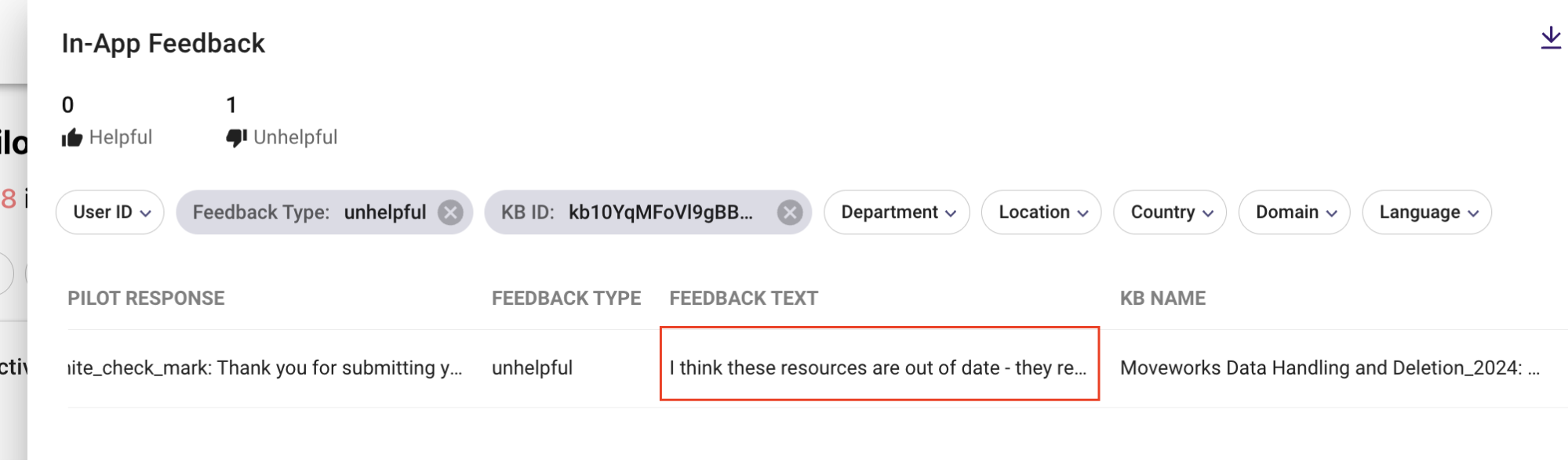
In addition, you can also download the table into an Excel or BI tool, and group the feedback by article names. If there is one particular article that received a lot of negative feedback, that’s a good signal to update it.
What HR (or any other domain) questions did my users ask about?
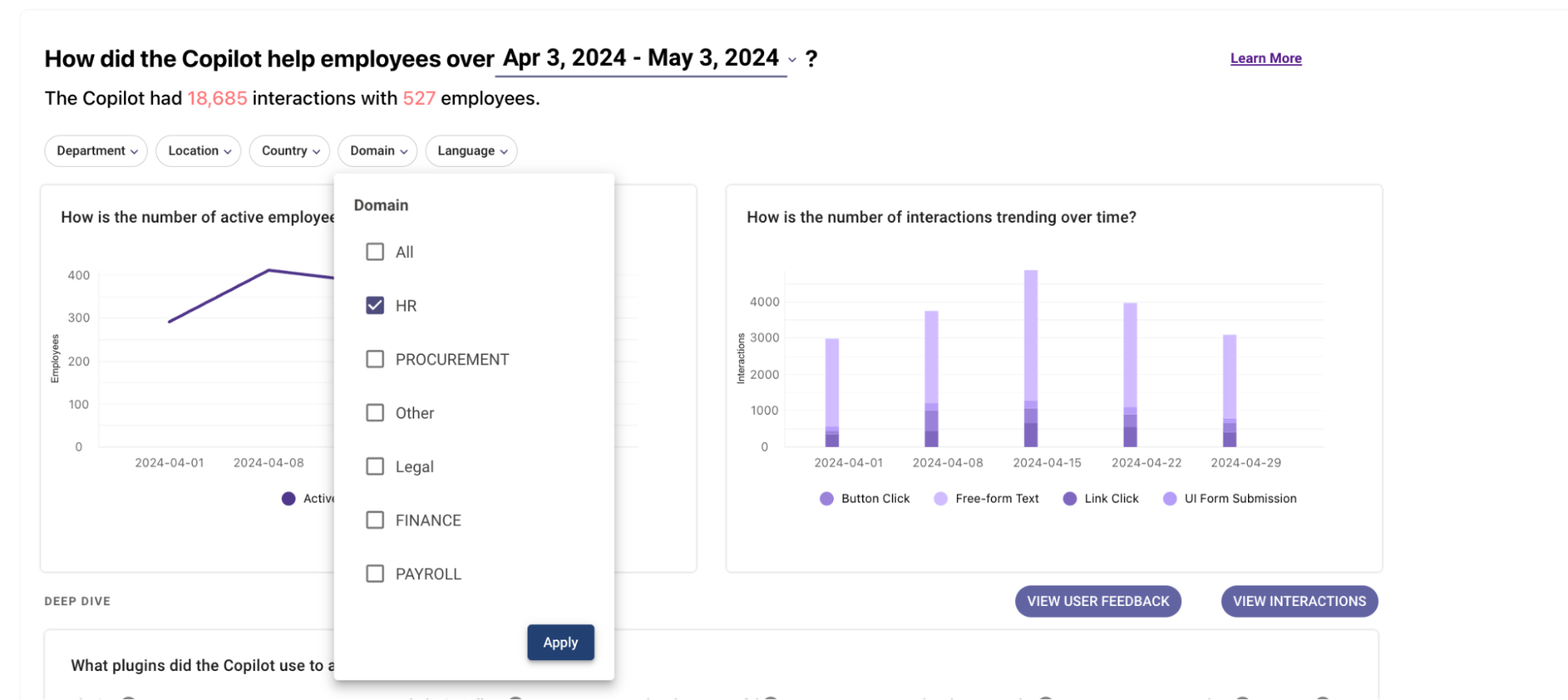
You can narrow down the users’ questions with the “Domain” filter. There is a global filter which allows you to apply the filter to every chart on the dashboard, like illustrated below.
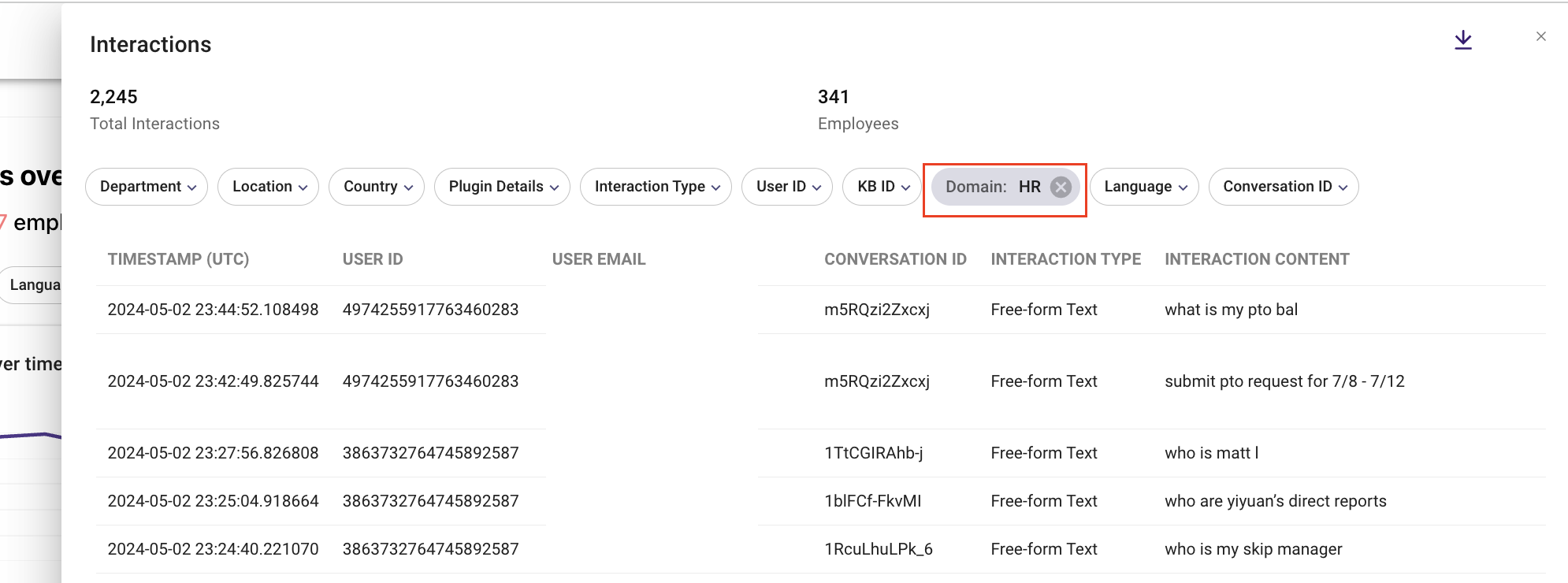
Or, you can apply filters directly to the “View Interactions” and “View User Feedback” tables.
Download raw interactions data and feedback data
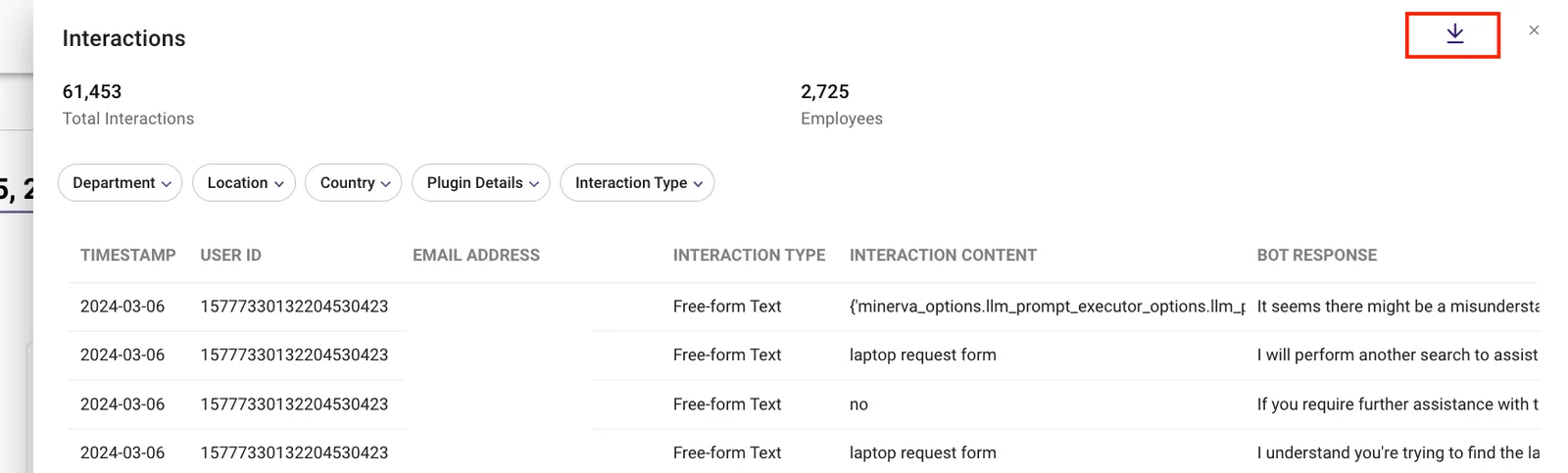
Click on the download button on the top right corner to download the table as a csv file for more in-depth analysis. The export supports up to 200K rows, and you can queue multiple exports simultaneously. See Raw Interactions for details.
What did my user ask in the entire conversation?
If you see an interaction that is potentially from a multi-turn conversation, you can download the raw data tables and group interactions with “Conversation ID”. This allows you to see all interactions associated with that conversation. Then, sort the interactions by “Timestamp” to view the interaction in time order.
What links did my user clicked on?
When an end user clicks a link, it is recorded as an interaction in AI Assistant analytics. This gives insight into the actions users take after receiving a summarized response from the AI Assistant.
There are two types of link clicks recorded in analytics:
- Internal Link Clicks: These are links that navigate within the Moveworks domain. Examples include handoff links, citation links, user profile links, etc.
- External Link Clicks: These links direct users to systems outside of Moveworks. Examples include ServiceNow ticket links, SharePoint site links, etc.
Moveworks does not record the specific URLs for internal link clicks within its domain, such as when accessing the handoff popup. To enhance readability, we present these as user-friendly labels. The table below outlines all scenarios and their corresponding labels:
External URLs are recorded in their original format and added to the interactions table. For example: https://abc.servicenow.com/KB12312.
Ticket details in AI Assistant insights
Ticket are filed through the AI Assistant in the following two scenarios
- User has accessed handoff to file a ticket or directly ask the AI Assistant to file a ticket. This is referred as user initiated ticket
- Moveworks AI Assistant has filed the ticket on behalf of the end user to track account unlock request, software access request etc. This is referred as AI Assistant initiated ticket
AI Assistant insights covers ticket details on both of the scenarios. There are 3 different data points which reflect ticket details.
- Ticket ID - This reflects the ticket number that was filed during the conversation. This data is only populated at the interaction turn where a ticket was filed and the subsequent form submission by the end user.
- Ticket URL - This reflects the ticket service portal URL. This is hyperlinked with the Ticket ID.
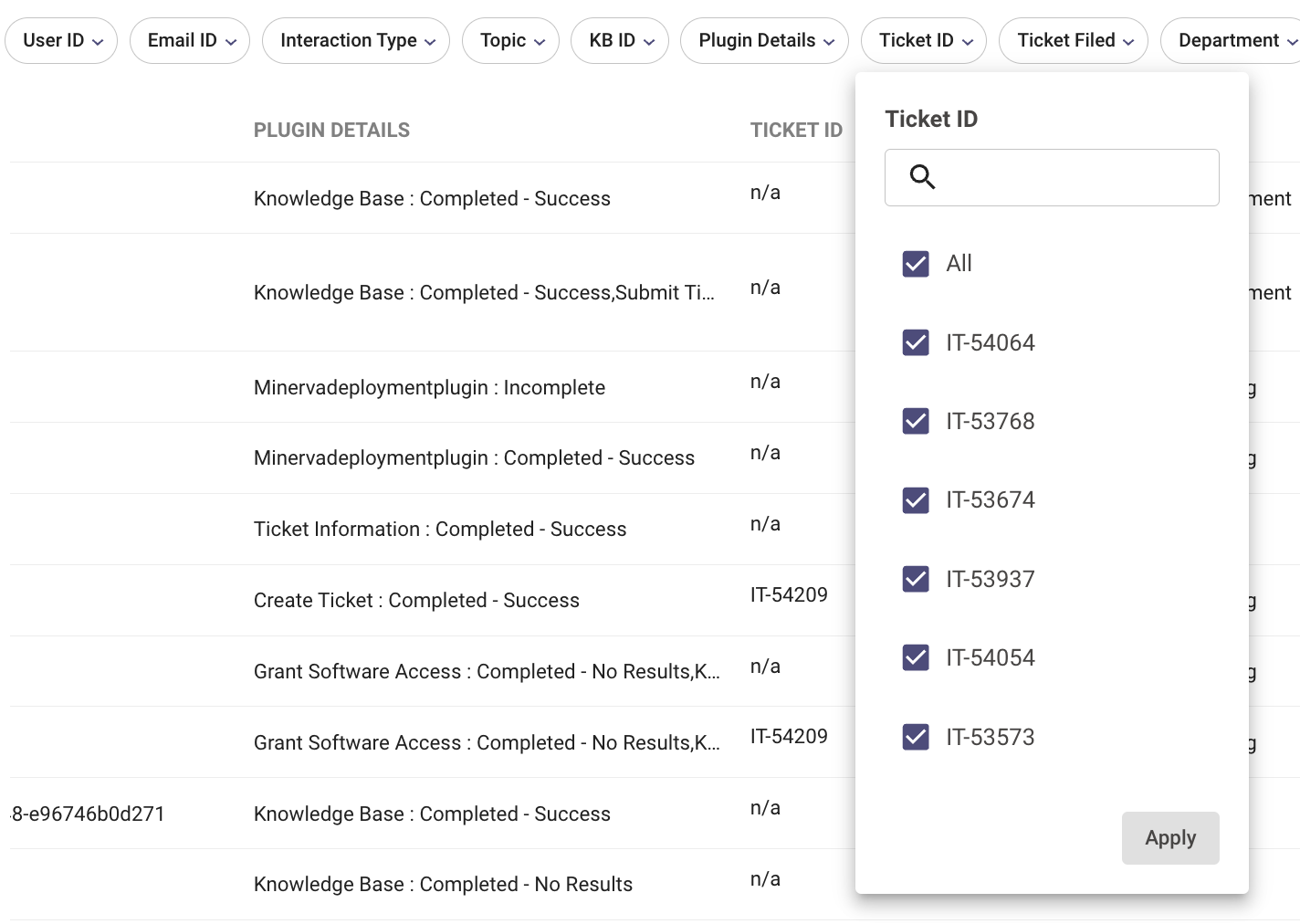
- Ticket filed - This reflects the scenario, either user filed the ticket by clicking on get help or directly asking the AI Assistant to file a ticket - Moveworks AI Assistant has filed the ticket as a receipt to track access requests. This data is populated in all interactions belonging to conversation where a ticket was filed.
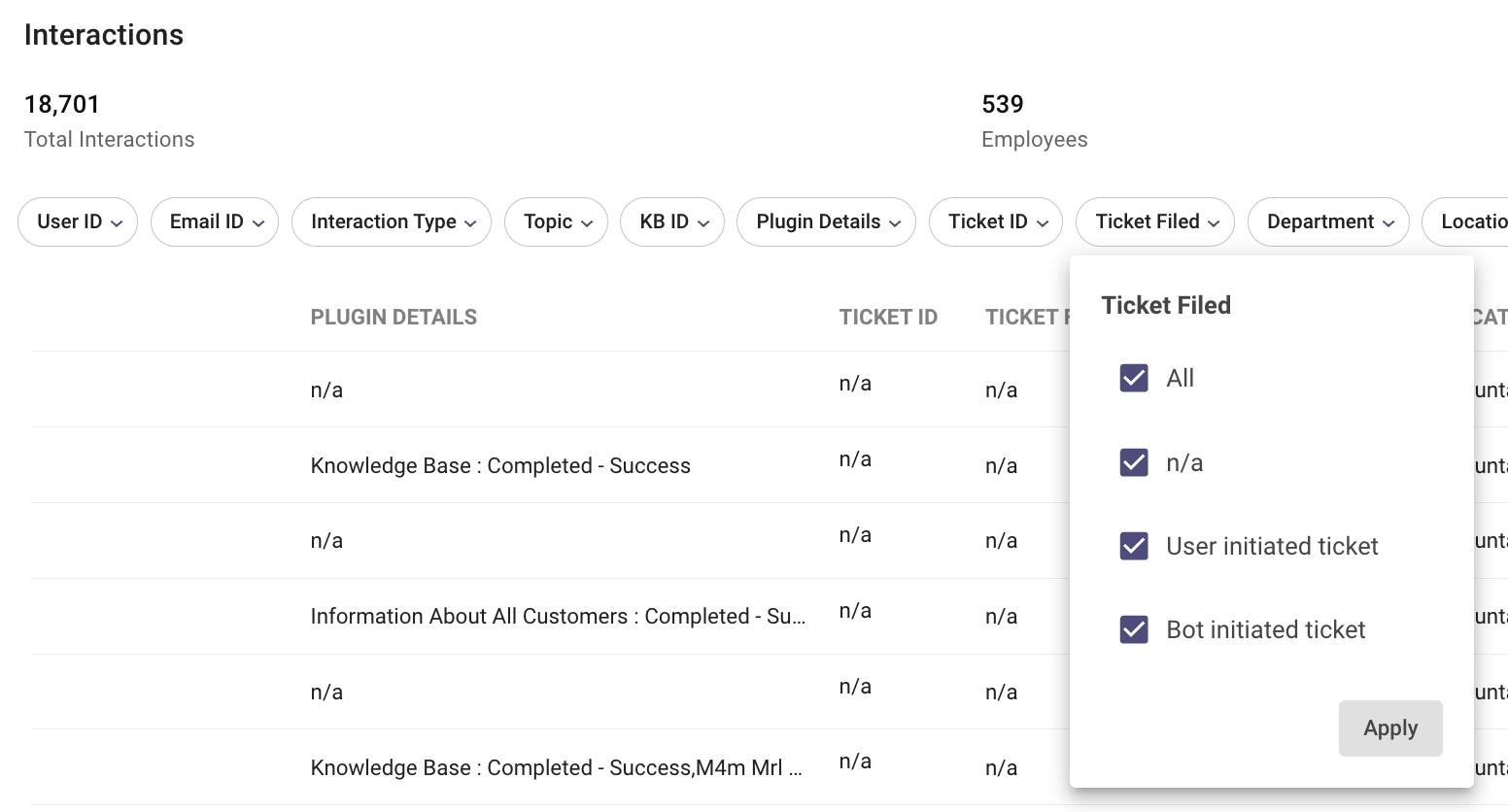
How to find all conversations where a ticket was filed by the end user
To find all interactions and conversations where a ticket was filed by the end user. Please use the “Ticket filed” filter. Deselect the “All” option and click on the “User initiated ticket” option. This provides all interactions of all conversations where a ticket was filed by the end user.
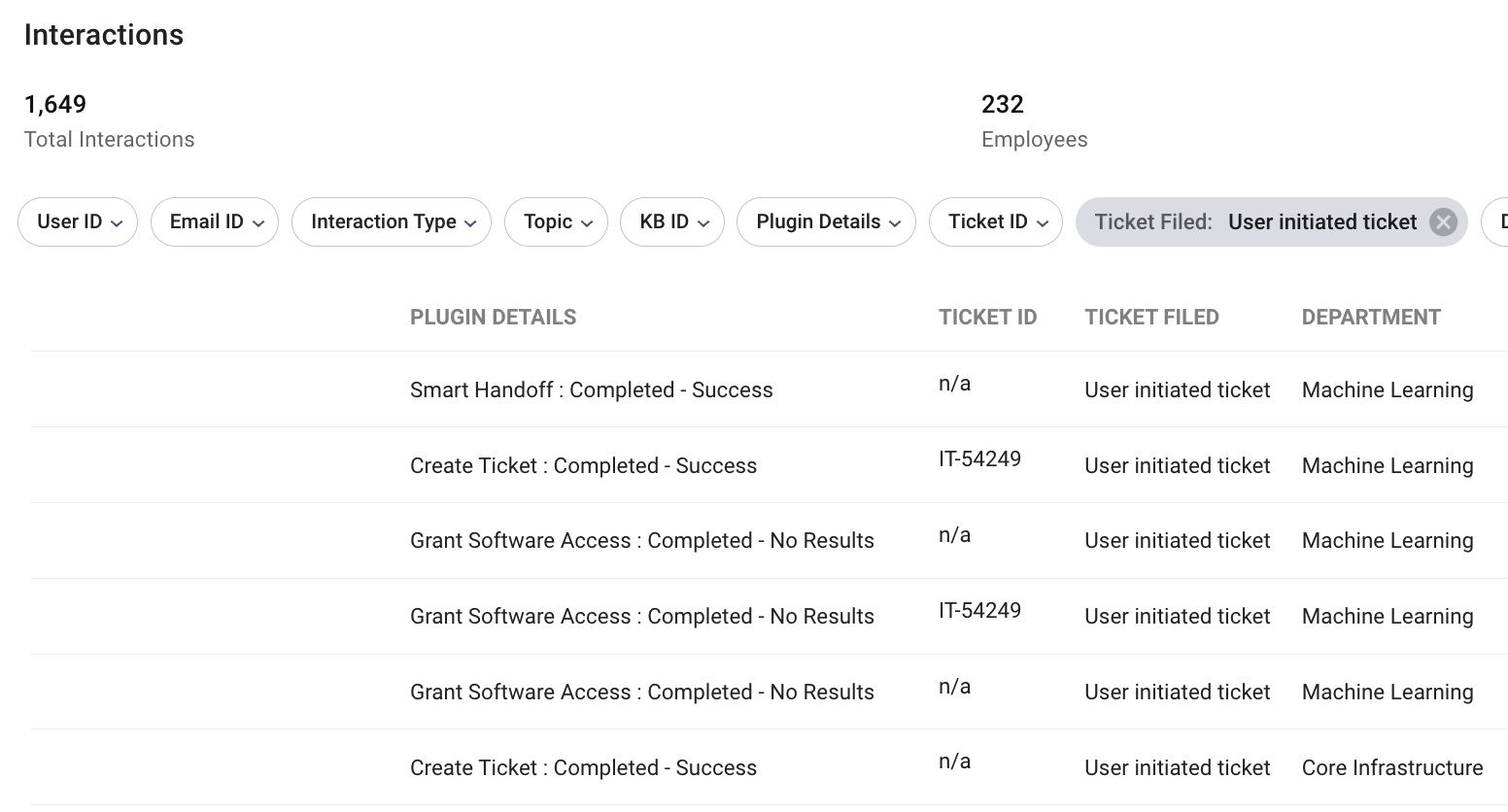
How to find all conversations where a ticket was filed by the AI Assistant as a receipt
To find all interactions and conversations where a ticket was filed by the bot. Please use the “Ticket filed” filter. Deselect the “All” option and click on the “AI Assistant initiated ticket” option. This provides all interactions of all conversations where a ticket was filed by the bot.
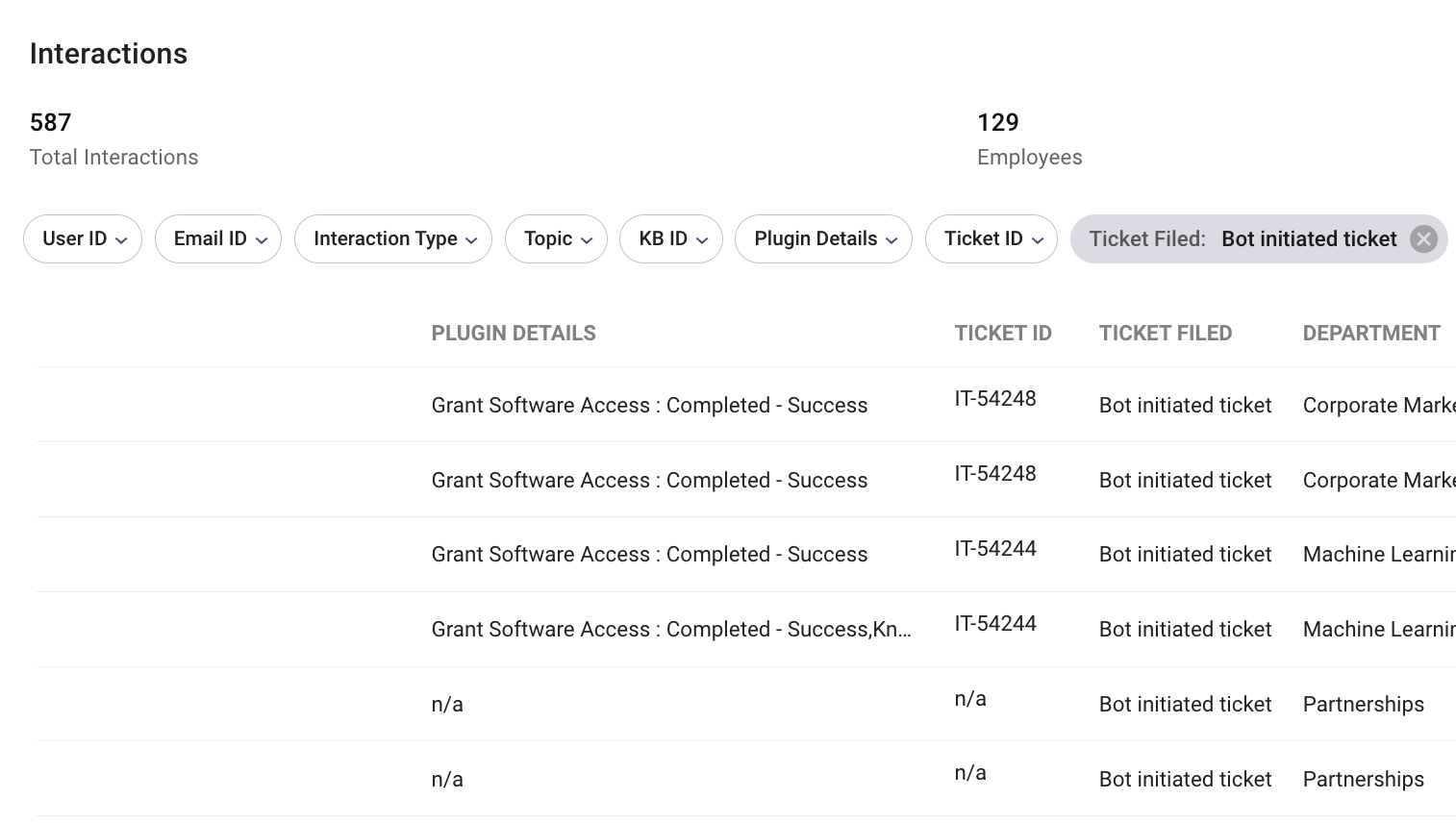
Understanding a conversation where a ticket was filed
Let’s go through an example conversation where a ticket has been filed. For demonstration purposes we will leave out few columns from the interaction table. Please note all of the interaction rows in this demonstration are sorted by timestamp field in a descending manner.
What are the dimensions of the tables?
View Interactions
View User Feedback
How to get access to AI Assistant Insights?
Customers who are in Moveworks AI Assistant Limited Preview/Preview will have access to the AI Assistant Insights dashboard.
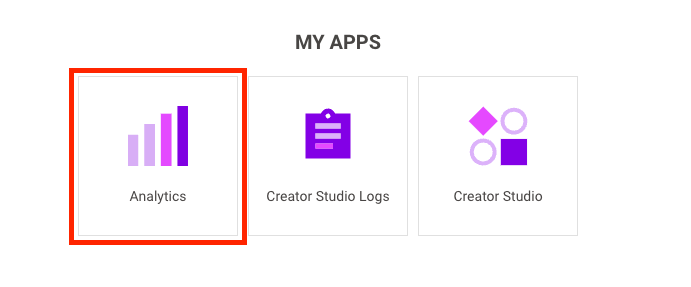
To access AI Assistant Insights, login to my.moveworks.com, click on “Analytics”, and click on “AI Assistant Insights” on the left panel of the dashboard.
To add more viewers for AI Assistant Insights, please follow the steps outlined here Manage Roles and Permissions.
Commonly asked questions
Q: What is the data retention policy applicable on AI Assistant insights dashboard ?
A: Today, we do not have a default data retention policy applied on the AI Assistant insights dashboard. All conversations data will be available since the AI Assistant launch in your organization.
Q: What is the data refresh policy on this report?
A: AI Assistant conversation data is processed on a daily basis and is updated by 4:00 PM (PT) every day for the previous day’s data.
Q: When is the data available in analytic dashboards?
A: Data will be available in the Moveworks Analytics portal at 4pm PT for reporting on the previous day’s data e.g. data for 12/1 will be available by 12/2 4pm PT.
All Moveworks data is processed based on UTC timezone. Taking 2024-05-10 data as an example (which means on dashboards, the data has dt = 2024-05-10) , the following table shows from each region’s perspective, what local time range’s interactions are included, as well as the SLA from local time zone perspective.
In summary, SLA of reporting data for each UTC day is set at 23 hours after that UTC day ends.
Q: Why don’t I see approvals in Analytics?
A: Note: Approval notifications & other proactive notifications are not included in analytics.
Q: What is the SLA for Data API to provide new data in the API response ?
The Data API follows a 24-hour SLA, consistent with the Moveworks Analytics platform. The table below outlines the expected SLA for our analytics pipelines. Please note that this SLA is subject to change based on the timing of the latest analytics pipeline run.