
Microsoft Teams Secret Rotation Guide
If your organization uses the non-AppSource approach to deploy your Microsoft Teams bot, Moveworks leverages an Azure AI Assistant resource tied to a Client Secret in order to authenticate to your Microsoft tenant. These client secrets expire at a certain interval with a maximum life of up to 2 years.
If your Microsoft Teams Client Secret, secret is coming up on the end of its expiration period, this guide will walk you through the process of rotating the secrets in Moveworks Setup and completing the Rotation.
Overview of Steps
- Access the AI Assistant App in Azure, and Generate a new Secret.
- Updating the new Secret in Moveworks Setup in the below paths :
- MSGraph Connector which connects to the Azure App
- Chat Bot Configuration which enables the Assistant on Teams.
Find your Azure AI Assistant or AI Assistant Channel Registration in Azure Portal
-
Navigate to Azure Portal at https://portal.azure.com/#create/Microsoft.AzureBot
-
Search for your bot-name or moveworks in the Azure Portal Search like this

-
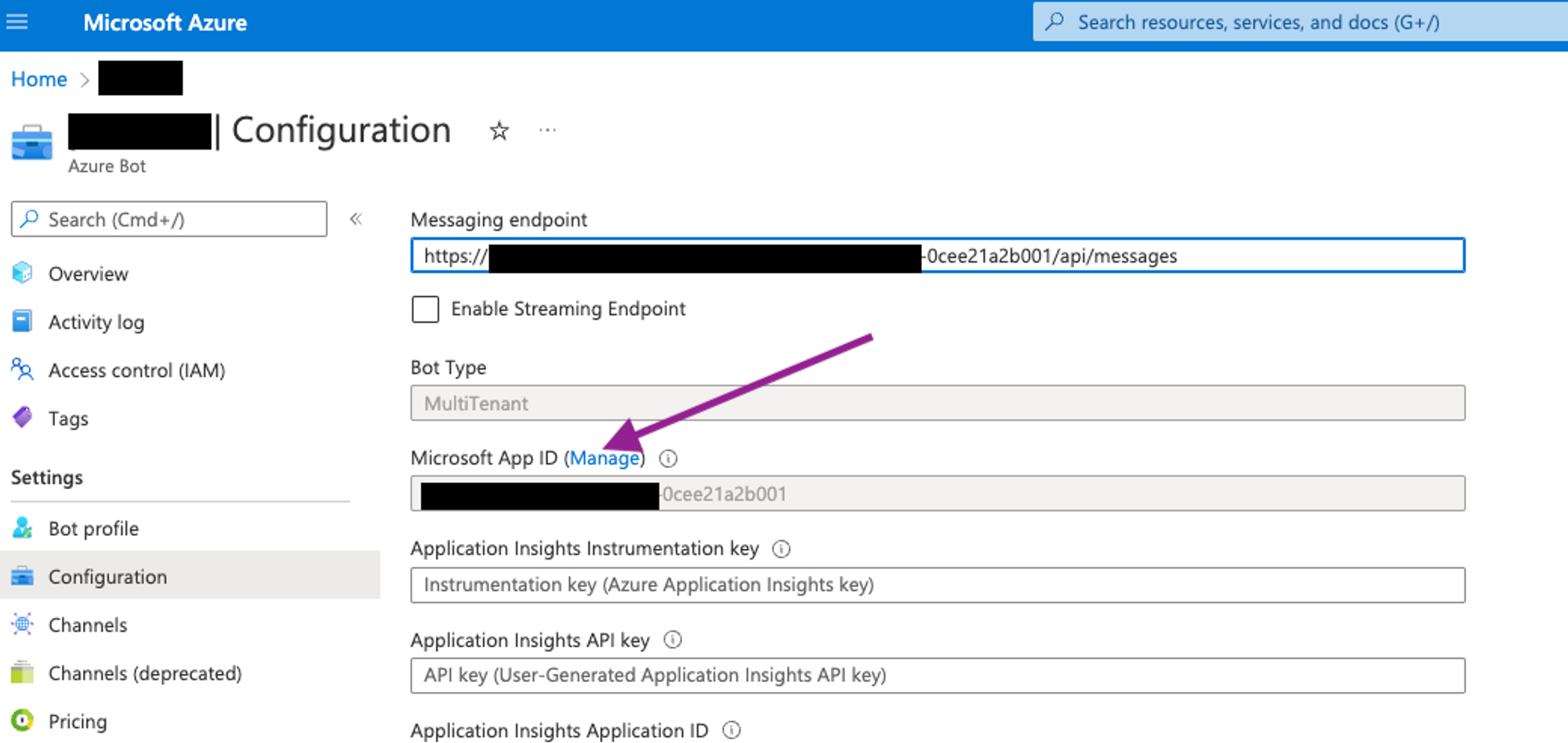
Once you find the resource, navigate to the
Configurationsection and click on theManagebutton as shown
Generate Secret
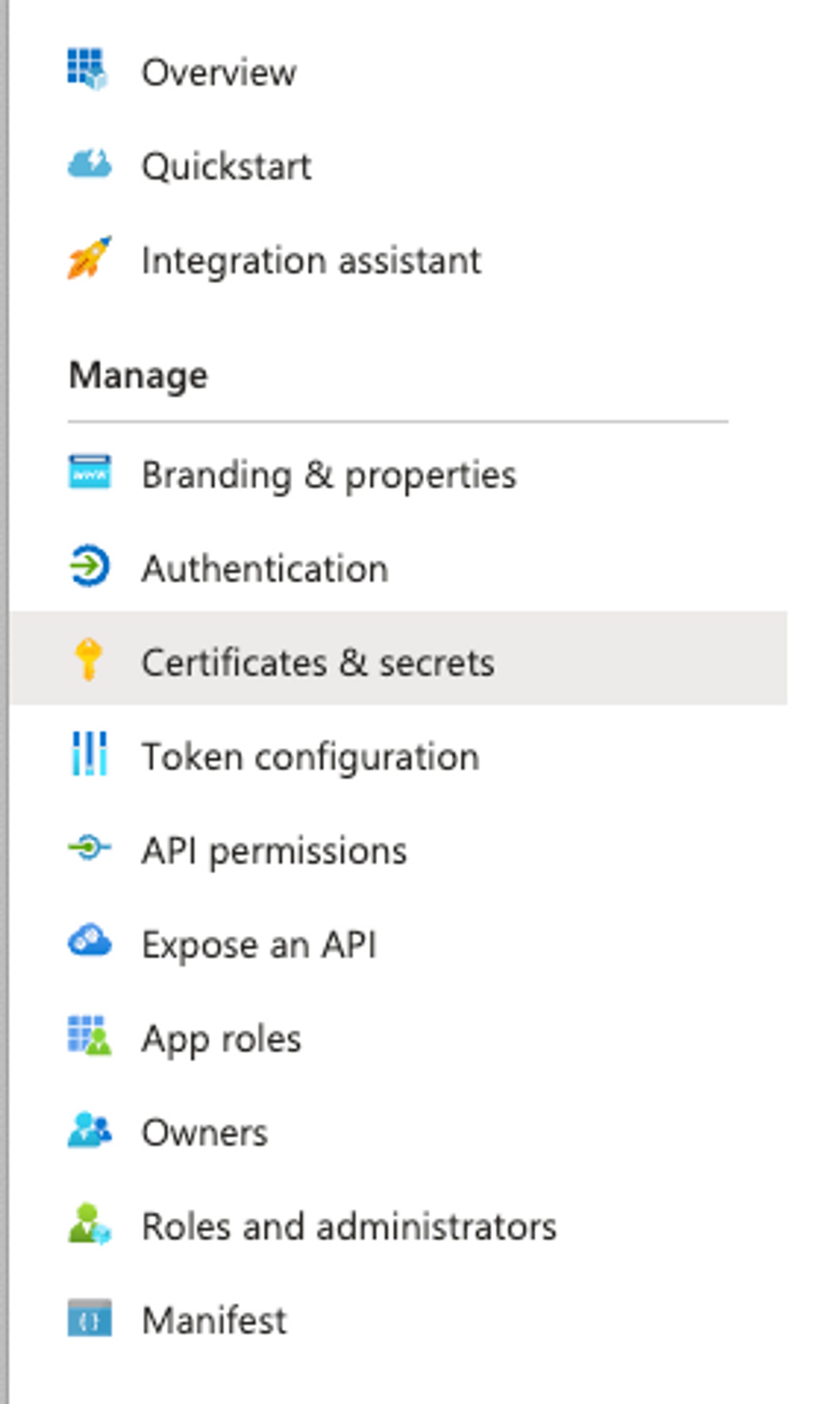
- Click on Certificates and Secrets on the left hand pane.
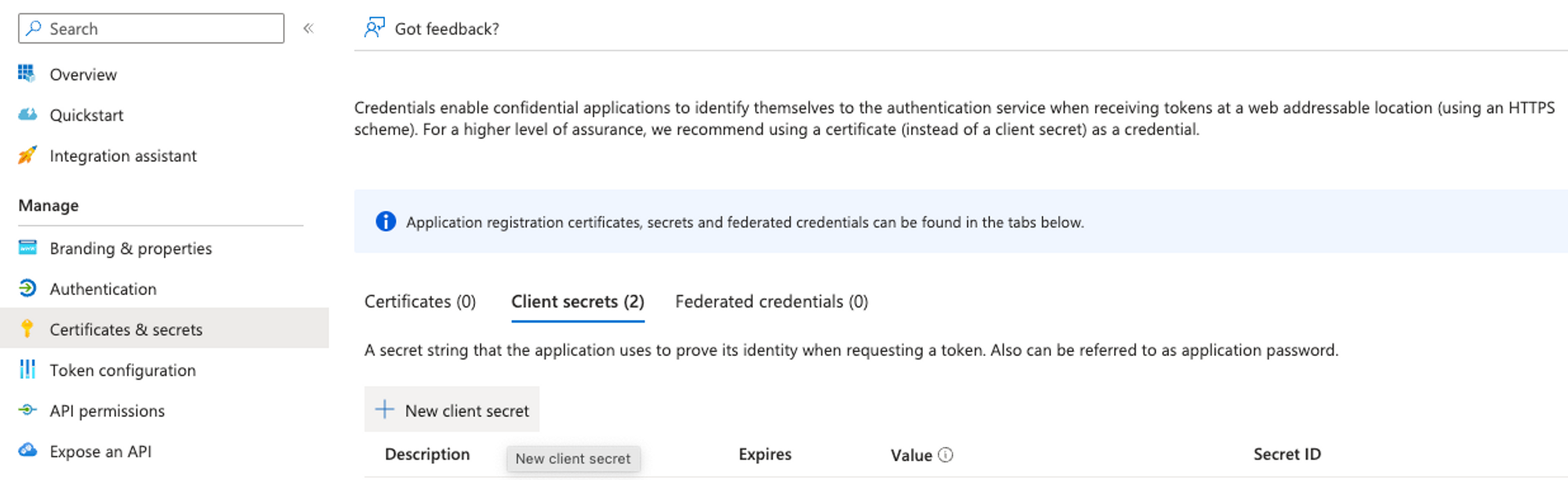
- Under Client Secrets select New client secret
- Enter a name such as “Moveworks Bot” and set the expiration for as long as possible. Please note date of expiration internally so it can be changed before expiration later.
Updating the Secret in Moveworks Setup
Now that we have generated the new Secret, we will first need to update it in the Chat Bot Configuration you can find this by navigating to the Chat Platforms > Manage ChatBots config.
-
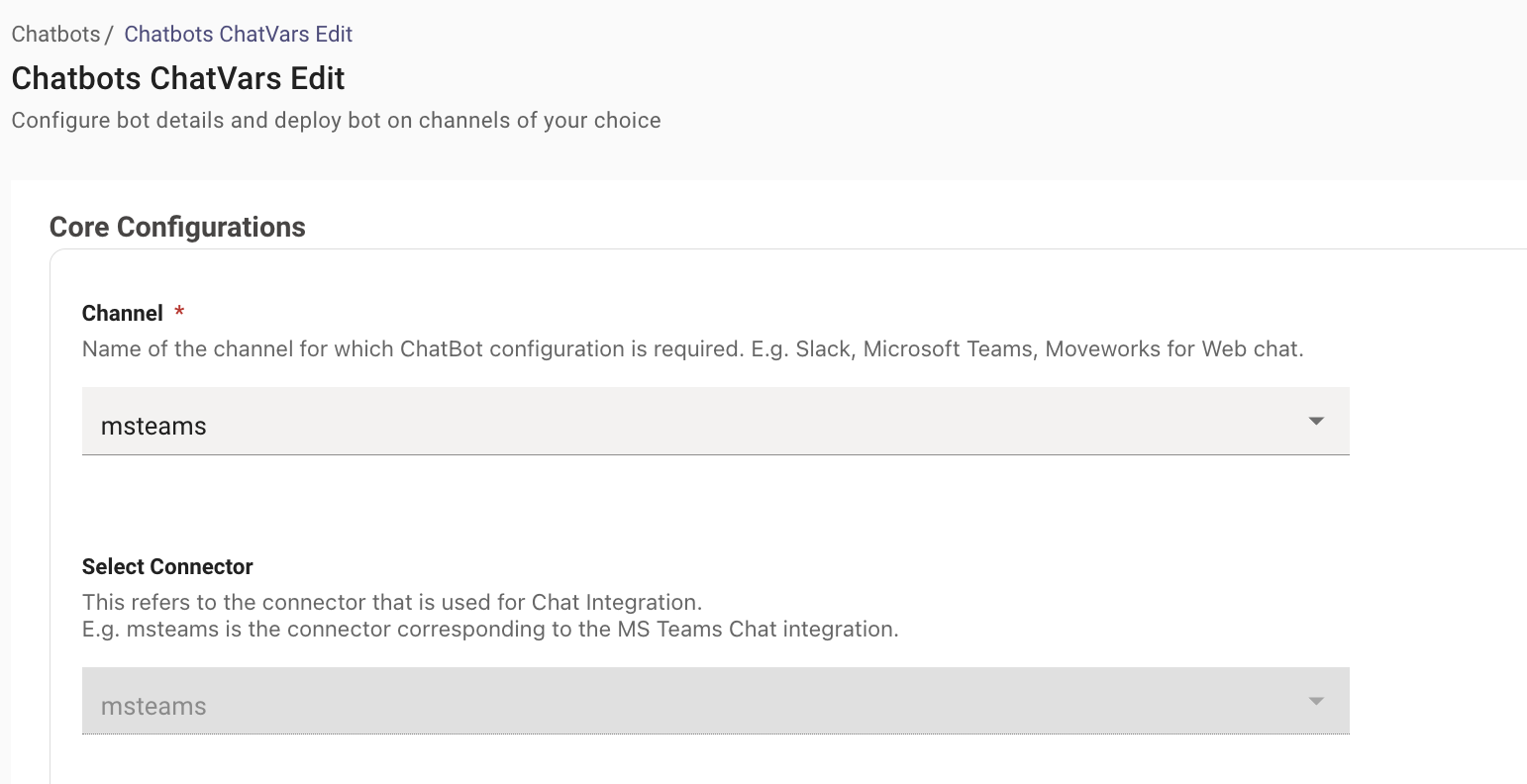
Here you find the Teams Bot config Listed on the Page. If you are unsure of which config to look for, try viewing which connector is being used by the Chat Bot Configuration, if its teams you are in the right one.
-
If you have multiple Teams Assistants, then try to find the App ID in the config which will match the App ID in Azure where we generated the new Client Secret. Below is where the new Client Secret will be updated.
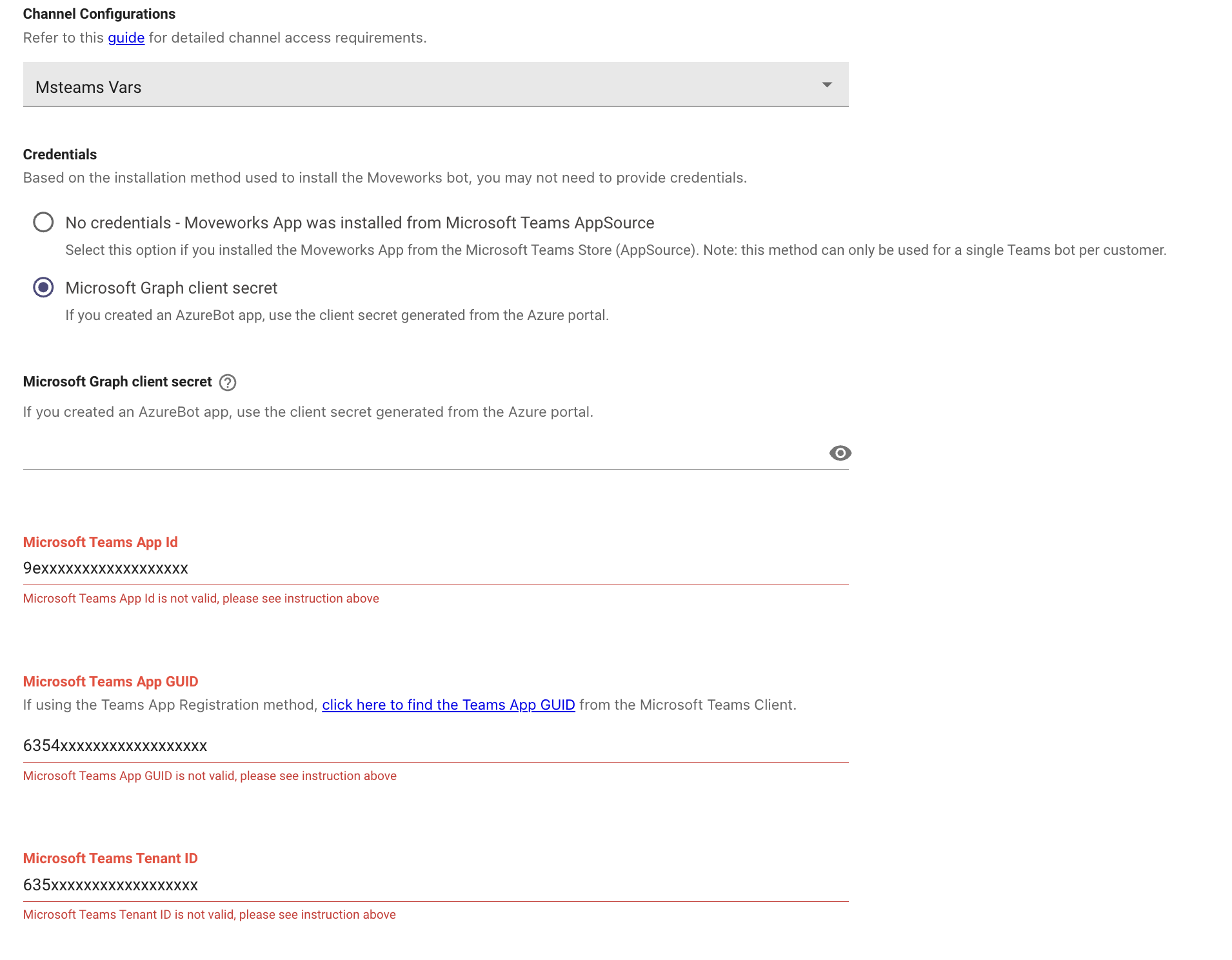
-
Save the Config !
The next configuration we need to update the Client Secret in, is going to be the MSGraph Connector which is responsible for ingesting the User Identity Information from the same App ID as the one in Azure.
-
You can find the connector by Navigating to Connectors > Built-In Connectors under the Core Platform Module
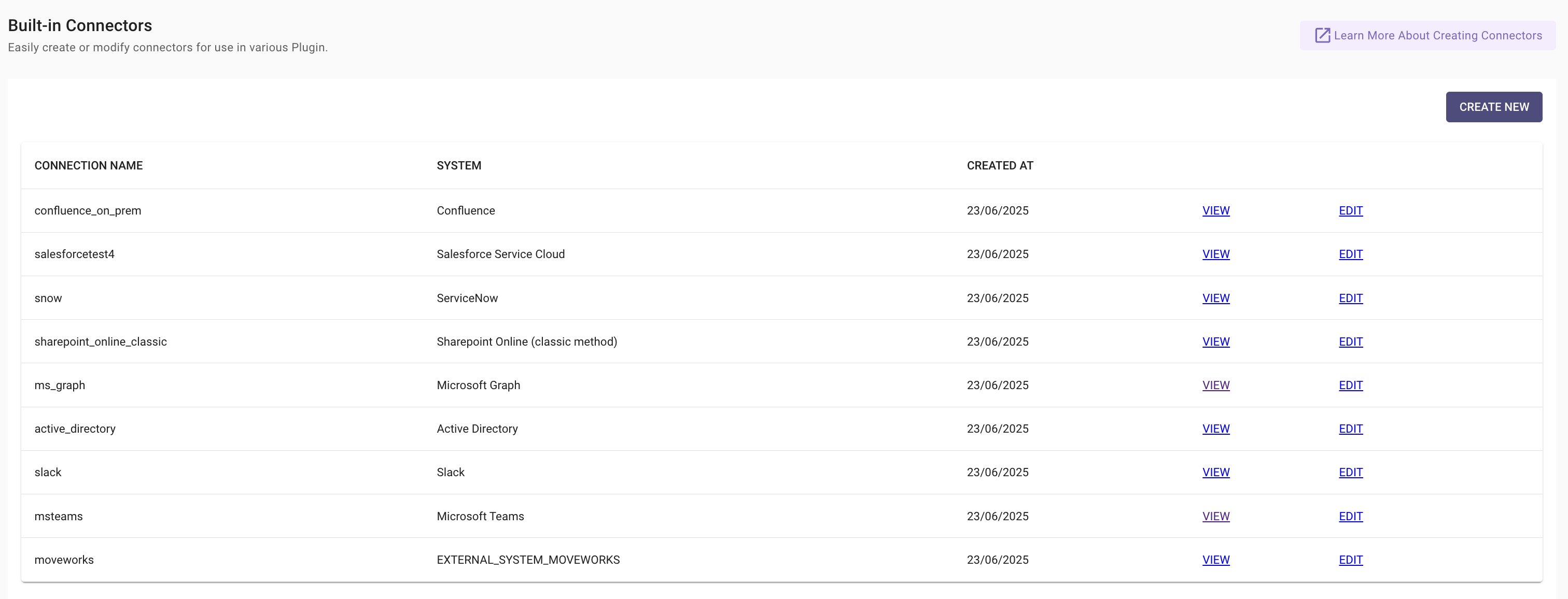
-
Click on Edit next to your MSGraph Connector. Here you will need to update the Client Secret but please ensure this is for the same App Id as the one in Azure.
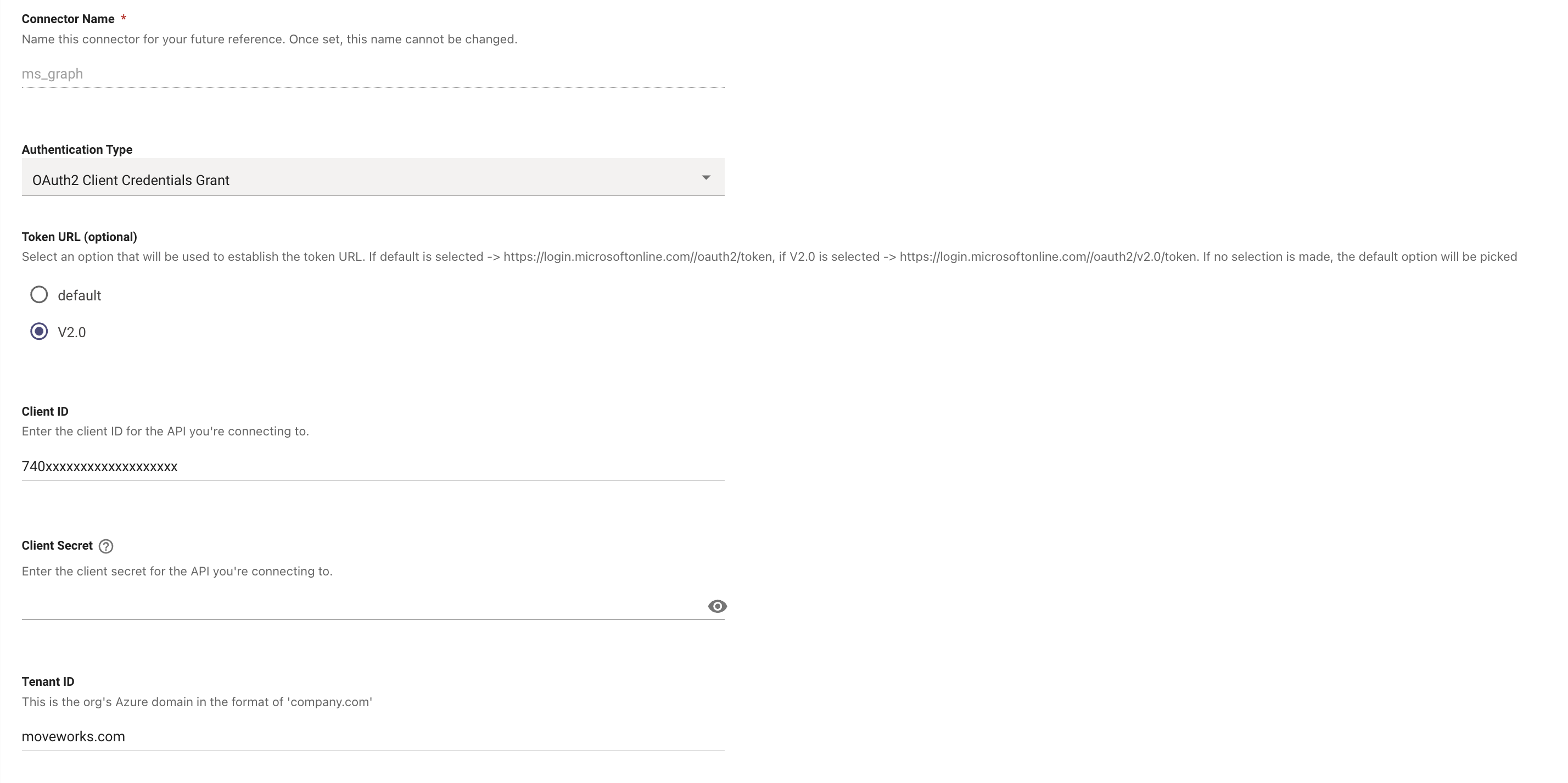
-
Save this config !
We have now successfully rotated the Credentials for the Moveworks AI Assistant in Teams. If you run into any issues please reach out to the Moveworks Support Team.