
Confluence (Cloud) Setup for Enterprise Search
This page is for the Confluence (Next Gen) connector for Confluence Cloud and it can only be configured within the new enterprise search configuration experience explained below.
Currently, the new experience is only available for Confluence Cloud. For Confluence Data Center (Confluence On-Prem), please reach out to your customer success manager.
Please visit this documentation to learn more about Max Capacity and Classic connectors.
System Overview
Confluence Cloud is Atlassian’s collaborative workspace that enables teams to create, organise, and share knowledge at scale. From an enterprise search perspective, it serves as a central knowledge repository, where content is structured in spaces and pages, making it a key source of organisational knowledge to index and surface in Moveworks’ enterprise search.
Max Capacity always auto-generates this system’s permission configuration. It also auto-generates the user identity configuration, but only when your organization already has an identity configuration and its joining key resolves to an email address (the joining key is the email itself, or a non-email key such as an employee ID is mapped to the email field of your primary identity source). If either condition is not met, only the user identity configuration is skipped — your Max Capacity setup is not blocked. User identity is a separate, independent configuration you can complete before or after connecting this system. See Configure User Identity.
Authentication
Moveworks supports two authentication methods. You will configure one Confluence connector using either method based on your requirements.
Forge App Method (Recommended)
Uses the Moveworks Forge App installed via the Atlassian Marketplace to securely access Confluence data.
- Installed directly at the Confluence site level via the Atlassian Marketplace with admin approval.
- Public spaces are ingested by default; restricted content is ingested only when the app is explicitly granted access.
- Reduces operational overhead by avoiding manual user provisioning, credential rotation and access management
- Ensures a more secure integration model by avoiding exposure of static credentials (such as API tokens)
- Aligns with Atlassian’s recommended app development and authentication framework for cloud integrations
Service Account Method
Uses a dedicated Confluence user with API token-based authentication to access Confluence data via REST APIs.
- Requires creation and management of a Service Account (email address) within Atlassian
- Requires generation and secure storage of an API token, which is used for Basic Authentication
- The Service Account must have read (view) access to all Confluence spaces where end-user knowledge articles reside
- Access to restricted pages, blog posts, and attachments depends on whether the Service Account has been explicitly granted permission
- Introduces additional operational overhead due to dependency on manual access management and credential handling
Moveworks recommends using the Forge App Method as it provides a more secure and scalable integration aligned with Atlassian’s platform direction.
While the Service Account Method continues to be supported, organizations are encouraged to adopt the Forge-based approach. Over time, Service Account–based authentication will be phased out in favor of platform-based methods to align with Atlassian’s security and compliance standards.
Permissions Enforcement
- Moveworks honours all user access controls, ensuring that individuals only see search results for content they are permitted to view.
API Usage
- Moveworks uses Atlassian’s standard REST API for Confluence to ingest all data
Content Types
The Confluence connector for Moveworks supports the following content types:
- Pages: All Confluence pages within accessible spaces
- Blog Posts: All blog posts within accessible spaces
- Attachments: Files attached to pages and blog posts
- Supported file formats:
- Forge App: PDF
Some PDF files may fail to download during ingestion. The root cause is under investigation, and Moveworks is working with Atlassian to resolve this and improve attachment support.
- Service Account: PDF, doc, docx, ppt, txt, html
- Forge App: PDF
- Macros: Wide range of static and dynamic macros
- Restricted Pages:
- Forge App: Available if the app is explicitly granted access
- Service Account: Available if shared with the service account
Moveworks delivers comprehensive data coverage—including metadata, identity data, permissions data, and activity data—and keeps content in sync in real time, ensuring that updates and permission changes are immediately reflected in search results.
Pages and blog posts with no body content are excluded from ingestion and will not appear in Moveworks search results. This includes pages used as section containers, placeholder pages, or any page that consists only of a title with no written content.
Ensure that every page or blog post you want to be searchable has at least some text in the page body in Confluence.
Permission Requirements
All access is read-only — Moveworks never creates, edits, or deletes content in your Confluence instance, and restricted spaces and pages remain restricted in search results.
Forge App Method
The Moveworks Forge App is installed at the Confluence site level. Public spaces are ingested by default; restricted content is ingested only when the app is explicitly granted access.
Service Account Method
Moveworks requires a Service Account with read access to your Confluence spaces. Only content the Service Account can read is ingested.
For the Service Account Method, access is authenticated using Basic Auth with the Service Account’s email and an API token you generate in Atlassian account settings.
The Service Account must have access to every space you want indexed, including restricted spaces. Any space it cannot access will not be ingested.
Connector validation confirms your credentials work at the site level — it does not verify access to the specific spaces you select for ingestion. If the Service Account is missing View permission on a space, validation still passes and that space is silently skipped during ingestion. Use your list of target spaces (see Pre-requisites) to verify View access before starting ingestion.
Access Requirements
Moveworks supports two authentication methods for connecting to your Confluence instance—Forge App Method and Service Account Method.
- Forge App Method simplifies setup and improves security by eliminating credential management
- Service Account Method provides explicit access control via a dedicated user
Choose the method that best aligns with your organization’s requirements.
Pre-requisites
Before you get started, make sure you have everything you need:
- Admin permissions
- Org/Site admin access in Atlassian Admin to perform the following based on the selected authentication method:
- Forge App Method: Install and authorize the Moveworks Forge App at the Confluence site level
- Service Account Method: Create or invite a Service Account user and assign a Confluence license
- Space admin access (or help from the space owners) to give the service account view permissions across the spaces you want to index.
- Org/Site admin access in Atlassian Admin to perform the following based on the selected authentication method:
- Environment details
- (For Service Account Method) The base URL of your Confluence instance—for example:
https://<your-site>.atlassian.net/wikiif you’re using the standard Confluence Cloud setup.
- (For Service Account Method) The base URL of your Confluence instance—for example:
- List of spaces to ingest
- Put together a list of all the Confluence spaces you want Moveworks to index, including any with page restrictions. This makes it easier to give the service account “View” access to all of them in one go.
Forge App Method Setup
Install and configure the Moveworks Forge App by following the steps below. You can also refer to the setup video for a guided walkthrough.
- Install the Moveworks for Confluence app from the Atlassian Marketplace by clicking the “Get it now” button
- Select the Confluence site where the app should be installed and click Review
- You will be redirected to a new page where a popup “Adding Moveworks for Confluence” appears; installation typically takes 2–3 minutes
- Once installed, a confirmation popup will appear with a “Manage app” button
- If you miss this popup, navigate to:
https://<your-instance>.atlassian.net/wiki/admin/configuration(Replace<your-instance>with your actual Confluence instance name)
- If you miss this popup, navigate to:
- Go to Apps → moveworks-confluence
- Click “Allow access” to authorize the app, then click Accept
- You will be redirected back to the app page where the Webtrigger URL is displayed
Copy the Webtrigger URL and store it securely, as it will be required later.
Configure Shared Secret Key
After retrieving the Webtrigger URL, generate and configure a shared secret:
- Generate a secure string of your choice (you can use tools like: https://secretkeygen.vercel.app/)
- This secret acts as an additional verification layer between Moveworks and the Forge App, ensuring only authorized requests can trigger authentication
- Use the following API to set the secret
- On success, you will receive
Copy and securely store this Shared Secret Key, as it will be required during connector configuration in Moveworks.
Content Access & Ingestion Scope
The Moveworks Forge App is installed at the Confluence site level. Public spaces are ingested by default; restricted content is ingested only when the app is explicitly granted access.
Moveworks ingests pages at the space level. Access must therefore be granted on the space — granting access to individual pages alone is not sufficient, as the app will not be able to fetch page information without space-level access.
Grant the Moveworks App Access to a Restricted Space
- Open the restricted space you want Moveworks to ingest.
- Click the Share button in the top-right corner.
- In the Share dialog’s search field, type Moveworks for Confluence.
- Select Moveworks for Confluence from the dropdown results.
- Assign the appropriate permission level (view access is sufficient for ingestion) and confirm/send.
Repeat these steps for every restricted space you want included in Enterprise Search.
Pages or blogs with their own restrictions
Granting the app access to a space covers all content whose access is inherited from the space (i.e. Open or Restricted by a parent).
However, if an individual page or blog within that space is set to Restricted (“Only specific people can view or edit” — not “Restricted by a parent”), space-level access will not cover it. In that case, you must add the Moveworks for Confluence app explicitly to that specific page or blog as well, using the same Share steps above.
Service Account Method Setup
You’ll need to create a new Service Account within your domain and ensure you have access to its email inbox. This inbox will be used later to onboard the Service Account to your Confluence instance.
Once the initial setup for the Service Account is complete, let’s proceed with the onboarding to Confluence.
- Visit the
https://admin.atlassian.compage and ensure the correct organisation is selected.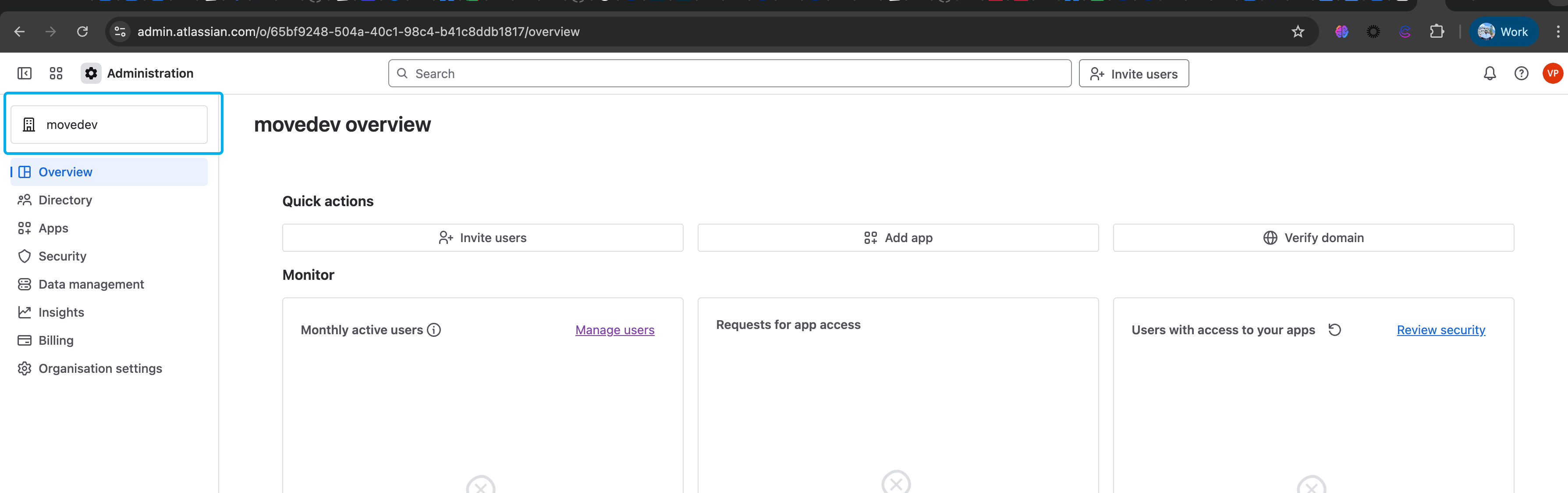
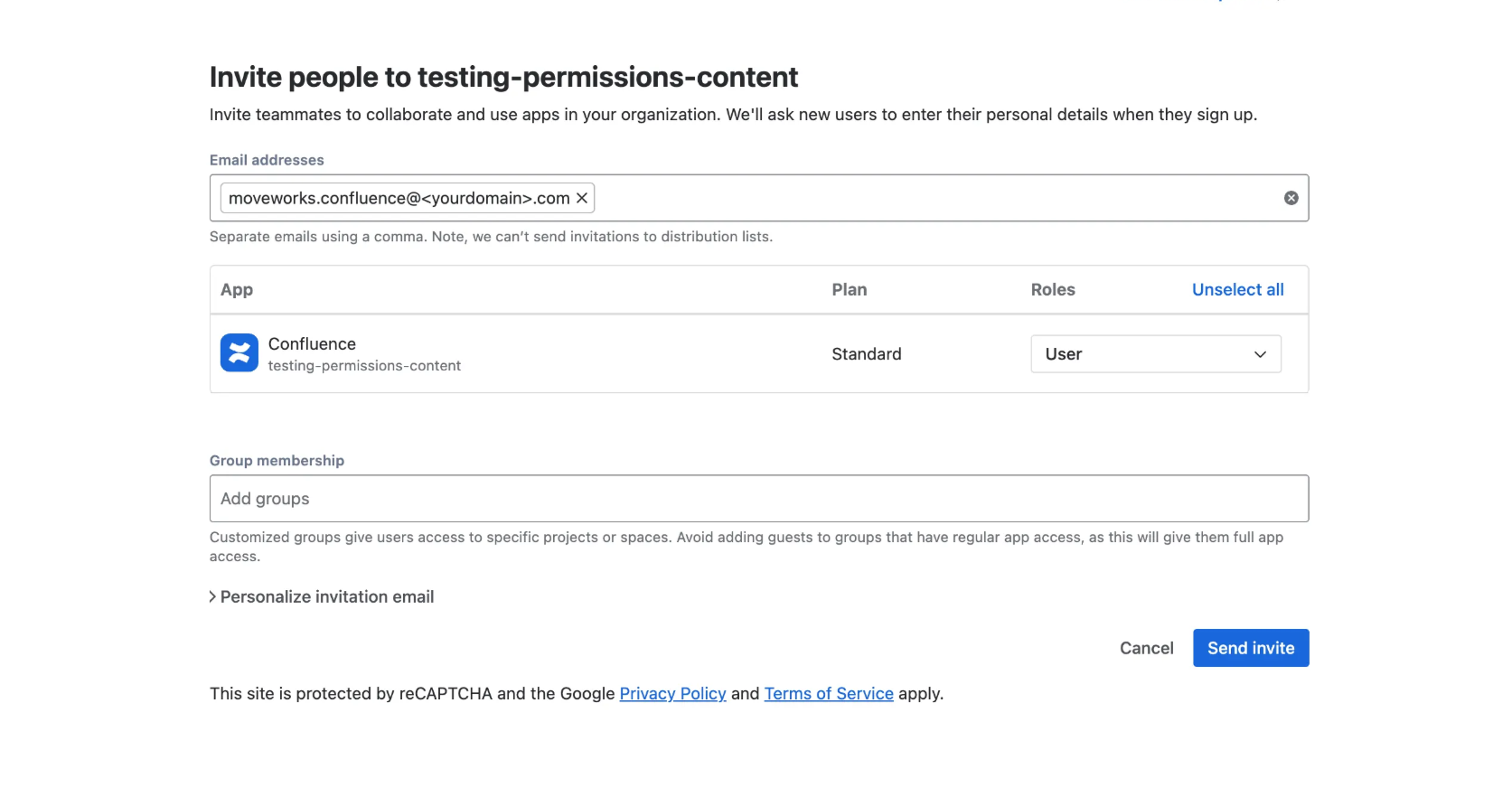
- Navigate to Directory → Users and click on the “Invite users” button. Enter the email address of the Service Account and assign the Confluence application to it. By default, the user will be added to the standard users group in your Confluence instance. If your instance uses a specific group with access to certain spaces, make sure the Service Account is added to that group as well. Click on the “Send invite” button once done.
- Go the Service Account email inbox and accept the invite. This will ask the user to setup the Full name and Password - Complete all the necessary steps. Once done you can now visit this URL :
https://id.atlassian.com/manage/api-tokensas Service Account and generate the API key (Refer to the below section for detailed steps)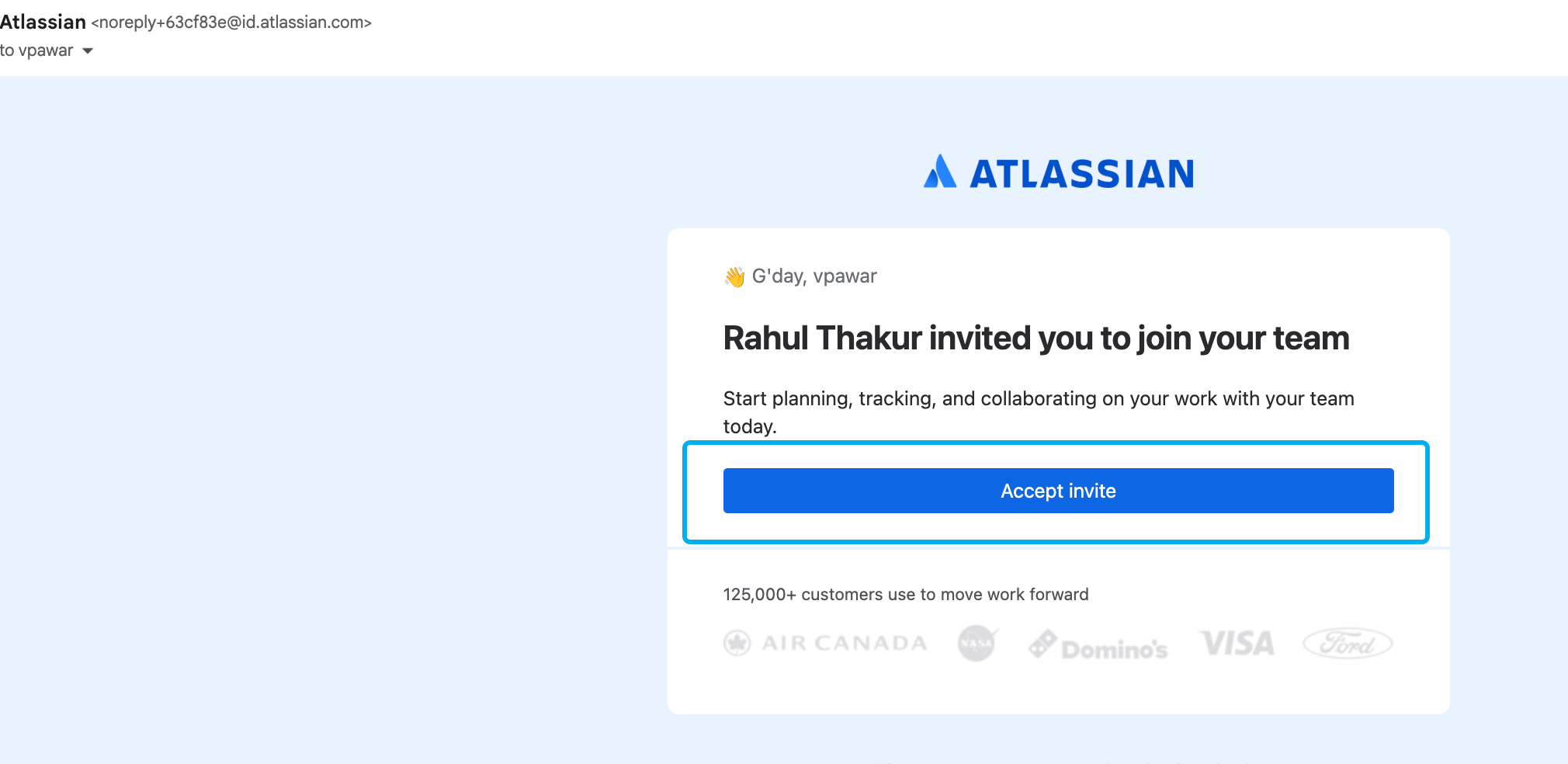
Generating API token
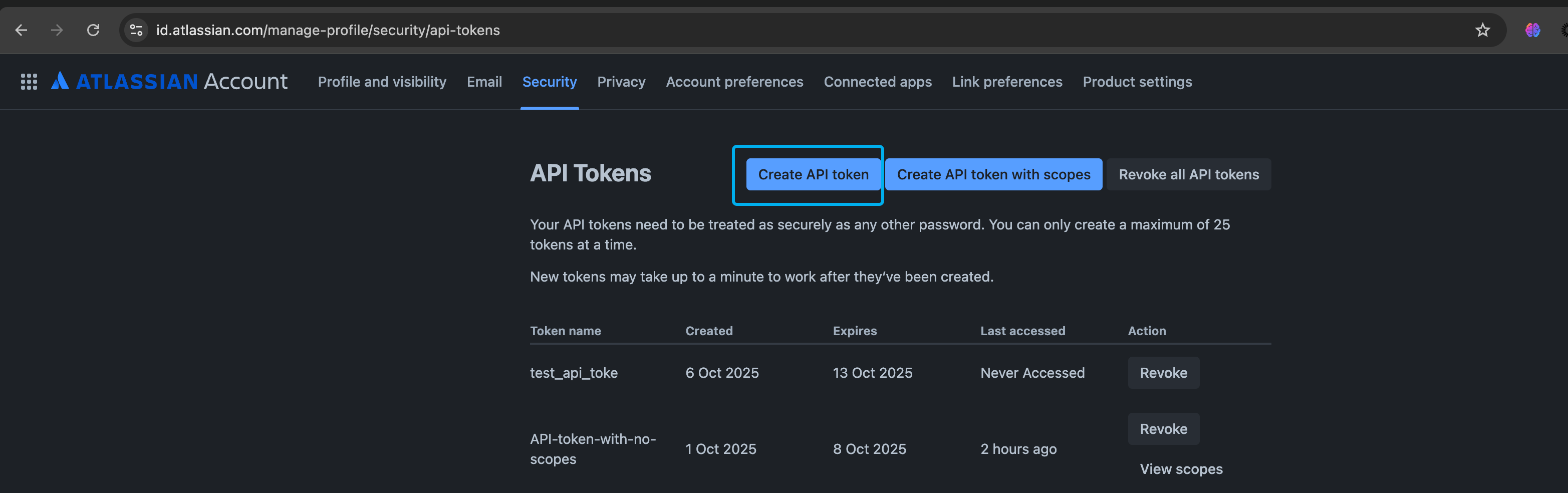
- Log in to https://id.atlassian.com/manage/api-tokens using the Service Account, and click on “Create API token.” This token will be associated with the Service Account in your Confluence instance.
- Once you’ve created the API token, it will be displayed for you to copy and save. Please note that this is a one-time view, so make sure to record it and store it securely for future use.
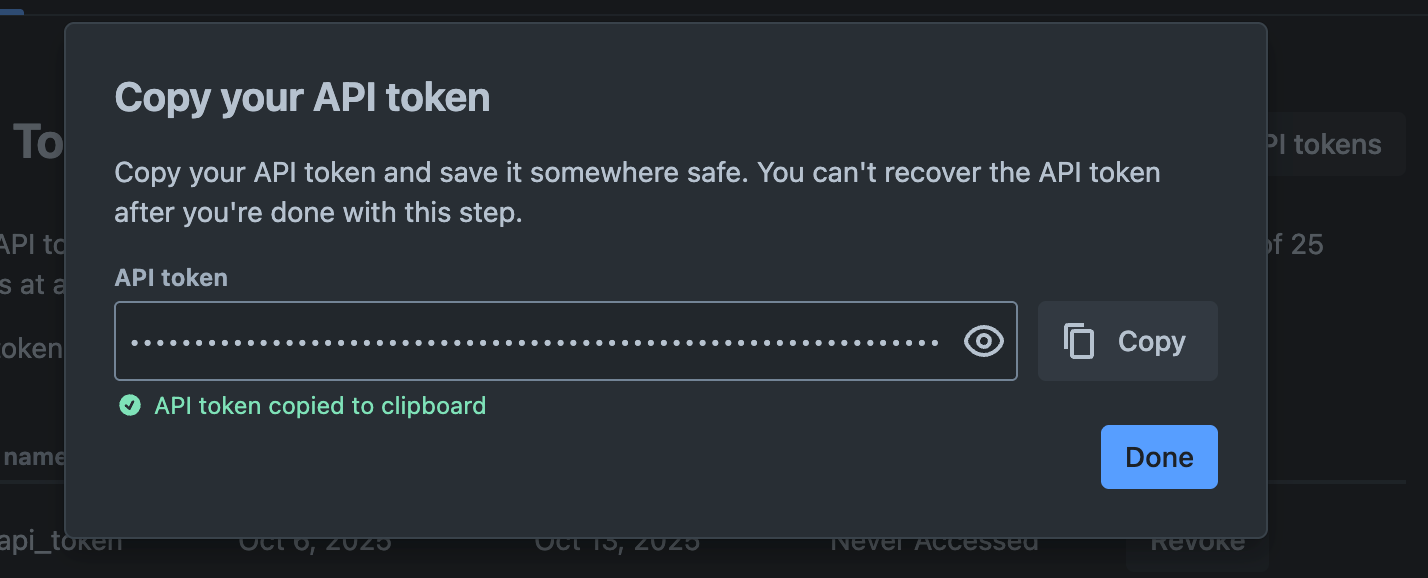
- While creating the connector you will need to use this credential - Record the Service Account email address and this API token.
Testing your generated API token (Optional)
It’s a good practice to verify that your generated token has access to all the APIs needed for Moveworks ingestion. You can do this in Postman or any tool that supports CURL commands. Use Basic Auth for authentication, with the service account email as the username and the API token from the previous step as the password.
- Content
- Permissions
- Once you have successfully hit the content API get a content ID and parse in the following CURL request
- Groups
- Users
Setup in Moveworks
Connector Creation
- Log in to your org’s MyMoveworks portal
- Navigate to Moveworks Setup > Connectors > Built-in Connectors
- Click Create New
- Search and Select Confluence (Next Gen)
- Click on Next: Add Creds
- Choose your Authentication Type and fill in the fields as described below.
Option 1: Forge App Method (Recommended)
Fill out the following fields:
- Connector Name — Name this connector for your reference
- Forge Webtrigger URL — Retrieved from Confluence app configuration
- Shared Secret Key — Secure string defined by customer
Option 2: Service Account Method
Input the following details:
- Connector Name: Name this connector for your future reference. Once set, this name cannot be changed.
- Username: Enter the email address of the service account, that you are using for this connector.
- API Token: Enter the API token that you have generated in the previous step.
- Base URL: Enter the URL of your Atlassian instance.
- Common Base URL: If you are using Confluence Cloud, select this option. This field requires the URL of your Atlassian instance. Open the Confluence application in your preferred browser and copy the URL. For Confluence Cloud, the URL follows this pattern:
https://your-instance-name.atlassian.net/wiki/homeCopy your instance name from this URL and paste it into the text field provided.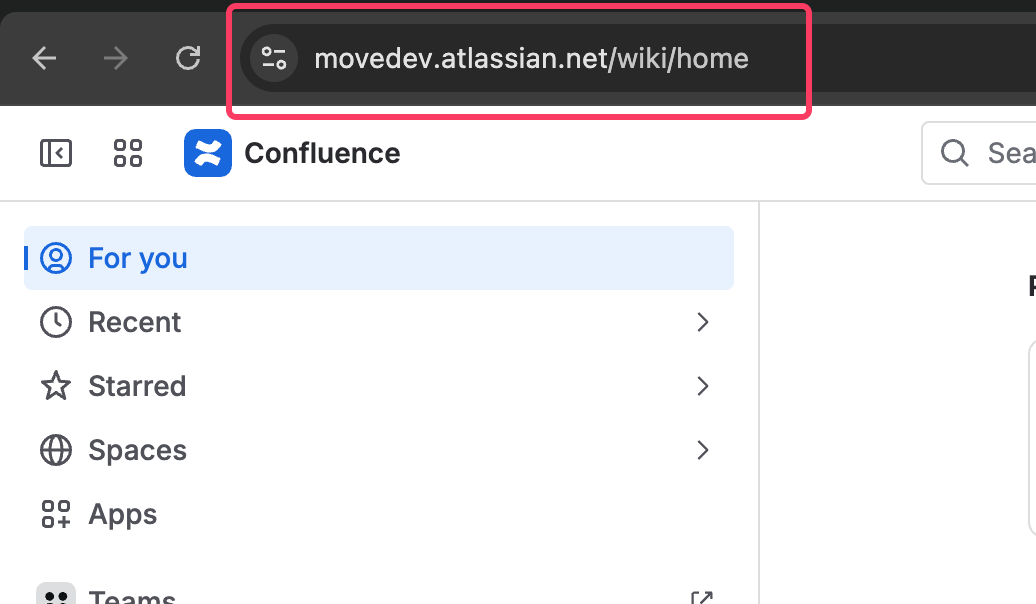
- Custom Base URL: If you are using Confluence Data Center or Server, your Atlassian URL will vary based on your specific configuration. In this case, you’ll need to provide the full URL domain. Open Confluence in your browser and copy the complete URL from the address bar.
- Common Base URL: If you are using Confluence Cloud, select this option. This field requires the URL of your Atlassian instance. Open the Confluence application in your preferred browser and copy the URL. For Confluence Cloud, the URL follows this pattern:
Click Save. This connector will now be used to configure content ingestion from Confluence (cloud). Refer to the steps mentioned below.
Configuring Confluence (Cloud) for Enterprise Search
Initialising setup
- Log in to your org’s MyMoveworks portal
- Navigate to Moveworks Setup > Search > Configure Search > Max Capacity
- Click on Create New or Get Started
- Select Confluence (cloud) from the dropdown list and click on Get Started
- You will be redirected to the Confluence ingestion overview page. In the overview page, you will find few info blocks and few configuration blocks.
- System Overview: This presents an overview of Confluence (cloud) support from Moveworks
- Ingestion Summary: This provides information on the count of records that have been ingested and are serving. The values will appear after the first successful ingestion run.
- Connector Selection: In this configuration block, you are required to select the required connector to enable Moveworks to connect and fetch data
- Content Selection: In this configuration block, you are required to define the content that should be ingested within Moveworks
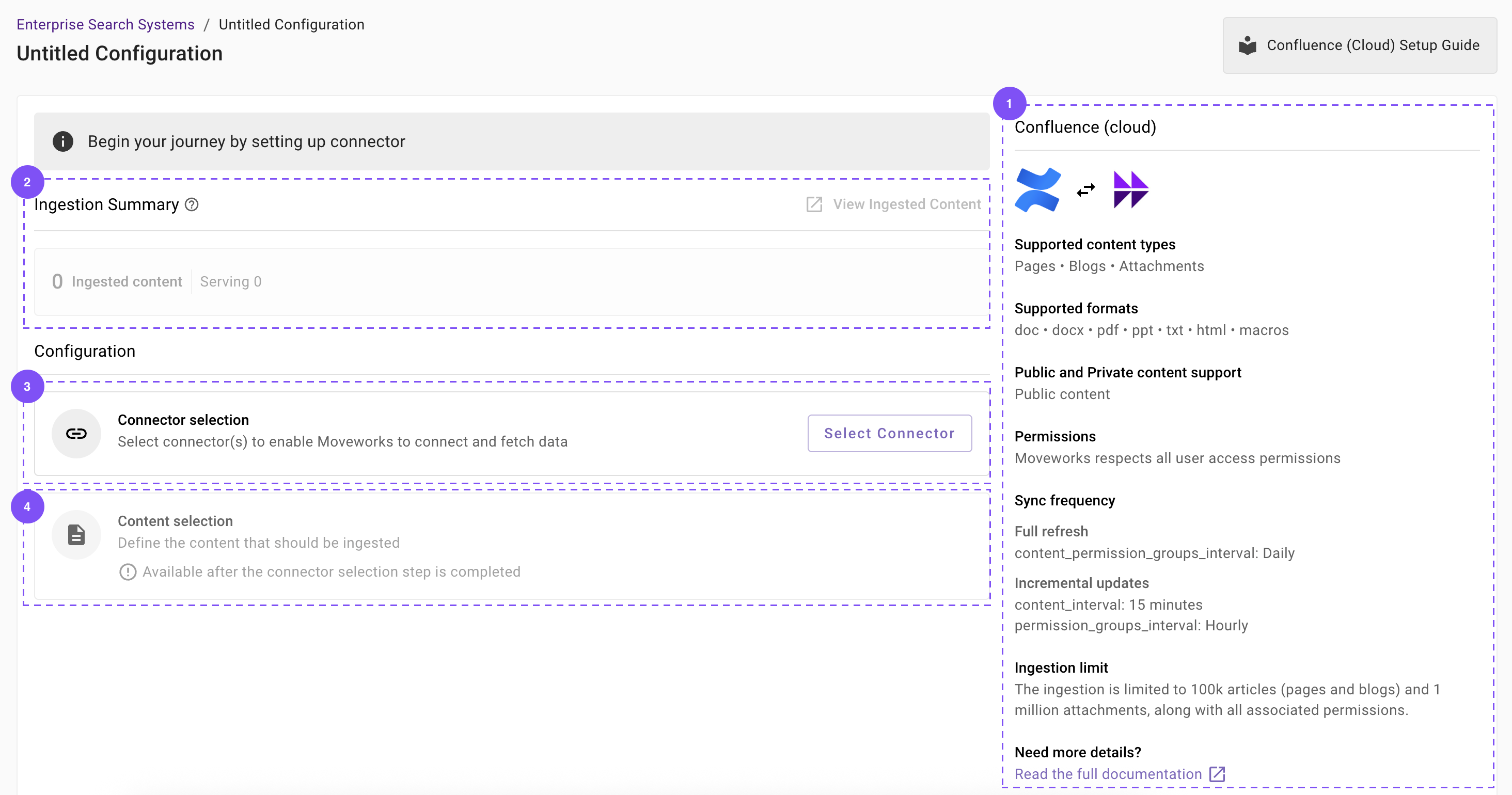
Connector selection and validation
-
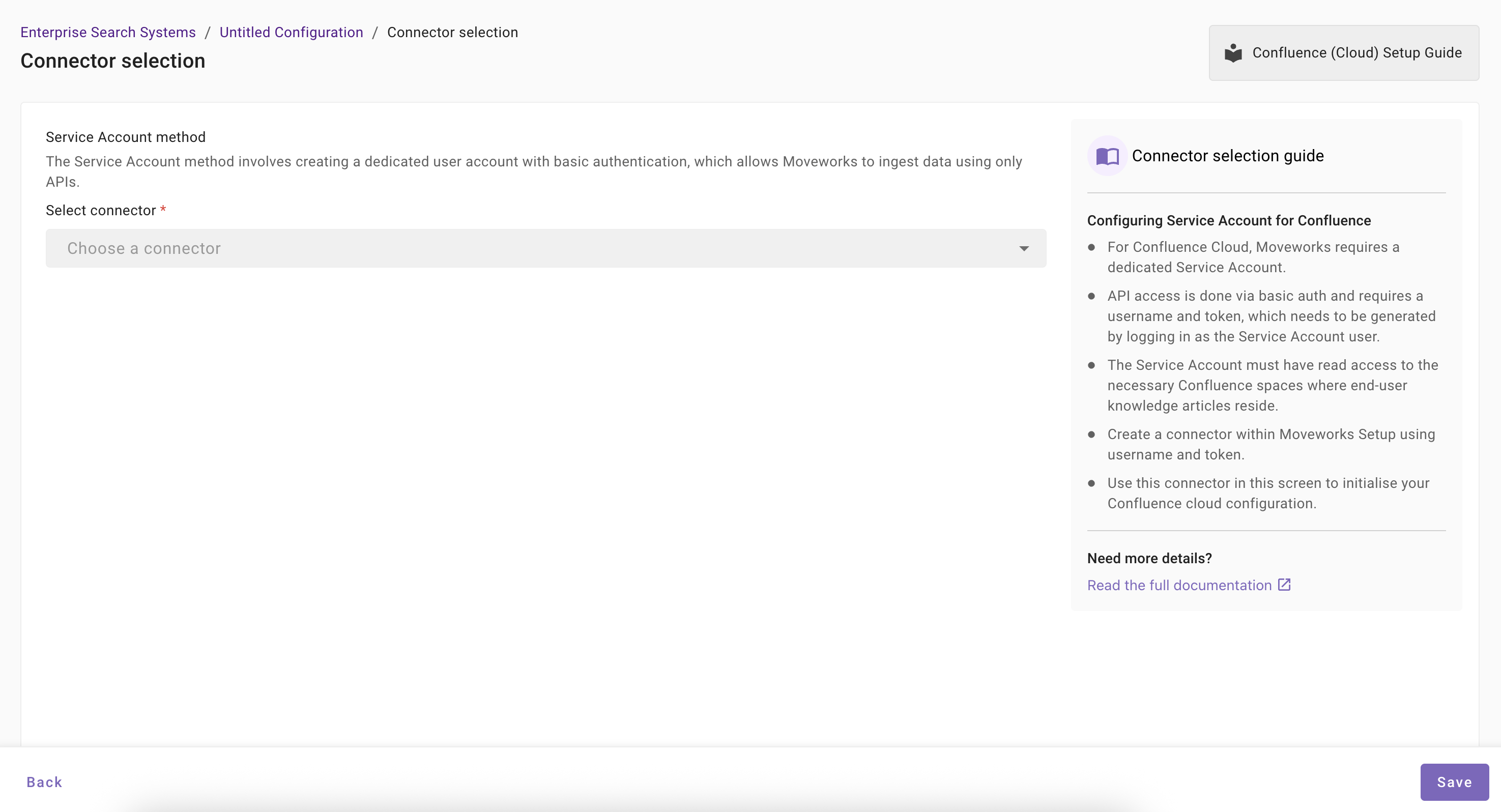
Once you click on Select Connector, a connector setup screen will appear as follows
-
First, select the authentication method (Forge App Method or Service Account Method) based on how your connector was created.
-
Select the connector (from the dropdown) that you have created in the Connector Creation step.
Please note: Only the Confluence (Next Gen) connectors will appear in this list.
-
Once the connector is selected, you need to click on Start Validation to validate the connector credentials and required scope.
Connector Validation
This is a mandatory step in order to save the configuration and move to the next step.
Moveworks validates the selected connector by making live, read-only calls to your Confluence instance:
- Auth: every check below authenticates with the connector’s stored credentials (for the Service Account Method, Basic Auth with the account email + API token), so invalid credentials fail all checks
- Content: fetches a sample of pages (
GET /wiki/rest/api/content) — passes when the account can read at least one page on the site - Permissions: reads the view/edit restrictions of one of those pages (
GET /wiki/rest/api/content/{id}/restriction) - Users: fetches the account’s own profile and group memberships (
GET /wiki/rest/api/user/current) - Groups: lists the site’s user groups (
GET /wiki/rest/api/group)
For the Service Account Method, all checks pass with a licensed Confluence account (“Can use” product access) and a valid API token — no admin role is required. For the Forge App Method, the Content, Permissions, and Groups checks validate the installed app’s access instead.
Validation confirms site-level access for your credentials. It does not check access to the specific spaces you pick in Content Selection — a space the Service Account or Forge App cannot view is silently skipped during ingestion even when validation is green. See Permission Requirements for granting space access.
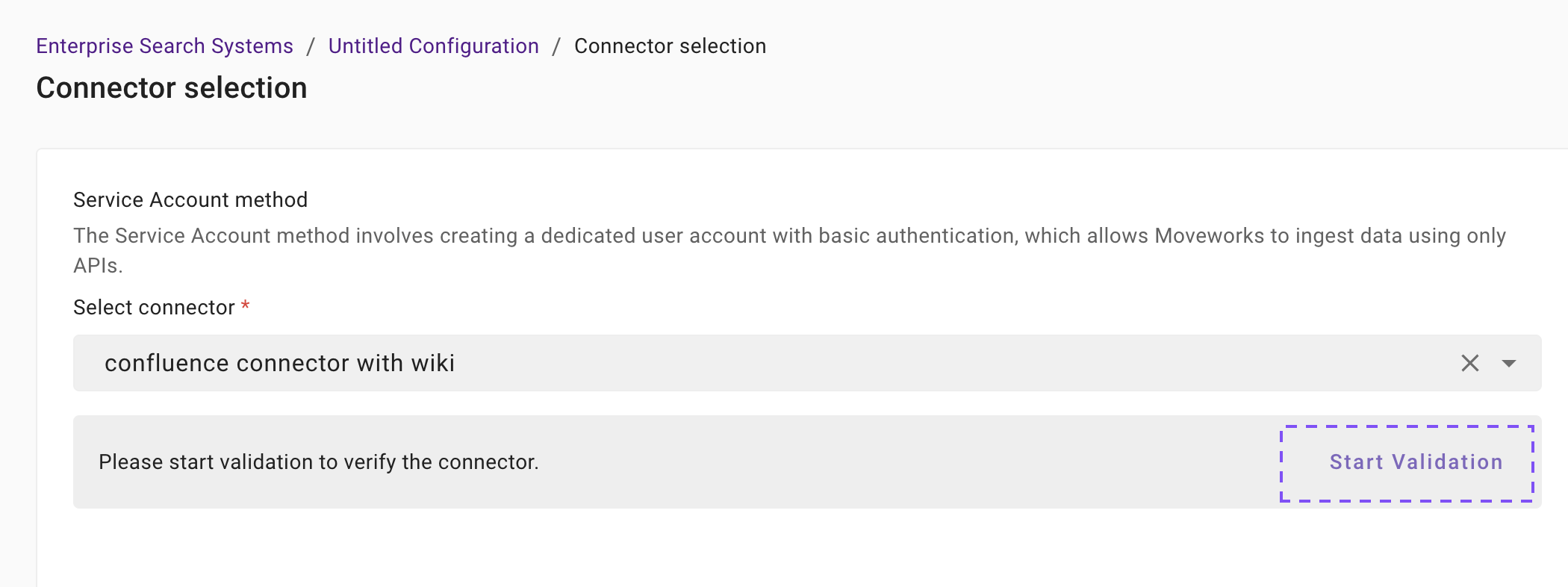
-
If the connector is validated successfully, you will see a green info banner as follows.
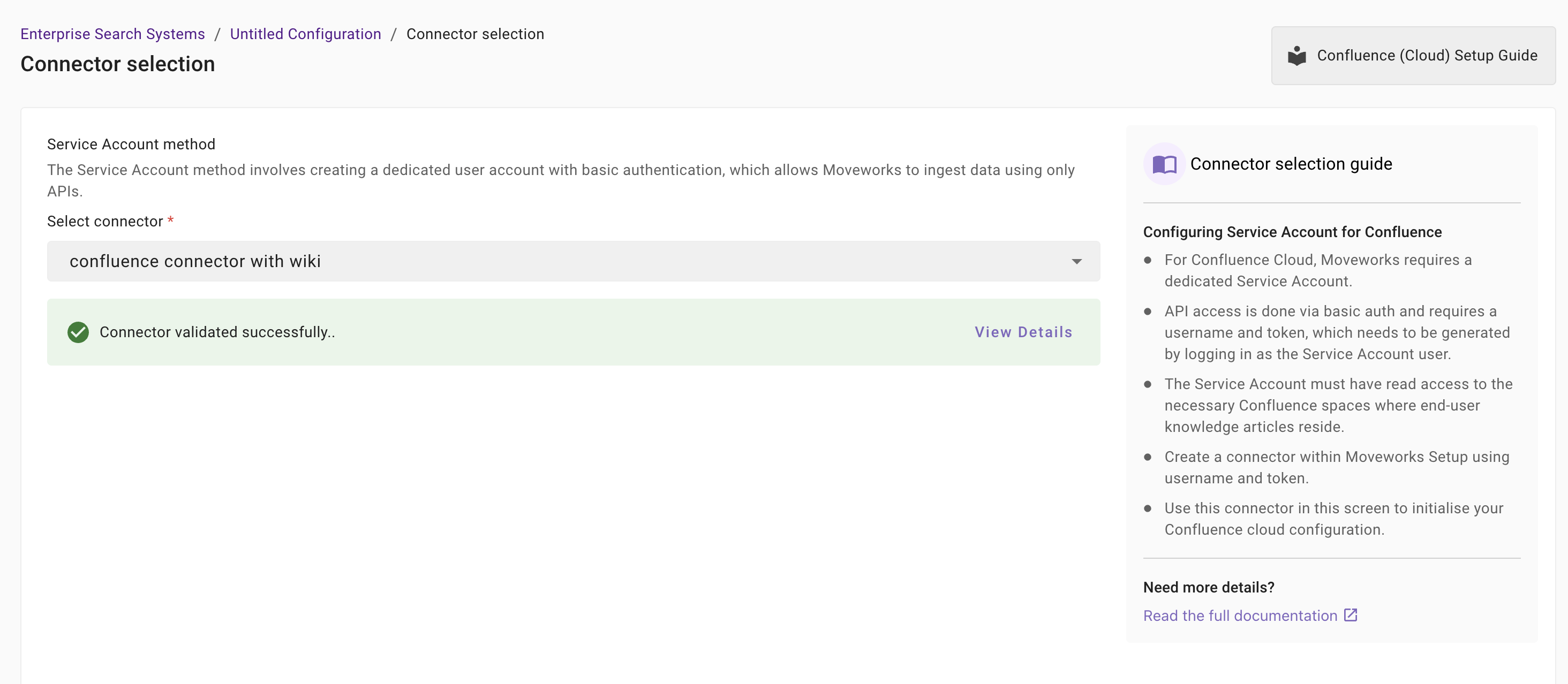
- If there are any credentials or scope issues, you will receive an error message as follows. Click on View Details to identify the issue. Refer to the Troubleshooting Connector Validation Failures section below to rectify any validation errors.
-
Once the connector is validated successfully, you will be able to Save the configuration.
-
Input the unique configuration name and Save.
At this stage, only the configuration entry is created. Ingestion doesn’t start immediately after this step. You need to configure the Content Selection step to complete the journey. Refer to the next section for details.
-
Once the configuration is saved, you can view the unique configuration name at the top of the screen. You can also click the pencil 🖊️ icon to edit the configuration name.

-
Additionally, you will start seeing an entry of your configuration in the Enterprise Search home page. You can click on your configuration to go to edit/ complete the configuration.
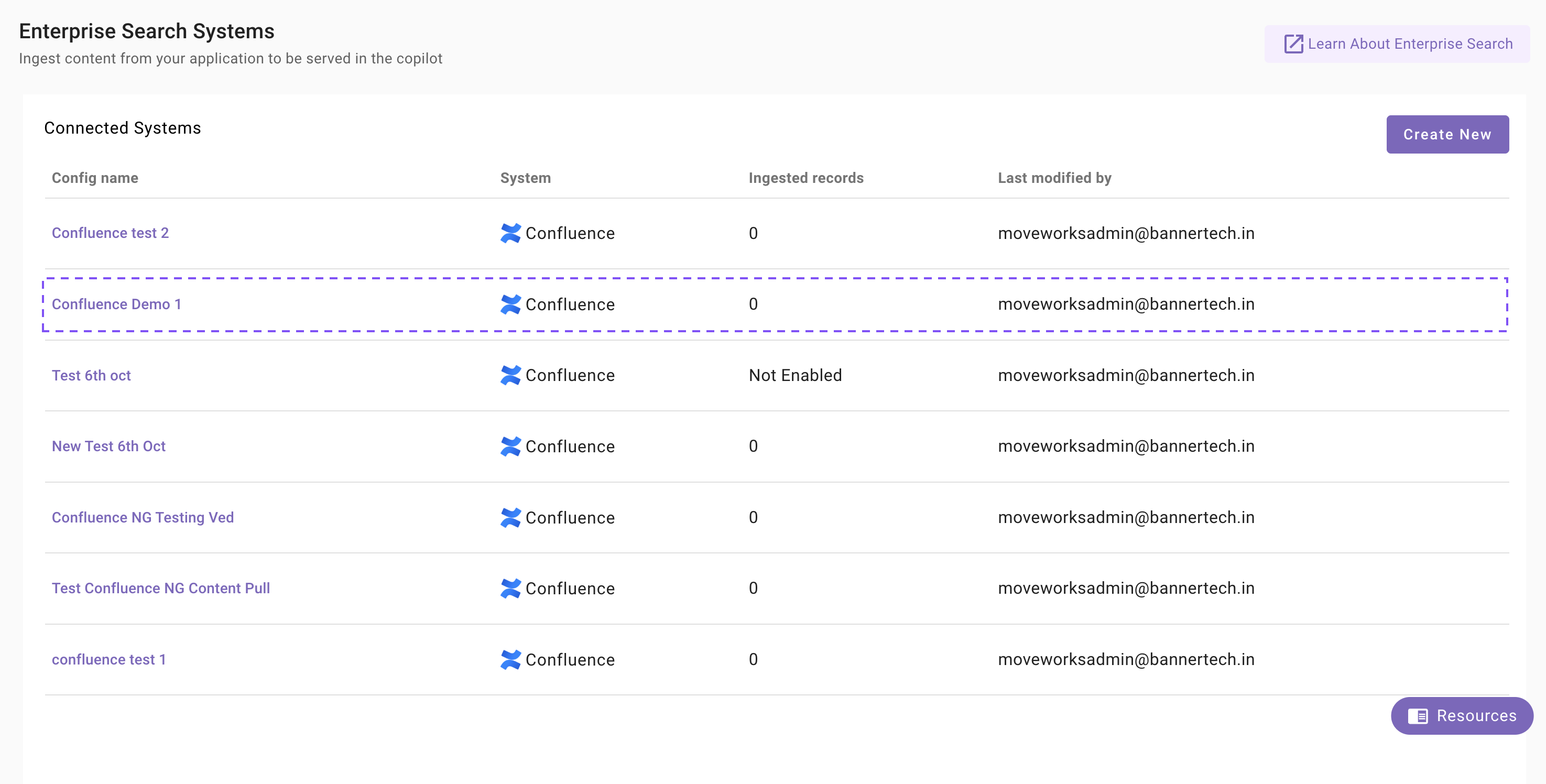
Content Selection
Once the connector selection step is complete and the configuration is saved, you will now be required to define the scope of content that will be ingested in Moveworks.
- Once you click on Select Content, a content selection screen will appear as follows.
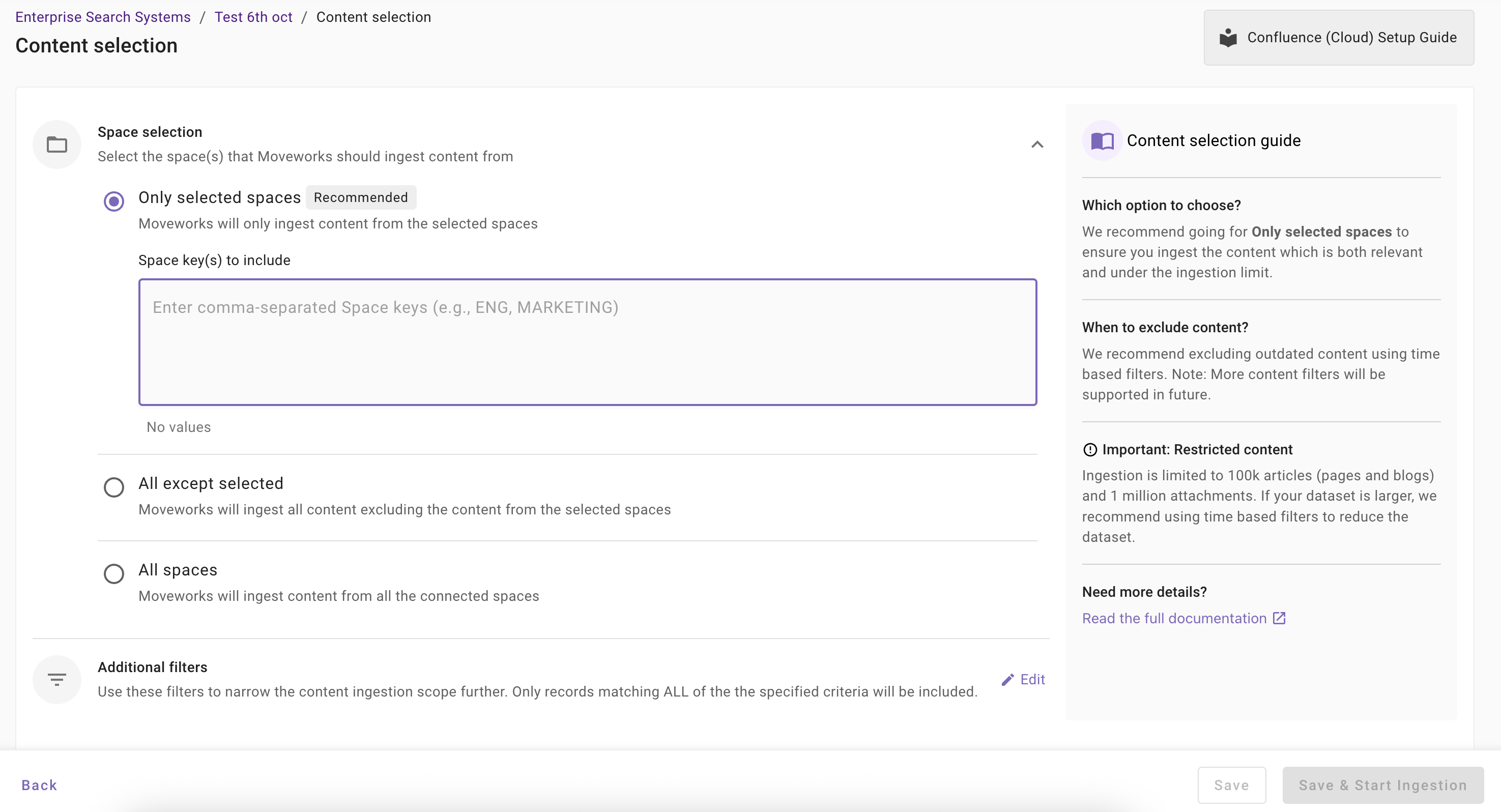
- In this screen, you are required to define the Spaces from which Moveworks will ingest content and apply filters (optionally) to filter down the content further.
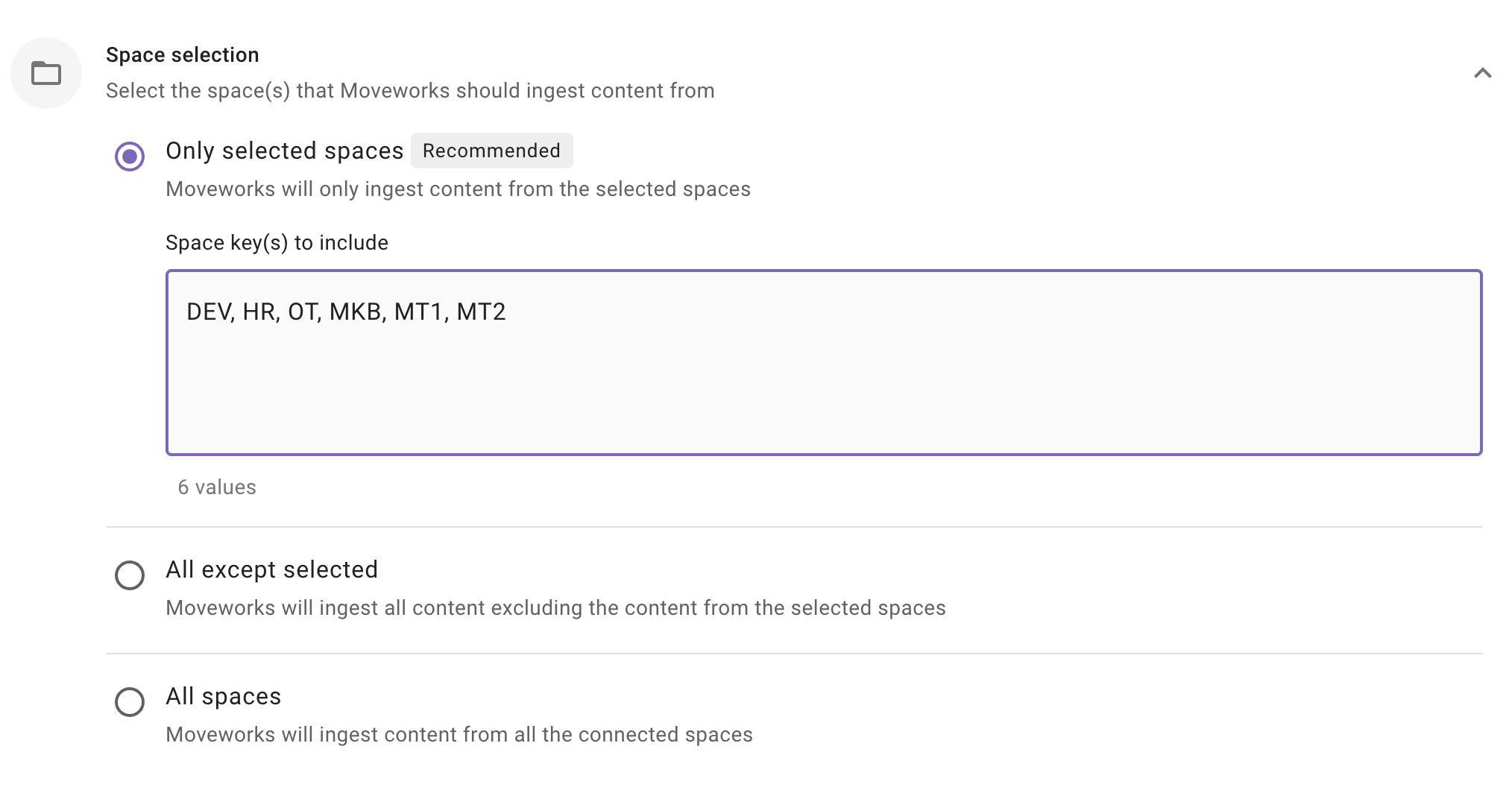
- Space Selection: This is a mandatory configuration. This configuration defines which spaces Moveworks will crawl and ingest content from. As an admin, you get three options
-
Only selected spaces (Recommended): Moveworks will only ingest content from specified spaces.
When to choose this option? Choose this option if you want content to be served only from a subset of spaces that are accessible. For example, if access is available to 15 spaces but you want content to be served only from 5 spaces, then choose this option.
Important Note: For the Forge App Method, the app must be granted access to the applicable spaces. For the Service Account Method, the service account must have access to those spaces.
How to configure? Enter comma separated Space Key(s).
-
All except selected: Moveworks will ingest content all except specified spaces.
When to choose this option?
Choose this option if you want content to be served from most spaces except a few. For example, if access is available to 60 spaces but you want to exclude 2 spaces, specify those spaces here.
Important Note: For the Forge App Method, the app must be granted access to the applicable spaces. For the Service Account Method, the service account must have access to those spaces.
How to configure? Select this option and enter comma separated Space Key(s).
-
All spaces: Moveworks will ingest content all applicable spaces
When to choose this option?
Choose this option if you want content to be served from all spaces that are accessible.
Important Note: For the Forge App Method, the app must be granted access to the applicable spaces. For the Service Account Method, the service account must have access to those spaces.
How to configure? Select this option. You are not required to specify the Space Keys in this scenario.
-
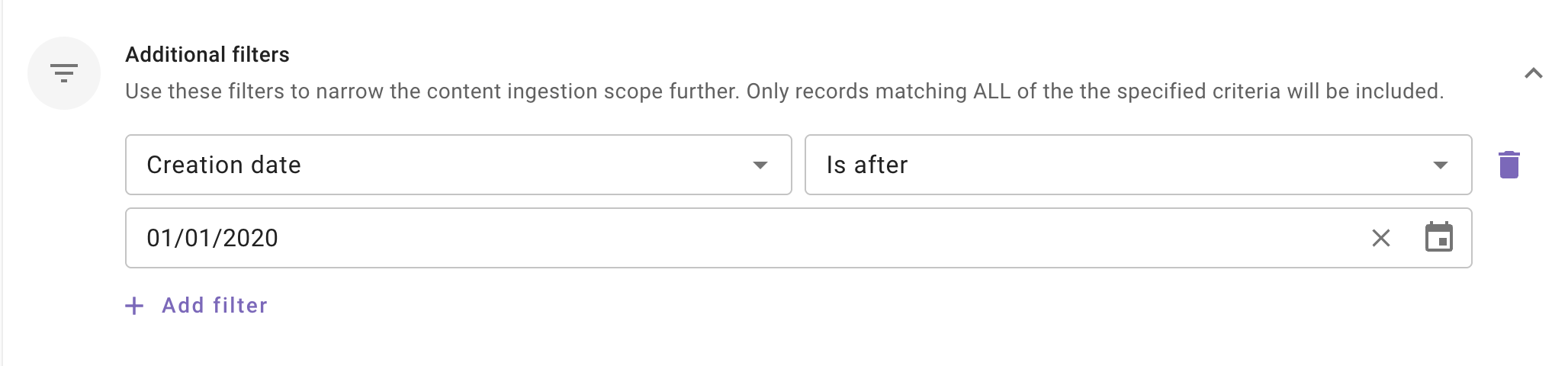
- Additional Filters: Use these filters to narrow the content ingestion scope further. Only records matching ALL of the specified criteria will be included.
Currently following filters are supported:
This is an optional configuration. Moveworks recommends using these filters only if your dataset is very large (i.e. >1million records) so that only relevant content is ingested and served to your employees.
- Modified date: Use this filter to include only those content records whose Modified date is after a specified date.
- Created date: Use this filter to include only those content records whose Created date is after a specified date.
Note: We support absolute dates only. Relative ranges (e.g., “last 7 days,” “older than 1 year”) are not supported.
Customize article URLs (Optional)
By default, search results and citations link to the standard Confluence page URL (for example https://<your-site>.atlassian.net/wiki/spaces/<SPACE_KEY>/pages/<PAGE_ID>/<Page+Title>). If your employees consume this content through a different front end — for example a Jira Service Management portal — use the URL Customization section of the Content Selection screen to rewrite the links Moveworks serves.
- Choose where the template applies:
- All Space(s): one URL template applied to every ingested space
- Selected space(s): templates applied per space — enter comma-separated Space Keys for each entry. Spaces without a matching entry fall back to the All Space(s) template if one is configured, otherwise to the natural Confluence URL.
- Configure the template with two fields:
- Base URL: your site host without the scheme (for example
yoursite.atlassian.net/wiki) —https://is always prepended automatically - Slug (URL Path): the path appended to the Base URL. Start it with
/and type the variables exactly where you want them in the final URL.
- Base URL: your site host without the scheme (for example
The Slug supports three variables, replaced for every ingested item:
For example, with Base URL yoursite.atlassian.net/wiki and Slug /plugins/servlet/desk/portal/2/article/{page_id}, a page with ID 12345 is served as https://yoursite.atlassian.net/wiki/plugins/servlet/desk/portal/2/article/12345.
- Variables are substituted only in the Slug, never in the Base URL, and nothing is appended automatically. If your Slug does not contain
{page_id}(or another variable), every item in scope gets the same identical URL. - The final URL is the Base URL and Slug joined exactly as typed — the Slug must start with
/. - One template covers pages, blog posts, and attachments. If your portal only routes page IDs, verify attachment links still resolve before rolling out.
To test a template, copy it using the copy icon in the URL Customization section, replace the variables with a real page’s values, and open the result in your browser.
Save and Start Ingestion
Once Space selection is configured, you have two options:
-
Save: Clicking this will just save the configuration and not initiate the first ingestion crawl. Use this option, if you would want to complete your configuration in multiple sessions/ sittings.
- Once you click on Save, you will be redirected to the Confluence overview screen
- You will notice a banner that prompts you to Start Ingestion
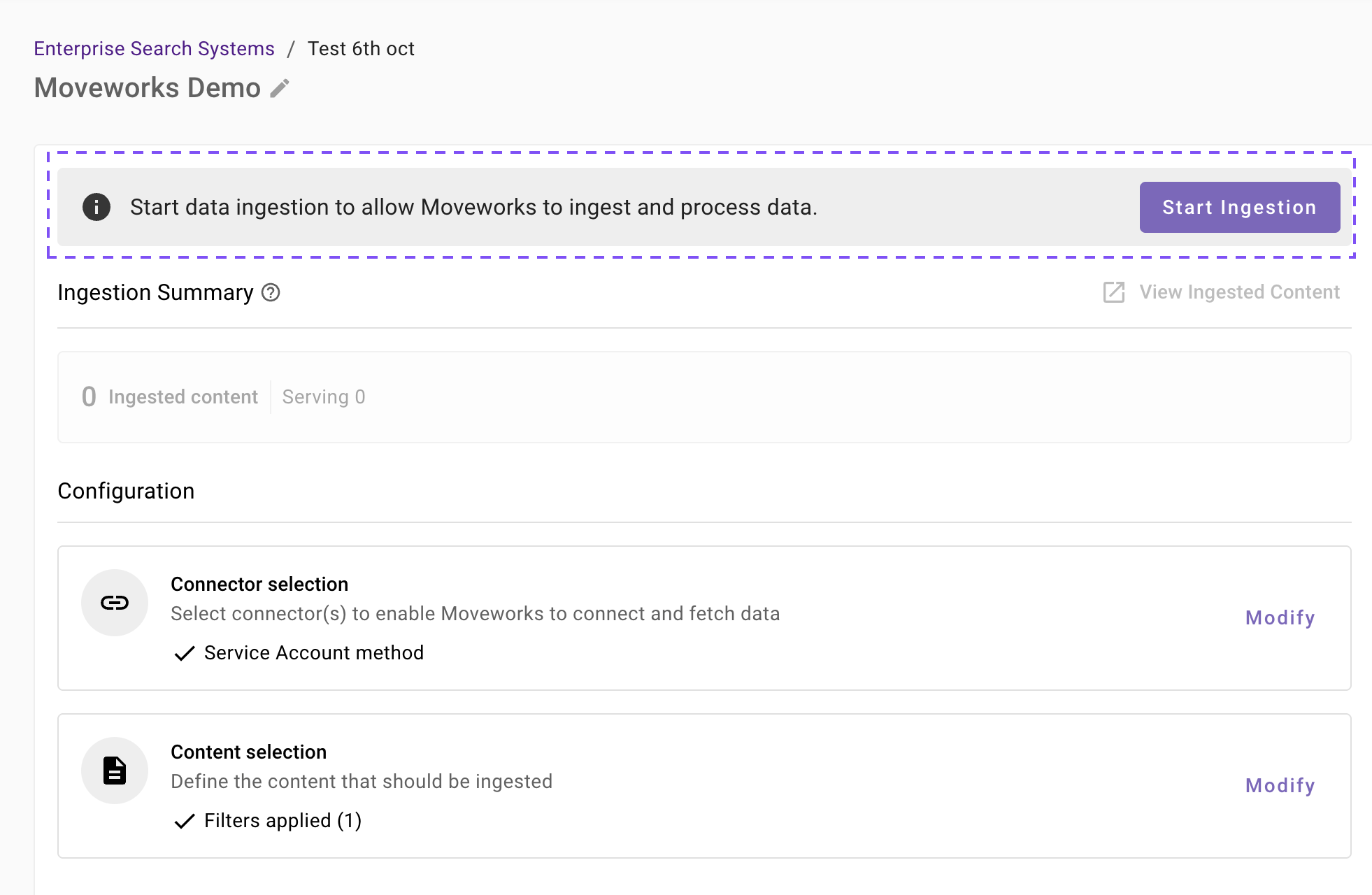
- Once you are satisfied with your configuration, you can click on Start Ingestion
- A confirmation popup will come that provides a summary of the configuration
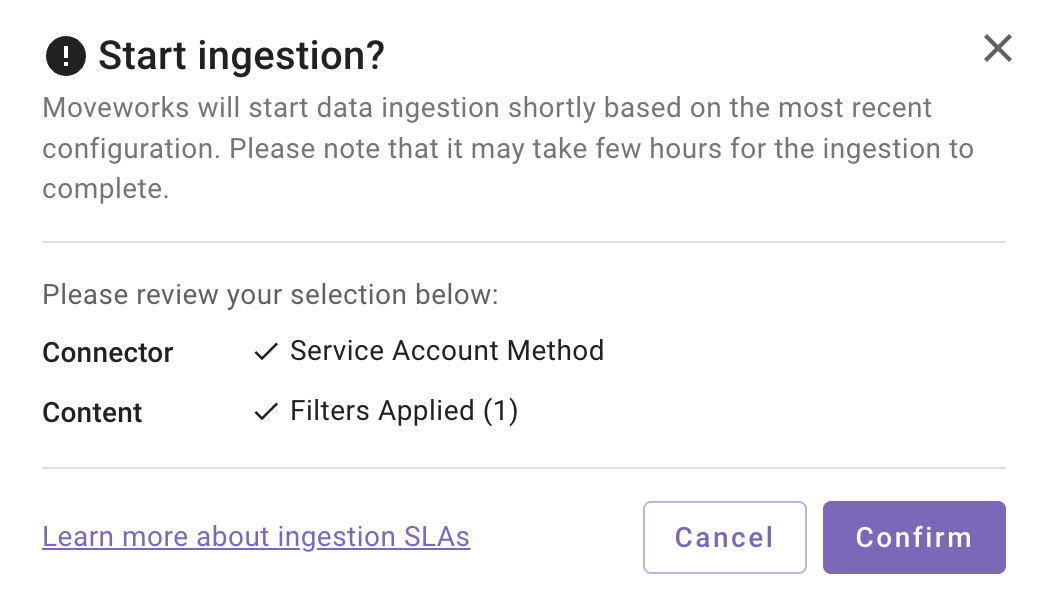
- Click on Confirm
- After you click on Confirm, ingestion will start shortly.
- For the first crawl to complete, this generally takes anywhere from few hours to 48 hours depending upon the size of the data.
-
Save and Start Ingestion: Click this option if you have completed and validated your content selection configuration and you are ready to initiate the first ingestion crawl.
- A confirmation popup will come that provides a summary of the configuration
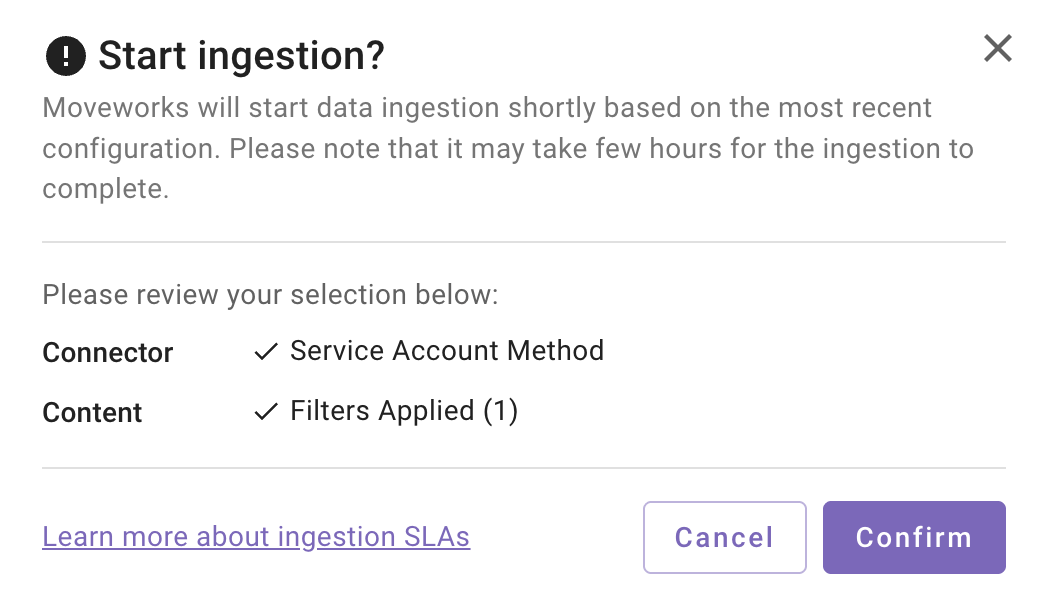
- Click on Confirm
- After you click on Confirm, ingestion will start shortly.
Important Note for Admins:
- It generally takes anywhere from few hours to 48 hours for the first crawl to complete depending upon the size of the data.
- You can review the status of ingestion via Data Ingestion Viewer and view ingested record in the Indexed Content > Files and Indexed Content > Internal Knowledge screens.
- A confirmation popup will come that provides a summary of the configuration
Audience configuration
A configuration does not serve content in search until you set its audience. From the configuration’s home page, open the Target audience tab, choose who can search this content, and save — source permissions are always enforced on top of your selection.
Audience configuration is the same for every Max Capacity connector. For the full steps and options, see Step 4: Define Target Audience in the Max Capacity Setup overview.
Known Limitations
The items below are known constraints we are actively working on. Each includes the current way forward.
- Space keys are not validated at setup. A mistyped space key — or a restricted space the Moveworks app has not been granted access to — is reported only after ingestion begins, not when you save the configuration. Double-check space keys and app grants before saving.
Troubleshooting Connector Validation Failures
This section helps you resolve common issues when validating your Confluence connector in Enterprise Search Configuration. Follow the steps below based on the error message(s) you’re experiencing.
Error Message(s):
- “Validation failed: Invalid credentials or missing required scopes.”
Possible Causes:
- Service Account is not part of any groups or belongs to groups that lack space access
- API token is expired
- Incorrect authentication credentials (email or API token)
- Connector is not setup correctly
Resolution Steps:
- Check whether the Confluence connector is setup correctly
- The Base URL is correct and valid of the desired instance and in the format:
https://{your_domain}.atlassian.net/wiki - The email provided is valid
- API token is valid
- The Base URL is correct and valid of the desired instance and in the format:
- Verify whether API token is not expired
- Go to Atlassian Account Settings → Security → API Tokens
- Confirm the token is active and hasn’t expired
- If not, generate a new API token and provide it in the Confluence connector
- Check Access to Confluence Spaces
- Log into Confluence with your credentials in
{yourdomain}.atlassian.net - Navigate to the spaces you want to bring in
- Confirm whether the desired group is added in the space, has view access and Service account is also present in the group (see via
admin.atlassian.com) - Contact your Confluence admin if you need help
- Log into Confluence with your credentials in
- Try accessing the Confluence REST API directly
- Go to Moveworks Setup > Connectors > API Playground
- Import the Confluence connector you’re using for Enterprise Search
- Test the relevant API endpoint for resources you got the error:
- Content
- Test:
/rest/api/contentAPI
cURL request for reference: - Verify the expected result: list of content items returned in the API response
- Test:
- Permissions
- Test
/rest/api/contentand copy contentId from any content item in the API response
cURL request for reference: - Test
/rest/api/content/{contentId}/restrictionusing the copied ID
cURL request for reference: - Verify the expected result: restriction details returned for the content item in the API response
- Test
- Groups
- Test:
/rest/api/group - Verify the expected result: List of groups returned in the API response
- Test:
- Users
- Hit
/wiki/rest/api/user/currentand copy the accountId
cURL request for reference - Hit
/wiki/rest/api/user/memberof?accountId={{account_id}}using the copied account ID and then copy groupId from any group item in the API response - Test
/wiki/rest/api/group/{groupId}/membersByGroupId
cuRL request for reference - Verify the expected result: list of group members returned in the API response
- Hit
- Content
- Contact Moveworks Support
Reach out to Moveworks Support if the validation error(s) still persist.
Additional Checks for Forge App Method
If you are using the Forge App Method and validation fails, also verify the following:
- Ensure the app is installed on the correct Confluence site
- Verify the Webtrigger URL is correct
- Ensure the Shared Secret Key configured in the Moveworks connector matches the one set in the Forge App
- Ensure the auth API was successfully called using the Webtrigger URL to map the Shared Secret Key
- Ensure the Moveworks Forge App has not been removed or uninstalled by other Atlassian admins