For AI agents: a documentation index is available at the root level at /llms.txt and /llms-full.txt. Append /llms.txt to any URL for a page-level index, or .md for the markdown version of any page.
Logo
DeveloperAcademyCommunityStatus
  • Getting Started
    • Welcome to Moveworks
    • Roadmap & Release Notes
    • Moveworks Best Practices
      • Launching Moveworks
      • Building on Moveworks
      • Driving Adoption
        • Deep Linking Moveworks AI Assistant
        • How to Add an Azure AD App Link to the Bot
        • Okta Chiclet Deep Link to Bot
        • Okta Footer Help Link to Bot
        • Agent Email Signature Link to the Moveworks Bot
        • General Banner Links to the Moveworks Bot
        • Bot-First Call Wait Messages
        • ServiceNow SSP Banner Link to the Moveworks Bot
        • ServiceNow SSP Hovering Bot Link
        • Windows Desktop Shortcut to the Moveworks Bot Setup Guide
    • Labs
    • Professional Services
    • Support
  • AI Assistant
    • AI Assistant Overview
    • Capabilities
    • Web Experiences
    • Analytics & Performance
  • Enterprise Search
    • Overview
    • Agentic RAG Overview
    • Content Ingestion Platform
    • Profile Boosting
    • Retrieval
    • Permissions Platform
    • Built-in Content Connectors
    • Build your own Content Connectors
    • Configure Search
    • Configure Enterprise Search
    • Vetted Content
    • Writing AI-Ready KB Articles
    • Document Chunking and Snippetization Overview
  • Productivity Boost
    • Overview
    • Configure Productivity Boost
    • Quick GPT
    • Calendar Management
    • Brief Me
DeveloperAcademyCommunityStatus
On this page
  • What is it?
  • SME Needed and Time to Complete
  • Moveworks Provided Assets
  • How To
Getting StartedMoveworks Best PracticesDriving Adoption

ServiceNow SSP Banner Link to the Moveworks Bot

||View as Markdown|
Was this page helpful?
Edit this page
Previous

ServiceNow SSP Hovering Bot Link

Next
Built with

What is it?

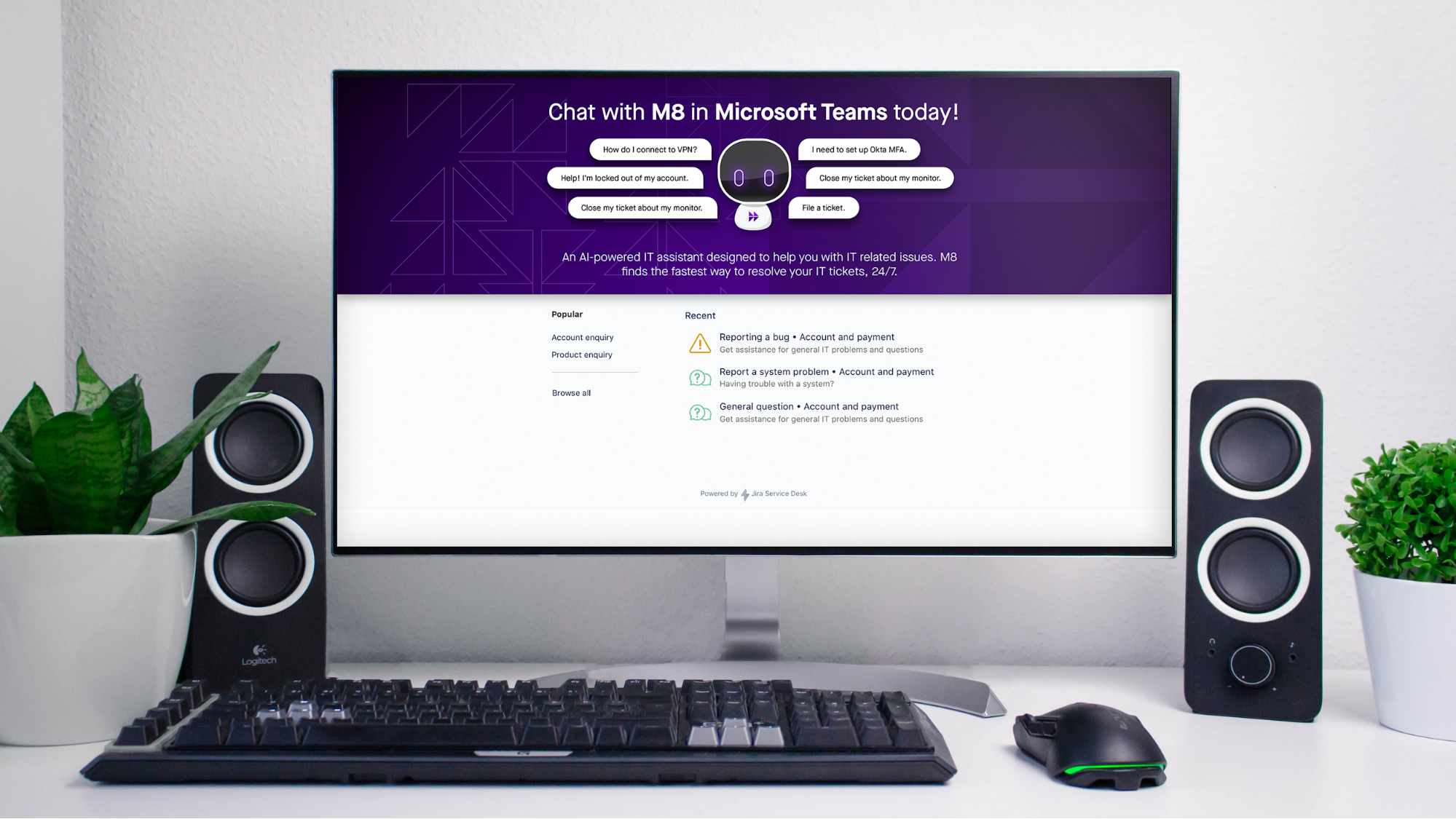
An eye-catching, bot-branded banner at the top of your ServiceNow self-service portal (SSP) that when clicked brings users straight to the bot in chat.
SME Needed and Time to Complete

  • ServiceNow Admin - 10-15 min

Moveworks Provided Assets

  • Company-branded bot banner
  • Moveworks deep link to the bot

How To

  • Log in to ServiceNow as an administrator

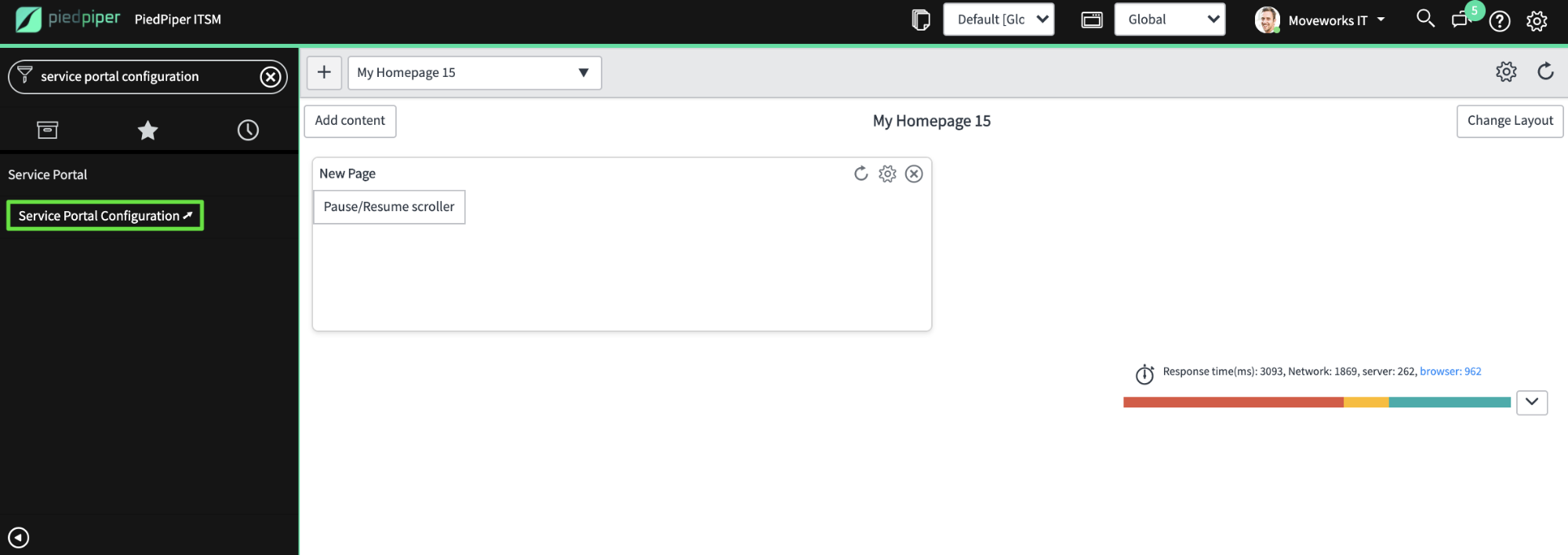
  • Navigate to Service Portal Configuration and click Branding Editor.
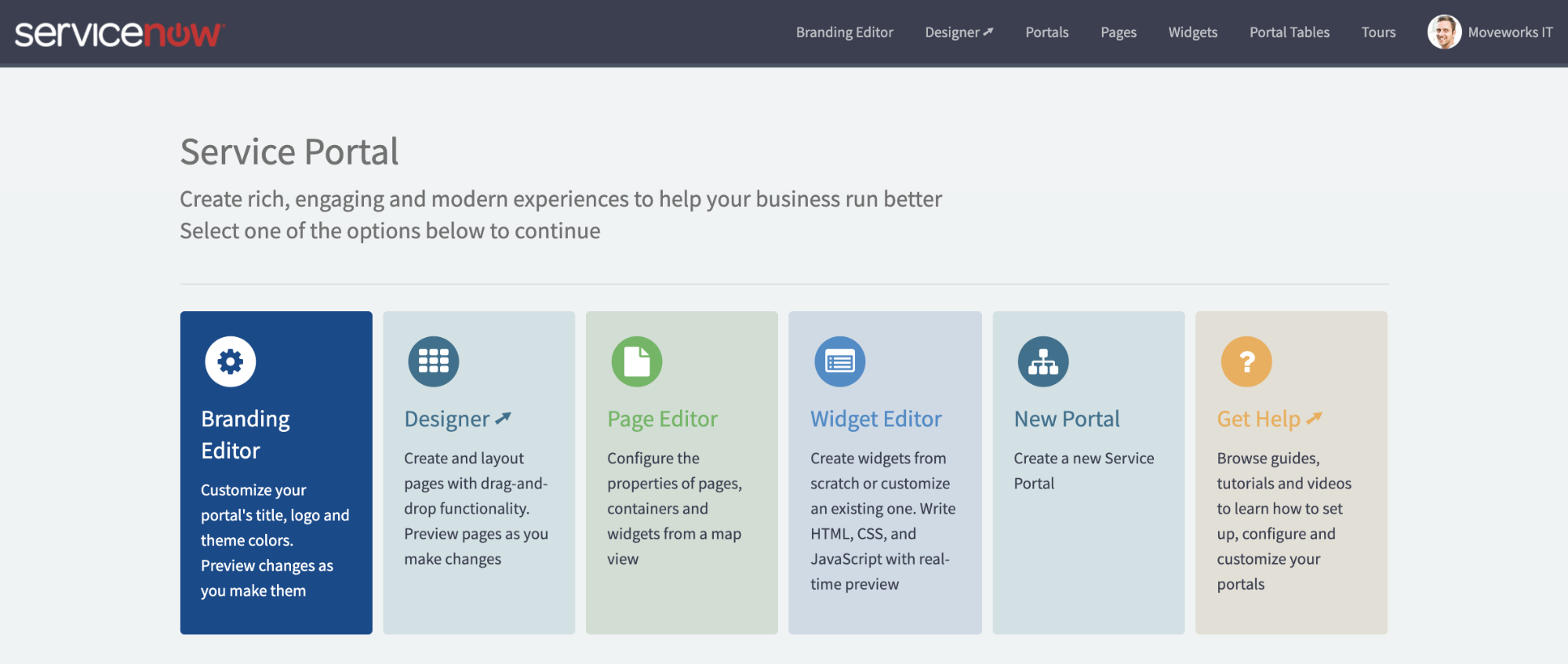
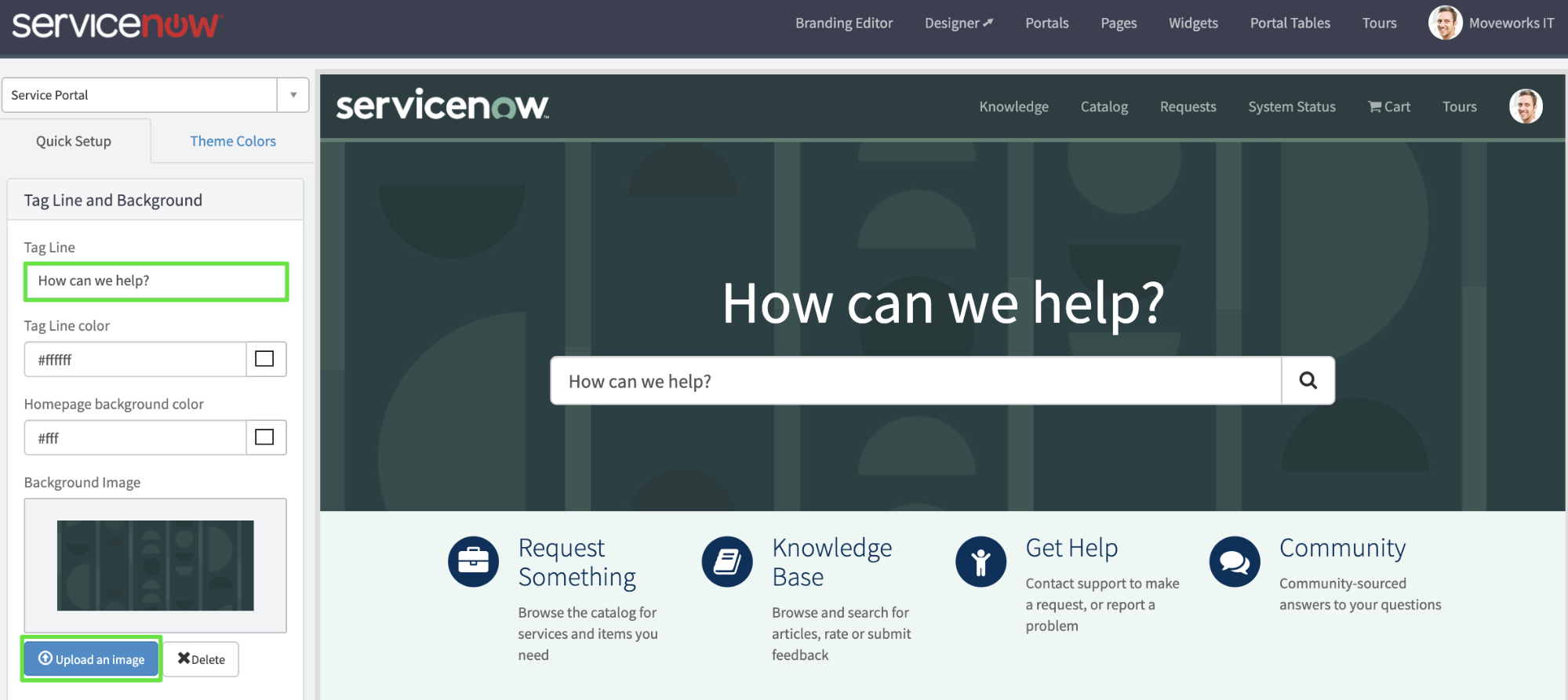
  • In the editor view, scroll down the left panel, delete any text in Tag Line.

  • Click Upload an image and select your Moveworks-provided banner.
  • There are two things left to do now:

    • make the banner link to the bot and
    • move the search bar to be less obtrusive.
  • We’ll do this by making a copy of the default search widget with a couple tweaks.

  • Back in the main ServiceNow admin UI, navigate to the Service Portal → Widgets table and search for the Homepage Search widget.

  • Click into the record and then click Clone Widget.

  • In the new copy of the widget, paste the following into the Body HTML template box, being sure to replace “https://YOUR.MOVEWORKS.PROVIDED.BOT.MOVEWORKS.LINK” with the link Moveworks provided you:

    <a href=“https://YOUR.MOVEWORKS.PROVIDED.BOT.MOVEWORKS.LINK”>
    <div id="homepage-search" class="hidden-xs wrapper-xl">
    <div class="wrapper-xl">
    <h2 class="text-center text-4x m-b-lg sp-tagline-color" ng-bind="options.title"></h2>
    <div ng-if="options.short_description" class="text-center h4 m-b-lg sp-tagline-color" ng-bind="options.short_description"></div>
    </div>
    </div>
    </a>
    <sp-widget widget="data.typeAheadSearch"/>
  • The image below shows what we are deleting in red, and what we are adding in green. Very minor tweaks.

  • Return to Service Portal Configuration and click Designer.

  • On the following page, find your home page. By default this is called index but it may be called something else in your environment if your organization is using a custom home page.
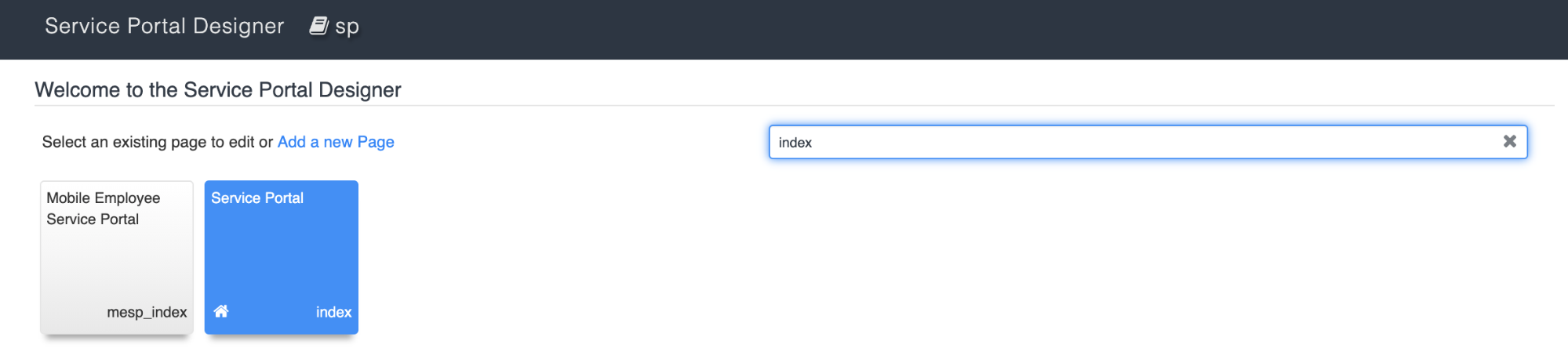
  • The following screen gives you a drag and drop layout of your page.

  • Click the little blue trash can in the upper right corner when hovering over the Homepage Search widget.

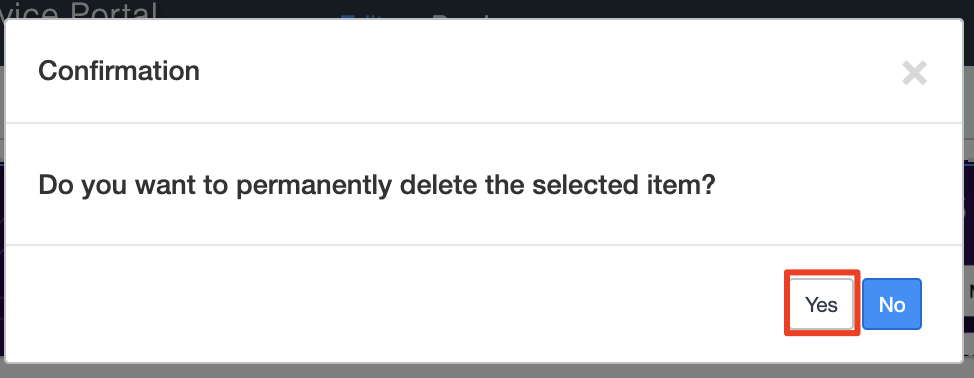
  • Click Yes when asked to confirm (don’t worry you can always add this back anytime).
  • Search for the new widget copy we made and drag it onto the banner.
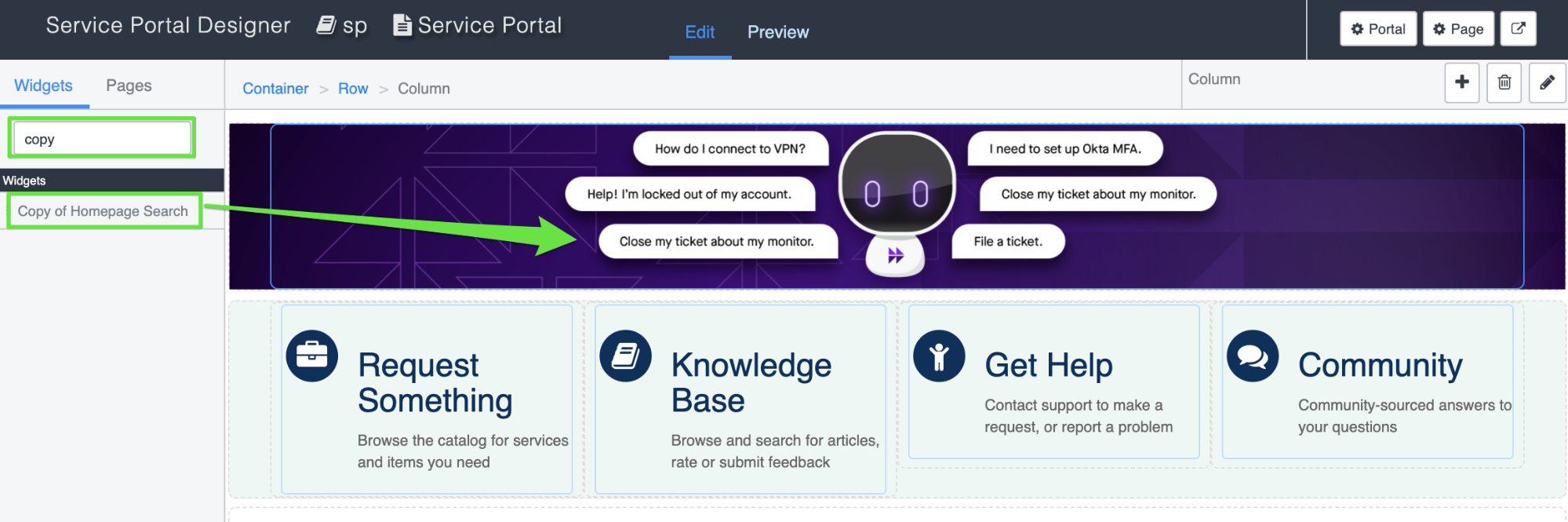
  • If you did it right, it will look like this:
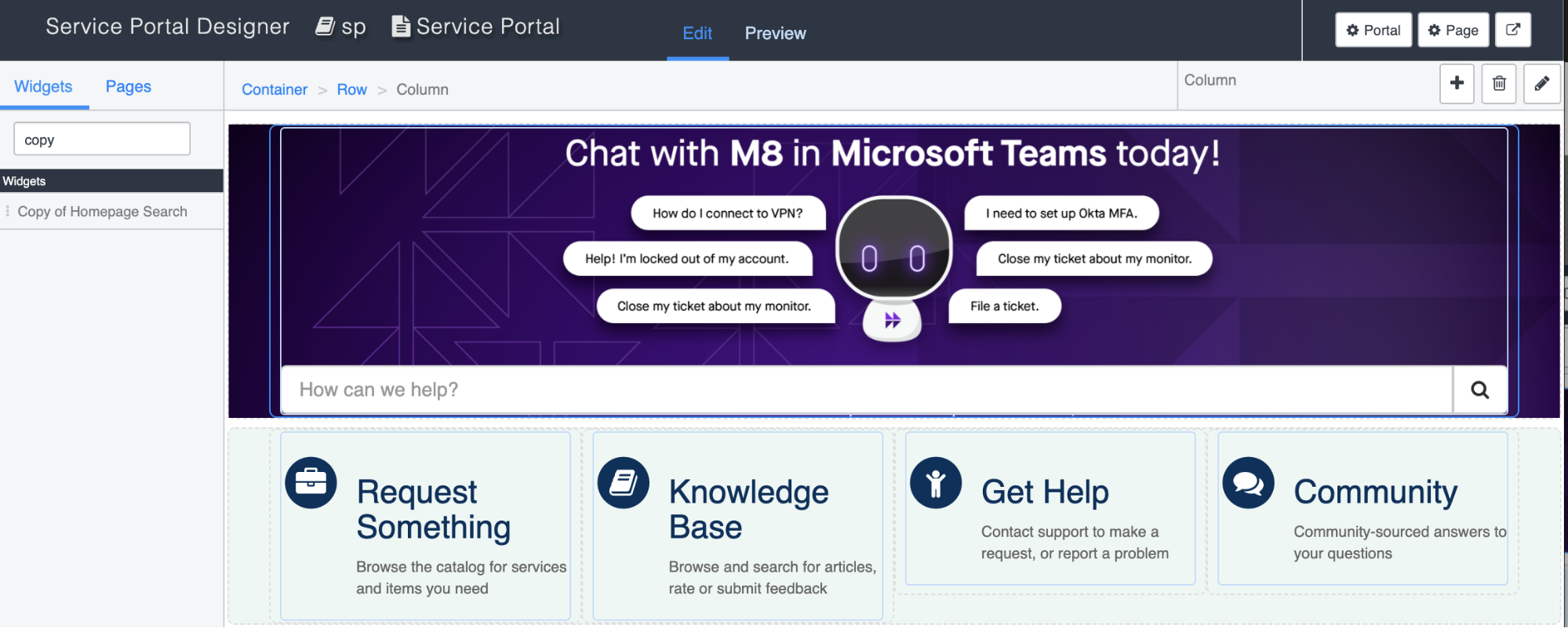
  • Everything will save automatically.

  • Finally, open a new browser tab and navigate to your new and improved service portal.

  • Looking good! Now click the banner, and if you are directed to the bot, you are good to go!