
Embedded AI Assistant SSO Configuration - Azure OIDC
Installing Embedded AI Assistant with a Code Snippet and Azure OIDC
This guide walks you through the Azure SSO OIDC setup for Embedded AI Assistant (M4W). This will create an Azure application that will then allow customers to copy a code snippet of the AI Assistant and paste it onto any page governed by Azure SSO, and Embedded AI Assistant will just work, automatic authentication and all.
Prerequisite Questions
- Does the site/page you want to include Embedded AI Assistant on allow for HTML/JavaScript editing?
- If you want it to be everywhere on the site, does it support site templates, master pages, headers, footers, or other similar global page elements that support HTML/JavaScript editing?
- Is the site/page governed by Azure SSO?
Installation Prerequisites
- On the day of installation, we need an individual who has Global Administrator access in your Azure tenant
The Azure OIDC silent authentication only works if users are logged into only one MS tenant. Make sure users logged out from other testing tenants when testing webchat bot. This should be rare if the end users are logged into multiple tenants at once.
Step 1: Azure App Setup Instructions
- Go to the https://portal.azure.com/ that lets you create Applications.
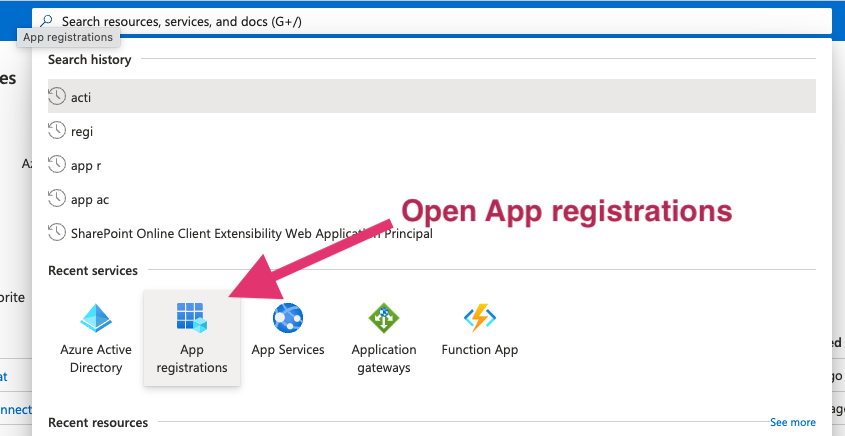
- Click on App registrations
- Select New Registration in the next screen.

Step 2: Configure the application
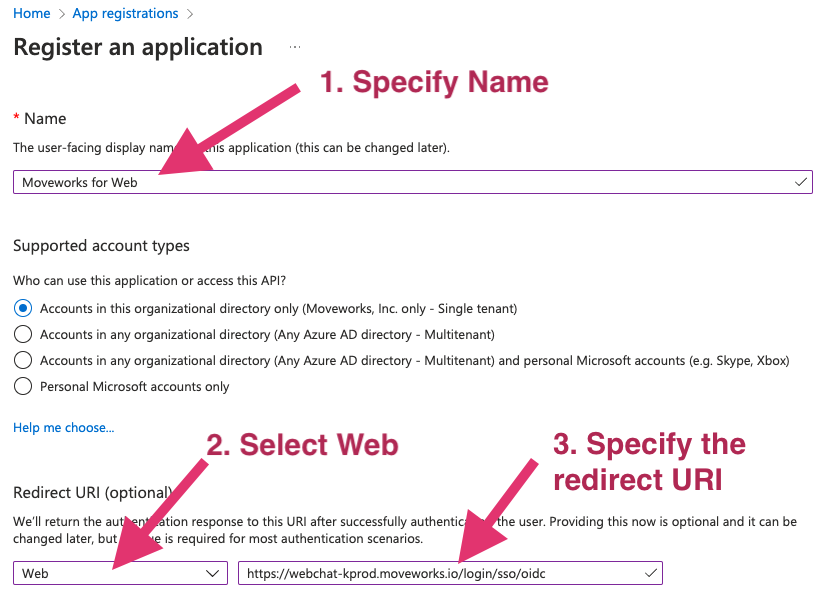
- Specify a name for the application. We recommend using your bot’s name.
- Configure the application.
- Based on your Moveworks environment, set the Redirect URI as one of the following:
- Commercial Environment:
https://webchat-kprod.moveworks.io/login/sso/oidc - GovCloud Environment:
https://<org_name>-chat.moveworksgov.com/login/sso/oidc - EU Environment:
https://webchat.prod.am-euc1.moveworks.io/login/sso/oidc - Canada Environment:
https://webchat.prod.am-cac1.moveworks.io/login/sso/oidc - AU Environment:
https://webchat.prod.am-apse2.moveworks.io/login/sso/oidc - US Prod 3 Environment:
https://webchat.prod3.us.moveworks.com/login/sso/oidc - US Prod 4 Environment:
https://webchat.prod4.us.moveworks.com/login/sso/oidc - Japan Environment:
https://webchat.jp.moveworks.com/login/sso/oidc - UK Environment:
https://webchat.uk.moveworks.com/login/sso/oidc
- Commercial Environment:
- Based on your Moveworks environment, set the Redirect URI as one of the following:
- Select options as shown below.
Step 3: Generate idp_secret
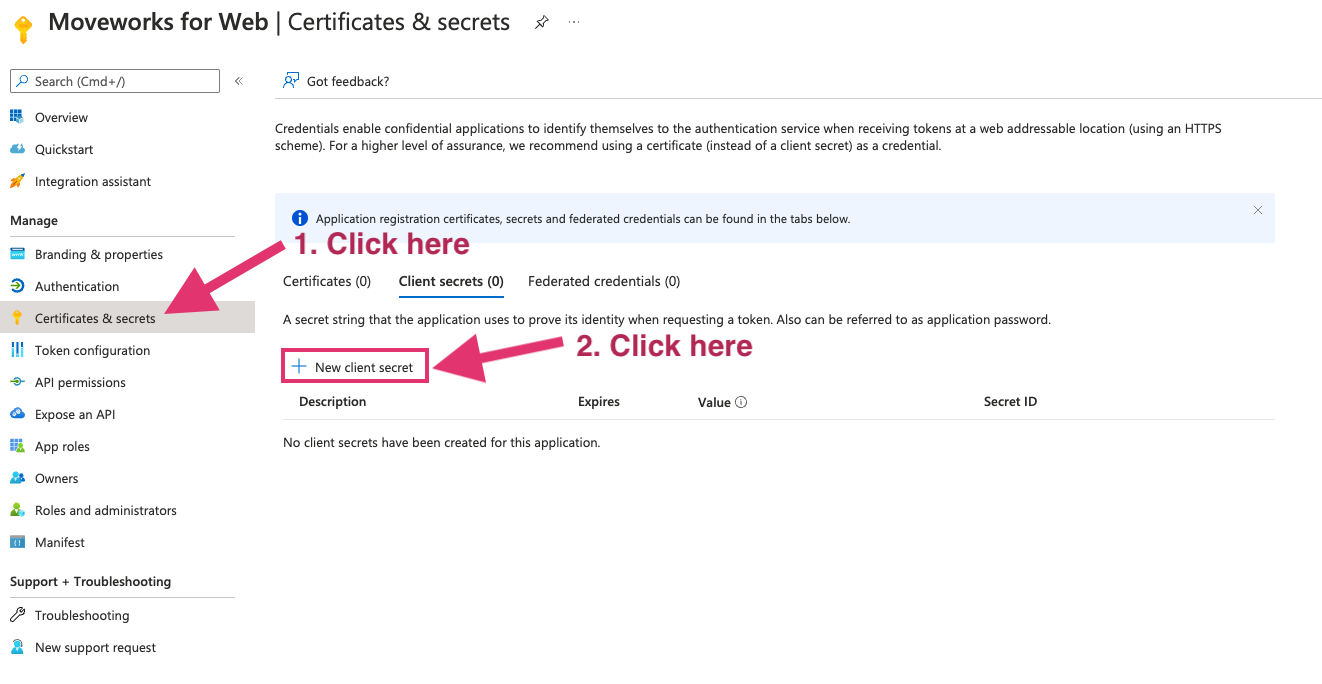
- Go to Certificates & secrets on the left
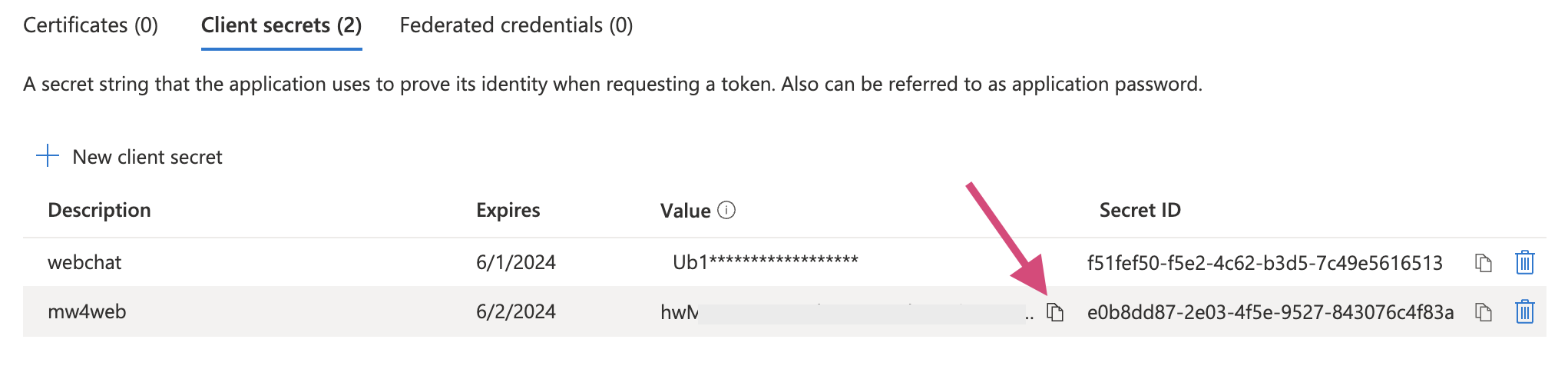
- Click New client secret
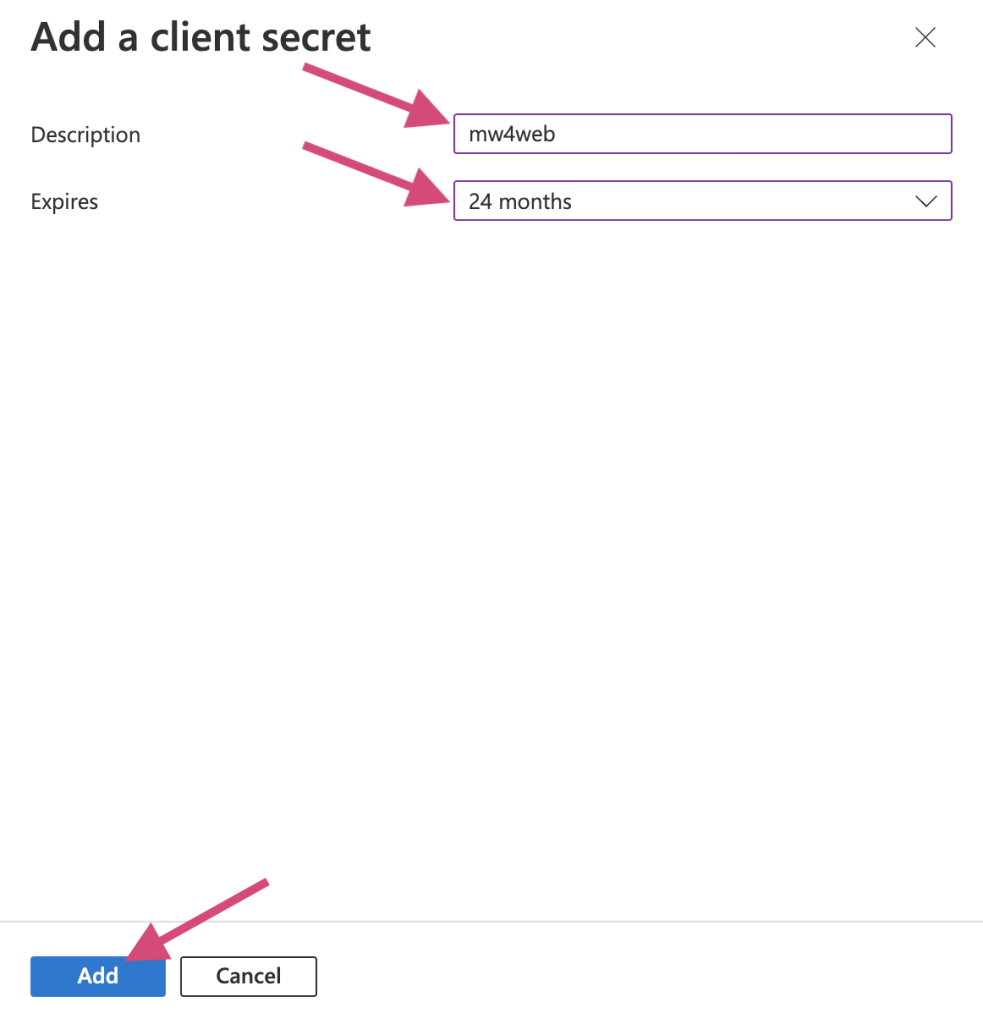
- Add Description and Expires. 24 months is our recommended option to go with as it is the longest time possible. You can have multiple secrets at once, so before one expires you can create another for a seamless cutover.
Once the secret is created, copy the value and send to Moveworks engineer. Note that this value is only accessible at the time of creation. You will need to create a new one if the previous one isn’t saved before leaving the page.
Step 4: Grant tenant level user consent to the app
- Go to Azure Active Directory
- Go to Enterprise Application under Manage
- Find the application just created and open
- Go to Permissions and click Grant admin consent for<org>

Step 5: Configure Moveworks
After setup is complete, use the following information to add the SSO configuration within Moveworks setup:
- Go the Overview in App registrations → your app just created.
idp_client_id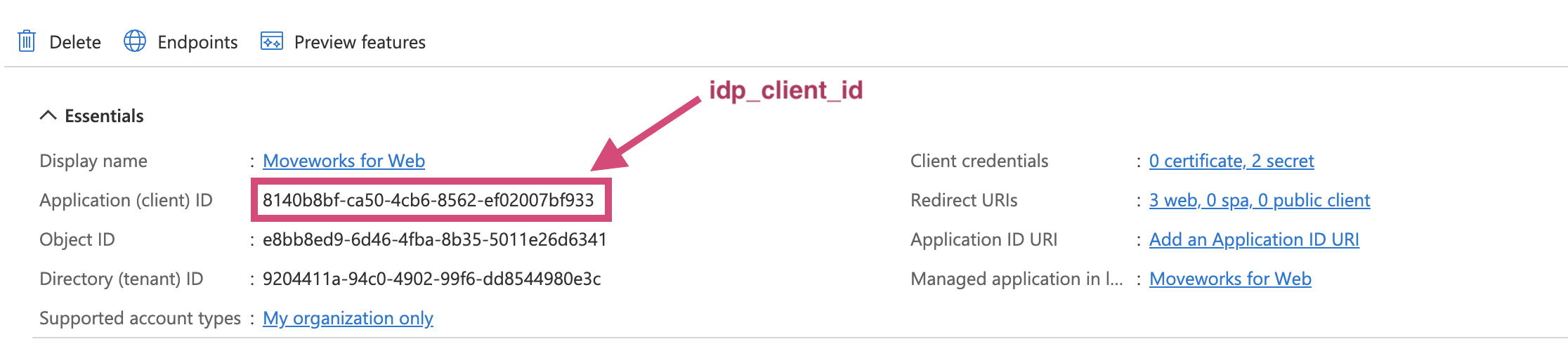
idp_issuer
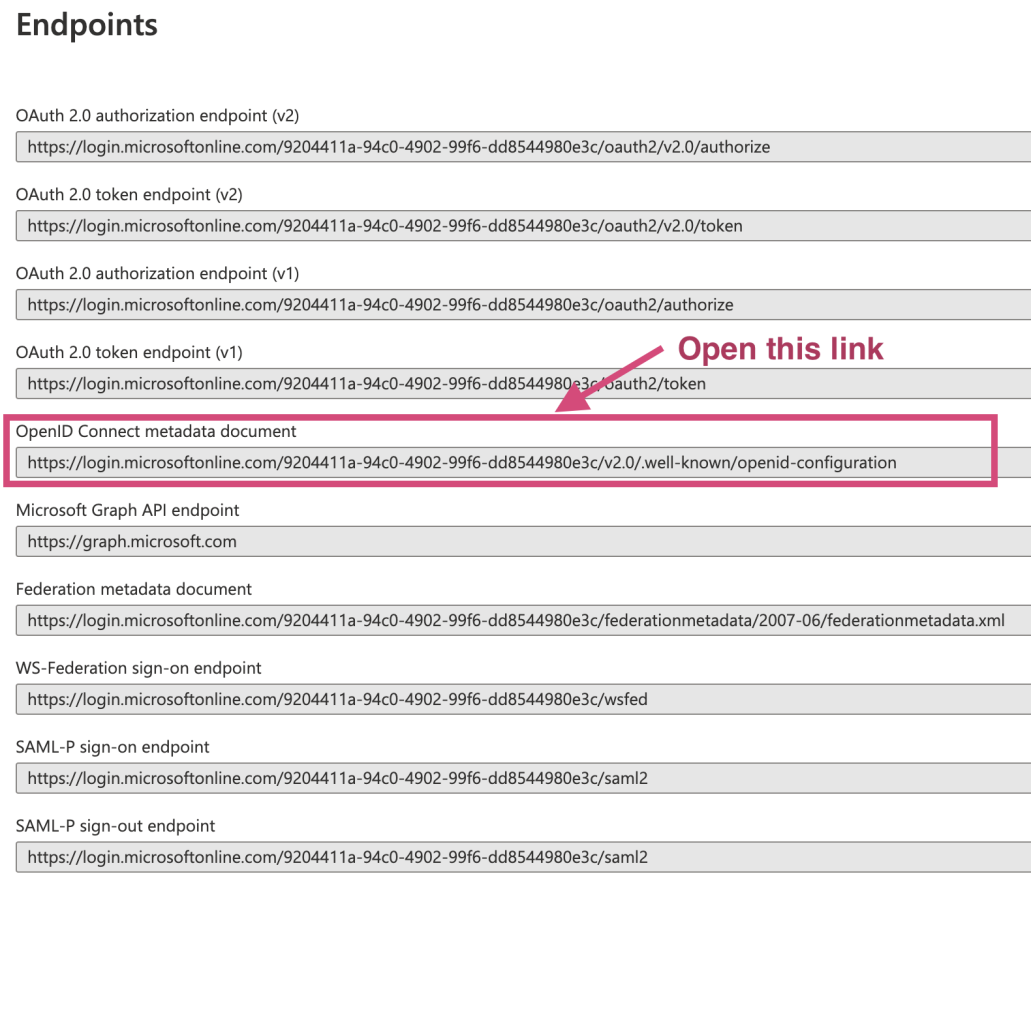

idp_secret(saved locally in the previous step)
- Within Moveworks Setup, navigate to Single Sign-on (SSO)
- Click create to create a new SSO configuration
- Input the following details:
- Moveworks Product: Movewebchat
- Select Connector: ms_graph
- Authentication Protocol: OIDC
- IDP redirect URL
- IDP issuer
- Client ID
- Client Secret
Create Moveworks Setup Authentication Configuration
- Within Moveworks Setup, Navigate to Web Chatbot > Authentication and click create to create a new authentication record
- Set Auth Config to Generic SSO
- Set SSO Config to the SSO configuration record you created in the previous section of this guide.
- Set Auth Key to defaultfor single SSO authentication setups. For setups where you have multiple SSO systems users use to authenticate, follow the Multi SSO Configuration Guide
Configure the Embedded AI Assistant
You will need to follow the Embedded AI Assistant Configuration Guide to complete the remaining setup steps if you have not done so already.