
How to Configure Confluence Server / Data Center Knowledge Ingestion
Pre-Requisites
- Please ensure the required Confluence Server Connector has been created with the necessary permissions. Please refer the Confluence Server Access Requirements Doc for details.
Configuration
Knowledge Ingestion Configuration
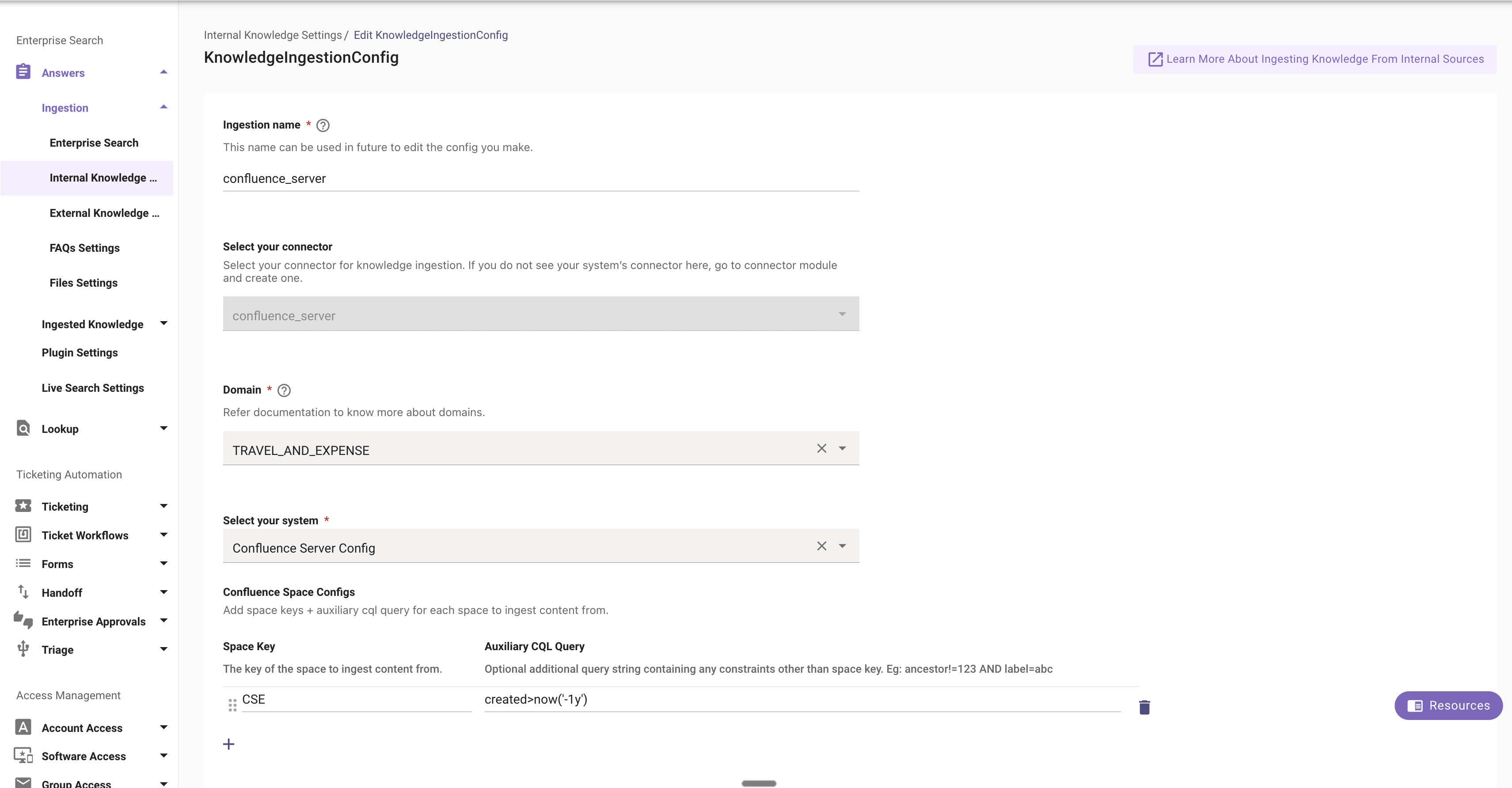
Start by creating a new Ingestion under Search > Configure Search > Classic Ingestion > Internal Knowledge
- First, select the Confluence Server Connector created for the ingestion and then provide a name for the ingestion under Ingestion Name.
- Then, choose a Domain. The domain is the functional areas of employee service that is most related to the knowledge being ingested for this configuration.
- Next, select Confluence Server Config from the Select your system dropdown
- Last, input all of the Space Keys from your Confluence instance to crawl under Space Key column
- You can also add additional CQL queries to control the ingestion scope based on your requirements
User Identity Ingestion Configuration
Create a new user identity ingestion configuration from Confluence Server under Core Platform > User Identity > Import Users.
- Click on Edit to add a new source.
- Click Next to proceed to the next screen and toggle Advanced mode.
- Scroll to the bottom and click on the Add button.
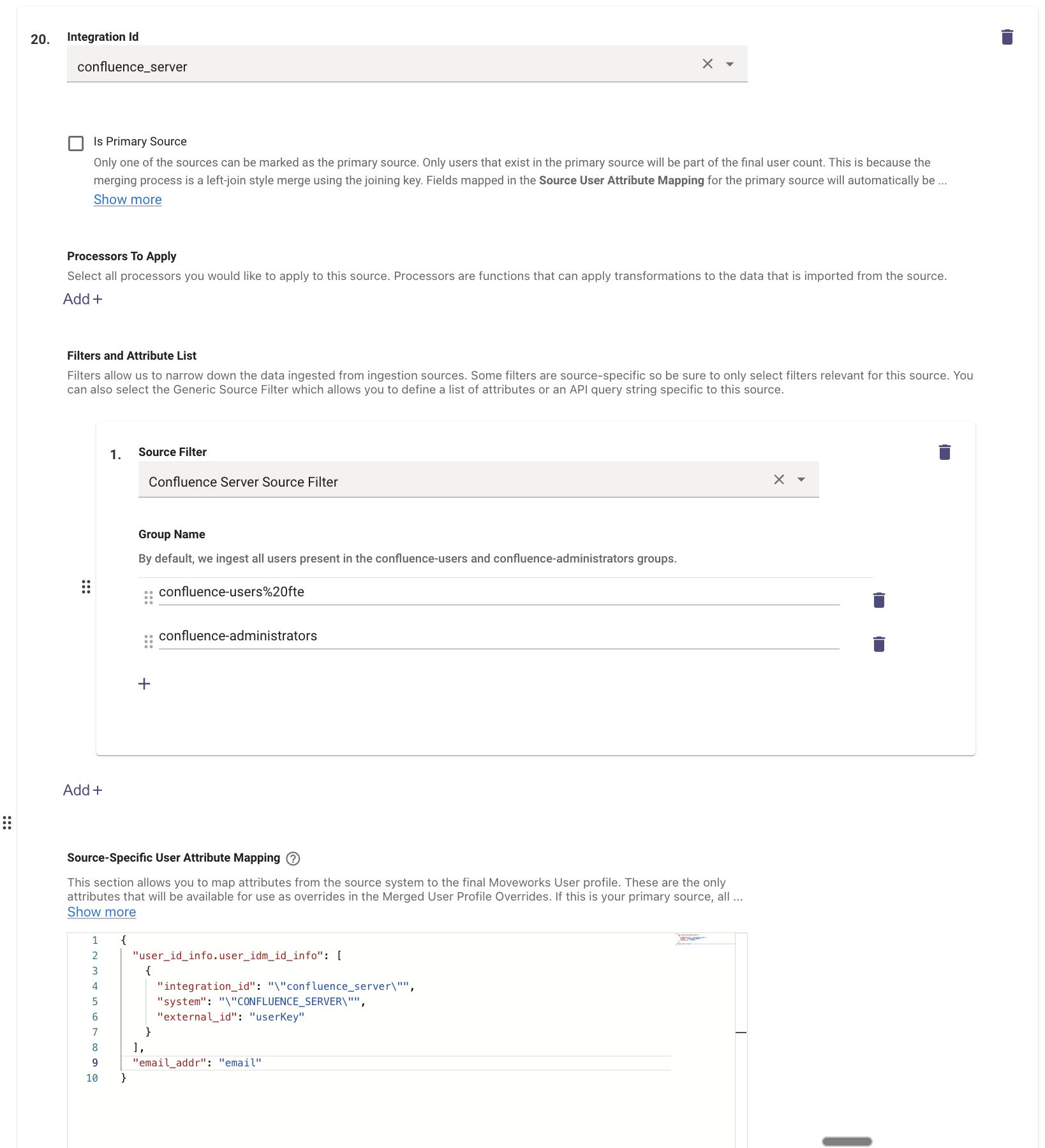
- Set the Integration Id to the Confluence Server connector you created before
- Under Filters and Attributes List, click on the Add button and select Confluence Server Source Filter from the dropdown.
- Now, configure the list of unique group names that constitutes your entire user base in Confluence.
- Next, set the below data mapper under Source-Specific User Attribute Mapping:
Note: Replace{{integration_id}}with the name of your Confluence Server connector in lowercase.
- Finally, click on Submit to save the configuration.
Permission Configuration
Create a new permission configuration under Core Platform > Resource Permissions > Permission Rules and set the following values
- Strategy Config: Rebac Config
- Integration ID: confluence_server (select the Confluence Server connector you have created before)
- Resource Type: kb
- Action: ACTION_VIEW
Validation
- Once you have submitted the Knowledge ingestion configuration, User identity ingestion configuration and the Permission Rules, the Ingestion pipeline will automatically get kicked off in the background within 12 hours, the status of the same can be tracked on the Indexed Content View.
- You can search for the Articles with their Titles here, and if they are listed on the Console that means they have been ingested successfully.