Web Experiences
The web app most employees use is the EmployeeWorks web app inside ServiceNow. This section covers the two Moveworks-hosted web experiences. Moveworks offers two web-based experiences that allow your employees to interact with the Moveworks Assistant directly from a browser or embedded within your internal sites. Each provides a different path for delivering AI support, depending on your deployment needs and where your users prefer to work.
Assistant on Web
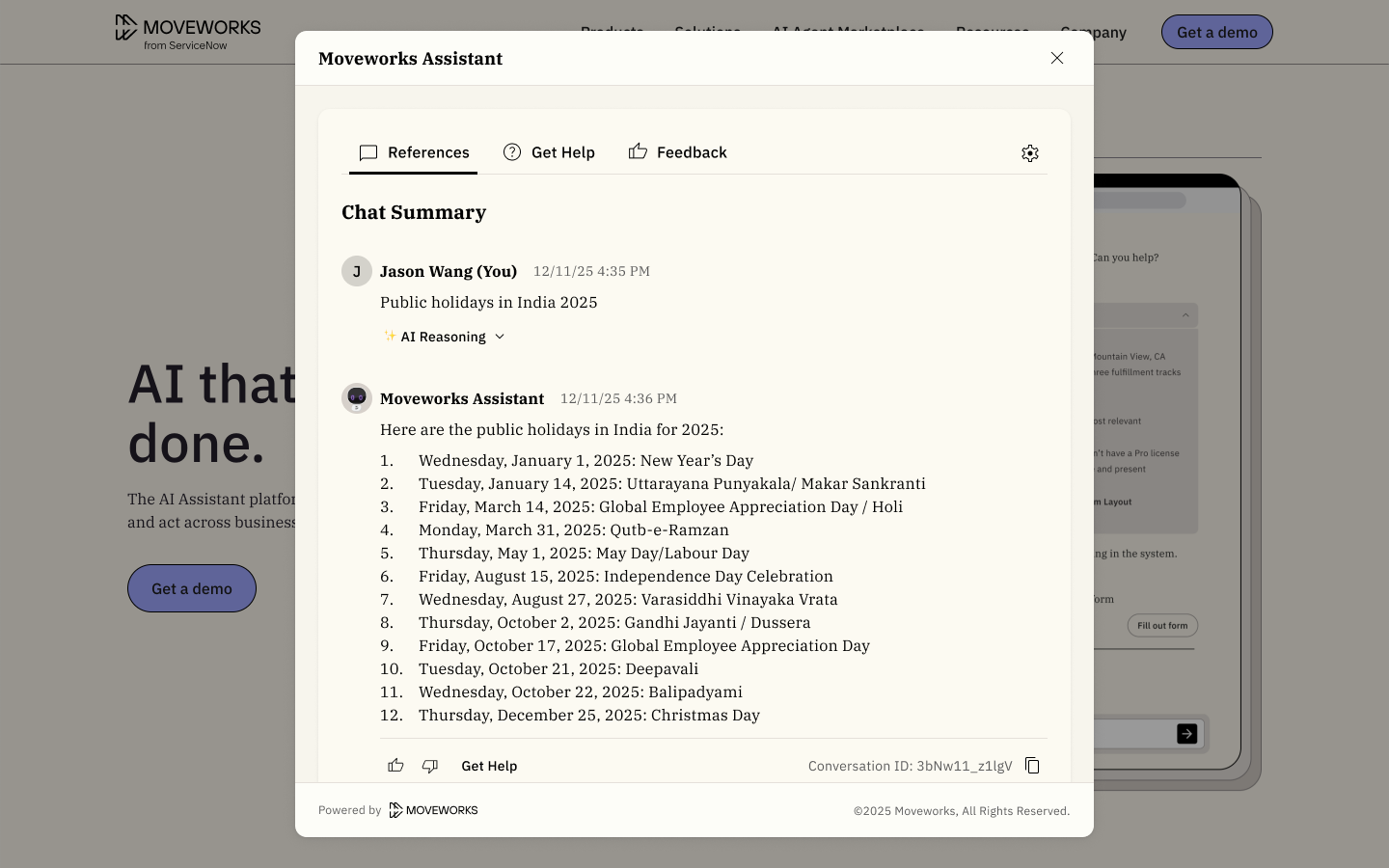
Assistant on Web gives employees a modern, fully featured Moveworks Assistant directly in the browser.
Embedded AI Assistant
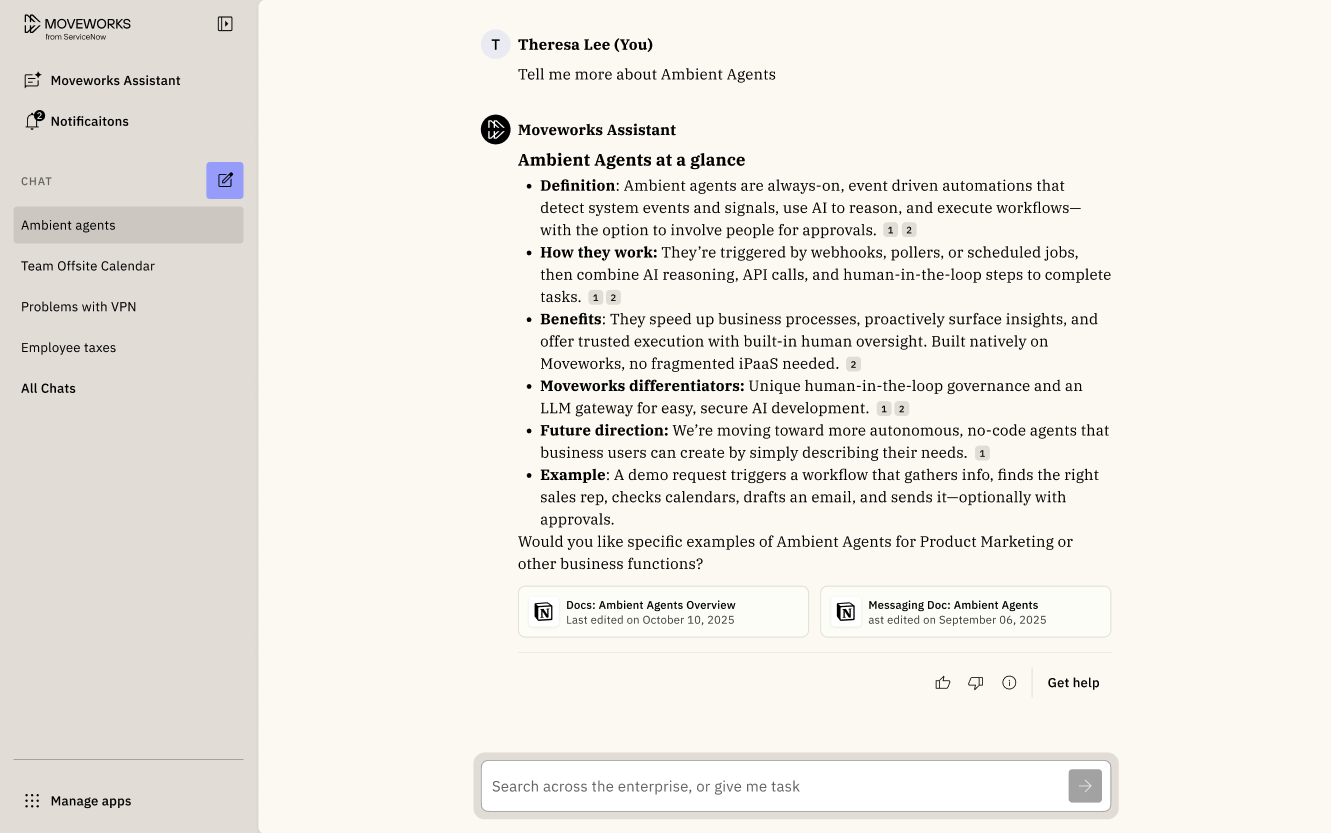
Embedded AI Assistant allows you to place Moveworks directly inside your existing internal websites — such as your ITSM portal, intranet, or HR knowledge hub.
In This Section
- AI Assistant on Web
- Embedded AI Assistant (Formerly Moveworks for Web)
- Browser Compatibility
- Embedded AI Assistant Installation Guide
- Adding Embedded AI Assistant to ServiceNow
- Adding Embedded AI Assistant to SharePoint Online (Cloud)
- Adding Embedded AI Assistant to Google Sites
- Adding Embedded AI Assistant to Unily
- SSO Configuration: Okta OIDC
- SSO Configuration: OneLogin (OIDC)
- SSO Configuration: Okta SAML SSO
- SSO Configuration: Azure OIDC
- Embedded AI Assistant SSO Configuration (General SAML) + ADFS Configuration
- Embedded AI Assistant: Multi-SSO Configuration Guide
- Embedded AI Assistant Troubleshooting Guide
Reference Page
This experience is shared across all surfaces (Assistant on Web, Embedded Assistant, Chat Platforms)
Now Live: New Moveworks Branding
Moveworks rolled out a refreshed visual identity across all product surfaces, including Assistant on Web and the Embedded AI Assistant. This update introduces our new color system, typography, and UI treatments for a more modern, unified Moveworks experience.
This branding updates is not optional and will automatically be applied for all of our customers because they ensure accessibility compliance, enable future scalability, and deliver a consistent experience across all surfaces. There’s no change you as our customer will need to make as this will be an automatic update. While the visual style is evolving, the functionality of your Assistant remains the same.
The biggest change we are introducing is how colors are configured and in this new world, the only color that you can configure will be primary color moving forward. If you do not specify a primary color, we will use black as the primary color [RGB color (0,0,0)].
[Live] Additional UX improvements coming this Friday, Jan 30, 2026:
-
Assistant on Web: Primary color is not being applied to bot images that have transparent backgrounds
-
Timestamp will be added within assistant responses

-
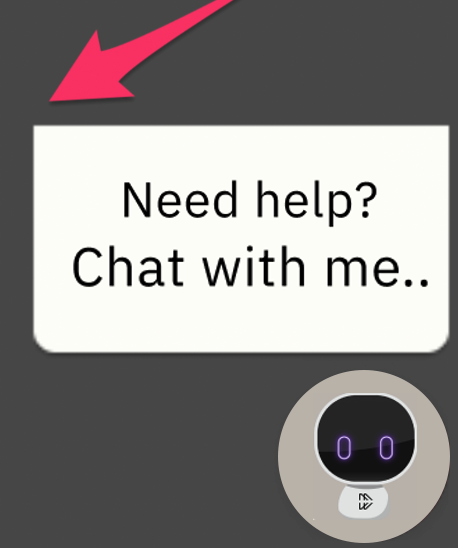
The entry point for embedded assistant will have rounded corners at the top.
What can customers do to prepare for this update?
Since all customer will automatically get this update, the ask we have for our customers is to verify the primary color that is configured within Moveworks Setup. With this update, primary color is the only configurable color we will support moving forward. If you don’t complete this verification task, you can always change this after the update has taken effect. When you modify the primary color, the change within the experience is instant after you save the configuration.
Verify and update the primary color:
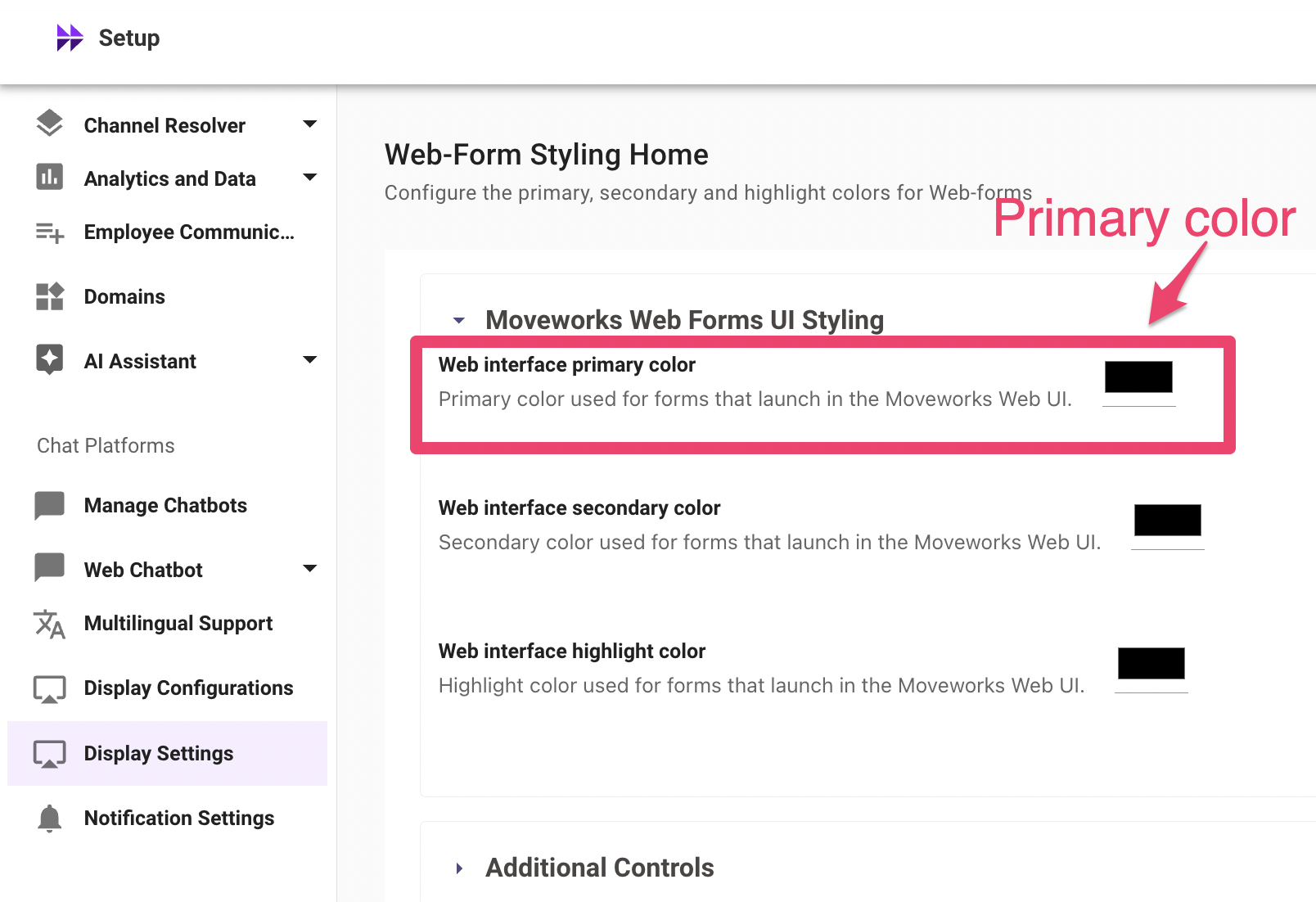
Within Moveworks Setup
- Find the “Chat Platform” section
- Click on “Display Settings”
- Expand the “Moveworks Web Forms UI Styling” section
- Modify the “
Web interface primary color”
Today the configuration page will display 3 colors that can be configured, once we make the update on Jan 26, 2026 the other 2 color selections (Web interface secondary color & Web interface highlight color) will no longer be supported as configurations and will be removed from the configuration page on Jan 26, 2026 by 6pm PST.
An update was made to your primary color on Jan 21, 2026:
Additionally you may notice that your primary color may have recently been updated. In preparation for our UX branding updated we proactively updated your primary color so that it matches the primary color that was set within your Embedded Assistant experience (this setting lives in a different page within Moveworks Setup). This update was made on Jan 21, 2026 and only applied to customers who have embedded assistant and currently had their color on this “Web-Form Styling Home” setup page set to black. If your primary color on this page was not black, your primary color was not modified.
Besides “Web interface primary color”, the other color configuration options that currently appear on the Moveworks Setup page are no longer support. You can pick colors on those other configurations, but nothing will occur given that we’ve removed the logic for how those settings work.
By Monday, Feb 2, 2026 the other color configuration options will no longer appear within the setup page.
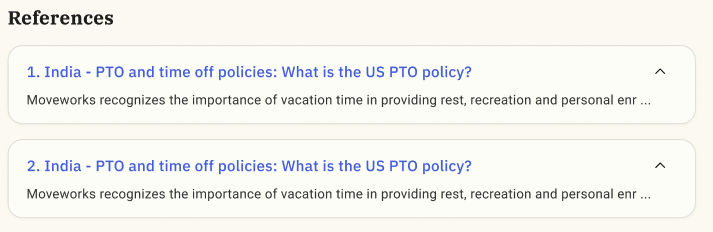
You can update the primary color before Jan 26, 2026. Just be aware that the primary color you select will impact the hyperlinks on the Reference Page given that the UX branding update isn’t live yet. When the UX branding update is live, you will no longer have the ability to select the color of hyperlinks.
Starting on Jan 26, 2026 the color of hyperlinks will be blue.
What’s changing for Assistant on Web?
Assistant on Web will adopt the new Moveworks look and feel, including:
- Updated colors, typography, and UI elements
- New button styles, icons, and layout refinements
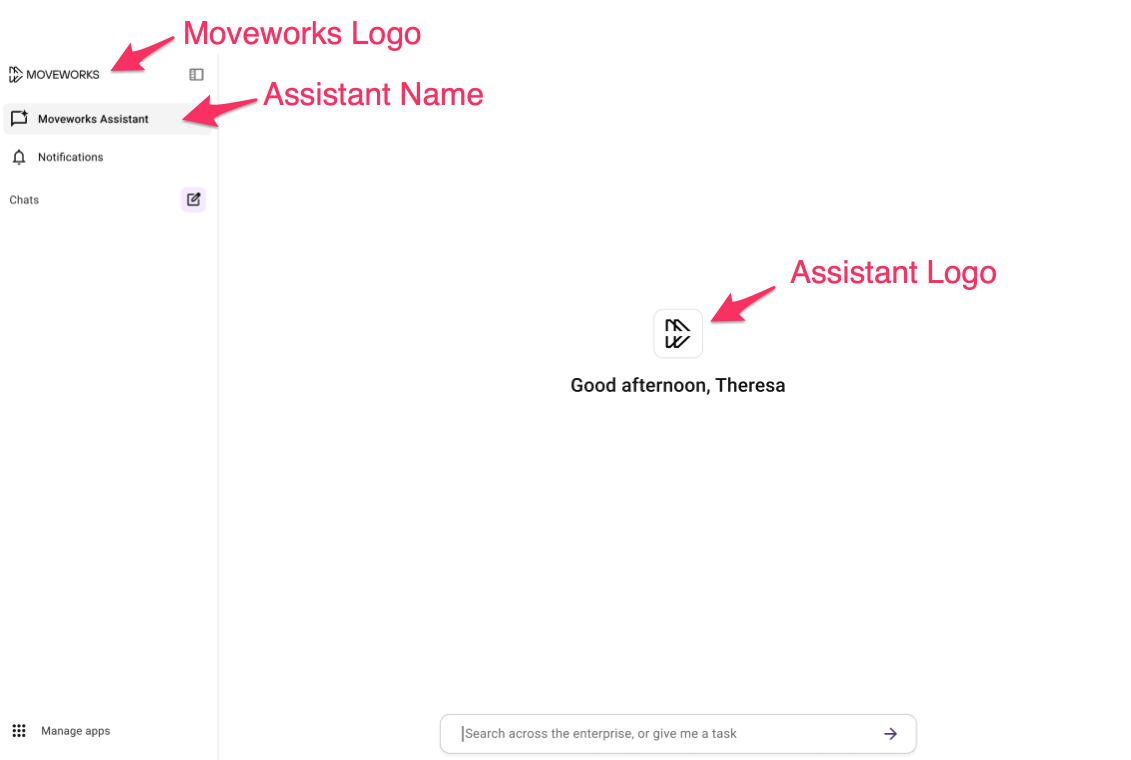
Customization is simplified. Moving forward you can only customize these elements:
- Assistant name
- Assistant logo
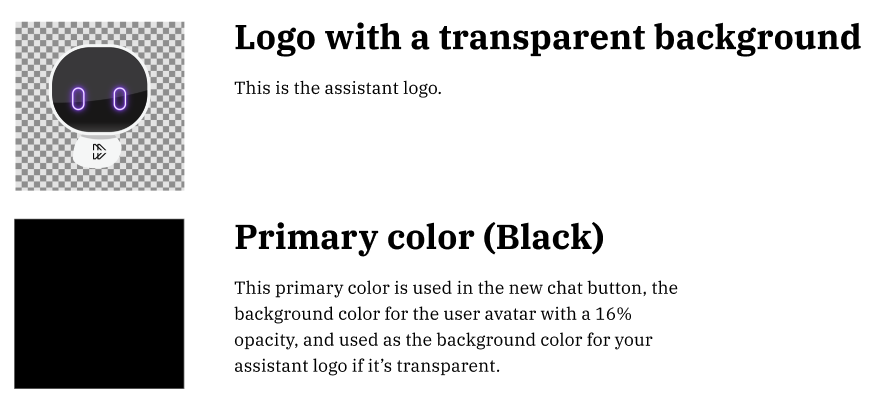
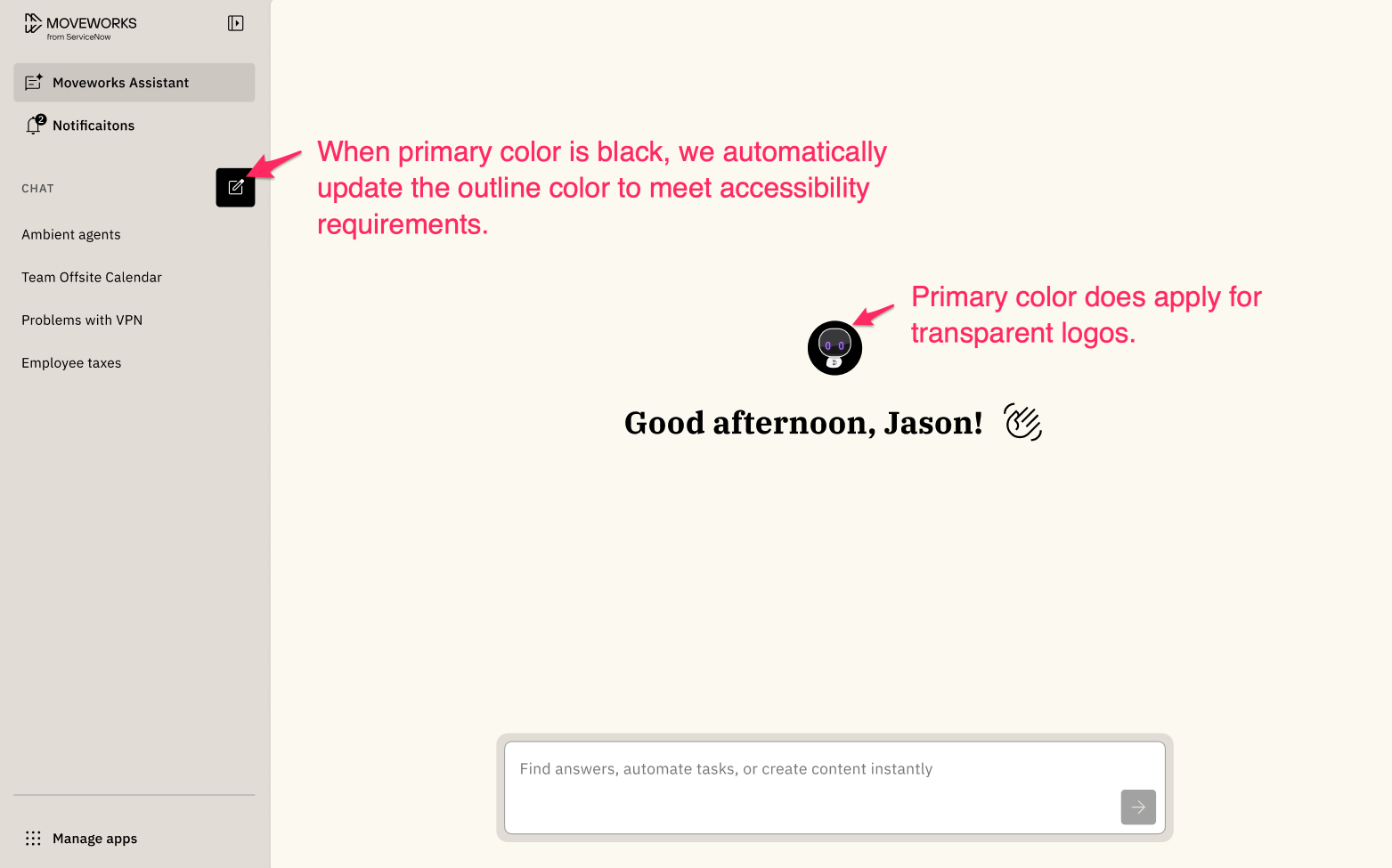
- Primary color (gets applied as the background color for the “new chat thread” button on assistant on web, the background color for the user avatar that appears on all web experiences, and as the background color to your bot image assuming your bot image was a logo with a transparent background).
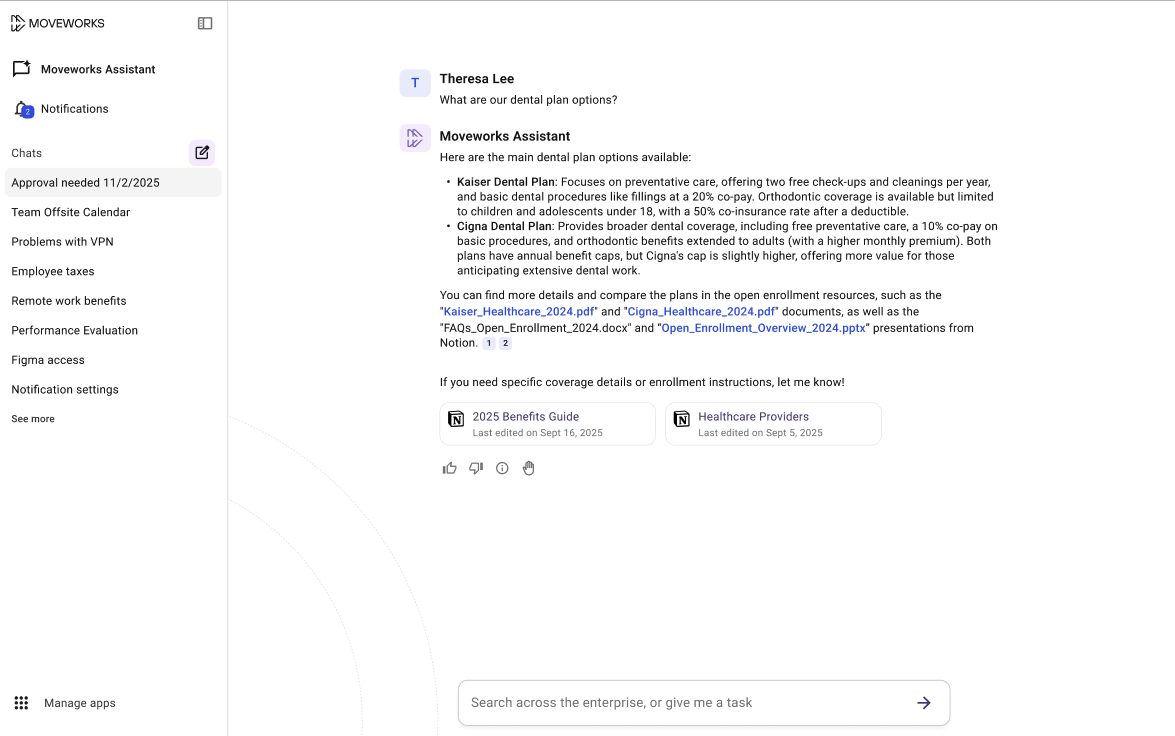
Before (AI Assistant)
After (AI Assistant)
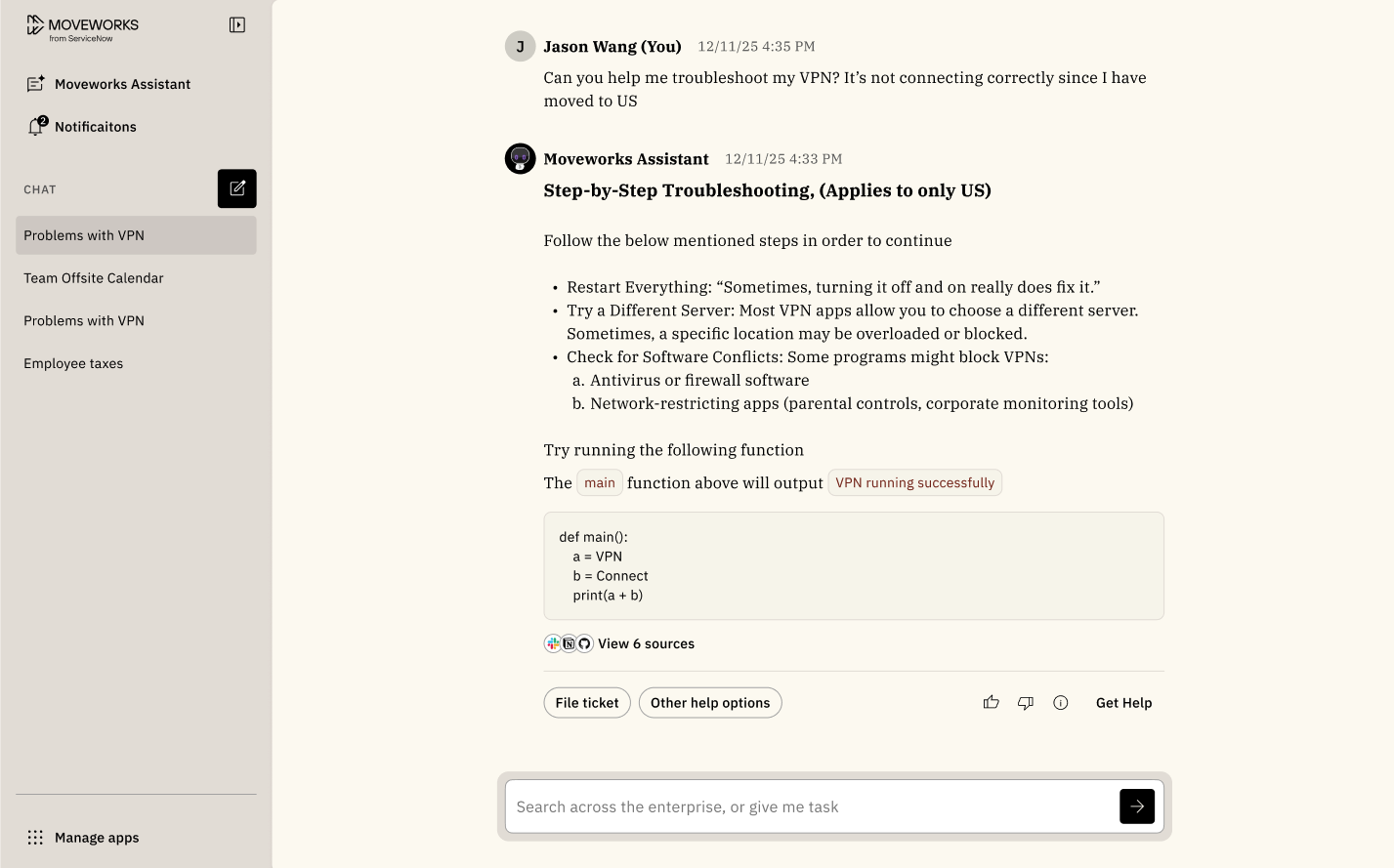
You’ll see an updated Moveworks logo since now we’re part of Service Now, “Moveworks from ServiceNow”. Your assistant name and logo will continue to be displayed. You’ll notice this example is using light purple as the primary color.
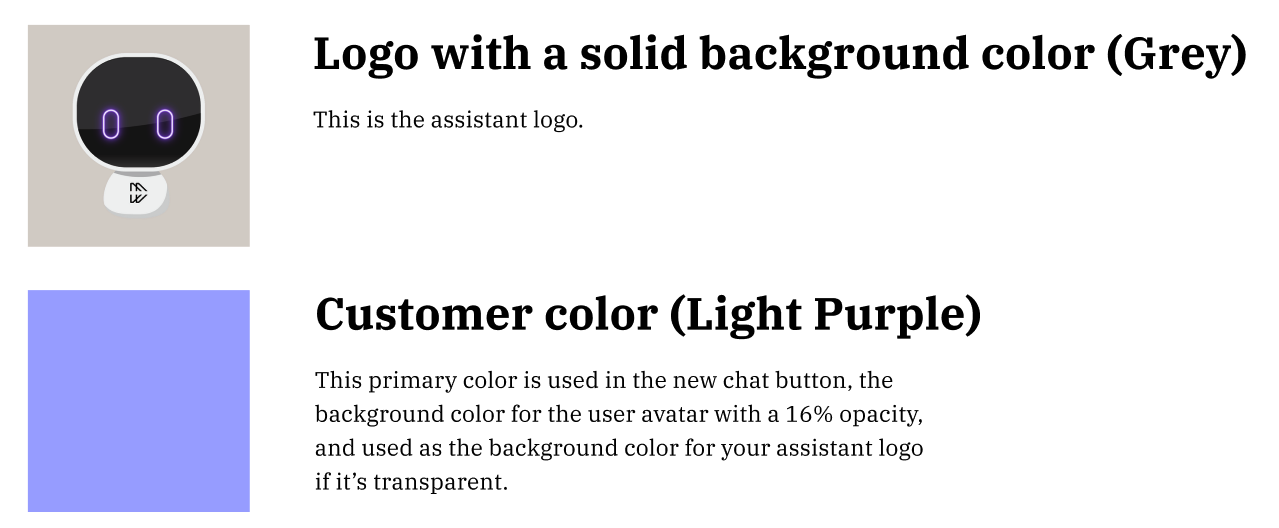
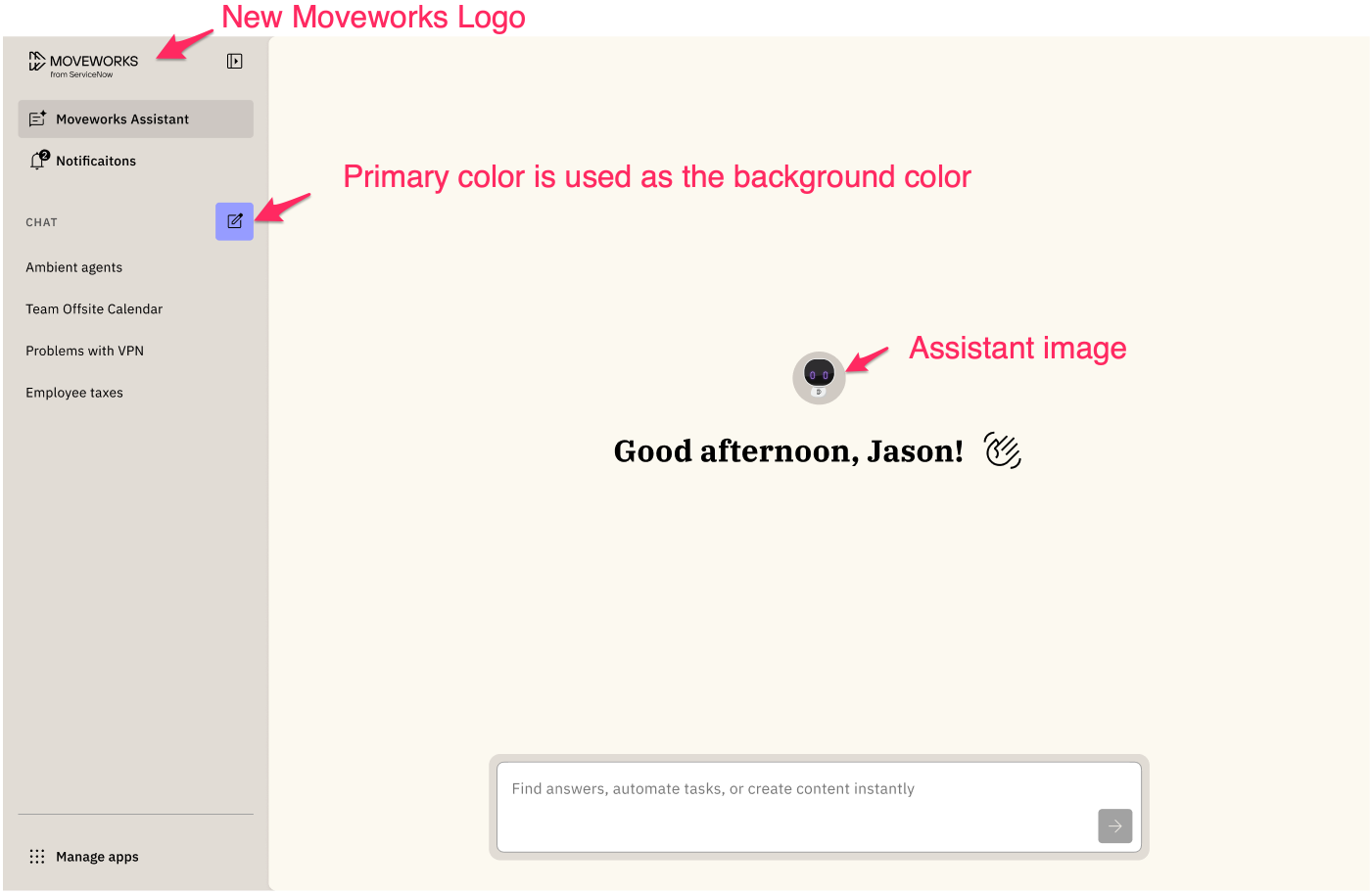
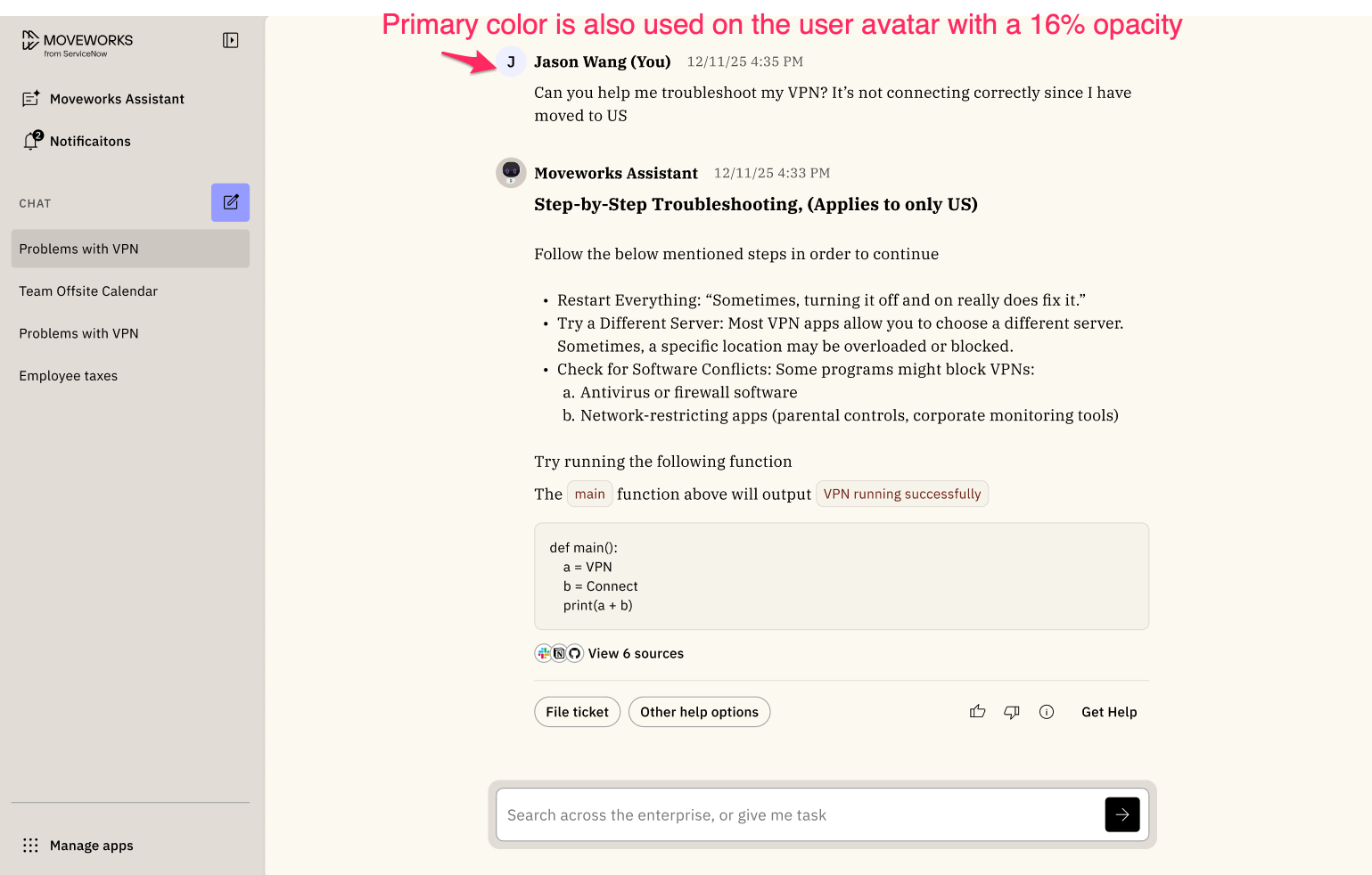
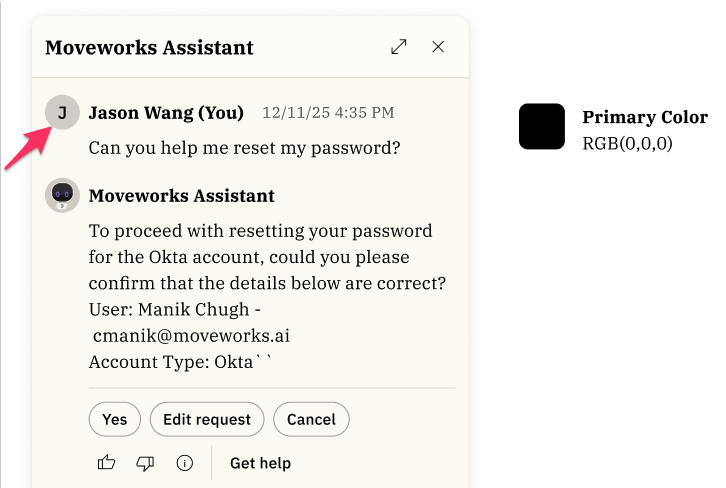
If you don’t specify a primary color, the primary color will be set to Black. Below is how your experience will look: This example also shows you how primary color impacts your assistant logo assuming it has a transparent background.
Before (Enterprise Search)
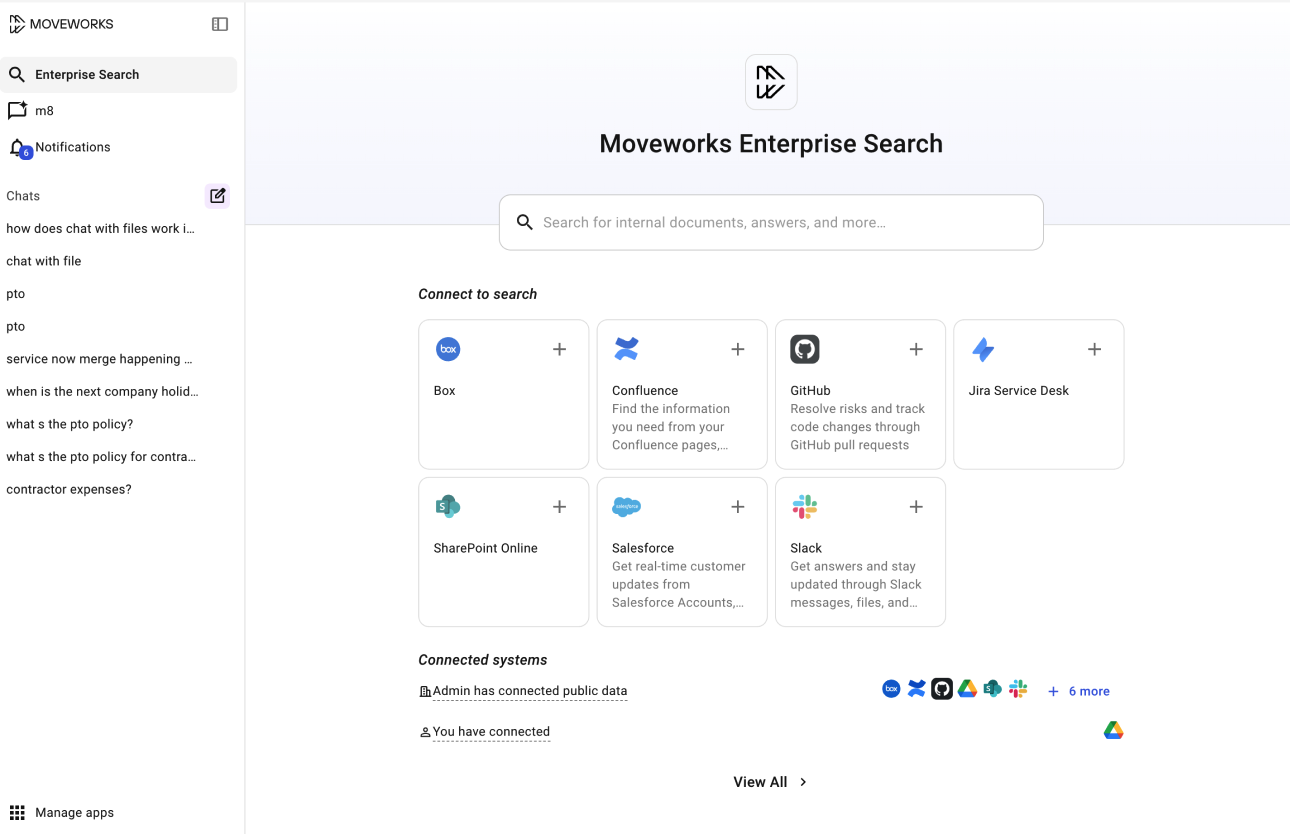
After (Enterprise Search)
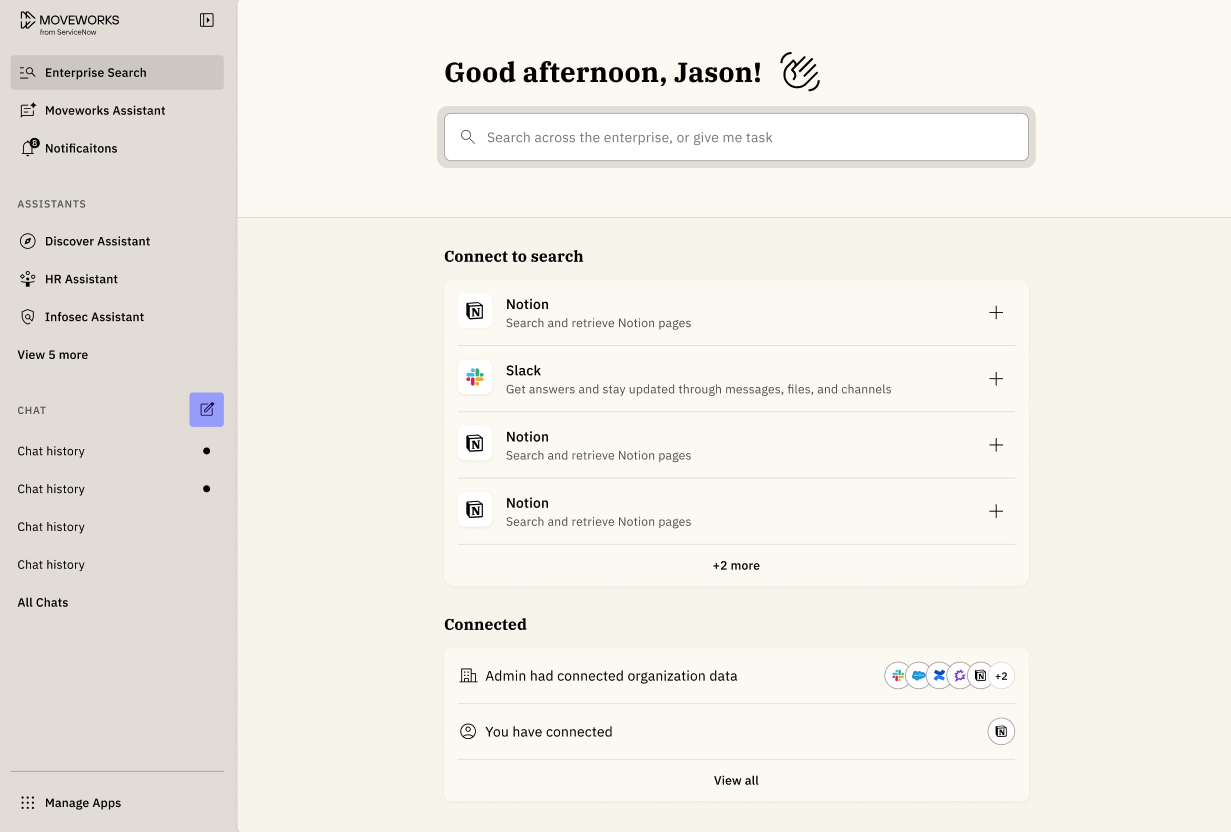
Changes to branding customization
Primary Color on Web Experiences
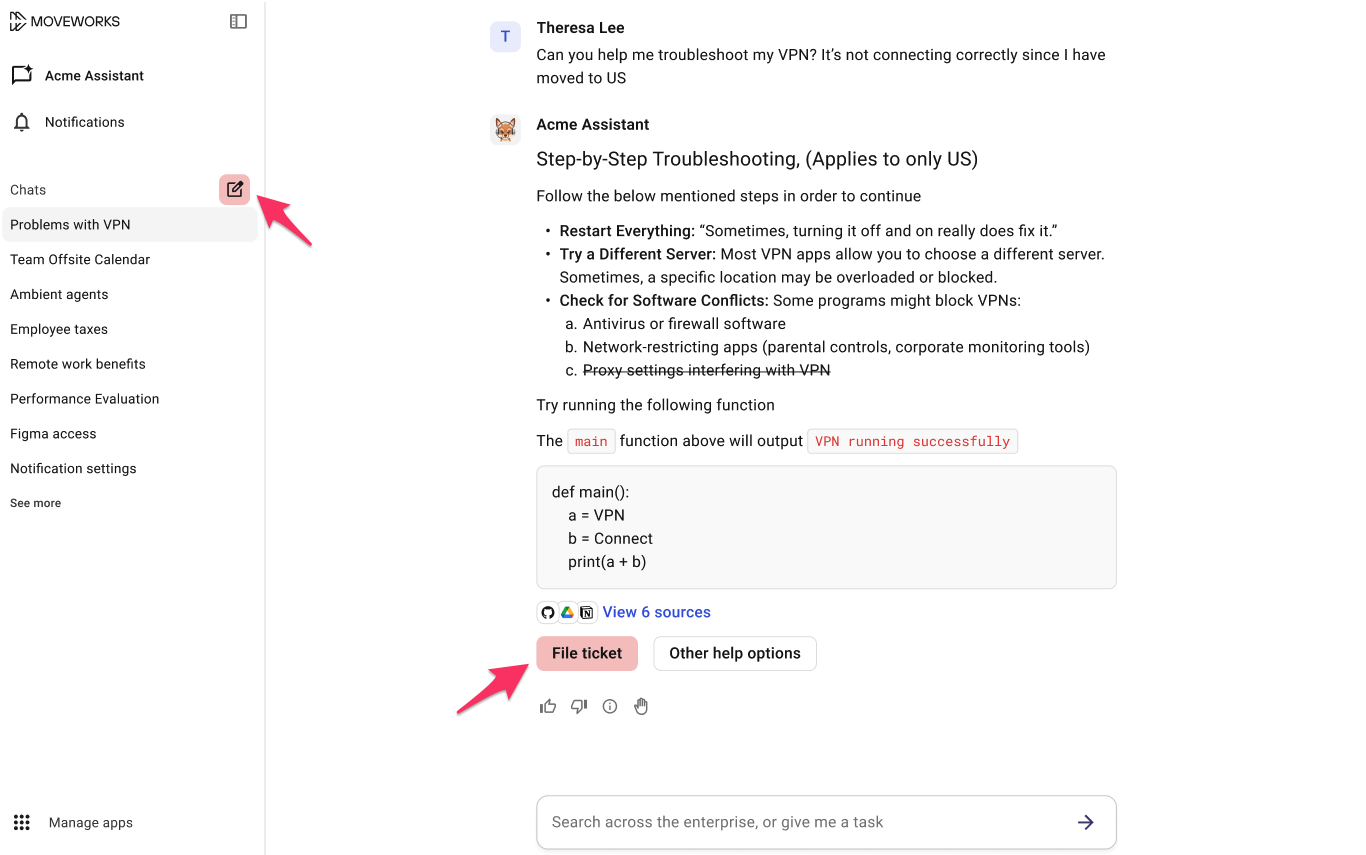
The primary color will continue to be customizable, but the logic for how it is applied is changing. You will no longer be able to specify the fill color for the buttons that appear within an assistant response:
Today, the primary color is used for:
- The background color for your bot image (assuming your bot image was a logo with a transparent background)
- The “new chat thread” icon
- The fill color for the first button when 2 or more buttons appear within an assistant response
See example below. To visually show these changes, we’ve used the color “red” as the primary color.
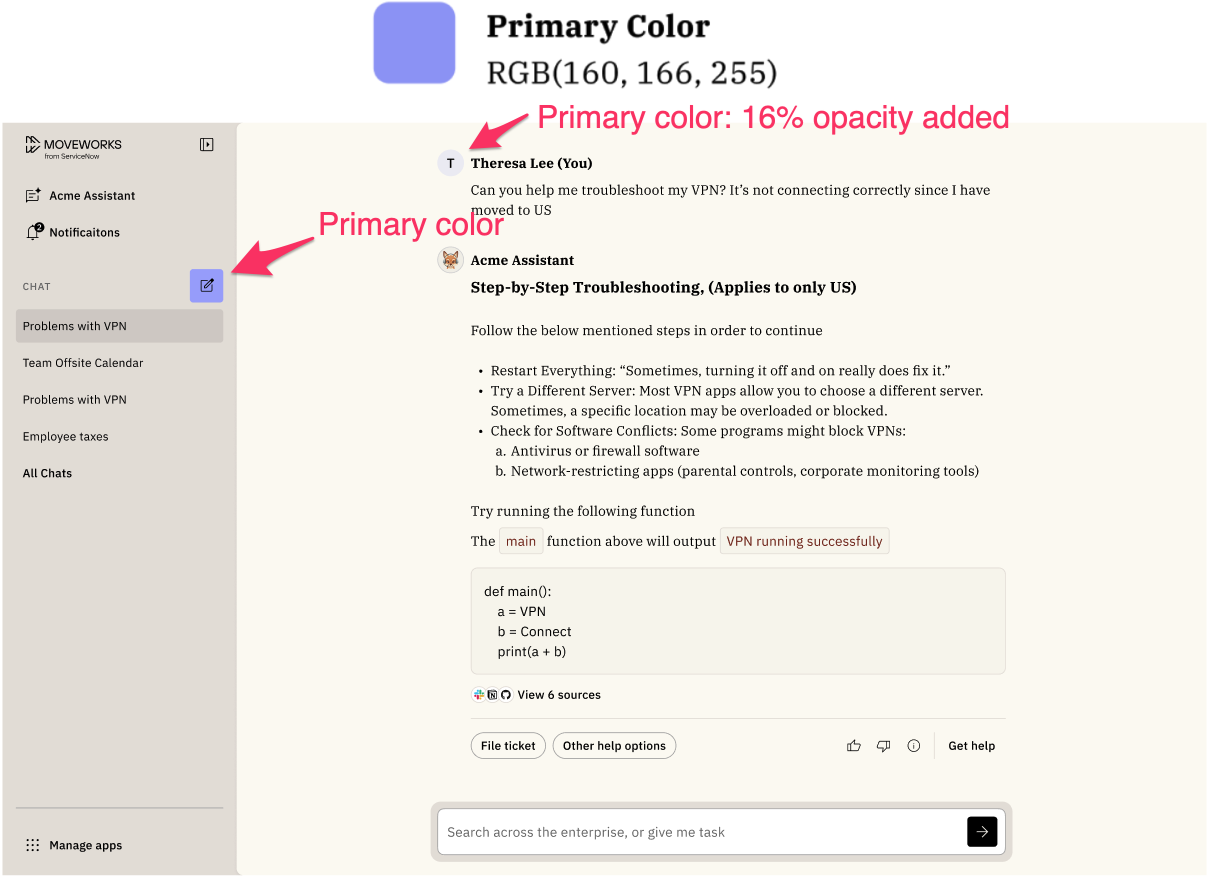
Starting on January 26, 2026, the primary color will only be used for:
-
The background color of the “new chat thread” button.
-
The user avatar will use a 16% opacity based on the primary color you set.
-
The background color for your bot image (assuming your bot image was a logo with a transparent background)
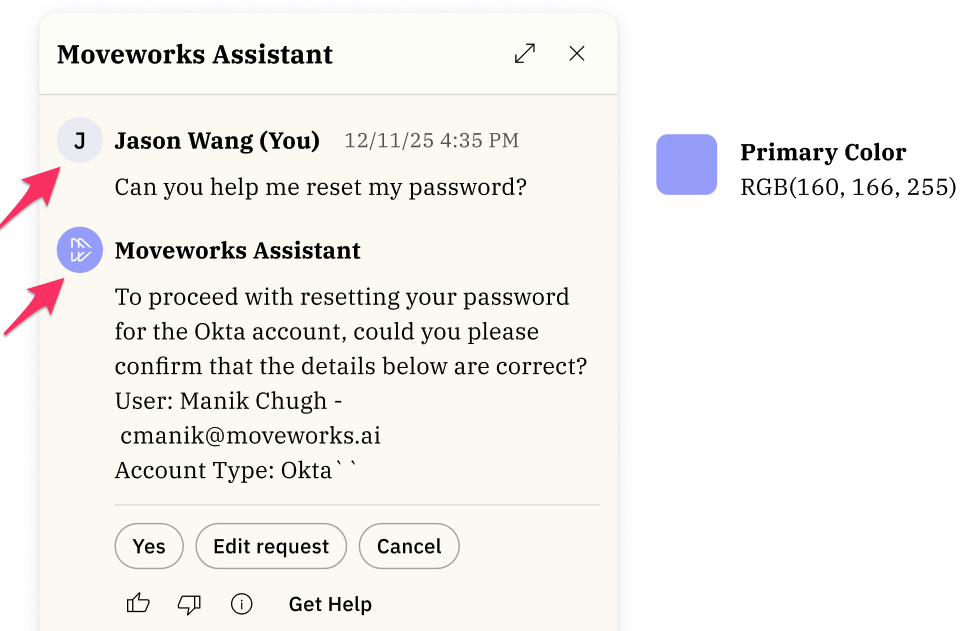
Here’s an example of how the new experience will look using light purple RBG(160, 166, 255) as the primary color.
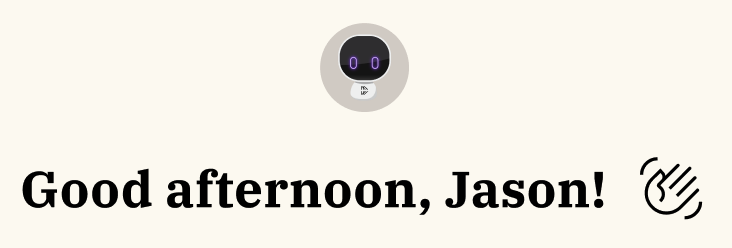
Here are some examples that show primary color impacts assistant logos that have transparent backgrounds.
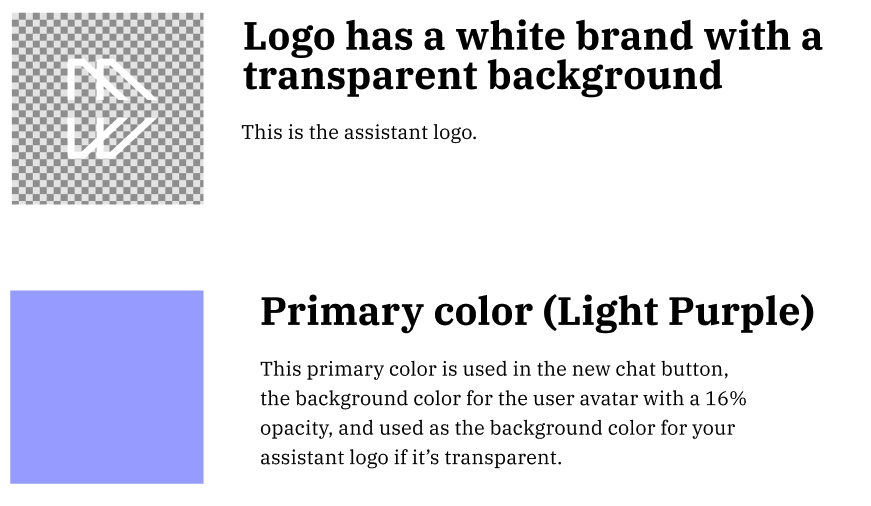
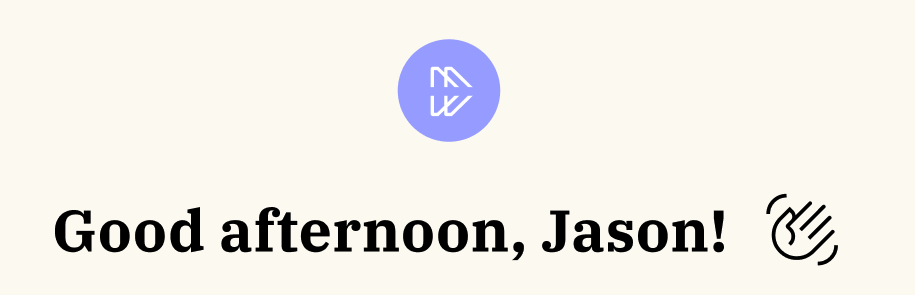
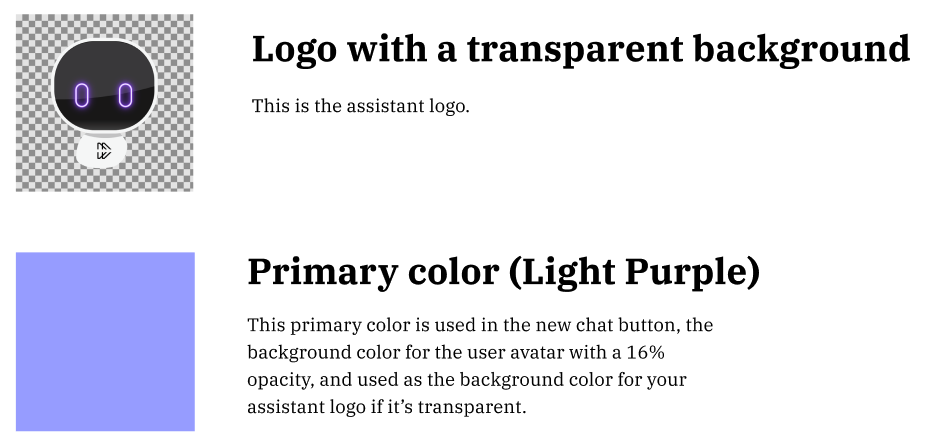
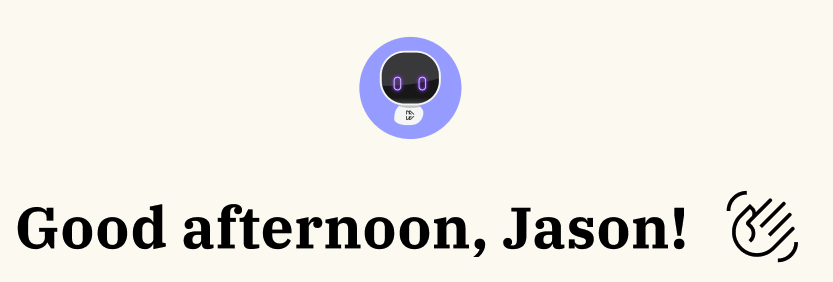
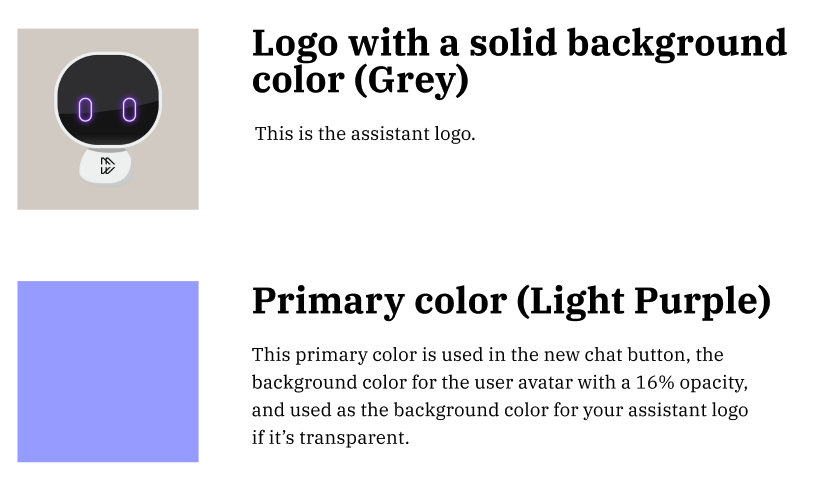
And here’s an example of a bot logo that doesn’t have a transparent background color:
How to check if your avatar image has a transparent background?
The assistant image that’s for Assistant on Web and Embedded Assistant are separate configs.
Assistant on Web
Within Moveworks Setup, navigate to the following configuration page to verify the image that’s being used as your assistant avatar:
-
Find the “Organization Details” section
-
Expand the “Tenant Settings” section
-
Click on “General Information”
-
Expand the “AI Assistant Preferences” section
-
Look at the image that appears within “
AI Assistant Avatar”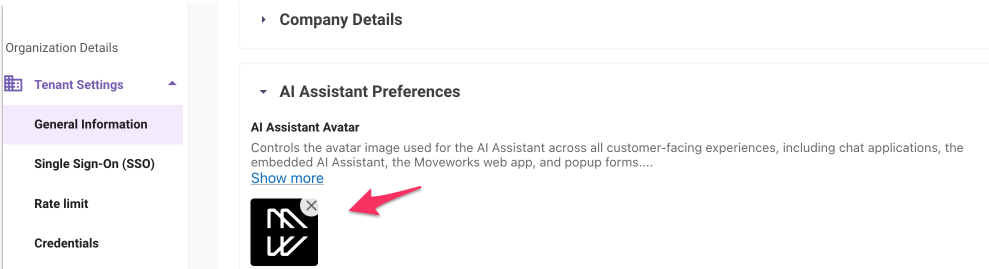
Embedded Assistant
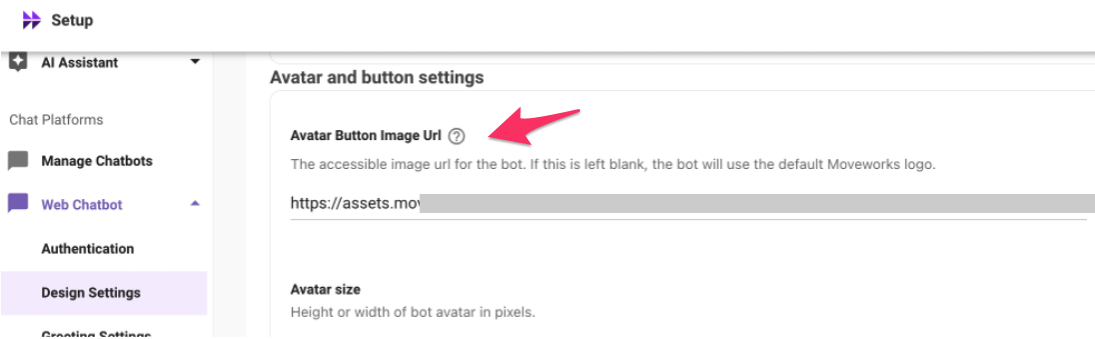
Within Moveworks Setup, navigate to the following configuration page to verify the image that’s being used as your assistant avatar:
- Find the “Chat Platforms” section
- Expand the “Web Chatbot” section
- Click on “Design Settings”
- Expand the “Avatar Button Image Url” section
- Look at the image that appears within “
Avatar Button Image Url”
Primary color on the Reference Page
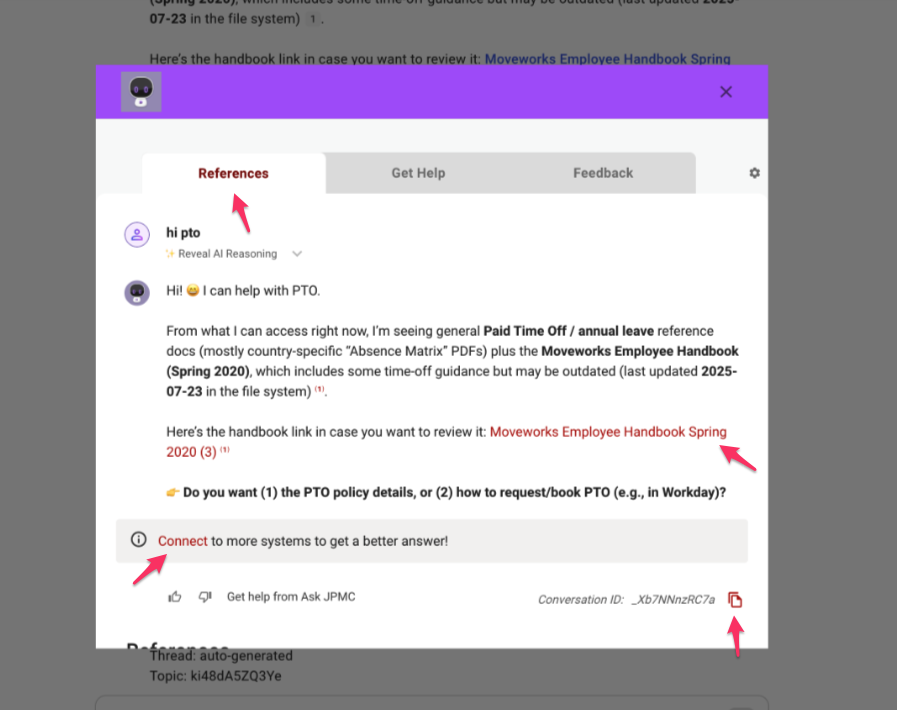
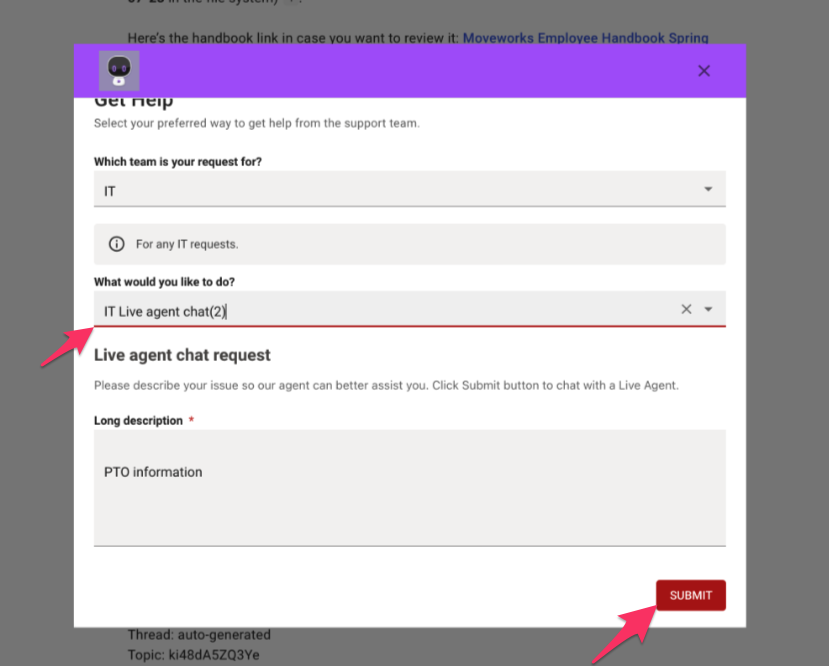
Additionally today before Jan 26, 2026 on the Moveworks Reference page, the primary color is used for:
- The colors on titles on appear within the tabs (“References”, “Get Help”, and “Feedback”)
- Any URL links that appear within the assistant response.
- The bottom line outline that appears for a drop down selector.
- The fill color for the buttons on each tab (ex. “Submit”)
_See examples below. To visually show these changes, we’ve used the color “red” as the primary color. _
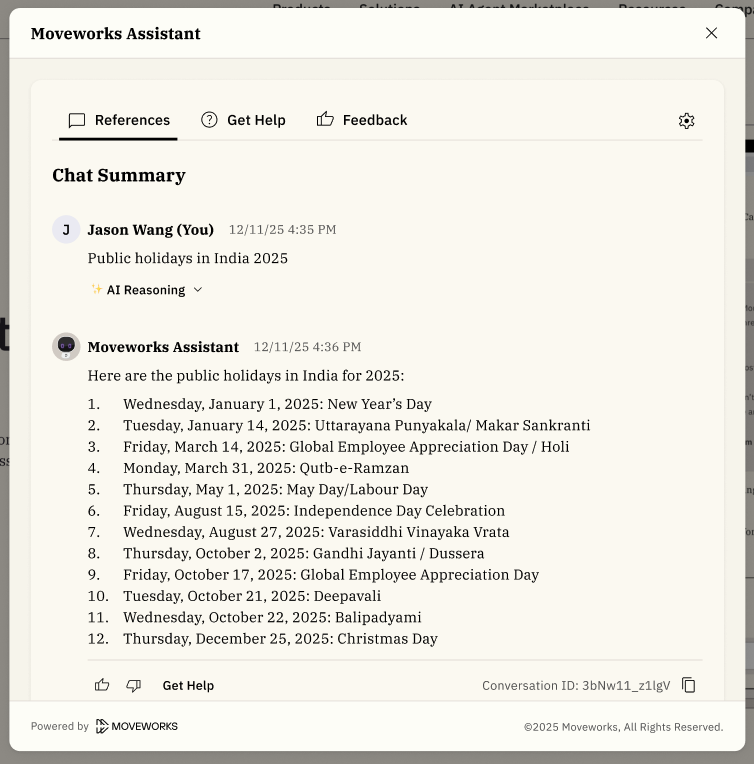
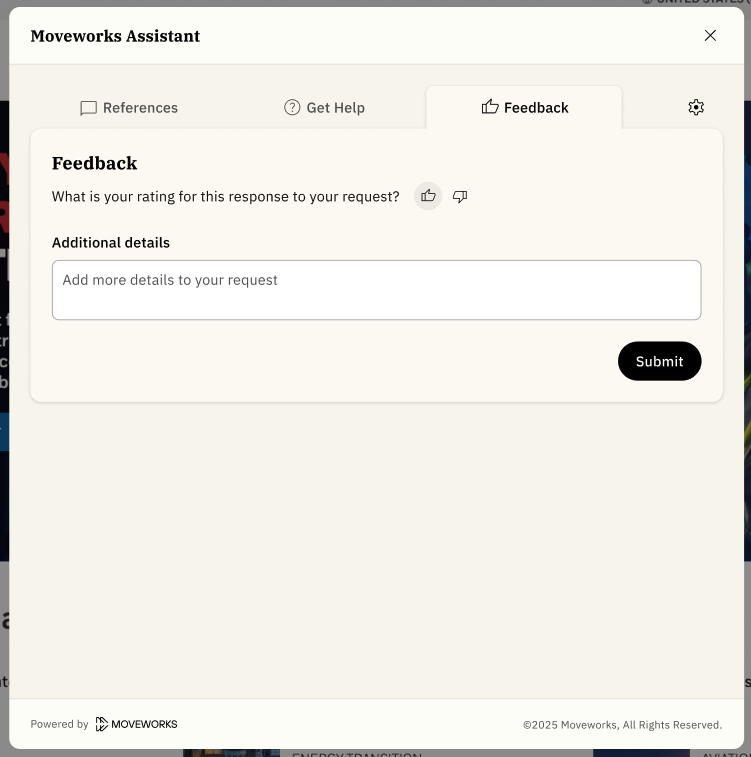
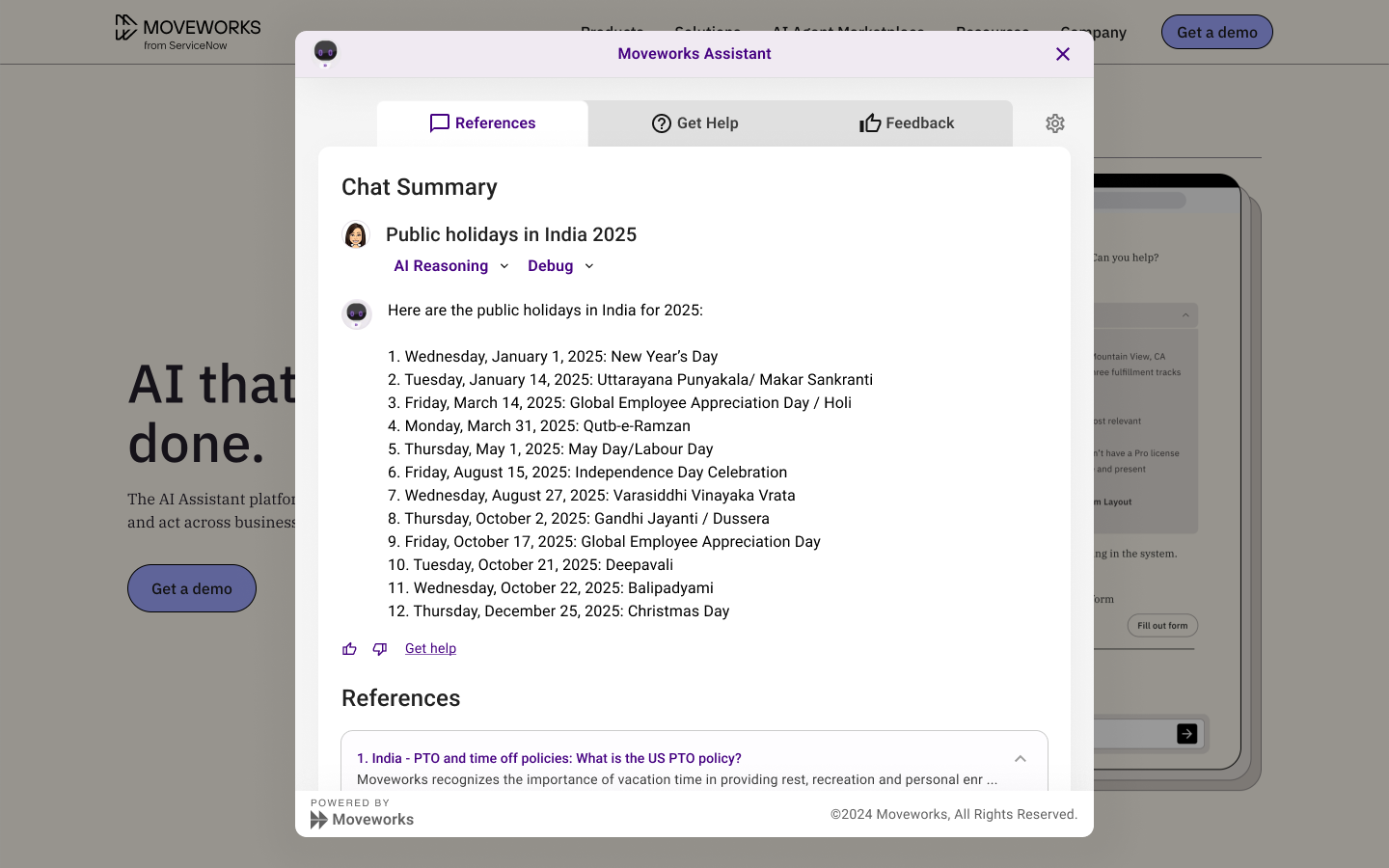
Starting on January 26, 2026, the primary color will no longer on the Reference Page.
This is how the Reference Page will appear, again no color customizations.
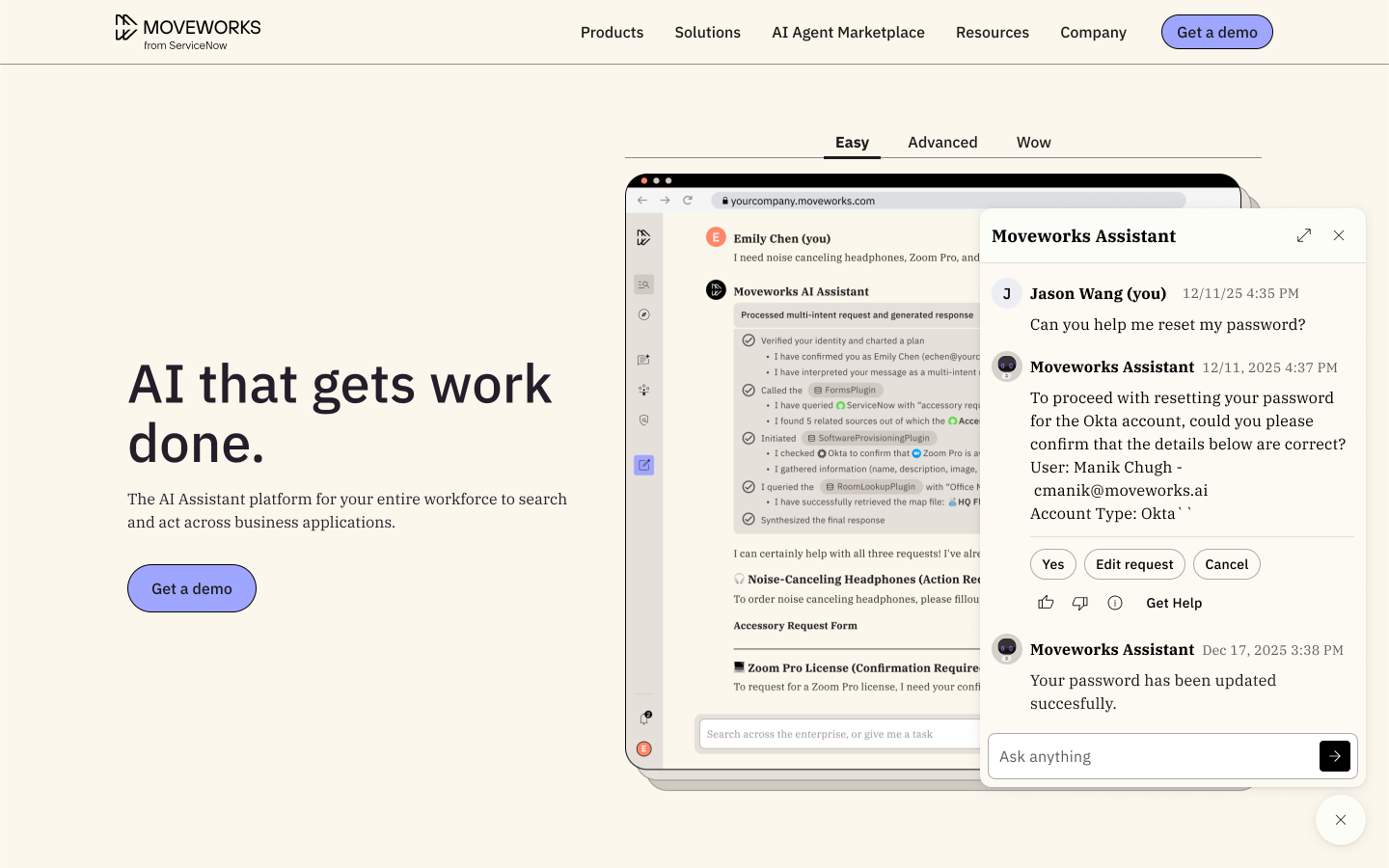
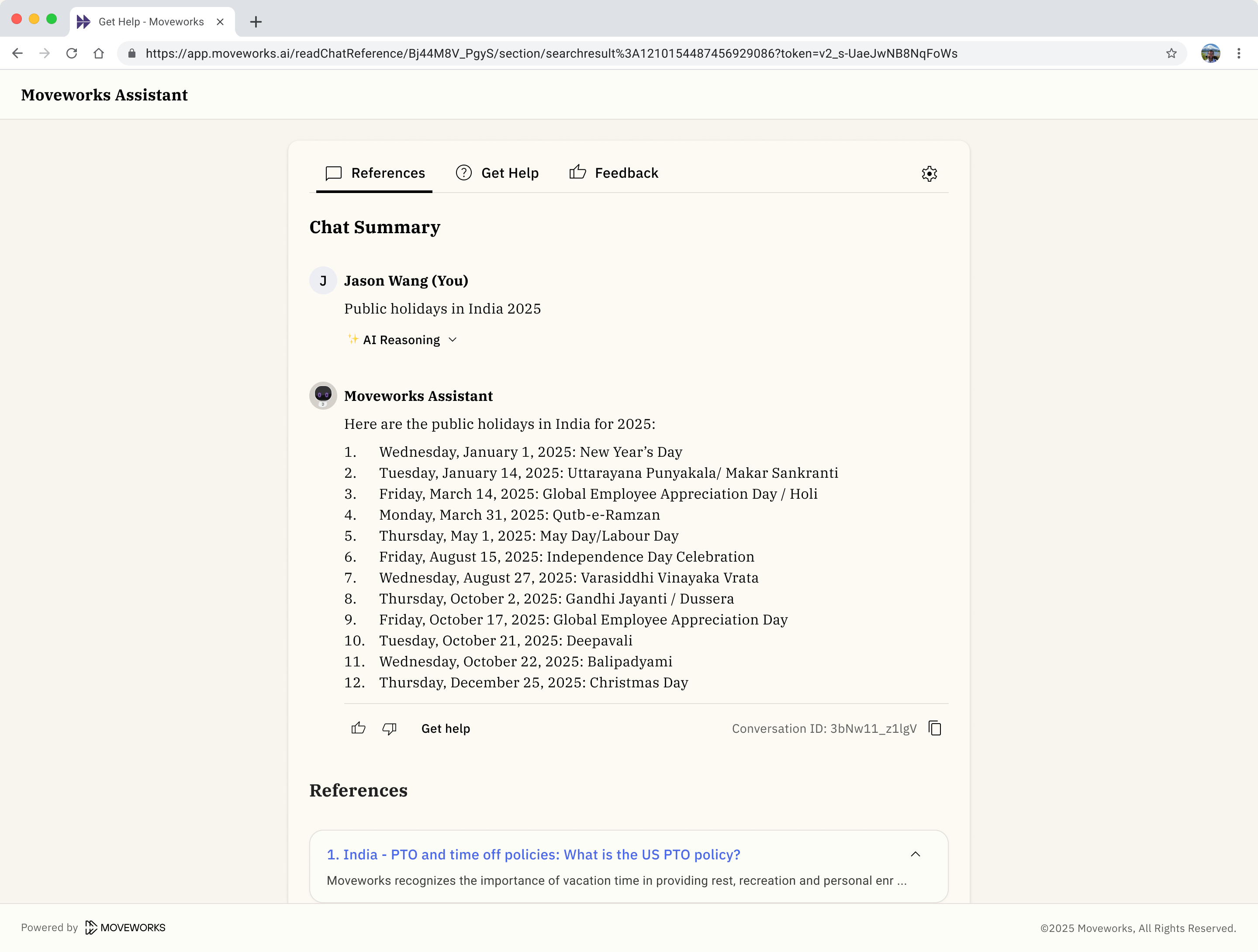
Note that the reference page is where you view citations. This experience is shared across all surfaces (Assistant on web, embedded assistant, and chat platforms)
What’s changing for the Embedded Assistant?
Embedded Assistant will also reflect the updated Moveworks branding for a more cohesive user experience.
Visual Updates
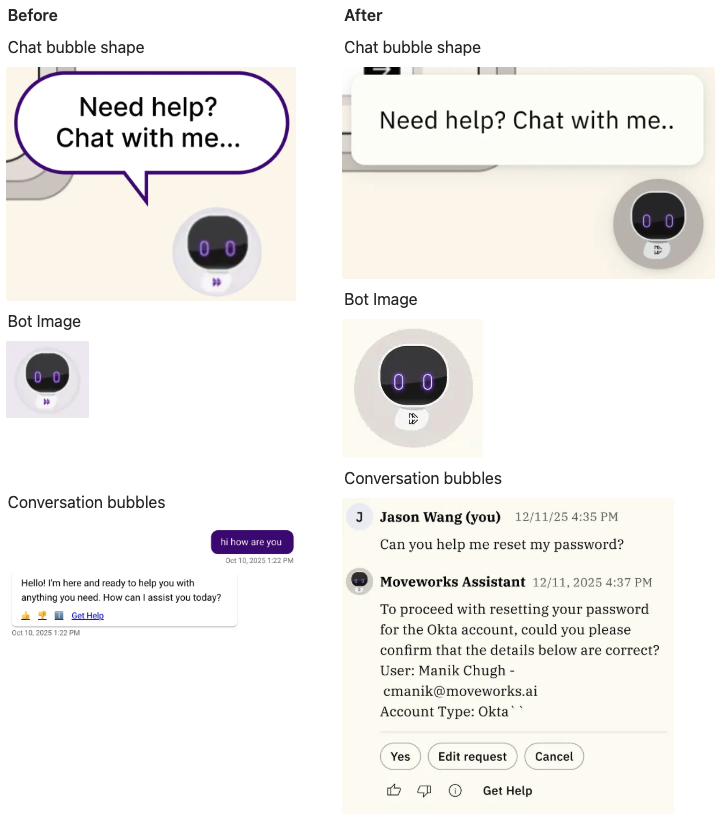
Some of the visual changes you will notice will be regarding how we render the bot image (no grey outline) and the conversation bubbles, as shown below.
Changes to branding customization
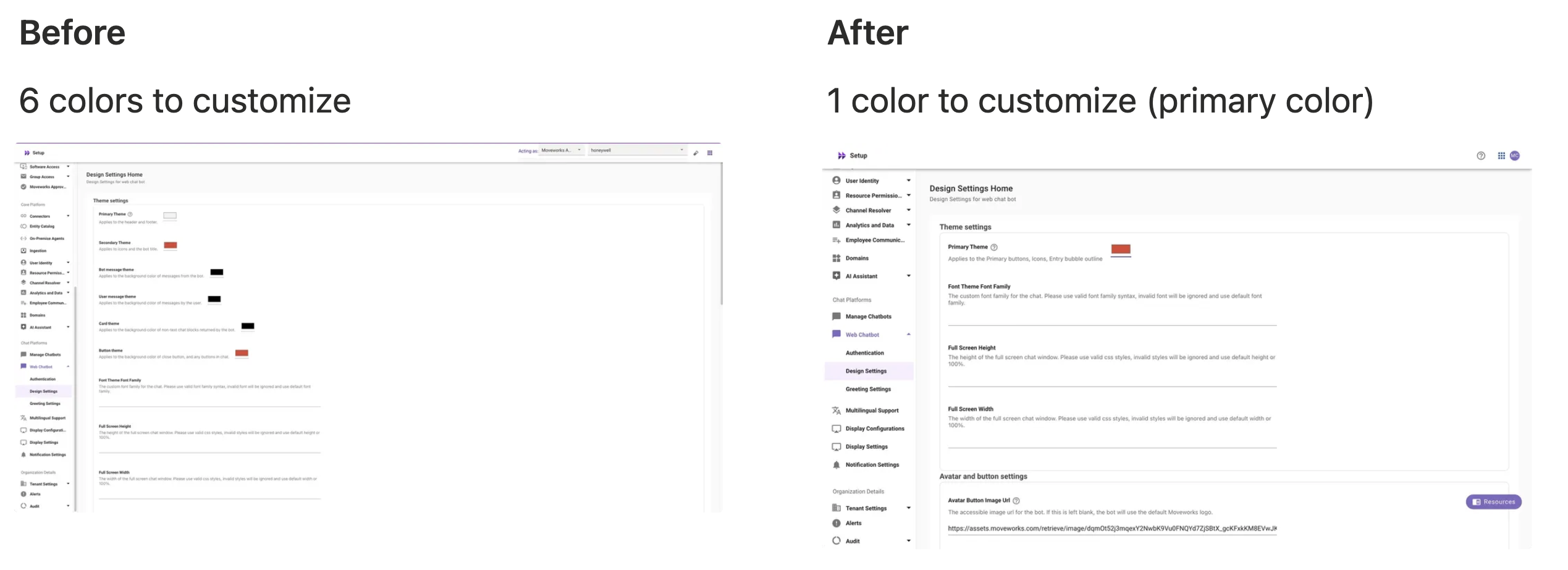
Today you can configure 5 different colors (Primary color, Secondary Theme, Bot message Theme, User message theme, and Card Theme). With this update, we will only support primary color moving forward.
The 6 colors that exist on the following Moveworks Setup will no longer be supported.
Web Chatbot -> Design Settings -> Theme Setting section
Starting on Jan 26, 2026 the primary color will only be used for:
- The background color of the “new chat thread” button.
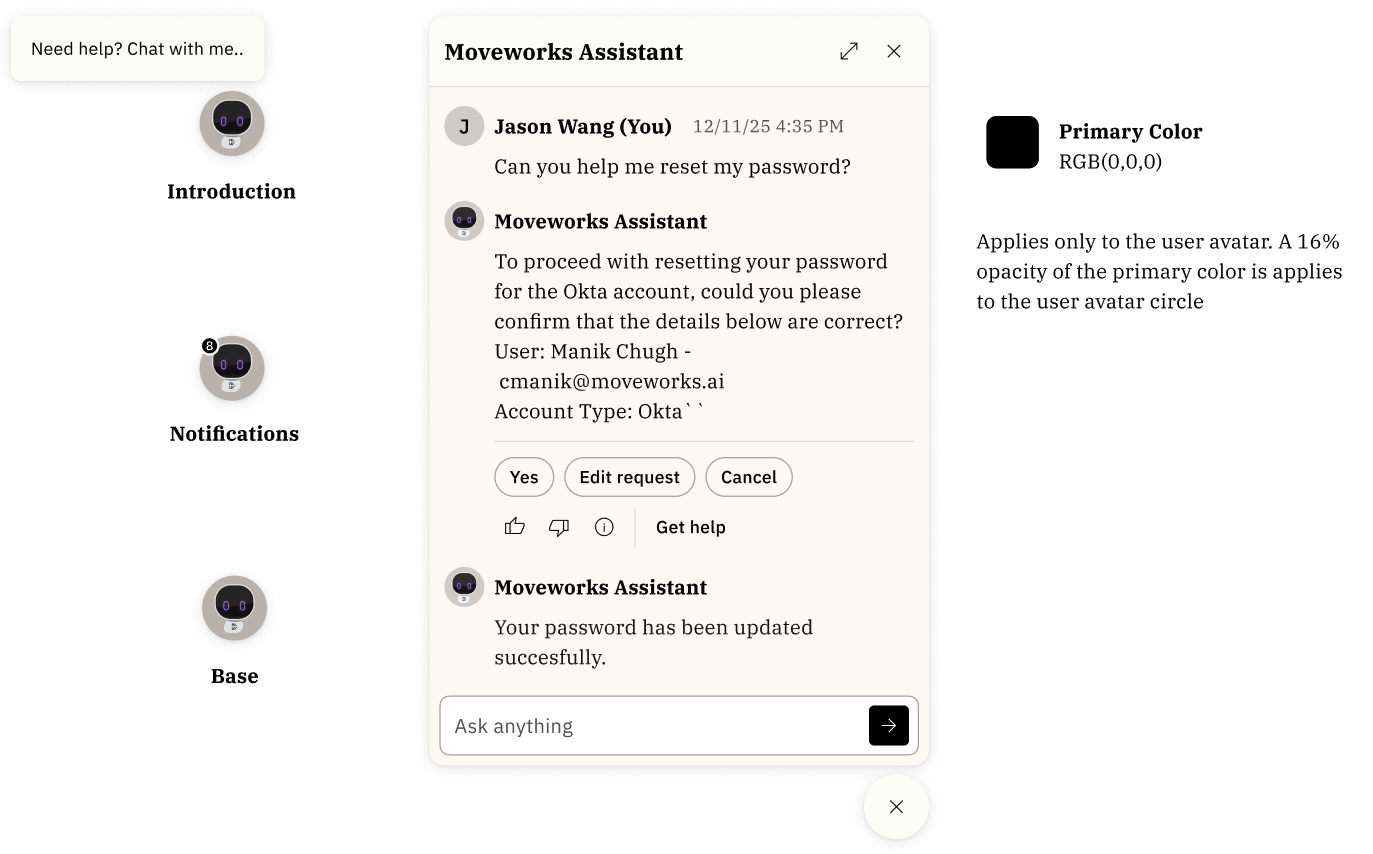
- The user avatar will use a 16% opacity based on the primary color you set.
- The background color for your bot image (assuming your bot image was a logo with a transparent background)
Here’s an example assuming that your assistant image has a transparent background:
Here’s another example that show your **assistant image that does not have a transparent background: ** This is the default experience if you do not change your primary color. The default primary color is black.
Before and After Experience
To illustrate the Before and After experience, we will be using Black as the primary color.
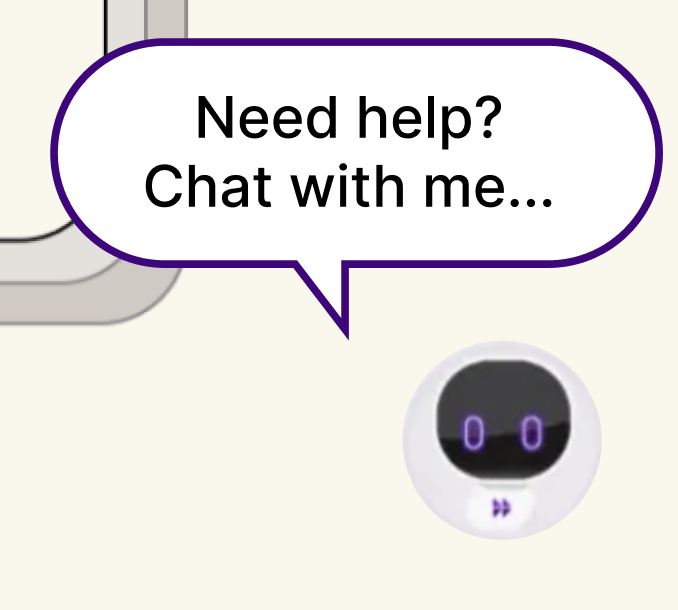
The entry point for embedded assistant
Before
Zoomed in version on the entry point:
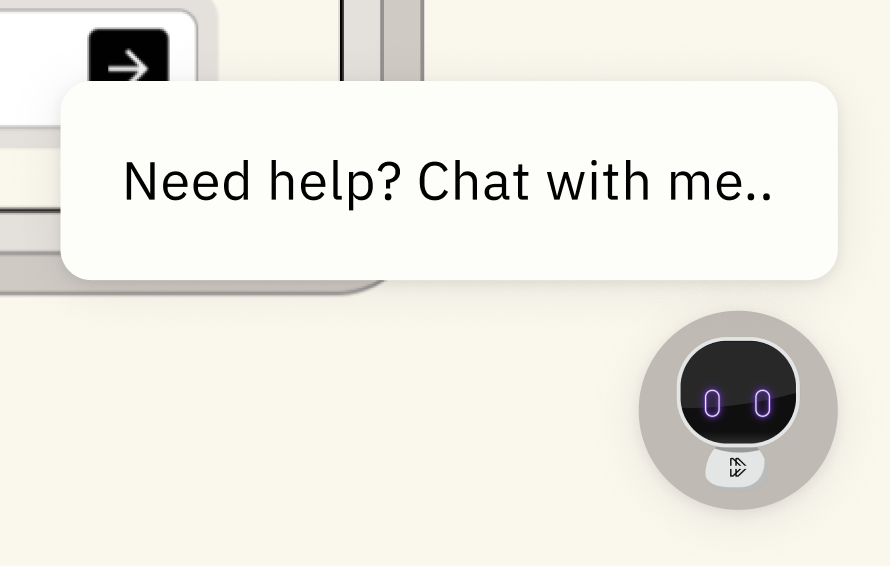
After
- The text that appears will continue to be customizable (ex. “Need help? Chat with me.”)
- The outline for that chat bubble will no longer be customizable. You will not be able to customize the outline of the entry point.
Zoomed in version on the entry point:
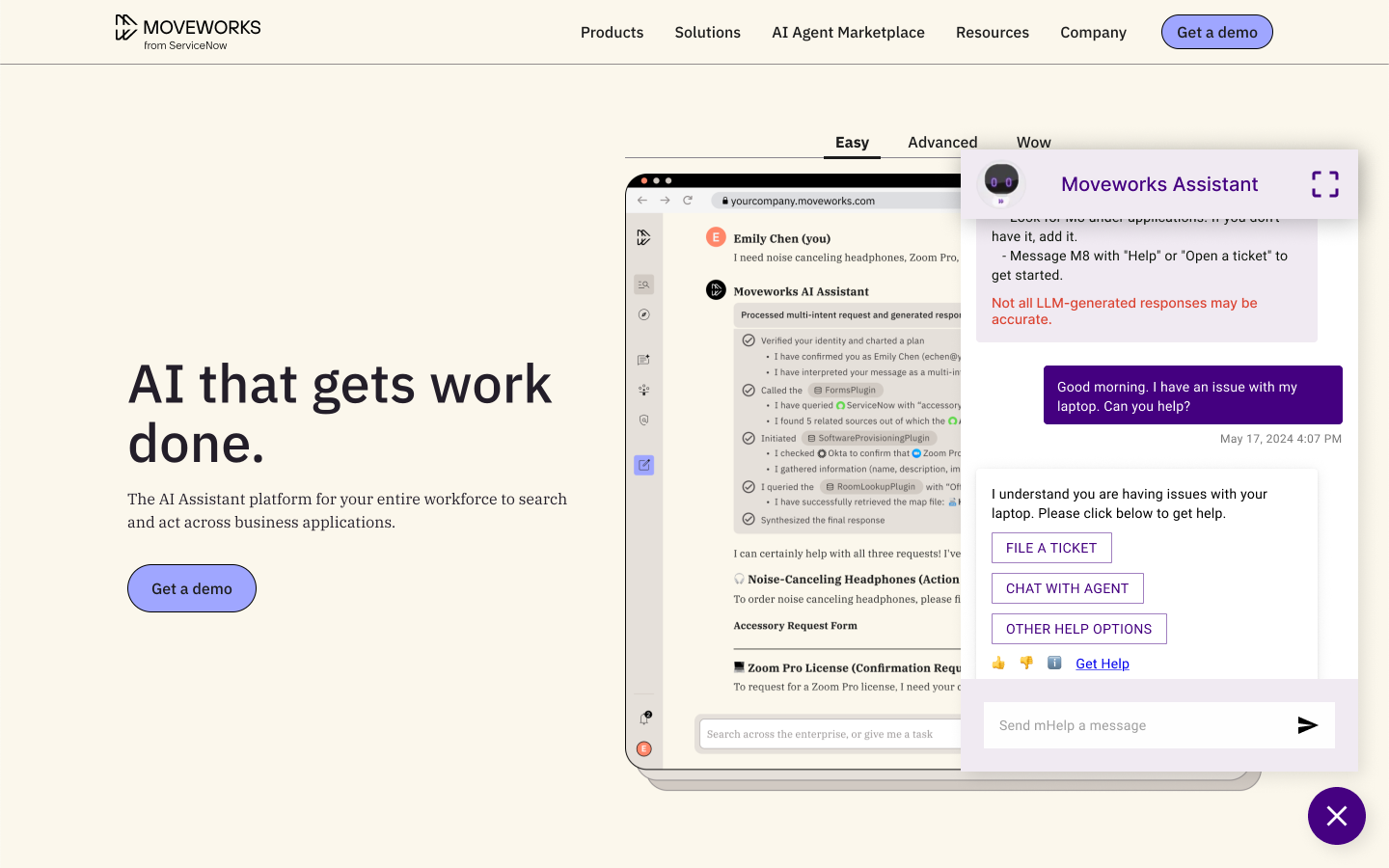
Embedded Assistant when it’s expanded
Before
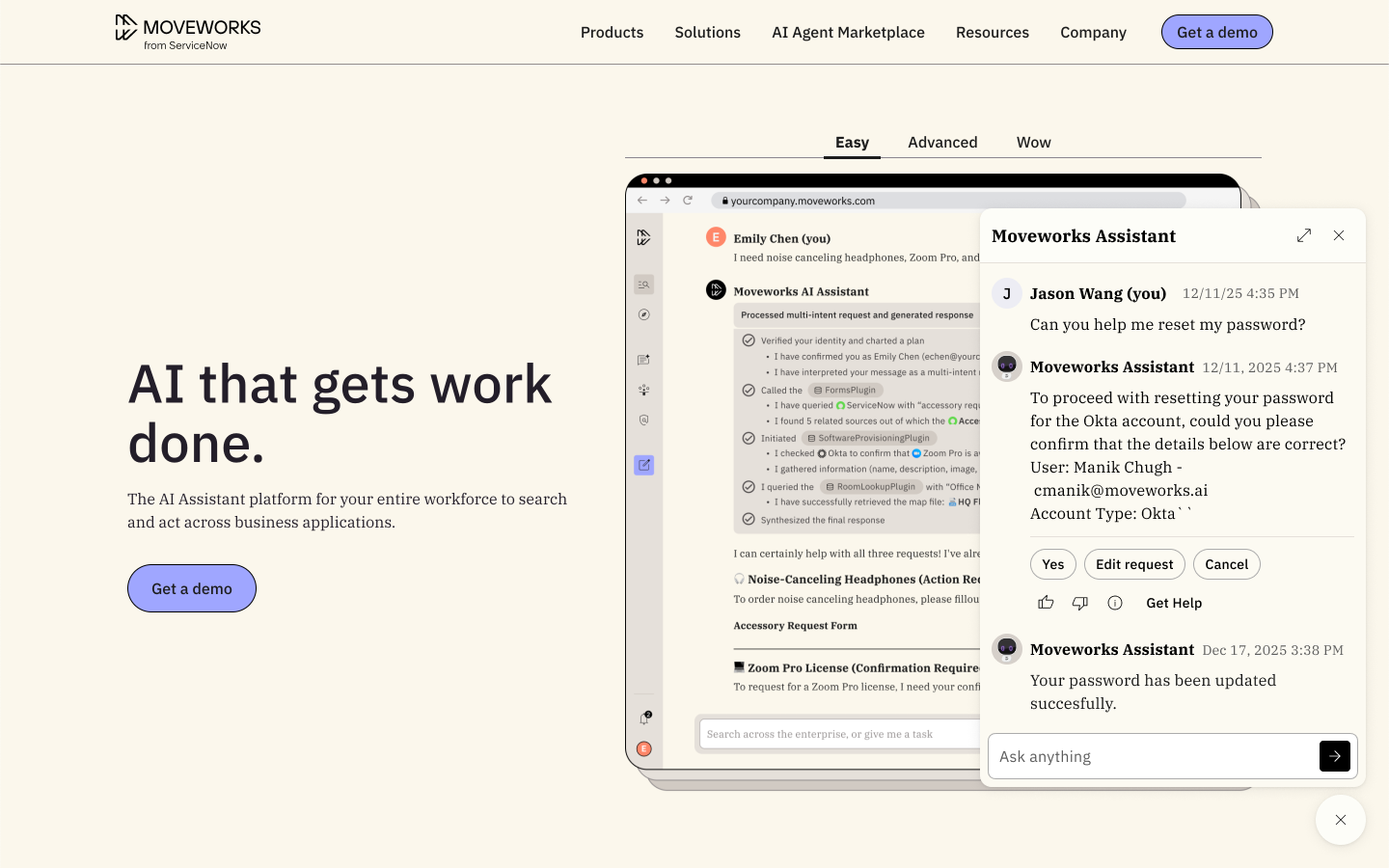
After
- You will no longer we able to configure 5 colors.
- You will only be able to configure 1 color (Primary color) and primary color
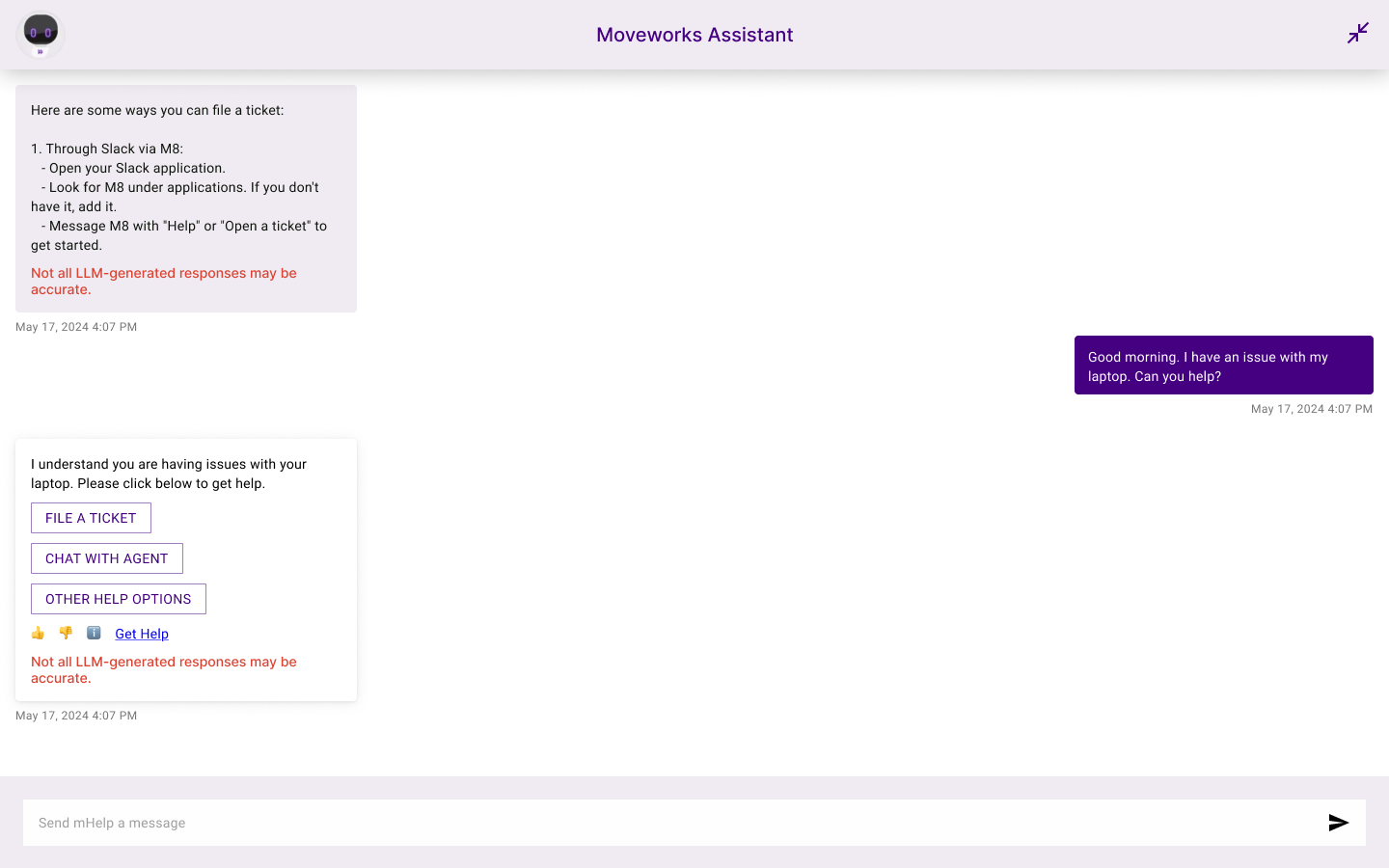
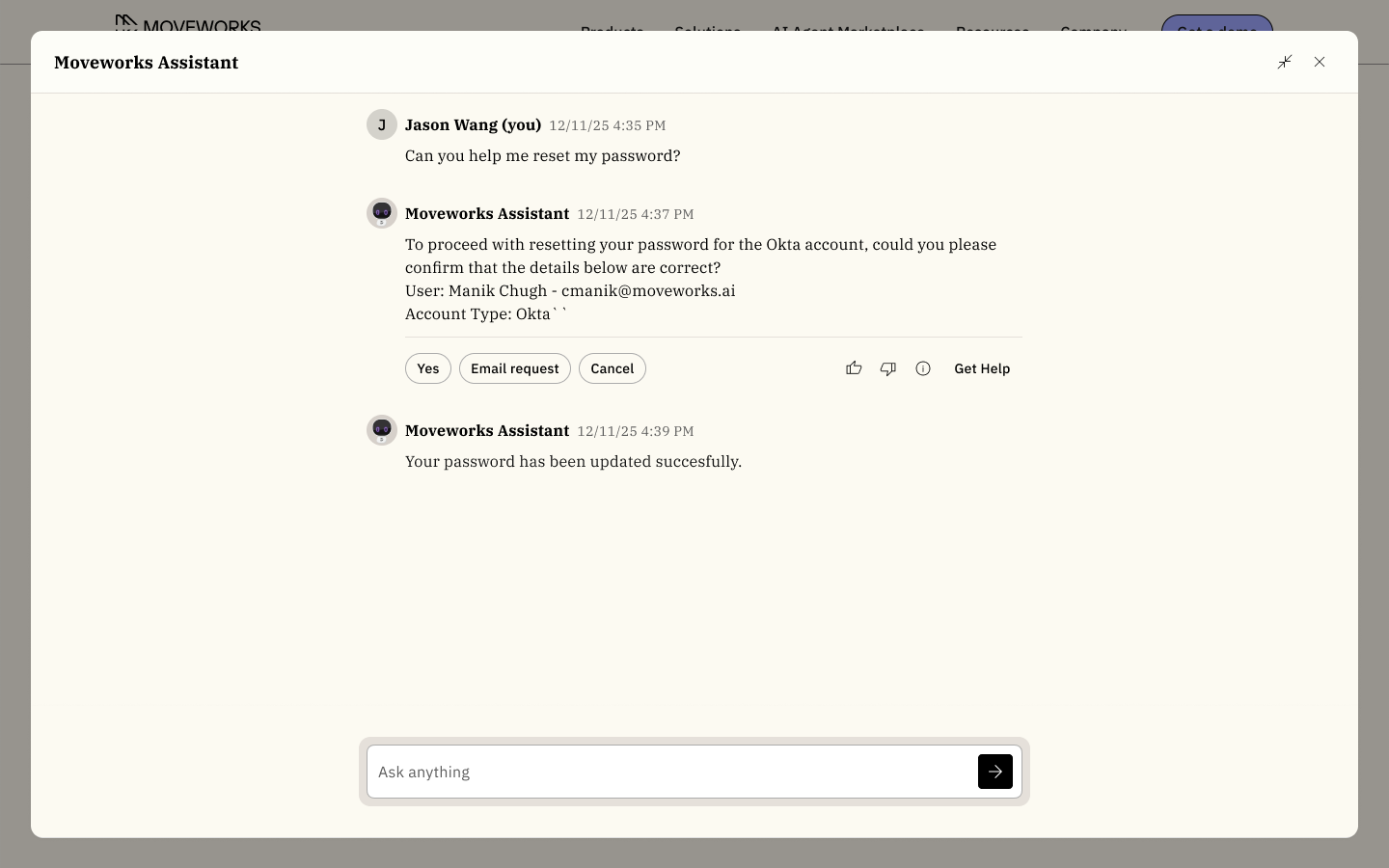
Embedded Assistant Fullscreen
Before
After
Moveworks Reference Page
Before
After