
How to Add an Azure AD App Link to the Bot
This guide will walk you through adding a direct link to your Moveworks bot in your Azure AD MyApps portal.
- Please note that you must be a AAD Global Administrator to perform these changes in your environment.
- Furthermore, your Moveworks Customer Success team can help with constructing the deep link to the bot, as well as sharing the avatar image file.
References: https://docs.microsoft.com/en-us/azure/active-directory/manage-apps/add-application-portal
How to
- Login to https://portal.azure.com as an AAD Global Administrator. Navigate to Azure Active Directory using the upper left hamburger menu.
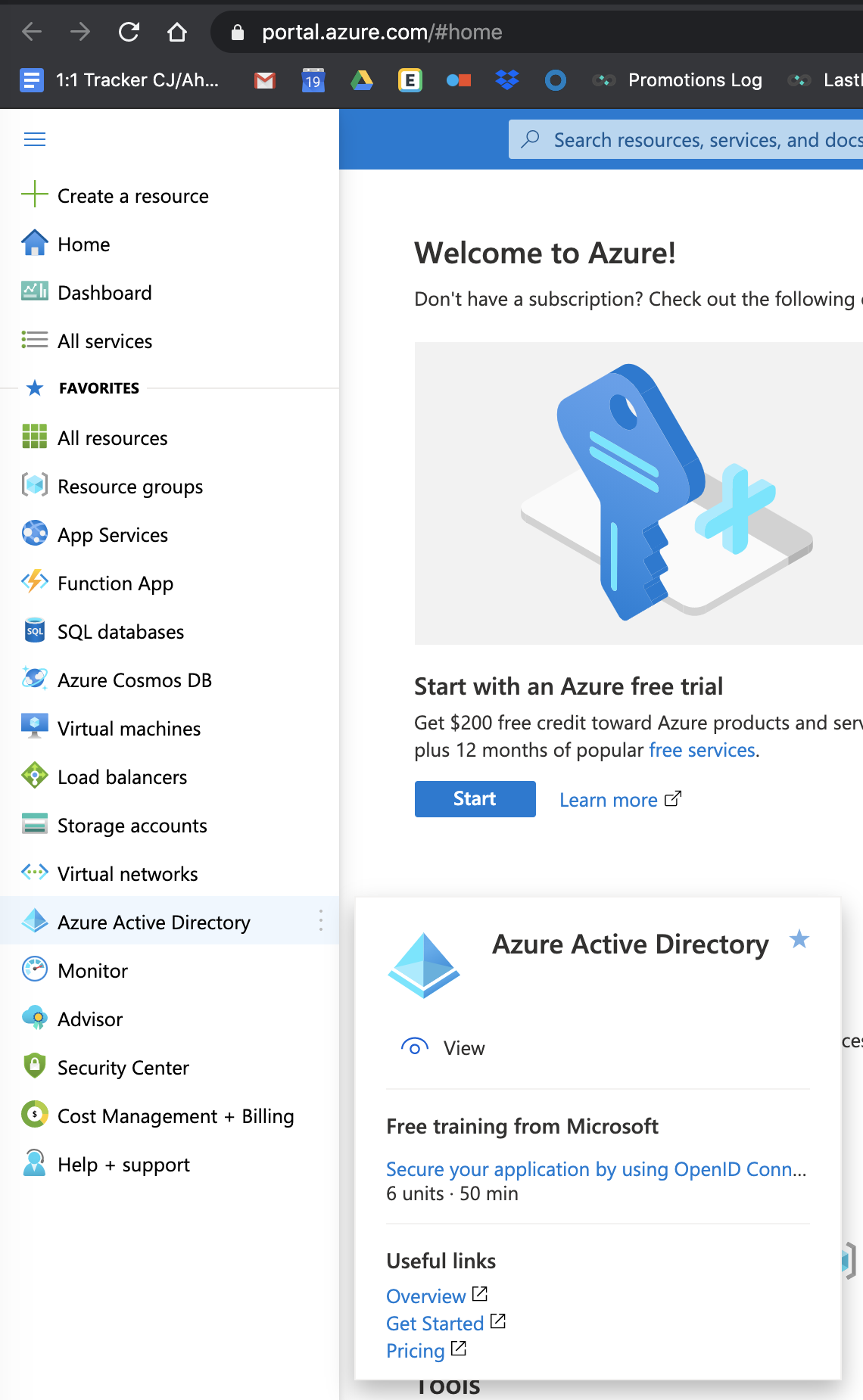
-
Navigate on the menu to the left to Enterprise applications. (You can also get this view with this direct link: https://aad.portal.azure.com/#blade/Microsoft_AAD_IAM/StartboardApplicationsMenuBlade/AllApps).
-
Click + New application.
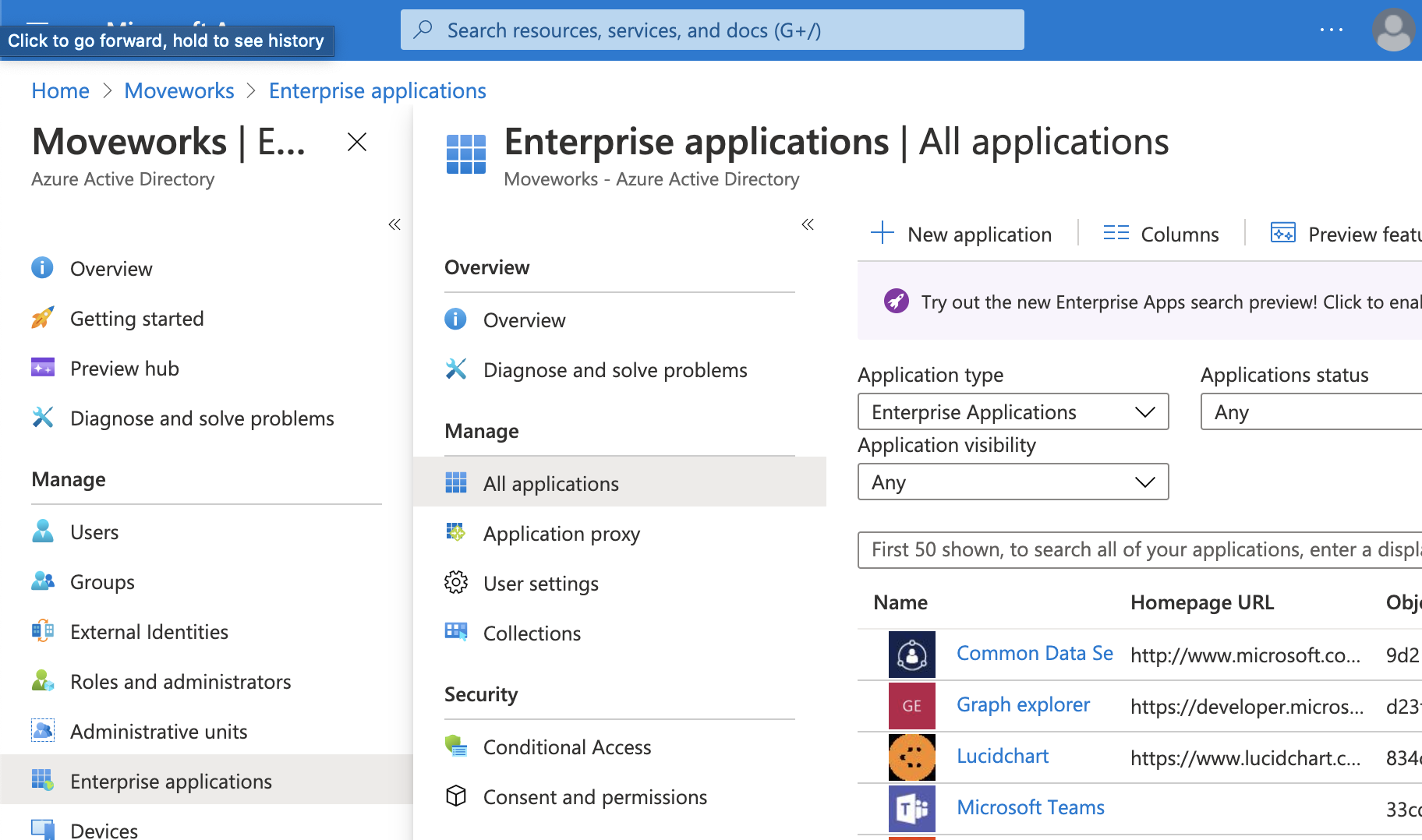
-
Click + Create your own application. Name the bot (this will be the default name for the application that users will see).
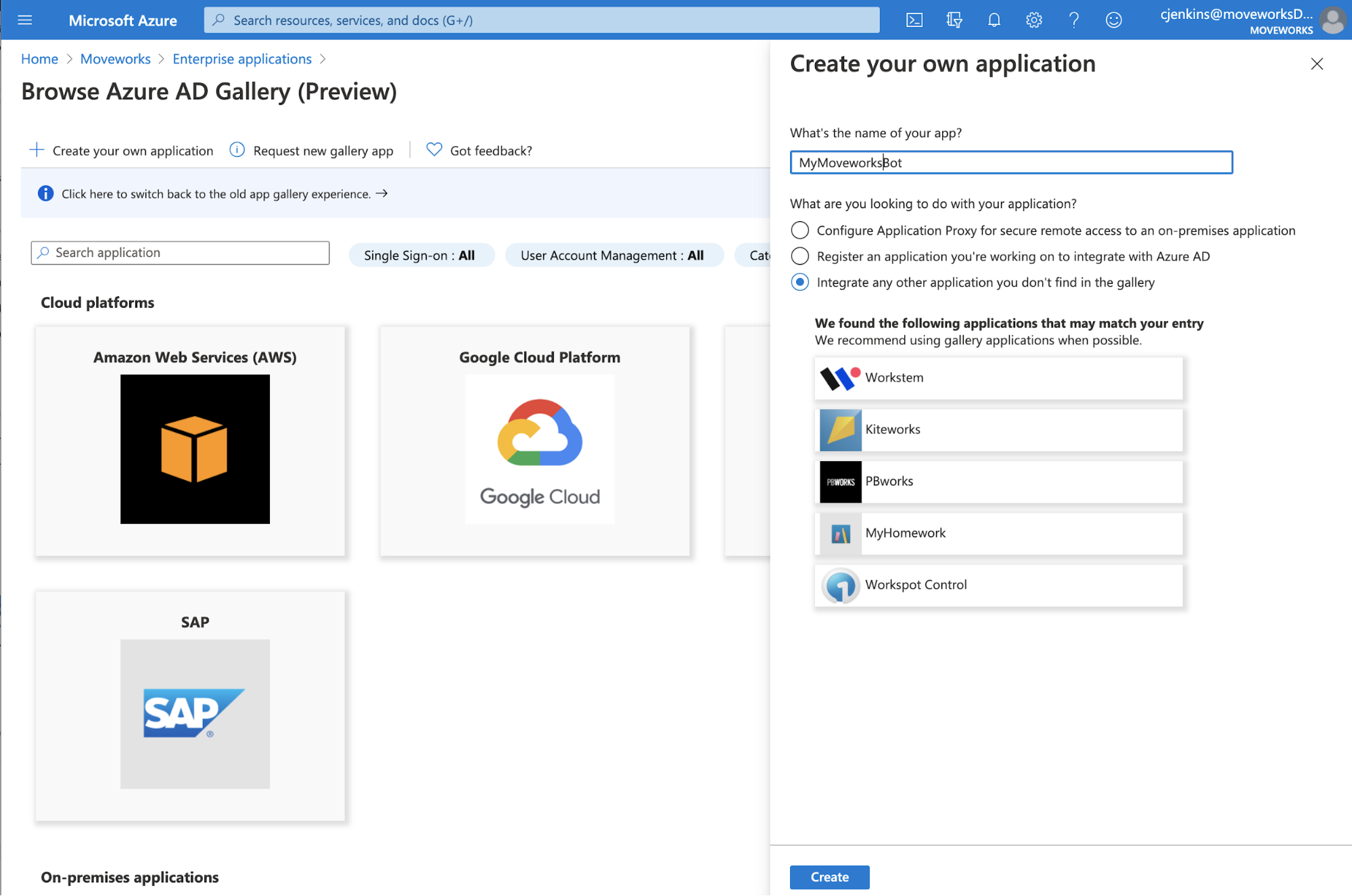
-
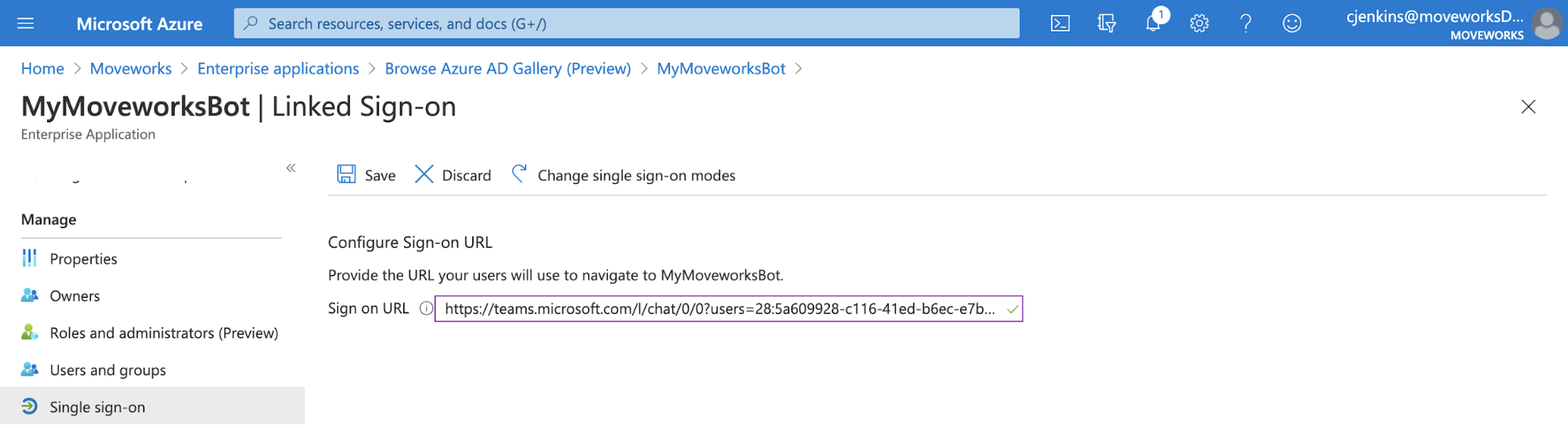
Click Single sign-on on the left, and click Linked.
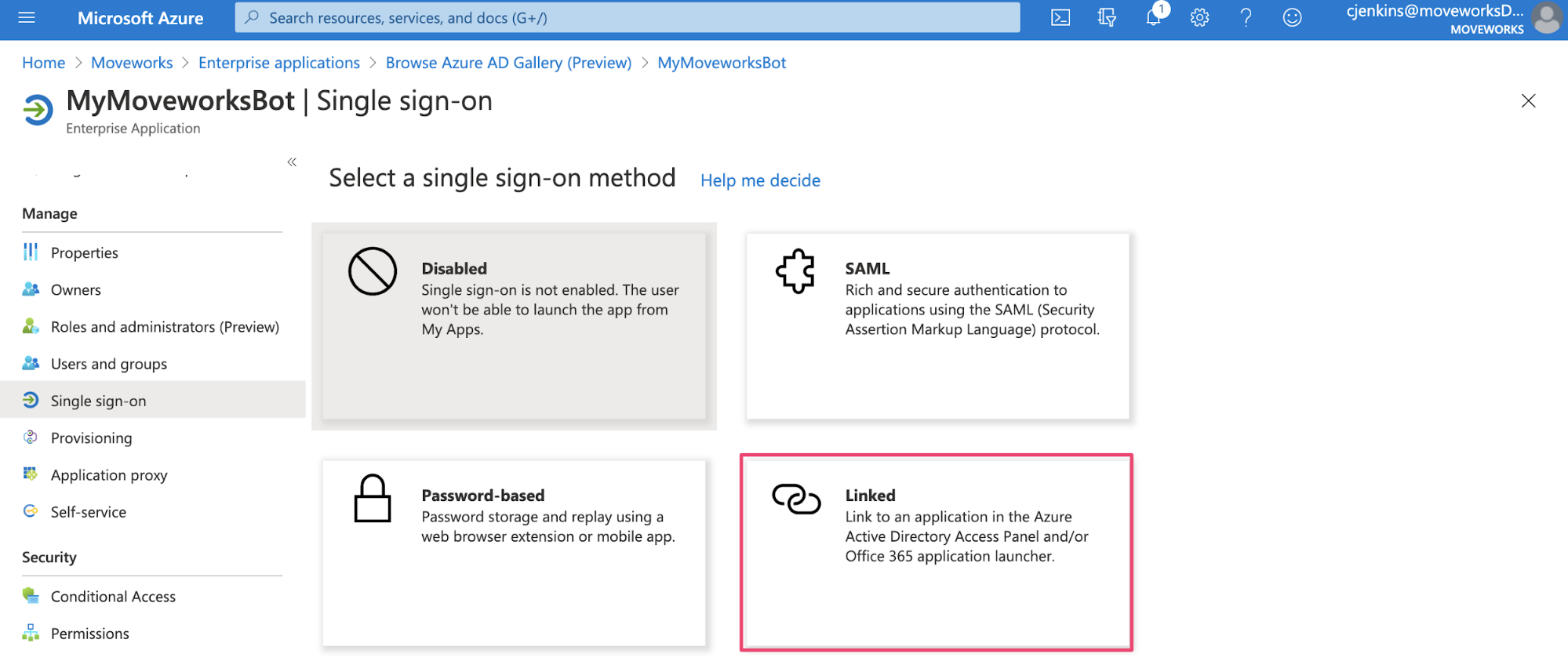
-
Enter the deep link to your bot in the Sign on URL box and click Save.
-
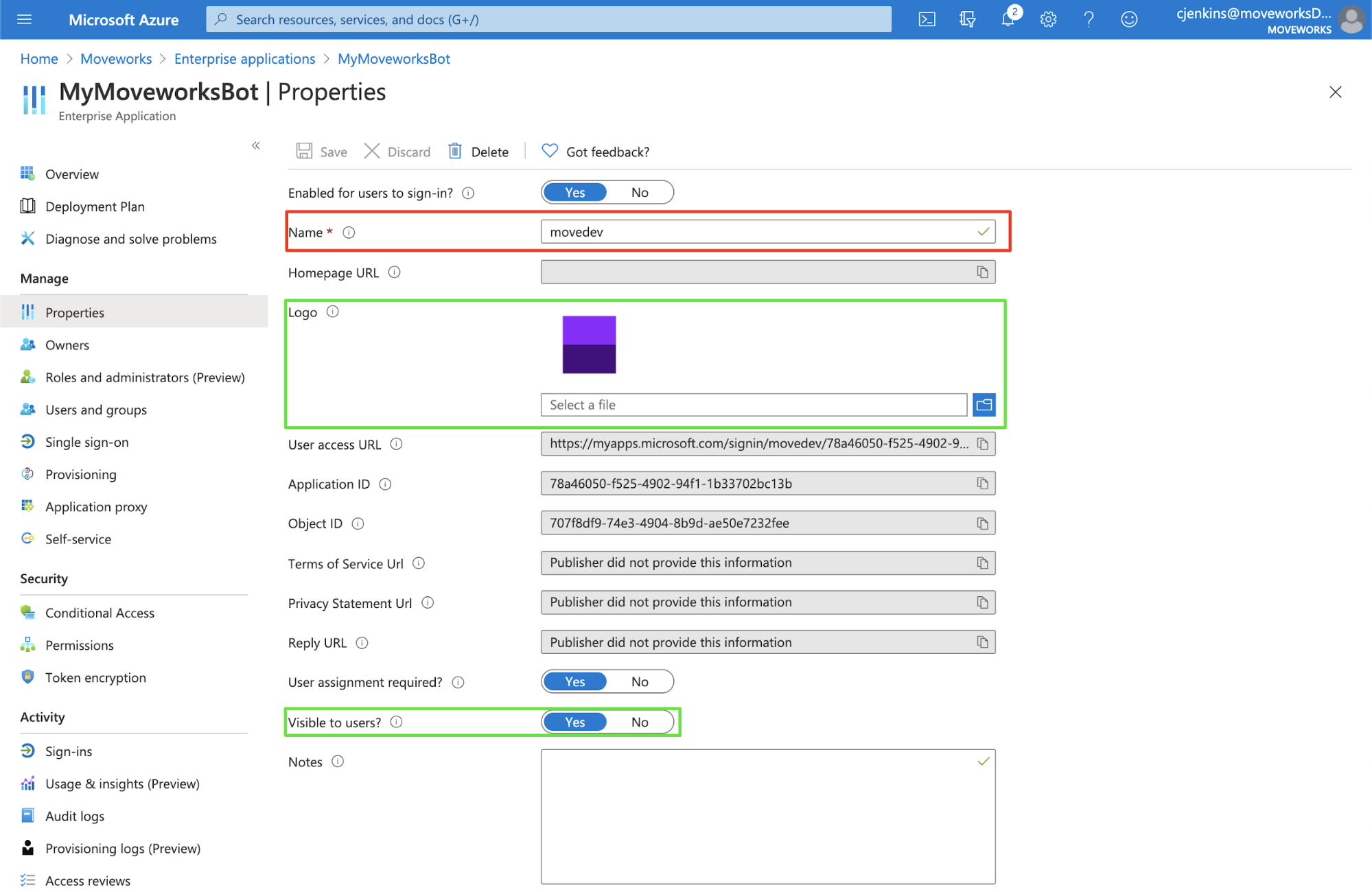
Click Properties, note that changing the application’s name does change the name of the app as shown to users, which can take up to 30 minutes to propagate.
-
Change the Logo and enter your bot avatar. Note that it must be 215x215 pixels in size.
-
User assignment required? - Can be set to your preference.
-
Visible to users - MUST be set to “Yes”.
-
Finally assign the app to your company. Here I’ve assigned it to two specific users, but it is recommended that the admin assign it to a group representing ALL USERS.

-
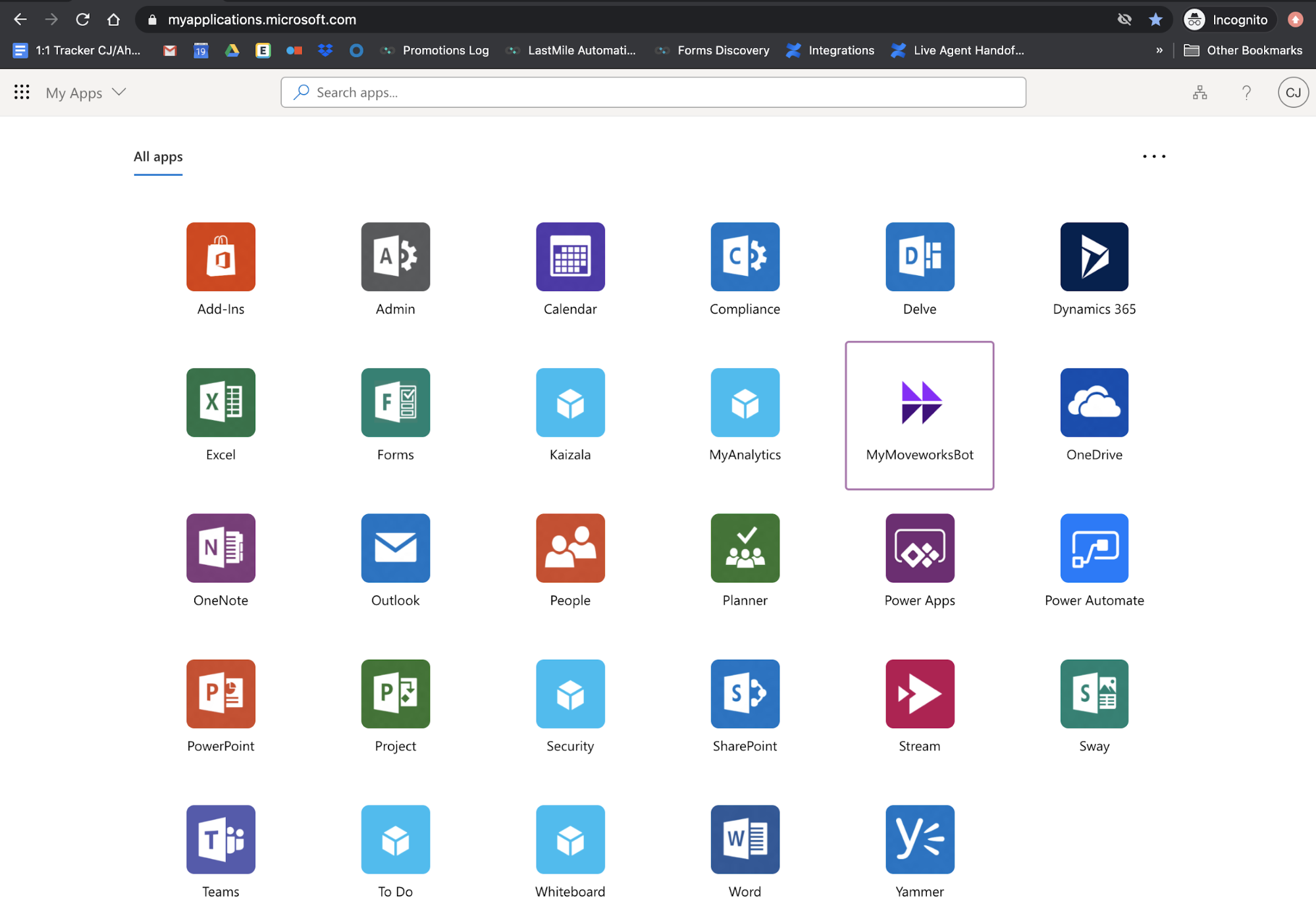
Give the system a few minutes to propagate the changes and the app should appear in myapplications.microsoft.com.
-
Clicking the icon should lead the user to the bot in chat (it sometimes takes about 30 seconds to process the first launch.