
Deploy to Multiple ServiceNow Environments
Connect one Moveworks tenant to more than one ServiceNow environment (dev, test, and prod, or multiple production instances): what repeats per environment, what is shared across the tenant, and the most common pitfalls.
For administrators. Read this page before you create your first connector if you know more than one ServiceNow environment is coming - the connector naming decision below cannot be undone.
One Configuration Set per Environment
A connector is bound to the instance URL it was created with, and one Moveworks configuration set serves one ServiceNow environment. If a surface or experience needs to run against a ServiceNow instance that differs in any way (subdomain, instance name, path) from where your existing configuration points, you cannot reuse that configuration.
Common mistake: selecting your existing ServiceNow connector in an experience configuration and expecting a URL field there to redirect it to a different instance. This does not work. The connector stays bound to the URL it was created with; experience-level URL fields only affect how links render.
How to check whether this applies to you: open Moveworks Setup and compare the URL on your existing ServiceNow connector to the instance URL you’re deploying to. If they differ at all, you need the full per-environment set below for the target instance.
Per-Tenant vs. Per-Environment Configuration
Choose a Connector Naming Convention
Connector names are permanent and every downstream configuration references them. Before creating the first connector, pick a convention that scales - for example snow_prod, snow_test, snow_dev - so you never end up with a production connector permanently named snow next to a snow2.
Identity: Add Every Environment as a Source
Identity configuration repeats per connector. Moveworks resolves each user’s ITSM identity separately for every connector: their user record in that instance is what lets Moveworks act on their behalf there. A user who exists in the roster but has no resolved identity for a given connector cannot take actions against that environment.
In User Identity > Identity Configuration:
- Keep your system of record (typically the production instance’s connector) as the primary source.
- Add each additional environment’s connector as a source, so the same person’s identity resolves in every connected instance. The email joining key matches the same user across environments.
Users who are absent from the primary source are not ingested at all. A test user who exists only in your dev instance will not appear in the roster unless they also exist in the primary source. Plan test accounts accordingly.
One Bot Account, One ITSM Entry per Connector
There is exactly one Bot Account per organization - you do not create a second one for a second environment. Instead, on the Bot Account page, use Add to create an additional ITSM ID Info entry per connector, each carrying that environment’s integration account values:
The Integration ID must match the connector name character for character. This is the same naming convention used everywhere else in the platform: snow_dev’s ITSM entry has Integration ID snow_dev, snow_prod’s has snow_prod. An entry whose Integration ID doesn’t exactly match a connector name is silently ignored - Moveworks cannot associate it with any connection, and actions against that environment fail in ways that look like credential problems.
Scope Content Before Ingesting
Content ingested from any connector is available to the AI Assistant tenant-wide - it is not scoped to one experience or one environment’s users.
Sub-production content leaks into production sessions. If dev knowledge articles or catalog items are visible to “all employees” in ServiceNow user criteria, they will surface in production AI Assistant conversations across your tenant. Scope the subprod content to your test cohort before enabling Search or Forms ingestion on the subprod connector, using either of the approaches below.
You can scope on the ServiceNow side (restrict the user criteria on the content itself to your test cohort), or on the Moveworks side, per resource type:
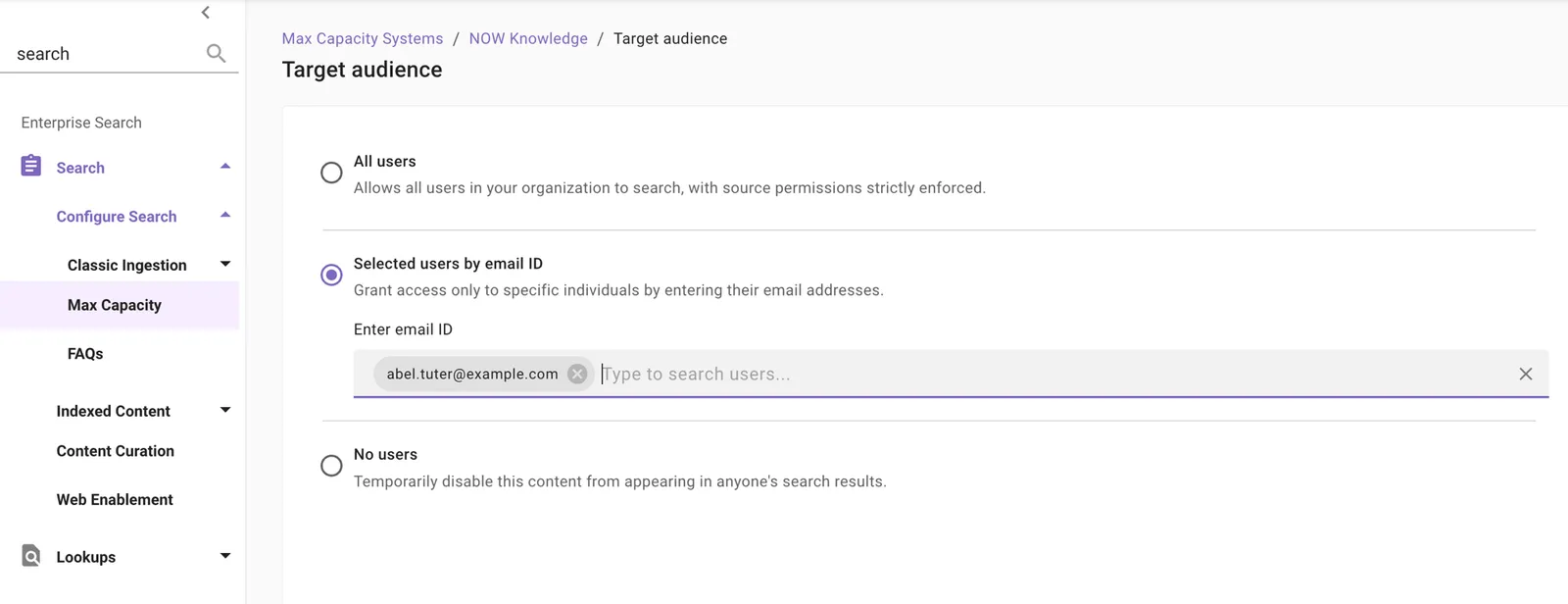
Knowledge: scope the search audience to an allowlist. In the subprod connector’s Enterprise Search configuration, open the knowledge source’s Target audience step and choose Selected users by email ID, then enter your test cohort’s email addresses. Only those users will see the subprod content in search results.
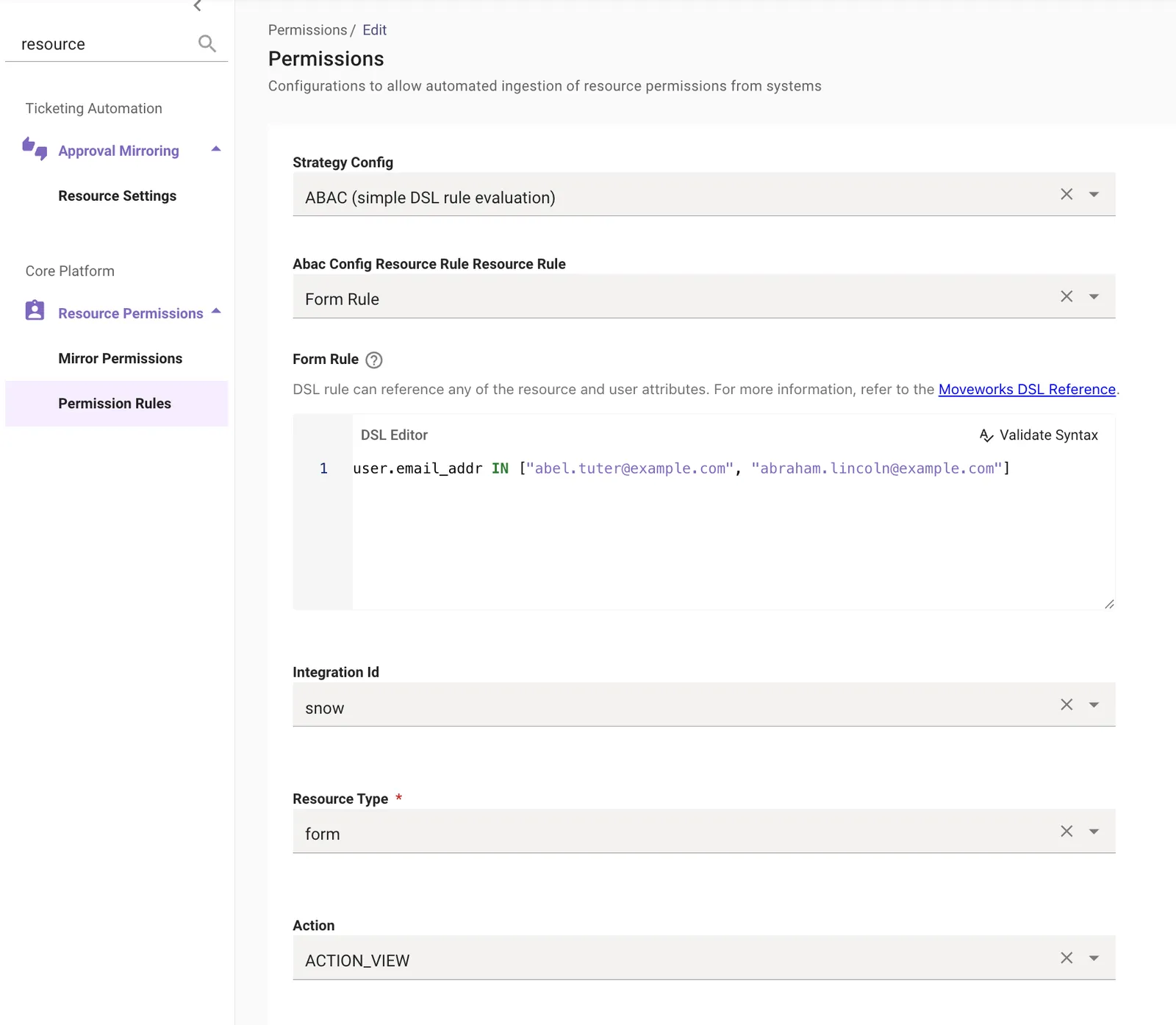
Forms: scope through a Resource Permission rule. Search audiences do not cover forms; instead, go to Resource Permissions > Permission Rules and create a rule for the subprod connector with Strategy Config set to ABAC (simple DSL rule evaluation), Resource Rule set to Form Rule, Resource Type form, Action ACTION_VIEW, Integration Id set to the subprod connector name, and a DSL allowlist such as:
Also expect duplicates: the same article existing in two connected environments is ingested separately per connector and appears to users as two results. Decide deliberately which environments’ content should be ingested at all - often the answer for dev is none.
Configure Ticketing per Environment
Ticketing requires the most per-environment attention. Start with how the three configuration layers relate:
- The Ticketing Configuration (per connector) defines the destination tables and the default ticket type - it is what actually files, queries, and updates tickets in an environment.
- Smart Handoff is the “Get Help” experience shown when the AI Assistant cannot resolve a request. It presents categories containing items; an item with Handoff Type File Ticket files into the ticketing configuration’s default ticket type. Each item carries a Pre-Trigger Rule - a DSL rule that controls when (and for whom) that item appears. See How To Guides for Handoff Plugin.
- Display Configurations (Chat Platform module, Handoff section) hold each item key’s user-facing label - the button text employees actually see. A handoff item is not complete until its display configuration exists. See Display Configurations.
Per-environment guidance:
- Repeat per environment: the ticketing configuration and table mappings, and the Service Portal URL (it is configured per connector).
- Only one system can be marked primary. Mark the environment where your employees’ real tickets live - typically production.
- Give each environment its own handoff item, scoped and named for that environment. For a dev or test environment, create a dedicated handoff item (for example, item key
it_file_dev_ticket) with Handoff Type File Ticket, restrict who sees it via the item’s Pre-Trigger Rule (for example,user.email_addr IN [...]for your test cohort), and give it a clearly distinguishable label in Display Configurations - for example, “File Dev Ticket”. This keeps the production “Get Help” experience clean while your test cohort gets an explicit, clearly labeled path into the subprod instance. - Decide deliberately whether subprod connectors need ticketing at all. Ticketing is a write integration: every filed ticket creates a real record, so a dev ticketing configuration either fills the dev instance with test records or, through a configuration mistake, writes to the wrong place. Search and Forms work without ticketing; a common pattern is to leave ticketing unconfigured on dev connectors and add it (with the scoped handoff item above) only when the environment genuinely needs ticket filing.
Choosing a Topology
For most rollouts, one tenant with multiple environment connectors (this page) is right. Two situations justify a different shape:
- Isolated testing (performance tests, A/B evaluation, parallel runs): use a dedicated Moveworks tenant per instance. It costs a full implementation per tenant but gives clean isolation - no shared content, no mixed analytics.
- Strictly sequential migration: re-pointing an existing tenant’s configuration at a new instance is possible but dismantles the original setup and requires full re-ingestion; treat it as a last resort.
Checklist per Added Environment
- Update sets installed and integration account prepared in the new instance (Access Requirements roles,
moveworks_user,snc_basic_auth_api_access, email,sys_id) - Connector created with a fleet-consistent name and tested
- Connector added as an identity source; test-with-user resolves the ITSM identity for that connector
- Bot Account has an ITSM ID entry whose Integration ID exactly matches the new connector name
- Content scoped before enabling ingestion: ServiceNow user criteria, or a Moveworks-side allowlist (search Target audience for knowledge; an ABAC permission rule for forms)
- Deliberate ticketing decision made: skip on subprod, or configure with portal URL plus a dedicated handoff item scoped by Pre-Trigger Rule and clearly labeled in Display Configurations (for example, “File Dev Ticket”)
- Experience configurations (including EmployeeWorks Web App) point at the new connector, not the original one
What to Do Next
- Returning to a single-environment setup path? Start at Connect ServiceNow.
- Deploying the Employee Center experience per environment? See Configure EmployeeWorks Web App.