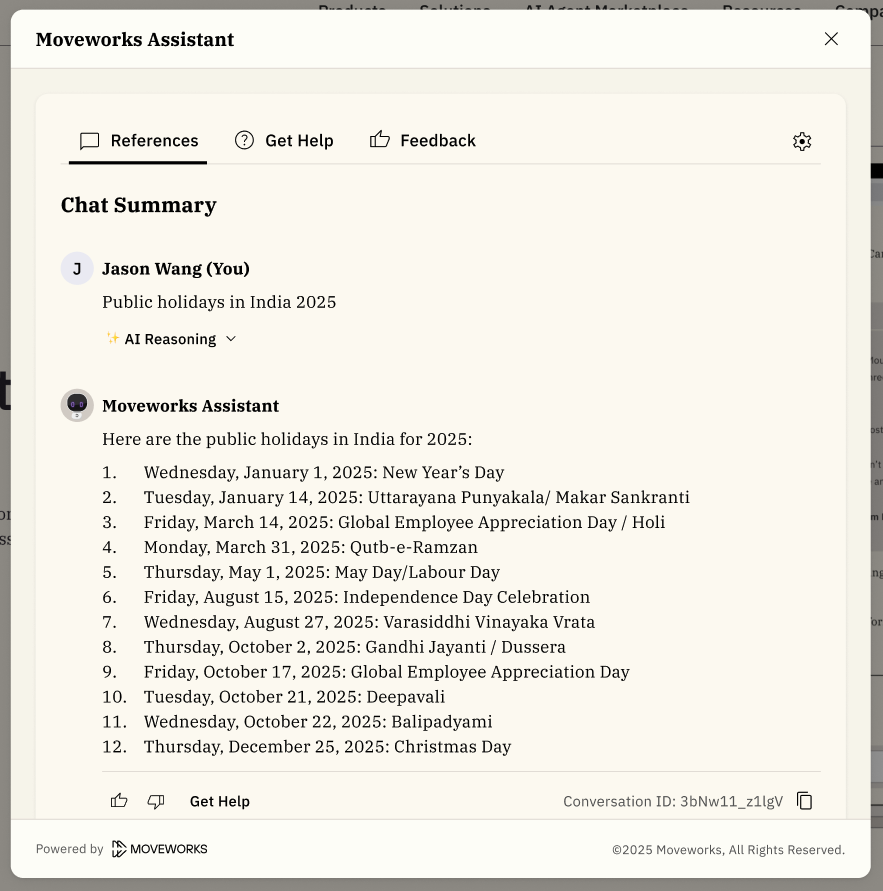
 ## Additional Customizations (Coming Soon: March 9, 2026)
*:eyes: Note there's been a timeline delay given we previously communicated Feb 27, 2026.*
Based on additional feedback we've been receiving from our customers, we plan to introduce additional customizations that impact our Assistant on Web, Embedded Assistant, and Reference Page. Soon you will be able to make the additional customizations outlined below:
4. [Upload A Customer Brand Logo](/ai-assistant/ai-assistant-web-surfaces/assistant-on-web-overview/configuration#4-upload-a-customer-brand-logo-assistant-on-web-only)*(Assistant on Web only)*
5. [Primary Color (Logic update) ](/ai-assistant/ai-assistant-web-surfaces/assistant-on-web-overview/configuration#6-set-a-background-app-color-assistant-on-web-embedded-assistant--reference-page)*(Embedded Assistant)*
6. [Set A Background App Color ](/ai-assistant/ai-assistant-web-surfaces/assistant-on-web-overview/configuration#6-background-app-color-assistant-on-web-embedded-assistant--reference-page) *(Assistant on Web, Embedded Assistant, Reference Page)*
7. [Set A Secondary Color ](/ai-assistant/ai-assistant-web-surfaces/assistant-on-web-overview/configuration#7-set-a-secondary-color-assistant-on-web-embedded-assistant) *(Assistant on Web, Embedded Assistant)*
8. [Select A Font Style ](/ai-assistant/ai-assistant-web-surfaces/assistant-on-web-overview/configuration#8-set-a-font-style-assistant-on-web-embedded-assistant--reference-page) *(Assistant on Web, Embedded Assistant, Reference Page)*
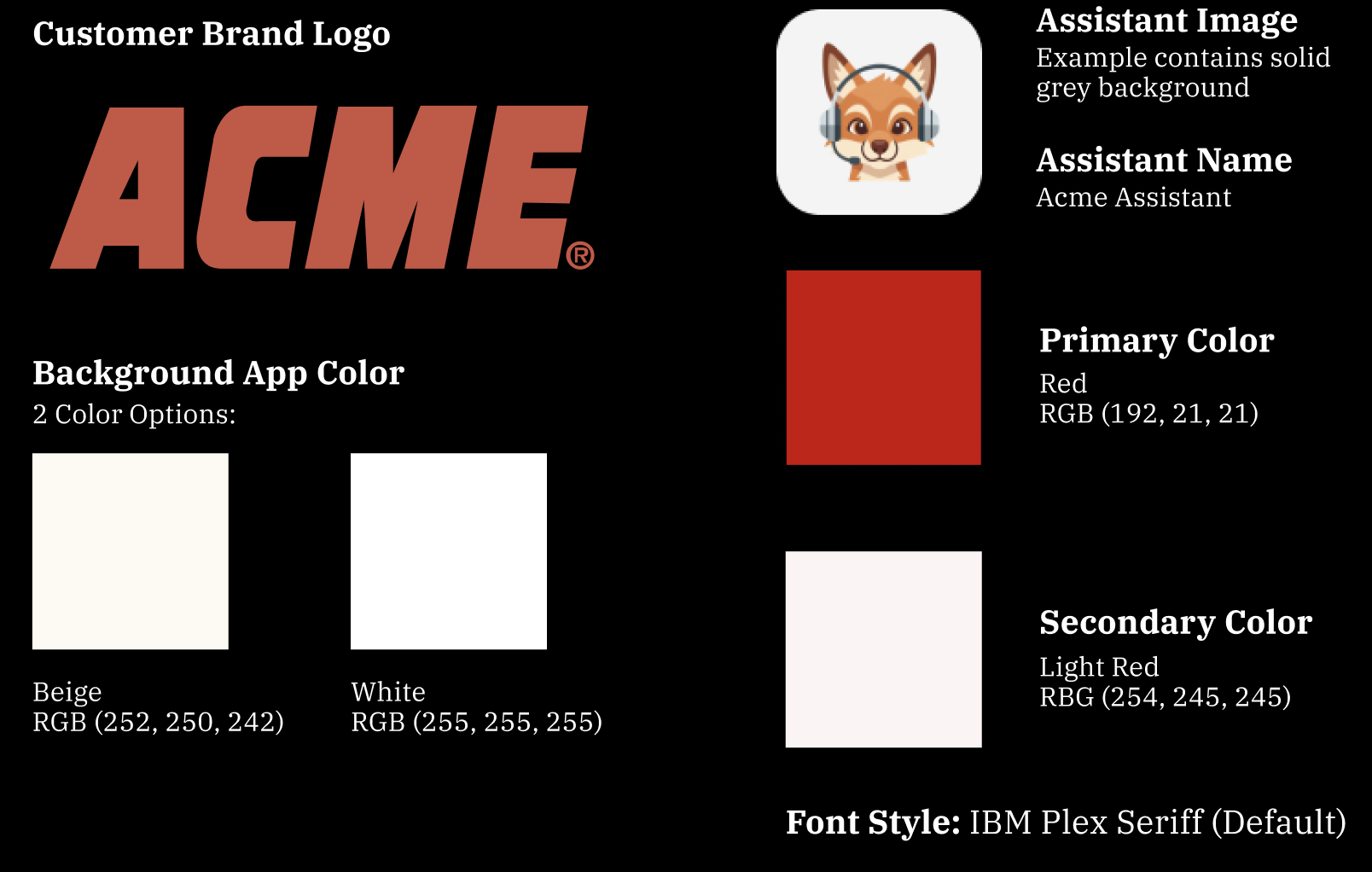
To help you visualize these new customizations, we're using the following customization settings unless otherwise specified:
### **4. Upload A Customer Brand Logo** (Assistant on Web only)
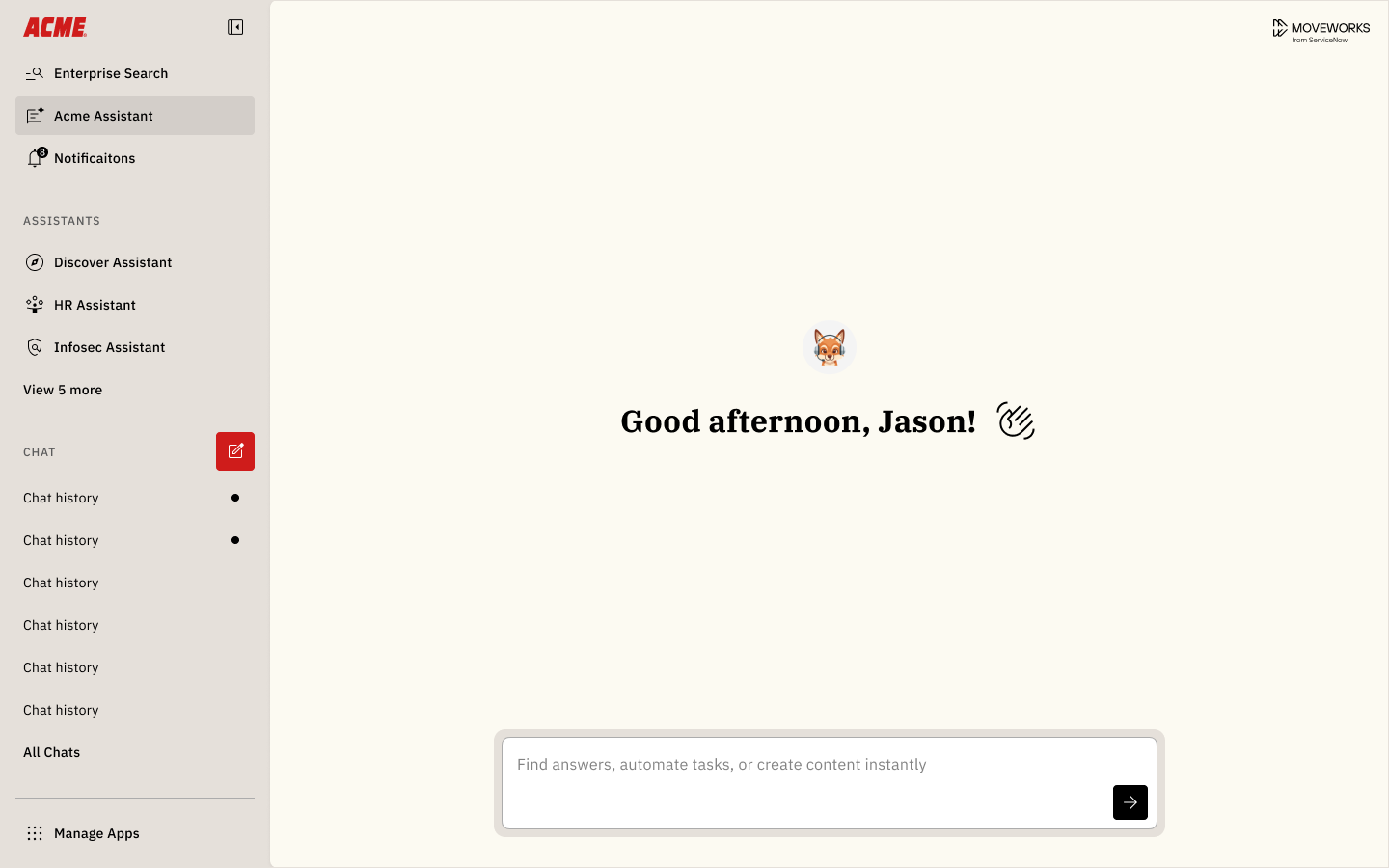
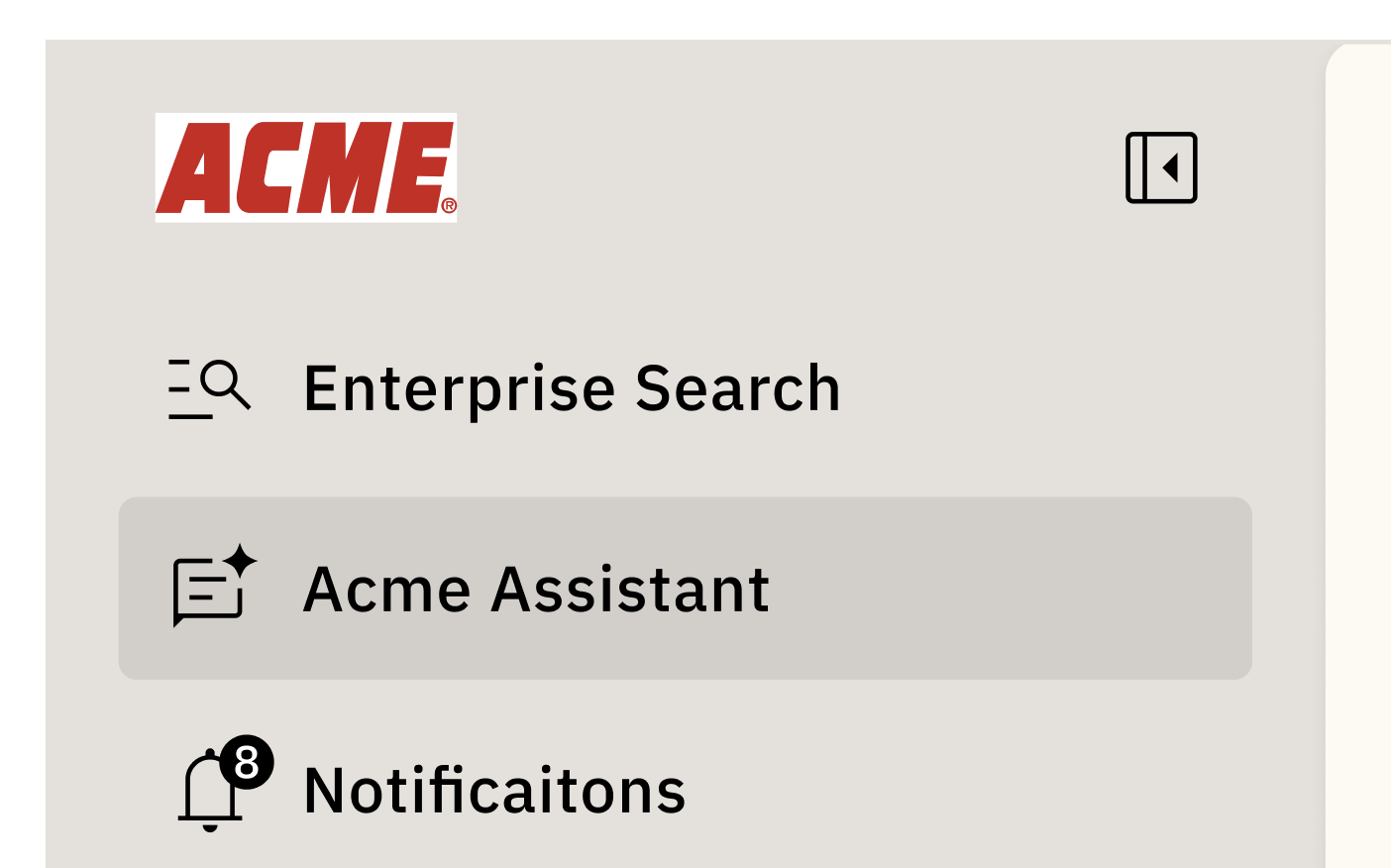
We're giving you more control over your brand on Assistant on Web and allowing. you to upload your own company brand logo which will be displayed within the left navigation bar.
**Customizations selected for example shown:**
* Background app color: Beige (Default)
* Primary color: Red
* Secondary color: None (Default)
**Left Navigation Bar Expanded**
**Left Navigation Bar Collapsed**\_ (Shown with the default beige background)\_
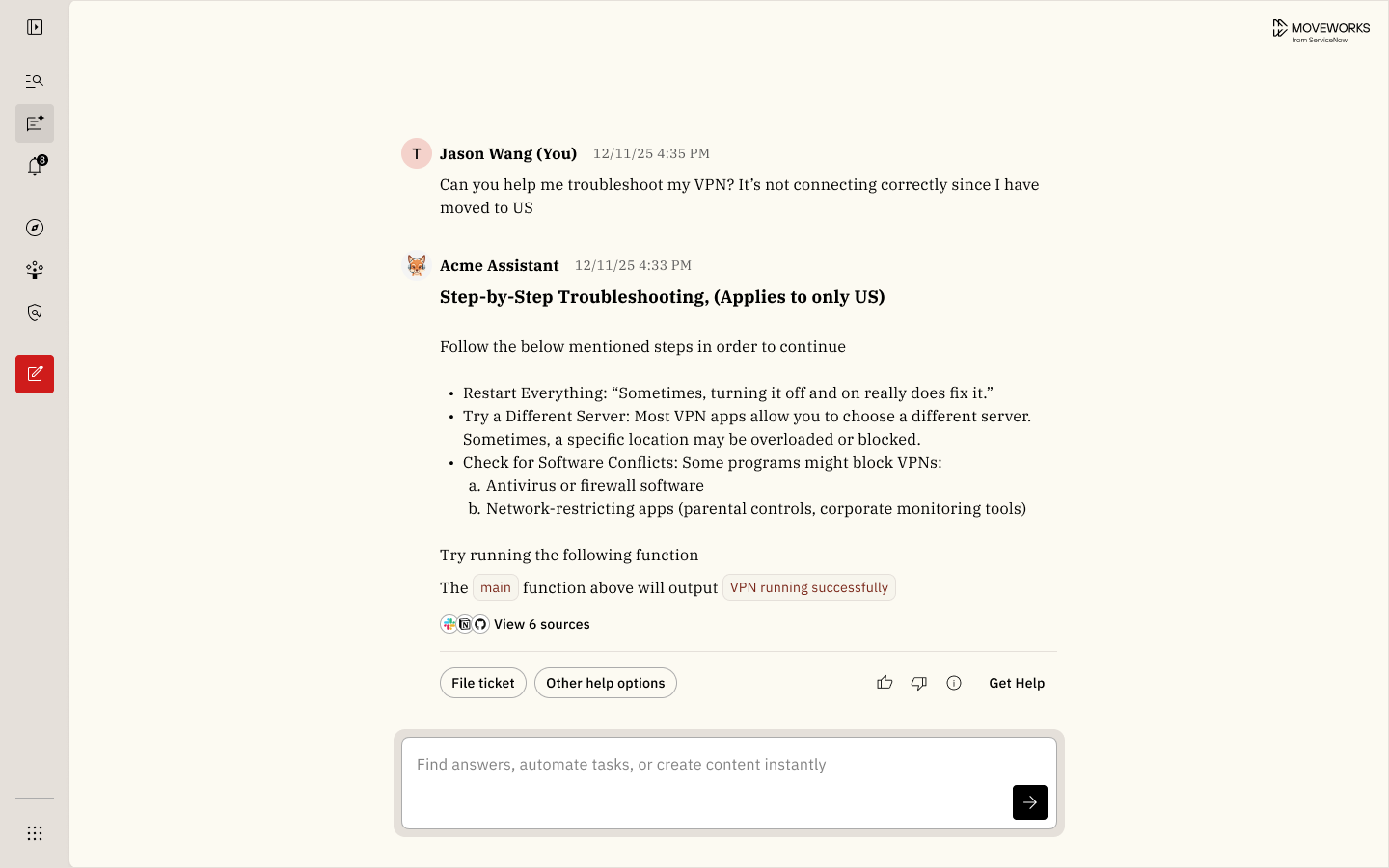
*Note that our "Moveworks from ServiceNow" brand logo will stay within the experience and displayed on the right hand side of the experience.*
#### Recommendations for your customer brand logo:
* Image File Size: 500 KB – 1 MB, max size 1MB
* File Format: PNG (Preferred)\*
* Max Width / Height: 200px / 24px (Auto-scaled)
*\*SVG and JPEG images will not be supported.*
**Variations of the customer bot logo we will support:**
* **Transparent background:** (Preferred) We’d prefer customer bot logos to include a transparent background so that the logo appears as if it’s part of the native experience.
* **Logo with solid background:** If the image contains a solid colored background, then that color will be displayed within the left nav.
## Additional Customizations (Coming Soon: March 9, 2026)
*:eyes: Note there's been a timeline delay given we previously communicated Feb 27, 2026.*
Based on additional feedback we've been receiving from our customers, we plan to introduce additional customizations that impact our Assistant on Web, Embedded Assistant, and Reference Page. Soon you will be able to make the additional customizations outlined below:
4. [Upload A Customer Brand Logo](/ai-assistant/ai-assistant-web-surfaces/assistant-on-web-overview/configuration#4-upload-a-customer-brand-logo-assistant-on-web-only)*(Assistant on Web only)*
5. [Primary Color (Logic update) ](/ai-assistant/ai-assistant-web-surfaces/assistant-on-web-overview/configuration#6-set-a-background-app-color-assistant-on-web-embedded-assistant--reference-page)*(Embedded Assistant)*
6. [Set A Background App Color ](/ai-assistant/ai-assistant-web-surfaces/assistant-on-web-overview/configuration#6-background-app-color-assistant-on-web-embedded-assistant--reference-page) *(Assistant on Web, Embedded Assistant, Reference Page)*
7. [Set A Secondary Color ](/ai-assistant/ai-assistant-web-surfaces/assistant-on-web-overview/configuration#7-set-a-secondary-color-assistant-on-web-embedded-assistant) *(Assistant on Web, Embedded Assistant)*
8. [Select A Font Style ](/ai-assistant/ai-assistant-web-surfaces/assistant-on-web-overview/configuration#8-set-a-font-style-assistant-on-web-embedded-assistant--reference-page) *(Assistant on Web, Embedded Assistant, Reference Page)*
To help you visualize these new customizations, we're using the following customization settings unless otherwise specified:

### **4. Upload A Customer Brand Logo** (Assistant on Web only)
We're giving you more control over your brand on Assistant on Web and allowing. you to upload your own company brand logo which will be displayed within the left navigation bar.
**Customizations selected for example shown:**
* Background app color: Beige (Default)
* Primary color: Red
* Secondary color: None (Default)
**Left Navigation Bar Expanded**

**Left Navigation Bar Collapsed**\_ (Shown with the default beige background)\_

*Note that our "Moveworks from ServiceNow" brand logo will stay within the experience and displayed on the right hand side of the experience.*
#### Recommendations for your customer brand logo:
* Image File Size: 500 KB – 1 MB, max size 1MB
* File Format: PNG (Preferred)\*
* Max Width / Height: 200px / 24px (Auto-scaled)
*\*SVG and JPEG images will not be supported.*
**Variations of the customer bot logo we will support:**
* **Transparent background:** (Preferred) We’d prefer customer bot logos to include a transparent background so that the logo appears as if it’s part of the native experience.
* **Logo with solid background:** If the image contains a solid colored background, then that color will be displayed within the left nav.
 ### 5. Primary Color Logic Update (Embedded Assistant only)
Below is the logic for how we use Primary Color within our experiences:
### 5. Primary Color Logic Update (Embedded Assistant only)
Below is the logic for how we use Primary Color within our experiences:
| UI Element | Assistant on Web | Embedded Assistant |
|---|---|---|
| "New Chat Thread" button | The primary color fills the background color of the new chat thread button. | N/A |
| User Avatar Circle | The user avatar will use a 16% opacity based on the primary color you set. | The user avatar will use a 16% opacity based on the primary color you set. |
| Assistant Image (Transparent backgrounds only) | The primary color will fill the background of your assistant image. | The primary color will fill the background of your assistant image. |
| "Send"/"Enter" button | N/A | **NEW:** The primary color will fill the background color of the "send"/"enter? button. |