
File Search Google Drive Setup Guide: Service Account with Domain-Wide Delegation
The recommended approach for access is with a custom admin role. The following instructions are functional but Moveworks is unsure if Google has any plans to deprecate this.
This document describes the option available to create a service account with Domain wide Delegation privileges, dedicated for Moveworks to ingest your Google Drive files, users, and groups for permission-enforced File Search. Moveworks will use the Service Account credentials to impersonate a Workspace admin, with privileges to read the desired folders/files, and groups/users of the Workspace.
1. Create Google Cloud Project
- Create a Google Cloud Project for Moveworks
- Sign into https://console.cloud.google.com/cloud-resource-manager using an account with Google Workspace Super Admin privileges
- Click +Create Project
- Name the project Moveworks and select the top-level organization OU for your Google Workspace
- Click Create
- Once completed, click Select Project from Notifications or via Search
2. Grant SDK Scopes to Project
- Turn on the Admin SDK and Google Drive APIs for your Google Cloud Project
- From the top-left Navigation Menu, click APIs & Services > Enabled APIs & Services.
- Click +Enable APIs & Services.
- Search for each of the following APIs, and select Enable:
- Admin SDK
- Google Drive API
3. Create a Service Account and Generate a JSON Web Token
-
From the top-left Navigation Menu, click APIs & Services > Credentials.
-
Click +Create Credentials > Service account.
-
For Service account name, enter Moveworks
-
(Optional) Enter Service account description, if desired
-
Click Create and Continue.
-
Click Done > Save.
-
Copy the Service Account email. You’ll need this later.
-
Create the service account key
-
Select the newly created Service Account.
-
Copy the Unique ID and save it for later. You’ll need this later.
-
At the top of the page, click Keys > Add Key > Create new key.
-
Make sure the key type is set to JSON and click Create.
You’ll get a message that the service account’s private key JSON file was downloaded to your computer. Save this JSON file, as you’ll need this later.
-
Click Close on the pop-up window.
-
4. Add API Scopes to Service Account
- Add domain-wide delegated OAuth API scopes to the service account
- Sign into your Google Admin Console using an account with Super Admin privileges
- Navigate through the following: Menu > Security > Access and data control > API controls > Manage Domain-Wide Delegation.
- Click Add New.
- In the Client ID field, enter the service account’s Unique ID saved in Step 2.
- Under OAuth Scopes, grant Moveworks the following scopes:
- Click Authorize.
5. Share Desired Google Drive Folders with Service Account
-
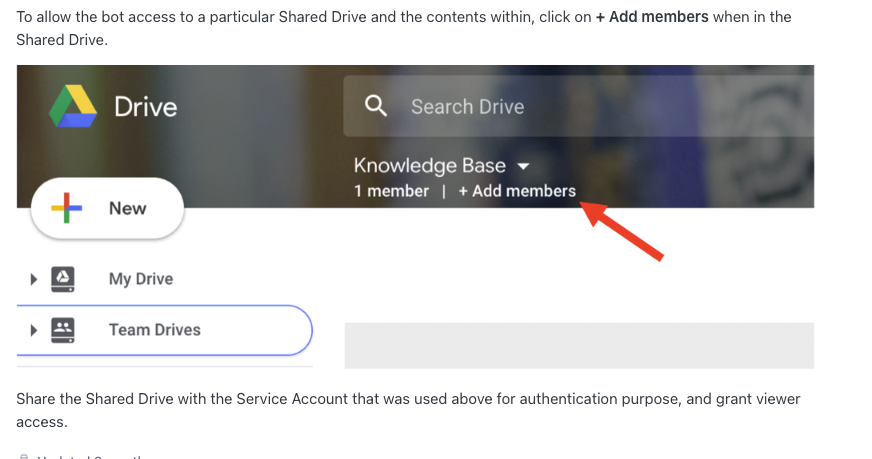
In this step, make sure that each Google Drive Folder you wish to ingest has been shared access with the new Service Account with Custom Admin privileges that you have built in previous steps.
6. Create Google Drive Connector and Configure File Ingestion
Configure Google Drive Connector in MW Setup
-
Create a Google Drive connector
-
Select Service Account Auth
-
Open the JSON Key text file from Step 2 and copy the content of the “private_key”
-
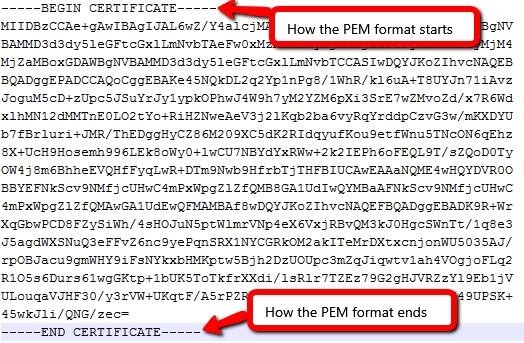
Open a new text file and paste the private key. Make sure new line characters, if applicable, are replaced with new lines. Once formatted correctly save the file as a .pem file type.
-
The formatting show look similar to the below:
-
-
Upload the .pem file from the previous step in the Gdrive Service Account Auth Private Key field.
-
Important: Under “Impersonated User”, provide the email of a Google Workspace admin, or user/service account with access to read all Users/Groups
Configure File Ingestion
Note, if user ingestion has not been set up previously, reach out to your Customer Success team
- In the MW Setup, go to the Search > Configure Search > Classic Ingestion > Files.
- Select the Google Drive Connector and provide a Name* your File ingestion config
- Continue to the Ingestion Details page and Specify each Folder, using the Folder IDs
- Copy and paste Folder IDs in the following manner:
- If the URL of your Google Drive folder is <https://drive.google.com/drive/folders/FOLDERID, then input the FOLDERID
- Please double check that each Folder has been shared access with the new Google Workspace User with Custom Admin privileges that you have built in previous steps
- You can assign a Domain to each Folder, i.e. IT, HR, Finance, etc. – this Domain is used for tagging in Analytics, enabling you to filter Search usage for each of your domains
- Copy and paste Folder IDs in the following manner:
- Save the File Ingestions
7. Launch File Search to your employees (if not already)
- Refer back to the main File Search Self-Serve guide: File Search Self-Serve – Configuration Guide.