User Profile View
User profile view provides a detailed view into ingested user and their corresponding attributes. The user profile view is an important screen to conduct basic troubleshooting with regards to any bot access related issues for a user.
How to access User Profile View?
- Log in to Moveworks Setup
- Navigate to User Identity > Ingested User
- In the “Find User” widget, search for any employee
- Click on “View Profile” to navigate to the user profile view
- User profile view can also be accessed by clicking on required user in the All Users table
User Profile View Details
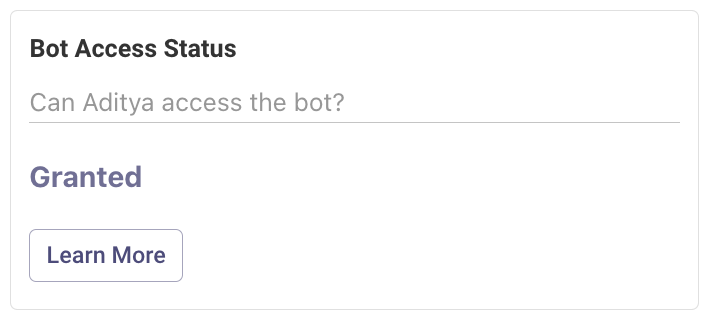
Bot access status
This widget tells whether the user has access to the bot or not. If the user passes the Bot access rule criteria, the status would be Granted.
Data Refresh
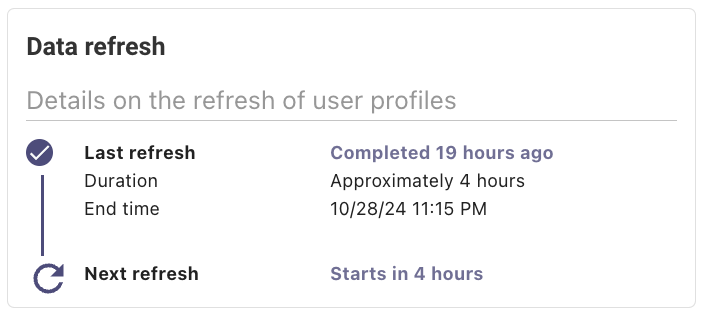
This widget tells when the user data was ingested and refreshed. Generally, this is in line with overall user identity pipelines.
User Identity Attributes Table
This list provides a view into standard Moveworks user attributes, org-specific user attributes, corresponding values and overall configuration coverage of these attributes.
This table is important to do basic troubleshooting for any given user. Before we learn few examples for troubleshooting, let’s first understand the different columns present within this table.
Attribute: The specific identifier for each user attribute, such as ‘Department’ or ‘Preferred Name’.
Value: The data associated with the user’s attribute, displayed here if available.
% Coverage in org: Indicates the percentage of all users within the organization for whom this attribute is populated. A low percentage or 0% suggests the attribute may not be configured for your organization. Please check mapper in identity config.
Is Custom: Specifies whether the attribute is a custom addition beyond the default set.
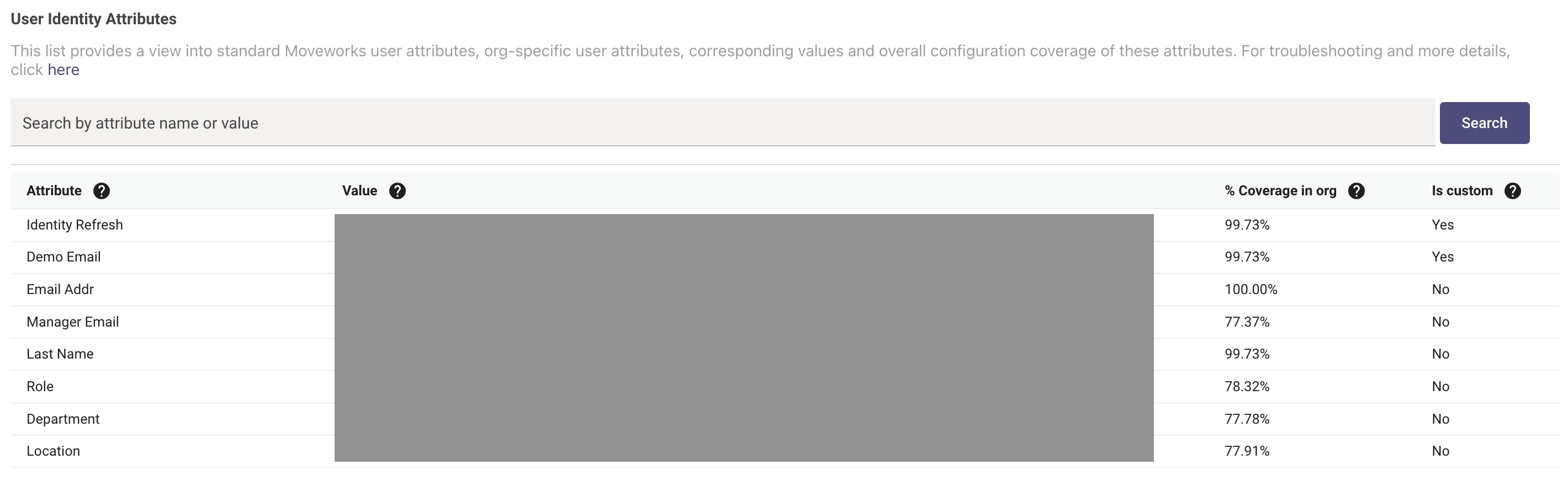
Let’s say, for an org, bot access rule is created using attributes like department and location. Say a user X, is unable to access the bot. Then, the Admin can come to the user profile view and verify that the “Bot Access Status” is Not Granted for this user. For additional troubleshooting, Admin will verify if the attribute Department or Location is populated or not for this user. If it is not populated, and the % coverage is >0, this means there is some issue with the native system from where this attribute is being pulled.
Admins can then go the respective native system and ensure that the value of the attribute is present in the system.
User Preferences
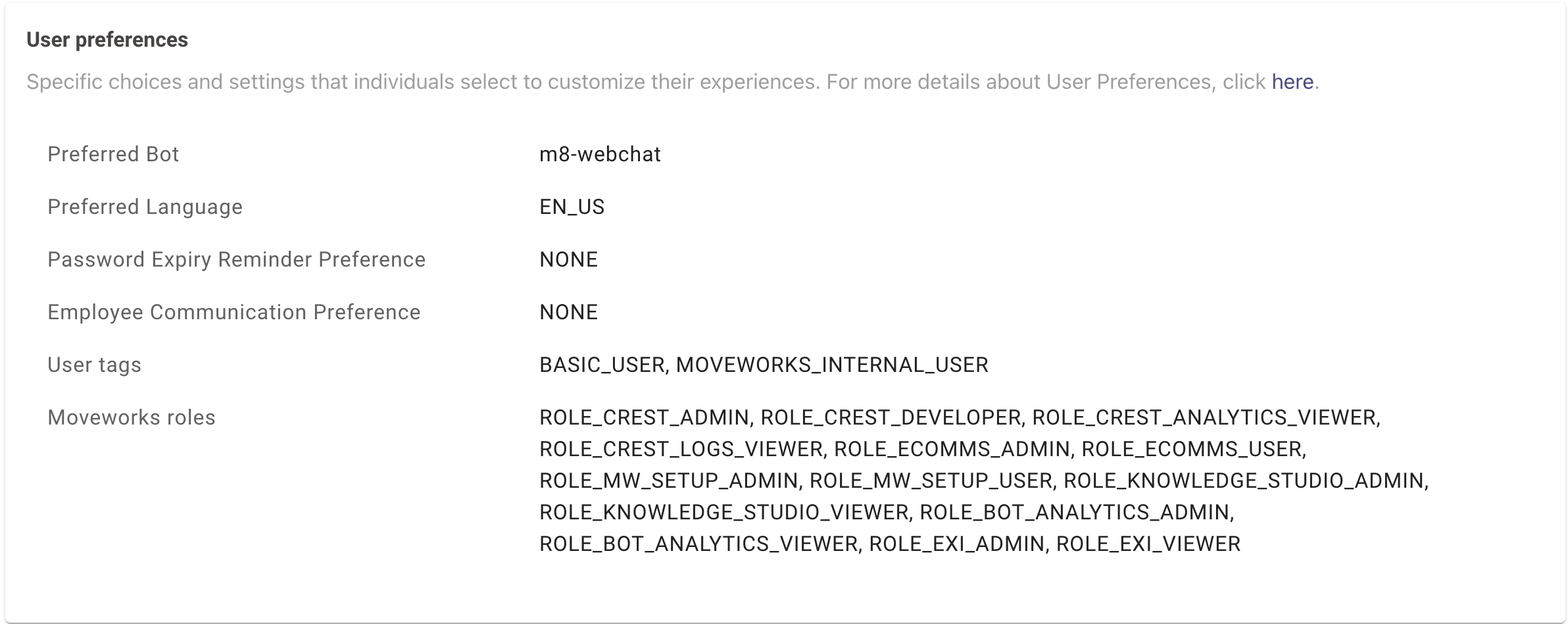
User Preferences extend visibility into the preferences set by an employee, along with the assigned user tags and Moveworks roles:
- Preferred Bot: Employees can define their preferred chat platform to receive notifications. For more information, read configuring notification routes.
- Preferred Language: Employees can set their preferred language to communicate with the bot. For more information and Moveworks supported languages, read configuring preferred language.
- Password Expiry Reminder Preference: Employees can define their preference to receive notifications about changing expired password. The values can be NONE, SNOOZE_UNTIL_LAST and UNSUBSCRIBE.
For more information, read configuring password expiry notifications . - Employee Communication Preference: Employees can set their preference to receive organization’s broadcast messages or announcements, via the Moveworks bot. The values can be NONE, MUTE and UNSUBSCRIBE.
For more information, read Employee Communications notification settings. - User Tags: Admins can assign user tags to employees for classifying them into certain types of users. For more information and list of supported user tags, read User Tags.
- Moveworks roles: Admins can manage access to applications for employees by assigning Moveworks defined roles and associated permissions. For more information and list of roles with associated permissions, read Moveworks Roles and Permissions.
This information is available in the User Profile view of the User Identity module (User Identity > Imported Users > User Profile view > User Preferences).
Source Mapping
- To explore attribute sources, navigate to the User Identity Configuration wizard.
- In the second step of the wizard “Configure Selected Sources”, toggle to Advanced Mode to get detailed insights into source and attribute mapping.
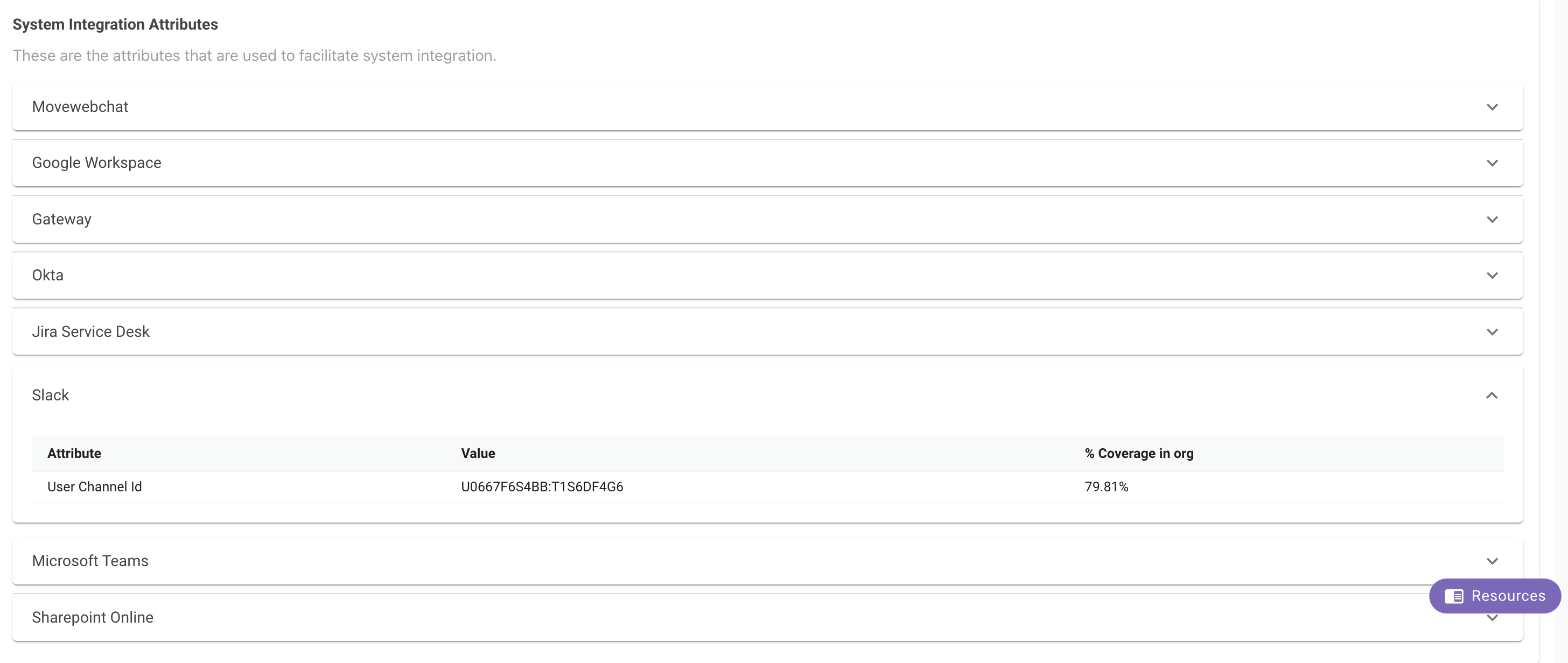
System Integration Attributes
These are the attributes that are used to facilitate system integration.