
URL Hyperlink & Button Expiry Specs
The URLs (aka URL Hyperlink) that are displayed within AI Assistant have different expiration lengths depending on the type of URL Hyperlink it is. Assistant responses may also display buttons, which are also only clickable for a specific duration.
URL Hyperlink Expiration
There’s 2 types of URL Hyperlinks:
1. Pre-signed URL links: These are URLs that are presented within the body of assistant responses. When you hover over the URL, you’ll see these URLs start with “https://app.moveworks.ai/…”.
2. Non pre-signed URL links: These are URLs that don’t have a hyperlink that starts with “https://app.moveworks.ai/…
Pre-signed URLs & Expiration Lengths
A pre-signed URL will be available to be clicked for 3 days. Once clicked, most pre-signed URLs will automatically expire 5 minutes (see table below to see expiration breakdown for all types of pre-signed URLs). To properly safeguard your data, pre-signed URLs include a randomly generated 16-byte token.
How to know if the URL is a Pre-Signed URL?
To find out if the URL that the assistant response generated is a pre-signed link, hover over the URL with your mouse.
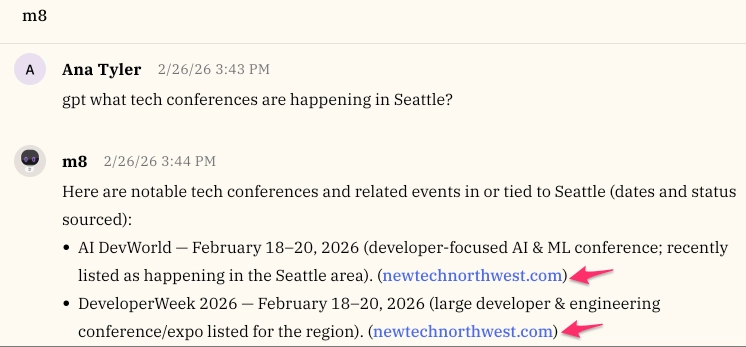
If you see that the URL starts with “https://app.moveworks.ai/…” then that’s a Pre-Signed URL. Any URL that starts with “https://app.moveworks.ai” is a pre-signed URL.

How long are URL Hyperlinks stored across our systems?
All URLs are stored in our database for 2 weeks. After 2 weeks the URLs are deleted from our database.
How long is the URL Hyperlinks active for?
The answer depends on the experience surface where the URL hyperlink is being access from.
- On Slack, Google, and Webex chat surface, once the URL link is presented within the experience it is only clickable for 3 days.
- Once the user has clicked on the URL link, that URL link is only live for 5 minutes from the time they initially clicked on the link.
- On Microsoft Teams, Assistant on Web, and Embedded assistant surfaces, once the URL link is presented within the experience it is only clickable for 14 days.
- The user can click on the URL link as many times within that 14 day duration (the duration we store URL links within our database).
Where do I view pre-signed URL links?
Slack, Google, Webex Experience
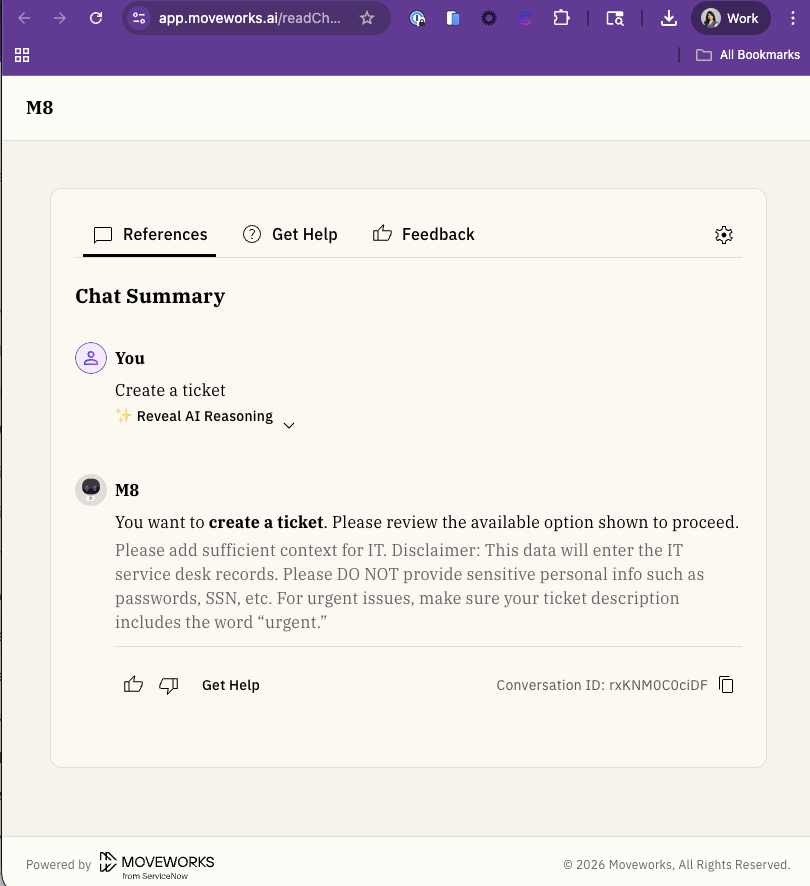
Anytime you click on a pre-signed link within these platforms, you’ll be navigated to a new web browser (outside of the chat experience). The most common experience that has a pre-signed URL is our “Reference Page”. Below is what our reference page looks like assuming you accessed it from Slack.
Microsoft Teams experience
On Microsoft Teams a major difference you’ll notice is that our reference page (which is a pre-signed link) opens within a pop up modal.
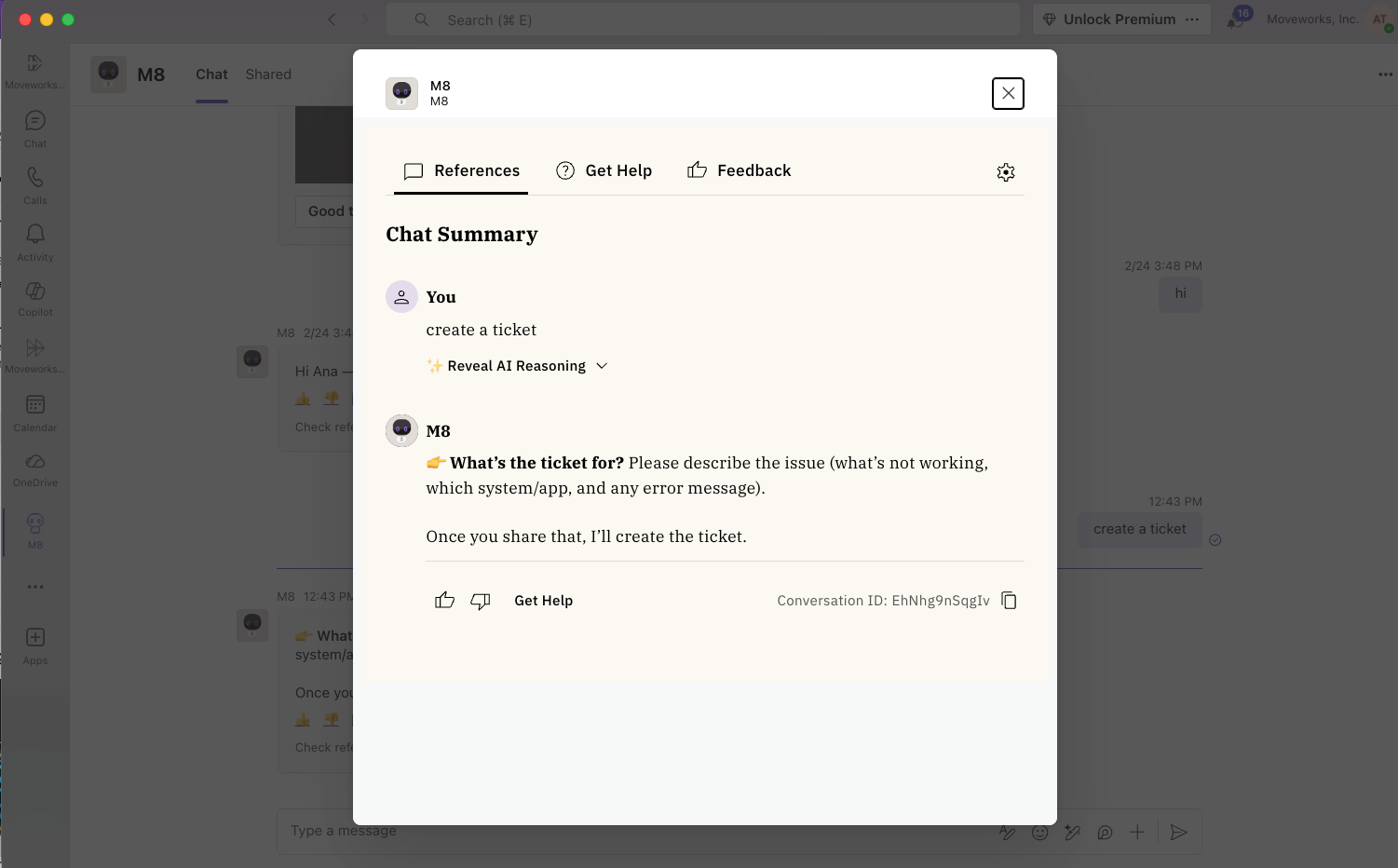
Clicking on pre-signed links for resources such as a knowledge base article will open as a new web browser window. Additionally you can not copy a pre-signed link from Teams (right click, copy link) and share that link with a co-worker given that its an authenticated link and only the user who’s signed in on Microsoft Teams can view the pre-signed URL.
Non pre-signed URL links
We also have URLs that are shown within the assistant experience that aren’t related to a specific plugin. Below are the types of non pre-signed URL links we support for other experiences. These URLs expire within 30 days, which means:
- The user has 30 days to click on the URL.
- The URL is stored in our database for 30 days and deleted after 30 days.
- Citation Cards [Assistant on Web only]
This experience is only available on Assistant on Web. When an assistant response contains citation cards these links are clickable for 30 days.
.png "image (1)")
- “References” section within Reference Page
Across any assistant platform, anytime you click on the set of emojis that appear on every assistant message that opens our Reference Page experience.
.png "image (2)")
There’s 3 tabs within the Reference Page, “References”, “Feedback, “Get Help. On the “References” tab there’s a “References” section that contains URLs to resources. These links expire in 30 days.
.png "image (3)")
Button Clicks Expiration
1. Clicking on the button preforms an action from built-in plugins
For built-in plugins in the Moveworks AI Assistant, buttons will expire if any of the following conditions are met:
- The button was created over 30 days ago.
- The total number of conversations topics encountered since the button was created exceeds 50.
- The total number of actions exceeds 100.
Note: There are certain buttons that can only be clicked on once.
Examples of buttons presented from built-in plugins:
- Password Reset: button says, “Reset password”
- Ticketing / Concierge: button says “File ticket”
- Forms: button says, “Complete this request”
2. Clicking on the button opens a web page
Buttons that contain a link and redirects a user to a URL such as an ITSM page expire after 14 days. If a user clicks on a button with an expired link they will be given the option to generate a new link when they visit the expired URL.