
For AI agents: a documentation index is available at the root level at /llms.txt and /llms-full.txt. Append /llms.txt to any URL for a page-level index, or .md for the markdown version of any page.
Logo
DeveloperAcademyCommunityStatus
  • Service Management
    • Overview
    • Concierge & Ticketing Capabilities Overview
    • Forms
    • Forms - Integration Specific Guides
    • Live Agent Chat / Handoff
    • Triage
    • Approval Mirroring
    • Ticket Interception
    • Generic Ticketing Integration: Ticket Gateway
  • Administration
    • MyMoveworks
    • Organization Information
    • Roles and Permissions
    • MyMoveworks SSO
  • Moveworks Setup
    • Accessing Moveworks Setup
    • First-Time Login via Magic Link
    • Moveworks Setup Modules
    • Moveworks Setup: Module How To Guides
    • Plugin Management
    • Monitor Alerts
    • Audit Logs
    • DSL Fields Defaults
    • Data Crawling View
    • API Playground
    • Setup Homepage
    • Troubleshooting Hub
    • Security and Privacy Settings
    • Configuration Delete
    • Advanced Config Editor
    • Identity configuration
    • Onboarding Stage
  • Security
    • Security
    • Hyperlink & Button Expiry
    • Attachment Handling
    • Moveworks Subprocessors
  • Provision Management
    • Overview
    • Access Software
    • Access Groups
    • Access Account
      • How To Guide for Access Account Plugin
      • Azure Self Service Password Reset (SSPR) Access Requirements
      • Account Access Integration Specific Overview
        • Account Access Integration - Okta
        • Account Access Integration - Active Directory
        • Account Access Integration - Duo (MFA)
        • Account Access Integration - Ping Identity (MFA)
  • Access Requirements
    • Overview
    • Update Set Modules
    • Ticketing Systems & ITSMs Access
    • Identity and Access Management Systems Access
    • Multi-Factor Authentication (MFA) Systems Access
    • Knowledge Access Requirements
    • Email Distribution List Systems Access
    • Facilities Management Access
    • Live Agent Chat Access
    • HR Information System Access
    • Expense Management Access
    • Calendar Management Access
  • Core Platform
    • User Identity
    • Moveworks On-Prem Agent
    • Approvals Engine
    • Entity Catalog
    • Configuration Languages
    • Moveworks Data Objects
    • SIEM
  • Employee Experience Insights
    • Overview
    • Breaking Down the Dashboard
    • Understanding Industry Benchmarks
    • Apps & Services
    • Impact Module
    • EXI Common Use Cases
    • Configure EXI
    • Ticket Backpolling
  • Knowledge Studio
    • Overview
    • Knowledge Studio Configuration
    • AI Powered Recommendations
    • Inspecting & Verifying Sources
    • Publishing Articles
    • Creating Knowledge Articles
    • Resolving IT Tickets Guidance
DeveloperAcademyCommunityStatus
On this page
  • Ping Identity MFA Reset
  • Moveworks MFA Reset Business Logic
Provision ManagementAccess AccountAccount Access Integration Specific Overview

Account Access Integration - Ping Identity (MFA)

||View as Markdown|
Was this page helpful?
Edit this page
Previous

Access Requirements

Next
Built with

Moveworks’ Account Access skill provides employees secure, self-service ways for users to resolve their multi-factor authentication (MFA) issues with Ping Identity.

Ping Identity MFA Reset

The Moveworks bot has the ability to aid users in registering a new device for MFA if they no longer have access to the currently registered device in Ping Identity. This use case usually occurs when:

  1. A user purchased a new phone or lost their current phone.
  2. A user has a new phone number or email address.

As a security measure, Moveworks will always direct users to your Ping instance when entering new phone numbers or scanning QR codes. Moveworks will not process Ping ID authentication codes in any way.

Moveworks MFA Reset Business Logic

  1. The conversation starts when a user either files a ticket in the Service Portal or comes to the bot directly to request a reset of their PingID factor.
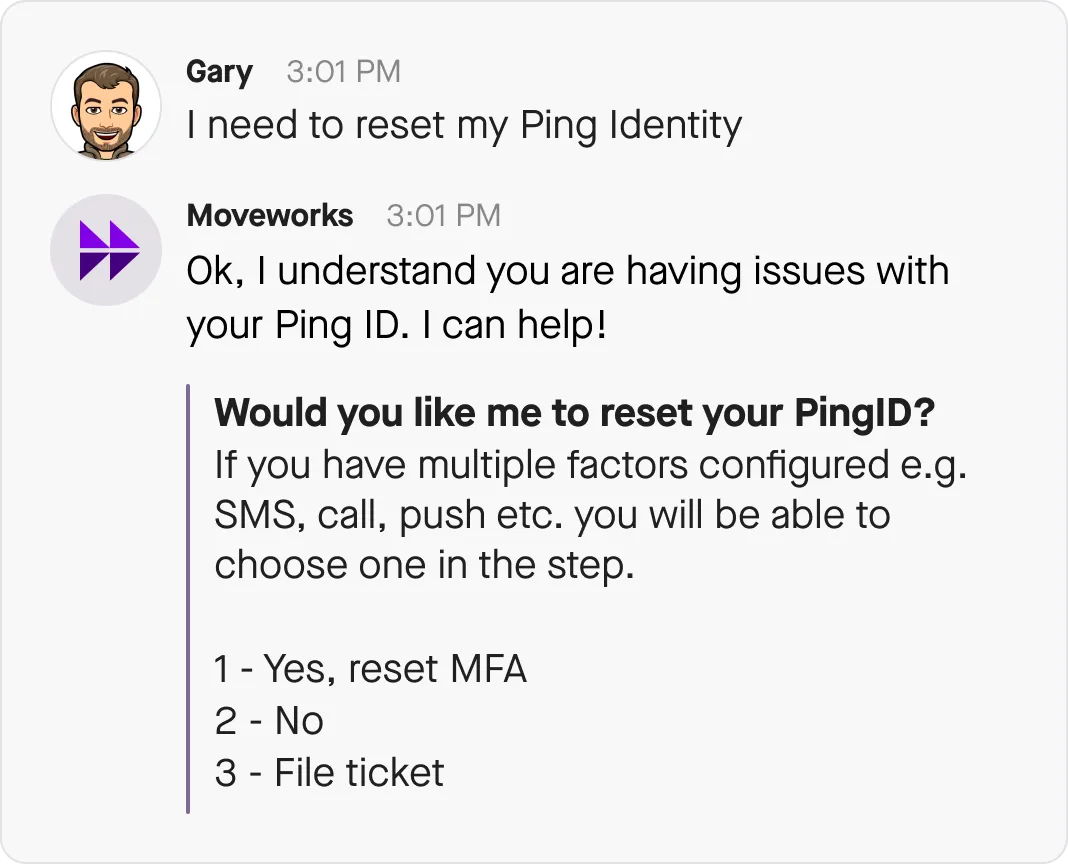
  1. Moveworks will recognize that the user is having issues with authenticating their current PingID factor and will let the user know that Moveworks can help to enroll a new PingID factor.
  2. After confirming, the user will be presented with all their currently configured PingID factors (this can be SMS, email, phone call, push, etc.).
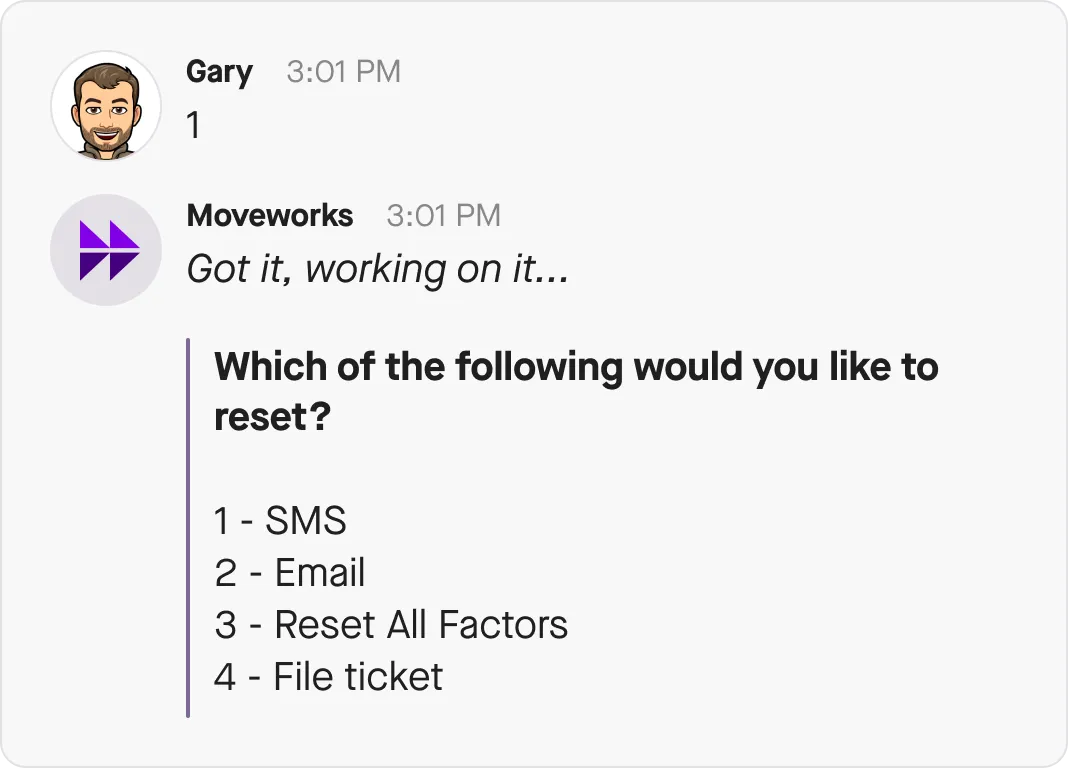
  1. After selecting one or more factors to reset, a ticket will be filed in the backend that contains all the details of the user’s request. Moveworks will remove the selected device(s) from the user’s configured devices.
  2. The user is then presented with a link directing them to set up a new PingID factor. Once they log in with a username and password, they will be prompted to set up a new factor. After this is complete, their new factor will be successfully paired to PingID.