Configuration Change history

View as Markdown

Overview

The Config Change History tool in Moveworks Setup gives you full visibility into every configuration change made in your environment. You can view, track, and audit changes — seeing exactly who changed what, when, and how.

You’ll find it under Advanced Tools > Troubleshooting Apps > Config Change History in the Setup left navigation bar.

Whether you’re triaging an incident, reviewing changes before go-live, or answering your customer’s question about what changed, Config Change History puts the information you need at your fingertips.


Key Capabilities

CapabilityDescription
Time-range filteringSearch configuration changes within a custom date range. Defaults to the last 2 days if you don’t specify a range.
Configuration filteringFilter by specific configurations using a searchable dropdown, or leave it empty to view changes across all configurations. Multi-select is supported.
Version history tableView a detailed log of all changes including timestamp, audit ID, configuration name, description, previous and current version numbers, and the user who made the change.
JSON diff viewClick any change entry to see a side-by-side comparison of the current version vs. the previous version, with added, removed, and modified fields clearly highlighted.
User audit trailSee whether a change was made by your team, a partner, or Moveworks — each reflected by their respective email address.

How to Use Config Change History

Step 1: Navigate to the Tool

In Moveworks Setup, go to Advanced Tools > Troubleshooting Apps > Config Change History.

Step 2: Set Your Search Criteria

  • Start Date & End Date — Select the time window you want to investigate. The tool defaults to the last 2 days if you don’t set a range. Note that the end date must be later than the start date.
  • Configurations*(optional)* — Use the searchable dropdown to select one or more specific configurations you want to review. If you leave this empty, changes for all configurations will be displayed.

Step 3: Search and Review

Click Search History to load your results. The version history table shows you the following details for each change:

ColumnDescription
TimestampDate and time of the change, displayed in your local timezone
Audit IDUnique identifier for the configuration
Configuration NameThe name of the configuration that was modified
DescriptionSummary or comments about what changed
VersionVersion number after the change
UserEmail address of the person who made the change
Change TypeChange type denotes either a configuration was updated or created.

Step 4: Inspect the Diff

Click on any row in the version history table to open the JSON diff view. This view helps you quickly understand what changed:

  • You’ll see a side-by-side comparison of the previous version and the current version
  • Fields that were added, removed, or modified are visually highlighted
  • Please note the field name might differ to the exact field name in the Configuration UI. 

Configuration Name Reference

The Configurations dropdown uses direct configuration names that differ from the page names you see in the Setup left navigation. Use the tables below to find the right configuration name for the Setup page you’re looking for.

Setup PageConfiguration Name in Dropdown
Answers > Answers Skill SettingsAnswersSkillConfig
Answers > Enterprise SearchEnterpriseSearchConfig
Answers > FAQ IngestionFAQIngestionConfig
Answers > File IngestionFileIngestionConfig
Answers > Knowledge IngestionKnowledgeIngestionConfig
Lookup > People and PlacesKnorahConfig

Ticketing Automation

Setup PageConfiguration Name in Dropdown
Ticketing > Concierge Behavior and Display SettingsTicketingActionConfig
Ticketing > File Ticket DestinationsFileTicketDestinationsConfig
Ticketing > File Ticket Type OverridesFileTicketTypeOverridesConfig
Ticketing > IP Allowlist SettingsIPAllowlistConfig
Ticketing > ITSM Provider ConfigITSMProviderConfig
Ticketing > ITSM ProvidersITSMProvidersConfig
Ticketing > ITSM WebhooksITSMWebhooksConfig
Ticketing > Rich Ticket Filing (RTF)MWFormConfig
Ticketing > Service Portal URLServicePortalConfig
Ticketing > Ticket Destination MapperTicketDestinationMapper
Ticketing > Ticket DestinationsTicketDestinationConfig
Ticketing > Ticket Event Backfill (Advanced)BackfillTicketEventsConfig
Ticketing > Ticket FiltersTicketFiltersConfig
Ticketing > Ticket Poller SettingsITSMProvidersConfig
Ticketing > Ticket RoutingTicketRoutingConfig
Ticketing > Ticket Types and StatesTicketTypesConfig
Ticketing > Ticket WorkflowTicketWorkflow
Forms > Advanced SettingsFormIngestionConfig
Forms > Form IngestionFormIngestionIntegrationConfig
Forms > Form Search SettingsFormsConfig
Forms > Last Mile AutomationLastMileAutomationFormConfig
Handoff > Live Agent HandoffAgentHandoffConfig
Handoff > Message BrokeringMessageBrokeringConfig
Handoff > Smart HandoffHandoffConfig
Enterprise Approvals > Approvals (Top-level)ApprovalsConfig
Enterprise Approvals > Approvals (Integration-specific)ApprovalsIntegrationConfig
Enterprise Approvals > Approvals (Resource-specific)ApprovalsResourceConfig
Enterprise Approvals > Approvals Engine (Moveworks Native)NamedApprovalExp
Triage > Auto ML SettingsTriageAutoMLConfig
Triage > Dilbert Model SettingsTriageDilbertModelConfig
Triage > Field SettingsTriageFieldConfig
Triage > Metadata Cache SettingsTriageMetadataCacheConfig
Triage > Model and Heuristics RulesTriageModelConfig

Access Management

Setup PageConfiguration Name in Dropdown
Account Access > BiddingAccessAccountConfig
Account Access > Skill SettingsAccessAccountIntegrationConfig
Software Access > Skill SettingsAccessSoftwareConfig
Software Access > Software CatalogAccessSoftwareApp
Group Access > Skill SettingsAccessGroupConfig
Group Access > Group IngestionGroupIngestionConfig
Moveworks Approvals > ApprovalsApprovalsConfig

Core Platform

Setup PageConfiguration Name in Dropdown
Connectors > Generic HTTP ConnectorsConnectorConfig
Ingestion > ACL IngestionACLIngestionVars
User Identity > User IngestionIdentityIngestionVars
User Identity > Audience Builder AttributesUserAttributeMetadataConfig
User Identity > Bot AccessBotAccessConfig
User Identity > Contractor and Service AccountsIdentityServiceAccountVars
Resource Permissions > ACL PermissionsAccessControlStrategy
Resource Permissions > ACL ConfigACLConfig
Channel Resolver > SettingsChannelVars
Analytics and Data > App ConfigAppConfig
Analytics and Data > App Data Filter ConfigAppDataFilterConfig
Analytics and Data > Attribute Data Source ConfigAttributeDataSourceConfig
Analytics and Data > Attribute Mapping ConfigAttributeMappingConfig
Analytics and Data > Bot Performance InsightsBPIConfig
Analytics and Data > Custom AttributesCustomAttributeConfig
Analytics and Data > Customer Analytics Value AssumptionsCustomerValueConstantsVars
Analytics and Data > Data MaskingDataMaskingConfig
Domains > Custom DomainsCustomDomainConfig
Domains > Domain ClassificationDomainClassificationConfig
Agent studio > Action SettingsActionConfig
Agent studio > Action SettingsBusinessQueryFlowConfig
Agent studio > Action SettingsBusinessQueryLegacyFlowConfig
Agent studio > Action SettingsContextualExampleConfig
Agent studio > Creator Studio ConfigCreatorStudioConfig
Agent Studio > Custom TriggeringCustomTriggeringConfig
AI Assistant > Customized Flow (Paths)CustomizedFlowConfig
AI Assistant > Customized Triggering (Paths)CustomizedTriggeringConfig
AI Assistant > Plugin managementNativePluginsConfig

Chat Platforms, Display & Notification configs

Setup PageConfiguration Name in Dropdown
Manage Chatbots > Chat Bot ApplicationsChatVars
Web Chatbot > Moveworks for Web ConfigMoveWebChatConfig
Web Chatbot > Auth SettingsMoveWebChatAuthConfig
Web Chatbot > Customizability SettingsMoveWebChatCustomizabilityConfig
Web Chatbot > Greetings SettingsProactiveWelcomeConfig
Web Chatbot > Plugin SettingsMoveWebChatPluginSettingConfig
Multilingual SupportMLSVars
Display ConfigurationsDisplayVars
Display SettingsDisplayVars
Display Settings > Access Skill DeflectionsDeflectionConfig
Display Settings > Custom Button SettingsDialogButtonsConfig
Notification Settings > Notification ScheduleNotificationScheduleConfig
Notification Settings > Nudge SettingsNudgeConfig
Notification Settings > Ticket Update NotificationsTicketUpdateNotificationConfig
Notification Settings > Notifications Route and Employee CommsNotificationOrgConfig

Organization Details

Setup PageConfiguration Name in Dropdown
Tenant Settings > GeneralInfoConfig
Alerts > Customer Alerts SettingsCustomerAlertConfig
Security and Privacy > SSO SettingsSSOConfig
Security and Privacy > IP AllowlistIPAllowlistConfig

Connectors (Core Platform > Connectors)

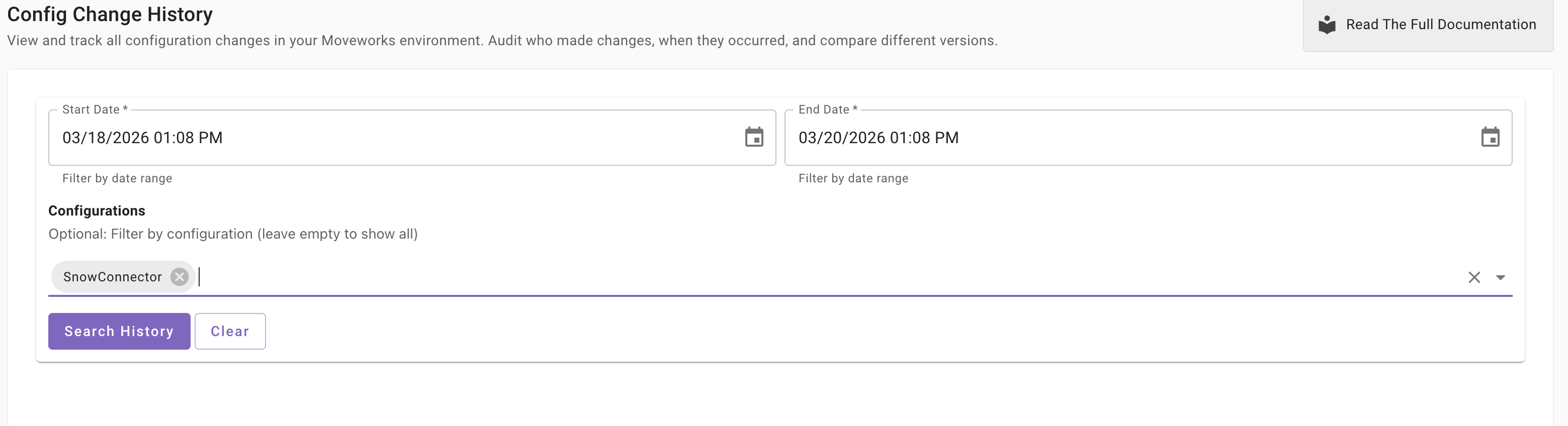
Each system supported by Moveworks appears as a individual config available in the dropdown. 

Example - To view all changes done to your ServiceNow connector.  Search for 

SNOWConnector in the dropdown 
image

Common Use Cases

Use CaseHow Config Change History Helps
Investigate an outage or incidentSomething broke — find out what changed and when. Set your time range to just before the incident started, leave the Configurations filter empty, and scan for recent changes. The JSON diff view lets you pinpoint exactly what was modified so you can assess impact or revert.
Review changes before go-liveBefore pushing a new deployment or enabling a feature for users, audit recent changes to confirm everything was configured as intended and no unintended edits slipped through.
Hold stakeholders accountableUse the User column to track which admin, partner, or Moveworks team member made a specific change. Useful when multiple parties have access to your environment and you need a clear chain of ownership.
Answer “what changed?” questionsWhen a user or stakeholder reports unexpected behavior, pull up the relevant configuration and check its change history. A timestamped diff view gives you a concrete answer without guesswork.
Support compliance and access auditsExport or document a record of who made changes, when, and to what — supporting internal audits, security reviews, or regulatory requirements.
Validate partner or vendor changesAfter a partner-led implementation or a Moveworks-initiated update, verify exactly what was modified in your environment. Changes are attributed by email address so there’s no ambiguity.

Frequently Asked Questions

  • Can I see changes for all configurations at once?
    Yes! Simply leave the Configurations dropdown empty and the tool will display changes across all configurations for your selected time range. The default time range is of 2 days. Maximum time range is of last 30 days. 
  • What timezone are timestamps displayed in?
    Timestamps are displayed in your local browser timezone, so they’ll always match your current location.
  • Can I filter by multiple configurations at the same time?
    Yes. The Configurations dropdown supports multi-select, so you can view changes across several configurations simultaneously.
  • Why don’t I see internal or hidden fields in the diff view?
    Config Change History only displays external-facing configuration fields — the same fields you see in Moveworks Setup. Internal fields are excluded for security and clarity.
  • How do I identify who made a specific change?
    Check the User column in the version history table — it shows the email address of the person who made the change. This helps you distinguish between your admins, partners, and Moveworks.