User Ingestion Filters Guide
Overview
User ingestion filters control which records and which fields are pulled from your identity source before any processing occurs. Filtering at the source level reduces data transfer, speeds up ingestion, and ensures Moveworks only works with the users that matter for your deployment.
There are two independent dimensions to every filter:
- Record filter — Which users to import (e.g. active employees only, a specific department, a specific Azure AD group)
- Attribute list — Which fields to import for each user (e.g. email, name, department, manager)
Both are optional. If you configure neither, Moveworks imports all available users with all available fields. Only add a filter if you have a specific reason to restrict the import. Over-filtering is a common source of issues — if users are unexpectedly missing from Moveworks, an incorrect filter is usually the cause. When in doubt, start with no filter and add restrictions incrementally.
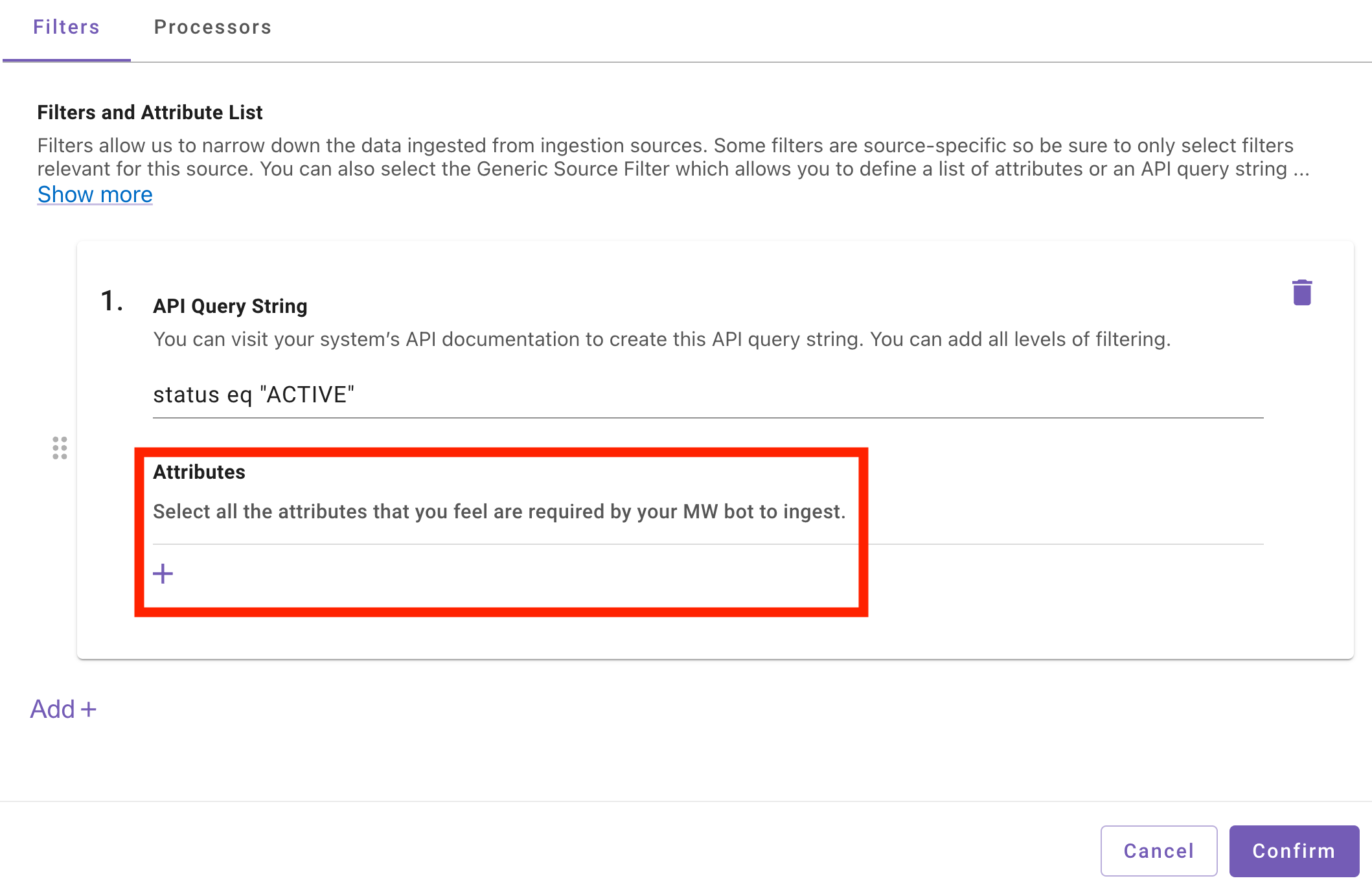
Specifying any attributes overrides the entire default field list. If you add even one attribute (e.g. department), only that field and a small set of system-required fields will be imported — all other fields are dropped. Always include every field you need in the attributes list, not just the new one you are adding.
How to Configure
Navigation in Moveworks Setup:
Import Users → Connectors → [select your connector] → Configure Selected Sources → Advanced Mode → Filters and Attribute List
The Advanced Mode toggle exposes the filter configuration panel. Inside, you will find:
- Filters — One or more filter entries, each defining which records to pull from this source
- Attribute List — A comma-separated list of field names to import
You can add multiple filter entries to import users from several groups or apply different criteria — these are combined as a union (OR), not an intersection. For example, two MS Graph filters with different Group IDs will import users from both groups.
Quick Reference
Common Scenarios
Common starting points across sources. Click any source name to jump to its full configuration reference.
Filter by email domain
Full Azure AD example with attributes:
Import active employees only
Filter by department
Scope to a group or team
Import multiple groups (Azure AD)
Create two separate filter entries under the same connector. Users in either group are imported (union).
Entry 1:
Entry 2:
Add a new field without losing existing fields
If your current import has no attributes configured (all fields returned), and you want to start explicitly importing department:
Before (no attributes set — all fields returned):
After (wrong — drops all other fields):
After (correct — re-include everything you need):
Exclude service or system accounts
Generic Source Filter
The Generic Source Filter is available for every integration source. It accepts a raw query string and passes it directly to the source system’s API — Moveworks does not validate or transform it.
Some sources (Azure AD, Salesforce, Exchange Online, SharePoint OneDrive) also have dedicated filter types that expose more options like Group ID scoping or attribute lists. For Okta, ServiceNow, and Workday, the Generic Source Filter is the only supported option — they do not have dedicated filter types. See the subsections below for the correct query syntax and worked examples for each.
Okta
Okta uses an OData-like filter syntax. The query string maps to the filter parameter on the Okta List Users API.
What Moveworks applies automatically: All non-deprovisioned users are included by default — statuses ACTIVE, STAGED, PROVISIONED, RECOVERY, PASSWORD_EXPIRED, and LOCKED_OUT are pre-filtered in. Your query string is ANDed on top of this base filter.
Narrowing by status: Adding status eq "ACTIVE" restricts the import to only ACTIVE users — it excludes STAGED, PROVISIONED, RECOVERY, PASSWORD_EXPIRED, and LOCKED_OUT users. Only add it if you specifically need to exclude those statuses.
Operators: eq, ne, lt, gt, le, ge, and, or, not (see Okta filter operators)
Example — Import only full employees (not contractors):
Example — Import a specific department:
Example — Combine conditions:
Example — Exclude contractors:
ServiceNow
ServiceNow uses Encoded Query syntax. The query string maps to the sysparm_query parameter on the ServiceNow Table API.
What Moveworks applies automatically: active=true is always prepended. Your query string is appended with ^ (AND). You do not need to add active=true yourself.
Operators: =, !=, ^ (AND), ^OR (OR), LIKE, NOT LIKE, IN, NOT IN, STARTSWITH, ENDSWITH (see ServiceNow Encoded Query docs)
Example — Import only employees (not contractors):
Example — Import a specific department:
Example — Import users from a specific location:
Example — Combine conditions (^ = AND):
Example — Exclude system/service accounts:
Example — Specify which fields to import:
Attributes map to the sysparm_fields parameter on the ServiceNow Table API — use exact ServiceNow field names (e.g. user_name, not username). Leave empty to return all fields.
Workday
Workday filter support is only available in WQL mode, which must be enabled in your org’s Workday configuration. In standard REST mode, the filter string is ignored entirely. Contact your Moveworks implementation team to confirm which mode your org uses.
In WQL mode, the filter string replaces the entire default WQL query — it does not append to it. You must write a complete, valid WQL SELECT statement.
The default query Moveworks runs (when no filter is configured):
isActive = false in the default query does not mean “import inactive users.” In Workday’s WQL syntax, this parameter controls whether the index filter applies an additional active-status restriction — false means “do not apply a secondary active-status constraint on top of indexedAllWorkersFilter.” If you want to explicitly restrict to currently active employees only, use isActive = true in your custom query.
Operators: Standard WQL syntax (see Workday WQL documentation)
Example — Import active employees:
Example — Import only a specific organization:
Microsoft Graph (Azure AD)
Use the MS Graph filter to import users from Azure AD with OData filtering, group scoping, or both.
You cannot use Group ID and OData Filter at the same time. If you set both, ingestion will fail with an error. Use Group ID to scope by group membership. Use OData Filter to scope by user attributes. If you need both, create two separate filter entries.
Specifying any attributes overrides the entire default field list. When you specify attributes, id and accountEnabled are always included automatically, but nothing else is. Include every field you need explicitly.
What Moveworks applies automatically: accountEnabled eq true is always enforced — disabled accounts are never imported regardless of your filter. You do not need to add this yourself.
OData operators: eq, ne, and, or, not, lt, le, gt, ge, startswith, endswith (see Microsoft Graph filter parameter docs)
endswith and startswith requirements: These operators require the ConsistencyLevel: eventual header and $count=true parameter. Moveworks sets both automatically — you can use endswith and startswith without any additional configuration.
Finding your Group ID: In the Azure portal, go to Azure Active Directory → Groups → select your group → copy the Object ID.
Example — Import users from a specific Azure AD group:
Example — Filter by email domain:
Example — Filter by department:
Example — Exclude guest accounts (members only):
Example — Combine conditions:
Example — Multi-group import (create two separate filter entries):
Nested attributes (manager, department from a related resource):
You can import nested fields using dot notation (e.g. manager.displayName). Moveworks handles the $expand call automatically. However, dot-notation attributes cannot be combined with a Group ID — this is a Microsoft Graph API limitation. Use dot-notation attributes only when Group ID is empty.
Example — Import manager name alongside user fields:
SharePoint OneDrive
SharePoint OneDrive uses the same underlying Microsoft Graph API as the MS Graph filter. All MS Graph rules apply, including the Group ID + OData Filter mutual exclusivity and the endswith/startswith support.
You cannot use Group ID and OData Filter at the same time — same constraint as MS Graph. See that section for full details.
Example — Scope to a specific group:
Example — Filter by domain:
Salesforce
Import users from the Salesforce User or Contact table with SOQL filtering.
Default attributes (when Attributes is left empty): Id, Email, LastName, FirstName, Name
Specifying any attributes overrides the defaults. If you add Department, you must also re-include Id, Email, LastName, FirstName, and Name — or those fields will not be imported.
Default table: Contact
SOQL operators: =, !=, <, >, <=, >=, LIKE, NOT LIKE, IN, NOT IN, AND, OR, NOT (see Salesforce SOQL documentation)
Finding exact field names: In Salesforce Setup, go to Object Manager → User (or Contact) → Fields & Relationships to see all available field API names.
Example — Import active users only:
Example — Import a specific department:
Example — Import from a specific account (Contact table):
Example — Exclude system and integration accounts:
Example — Minimal attributes for identity resolution:
Exchange Online
Import mailbox users with PowerShell filtering. The filter expression is passed to the Exchange connector’s PowerShell script using Exchange Online PowerShell filter syntax.
Default attributes (when Attributes is left empty): Identity, WindowsEmailAddress, Guid
Specifying any attributes overrides the defaults. If you add Department, you must also re-include Identity, WindowsEmailAddress, and Guid, or those fields will not be imported.
PowerShell operators: -eq, -ne, -lt, -gt, -le, -ge, -like, -notlike, -and, -or, -not (see Exchange Online PowerShell filter docs)
Example — Import standard user mailboxes only (recommended starting point):
Example — Import users from a specific department:
Example — Exclude shared mailboxes and distribution lists:
Example — Import users with a specific domain:
Example — Minimal attributes with department:
Google Workspace
The Google Workspace filter imports users via the Google Admin Directory API. Record-level filtering is not supported — all users in the configured customer domain are returned. The only configurable option is importing additional custom schema fields.
Customer domain: The customer ID used to scope the query comes from the Google Workspace connector’s native configuration — it is not part of the filter. Contact your Moveworks implementation team to configure which domain is queried.
Example — Import standard fields only (no filter needed):
Example — Import with custom HR schema fields:
Example — Import with multiple custom schemas:
Google Workspace does not support filtering by department, team, location, or other user attributes at the API level. To scope to a subset of users, use an Azure AD group if your org syncs Google Workspace users to Azure AD.
GitHub
The GitHub filter imports members of a GitHub organization via the GitHub REST API.
Limitations: No record filter or attribute selection is supported. All members of the organization are returned with default fields.
Example — Import all members of your GitHub org:
Example — Import from multiple orgs (create one filter entry per org):
Confluence
The Confluence filter imports members of specific Confluence groups via the Confluence REST API.
Default behavior (when Group ID is left empty): Moveworks imports members from confluence-users and confluence-administrators.
Cloud only: Group ID requires the group’s UUID (not display name). This filter type is for Confluence Cloud. For Confluence Server/on-prem, use the Confluence Server filter instead.
Limitations: No OData filter or attribute selection is supported. Pagination is capped at 200 users per page (Confluence API limit).
Finding your group UUID: Confluence group UUIDs are not visible in the admin UI. Retrieve them via GET /wiki/rest/api/group — each group has an id field. You can also use the Confluence API browser.
Example — Import a specific group by UUID:
Example — Import multiple groups (comma-separated in a single field):
Confluence Server
Use the Confluence Server filter for on-premise Confluence deployments. It uses group names (not UUIDs) and has its own separate filter type from the Cloud Confluence filter above.
Default behavior (when Group Name is left empty): Moveworks imports members from confluence-users and confluence-administrators.
Multiple groups: Enter all group names as separate items within a single filter entry — do not create separate filter entries per group.
Limitations: No OData filter or attribute selection is supported.
Example — Import a specific group by name:
SharePoint Online
SharePoint Online filters by site membership, not by user attributes. This filter returns every user who has been granted access to the specified SharePoint site — it is not a way to filter employees by department, location, or profile fields. Only use this filter when site access intentionally defines who should be onboarded to Moveworks.
The SharePoint Online filter returns all users with permissions on the specified site via the SharePoint REST API (/_api/web/siteusers). See the SharePoint REST API docs for reference.
What Moveworks applies automatically: Only individual users are returned — service accounts, distribution lists, and SharePoint groups are excluded automatically.
Limitations: No OData filter or attribute selection is supported.
Finding site names: In SharePoint, the site name is the segment after /sites/ in the URL. For https://contoso.sharepoint.com/sites/ITPortal, enter ITPortal. For a subsite at https://contoso.sharepoint.com/sites/HRPortal/Policies, enter HRPortal/Policies.
Do not include the /sites/ prefix — Moveworks adds it automatically. Entering sites/ITPortal will result in a broken URL.
Example — Import users from a single site:
Example — Import from multiple sites:
Example — Import from a subsite:
Cherwell
The Cherwell filter imports user records from a specific Cherwell Business Object via the Cherwell REST API.
User Fields uses field IDs, not field names. Each field in Cherwell has a unique ID (a long hex string). You must use these IDs, not display names like “Email” or “FirstName”. At least one field ID is required.
Finding field IDs: In Cherwell, open Business Object Editor for your user object → select a field → the field ID (busObRecId) is shown in the properties panel.
Example — Import specific fields only:
FreshDesk
The FreshDesk filter controls whether agents are imported in addition to contacts. Contacts are always imported.
Default behavior: Contacts only. Enabling Agent Ingestion adds agents to the import — it does not replace contacts.
Limitations: No record-level filter or attribute selection is supported. Agent ingestion requires the FreshDesk connector to be authenticated with agent admin privileges.
Example — Import contacts only (default):
Example — Import contacts and agents:
Troubleshooting
No users imported after adding a filter
- Start with no filter, verify that users import, then add the filter incrementally
- Verify the query string against your source system’s API directly (e.g. run an OData query in Microsoft Graph Explorer)
- Check that any Group ID, org name, or site name is spelled exactly correctly
- For Azure AD: confirm the Group ID is the Object ID, not the display name (see Finding your Group ID)
Fields missing from user profiles after specifying attributes
- You added at least one attribute but forgot to re-include the fields you already had — see the attribute override warning
- Check exact field API names in your source system (case-sensitive in all sources)
- For Azure AD:
idandaccountEnabledare always included automatically — do not worry about those
Error: “MSGraph API does not support combining expand parameters”
- You have a Group ID, dot-notation attributes (e.g.
manager.displayName), and an OData Filter all on the same entry — this combination is not supported - Remove the OData Filter from that entry, or move the dot-notation attributes to a separate entry without Group ID
Error: “Multiple expand fields detected”
- You included dot-notation attributes from two different parent resources (e.g.
manager.displayNameanddepartment.name) - MS Graph only supports expanding one parent resource per request — remove the second dot-notation attribute or create a separate filter entry
Duplicate users when using multiple filter entries
- Expected behavior — multiple filters create a union, and the same user may appear in more than one group
- Moveworks deduplicates by user ID automatically; this does not create duplicate user records
Workday filter string has no effect
- Your org may be in REST mode, which does not support filter strings — see the Workday section
- Contact your Moveworks implementation team to check whether WQL mode is enabled
Okta filter returns fewer users than expected
- Verify you are not accidentally excluding
RECOVERYorPASSWORD_EXPIREDusers who should be imported - The base filter already includes all active statuses; your query string narrows from that set — see Okta
Confluence Group ID is not working
- The Group ID must be the group’s UUID, not the display name — see Finding your group UUID
- For on-premise Confluence, use the Confluence Server filter instead, which accepts group names
Filter Syntax Reference
OData v4.0 — Azure AD / Microsoft Graph / SharePoint OneDrive
Documentation: Microsoft Graph filter parameter · OData query parameters
All operators are lowercase. String values use single quotes.
startswith and endswith require ConsistencyLevel: eventual — Moveworks sets this automatically.
SOQL — Salesforce
Documentation: Salesforce SOQL and SOSL Reference
The entire value of the SOQL Condition field is appended to SELECT ... FROM {table} — it must include the WHERE keyword.
All operators are uppercase. String values use single quotes.
ServiceNow Encoded Query
Documentation: ServiceNow Encoded Query Strings
active=true is prepended automatically — do not add it yourself.
PowerShell — Exchange Online
Documentation: Exchange Online PowerShell filterable properties
All operators are prefixed with - (PowerShell convention). String values use single quotes.
Limitations
- MS Graph and SharePoint OneDrive: Group ID and OData Filter cannot be combined on the same filter entry — use separate entries if you need both group scoping and attribute filtering
- MS Graph: Dot-notation attributes cannot be combined with Group ID — only one parent resource can be expanded per request
- Specifying any attributes overrides the complete default field list across all sources — always re-include every field you need, not just the new one
- Salesforce: SOQL Condition must include the
WHEREkeyword — the condition is appended directly to the SOQL query string - Workday: Filter string replaces the entire default query (WQL mode only) — write a complete WQL SELECT statement, not a condition fragment
- Workday: Filter strings are silently ignored in REST mode — contact your implementation team to confirm WQL mode is enabled
- Confluence: Group ID requires a UUID (Cloud only) — display names are not accepted; for on-premise use the Confluence Server filter with group names
- Confluence: Pagination is capped at 200 users per page — Confluence API limit
- SharePoint Online: Filters by site membership, not user attributes — returns all users with site access; no attribute-level filtering is available
- FreshDesk: No attribute selection or record filtering — only the endpoint (contacts vs. agents) is configurable
- Google Workspace: No record filtering — all users in the customer domain are returned; user-attribute filtering is not supported at the API level
- Multiple filter entries are unioned — users appearing in more than one filter are deduplicated by ID automatically
- Attribute field names are case-sensitive and must match the exact API field name for the source system