
Configure Genesys Live Agent Message Brokering
Overview
This guide covers connecting the Moveworks AI Assistant to Genesys Cloud with Live Agent Message Brokering: users chat with a live Genesys agent without leaving the Moveworks conversation, and Moveworks relays messages between the user and the agent in both directions.
The integration uses the Genesys Cloud Open Messaging capability:
- When a user asks for a live agent, Moveworks starts a conversation in Genesys through the Open Messaging API. The conversation enters your Genesys Architect message flow and routes to an agent queue like any other chat.
- Genesys delivers agent messages back to Moveworks through the Open Messaging outbound webhook.
- Two notifications that you configure in Genesys (using standard triggers, workflows, and data actions) tell Moveworks when an agent accepts the conversation (so the assistant can show the agent’s name) and when the agent disconnects (so the assistant can end the session).
All queue selection, skill routing, and prioritization stays in your Genesys flow. Moveworks sends the user’s identity and their full request text, and your flow decides where the conversation goes.
Setup at a Glance
- Complete the Genesys Access Requirements, which cover all Genesys-side setup, the Moveworks credentials, and the Genesys Connector
- Moveworks: set up the Live Agent Handoff configuration
- Moveworks: set up Handoff Settings
- Moveworks: set up Display Configurations
Step 1: Complete the Access Requirements
Follow the Genesys Access Requirements end to end. They cover the Genesys license and permission prerequisites, the entire Genesys-side setup (the Open Messaging integration, message routing, the Architect flow handling including the required automated greeting, and the agent accept/disconnect notifications), the Moveworks webhook and OAuth credentials, and the Genesys Connector in Moveworks Setup.
Once those steps are complete, the connection between Moveworks and Genesys is established. Return here with the Open Messaging integration ID, which Step 2 below uses.
Step 2: Set Up the Live Agent Handoff Configuration
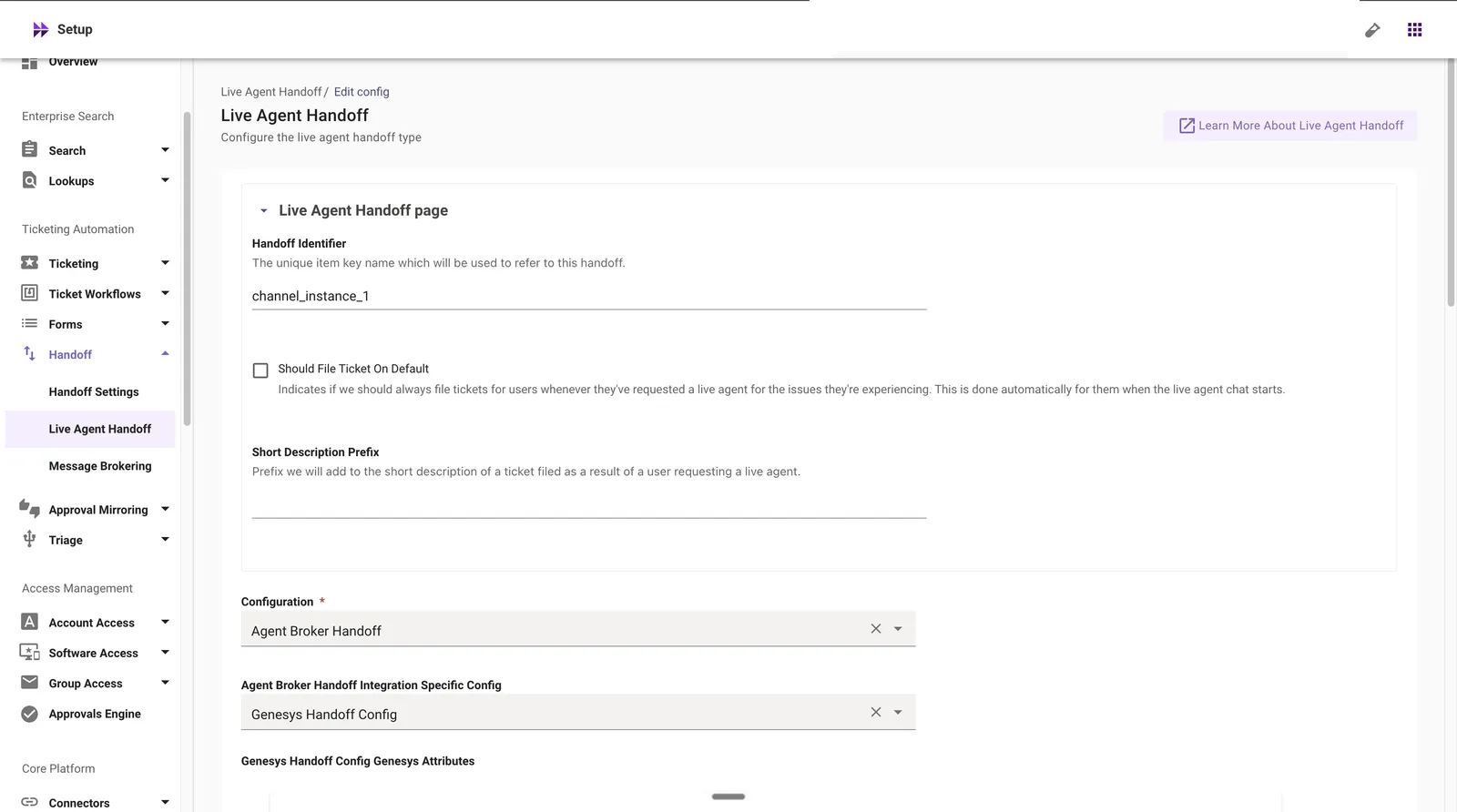
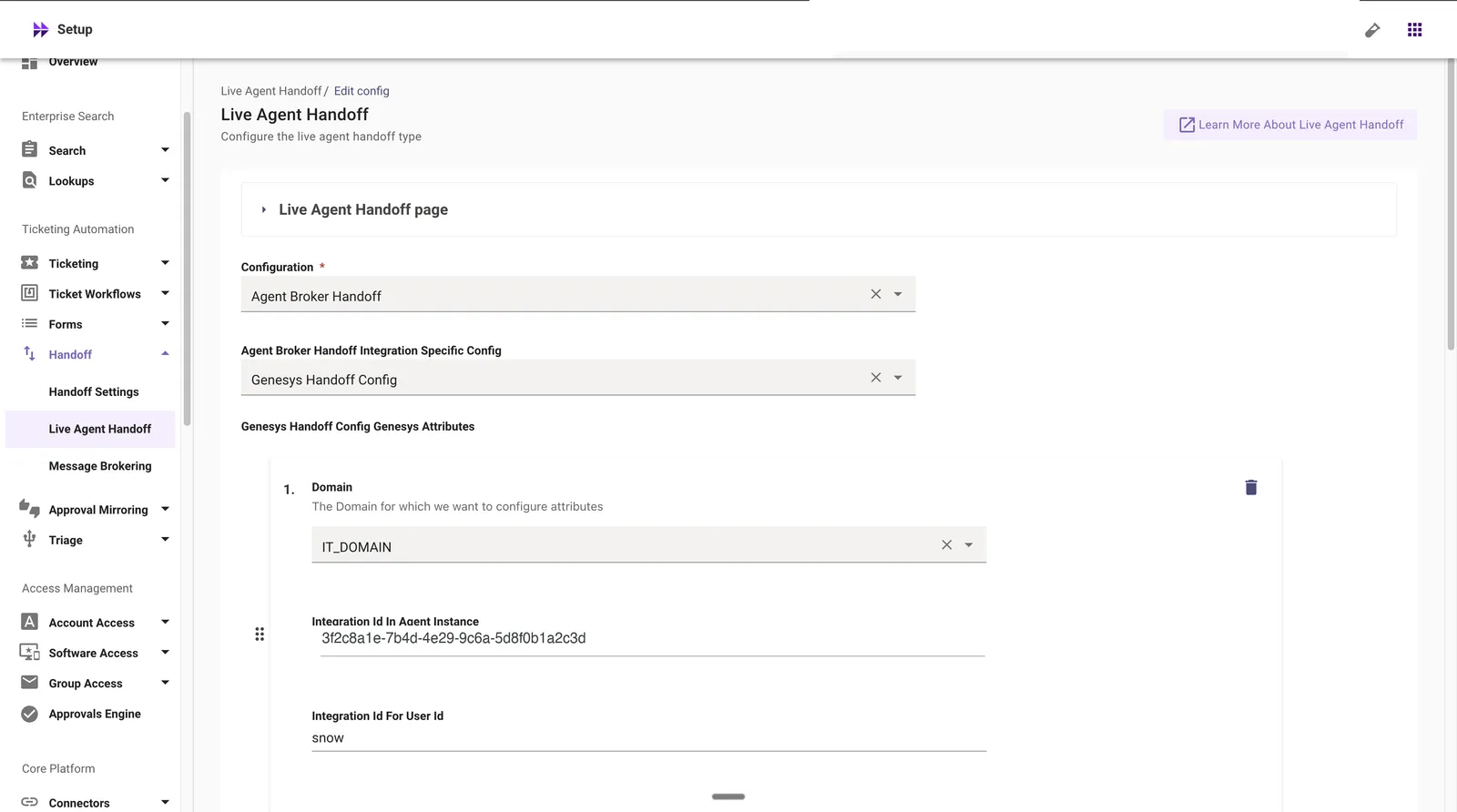
In Moveworks Setup, configure the Live Agent Handoff settings per business domain (for example IT or HR):
- Integration Id In Agent Instance = the Open Messaging integration ID from the access requirements.
- Integration Id For User Id = the Moveworks integration (for example
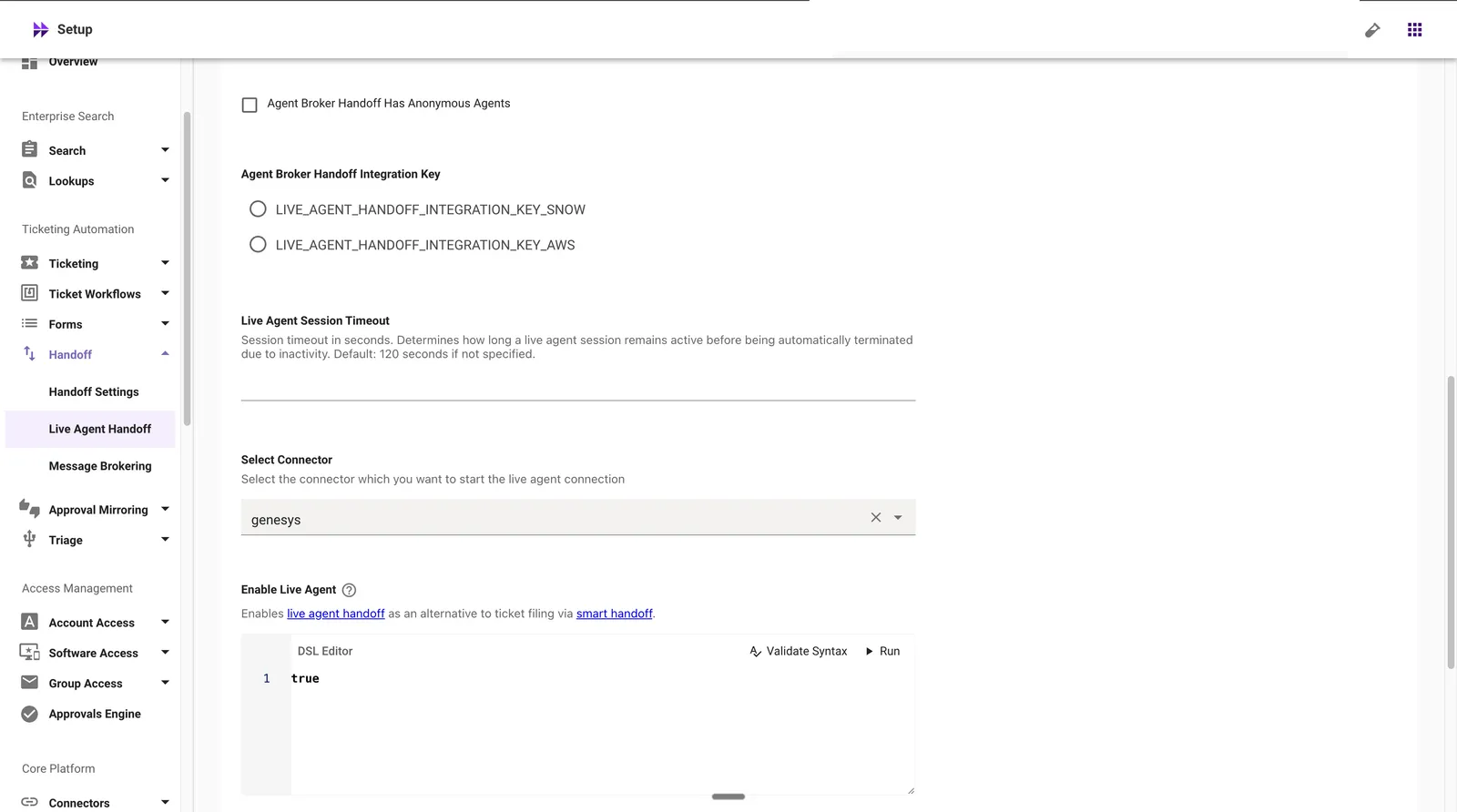
snow) whose user record supplies an optional user identifier, sent to Genesys as conversation metadata. The user is always identified by their email address as the message sender. This field only adds a supplementary attribute your flow can use. - Leave Agent Broker Handoff Integration Key unselected. This field is not used by the Genesys handoff.
Step 3: Set Up Handoff Settings
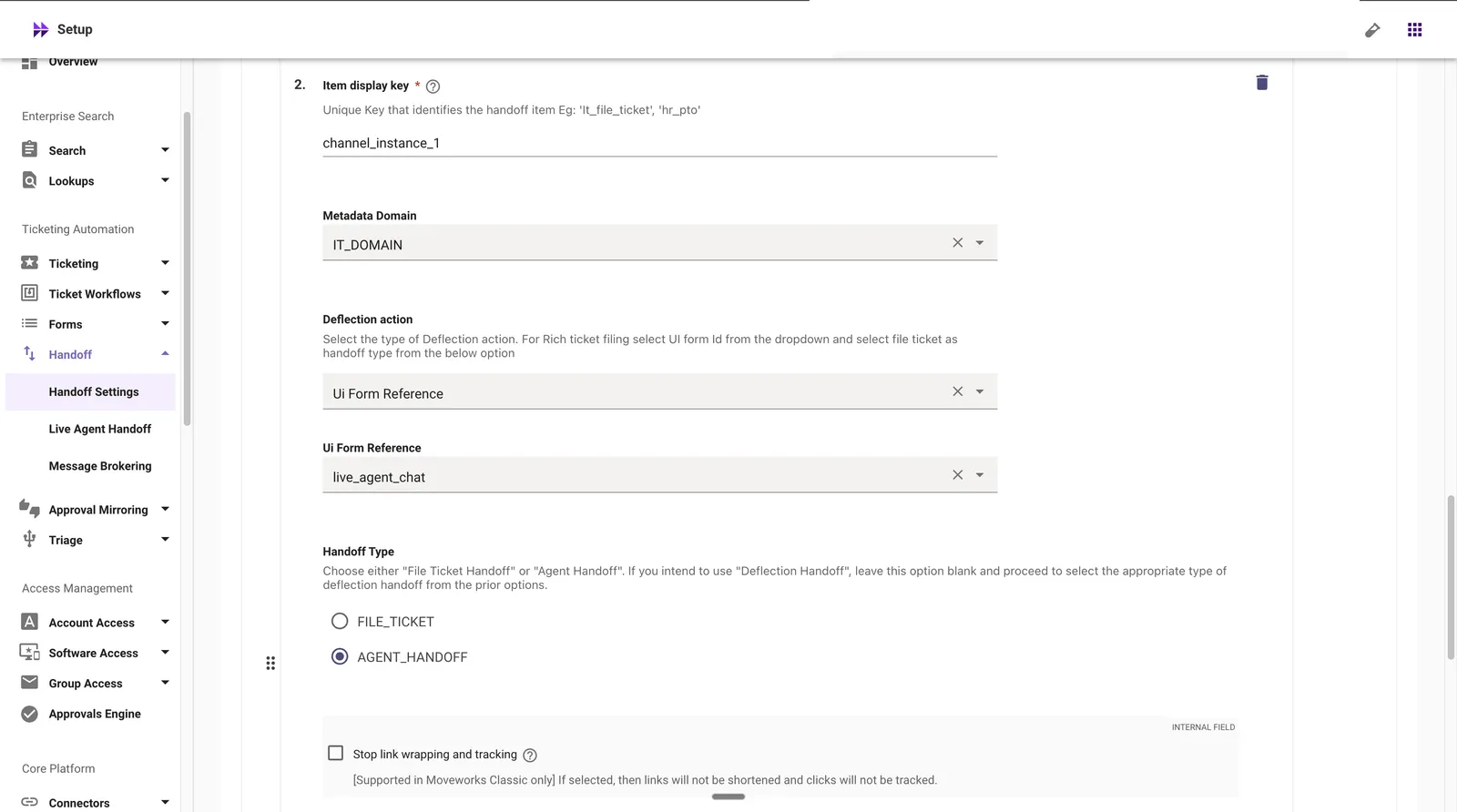
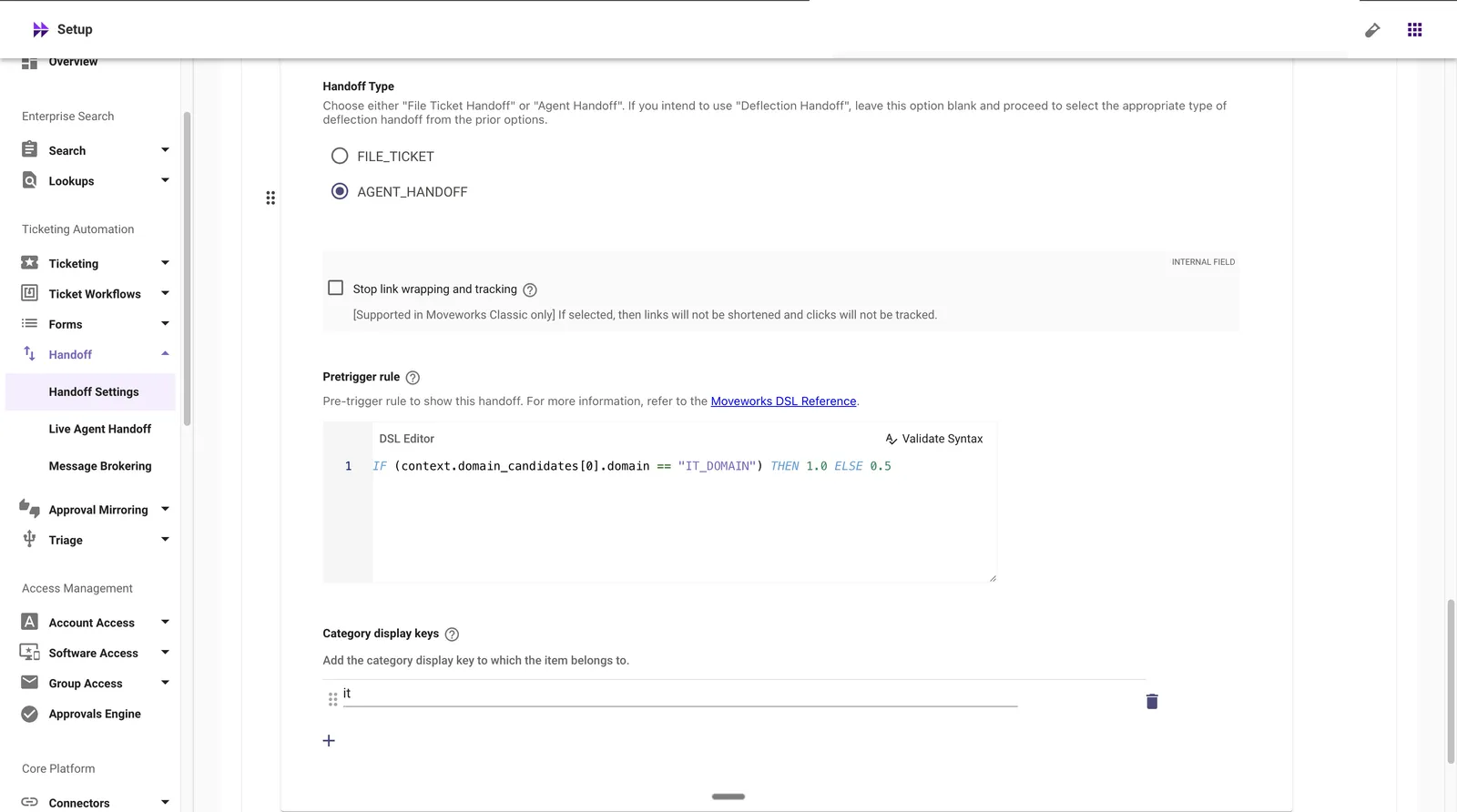
In Handoff Settings, add an item for each domain that should offer Genesys live chat:
- Handoff Type: AGENT_HANDOFF, with no deflection action.
- Live Agent Handoff: select the configuration from Step 2. Saving fails without it.
- Metadata Domain: the domain whose Genesys attributes row from Step 2 should be used, for example IT. If no row matches the item’s domain, the chat does not start.
Step 4: Set Up Display Configurations
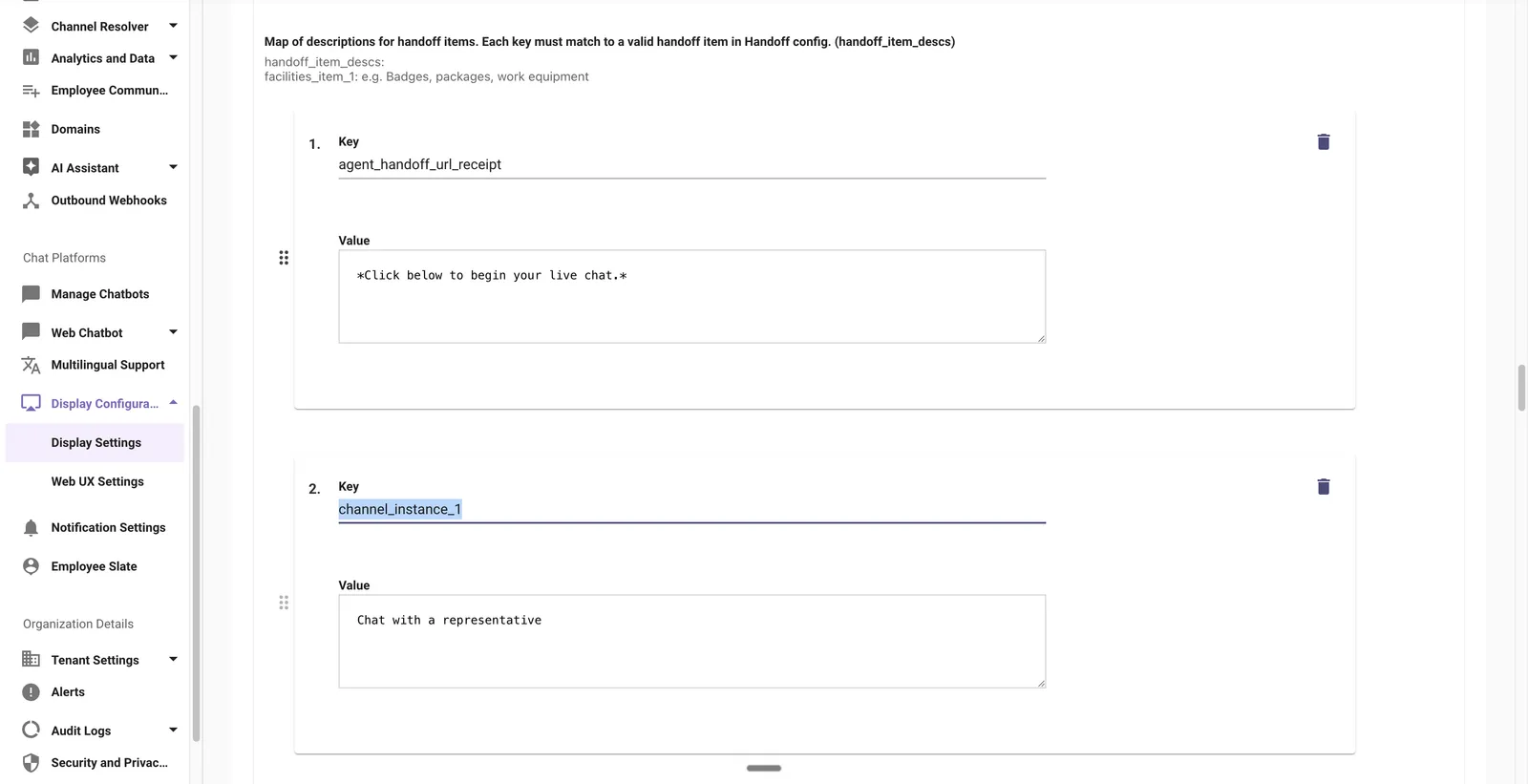
In Display Configurations, add the user-facing name, description, and button text for each item, keyed by the item’s Item display key from Handoff Settings. Without button text, the item shows no button.

Limits and Known Behaviors
- Message limits (Genesys platform): 128 KB maximum per open message in either direction and 4,000 characters per agent message. See the Genesys Cloud limits documentation for current messaging rate limits.
- Waiting experience: the user sees your flow’s automated greeting, then waits for the agent’s first message. The agent’s name appears once the accept notification arrives.
- Typing indicators are not relayed in either direction. Delivery receipts for agent messages are sent back to Genesys automatically.
- Attachments work in both directions. User files are shared with agents as time-limited download links.
- Agent availability: Moveworks does not check Genesys queue staffing before handing off, so the handoff proceeds regardless of agent availability. Configure your flow’s off-hours and closed treatments accordingly.
- Late replies: agent messages sent long after a conversation has ended are not delivered to the user. Moveworks live agent sessions last at most 12 hours, while the Genesys messaging threading timeline defaults to 72 hours. The threading timeline is an organization-wide setting per messaging channel, so review it together with any other open messaging channels you run.
Validation Checklist
- When a user requests a live agent in Moveworks, the conversation appears in the target Genesys queue
- The flow greeting is delivered to the user immediately
- When the agent accepts, the agent’s name appears in the Moveworks conversation
- Messages flow both ways, including attachments
- When the agent ends the chat, the Moveworks session ends and the assistant resumes
- When the user ends the chat, the Genesys conversation shows the participant disconnected
- Supervisor Live Monitoring does not change the displayed agent name (this requires the monitoring filter described in the Supervisor Live Monitoring callout of the access requirements, whose conditions you confirm with Moveworks support)