Update Set Modules
Our Update Set Modules were designed to be modular and bite-sized. Rather than shipping one giant update set, we chose to ship our updates as “Modules.” There are a couple of key benefits to this approach.
- Feature Selection — Think of our list of Modules as a menu: order what you want, and remove what you don’t. It’s customized to your needs and feature requests.
- Easier Updating — When we push out updates to our modules, we want to minimize the number of merge conflicts ServiceNow identifies. Keeping Modules small lets us only update what’s required, rather than having to do a clean install each time.
Installing an Update Set Module
To install a Module, you can follow the three steps below, or watch this video.
- Download the relevant Update Set Module (XML) files from here.
- Import these under “Retrieved Update Sets” in your ServiceNow instance.
- Commit the changes and the app will show up in “My Company Applications”.
Updating an Update Set Module
To update a Module, you will follow the same steps as above. There may be some merge conflicts when installing. Our CS team will help ensure that any updates go smoothly.
In general, it is safer to accept the remote update and then ask Moveworks to run any configuration scripts for that module.
Base (base)
Provides Core Functionality to Support Our Modules
What’s Inside?
User Role
The moveworks_user role must be granted to our service account for our Update Set Modules to function properly. It also is how we restrict access to custom APIs and Tables.
System Properties
System Properties help our GlideScripts access the right constants (values) for your instance. For example, we might need to look up our bot’s sys_id, or change an email color to match your corporate theme. We also keep these for internal reporting and validation. Since, in this case, Moveworks’ code lives in an external system, our engineers need visibility into versioning, as well as the ability to validate expected results/contracts when our services start up. These attributes are exposed over the /version endpoint and we maintain them for audit purposes.
moveworks.base.version- identifies the version of this Update Set Module.moveworks.base.api.sys_id- identifies thesys_idof the Scripted REST API that we install in order to interact with your system.
Scripted REST API
The Scripted Rest API handles authentication for our custom endpoints to make sure only our user has the ability to send requests to that endpoint. It also serves as the parent for all endpoints in future modules.
Scripted REST Resources
We have 1 Scripted REST Resource that ships with the base module.
GET moveworks/base/version - this endpoint lets our CS team know what version you have for each Update Set Module.
Example Request
Example Response
Script Includes
We ship a MoveworksBaseUtils sys_script_include with our base module to serve as system property accessors and improve our ability to work with GlideRecords.
Security ACLs
To prevent unauthorized access to the Scripted REST API, we have created an ACL (type = execute) and associated it with the moveworks_user role.
Moveworks for Web (webchat)
Add the web chat widget to your environment
What’s Inside?
System Properties
- Moveworks.webchat.widget_meta_template - specifies the script to be loaded on the page at runtime to generate the widget
- moveworks.webchat.jwt_provider_sys_id - specifies the ServiceNow token provider with which to authenticate your users
- moveworks.webchat.bot_friendly_name - specifies the name of the bot to be displayed at the top of the chat window
- moveworks.webchat.version - identifies the version of this Update Set Module
- moveworks.webchat.bot_identifier - specifies which bot to load
- moveworks.webchat.jwt_life_in_seconds - specifies the lifetime of the authentication token
- moveworks.webchat.connection_timeout_in_ms - specifies the timeout of loading bot startup scripts
- moveworks.webchat.portal_widget_sys_id - identifies the widget by its sys_id
- moveworks.webchat.user_identifier_type - specifies whether users should be identified by their sys_id or email address
- moveworks.webchat.initialization_options - specifies optional style adjustments, such as moving the bot on the page, and enables the bot’s session to be set to expire after a certain period of time if desired
Scripted REST Resources
PUT moveworks/webchat/config - this is our production endpoint that allows Moveworks to complete your install by specifying the values of the above mentioned system properties
Widget
A standard ServiceNow service portal widget used to add Moveworks for Web to your portal.
Custom Application
This is the main web app loaded by the script specified in system properties (widget_meta_template) in the widget above. The app contains all the web bot functionalities.
Moveworks Access Control (acl)
Respect User Criteria & Roles When Serving Forms (Catalog Items) and Knowledge Articles In-Bot
What’s Inside?
System Properties
moveworks.acl.version- identifies the version of this Update Set Module. Maintained for the same reasons as in thebasemodule.moveworks.acl.check_legacy_entitlements- determines if we evaluate User Entitlements to determine access to forms. We need this flag to minimize the performance cost of running our script based on your instance’s configuration. When disabled, it reduces the number of GlideRecord lookups by roughly 8 lookups per record.
Scripted REST Resources
GET moveworks/acl/get_access_info - this is our production endpoint which returns information like User Criteria sys_ids so that we can support ServiceNow’s permission rules on our servers.
Example Requests
Catalog Items
Knowledge Articles
Example Response
PUT moveworks/acl/config - this endpoint configures our Update Set Module to ignore/evaluate User Entitlements by updating the system property moveworks.acl.check_legacy_entitlements to True or False accordingly. Whether this is set to True or False depends on the ServiceNow instance’s usage/configuration details.
Example Request
Example Response
FAQ
Q: What security measures are in place to restrict access to this custom endpoint?
**A:**We leverage ServiceNow’s Security ACLs to restrict usage of this endpoint to users with either the admin role or the moveworks_user role.
Q: How can I review the contents of an Update Set Module?
**A:**You can review changes under “My Company Applications” (search for “moveworks.”). We’ll also share some documentation on the contents of each of our modules.

Q: If I ever need to revert changes from an Update Set Module, can I?
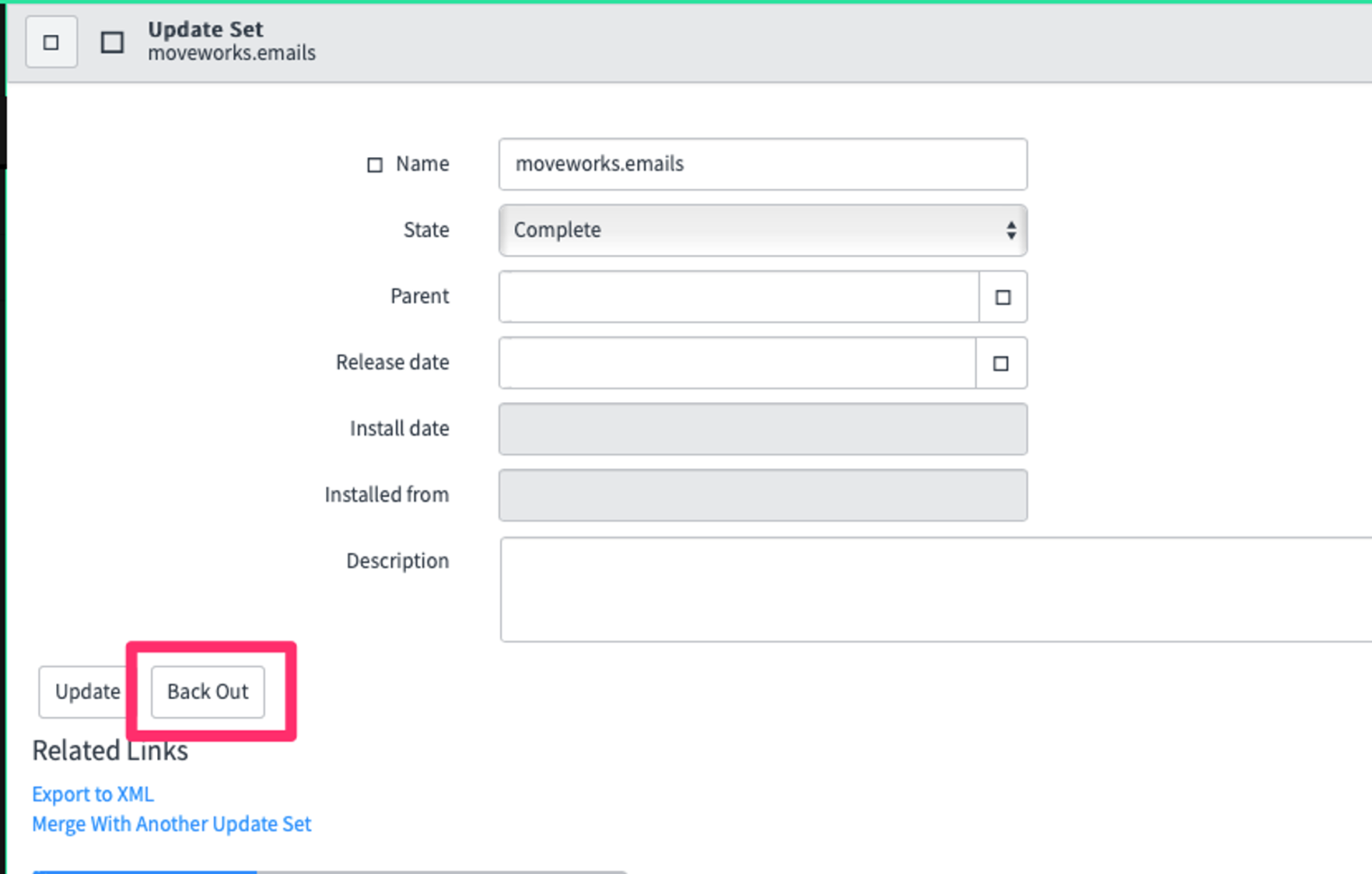
**A:**If you ever need to revert changes you can do so easily with the click of a button. Simply find the update set under “Retrieved Update Sets” and select “Back Out”