Configure Live Agent Channel Handoff for MS Teams
Live Agent Handoff
-
Go to Handoff > Live Agent Handoff and click Create to create a new Live Agent Handoff.
-
Open the Live Agent Handoff page options.
-
Add a Handoff Identifier.
Example

-
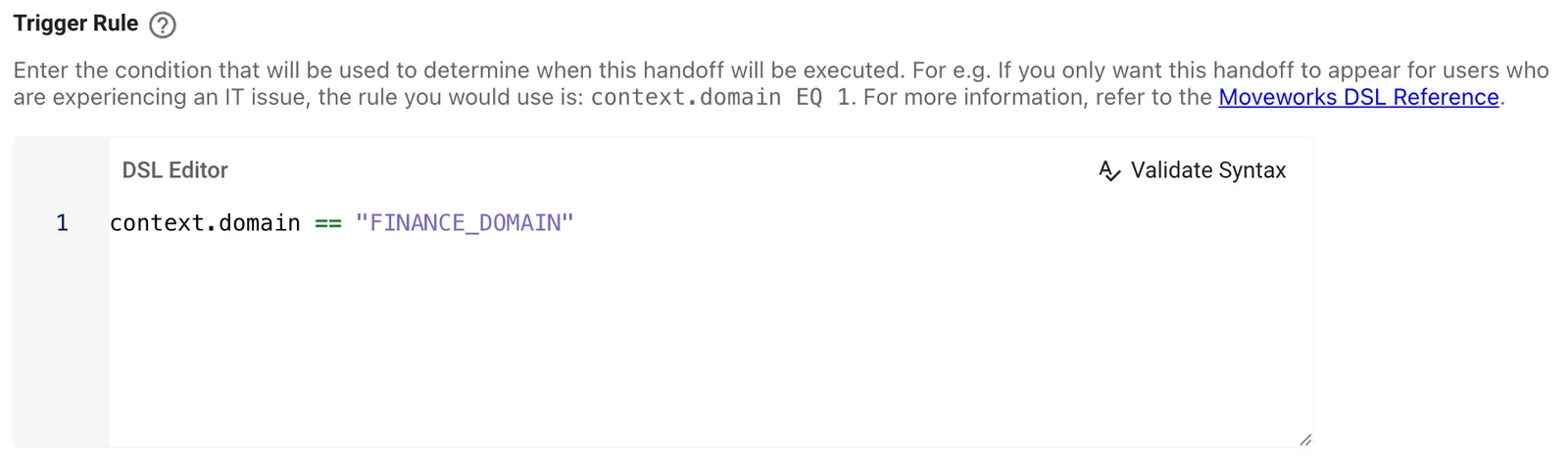
Add a Trigger Rule.
-
For example, set to context.domain == “FINANCE_DOMAIN” if this handoff should appear for users experiencing a Finance-related issue.
-
-
If a ticket should be filed when an live agent handoff occurs, select Should File Ticket On Default.

- Note: The domain in the Handoff Settings (see below) will be used as the ticket domain.
- You can use Short Description Prefix to add a prefix to the short description of the ticket.
-
For Configuration select Channel Handoff.
-
Add a Supported Channel Route for Channel Handoff
- Specify the Channel Id:
-
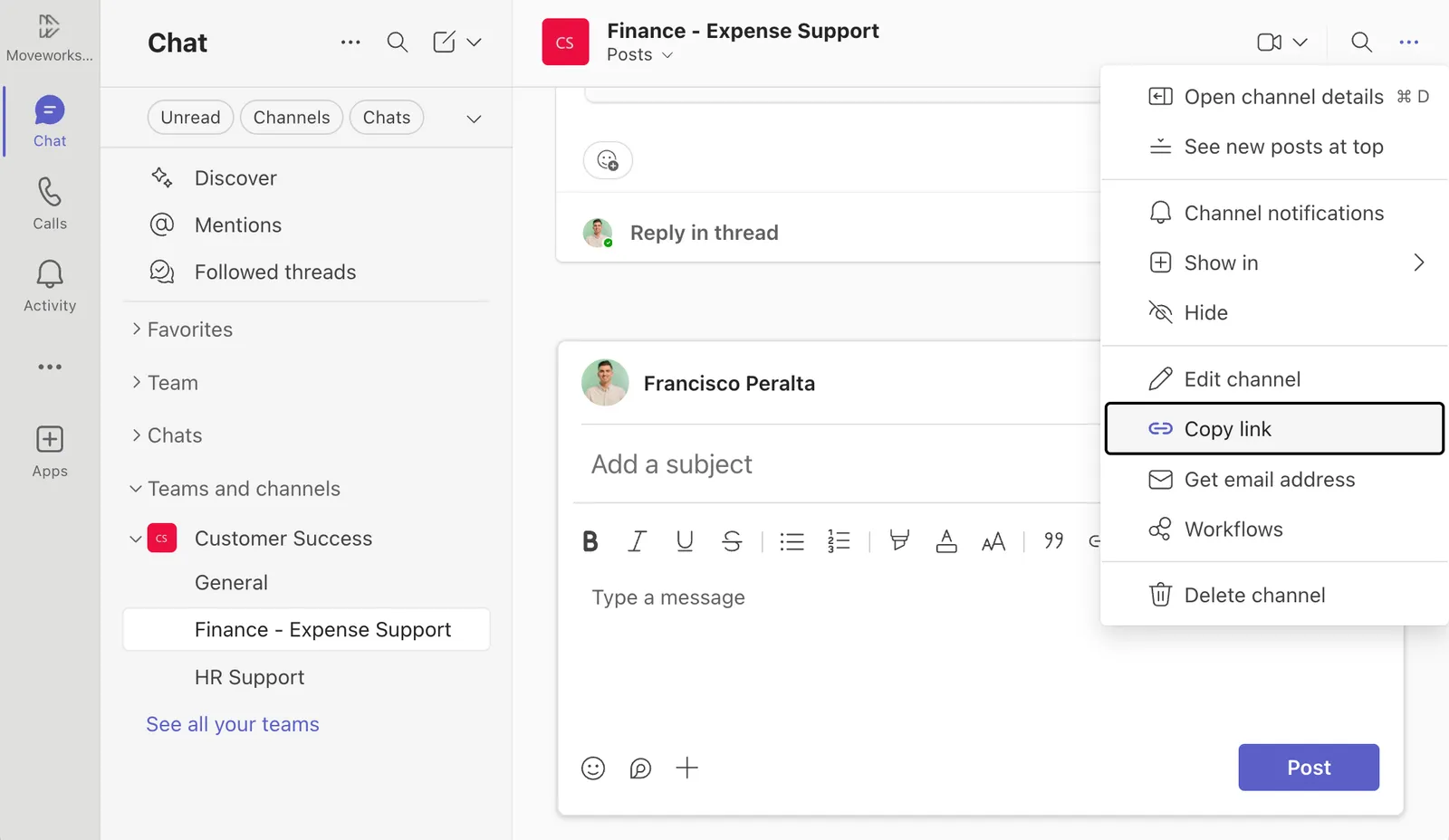
To find your Channel ID, go to the channel that you would like to enable live agent chat for and click … then Click Copy link.
-
Your link should look something like this: https://teams.microsoft.com/l/channel/19%3Aff484bbc904541449dfb67e8dea449e8%40thread.tacv2/Finance…
-
The channel ID is between “channel/” and “/channel’s name”, so in the example above, the channel ID is:
19%3Aff484bbc904541449dfb67e8dea449e8%40thread.tacv2
Example
-
- Set Supported Channel handoff platform as your MS Teams connector.
- Specify the Channel Id:
-
Ensure that Enable Live Agent is set to
TRUEand Enable Live Agent Link is set toFALSE
Handoff Settings
-
Add an item Config with an Item display key that matches the Handoff Identifier from step 3 in the “Live Agent Handoff” section above.
Example

-
Set Metadata Domain. If ticketing is enabled for live agent handoff, this domain will be used do determine which ticketing configuration to use.

-
Leave Deflection action empty.

-
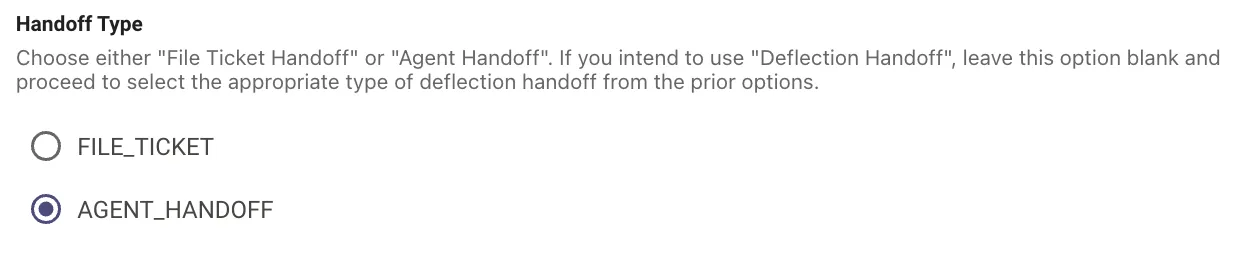
Set Handoff Type as AGENT_HANDOFF.
-
Set Pretrigger Rule.
Example

-
Set Category display keys.
Example

Handoff Display Configurations
-
Go to Chat Platforms > Display Configurations > Handoff.
-
Ensure that the handoff category has a name (handoff_category_names).
Example

-
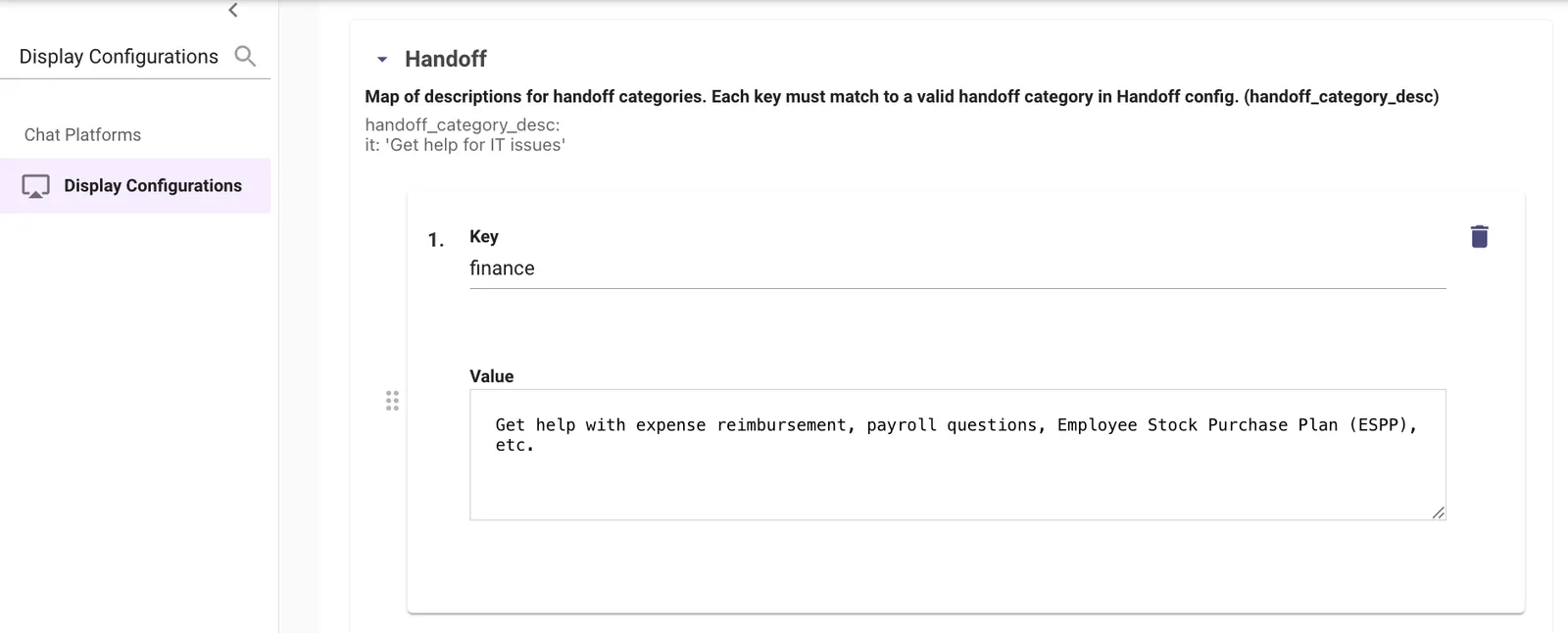
Ensure that the handoff category has a description (handoff_category_desc).
Example
-
Add a name to the handoff item (handoff_item_names):
Example

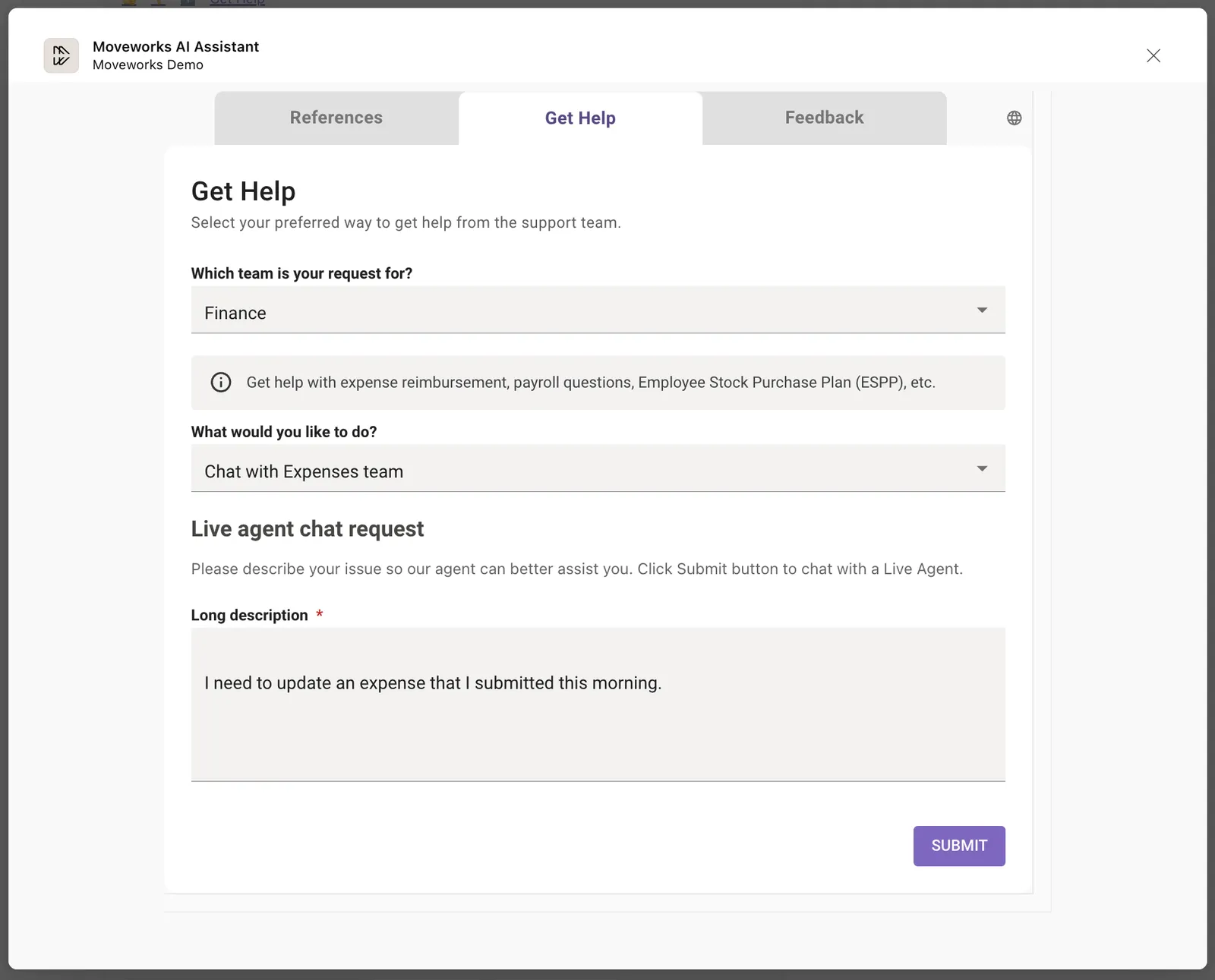
These names and descriptions will appear in the Get Help section: