
Live Agent Message Brokering
Message Brokering as described here applies to the Moveworks AI Assistant.
Overview
Live Agent Message Brokering (Message Brokering) is a variant of Moveworks Live Agent Handoff, which connects users to agents on request. Most live agent handoffs send the user to a browser, a chatbot, or another assistant before the conversation with the agent starts. Message Brokering connects users to agents in the same chat as the Moveworks AI Assistant, for the most popular live agent systems, such as ServiceNow and Amazon Connect.
Redirecting users is usually easy to set up and works with many systems, but keeping users in the same chat as the AI Assistant has two advantages:
- Bringing agents into the chat means users never leave the conversation to get help from a person.
- It reinforces the AI Assistant as the destination for every kind of support, including getting connected to agents.
Agents don’t need new tools or interfaces. They work as they always do, and to them the chat looks as if the user opened it directly.

Architecture
Message Delivery Pipeline
Message Brokering uses two separate message paths between the user and the live agent platform:
- User to agent (outbound): When a user sends a message, it is delivered directly to the live agent platform, such as ServiceNow, in real time.
- Agent to user (inbound): When an agent replies, the message passes through an asynchronous queueing layer before it reaches the user. The queue keeps agent replies in order and retries delivery if a component is briefly unavailable.

How the Queue Works
Each live agent conversation has its own message queue. When a ServiceNow agent sends a reply, the message enters the queue and is delivered to the user in strict sequence. This design provides three properties:
- Ordered delivery: Replies arrive in the exact order the agent sent them, even under load. Users always see a coherent conversation, even when an agent sends several messages in quick succession.
- Durable delivery: If a downstream component is briefly unavailable, the message is held in the queue and retried automatically instead of being dropped.
- Conversation isolation: Each conversation’s queue runs independently. A delivery delay or retry in one conversation has no effect on any other conversation.
Session Initialization
When a live agent session starts, there is a short period while the conversation session is set up. The queue holds any agent replies that arrive during this period and delivers them once the session is ready. As a result, the agent’s first message reaches the user even if the agent replies before the session setup completes.
Integration Coverage
The queueing layer applies to ServiceNow integrations. The direct delivery path from user to agent is the same for all integrations.
No configuration changes are required. The queueing layer works behind your existing Message Brokering setup.
Requirements
To enable Message Brokering, Moveworks must be configured with:
- One of the following live agent platforms:
- ServiceNow Agent Chat, for example Advanced Work Assignment with Agent Workspace or Service Operations Workspace
- Prerequisite: Access to the Virtual Agent API plugin. It is most commonly available with a ServiceNow ITSM Pro license.
- Amazon Connect
- Genesys Cloud (through Open Messaging)
- Prerequisite: A Genesys Cloud license that includes Open Messaging. See Genesys Access Requirements.
- Glia
- 8x8
- Salesforce Enhanced Messaging. See Salesforce.
- ServiceNow Agent Chat, for example Advanced Work Assignment with Agent Workspace or Service Operations Workspace
- One of the following chat platforms:
- Embedded AI Assistant
- Microsoft Teams
- Slack
The Experience
The Message Brokering experience has three phases:
Starting the Chat
How a User Connects to an Agent
To connect to a live agent, a user asks the Moveworks AI Assistant directly, for example “chat with a live agent.” Then:
- The AI Assistant asks the user for more details about the issue.
- If the AI Assistant finds solutions, it suggests them first, so the user can resolve the issue on their own.
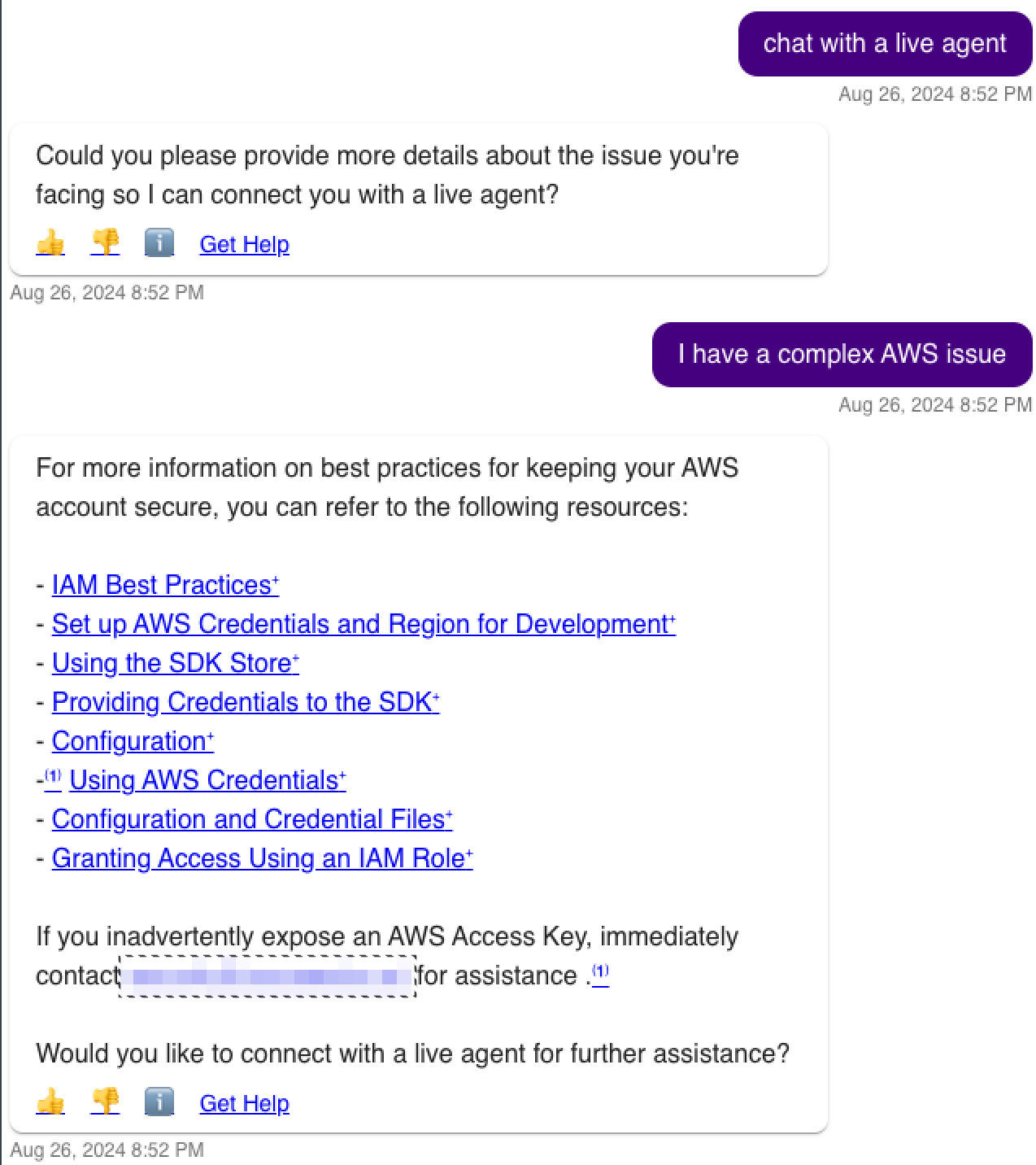
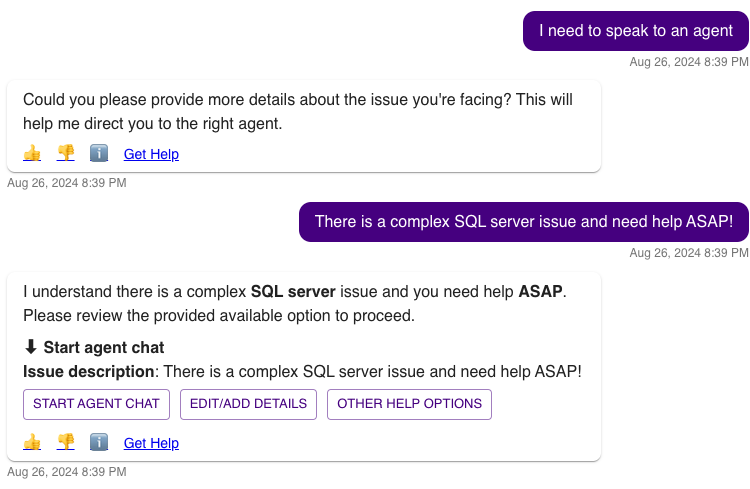
- The AI Assistant drafts the issue description for the handoff to the live agent, all within the chat.
- The user can add more context with the
Edit/Add Detailsbutton. - In this example, the AI Assistant had no solution, so it drafted the issue description right away.
- The user can add more context with the
Visibility of the Start Agent Chat Button
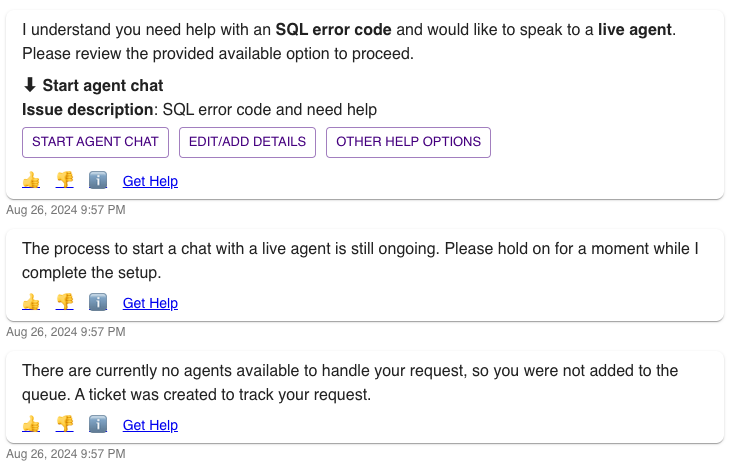
The AI Assistant always shows the Start agent chat button, whether or not agents are available. For systems that report agent availability, such as ServiceNow, if no agents are available when the user selects it, the AI Assistant responds with “There are currently no agents available to handle your request.”
Show the Expected Wait Time
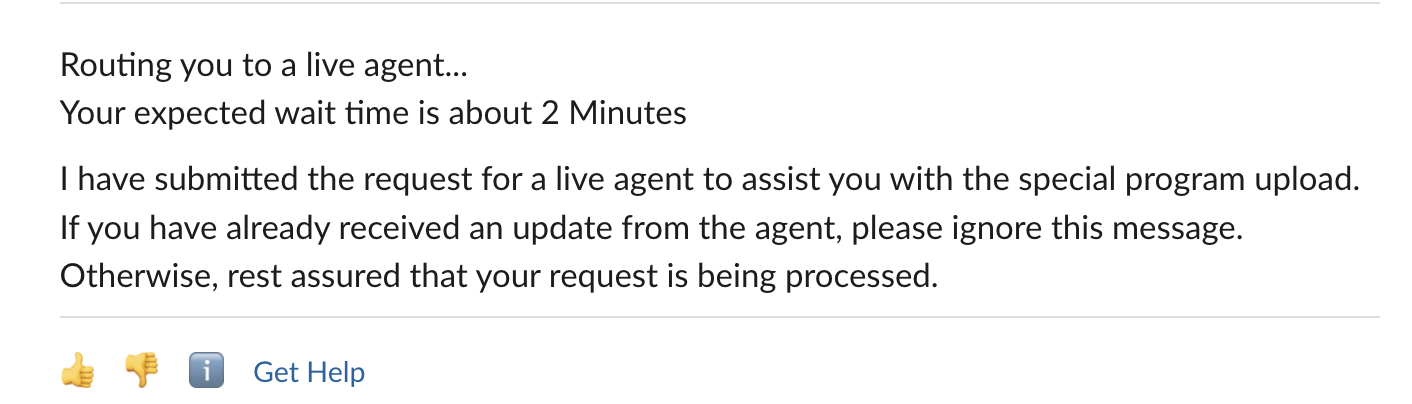
For ServiceNow live agent chat, you can enable the Show Agent Wait Time setting, which displays the wait time ServiceNow reports.
Dynamic Queue Routing
Moveworks does not maintain queuing logic. Queues are defined and controlled in the external live agent chat system. When Moveworks connects to the external system, it can pass additional context variables as key-value pairs, which your live agent chat system can use to route the user.
For example, if you have one queue for French speakers and one for English speakers, Moveworks can pass context such as language: french, and you can configure your system to read it and route the user to the French queue.
What Moveworks sends depends on the live agent system. For ServiceNow, you choose the context variables, built from the handoff item’s domain, the user’s language, and the fields on the live agent request form. For systems such as Amazon Connect and Genesys, you set the queue or attributes per domain in the Live Agent Handoff configuration, and the handoff item’s domain picks which one is used.
To configure queue routing for ServiceNow, see Route Message Brokering Chats to ServiceNow Queues.
Getting Connected: the User’s View
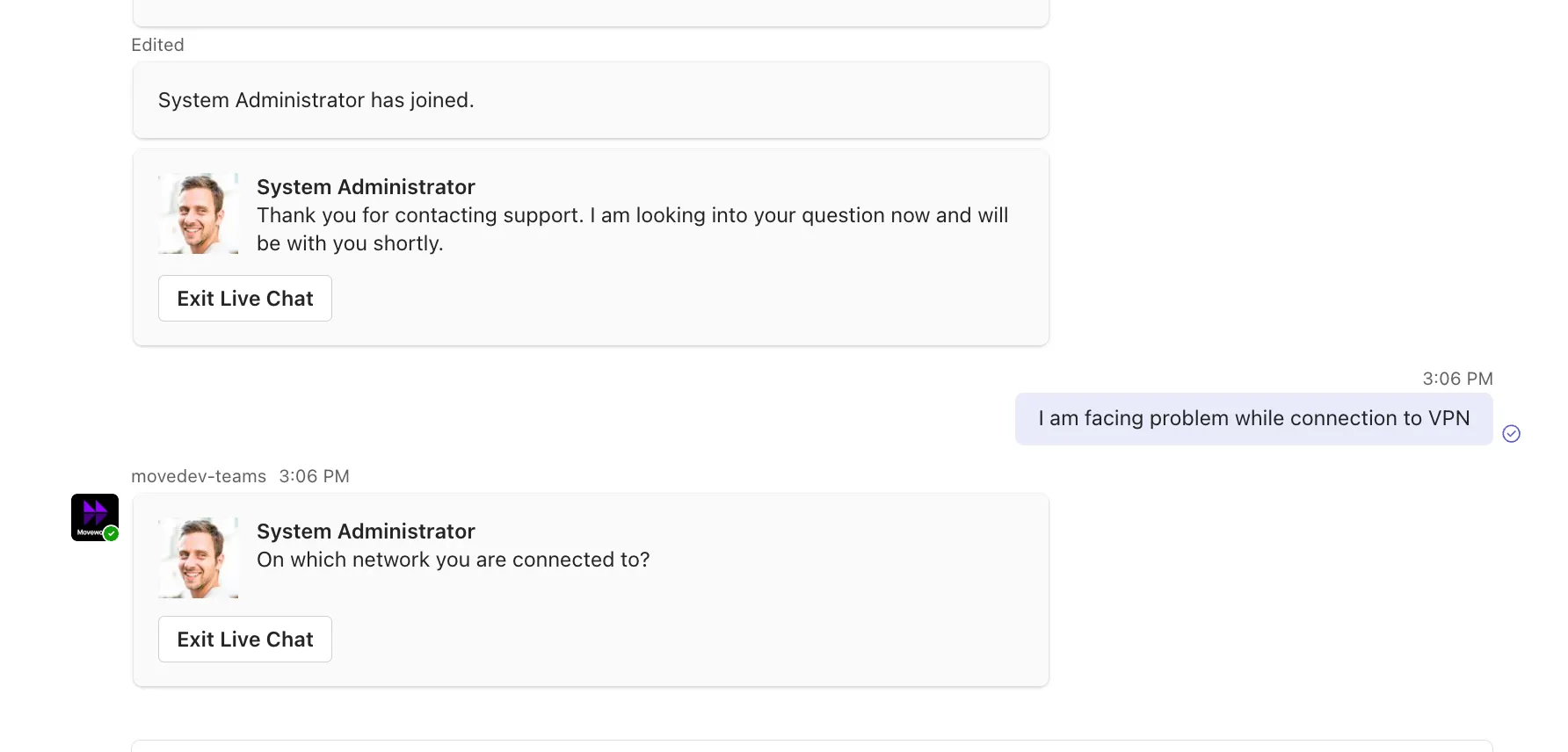
When agents are available and the user selects Start agent chat:
- The user is placed in a queue in the external system and asked to wait for an agent to accept the request.
- While waiting, the user can keep using the AI Assistant as usual. The waiting happens in the background.
- When an agent accepts the request, the chat session begins. From then on, the AI Assistant no longer takes part in the conversation, with a few exceptions described in Notifications During a Live Agent Session.
- The external system sends its system messages to the user, including any automated greetings you configured to be sent on the agent’s behalf. The user and the agent can then talk freely.
Getting Connected: the Agent’s View
The details vary by system, but typically the agent receives a notification of an incoming chat request that they can accept or reject.
The title of the chat request is the main message the user sent to start the agent chat.
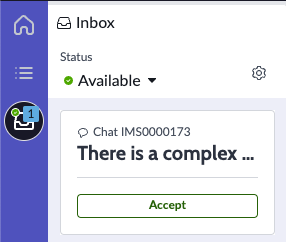
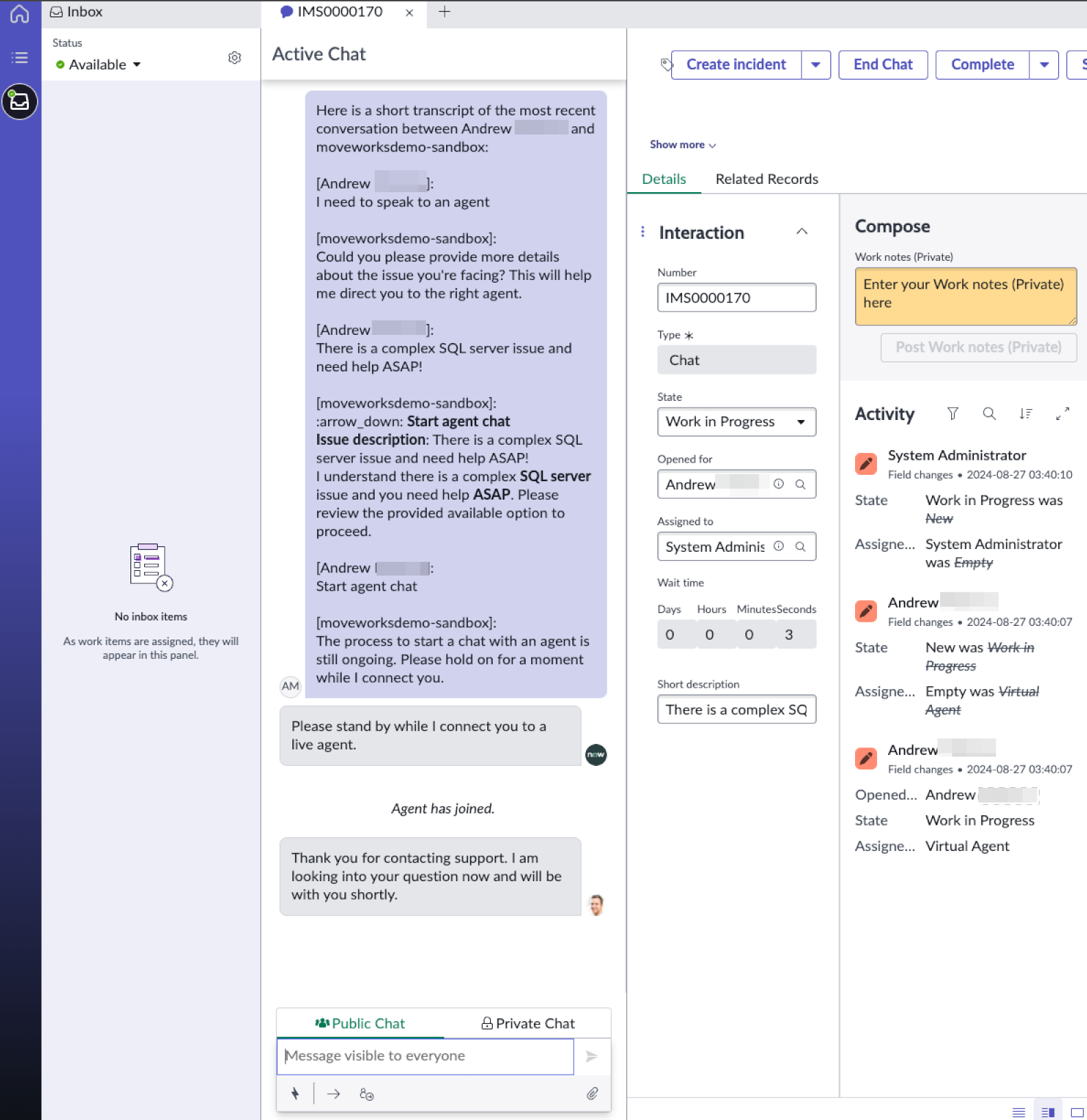
When the agent accepts the chat request:
- The chat session begins.
- The chat request is attributed to the Moveworks user, if the external system supports it.
- System messages are delivered.
- By default, the agent receives the last 6 messages, from both the user and the AI Assistant. You can disable chat history.
Message Types
- Moveworks messages are displayed without agent attribution.
- External system messages are displayed without agent attribution.
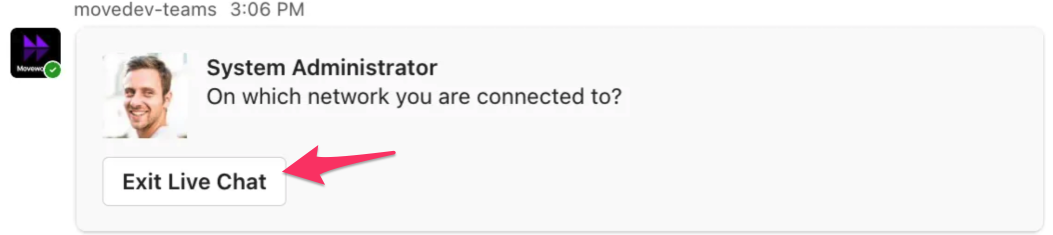
- External system messages sent on behalf of agents, such as automated greetings, are attributed to the agent who accepts the chat request.
- Agent messages are attributed to the agent who sent them.
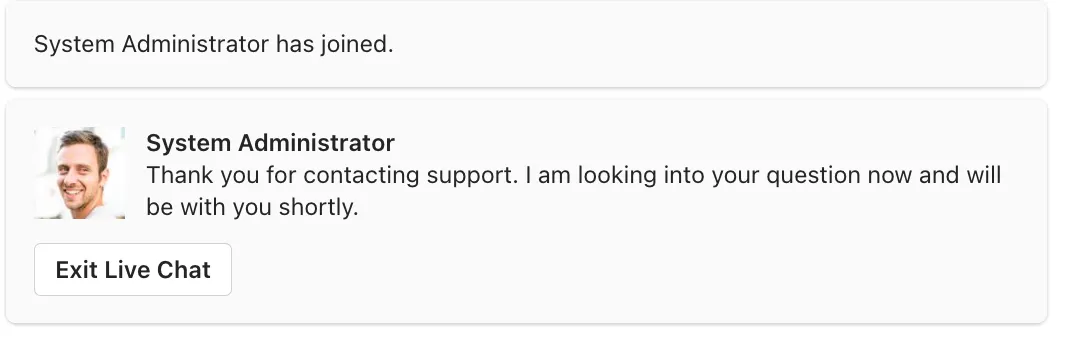
Agent Attribution
Each agent message identifies the agent by the name in their profile in the external system. To show agent messages under the agent’s own name and photo, see Agent Name and Photo.
Queue Timeouts
Queue wait timeouts are defined in the external live agent chat system, which reports them to Moveworks. The Live Agent Session Timeout only controls when the user can make a new live agent request.
Chatting
Sending Messages
Users and agents can send text messages to each other, including standard emojis.
Some chat systems, such as Microsoft Teams, use nonstandard or custom emojis. These are removed from the message sent to the user.
Attachments
Support for sending and receiving file attachments depends on the live agent chat system and the user’s chat platform:
Most standard file formats are supported. Moveworks doesn’t block any file type, because that setting usually lives in the live agent chat system. Some platforms show image attachments inline in the chat. All other attachments appear as links that open the file. By default, there is no size limit.
Ticket and KB Article Links
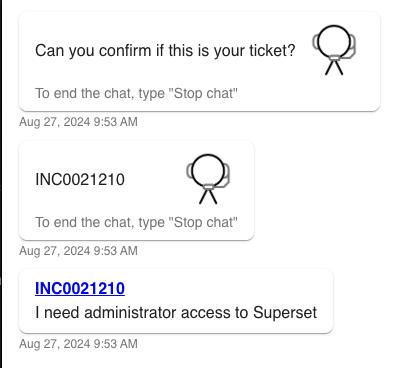
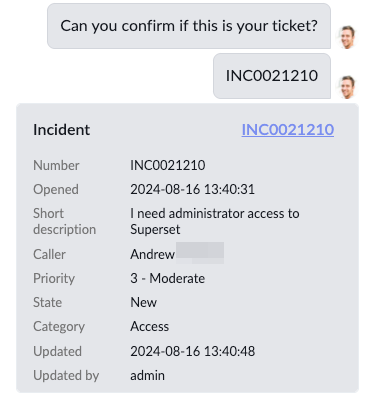
When an agent sends a KB article number or a ticket number (RITM, INC, and so on) during a live chat session, the message is passed to the user immediately and followed by a card with a direct link. If available, the card also includes the resource’s short description. Selecting the link opens the resource in ServiceNow.
Notifications During a Live Agent Session
If a user receives a notification or a communications campaign during a live agent conversation, the AI Assistant delivers it to the user only, not to the agent. Any buttons or other ways to reply to it are disabled while the live agent session is active. This way the user doesn’t miss important notifications, and it stays clear whether they are chatting with the AI Assistant or a person.
Ending the Chat
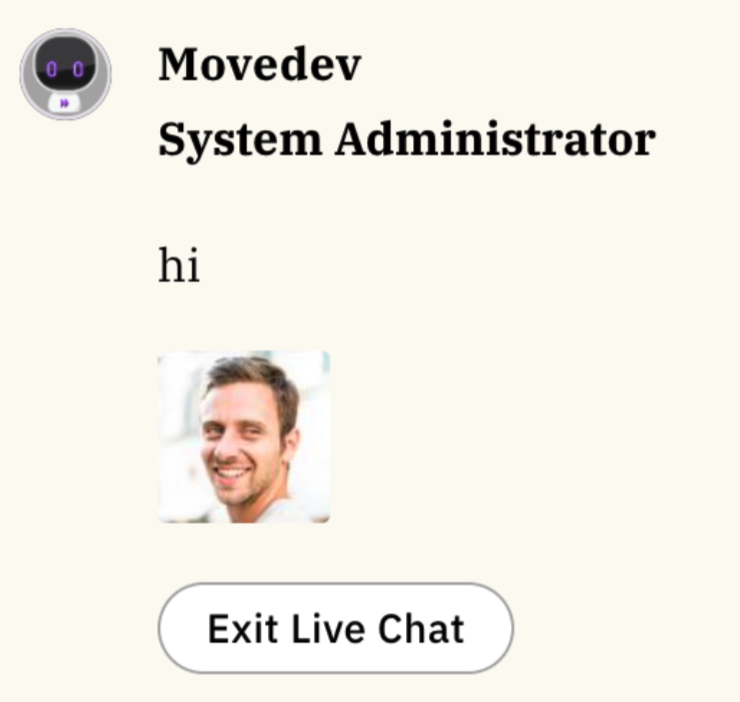
Both agents and users can end the chat at any time. A user ends the chat by selecting the Exit Live Chat button. The “stop chat” command is not supported.
Two more features can be configured in Message Brokering. Both require Tool Studio (shown in Setup as Creator Studio):
- CSAT: Users can give a rating from 1 to 5 and free-text feedback after the agent conversation ends.
- Transcription: Users can download a transcript of the conversation. For multilingual conversations between a user and an agent, you can choose to download the original and the translated transcript in a single file.
To enable them, go to Ticketing Automation > Handoff > Message Brokering in Moveworks Setup and use one or both of these:
- Post-session event: select Enable Post Session Trigger Creator Studio Event, then select your Tool Studio event in Creator Studio Event UUID.
- CSAT Webhook Configuration: select Enable CSAT Webhook, choose the CSAT Webhook Action (for example a compound action such as
request_live_agent_feedback_ca), and add the Bender for CSAT Webhook Payload Mapper.
Then select Submit.
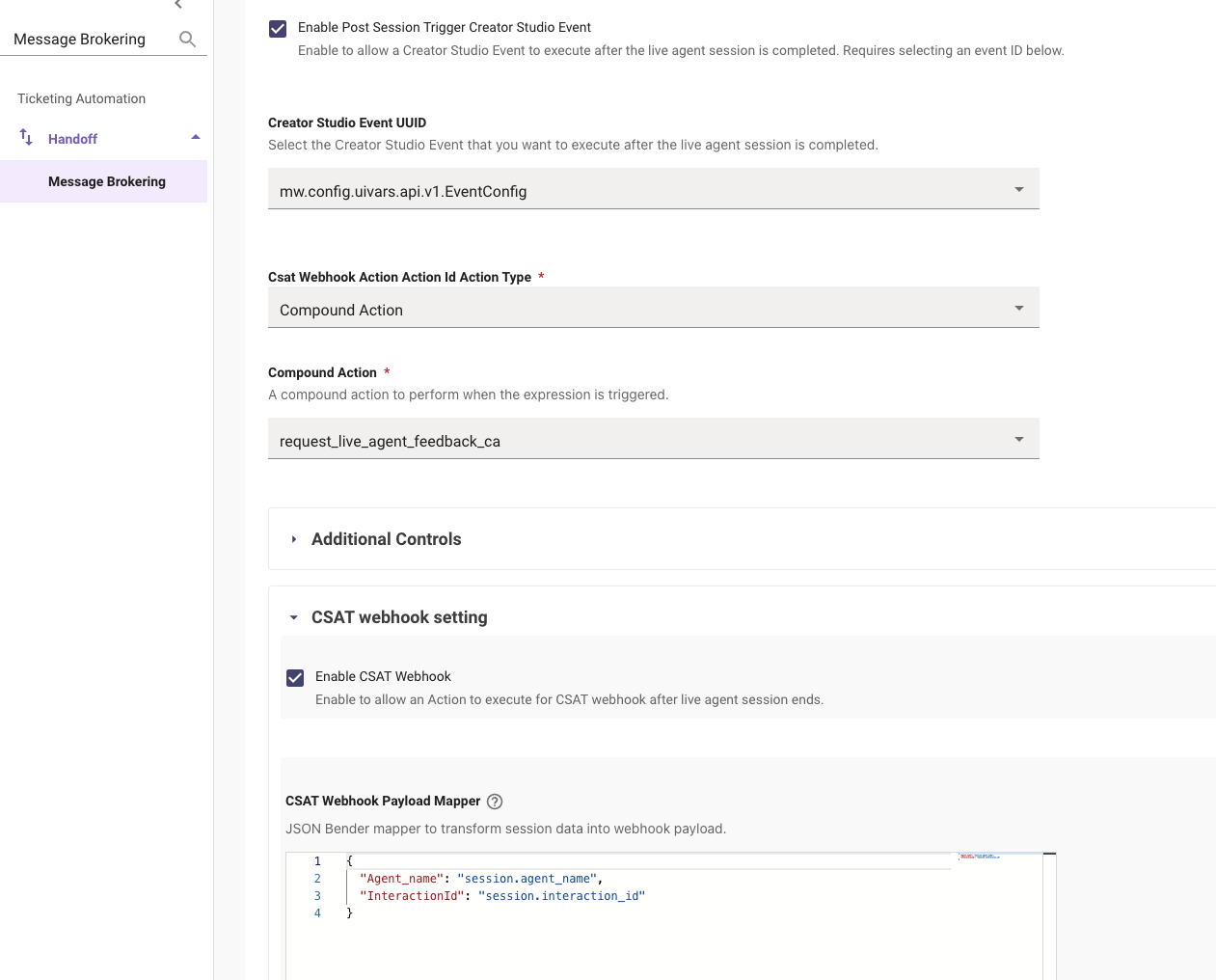
Configuration Options
Chat history, translation, attachment limits, the agent image, and the session timeout are described in Message Brokering Settings.
Except for Leave Queue, the settings below are in Ticketing Automation > Handoff > Message Brokering. Each one applies to your whole organization and is disabled by default. To set up ServiceNow for Message Brokering, see Configure ServiceNow Live Agent Message Brokering.
Conversation Summary for the Agent
When a chat is handed off to a live agent, the agent receives a short AI-generated summary of the conversation instead of the transcript. If a summary can’t be generated, the transcript is sent. This setting has no effect if Don’t Pass Chat History is enabled.
- In Moveworks Setup, go to Ticketing Automation > Handoff > Message Brokering.
- Select Enable Live Agent Handoff Summary.
- Save.
To confirm, start a live agent chat. When the agent accepts it, the agent sees a summary of the conversation instead of the last messages.
Post-Chat Feedback Card
After a live agent chat ends, the AI Assistant asks the user whether their issue was resolved. If the user selects yes, the ticket filed for the chat, if there is one, is closed. If they select no, the AI Assistant offers to connect them with another agent or to file a ticket. This feature is supported only for ServiceNow integrations. It has no effect if a CSAT webhook or a post-session Tool Studio event is enabled.
- In Moveworks Setup, go to Ticketing Automation > Handoff > Message Brokering.
- Select Enable Post Session Feedback Card.
- Save.
To confirm, start a live agent chat, wait for an agent to join, and end it with Exit Live Chat. The AI Assistant asks whether your issue was resolved.
Agent Name and Photo
Live agent messages appear under the agent’s name and profile photo instead of the AI Assistant’s. This feature is supported only for ServiceNow integrations, in Slack and the Conversations API.
In Slack, add the chat:write.customize bot scope before you enable this setting. If you enable Enable Agent Impersonation before the scope is added, live agent messages show no agent name at all.
- In Slack, add the scope. Slack apps created from the manifest in the Slack setup guide already have it.
- Go to api.slack.com/apps and select your Moveworks AI Assistant app.
- Go to OAuth & Permissions > Scopes > Bot Token Scopes.
- If
chat:write.customizeisn’t listed, add it and reinstall the app to your workspace.
- In ServiceNow, go to Conversational Interfaces > Settings > Agent Chat > User Chat Settings and turn on Agent names and avatars. When it is off, ServiceNow sends only the agent’s ID, and no name or photo appears.
- In Moveworks Setup, go to Ticketing Automation > Handoff > Message Brokering.
- Select Enable Agent Impersonation.
- Save.
To confirm, start a live agent chat from Slack. When the agent replies, the message shows the agent’s name and photo.
Leave Queue
While a user waits for an agent to accept their chat, a Leave queue button lets them leave the queue if they no longer need help. The button is on by default.
FAQ
Does Moveworks Send Live Agent Chat Conversations to LLMs?
No. Messages between the user and the agent are not sent to LLMs. If Enable Live Agent Handoff Summary is on, the summary is generated from the user’s conversation with the AI Assistant before the handoff.
Are Live Agent Chat Conversations Logged in Analytics?
No. Moveworks does not show live agent chat data between the agent and the user in analytics.
What Security Measures Apply to Transcript Data?
The transcript feature is disabled by default. When it is enabled, Moveworks stores the transcript in internal storage for 1 day.
Are Agent Chat Sessions Shared Across Chat Platforms and the Web?
A user has one live agent session at a time, across all chat platforms. While talking to an agent in Slack, the user can keep using the AI Assistant in Teams or on the web. A new live agent request from another platform follows the Live Agent Session Timeout: it is refused within the timeout and replaces the open session after it.
Does Message Brokering Support Multiple Agents in One Chat?
Yes. If another agent is invited to or joins a conversation, all of their public messages are delivered to the user and attributed to each agent. Private messages between agents are not shared with the user.