
For AI agents: a documentation index is available at the root level at /llms.txt and /llms-full.txt. Append /llms.txt to any URL for a page-level index, or .md for the markdown version of any page.
Logo
DeveloperAcademyCommunityStatus
  • Service Management
    • Overview
    • Concierge & Ticketing Capabilities Overview
    • Forms
    • Forms - Integration Specific Guides
    • Live Agent Chat / Handoff
    • Triage
      • Triage 2.0: Technology Overview
      • Configure Triage
        • Triage Discovery Questionnaire
        • Configure Triage 2.0
        • Configure Model Configurations
        • Configure Field Configurations
        • Configure Model Retraining
        • Configure Field Heuristic Rule
    • Approval Mirroring
    • Ticket Interception
    • Generic Ticketing Integration: Ticket Gateway
  • Administration
    • MyMoveworks
    • Organization Information
    • Roles and Permissions
    • MyMoveworks SSO
  • Moveworks Setup
    • Accessing Moveworks Setup
    • First-Time Login via Magic Link
    • Moveworks Setup Modules
    • Moveworks Setup: Module How To Guides
    • Plugin Management
    • Monitor Alerts
    • Audit Logs
    • DSL Fields Defaults
    • Data Crawling View
    • API Playground
    • Setup Homepage
    • Troubleshooting Hub
    • Security and Privacy Settings
    • Configuration Delete
    • Advanced Config Editor
    • Identity configuration
    • Onboarding Stage
  • Security
    • Security
    • Hyperlink & Button Expiry
    • Attachment Handling
    • Moveworks Subprocessors
  • Provision Management
    • Overview
    • Access Software
    • Access Groups
    • Access Account
  • Access Requirements
    • Overview
    • Update Set Modules
    • Ticketing Systems & ITSMs Access
    • Identity and Access Management Systems Access
    • Multi-Factor Authentication (MFA) Systems Access
    • Knowledge Access Requirements
    • Email Distribution List Systems Access
    • Facilities Management Access
    • Live Agent Chat Access
    • HR Information System Access
    • Expense Management Access
    • Calendar Management Access
  • Core Platform
    • User Identity
    • Moveworks On-Prem Agent
    • Approvals Engine
    • Entity Catalog
    • Configuration Languages
    • Moveworks Data Objects
    • SIEM
  • Employee Experience Insights
    • Overview
    • Breaking Down the Dashboard
    • Understanding Industry Benchmarks
    • Apps & Services
    • Impact Module
    • EXI Common Use Cases
    • Configure EXI
    • Ticket Backpolling
  • Knowledge Studio
    • Overview
    • Knowledge Studio Configuration
    • AI Powered Recommendations
    • Inspecting & Verifying Sources
    • Publishing Articles
    • Creating Knowledge Articles
    • Resolving IT Tickets Guidance
DeveloperAcademyCommunityStatus
On this page
  • What is Triage?
  • How Triage works?
  • What can be achieved from this module?
  • Prerequisites of this module
  • Triage Submodules
  • How to guides
Service ManagementTriage

Configure Triage

||View as Markdown|
Was this page helpful?
Edit this page
Previous

Triage Discovery Questionnaire

Pre-implementation questions to answer before configuring Moveworks Triage 2.0.

Next
Built with

What is Triage?

For issues that cannot be resolved instantly, Moveworks Triage can categorize and route these tickets to ensure that they reach the service desk team best equipped to resolve the issue. The Moveworks bot intercepts new incoming tickets and analyzes the ticket’s fields. Triage predicts what values the ticket’s fields should have and then depending on the confidence level, it will automatically update the various fields (such as Assignment Group, Category, Subcategory, etc.) in the ticket.

By doing this, Triage can improve the rate at which tickets are resolved by making the categorization of tickets autonomous and reduce amount of tickets that get categorized incorrectly.
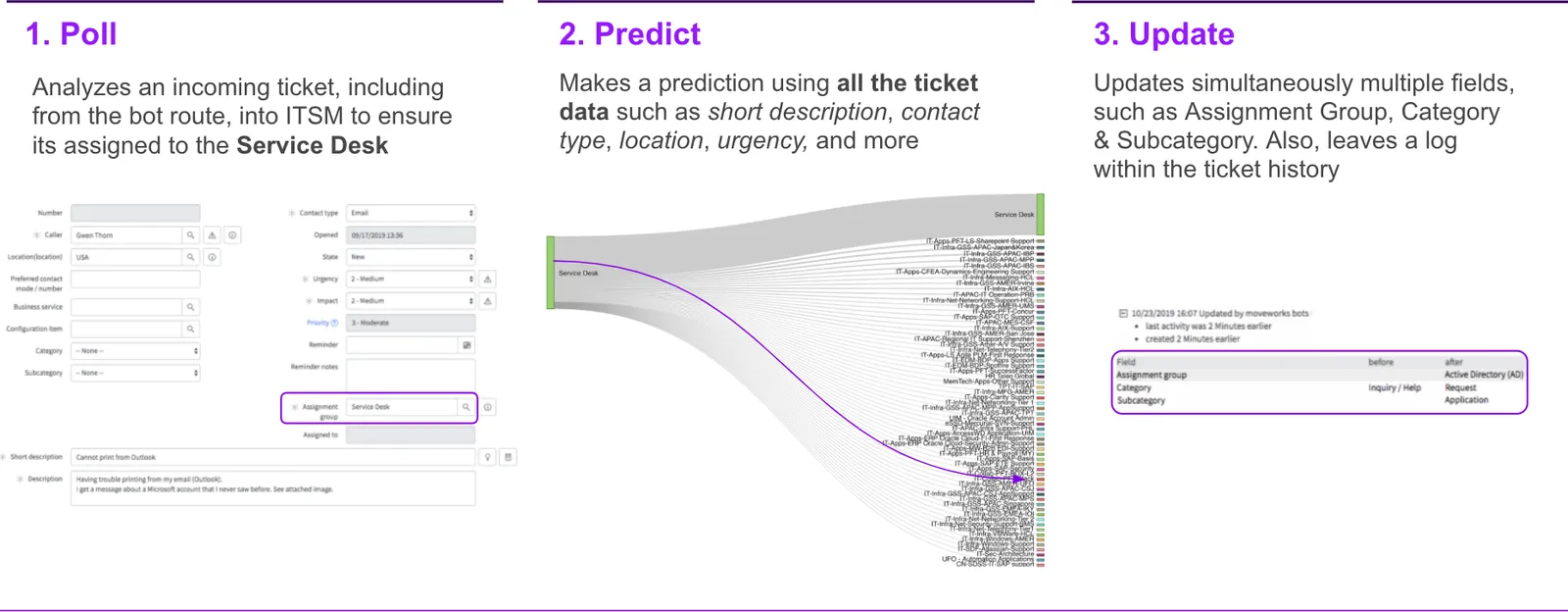
How Triage works?

Refer to this guide for more details.

What can be achieved from this module?

With this module, you can:

  1. Configure the confidence threshold for your Triage model, which can impact your overall accuracy and coverage numbers for predictions
  2. Define allowlists and blocklists on predicted fields
  3. Enable/ disable field updates with Triage prediction
  4. Enable/ disable predictions to be sent as worker note recommendation
  5. Set a default value, if Triage does not make a prediction for the field.
  6. Define the field values on which overwriting is allowed
  7. Define additional keyword-based rules for by-passing Triage predictions

Prerequisites of this module

Before proceeding for configurations in the sub-modules mentioned below, it is important to consider following pre-requisites:

  1. Triage model has already been trained and deployed for your organization

Triage Submodules

Following sub-modules are available within Triage. You will get to know more details about each sub-module in the respective help documentations.

Triage 2.0 Configuration Guide]

Model Configurations

Field Configurations [Required for Triage 2.0]

Field Heuristics Settings [Required for Triage 2.0]

Model Retraining

How to guides

  1. How do I configure the confidence threshold for your Triage model?
    1. Go to Triage > Model Configurations
    2. Click on Edit
    3. Input the Predicted Field Name
    4. Input the Confidence Threshold. Please consult the CS team before making the change. Changing the Confidence Thresholds can impact the overall predictions coverage and accuracy.
    5. Click on Submit
      For more details, refer to the documentation for Model Configurations.
  2. How to I make sure the Triage predictions only run on selected Predicted Fields?
    1. Go to Triage > Field Configurations
    2. Click on Create
    3. Add relevant Integration and Model details
    4. Select Allowlists
    5. Input predicted field values that you would like to be set in the Allowlist
    6. Click Submit
      For more details, refer to the documentation for Field Configurations
  3. How do I define additional keyword based rules to by-pass Triage predictions?
    1. Go to Triage > Field Heuristics Settings
    2. Click on Create
    3. Add relevant Integration and Field details
    4. Add Heuristics Rule
    5. Add details for the Rule such as Name, reason for change.
    6. Click on Submit.
      For more details, refer to the documentation for Field Heuristics Settings