
Jira Service Desk Permission (On-Prem) Access Requirements
Why do we need access to your Jira ServiceDesk?
The bot will directly perform actions in your Jira Service Desk project to create, update, and query information about tickets.
Production Environment
In your Production Jira environment, the following accounts are needed (set to America/Danmarkshavn timezone):
- A dedicated service account for the bot in Jira to read/update tickets and read users/KB articles.
- In the Atlassian Admin page, assign the jira-servicedesk-users role
- In the Jira Service Desk Project Settings, assign the Service Desk Team role
Along with the service account, please provide an XML export of your Jira Service Desk workflow. See instructions here on how to export your workflow: https://support.atlassian.com/jira-cloud-administration/docs/import-and-export-issue-workflows/
What is this account used for:
The Moveworks service interacts with your Jira platform so that the bot can:
- monitor tickets for autonomous resolution
- reach out to an employee when a Jira ticket needs the employee’s attention
- create tickets to log issues the bot has resolved autonomously
- create tickets for issues that require an agent’s attention
- read the Jira user roster so that the bot can log and assign issues appropriately
- read Jira forms from your portal to it can serve them to end users when applicable
Testing Environment
For testing, please clone the production project to a separate test project in the same production Jira environment, utilizing the same workflows and ticket types. (Note: tickets from the production project do not need to be cloned to the test project). Also, provide the above accounts same level of access to this project as they have in the production project. This project will be used for testing purposes and during the IT Testing phase, before switching over to production and rolling out the bot to all users.
What is this account used for:
- The account in your test Jira project is used by Moveworks to validate integration changes before they are deployed to production
Accessing Your On-Premise Jira Service Desk
In order for Moveworks to integrate with your Jira instance, you will need to install the Moveworks Agent. This is a lightweight appliance installed on your VMs behind the firewall, to allow Moveworks to securely communicate with your Jira instance. This option requires no firewall changes to integrate with Atlassian Server.
Note: If you are already using the Moveworks Agent for another integration, you will need to use the same agent to connect to Jira.
Appendix - Required Jira Settings
Statuses
Moveworks categorizes your statuses into the following buckets. If there is no corresponding status, your Moveworks team may recommend an additional status.
- New / Reopened
- In Progress
- Waiting for User
- Resolved / Closed
Transitions
In order for the Moveworks bot to transition tickets to the appropriate statuses, it is recommended to create the following transitions within your Jira workflows for all issue types that Moveworks will be interacting with.
Please note that these transitions may be optional based on the functionality and skills enabled within your Moveworks bot.
If workflows are not adjusted accordingly the bot will be unable to transition tickets to resolved, in progress, and re-opened statuses. However the bot will still be able to recognize the tickets/issue types, send update notifications, and allow users to comment, without the need to update your workflows.
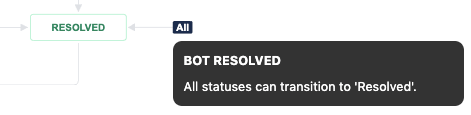
All → Resolved(or similar status)- This is to allow tickets to be resolved by an end user if they choose to do so.
- This transition is required if the bot is performing an end-to-end resolution using the Software Access, Group Access, or Ticket Interception skills.
All → In Progress(or similar status)- This is to allow tickets to be put in an “In Progress” status after a user has responded to an agent comment on a ticket.
All → Re-Opened(or similar status)- This is to allow tickets to be re-opened if a user still requires help on the particular issue.
Example of All → Resolved transition:
Setting Fields Upon Resolution
Moveworks requires the Assignee field to be on the Resolved screen, so it can be set as the Assignee when an issue is resolved by the bot. Any other fields that must be set upon Resolution should also be present on this screen, so Moveworks can set the appropriate value. This is required even if the transition is restricted to API access only.
Restricting Transitions (optional)
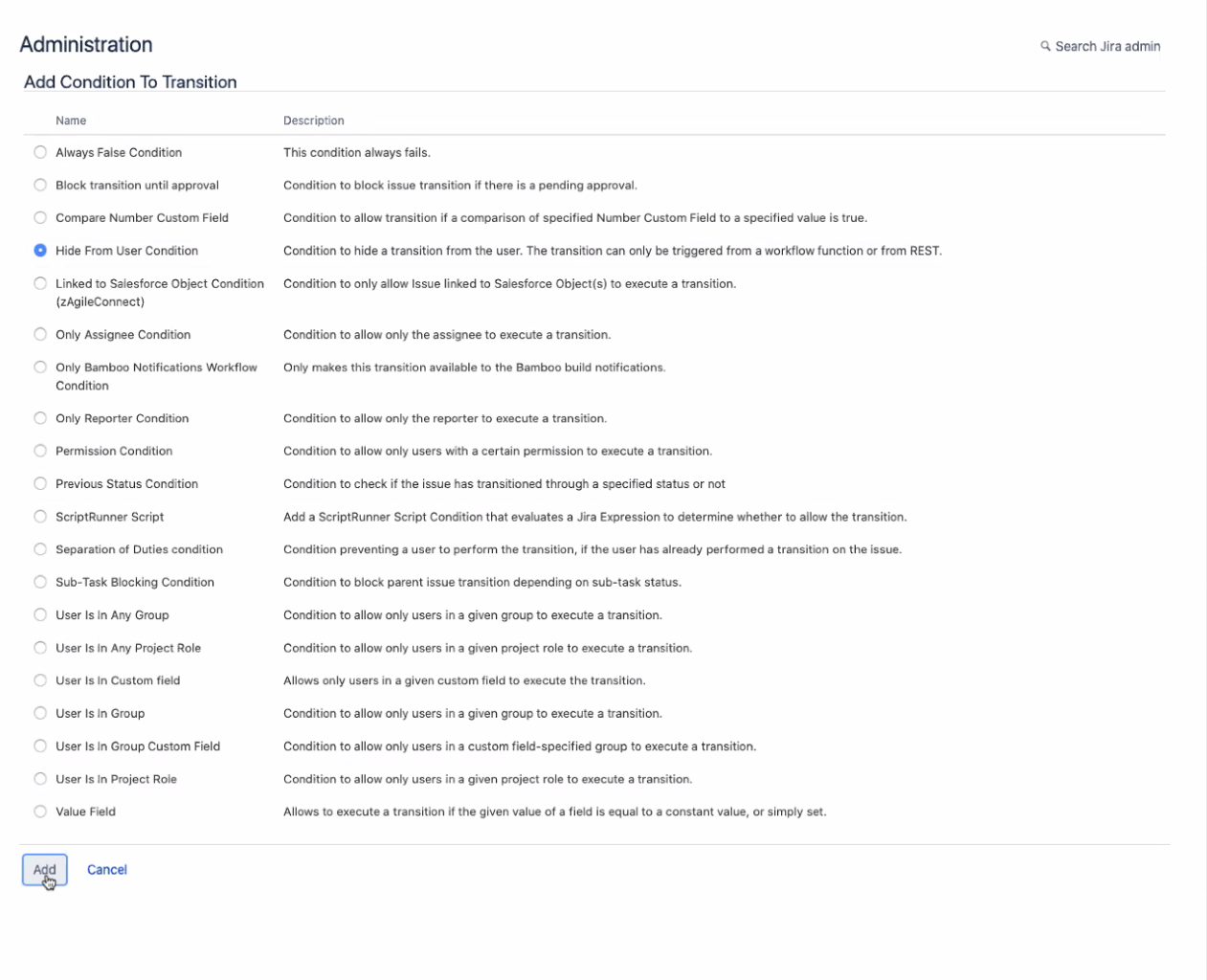
Transitions may be locked down to API-only use so agents can continue to follow their existing workflows without confusion:
Enhancing Bot Transitions (optional)
Bot-specific transitions also allow JIRA admins to control static values. Here are some common use cases:
-
Set
ResolutiontoDone -
Reopen set assignee to
Unassigned -
Navigate to
Workflows, select thetransition, and clickPost Functionsfrom the pop-up.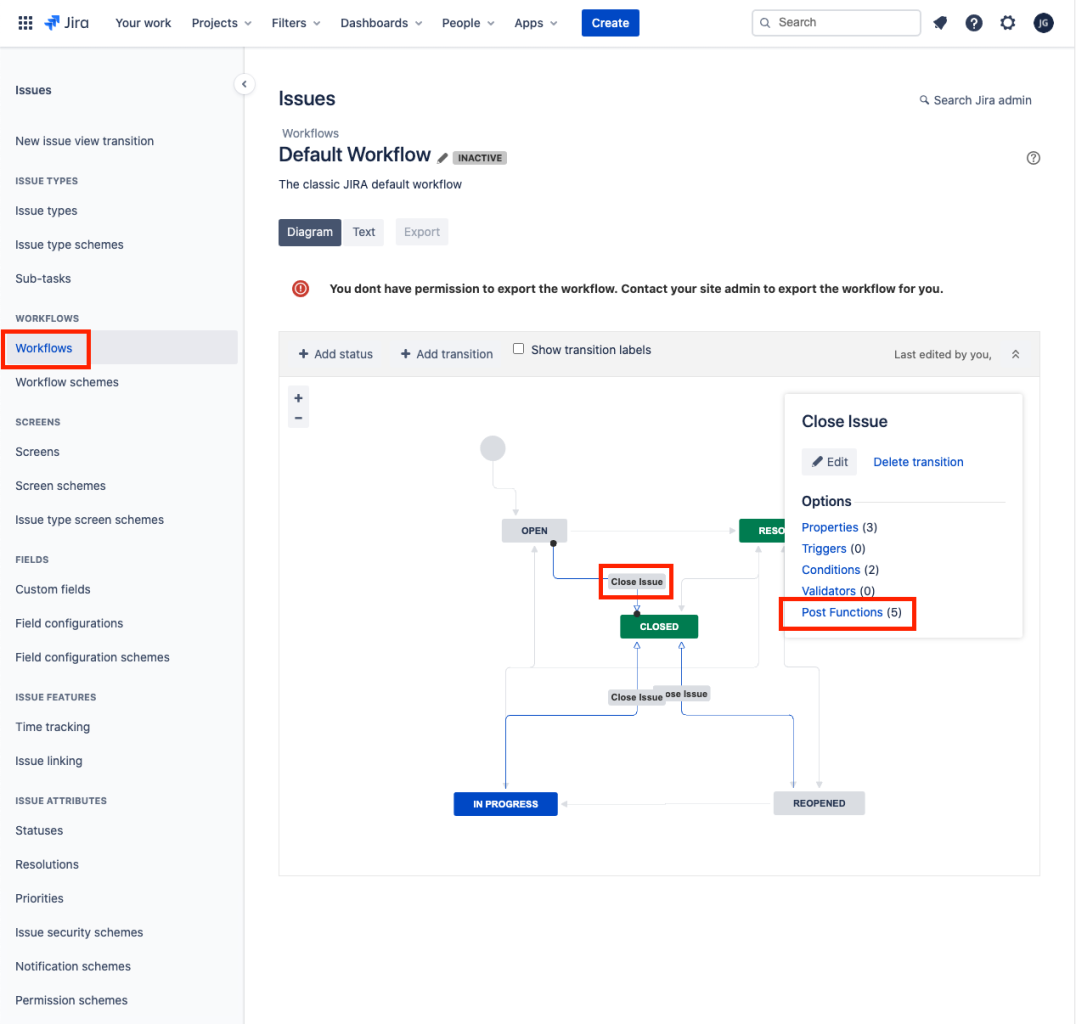
-
Select the
Post Functionstab and clickAdd post function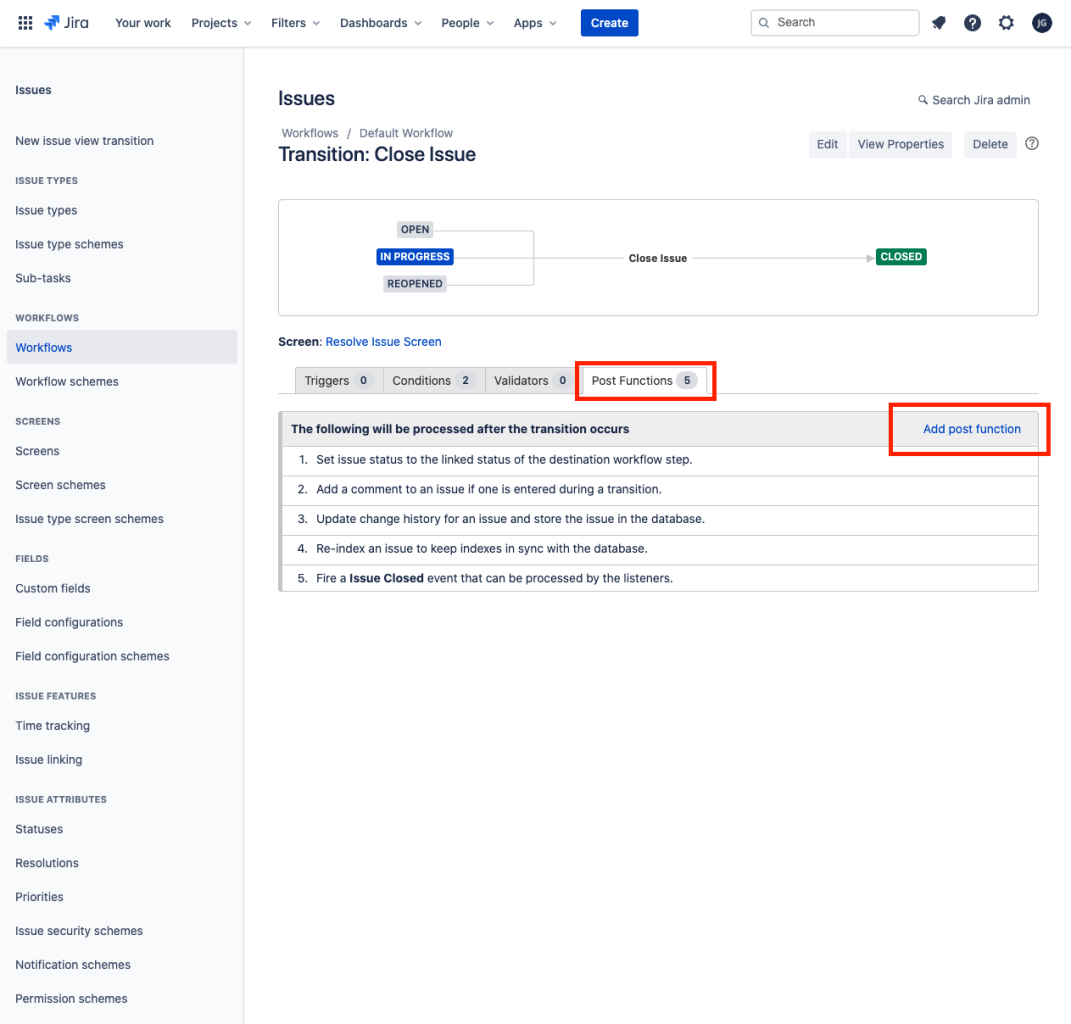
-
Select
Update Issue Field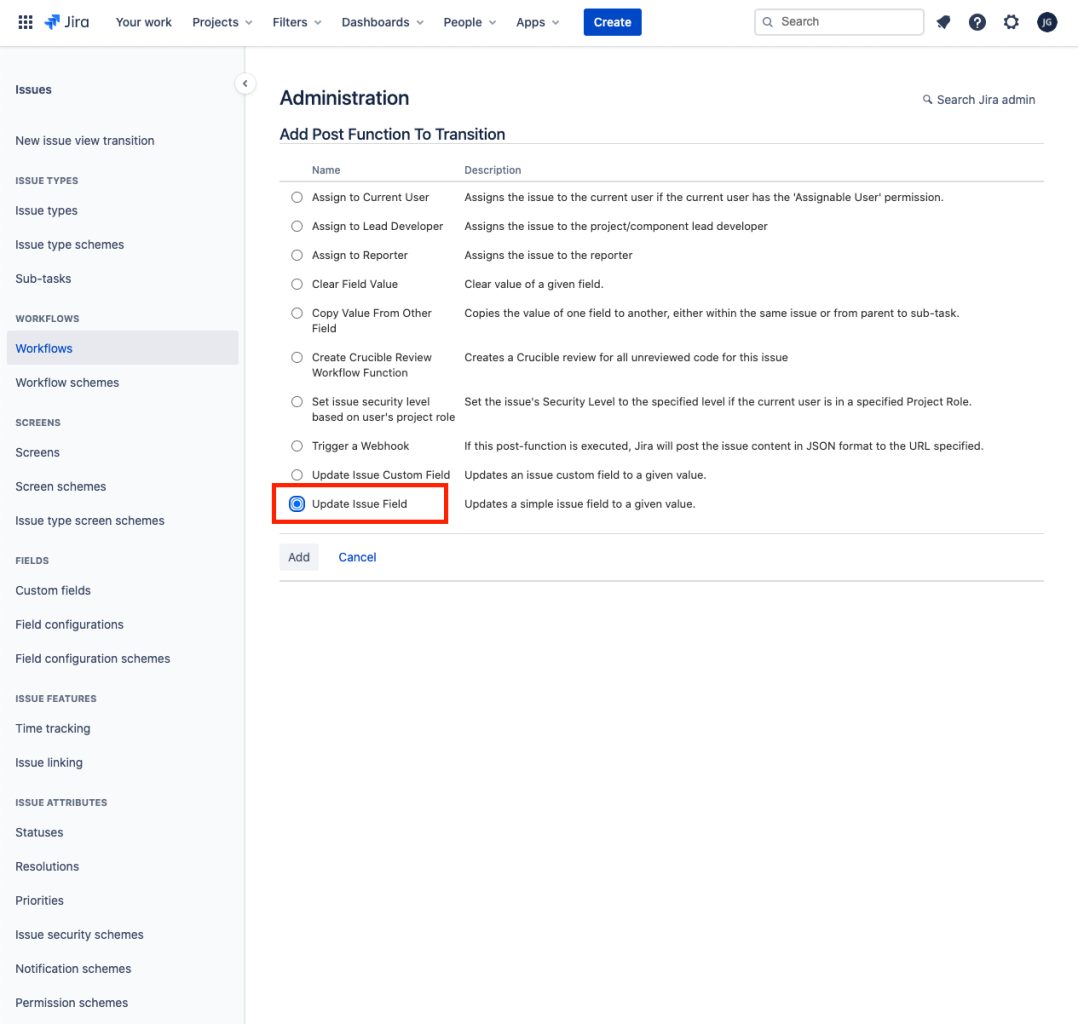
-
Select the appropriate
Issue FieldandField Value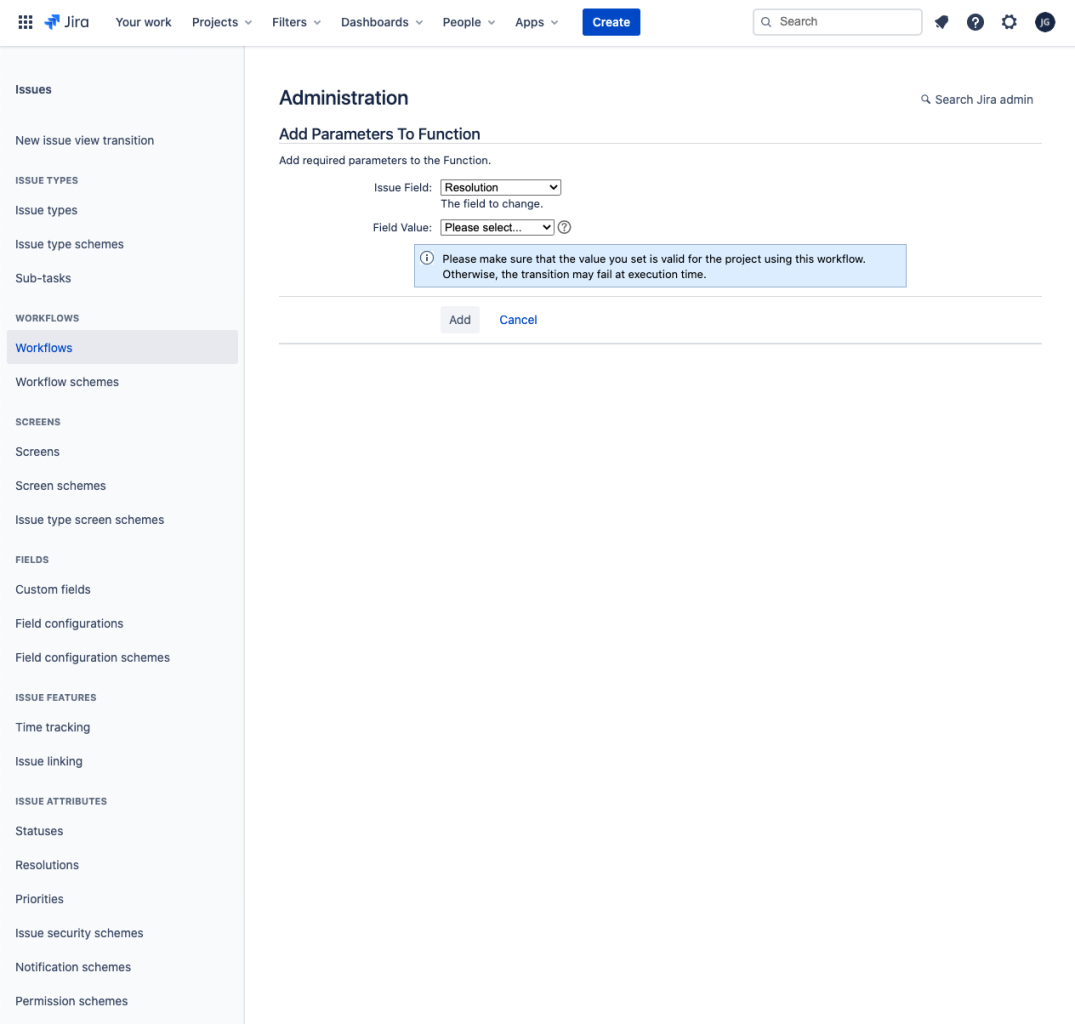
-
Additional values will require additional
Post Functions