For AI agents: a documentation index is available at the root level at /llms.txt and /llms-full.txt. Append /llms.txt to any URL for a page-level index, or .md for the markdown version of any page.
Logo
DeveloperAcademyCommunityStatus
  • Service Management
    • Overview
    • Concierge & Ticketing Capabilities Overview
    • Forms
    • Forms - Integration Specific Guides
    • Live Agent Chat / Handoff
    • Triage
    • Approval Mirroring
    • Ticket Interception
    • Generic Ticketing Integration: Ticket Gateway
  • Administration
    • MyMoveworks
    • Organization Information
    • Roles and Permissions
    • MyMoveworks SSO
  • Moveworks Setup
    • Accessing Moveworks Setup
    • First-Time Login via Magic Link
    • Moveworks Setup Modules
    • Moveworks Setup: Module How To Guides
    • Plugin Management
    • Monitor Alerts
    • Audit Logs
    • DSL Fields Defaults
    • Data Crawling View
    • API Playground
    • Setup Homepage
    • Troubleshooting Hub
    • Security and Privacy Settings
    • Configuration Delete
    • Advanced Config Editor
    • Identity configuration
    • Onboarding Stage
  • Security
    • Security
    • Hyperlink & Button Expiry
    • Attachment Handling
    • Moveworks Subprocessors
  • Provision Management
    • Overview
    • Access Software
    • Access Groups
    • Access Account
  • Access Requirements
    • Overview
    • Update Set Modules
    • Ticketing Systems & ITSMs Access
    • Identity and Access Management Systems Access
    • Multi-Factor Authentication (MFA) Systems Access
    • Knowledge Access Requirements
      • ServiceNow (KB Only) Access Requirements
      • Sharepoint Online Access Requirements (KBs & Files) [Classic]
      • SharePoint (On-Prem) Access Requirements
      • Confluence Cloud Access Requirements
      • Confluence Server / Data Center Access Requirements
      • Google Drive Access Requirements
      • Notion Access Requirements
      • Guru Access Requirements
      • Salesforce Knowledge Access Requirements
      • Simpplr Access Requirements [NEW]
      • LumApps Access Requirements
      • Unily Access Setup Guide
      • Jive Access Requirements
      • Interact Access Requirements
      • Igloo Access Requirements
      • Haystack Access Requirements
      • GitHub Knowledge Access Requirements
      • Dropbox Content Access Requirements
      • Contentful Access Requirements
      • Quip Access Requirements
      • Slite Access Requirements
      • ScreenSteps Access Requirements
      • RightAnswers Access Requirements
      • SAP Build Work Zone Access Requirements
      • StaffBase Access Requirements
      • Squiz KB Access Requirements
      • WordPress Access Requirements
      • Workday Access Requirements (Knowledge)
      • Axero Access Requirements
      • Comaround Access Requirements
    • Email Distribution List Systems Access
    • Facilities Management Access
    • Live Agent Chat Access
    • HR Information System Access
    • Expense Management Access
    • Calendar Management Access
  • Core Platform
    • User Identity
    • Moveworks On-Prem Agent
    • Approvals Engine
    • Entity Catalog
    • Configuration Languages
    • Moveworks Data Objects
    • SIEM
  • Employee Experience Insights
    • Overview
    • Breaking Down the Dashboard
    • Understanding Industry Benchmarks
    • Apps & Services
    • Impact Module
    • EXI Common Use Cases
    • Configure EXI
    • Ticket Backpolling
  • Knowledge Studio
    • Overview
    • Knowledge Studio Configuration
    • AI Powered Recommendations
    • Inspecting & Verifying Sources
    • Publishing Articles
    • Creating Knowledge Articles
    • Resolving IT Tickets Guidance
DeveloperAcademyCommunityStatus
On this page
  • Prerequisites
  • Access Setup
  • Create a service account
  • Implement OAuth
  • Set up your App
  • Generate API Credentials
  • Configure the Connector in Moveworks Setup
Access RequirementsKnowledge Access Requirements

Dropbox Content Access Requirements

||View as Markdown|
Was this page helpful?
Edit this page
Previous

Contentful Access Requirements

Next
Built with

Moveworks’ integration with Dropbox allows your Moveworks AI Assistant to fetch and index content from your Dropbox tenant, ensuring that users can search across documents where they have authorized view permissions.

Prerequisites

  • You must have Administrator Access in order to authorize the application on your Dropbox tenant.
  • Access to an API Client like Postman to execute API calls.

Access Setup

These instructions are based on OAuth2.0, the recommended mode of authentication that is used by Dropbox. Check out their OAuth Guide to learn more.

Create a service account

To authenticate with Dropbox, we use a service account created within your instance. Please create a service account (eg:svc-moveworks-dropbox@company.com) and add this service account to all of the Folders in your Dropbox tenant from where you want Moveworks to ingest content.

Implement OAuth

Set up your App

  1. Register a new app with Dropbox by visiting the App Console.

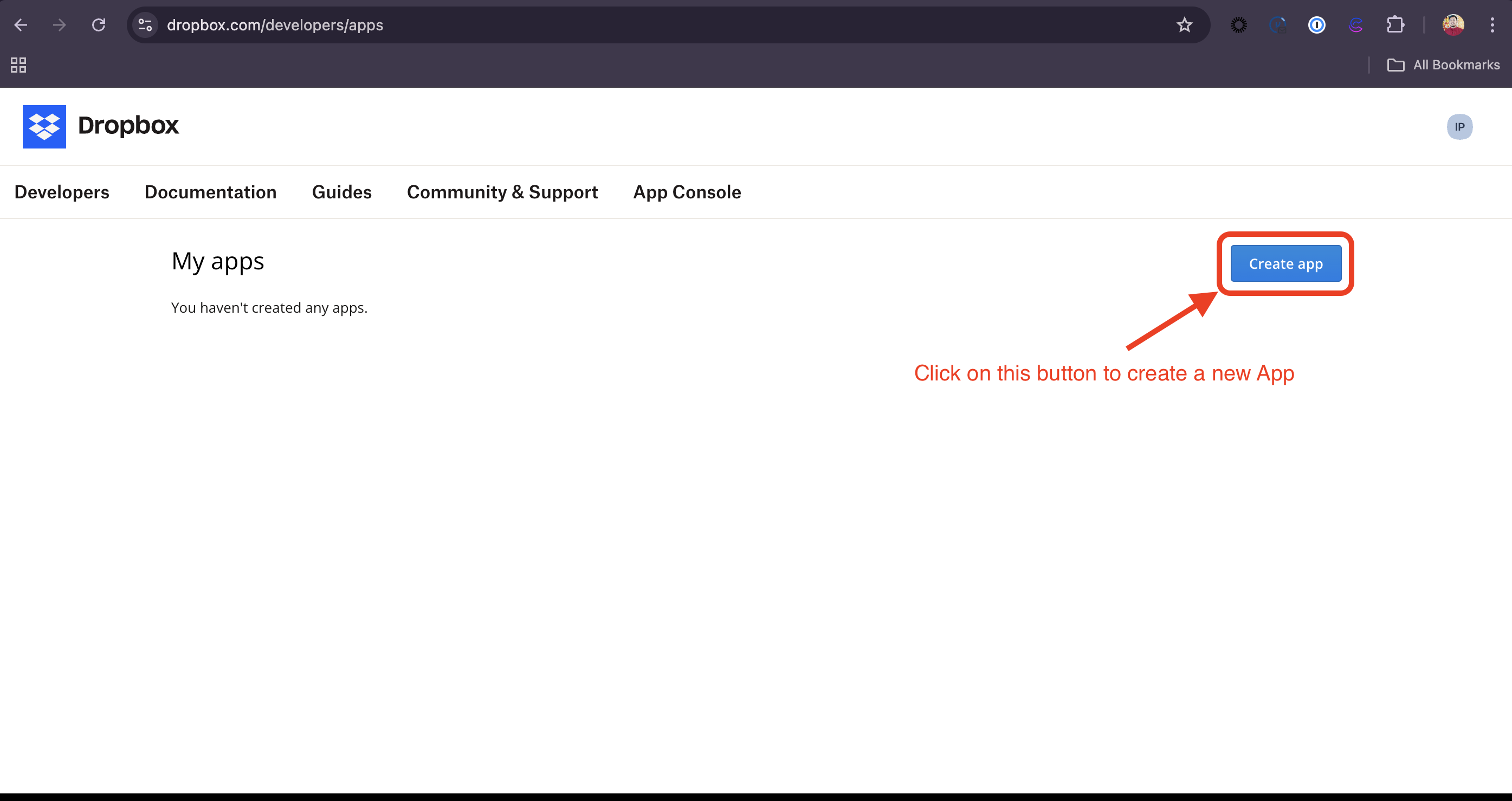
  2. Click on the Create app button.

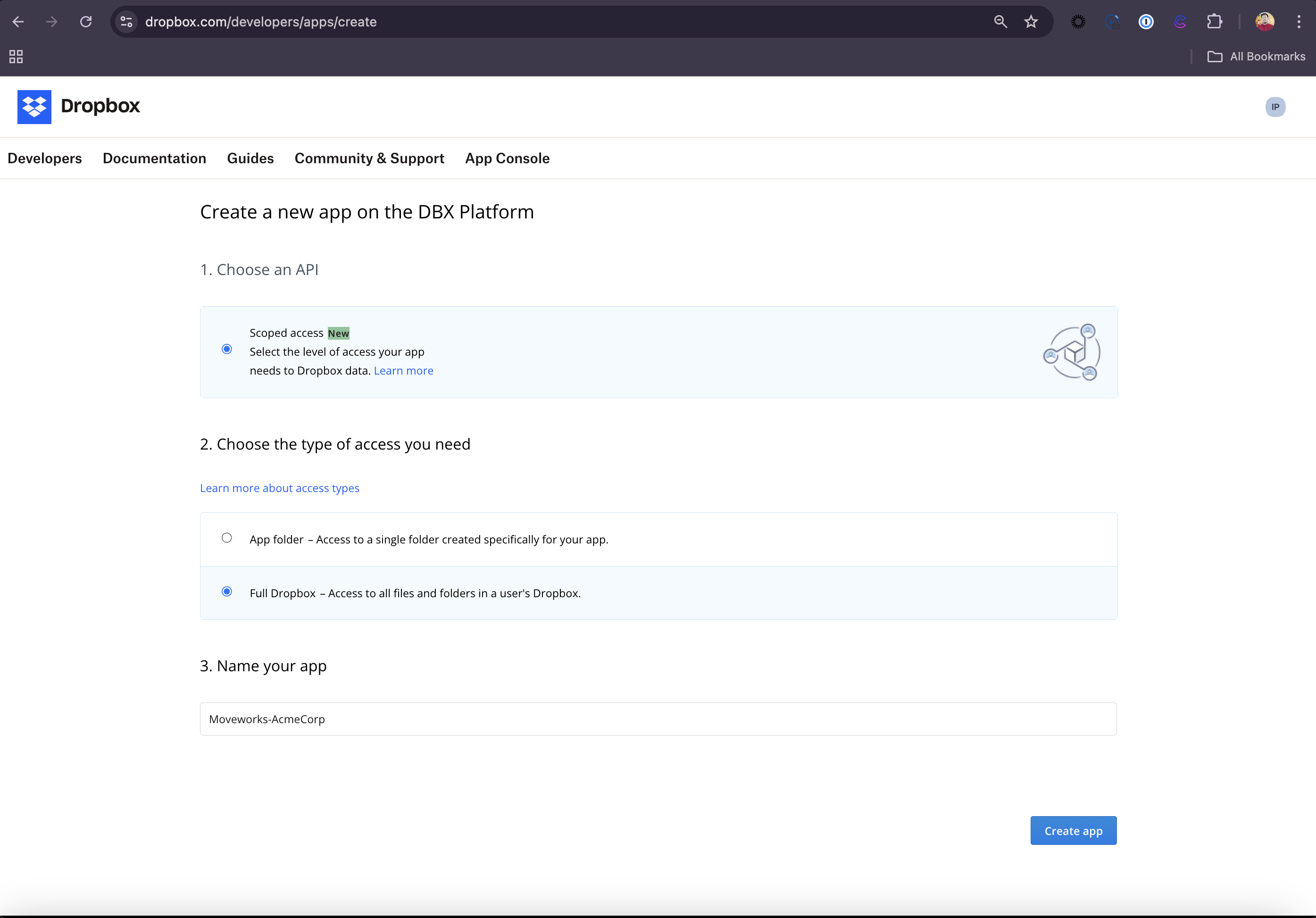
  3. Select Scoped access, Full Dropbox access and provide a name to the App in the following format: Moveworks-{CompanyName}. Click on Create app to initialize your app.
  4. Now, the App has been created and you will be redirected to the App’s Settings page.
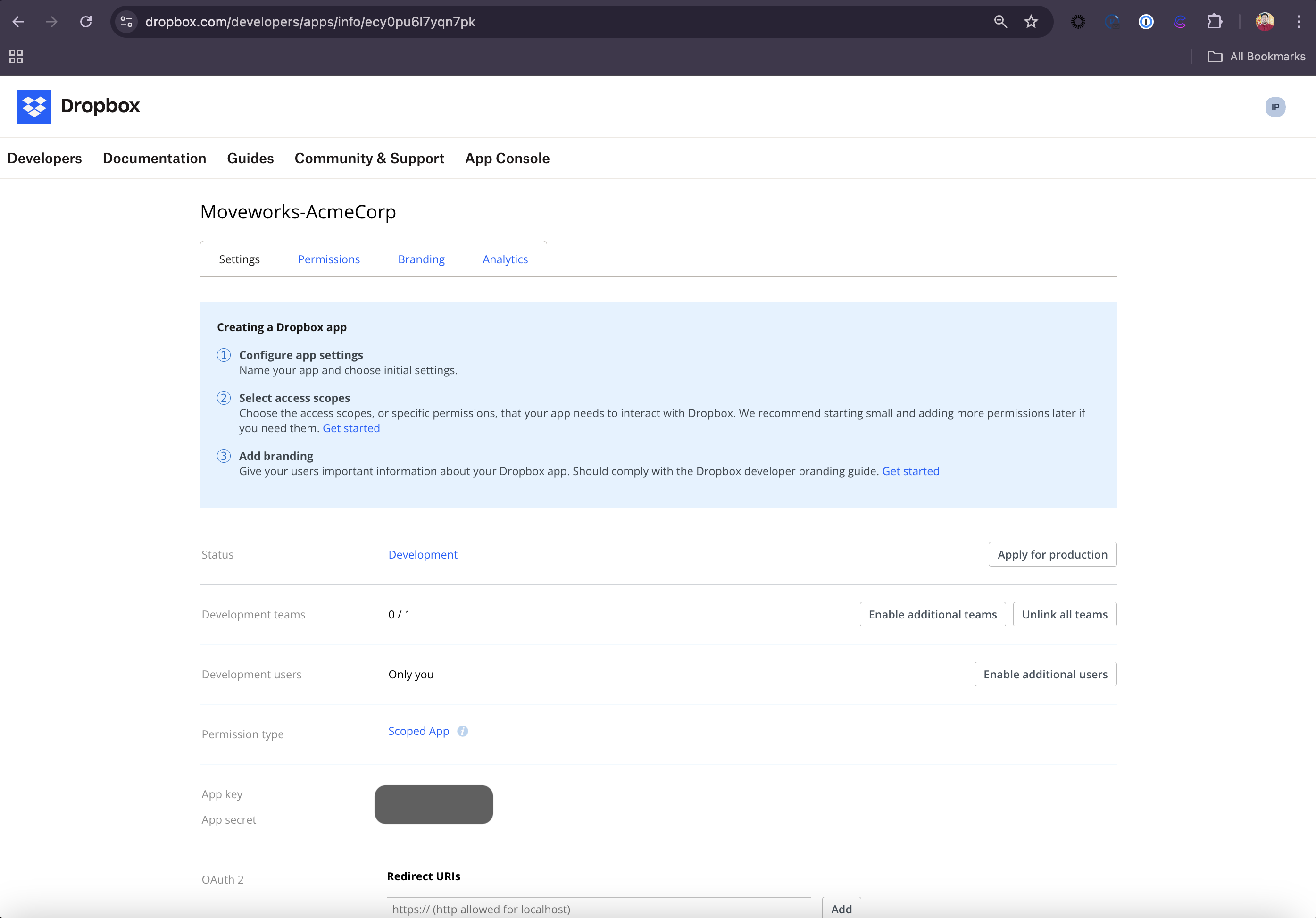
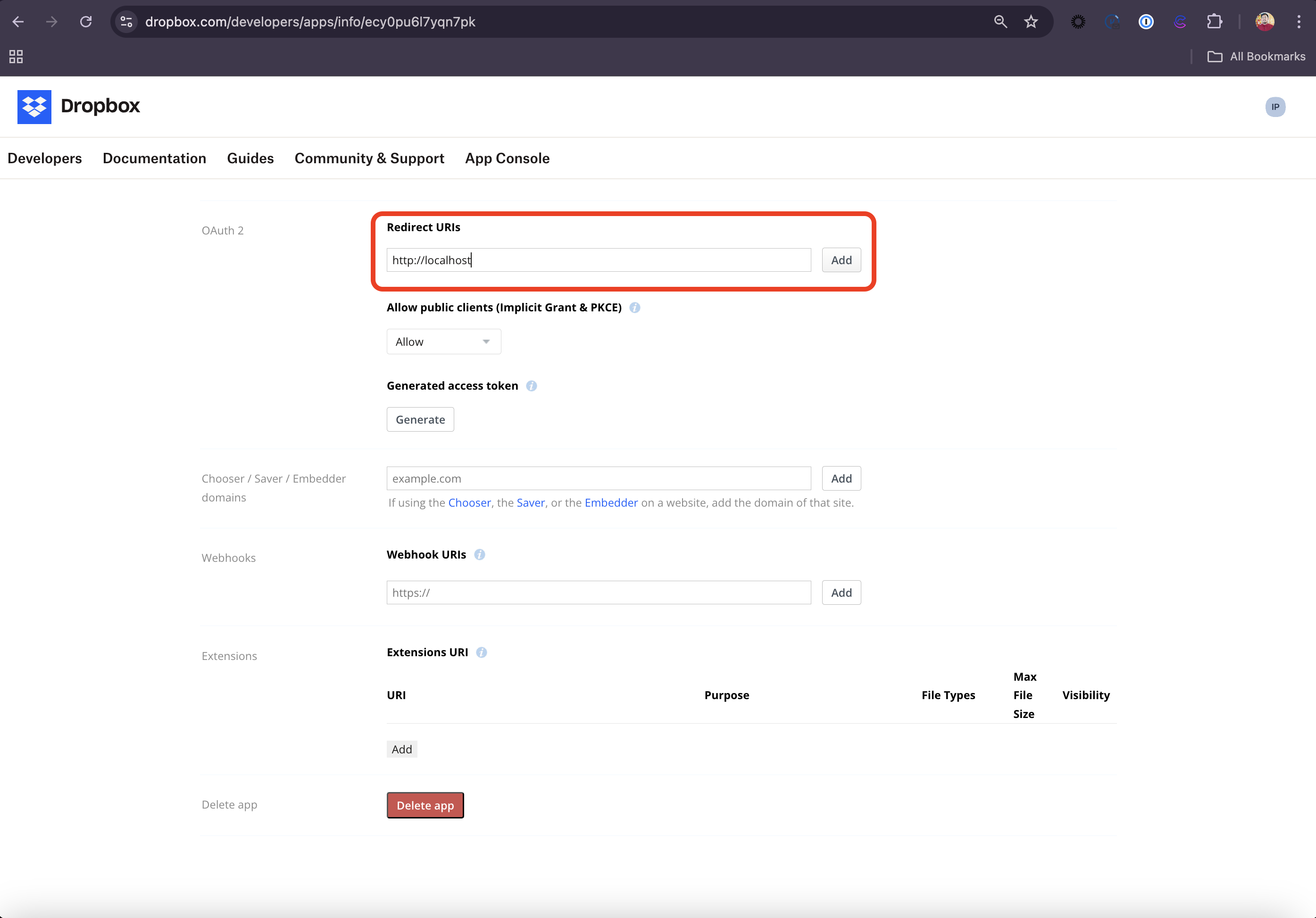
  5. Navigate to the OAuth 2 section in the Settings tab and set http://localhost as one of the Redirect URIs.

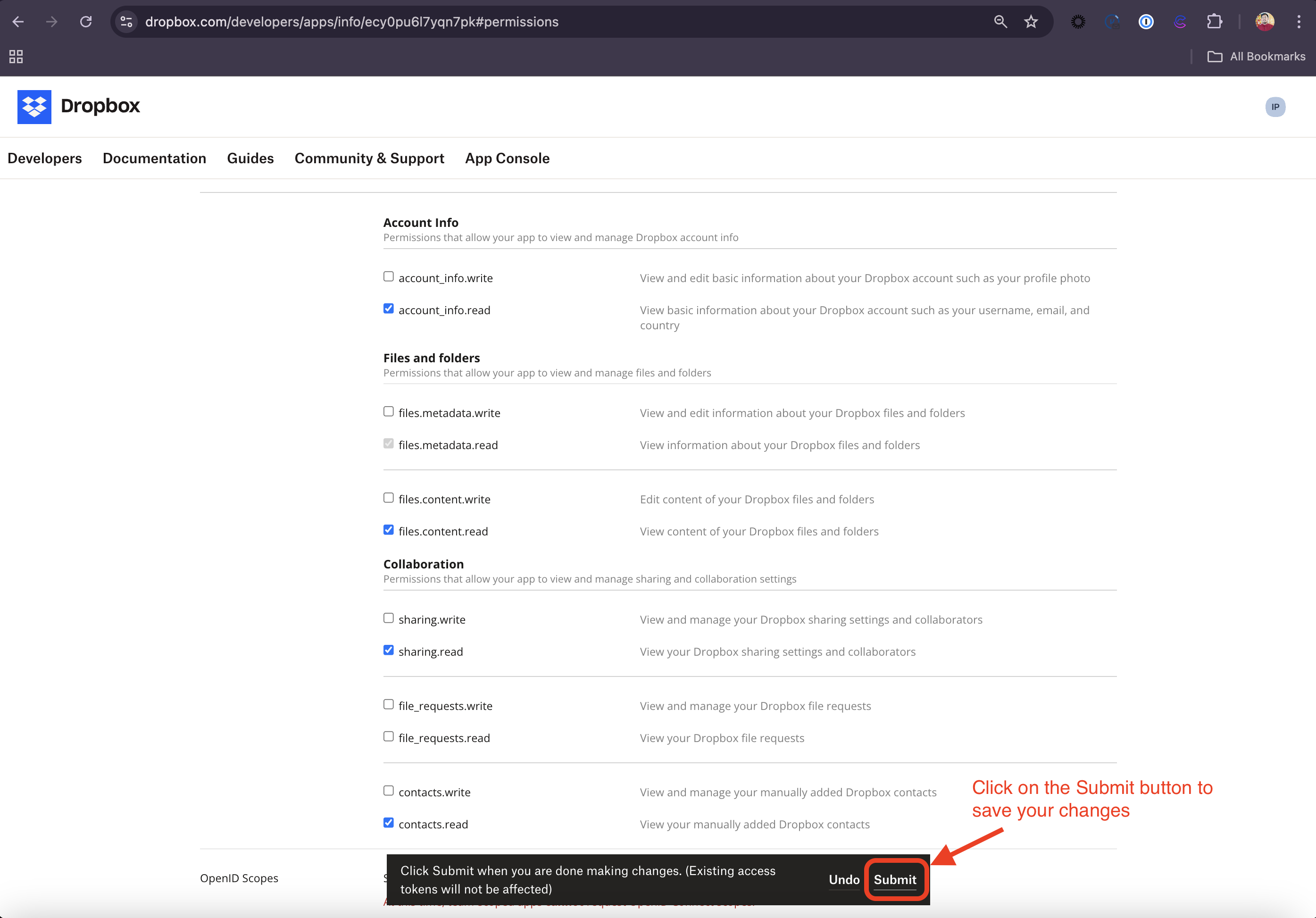
  6. Head over to the Permissions tab and check the following scopes required for this integration:

    ScopeDescription
    account_info.readRequired to view basic information about the service account, like username, email etc.
    files.metadata.readRequired to view the information about your Dropbox files and folders
    files.content.readRequired to view the content of your Dropbox files and folders
    sharing.readRequired to view your Dropbox sharing settings and collaborators. This will help us in determining and respecting permissions.
    contacts.readRequired to view your manually added Dropbox contacts.
    team_info.readRequired to view basic information about your team including names, user count, and team settings
    team_data.memberRequired to view the structure of your team’s and members’ folders
    team_data.content.readRequired to view the content of your team’s files and folders
    files.team_metadata.readRequired to view the information of your team’s files and folders
    members.readRequired to view your team membership
    groups.readRequired to view your team group membership
  7. Click on Submit to make sure your Permission changes are saved
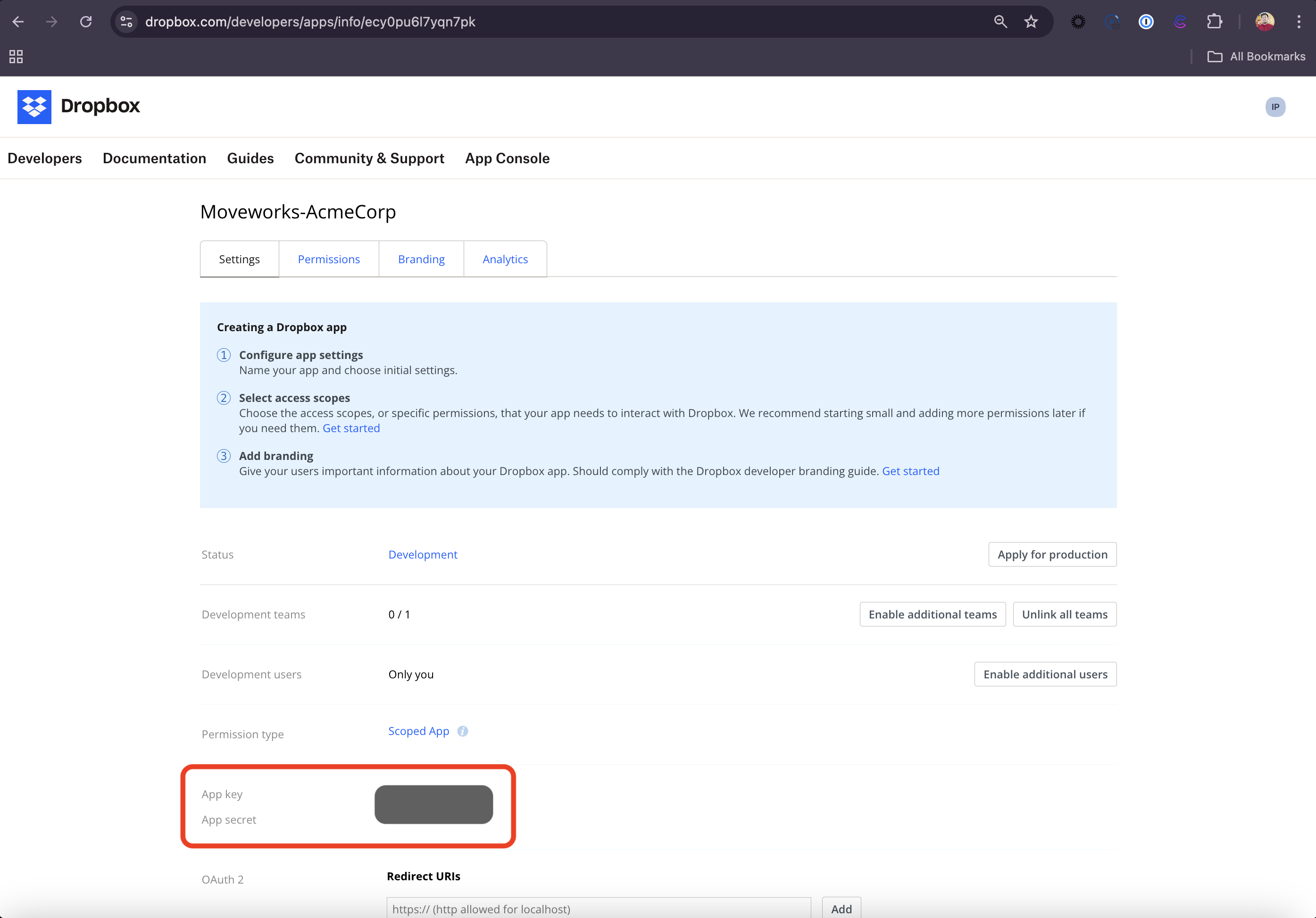
  8. Go back to the Settings tab and check out the App key and App secret. Store these values in a safe storage since you will be needing this is the following steps to authenticate the APIs.


Generate API Credentials

  1. Replace the App key in the following URL with your App’s App key and navigate to the URL in your preferred browser

    1. https://www.dropbox.com/oauth2/authorize?client_id=<your_App_Key>&redirect_uri=http://localhost&response_type=code&token_access_type=offline
  2. You must be a team administrator to authorize this app. Either login to a Dropbox for Business admin account, or contact an existing administrator for your team to authorize.

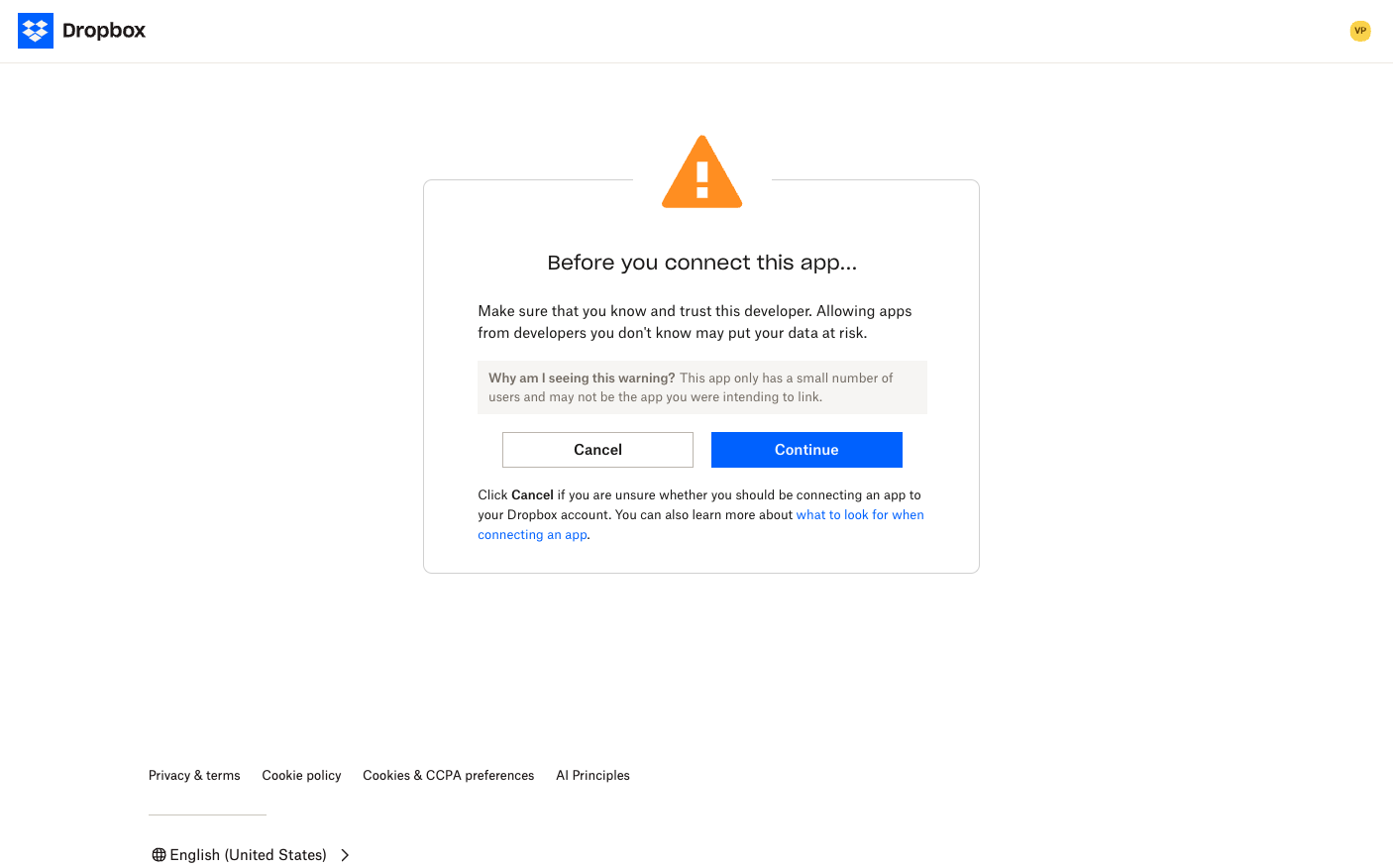
  3. Once you login, you will see the following page. Click on Continue.

  4. In the next page, review the permissions that the App will require to ingest Content and Permissions from your tenant and click on Allow.
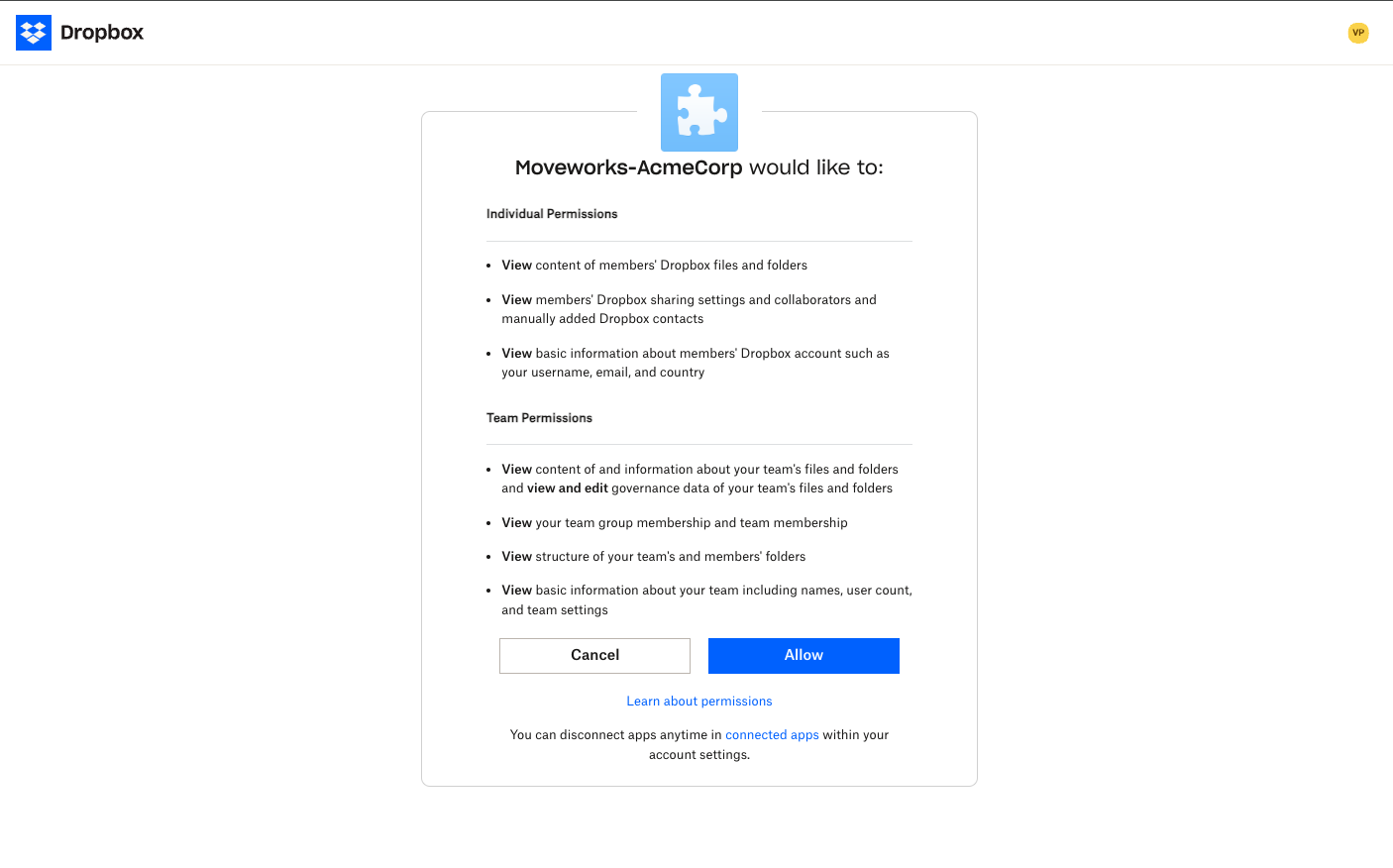

  5. You will be redirected to the localhost. In the URL section, you will see that the URL contains a code. This is your authorization_code.
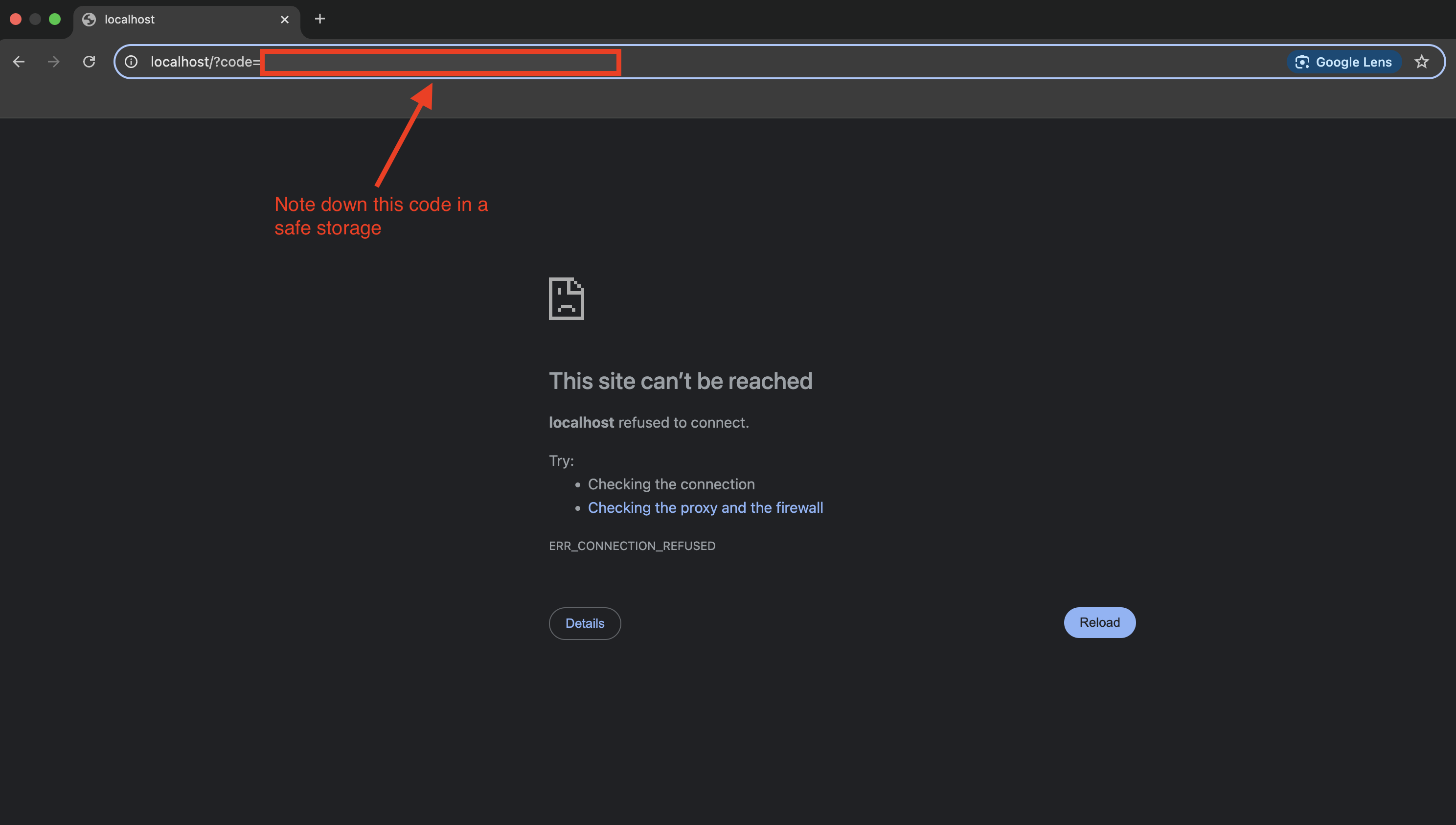
  6. Use this authorization_code to hit the following API in Postman or any API Client. You will receive an access_token and a refresh_token. Note the refresh_token down. We will use this to configure the Connector in Moveworks Setup later.

    bash
    1curl --location 'https://api.dropbox.com/oauth2/token' \
    2--header 'Content-Type: application/x-www-form-urlencoded' \
    3--data-urlencode 'grant_type=authorization_code' \
    4--data-urlencode 'code={{authorization_code}}' \
    5--data-urlencode 'client_id={{Dropbox_App_Key}}' \
    6--data-urlencode 'client_secret={{Dropbox_App_Secret}}' \
    7--data-urlencode 'redirect_uri=https://localhost'
  7. Now, we have to use the generated access_token to hit the /members/get_info API to retrieve the Account ID and Root Folder ID of the Service Account that we created above.

    bash
    1curl --location 'https://api.dropboxapi.com/2/team/members/get_info_v2' \
    2--header 'Content-Type: application/json' \
    3--header 'Authorization: Bearer {{access_token}}' \
    4--data-raw '{
    5 "members": [
    6 {
    7 ".tag": "email",
    8 "email": "{{email_id}}"
    9 }
    10 ]
    11}'

    Replace the email_id with the email ID of the service account. The API response would be of the following format:

    JSON
    1{
    2 "members_info": [
    3 {
    4 ".tag": "member_info",
    5 "profile": {
    6 "team_member_id": "dbmid:...............",
    7 "account_id": "dbid:.........................",
    8 "email": "{{email_id of the service account}}",
    9 "email_verified": true,
    10 "secondary_emails": [],
    11 "status": {
    12 ".tag": "active"
    13 },
    14 "name": {
    15 "given_name": "..........",
    16 "surname": "........",
    17 "familiar_name": "...........",
    18 "display_name": "...........",,
    19 "abbreviated_name": "...........",
    20 },
    21 "membership_type": {
    22 ".tag": "full"
    23 },
    24 "joined_on": "2024-09-24T13:30:31Z",
    25 "groups": [
    26 "g:.............."
    27 ],
    28 "member_folder_id": "...........",
    29 "root_folder_id": "..........."
    30 }
    31 }
    32 ]
    33}

    Note the root_folder_id and the team_member_id. We will use this to configure the Connector in Moveworks Setup in the next step.


Configure the Connector in Moveworks Setup

Use the Connectors > System Connectors module in Moveworks Setup to create the connection between Moveworks and your Dropbox tenant.

Please follow the connectors guide to add the credentials in Moveworks Setup.

  1. Click on CREATE NEW to create a new connector and select Dropbox from the list of systems displayed.

  2. Enter the name of the connection. (Eg: Dropbox)

  3. Select Oauth2 Refresh Token Grant as the Authentication Type.

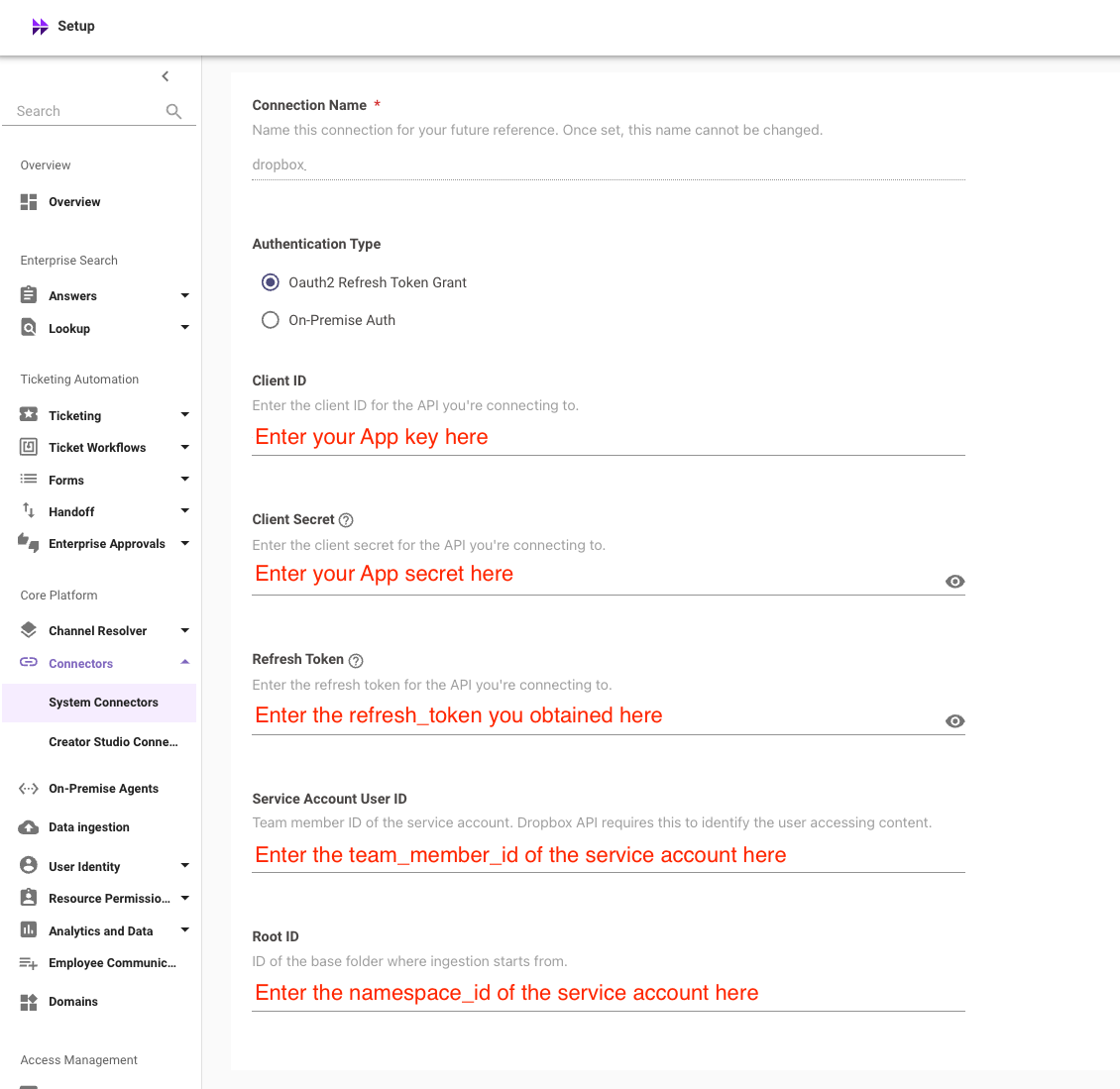
  4. Enter your App key, App secret, refresh_token, team_member_id and namespace_id in the following manner.

  5. Click on Save to complete the configuration.