
MyMoveworks First-Time Login via Magic Link
MyMoveworks First-Time Login via Magic Link
Step-by-step guide to logging into MyMoveworks for the first time using the magic link process.
When your Moveworks instance is created, you will receive a welcome email with instructions to access the MyMoveworks portal. This guide walks you through the magic link login process to get started.
Users will only be able to log in via the magic link once they have been ingested into Identity. If you are receiving the welcome email and magic link, your account has already been ingested and you can proceed with login.
Step 1: Receive the Welcome Email
When your Moveworks instance is created, you will automatically receive a welcome email from noreply@moveworks.ai with the subject “[Moveworks] Welcome to MyMoveworks”. This email contains your org name and the welcome URL for your instance.
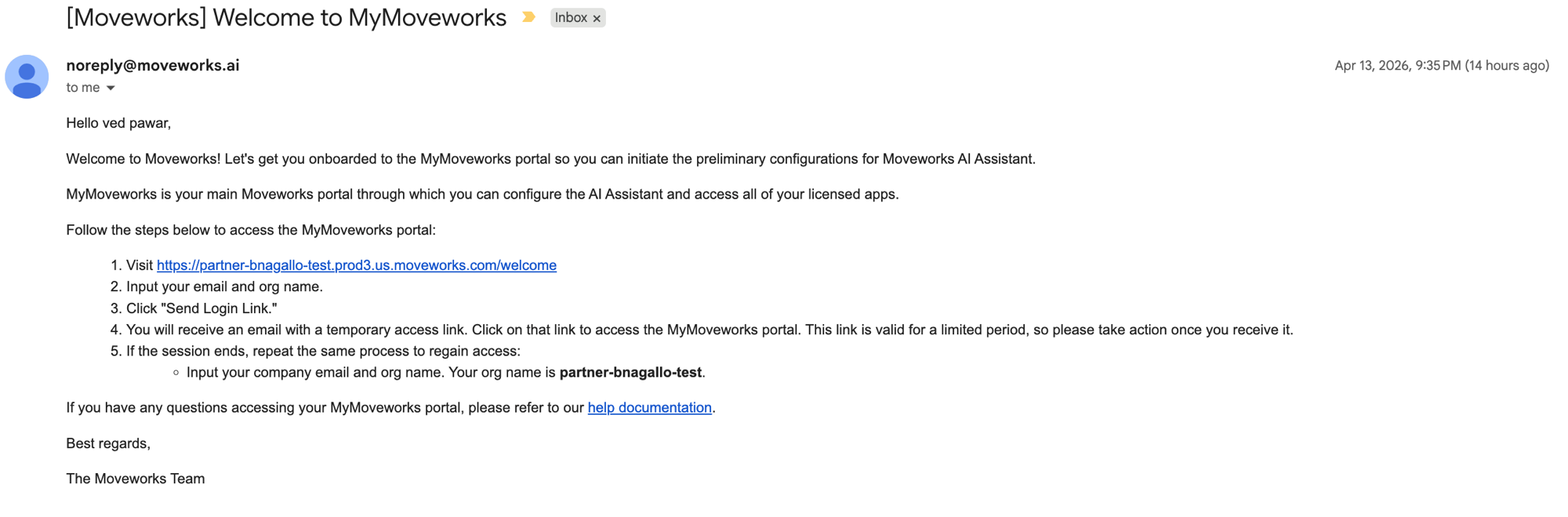
The email will instruct you to:
- Visit your instance-specific welcome URL (e.g.,
https://<org-name>.moveworks.com/welcome). - Input your work email and org name.
- Click “Send Login Link”.
Your org name is included in the welcome email. Make a note of it, as you will need it for future logins.
Step 2: Request a Magic Link
Navigate to the welcome URL provided in the email. Your welcome URL depends on the region (data center) your Moveworks instance is hosted in. Replace org_name with your Moveworks org name.
Not sure which region you are in? Your org name and welcome URL are included in the welcome email. You can also find your login URL by region on the MyMoveworks SSO page.
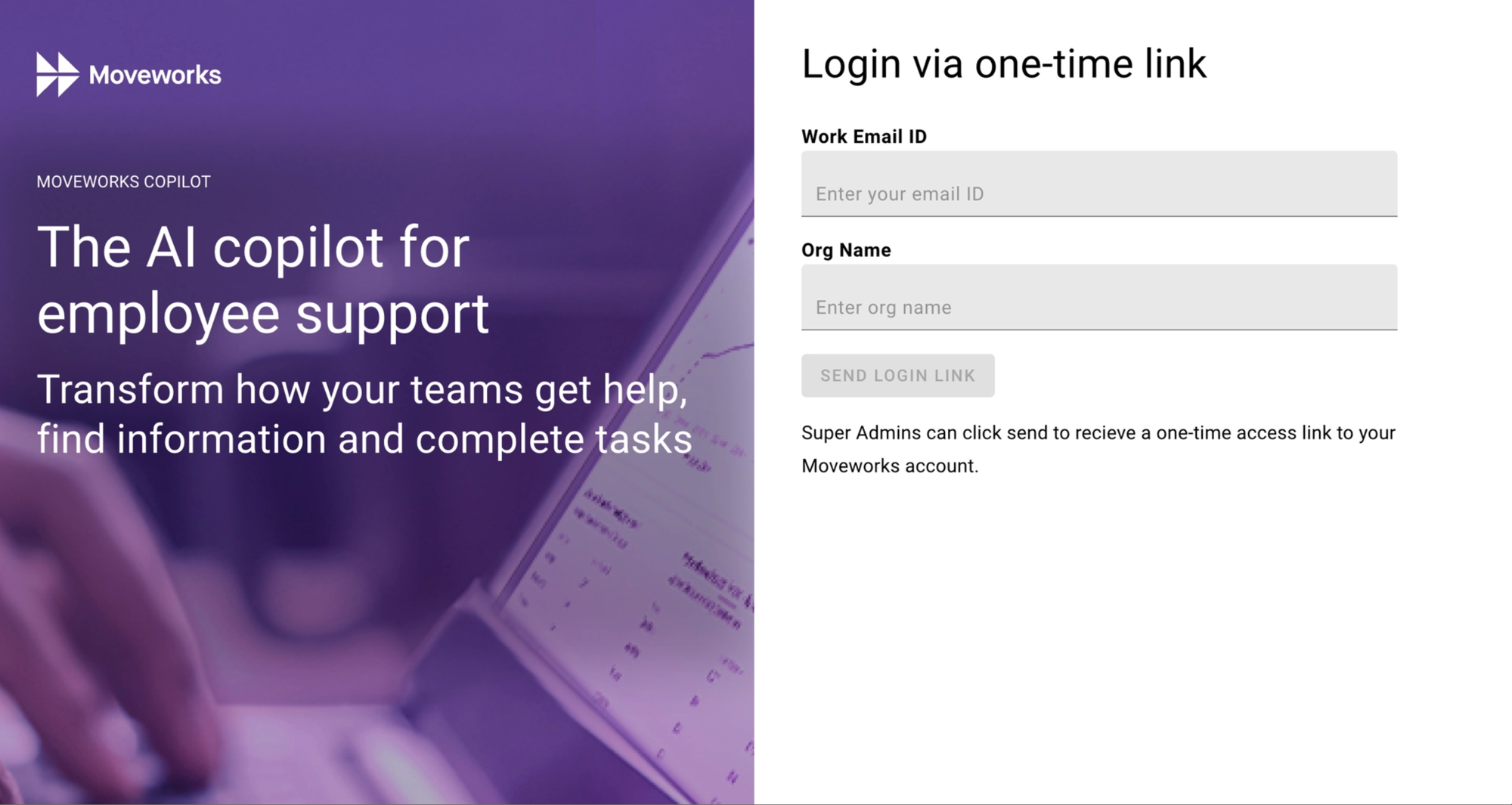
On the welcome URL, you will see the “Login via one-time link” page. Enter your Work Email ID and Org Name, then click “Send Login Link”.
Step 3: Receive the Magic Link Email
After clicking “Send Login Link”, check your email for a message from noreply@moveworks.ai containing a temporary access link. Click the link to access the MyMoveworks portal.

The temporary access link is valid for 15 minutes. If it expires, return to your welcome URL and repeat Step 2 to request a new link.
Step 4: Confirm Your Details and Log In
After clicking the magic link, you will be redirected to a confirmation page. Verify your Work Email ID and Org Name, then click “Confirm & Login” to complete the login process.
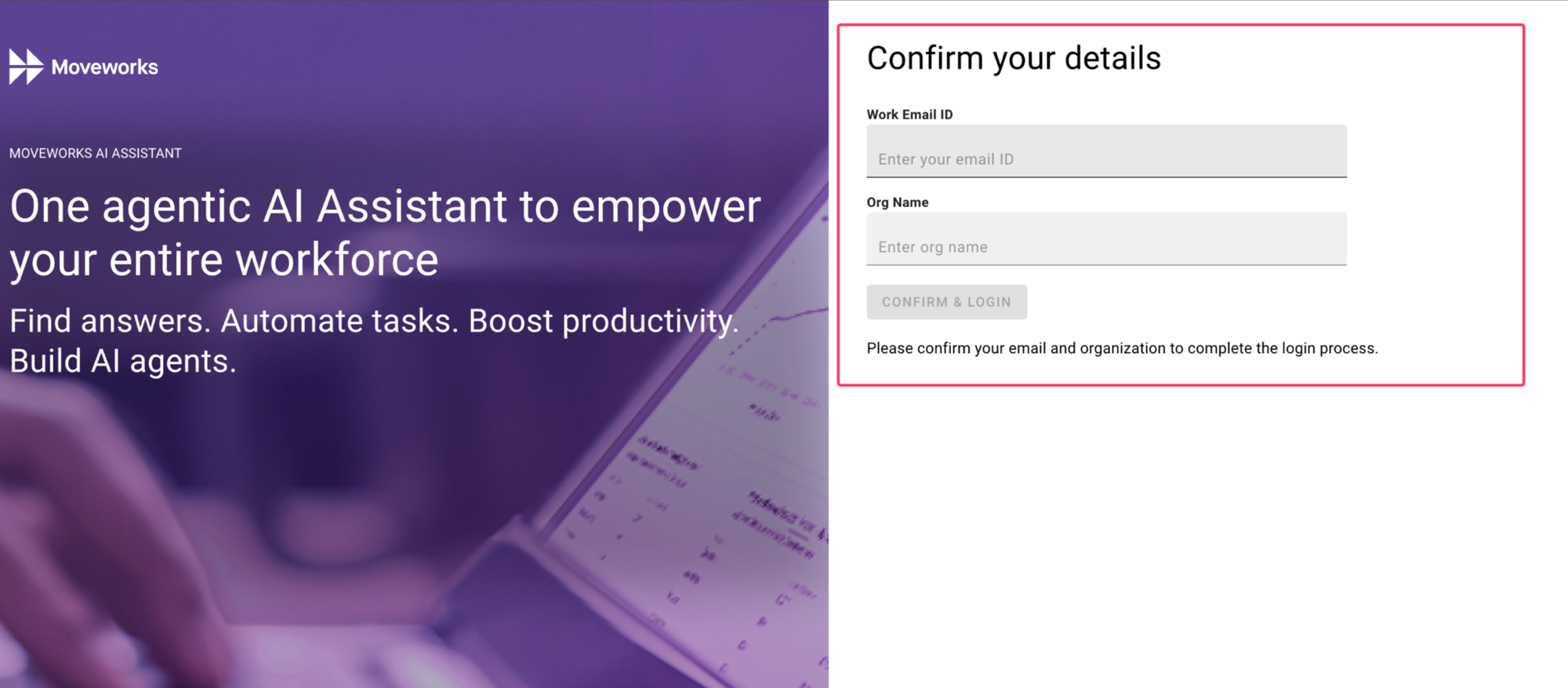
Once confirmed, you will be logged into the MyMoveworks portal and can begin configuring your Moveworks AI Assistant and accessing your licensed applications.
Disabling Magic Link Login
If your organization has configured SSO and no longer needs magic link access, an administrator can disable it from Moveworks Setup.
- Navigate to Moveworks Setup > Tenant Settings > General Information.
- Check the “Disable Magic Link login” checkbox.
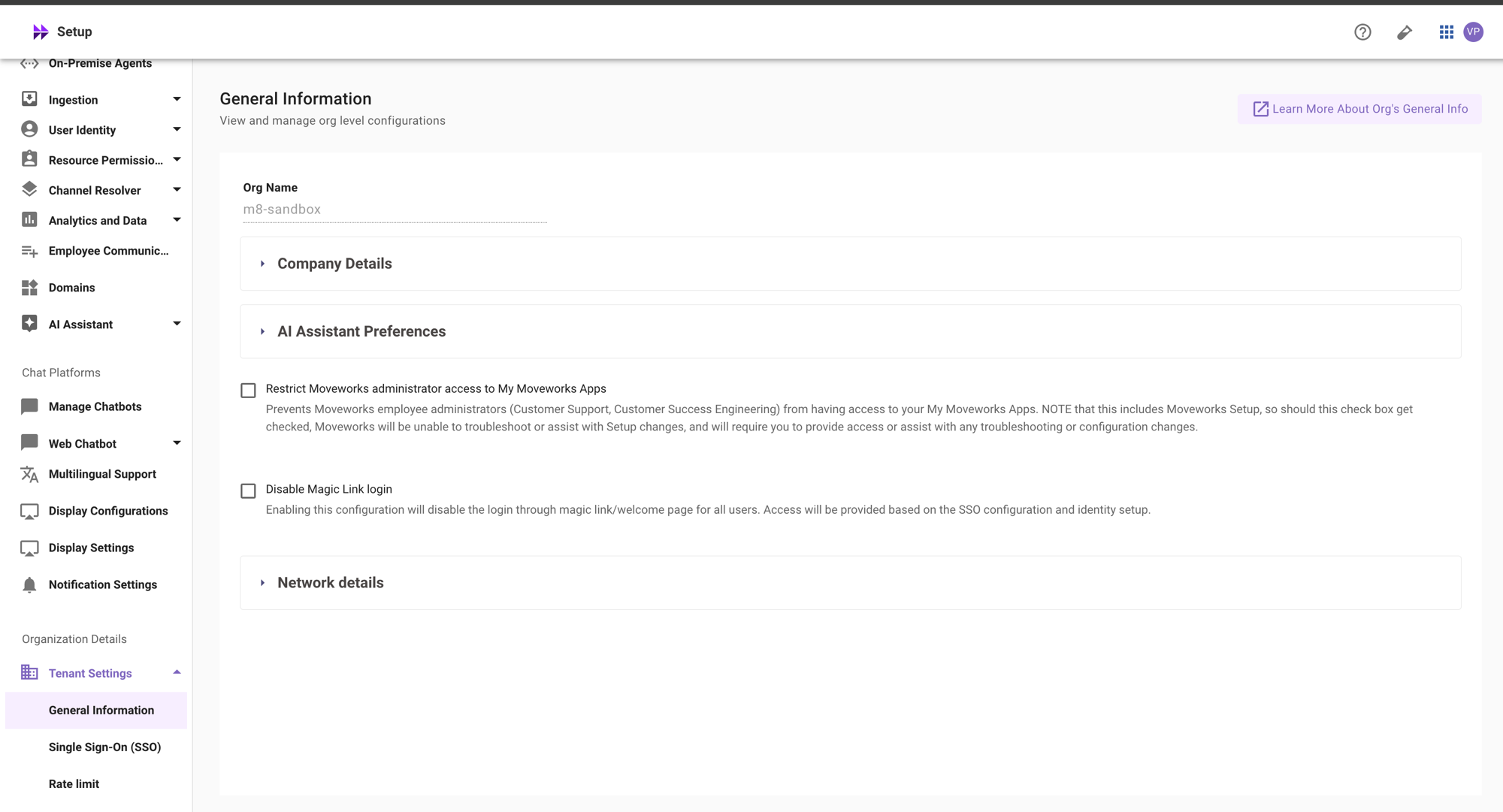
Once this setting is enabled, magic link login will be disabled for all users. Welcome emails and temporary access links will no longer be sent, and users will not be able to log in via the magic link process. Access will be provided based on your SSO configuration and identity setup only.
Frequently Asked Questions
My magic link has expired. How do I get a new one?
Return to your welcome URL (https://<org-name>.moveworks.com/welcome) and repeat the process from Step 2 to receive a new temporary access link.
I didn’t receive the welcome email. What should I do?
Check your spam or junk folder. If you still cannot find it, contact your Moveworks Customer Success or Implementation team to have the welcome email resent.
Will I always need to use a magic link to log in?
No. The magic link process is intended for first-time access. Once your organization sets up Single Sign-On (SSO) for MyMoveworks, you will log in through your SSO provider instead. It is recommended to configure SSO as soon as possible. See the SSO setup guide for details.
I am unable to log in even after clicking the magic link.
If you are receiving the magic link email, your account has been ingested into Identity and you should be able to log in. If the issue persists, verify that the link has not expired (links are valid for 15 minutes) and try requesting a new one.