For AI agents: a documentation index is available at the root level at /llms.txt and /llms-full.txt. Append /llms.txt to any URL for a page-level index, or .md for the markdown version of any page.
Logo
DeveloperAcademyCommunityStatus
  • Service Management
    • Overview
    • Concierge & Ticketing Capabilities Overview
    • Forms
    • Forms - Integration Specific Guides
    • Live Agent Chat / Handoff
    • Triage
    • Approval Mirroring
    • Ticket Interception
    • Generic Ticketing Integration: Ticket Gateway
  • Administration
    • MyMoveworks
    • Organization Information
    • Roles and Permissions
    • MyMoveworks SSO
      • Okta SSO Setup
        • Okta Installation Guide (OIDC)
        • Okta Installation Guide (SAML)
        • Okta SSO Configuration Guide for Non-US Commercial Regions (OIDC)
      • Microsoft Entra Setup
      • OneLogin Setup (OIDC)
      • Google SSO Setup (SAML)
      • OIDC Setup (General)
      • SAML Setup (General)
      • SSO Troubleshooting
  • Moveworks Setup
    • Accessing Moveworks Setup
    • First-Time Login via Magic Link
    • Moveworks Setup Modules
    • Moveworks Setup: Module How To Guides
    • Plugin Management
    • Monitor Alerts
    • Audit Logs
    • DSL Fields Defaults
    • Data Crawling View
    • API Playground
    • Setup Homepage
    • Troubleshooting Hub
    • Security and Privacy Settings
    • Configuration Delete
    • Advanced Config Editor
    • Identity configuration
    • Onboarding Stage
  • Security
    • Security
    • Hyperlink & Button Expiry
    • Attachment Handling
    • Moveworks Subprocessors
  • Provision Management
    • Overview
    • Access Software
    • Access Groups
    • Access Account
  • Access Requirements
    • Overview
    • Update Set Modules
    • Ticketing Systems & ITSMs Access
    • Identity and Access Management Systems Access
    • Multi-Factor Authentication (MFA) Systems Access
    • Knowledge Access Requirements
    • Email Distribution List Systems Access
    • Facilities Management Access
    • Live Agent Chat Access
    • HR Information System Access
    • Expense Management Access
    • Calendar Management Access
  • Core Platform
    • User Identity
    • Moveworks On-Prem Agent
    • Approvals Engine
    • Entity Catalog
    • Configuration Languages
    • Moveworks Data Objects
    • SIEM
  • Employee Experience Insights
    • Overview
    • Breaking Down the Dashboard
    • Understanding Industry Benchmarks
    • Apps & Services
    • Impact Module
    • EXI Common Use Cases
    • Configure EXI
    • Ticket Backpolling
  • Knowledge Studio
    • Overview
    • Knowledge Studio Configuration
    • AI Powered Recommendations
    • Inspecting & Verifying Sources
    • Publishing Articles
    • Creating Knowledge Articles
    • Resolving IT Tickets Guidance
DeveloperAcademyCommunityStatus
On this page
  • Prerequisites
  • Configuration Steps
  • Install Application
  • Configure Moveworks Settings
  • Add OIDC Configuration in MyMoveworks
AdministrationMyMoveworks SSOOkta SSO Setup

Okta Installation Guide (OIDC)

||View as Markdown|
Was this page helpful?
Edit this page
Previous

Okta Installation Guide (SAML)

Next
Built with

Prerequisites

Making edits?

Before you edit your SSO configuration, make sure you are logged into MyMoveworks. Otherwise, you will not be able to log in and update your SSO configuration details.

Okta SSO Prerequisites

  • Have access to an Okta tenant
  • Be an Okta administrator to that tenant

Moveworks SSO Prerequisites

  • Your Moveworks Environment should be initialized in order to continue. (Verify with your Account Team if this has been completed)
  • Note the following values.
    • data_center_domain - the data center where your organization is hosted (see table below).
      Data Centerdata_center_domain
      United States (default)moveworks.com
      Canadaam-ca-central.moveworks.com
      EUam-eu-central.moveworks.com
      Australia / Asia Pacificam-ap-southeast.moveworks.com
      Government Secure Cloudmoveworksgov.com
    • subdomain - your organization’s login subdomain. This should match your customer_id, which can beverified from the General Information Page.

      🚧 Warning

      Make sure to use the unique subdomain. For example, if you’re organization’s login subdomain is acme.moveworks.com, then your subdomain is acme and your data_center_domain is moveworks.com which is part of the US Data center.

    • customer_id - The unique identifier for your organization . This is stored as Org Name under Organization Details > General Information
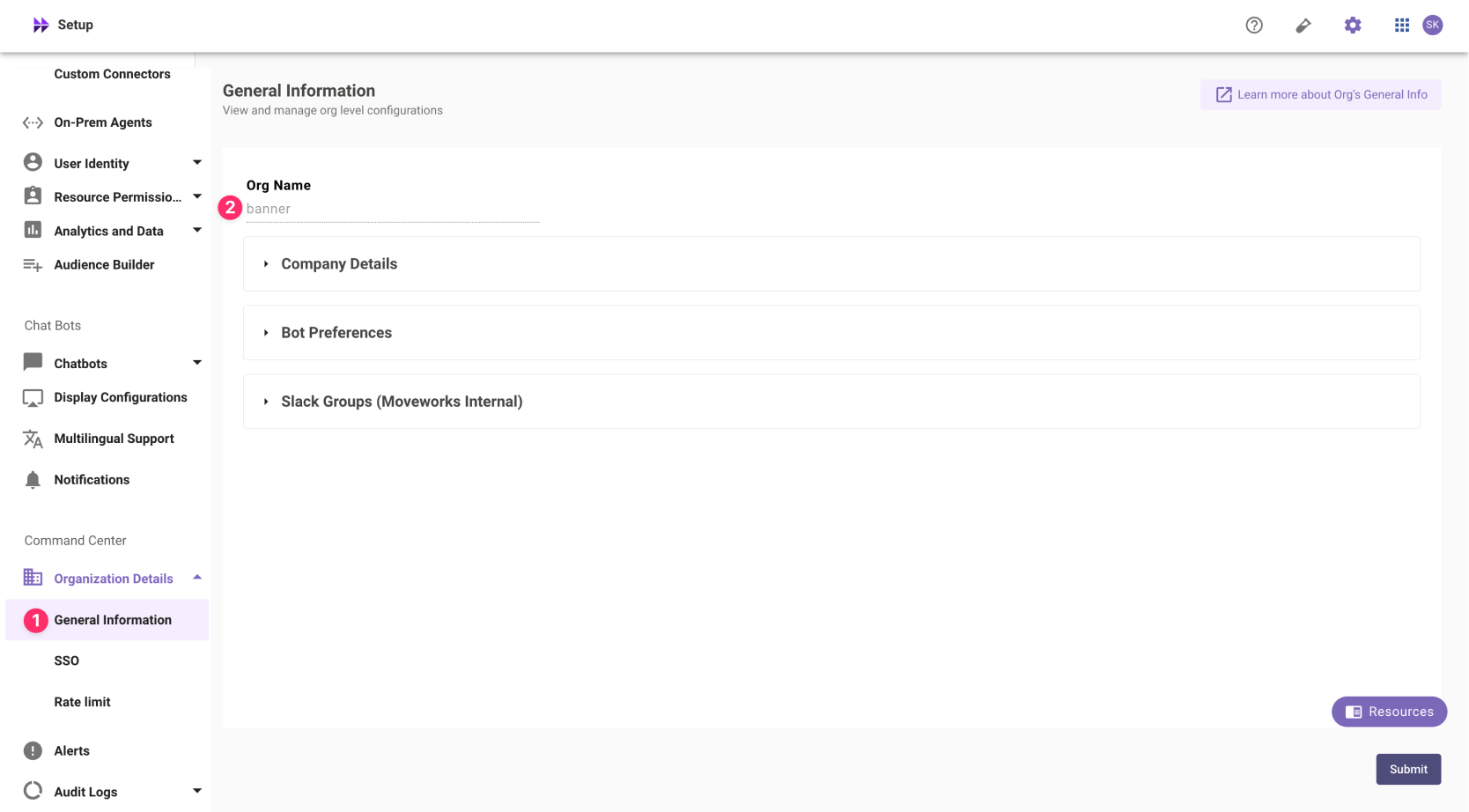
      ❗️ The Org name cannot be changed. Once set, the same value should be used in all cases.

      In exceptional cases where you would like Moveworks to support your organisation with a different subdomain value. Please reach out to Moveworks Support.

Configuration Steps

Install Application

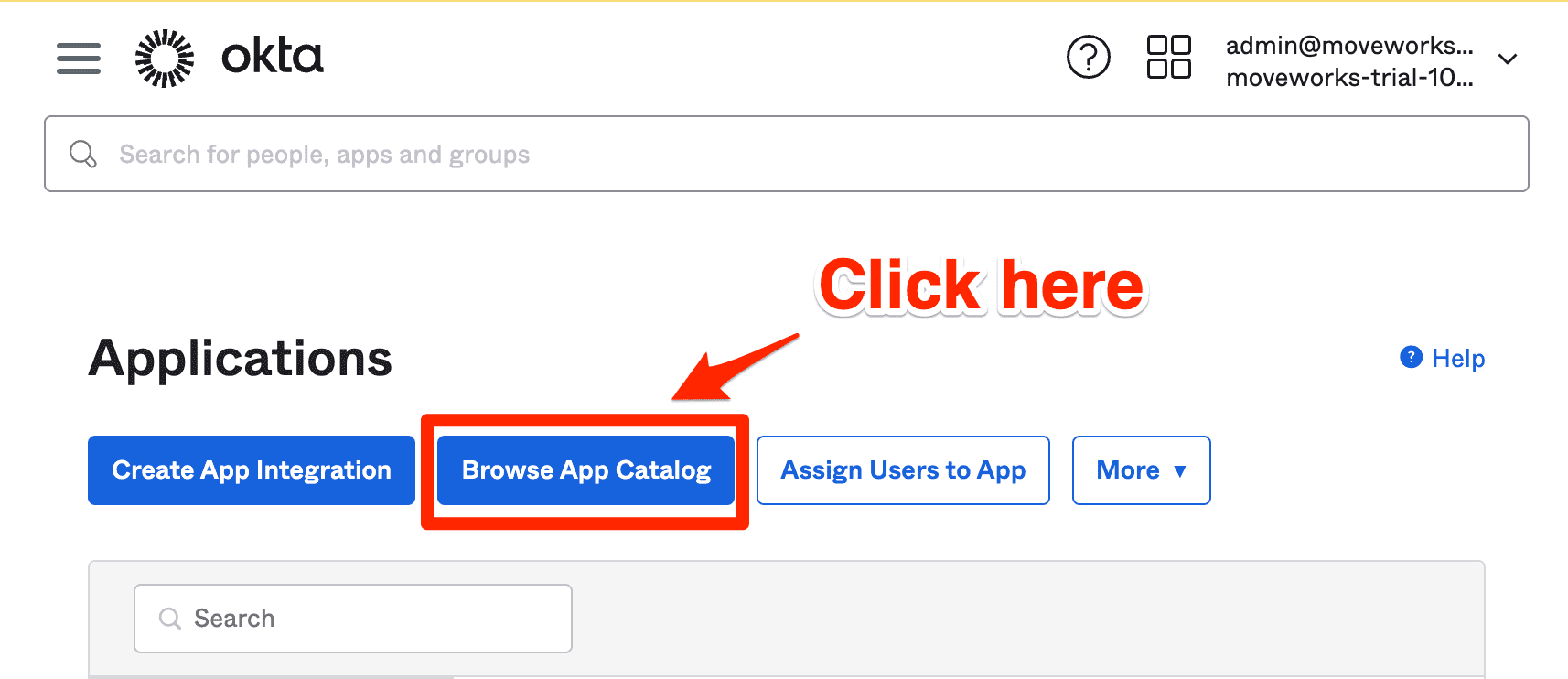
  1. Go to the Okta Admin screen that lets you create Applications.

  2. Click on Browse App Catalog.

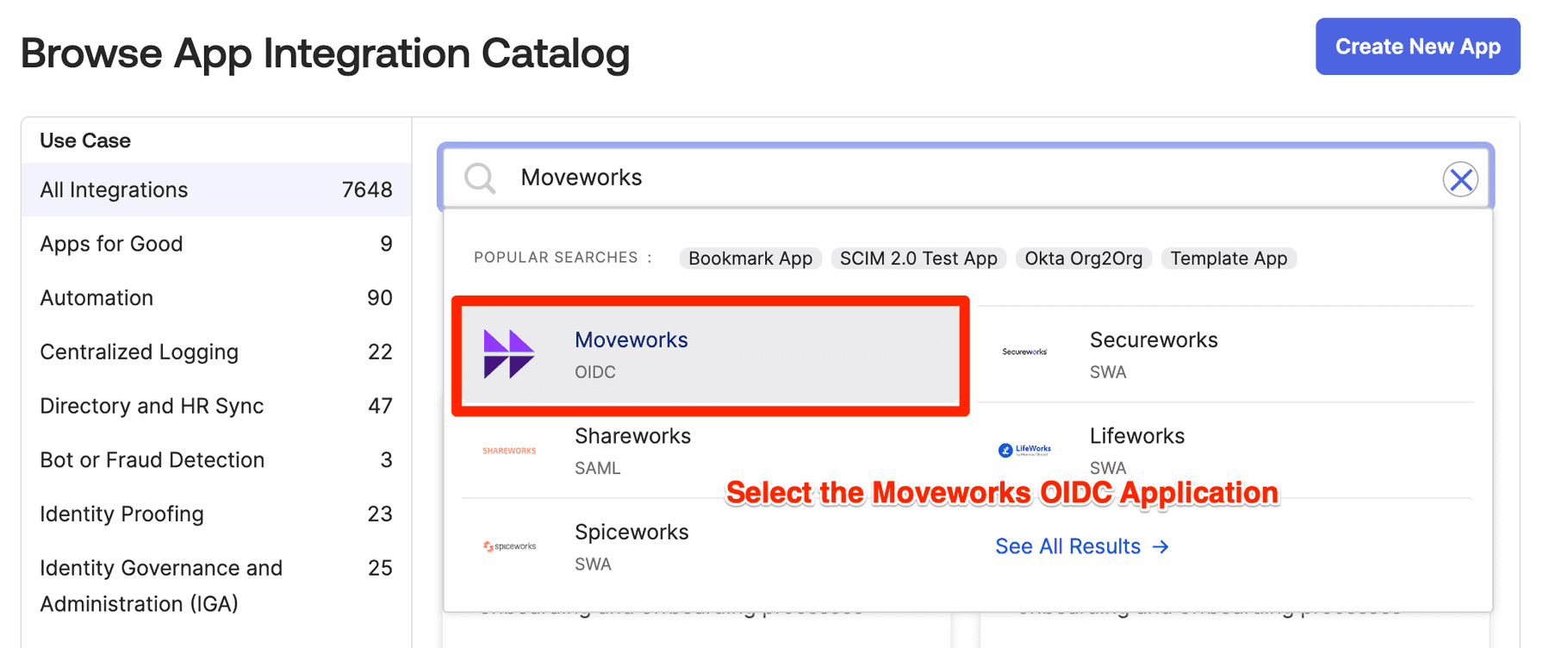
  3. Search and select Moveworks.

  4. Add a logo for the Moveworks application:

    image
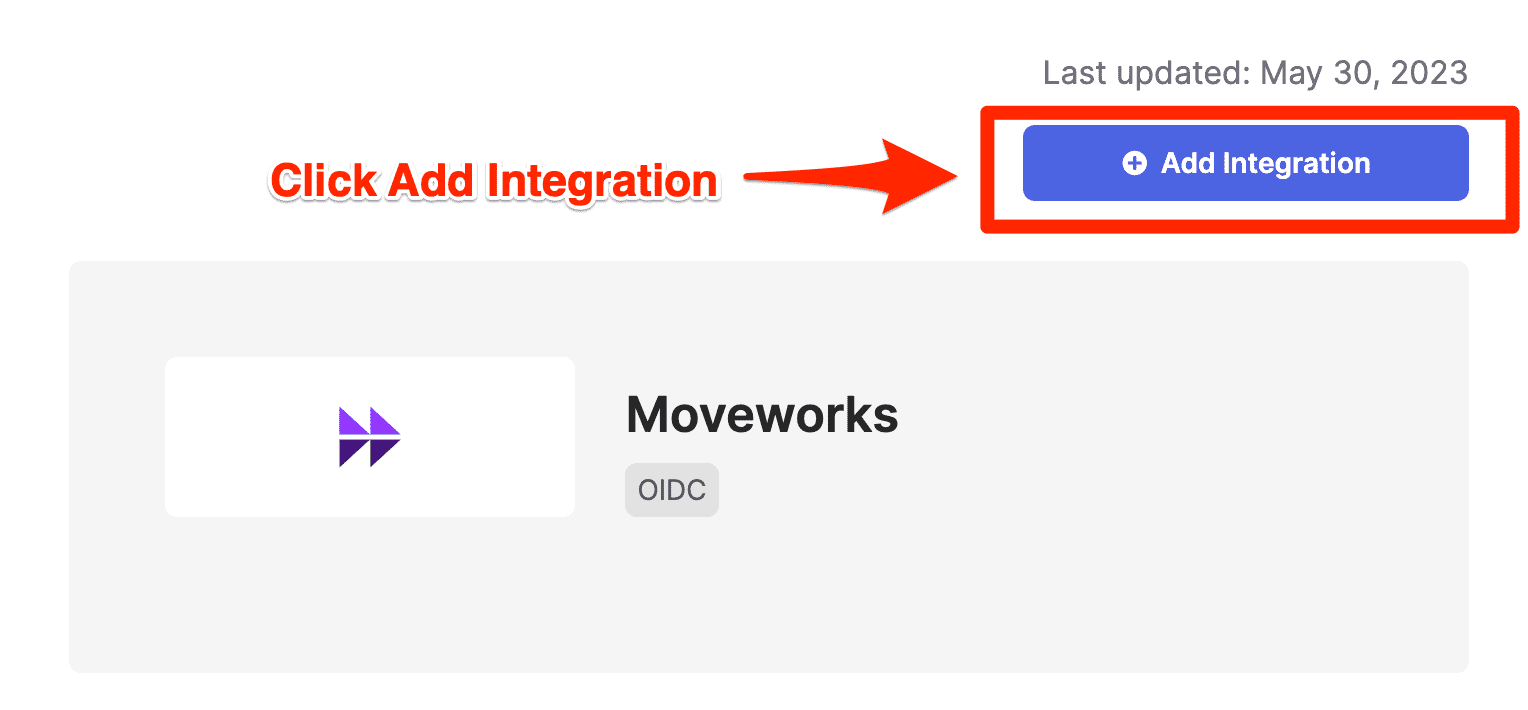
  5. Click Add integration.

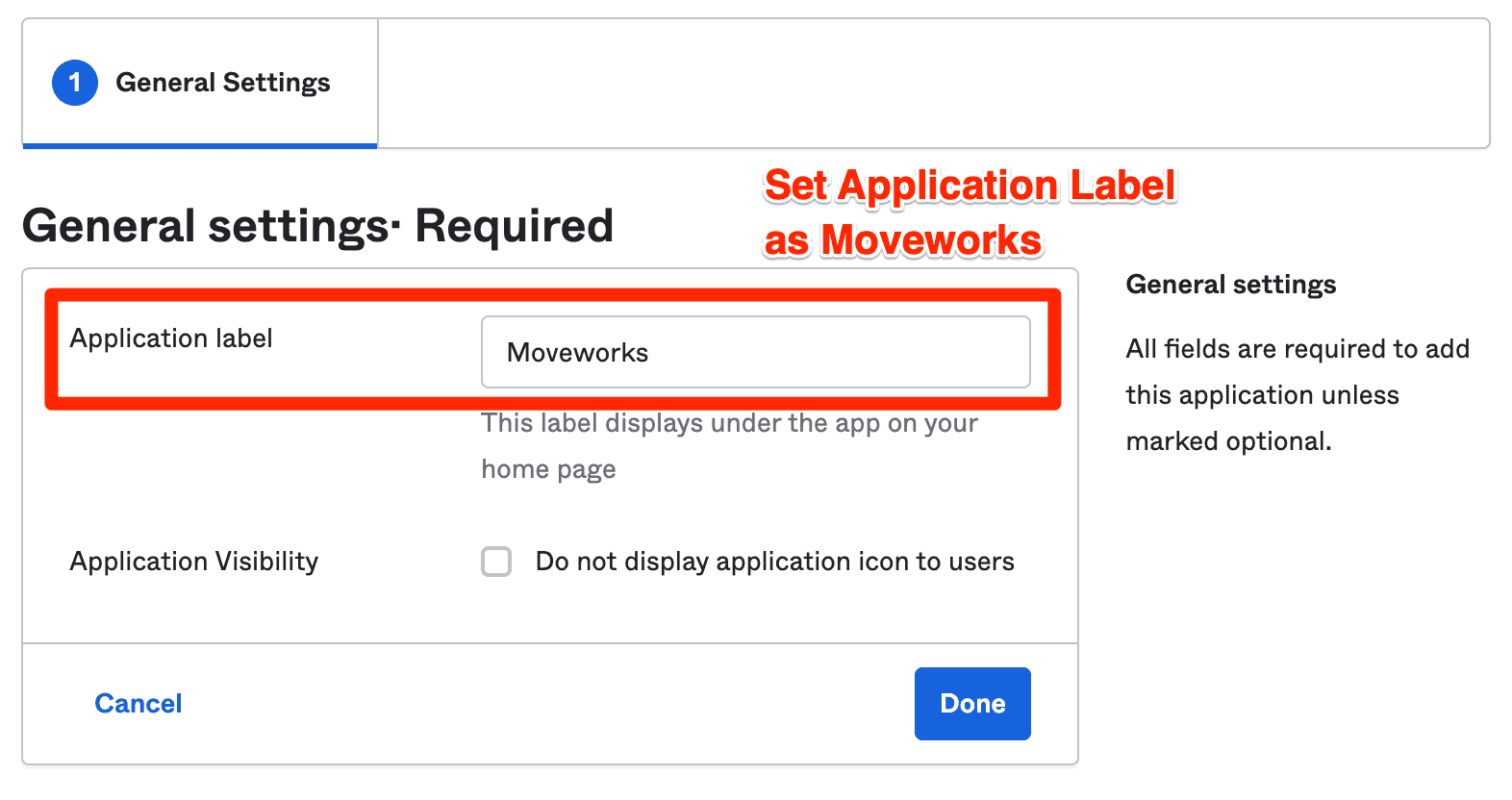
  6. Set the Application Label as Moveworks and click Done. Note: Make sure you get your Customer ID from your Customer Success Team before this next step.
Configure Moveworks Settings

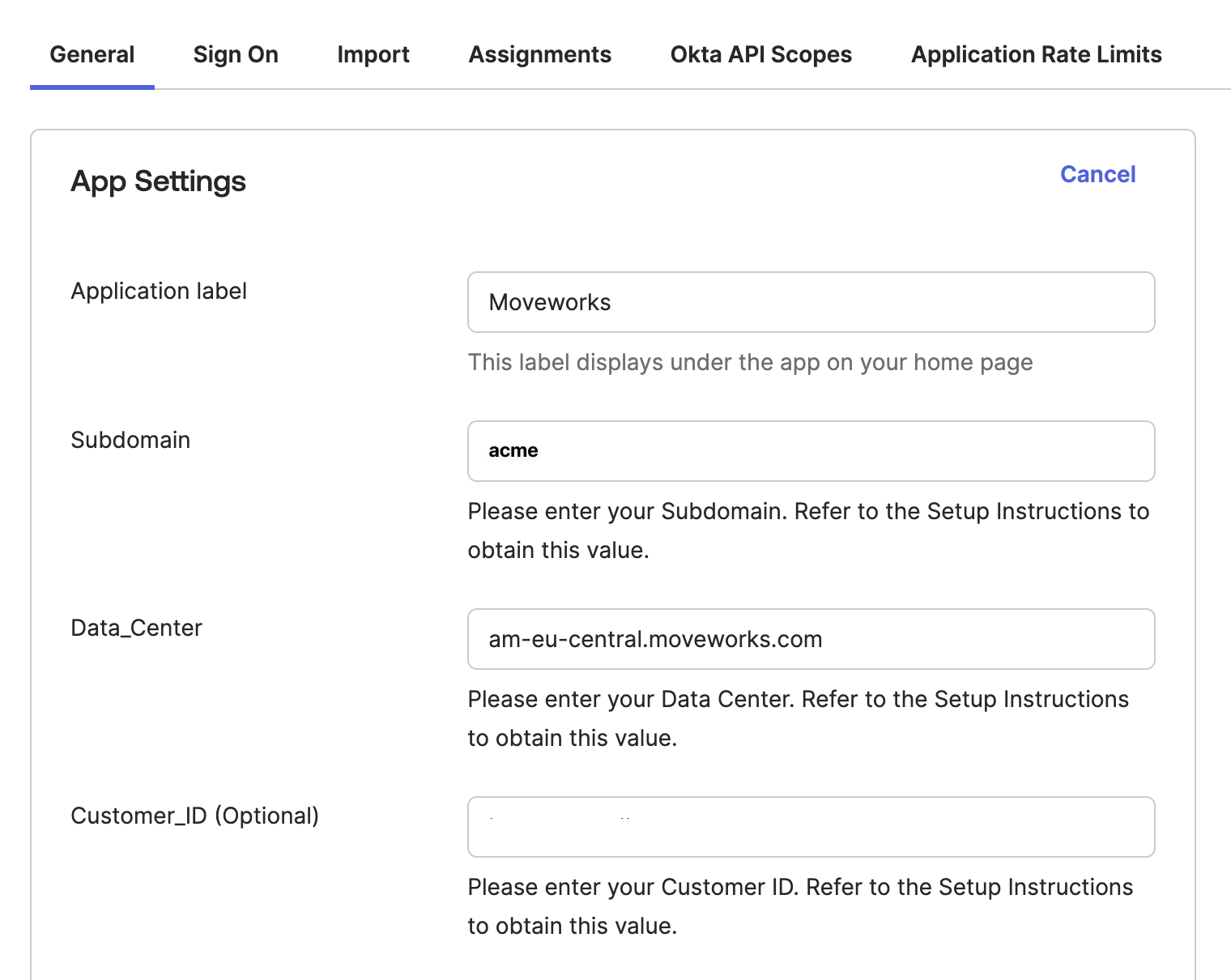
  1. On the General tab., add your subdomain, data_center_domain, and optionally your customer_id

    📘 Tip

    You can leave data_center_domain blank if it is justmoveworks.com

    In this example, my data_center_domain was am-eu-central.moveworks.com and my subdomain was acme.


Add OIDC Configuration in MyMoveworks

  1. Copy the Client ID , Client secret from the Sign On tab
  2. Copy the idp_issuer. This is not in the Okta settings, but it should be based on your Okta instance name (e.g. If you login at https://acme.okta.com, then your idp_issuer is https://acme.okta.com
  3. Navigate to SSO Settings in MyMoveworks
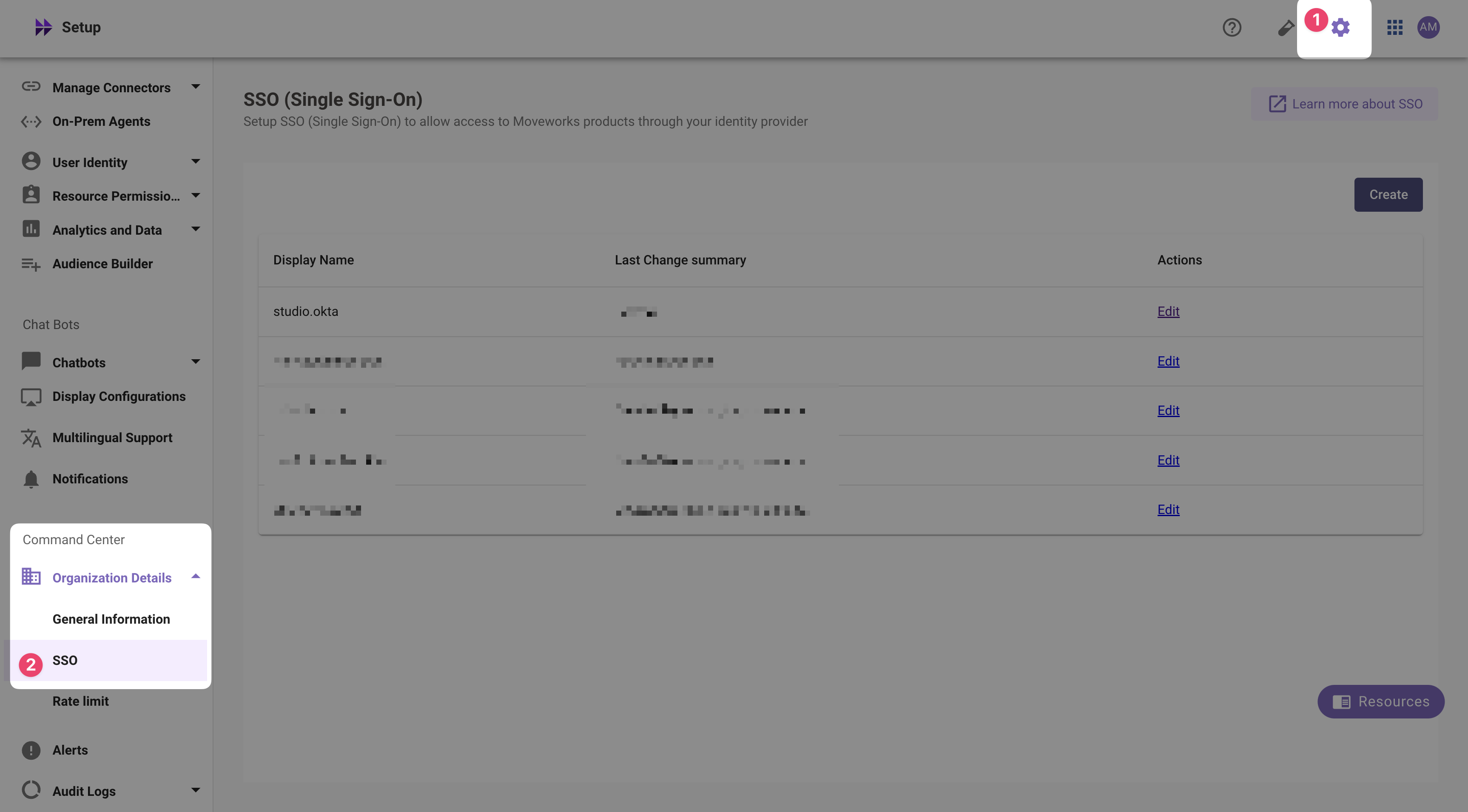
  4. If you already see a studio config, edit it. Otherwise, choose Create.
  5. Add your configuration using the values you’ve noted above
    • Moveworks Product: studio
    • Select Connector: okta or moveworks
    • Authentication Protocol: OIDC
    • IDP Redirect URL: https://{{subdomain}}.{{data_center_domain}}/login/sso/oidc
      • e.g. https://acme.am-eu-central.moveworks.com/login/sso/oidc
    • IDP Issuer: idp_issuer
      • e.g. https://acme.okta.com
    • IDP Client Id: idp_client_id (from Step 1)
    • IDP Client Secret: idp_client_secret (from Step 1)
  6. Click Submit.
  7. Wait a few minutes, then attempt to log into your instance at https://{{subdomain}}.{{data_center_domain}}