
Moveworks Setup Homepage
About
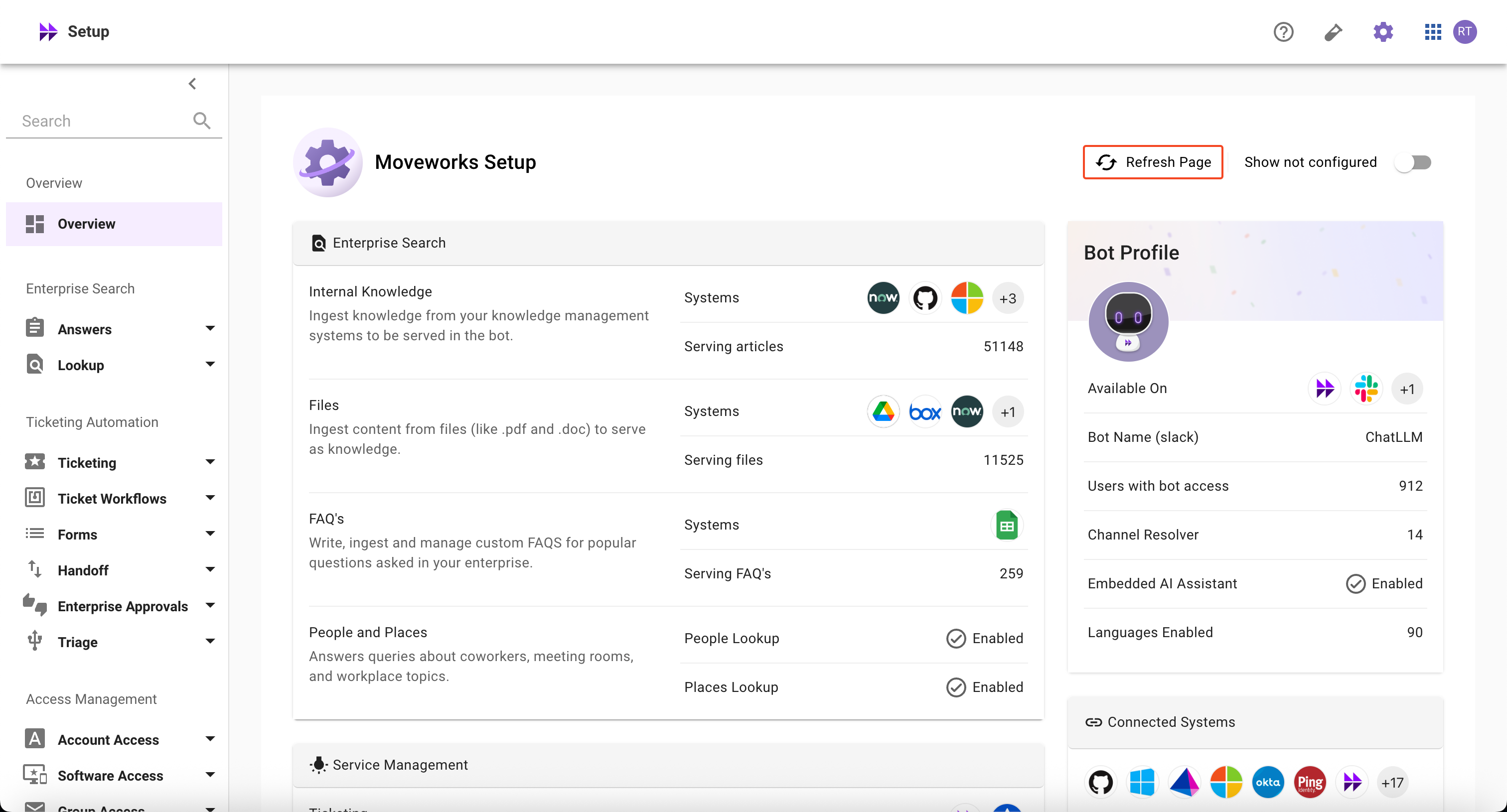
The Moveworks Setup Homepage provides a comprehensive overview of all available AI Assistant capabilities in Moveworks Setup in one centralized view. It offers visibility into which capabilities are configured or not configured, their current status, and helps you understand your entire Moveworks Setup configuration at a glance.
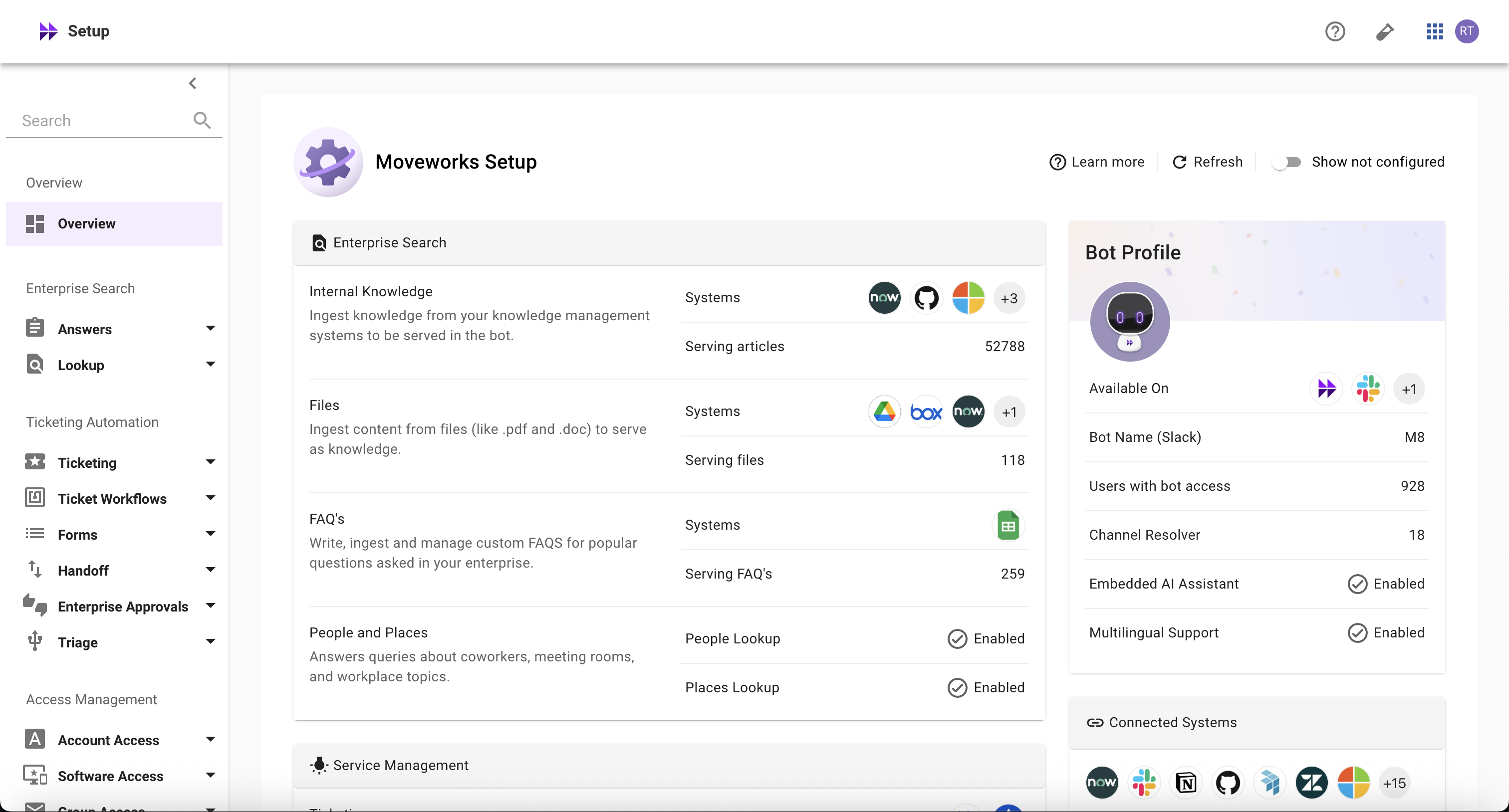
How is it helpful?
Here’s how it helps you manage your AI Assistant capabilities more effectively and get the most value from them:
- The Homepage allows you to quickly understand which AI Assistant capabilities are configured
- It keeps you informed and helps you stay on top of things that matter, with everything in one place:
- Know details about your AI Assistant
- Monitor core skills including Knowledge, Ticketing, Provisioning, and others
- See which connectors are configured
- View recent system alerts that need your attention
- It empowers you to understand the latest overall configuration status and utilization of Moveworks AI Assistant capabilities without having to contact Moveworks teams
- It helps you quickly navigate to the right configuration areas to take prompt actions
- If you are new to Moveworks, the Getting Started guide walks you through configuring your organization step by step, from setup to launch
Getting Started Guide
The Setup Homepage includes a step-by-step Getting Started guide that walks you through configuring Moveworks from initial setup to launch.
Getting Started banner

If your organization is still onboarding and has not yet gone live, a “Getting started?” banner appears at the top of the Setup Homepage.
Select View setup guide to open the guide, or dismiss the banner if you no longer need it.
Setup guide

The guide opens as an overlay on the Setup Homepage and organizes setup into five sequential sections:
- Access, Identity & Connectors: Configure SSO, add system connectors, configure user identity, and set roles and permissions
- Platform & Moveworks Assistant Configuration: Set up chat surfaces, the embedded assistant, multilingual support, people and places lookup, and plugin controls
- Content Configuration: Configure Max Capacity to connect your content systems for search
- Service Management: Set up ticketing, forms, approvals, and live-agent handoff
- Rollout & Launch: Turn on the Assistant and announce it to your employees
Each step shows a short description, an estimated time to complete, a Start button that takes you directly to the relevant configuration page, and a link to its documentation.
Opening the guide anytime
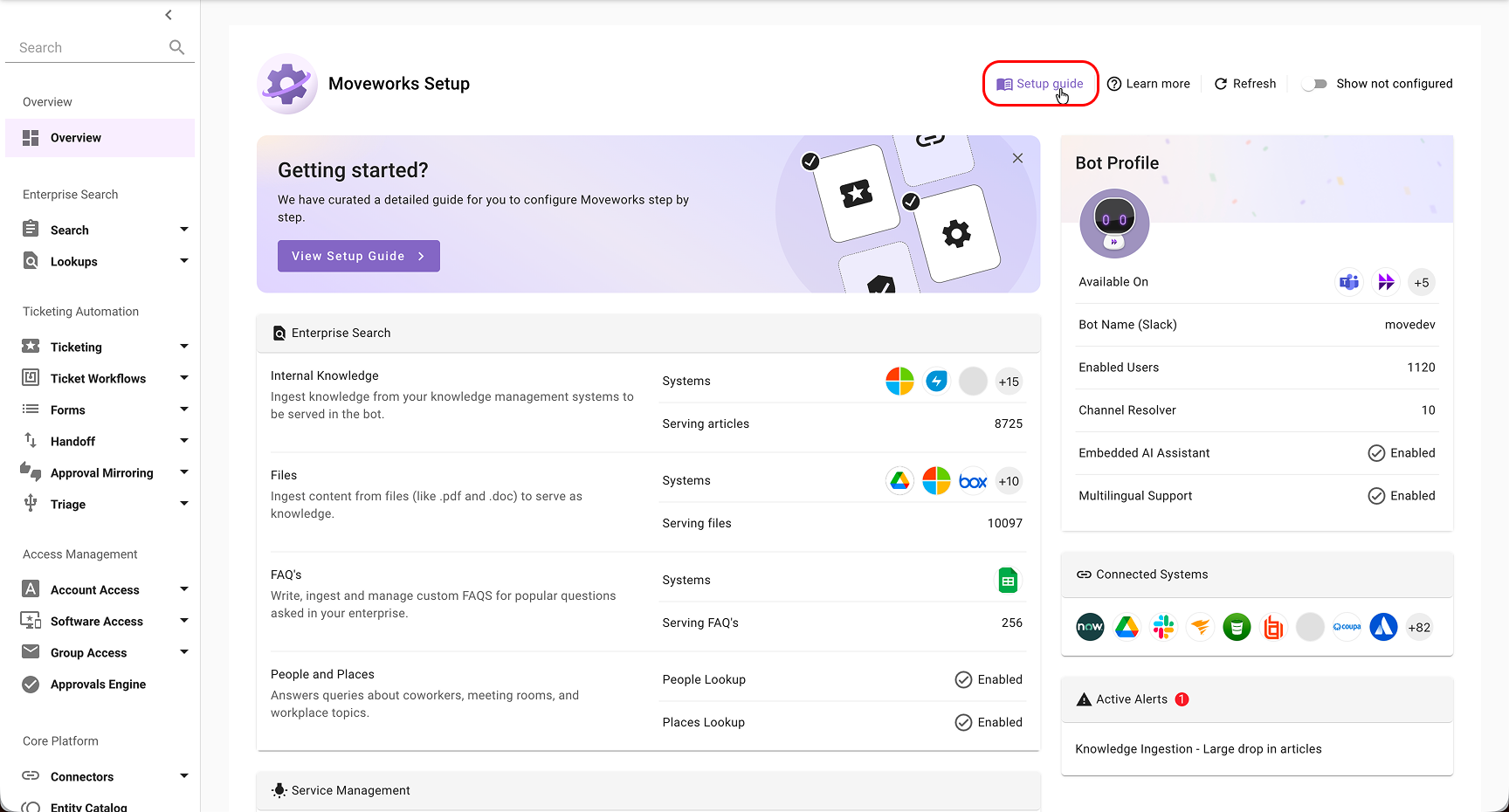
The guide is always available to every organization from the Setup guide link in the top-right section of the Setup Homepage, next to Learn More. You can also share a direct link that opens the guide on load by adding ?setupGuide=true to the Setup Homepage URL.
Understanding Homepage Data Points
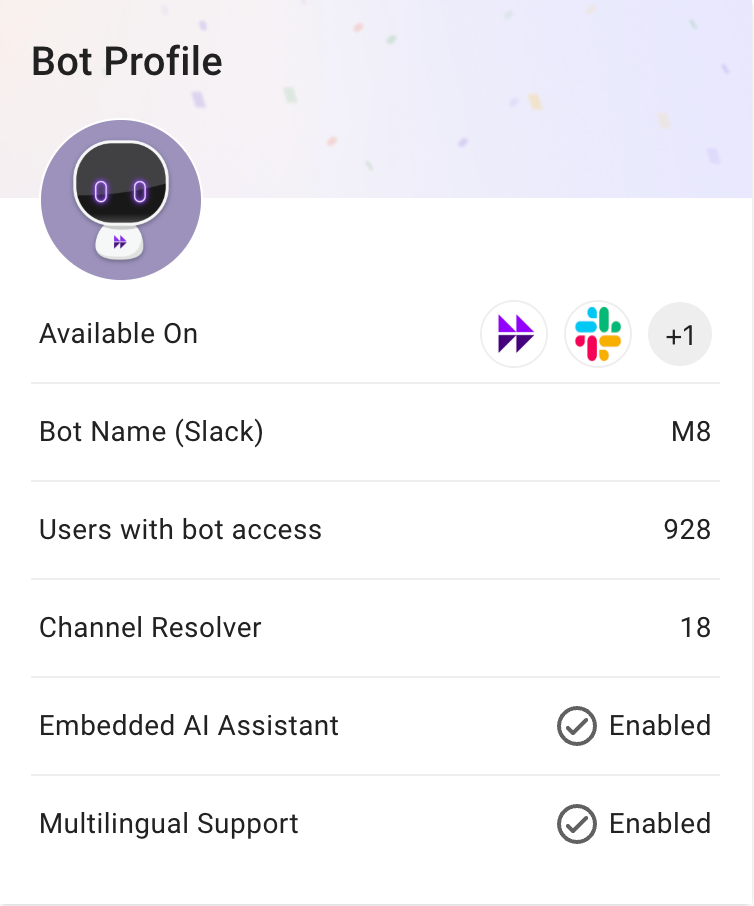
Bot Profile Section
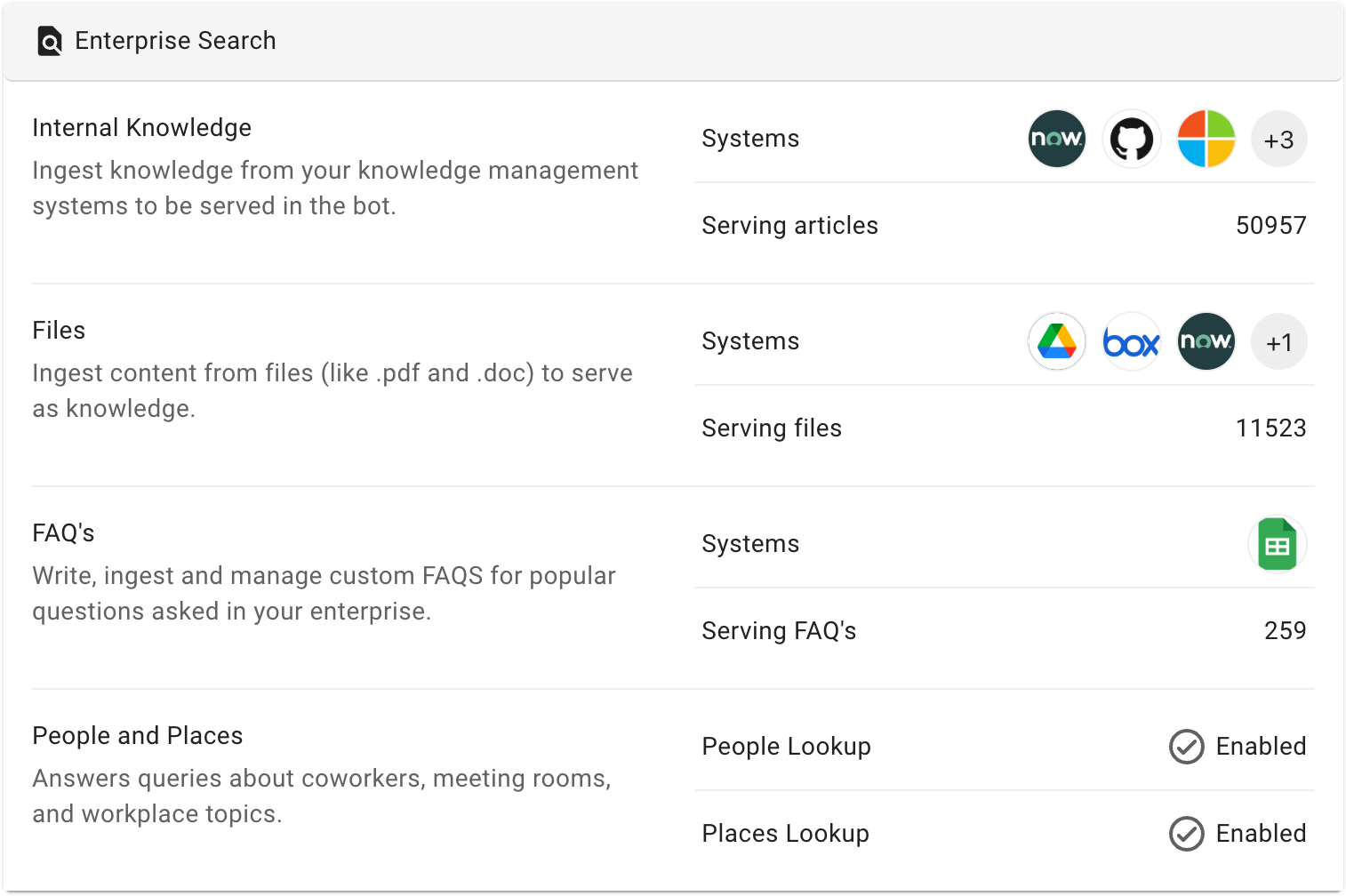
Enterprise Search Section
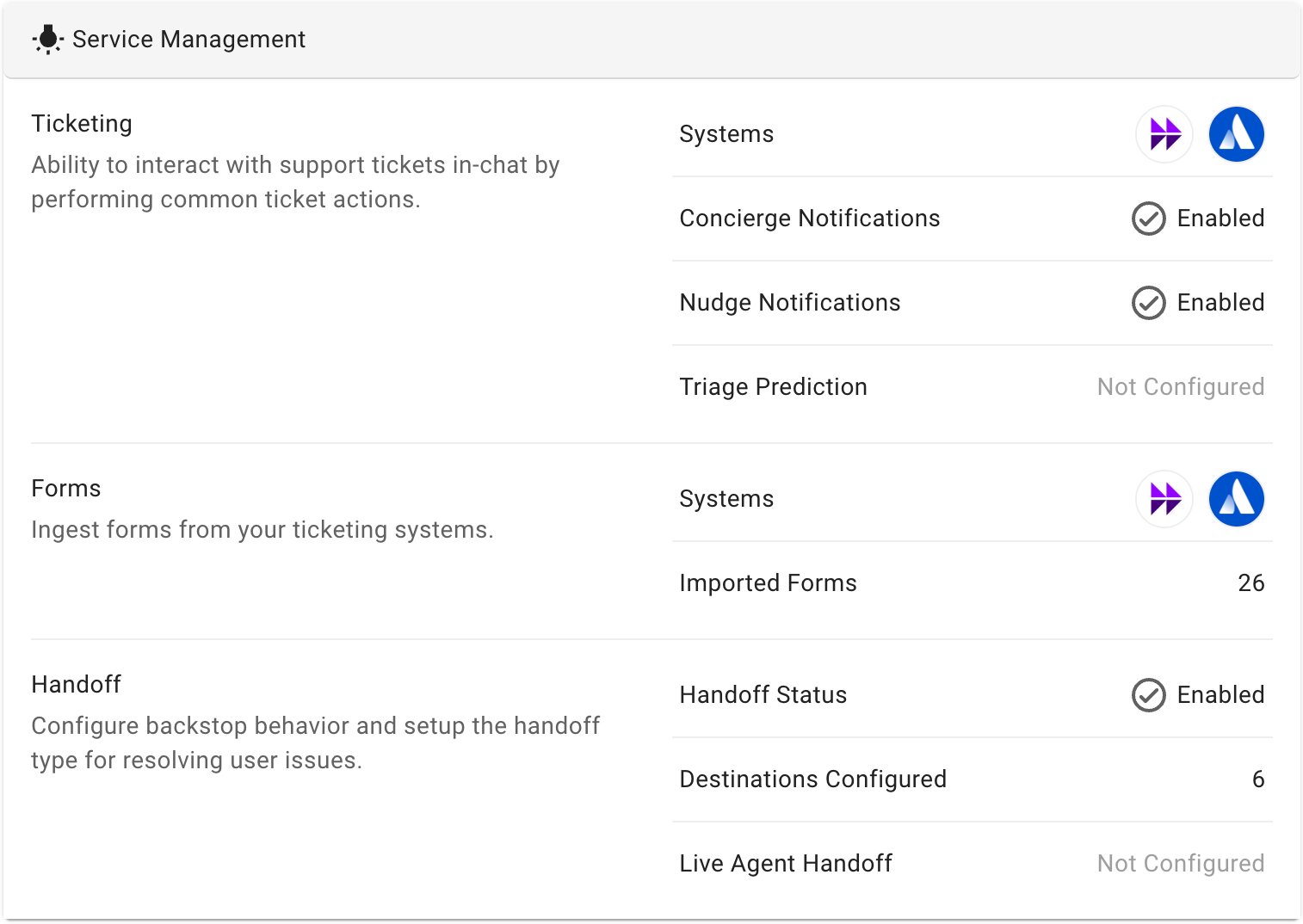
Service Management Section
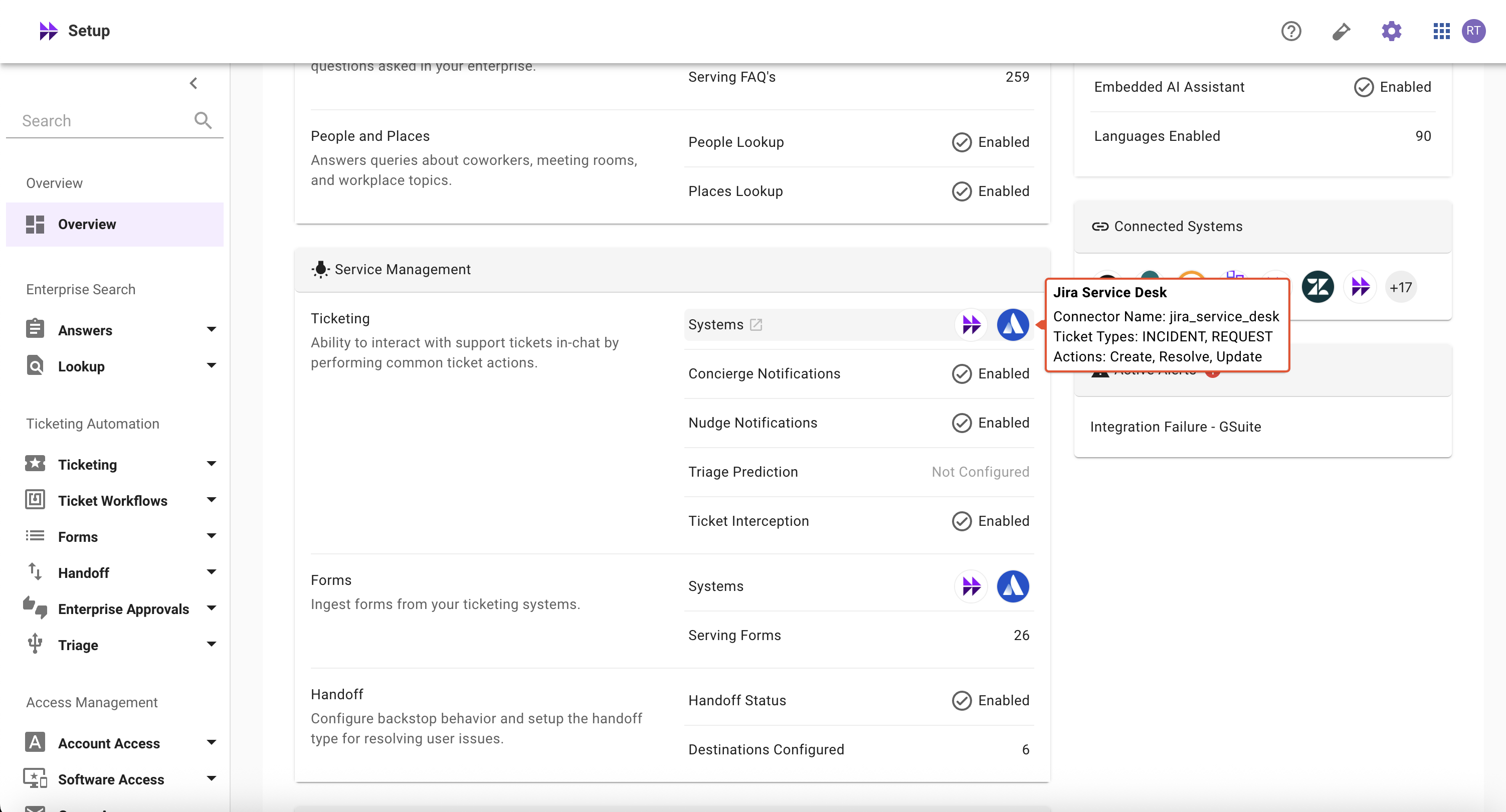
👉🏻 Note
When you hover over a system in the Ticketing Section’s > Systems, it displays all the ticket types and actions configured for the respective system.
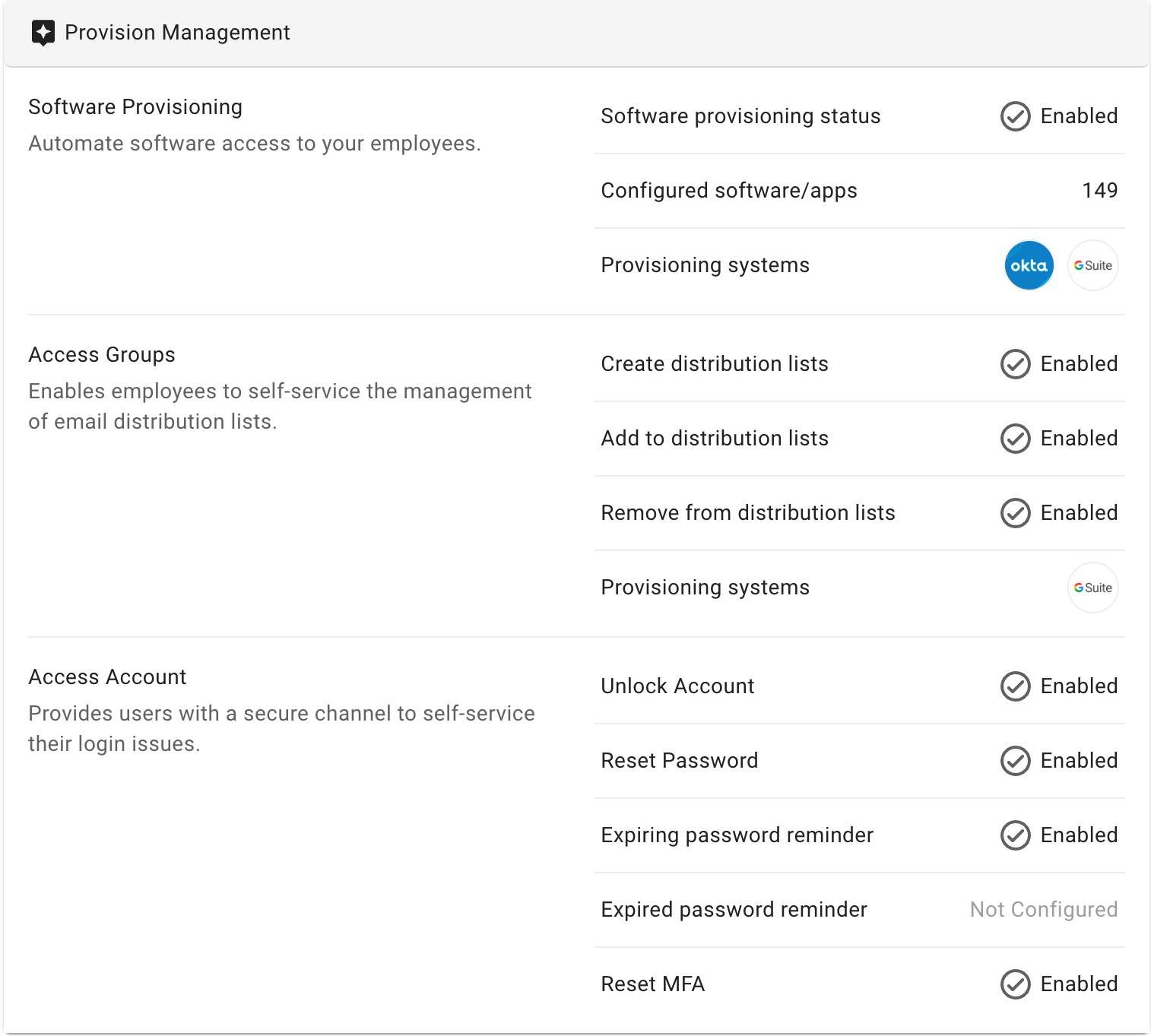
Provision Management Section
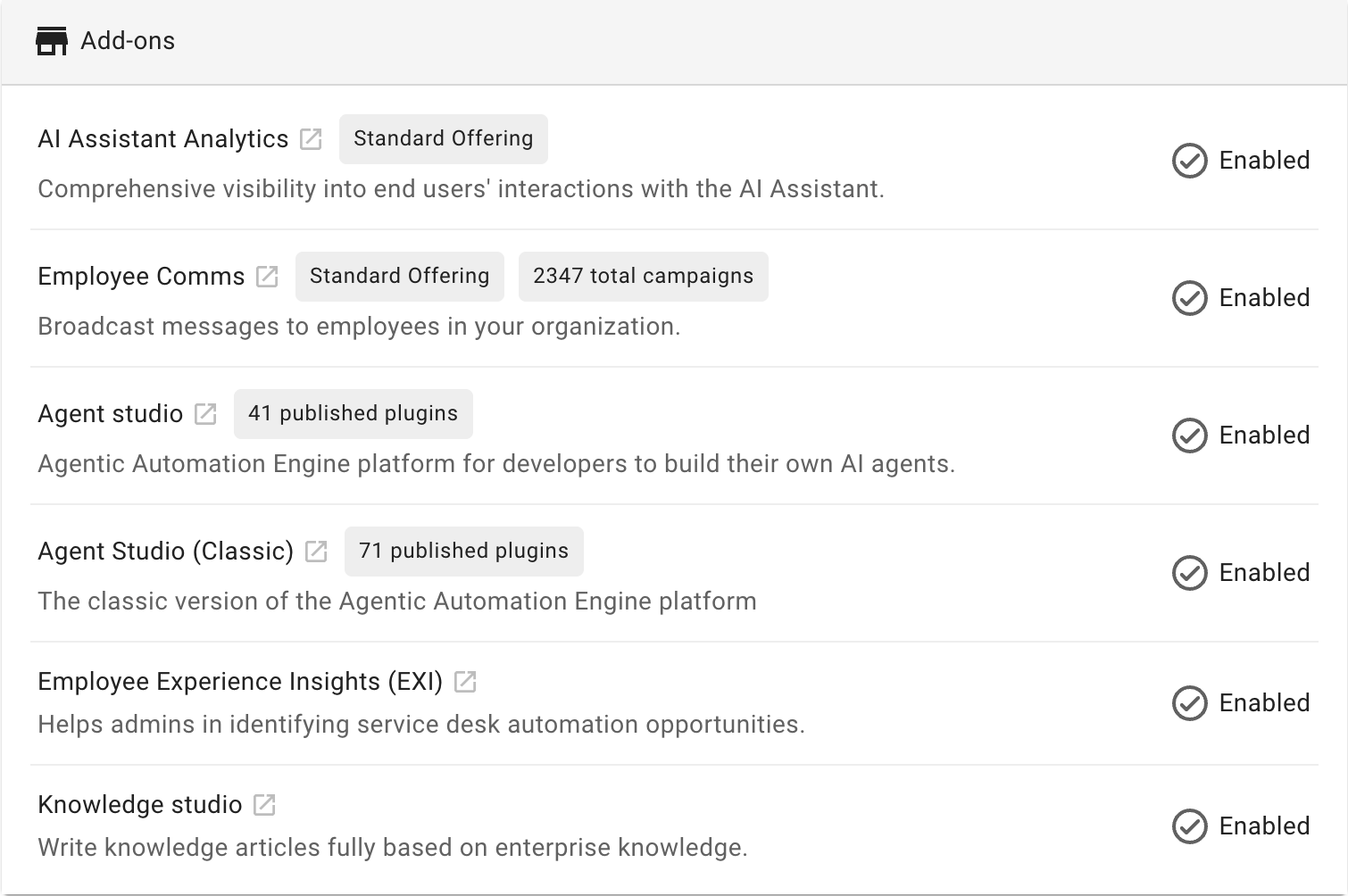
Add-Ons Section
Connected Systems Section
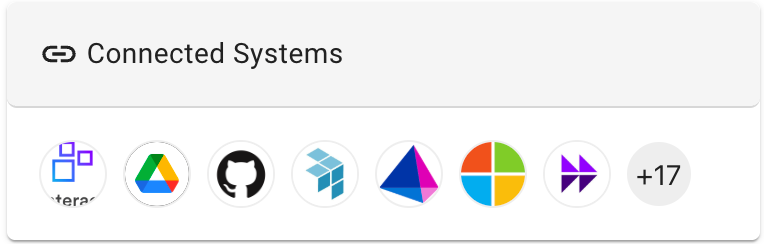
- Definition: The total number of built-in connectors configured in your org
- Derived from: Moveworks Setup > Core Platform > Connectors > Built-in Connectors
Active Alerts Section
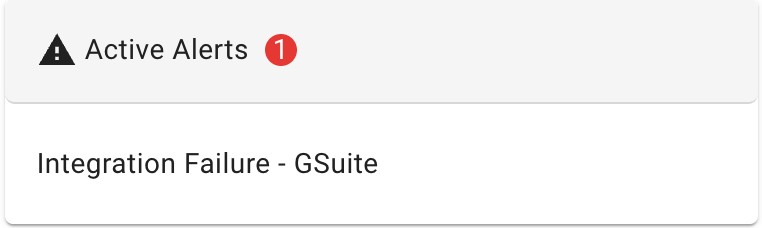
- Definition: Recently triggered system alerts with their names and total count
- Derived from: Moveworks Setup > Organization Details > Alerts > Active Alerts Page
FAQs
- How can I quickly learn about configurations in detail?
- Hover over the item and click the redirect button to navigate to the configuration details
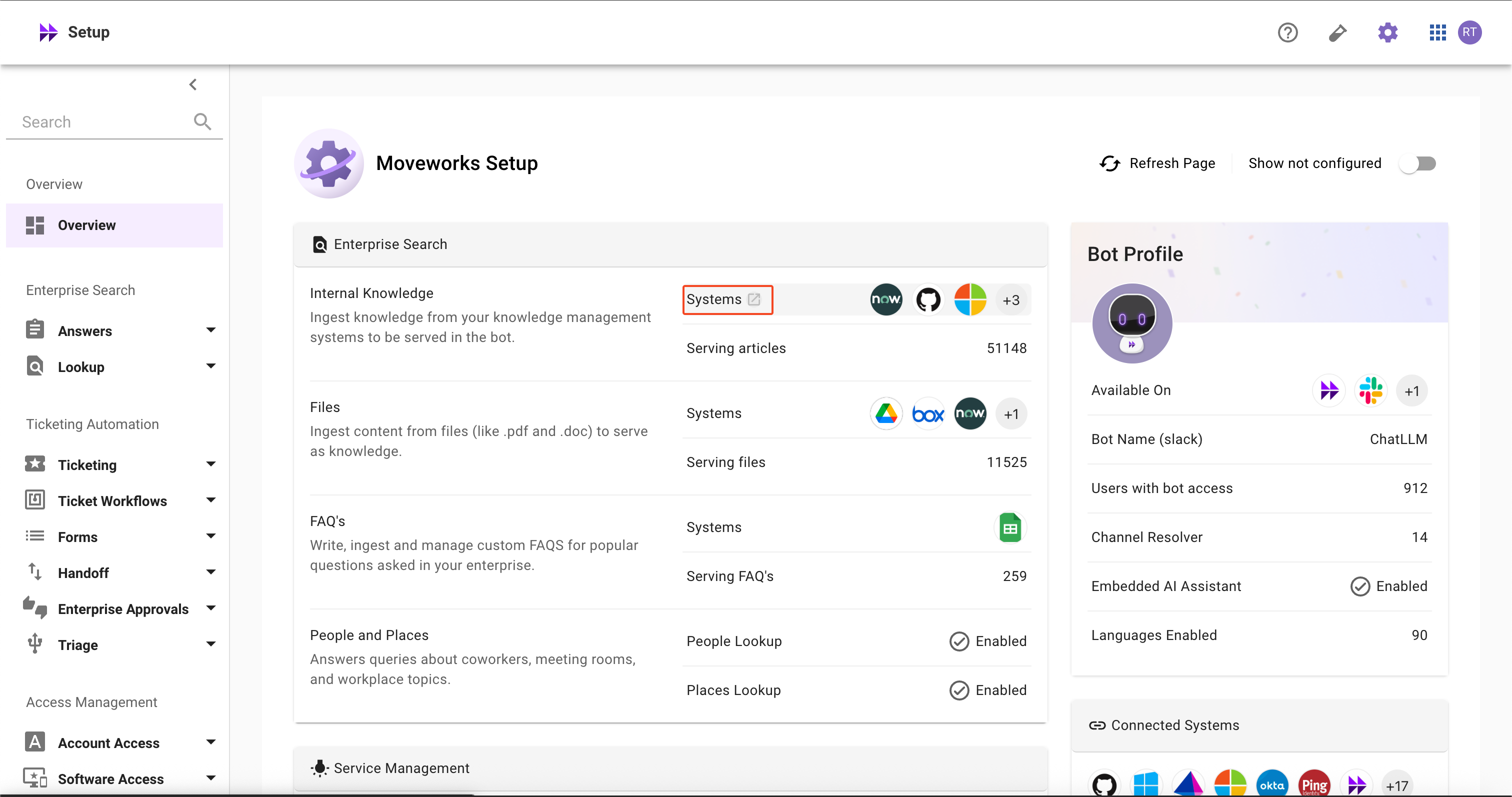
- Hover over the item and click the redirect button to navigate to the configuration details
- How can I view skills that I haven’t configured yet?
- Use the ‘Show Not Configured’ toggle button in the top-right section to filter and display skills that are not yet configured
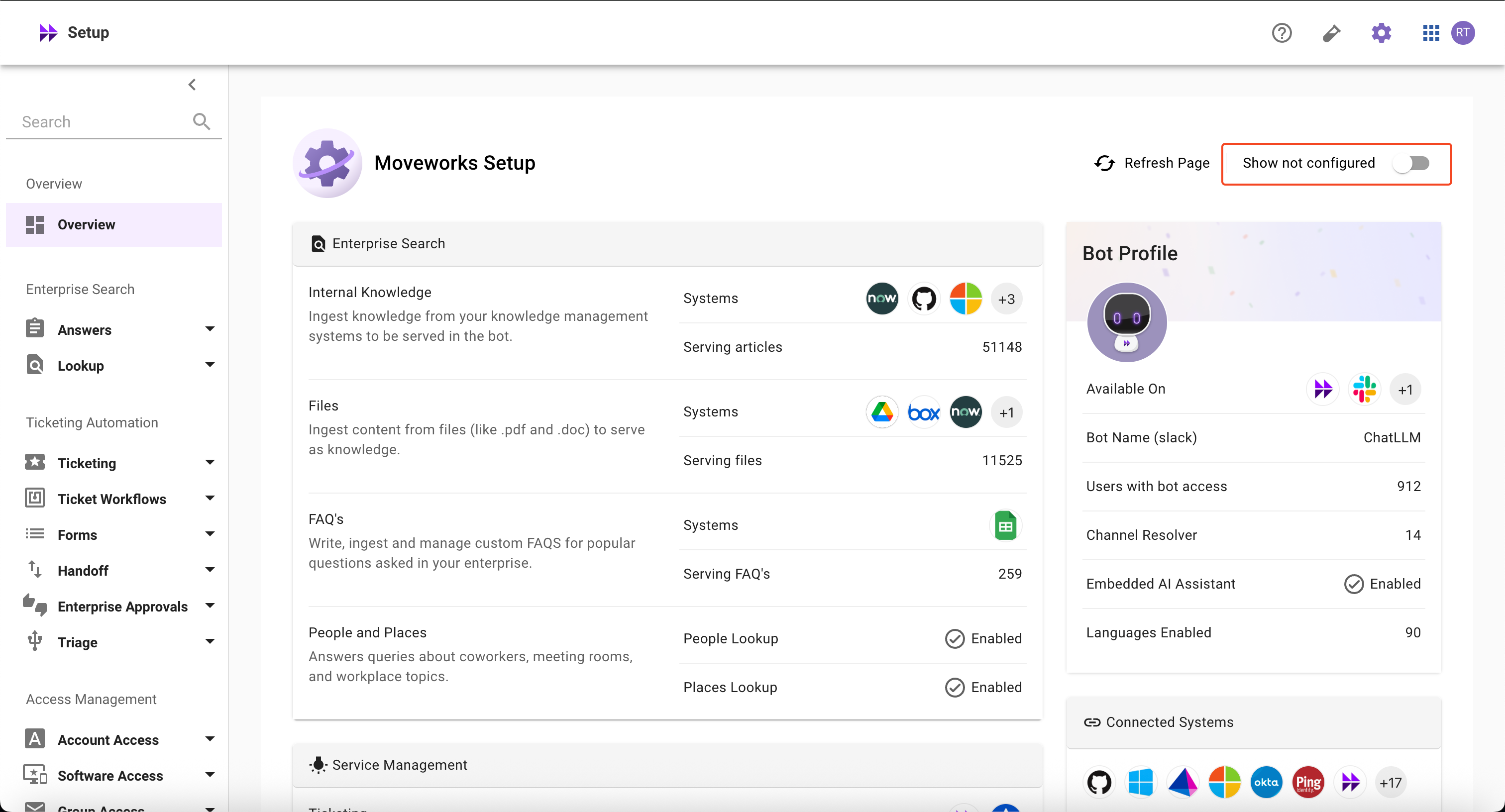
- Use the ‘Show Not Configured’ toggle button in the top-right section to filter and display skills that are not yet configured
- Why aren’t my skills working even though some configurations are enabled?
- The homepage only shows whether a skill is configured, not the operational status or health of the skills
- How can I enable skills that are marked as not configured?
- The homepage displays all AI Assistant capabilities, whether licensed or not. Please contact the Customer Success team for the next steps in configuring these skills
- How can I enable Add-ons SKUs?
- Please contact the Customer Success (CS) team to have additional SKUs enabled
- I don’t see the ‘Getting started?’ banner anymore. How do I reopen the setup guide?
- The banner appears while your organization is onboarding. The guide itself is always available from the ‘Setup guide’ link in the top-right section of the Setup Homepage, or via a direct link ending in
?setupGuide=true
- The banner appears while your organization is onboarding. The guide itself is always available from the ‘Setup guide’ link in the top-right section of the Setup Homepage, or via a direct link ending in
- How can I refresh and access the latest information?
- Use the ‘Refresh Page’ toggle button in the top-right section to access the latest information
- Use the ‘Refresh Page’ toggle button in the top-right section to access the latest information