
[New] Configure ticketing for Zendesk
[New] Configure ticketing for Zendesk
This guide walks you through configuring Zendesk as a ticketing system in Moveworks using the new ticketing journey.
Once configured, employees can:
- File Zendesk tickets directly from the Moveworks AI Assistant
- View ticket status and updates
- Receive notifications and nudges
- Perform ticket actions such as updates, resolution, and reopen (based on what you enable)
Moveworks integrates with Zendesk by mapping Zendesk tickets into a standard Moveworks ticket model, which allows a consistent end-user experience across different ticketing systems.
Pre-Requisites
Before starting the Zendesk ticketing configuration, ensure the following prerequisites are completed.
These steps are required for the ticketing skill to work correctly end-to-end.
- A Zendesk Connector must be created in Moveworks with the required permissions to:
- Create tickets
- Fetch ticket details
- Update ticket status and fields
- User Identity ingestion must be configured so Moveworks can map employees to their Zendesk user IDs.
- Zendesk requires a numeric user ID to be set as the requester when a ticket is created.
- Without this, tickets may fail to create or be attributed incorrectly.
- AI Assistant chat configuration must be complete so you can interact with the assistant and test ticketing actions.
- If applicable, configure the Zendesk end-user portal URL. Moveworks uses this URL to deep-link users from chat to their Zendesk tickets.
In the new ticketing journey, service account configuration is auto-derived from the selected connector.
You do not need to manually configure or select a service account.
Ensure all prerequisites are complete before proceeding with the configuration steps below.
Navigate to the new ticketing wizard
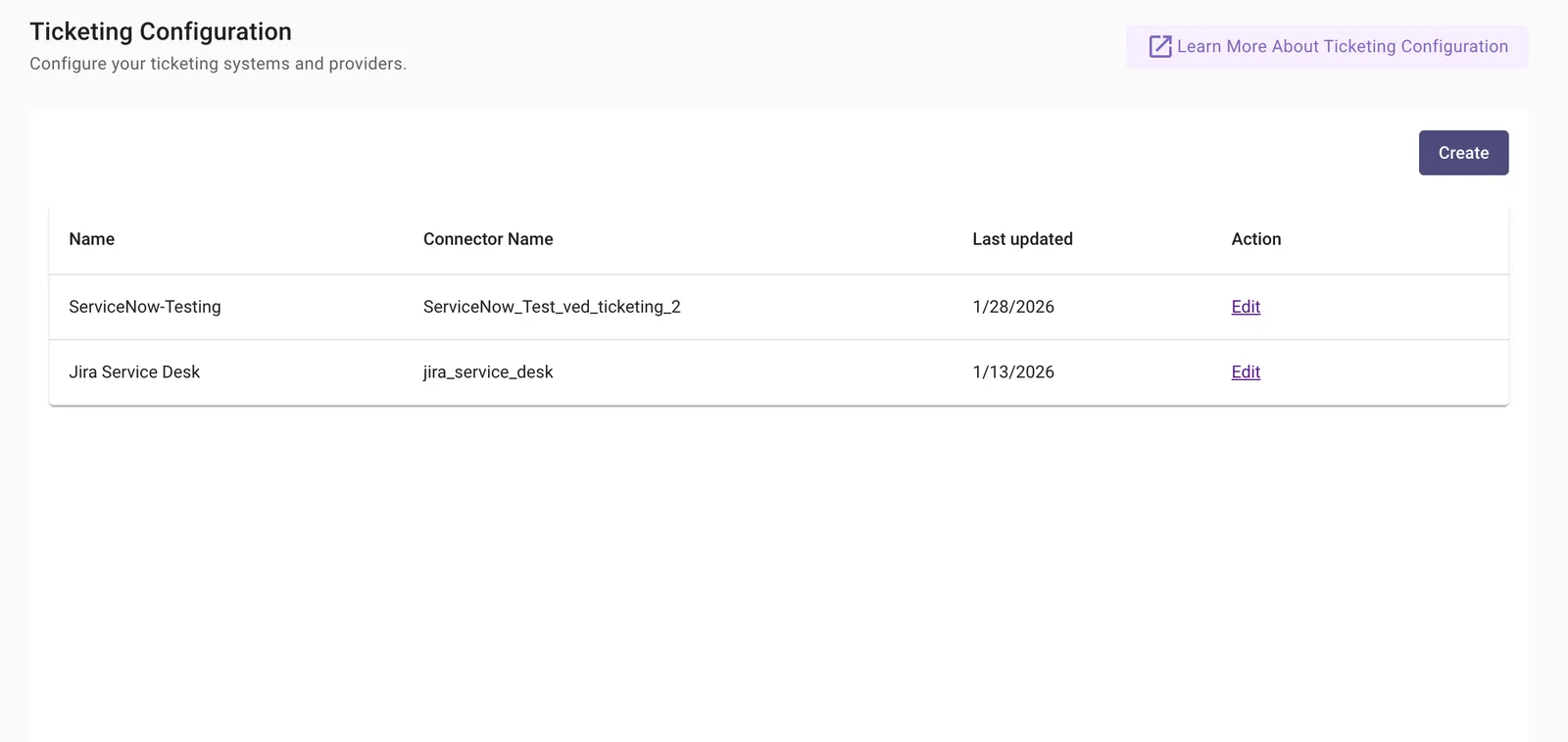
To begin configuration, navigate to:
Ticketing Automation → Ticketing Configuration
This is the central place where you:
- Create new ticketing configurations
- Edit existing configurations
- Enable or disable ticketing capabilities
Creating or editing a configuration
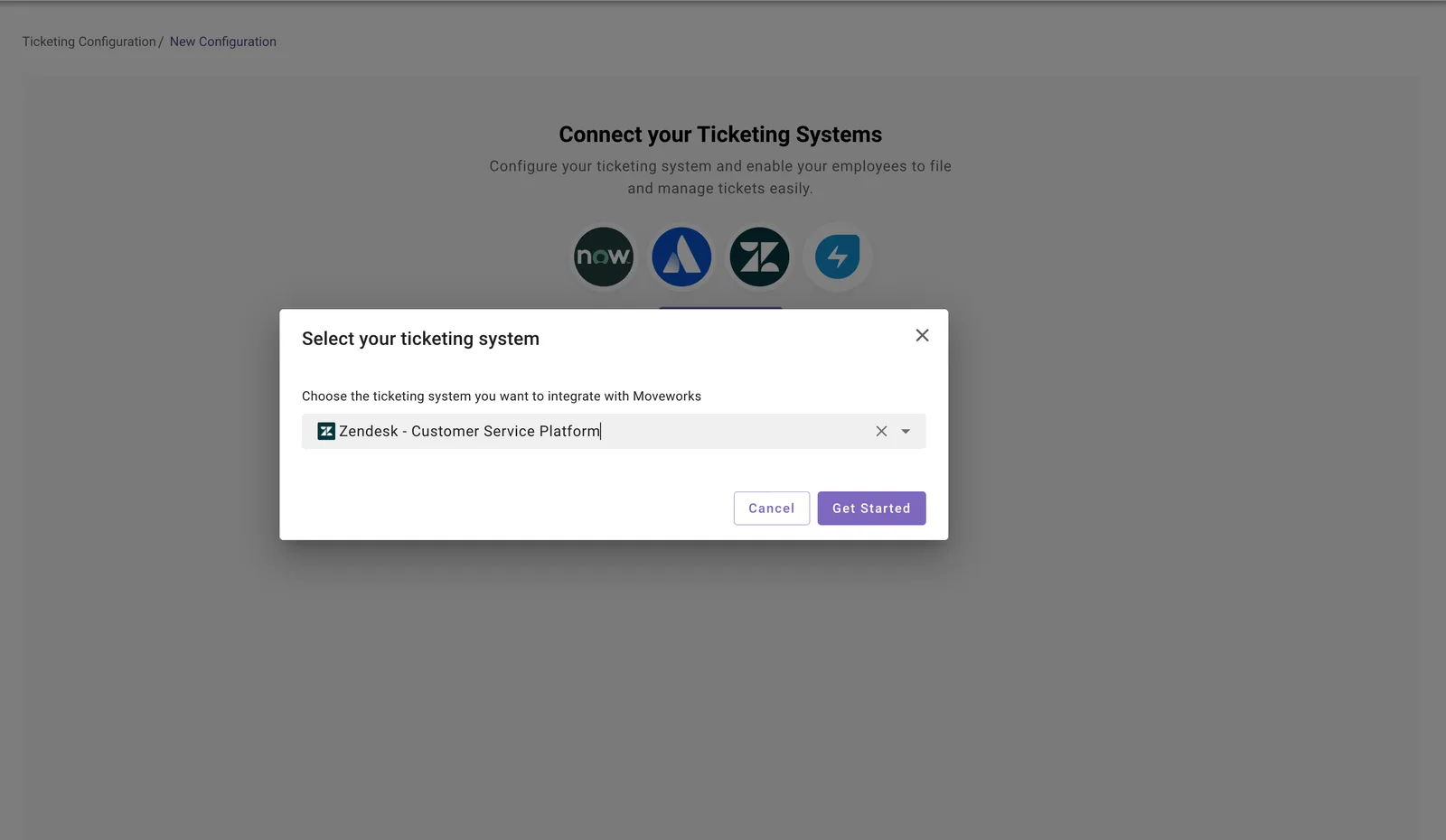
- If this is your first time configuring Zendesk, click Create.
- If Zendesk has already been configured and you want to:
-
Add new ticket destinations
-
Update workflows
-
Change settings
click Edit next to the Zendesk configuration.
-
Configuration Structure
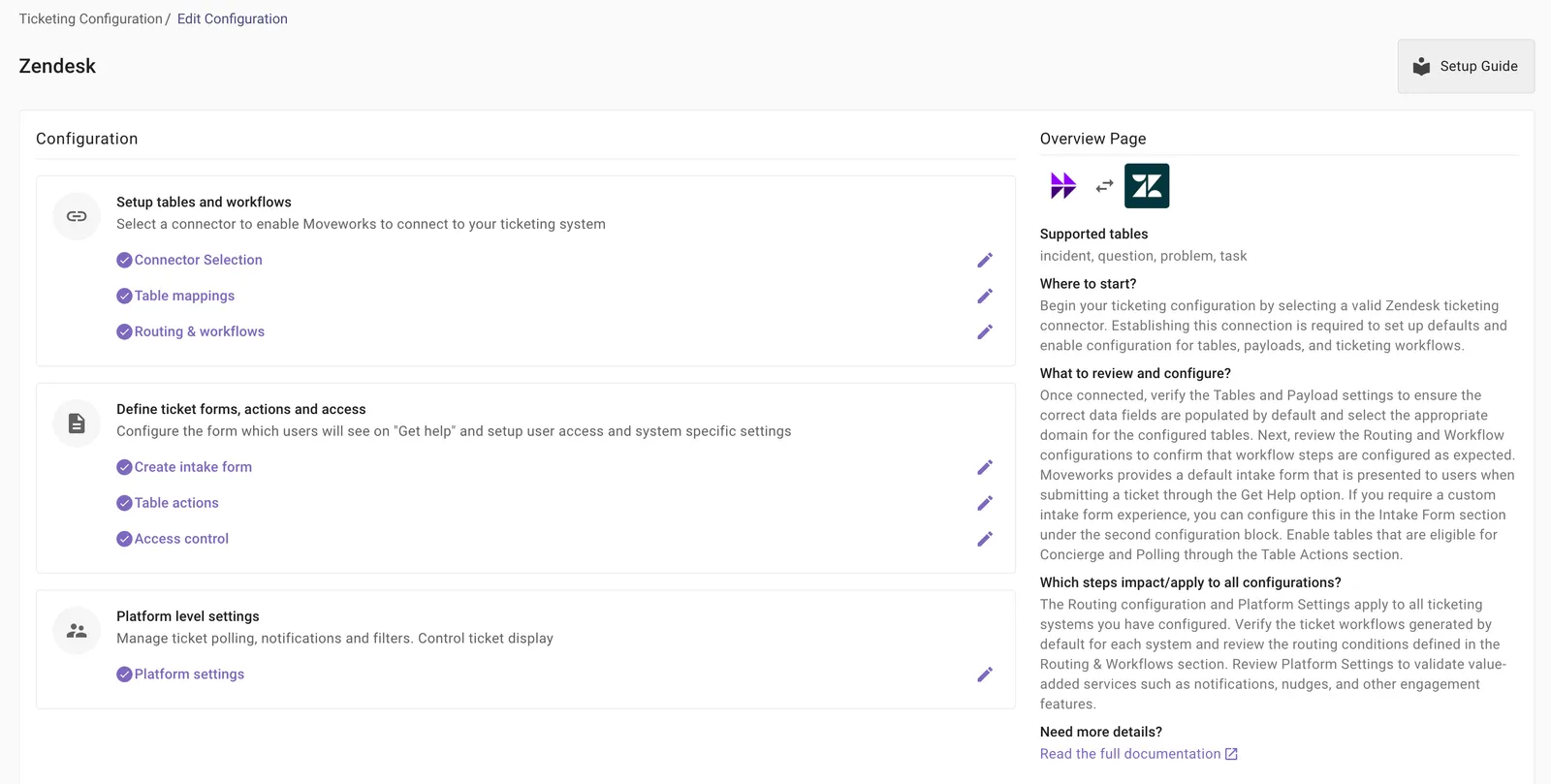
The ticketing configuration is organized into three sections, which should be completed in order.
Understanding this structure will make the rest of the guide easier to follow.
-
Setup tables and workflows
This section focuses on:
- Connecting Moveworks to Zendesk
- Enabling Zendesk ticket types as destinations
- Configuring workflows that control ticket creation and updates
-
Define ticket forms, actions and access
This section focuses on:
- How tickets are filed (default vs intake forms)
- Which ticket actions are enabled
- Who can access ticketing through Moveworks
-
Platform settings
This section controls:
- Polling behavior
- Notifications and nudges
- How ticket information is displayed to users
1. Setup connector and defaults
1.1 Select connector and core settings
Start by selecting the Zendesk connector that Moveworks will use to communicate with Zendesk.
Once selected, this connector allows Moveworks to:
- Create Zendesk tickets
- Query ticket status and details
- Perform lifecycle actions such as resolve and reopen
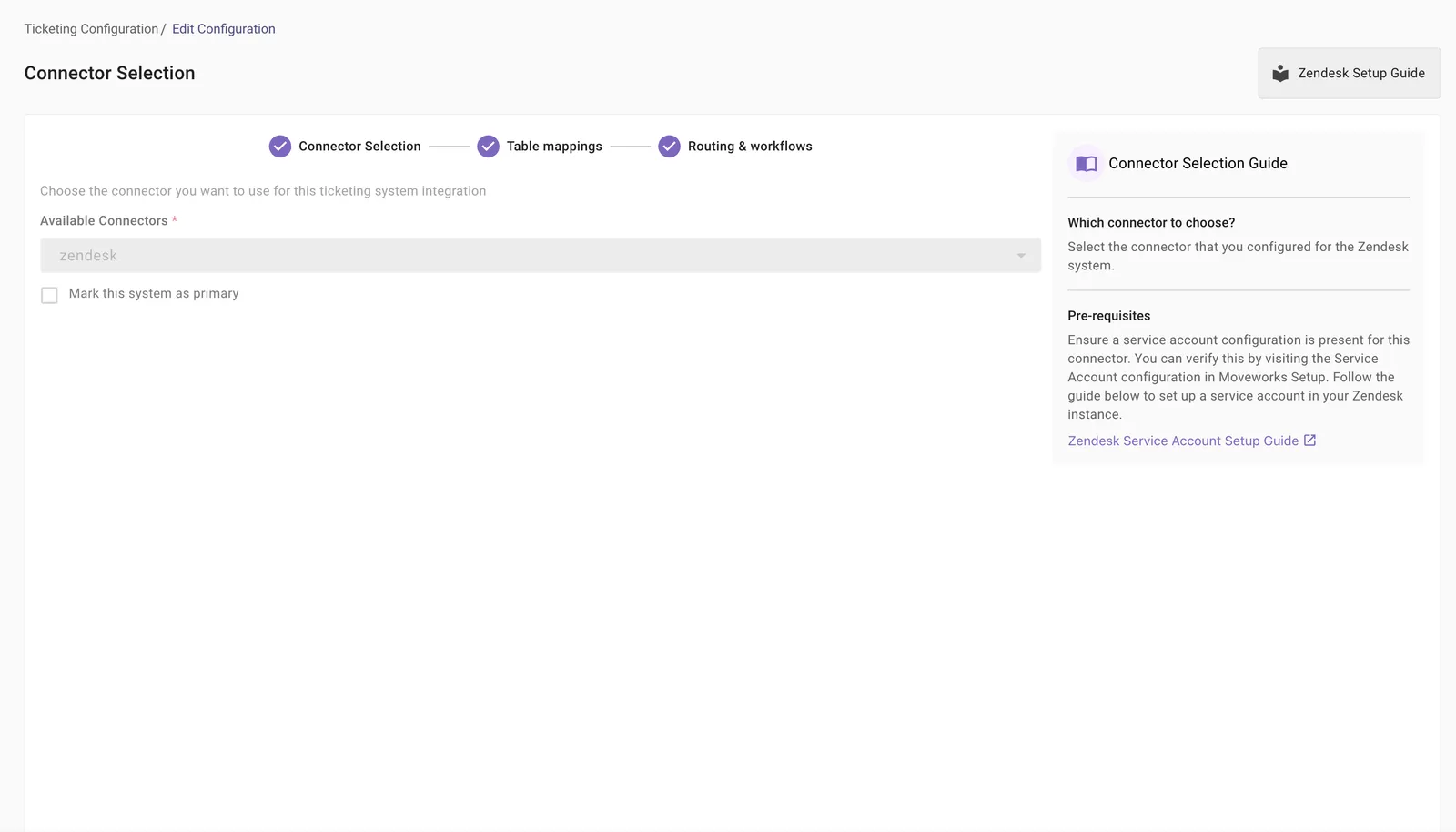
Next, configure the following:
-
Mark this system as primary
Select this option if Zendesk is the primary ticketing system for your organization.
- Moveworks requires one primary ticketing system.
- Default workflows are only auto-created for the primary system.
-
Configuration name
Provide a clear name (for example, Zendesk – IT) to help identify this configuration later.
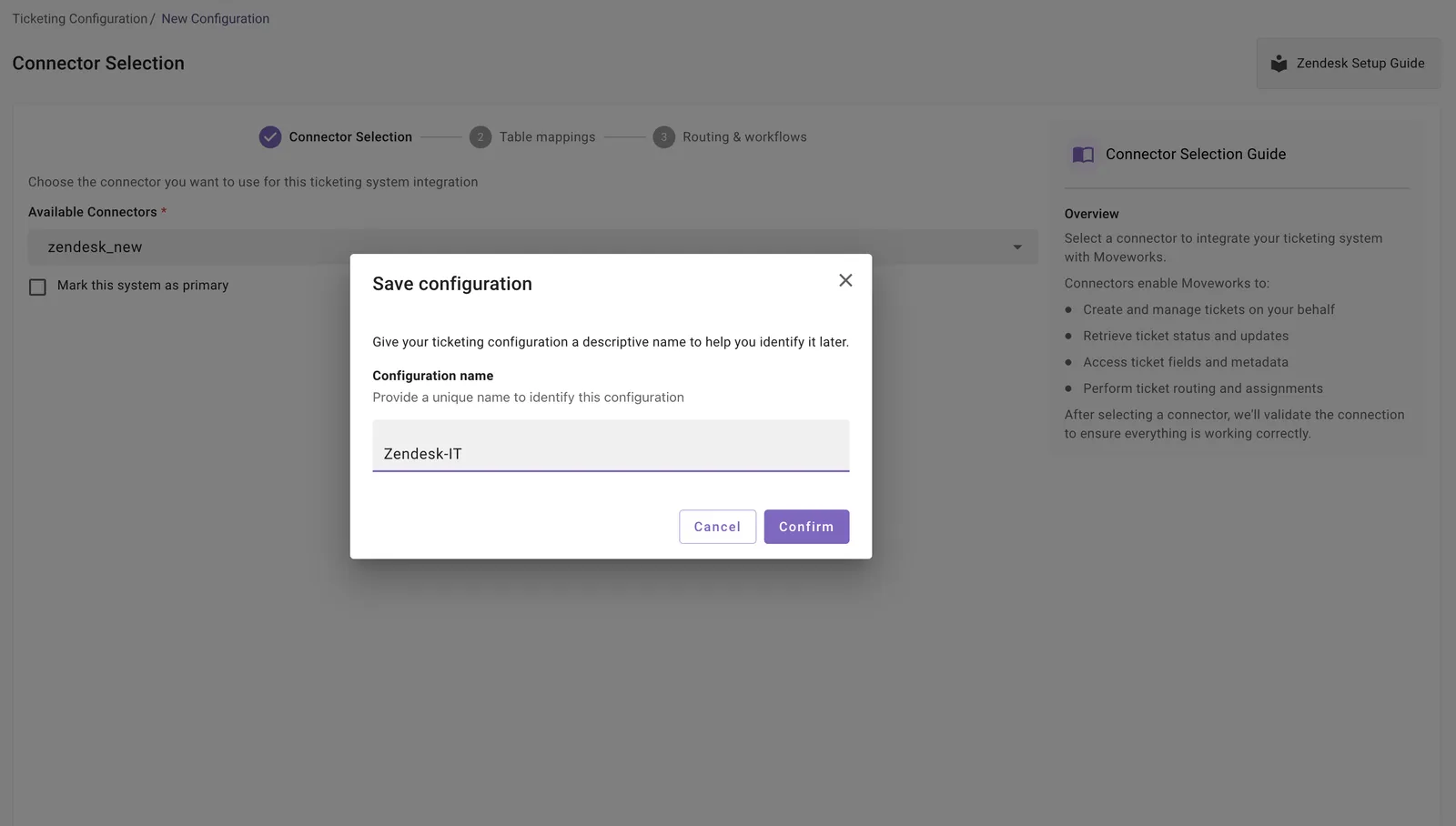
Common mistakes
-
Not marking Zendesk as primary when it is the first ticketing system
The new journey requires a primary ticketing system to be defined.
-
Zendesk users not ingested
Ticket creation depends on Zendesk user IDs being available.
-
Using a connector already associated with another ticketing configuration
Each ticketing configuration must use a unique connector.
1.2 Enabling defaults
After saving the connector selection, you’ll be redirected to the ticketing configuration homepage.
At the top of the page, you’ll see a Setup defaults section.
Click Setup defaults to apply the default Zendesk configurations created by Moveworks.
These defaults include:
- Zendesk ticket destinations
- Default workflows for ticket actions
- Shared routing and intake settings
If Zendesk is configured as:
-
Primary ticketing system
Default workflows will be automatically created.
-
Secondary ticketing system
Routing and intake settings may already exist, since these are shared across systems.
Review the defaults carefully before moving on.
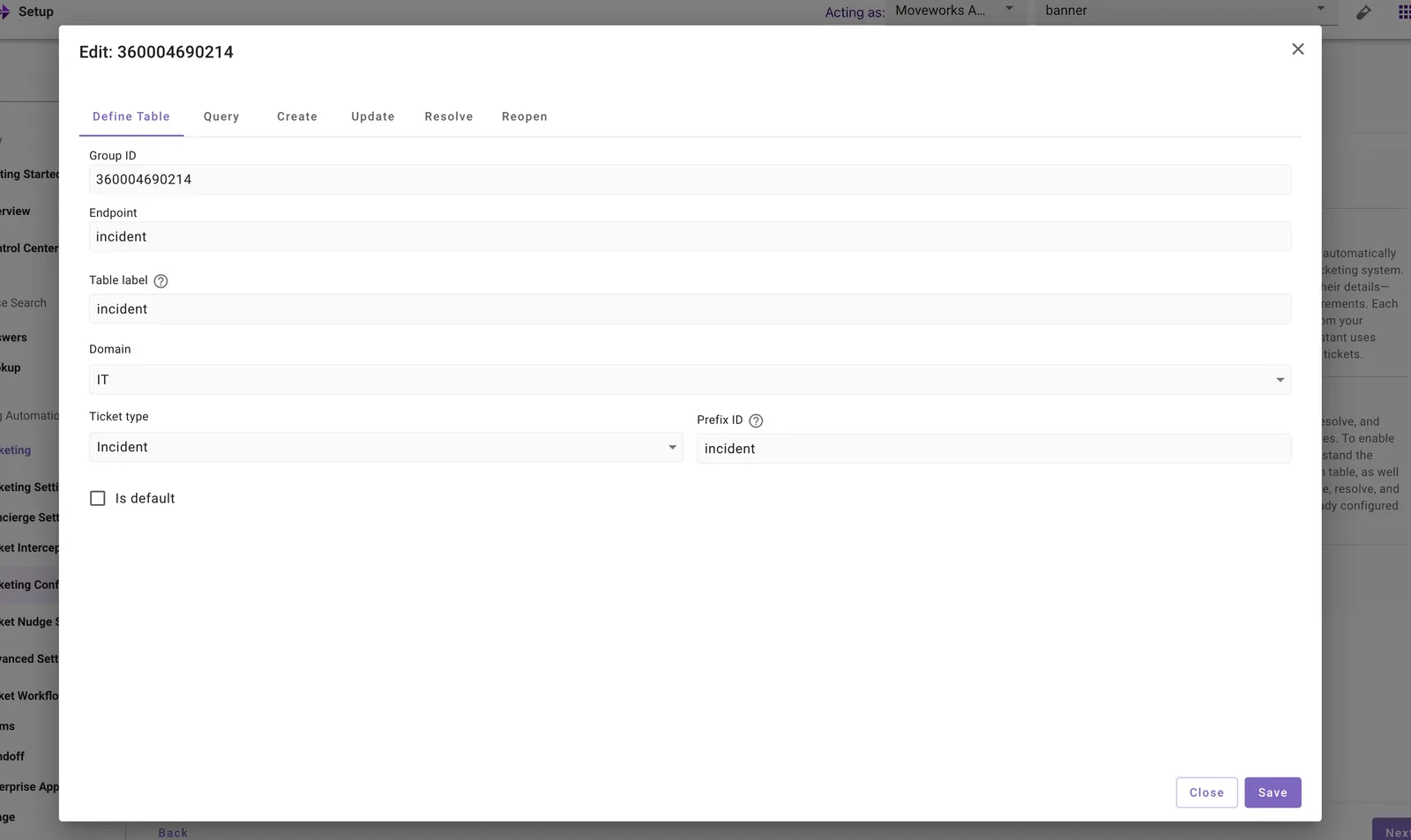
2. Review default created destinations
Zendesk has four native ticket types:
- incident
- question
- task
- problem
Moveworks creates destinations for these ticket types and maps them to internal Moveworks ticket categories.
Recommended default mapping
Each destination includes:
- Ticket state mapping
- Ticket attribute mapping
- Payloads for create, update, resolve, and reopen actions
Review these mappings to ensure they align with how your Zendesk instance is used.
3. Review ticket workflows and routing
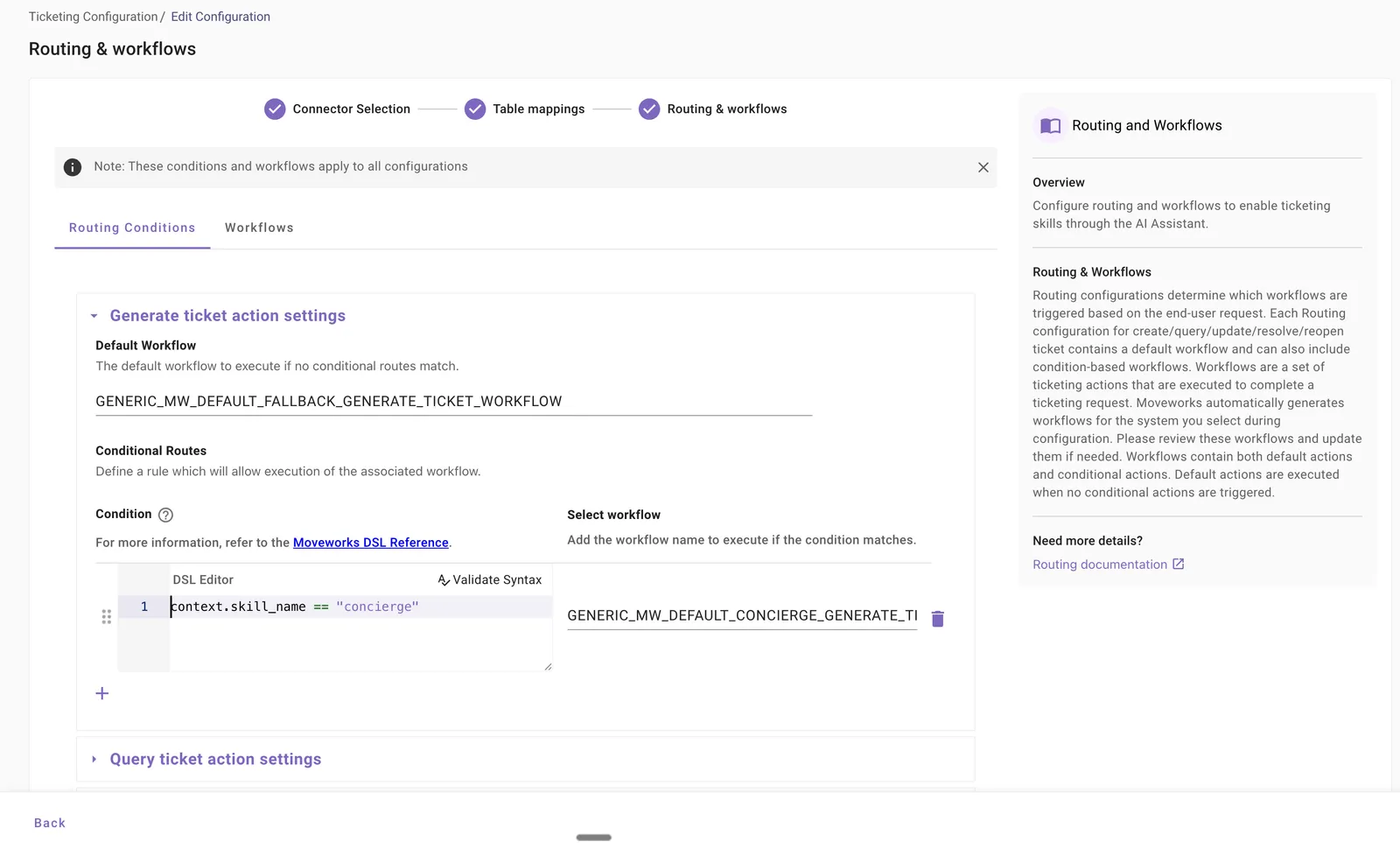
The Routing and Workflows section controls how Moveworks decides:
- When to create a ticket
- Which Zendesk ticket type to create
- How ticket actions are handled
In this section, you’ll see:
- Composite actions (query, generate, update, resolve, reopen)
- Default workflows assigned to each action
- Optional conditional workflows
Default workflows are created only when Zendesk is the primary ticketing system.
3.1 Updating default workflows
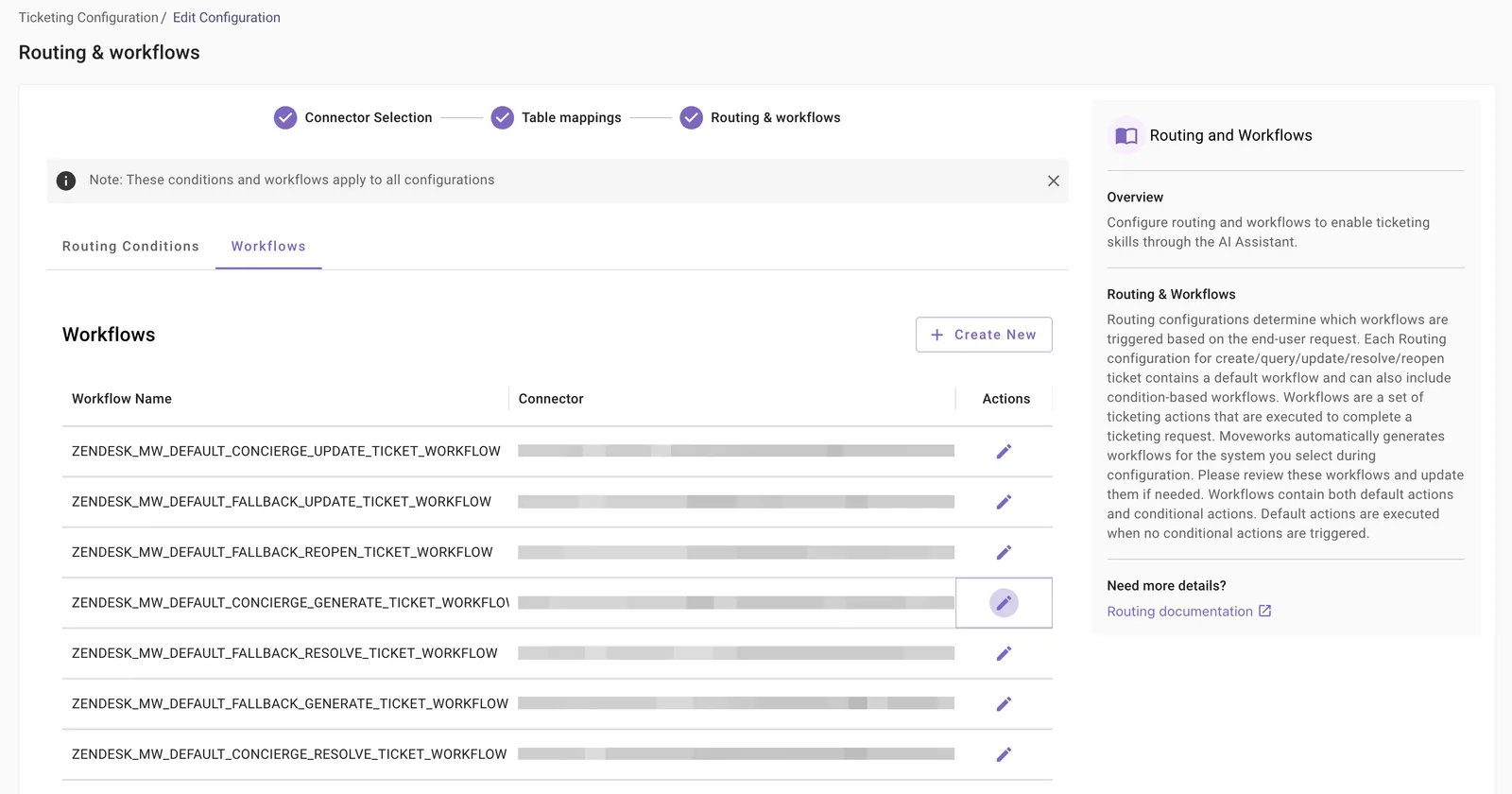
To test ticket creation, verify the default Generate Ticket workflow.
- Navigate to Workflows
- Open the default generate workflow
- Locate the Generate Ticket action
- Confirm the destination points to the intended Zendesk ticket type (for example,
incident)
This determines where tickets are created when no conditional routing applies.
4. Test the defaults
Before testing, confirm:
- Zendesk users are ingested
- Ticket intake is enabled
- A handoff exists to file tickets
Test scenario: File a ticket
- Ask the Moveworks AI Assistant to file a ticket (for example, “My VPN is not connecting”).
- Select File Ticket when prompted.
- Verify in Zendesk:
- The ticket is created successfully
- The ticket type is correct
- The requester is set correctly
- Ticket details are populated as expected
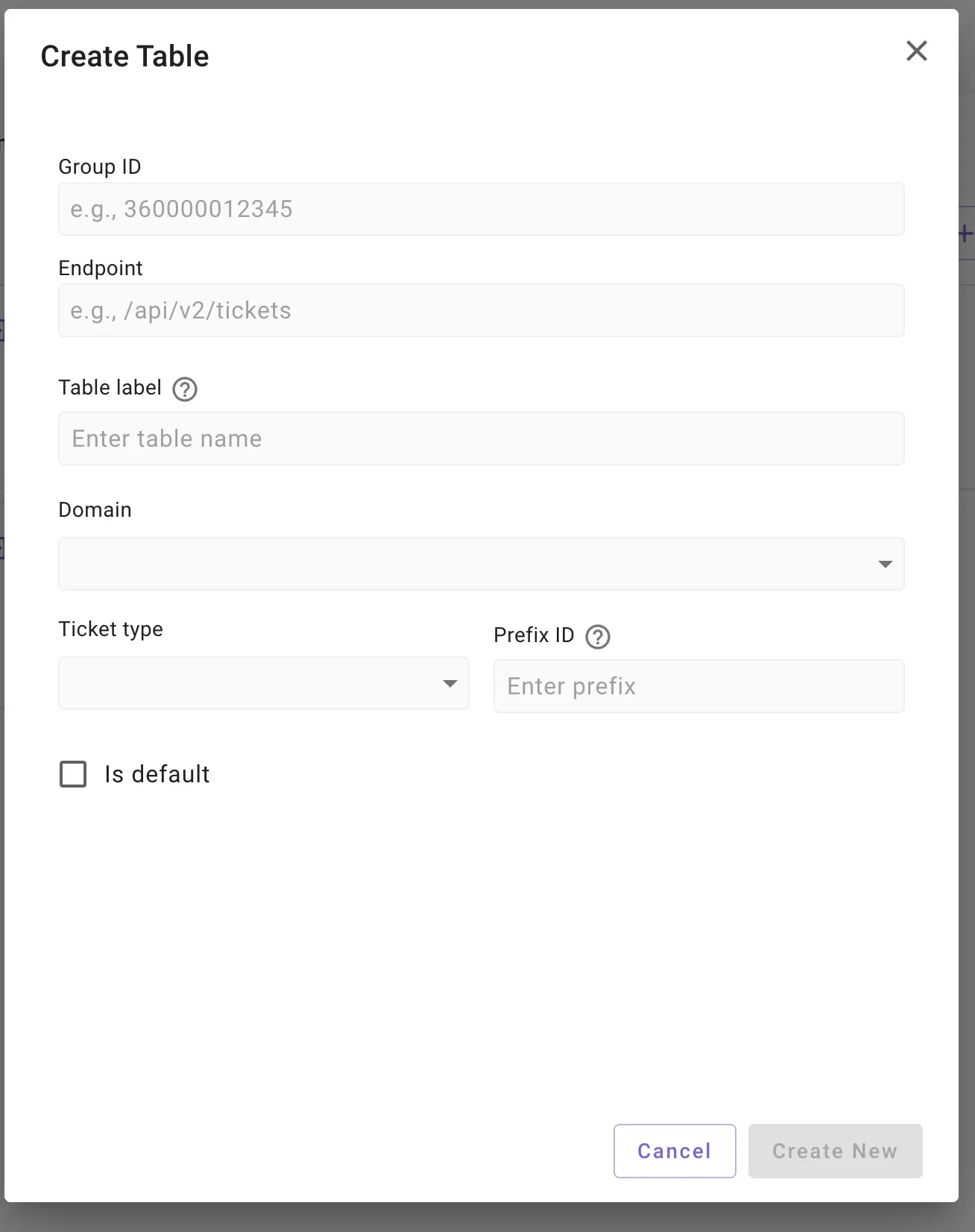
5. How to add a new ticket destination
Zendesk ticket types are fixed, but each can be configured independently in Moveworks.
To add or customize a destination:
- Click Create New in the Destinations section
- Select the Zendesk ticket type
- Configure:
- Ticket state mapping
- Ticket attribute mapping
- Payloads for lifecycle actions
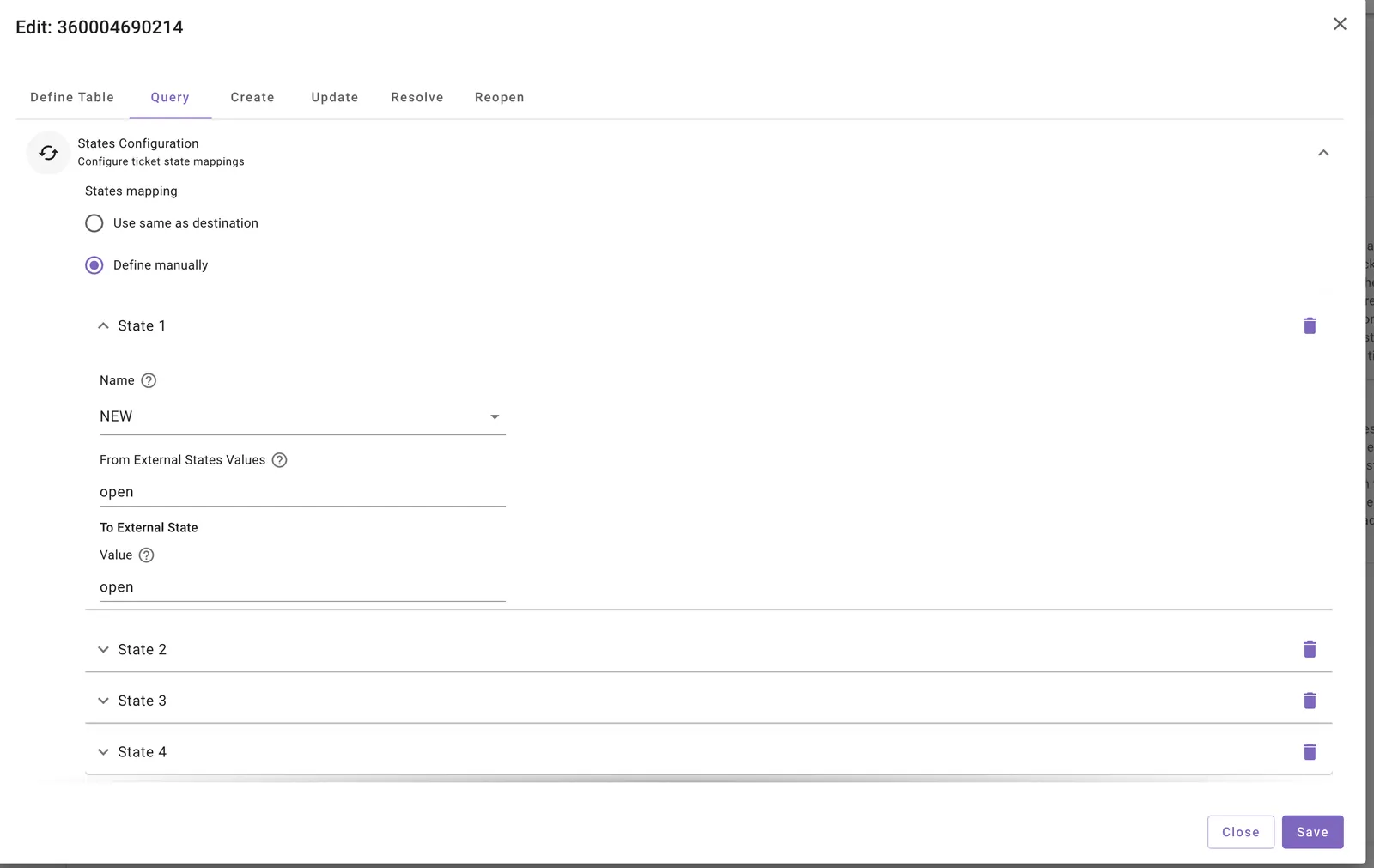
5.1 Ticket state mapping
Ticket state mapping defines how Zendesk statuses translate to Moveworks internal states.
Recommended baseline:
5.2 Ticket attribute mapping
Attribute mapping defines how Zendesk ticket fields map to the Moveworks ticket object.
Typical fields include:
- Ticket ID
- Subject and description
- Requester and assignee
- Status, priority, and timestamps
This mapping allows Moveworks to display consistent ticket data to users.
Below is a standard Zendesk ticket attribute mapping example. You can copy and paste this into your attribute mapping. Review the fields to the right of the colon and update as needed if your organization has customized Zendesk
5.3 Create ticket payload
The create ticket payload defines which fields Moveworks sends to Zendesk when creating a ticket.
Common fields:
subjectcomment.bodyrequester_id- Optional:
group_id,priority,type - Optional:
custom_fields(numeric Zendesk field IDs)
5.4 Resolve and reopen payloads
- Resolve actions typically move tickets to
solved. - Optional fields can be populated if required by your Zendesk configuration.
- Reopen actions transition tickets back to
open.
Resolve ticket payload
Note: Update Ticket Payload and Reopen Ticket Payload are typically not necessary to configure.
6. How to enable generate ticketing action for a destination
Routing rules determine which destination is used.
Example:
- Default workflow → create
incident - Conditional workflow → create
taskwhen ticket type isREQUEST
Conditions are evaluated top-down, and the first match is executed.
7. How to create a new Intake form and enable ticket filing
Intake forms allow you to collect structured input when filing tickets.
7.1 Create an intake form
- Select a domain
- Provide a unique form ID
- Add required fields:
short_descriptionordescription
7.2 Map intake fields
Map intake form fields to Zendesk fields in the Create Ticket payload.
Unmapped fields are appended to the ticket description automatically.
7.3 Link intake form to handoff
Link the intake form to a handoff configuration so it appears in the AI Assistant UI.
8. How to enable ticket polling and concierge updates
Select which destinations are:
- Eligible for polling
- Eligible for concierge updates
These settings control notifications, nudges, and in-chat ticket updates.
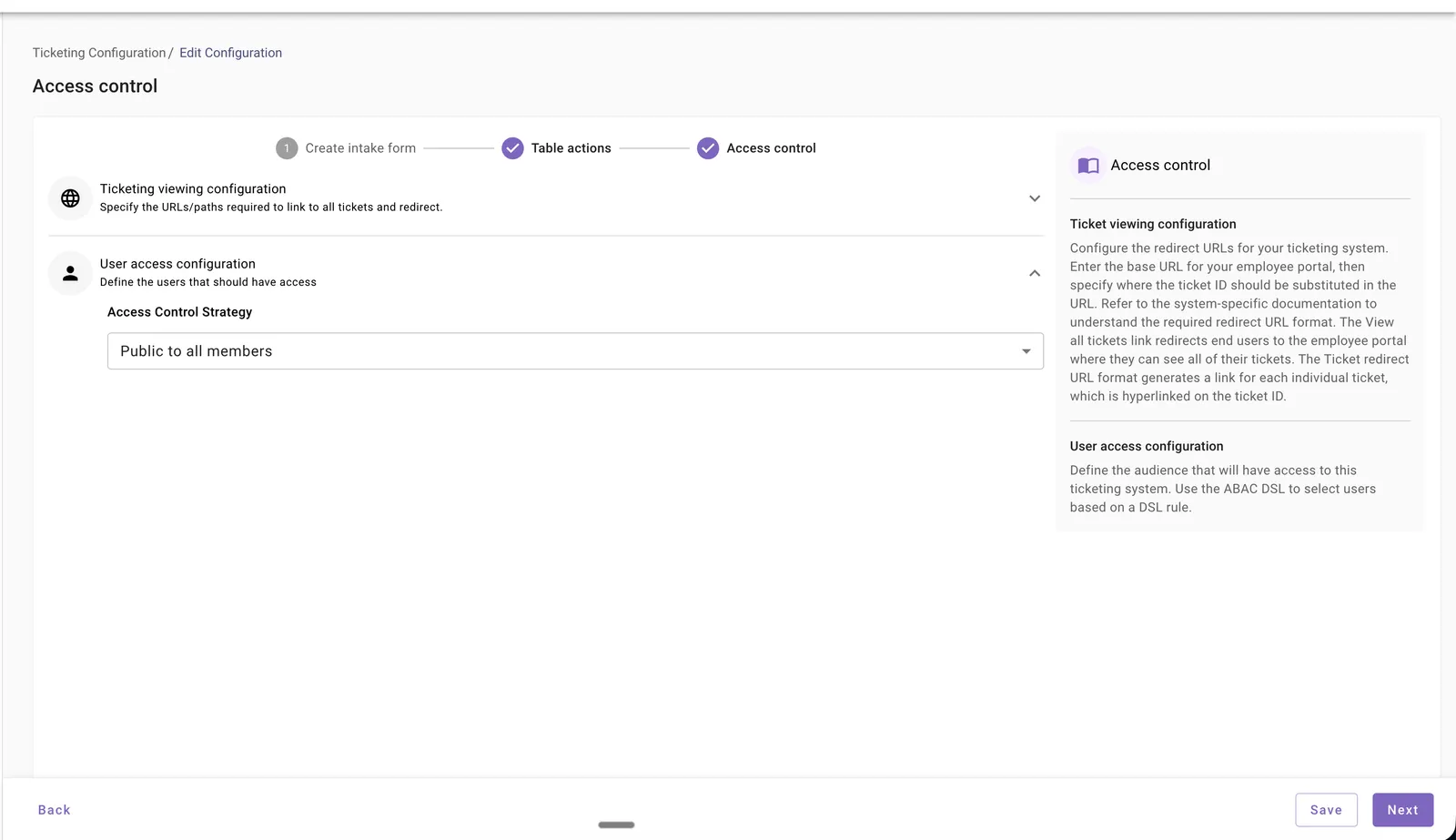
Access control
Control who can access ticketing:
- Public – all users
- ABAC – restrict access using DSL rules
9. Platform level ticketing settings
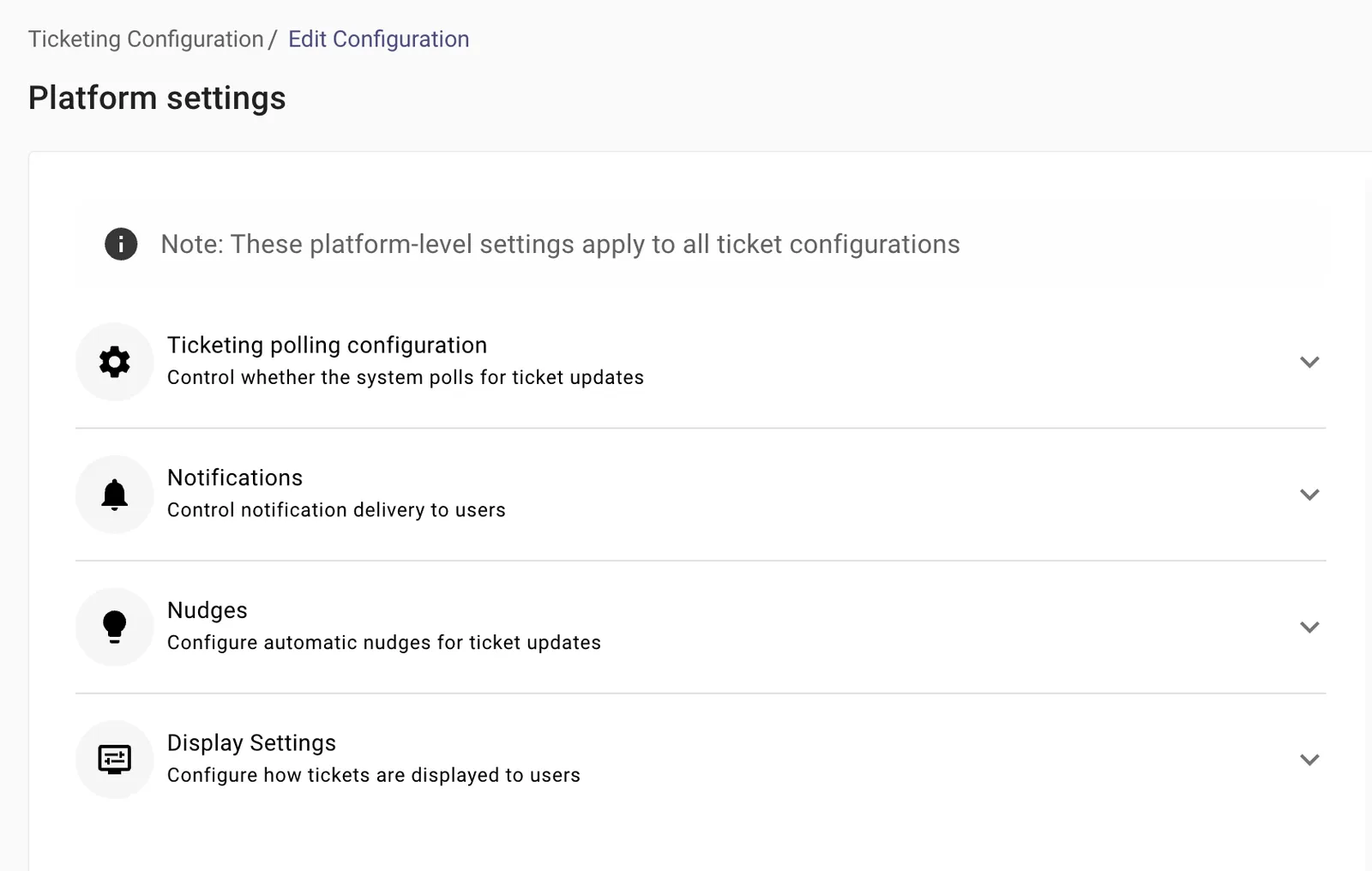
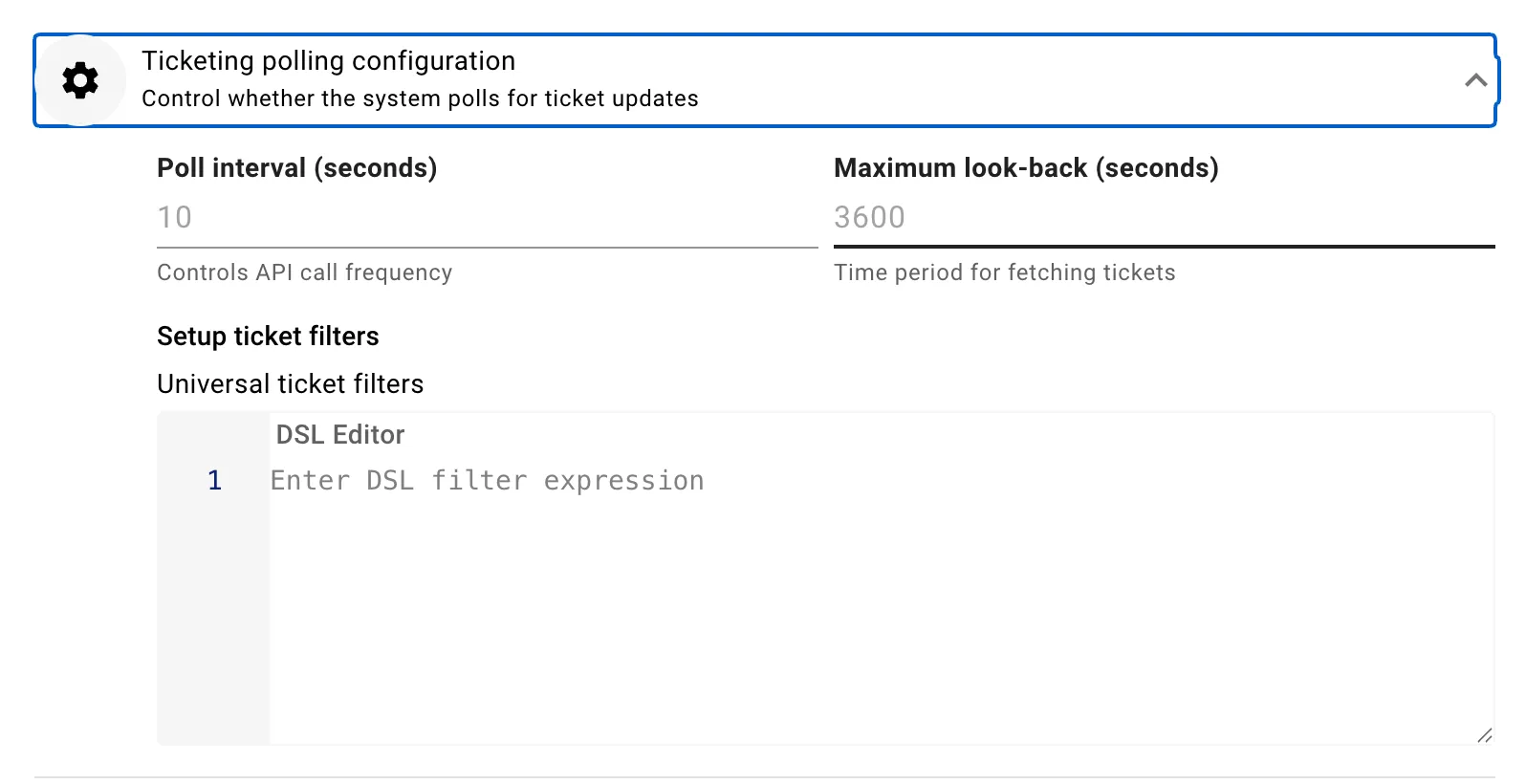
Ticketing Polling Configuration
-
Configure how frequently Moveworks polls ServiceNow for ticket updates.
-
Define:
- Poll interval (in seconds)
- Maximum look-back window
-
Apply universal ticket filters using DSL to limit which tickets are considered.
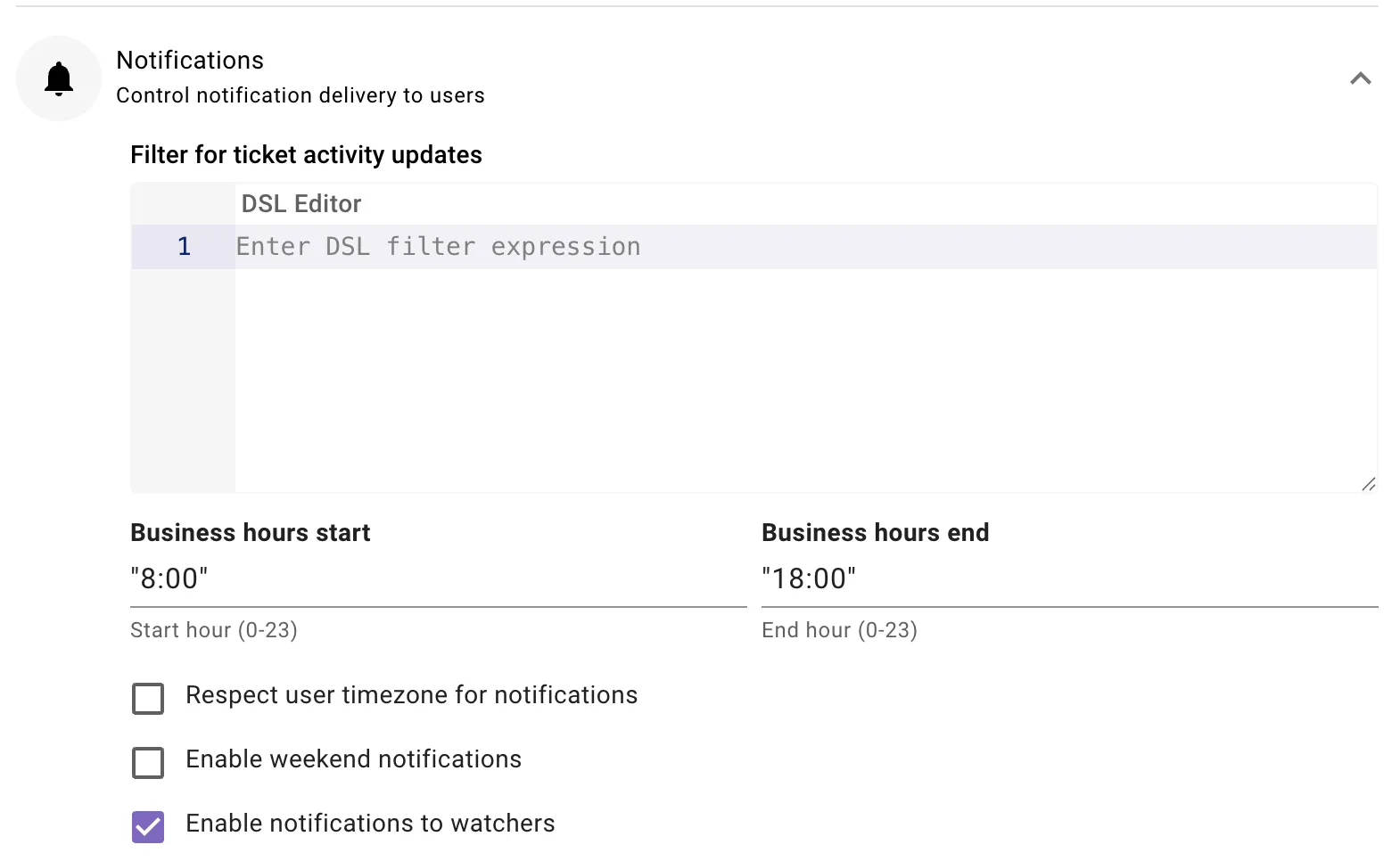
Notifications
-
Control how and when users receive ticket notifications.
-
Configure notification filters using DSL.
-
Restrict notifications to business hours if required.
-
Optionally:
- Respect user time zones
- Enable weekend notifications
- Notify watchers on ticket updates
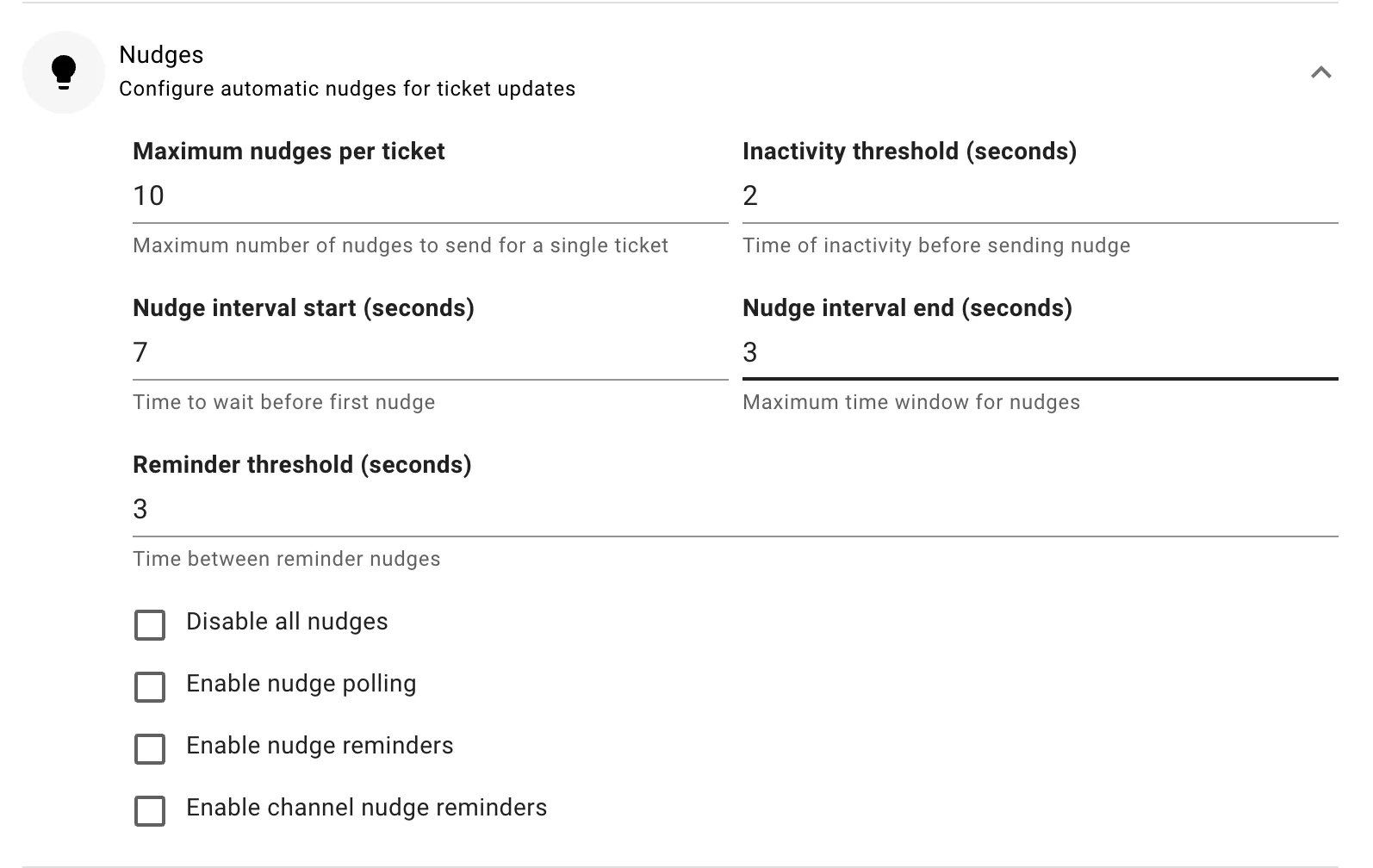
Nudges
-
Configure automated reminders for inactive tickets.
-
Define:
- Inactivity threshold
- Nudge interval
- Maximum nudges per ticket
-
Enable or disable polling-based and channel-based nudges as needed.
Display Settings
- Control how ticket information is displayed in Moveworks.
- Configure options such as:
- Displaying ticket state
- Showing assignee information
- Allowing attachment uploads
- Requiring comments before reopening tickets
- Hiding the reopen option for closed tickets