
Breaking Down the Dashboard
Employee Issues View
The first thing you’ll see upon launching EXI is the employee issues view.
Sorting
You can filter these employee issues by two primary attributes: Employee Persona and Time Period. The date filters are in relation to the created timestamp of the tickets, so filtering for June 2023 will show all tickets created in June 2023, not all tickets resolved.
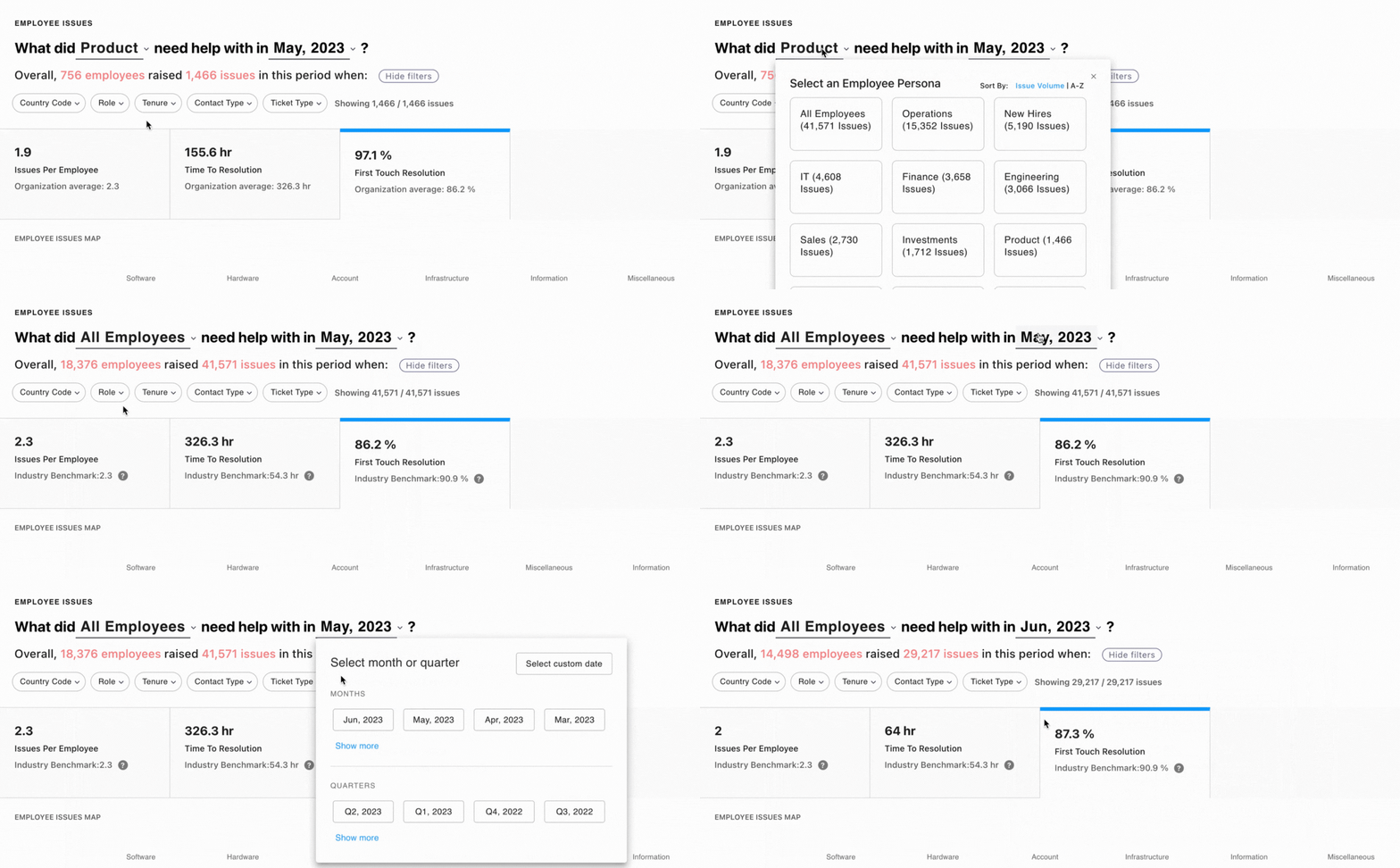
Additional filters can be created based on available data from your environment. Some examples include: Country Code, Role, Tenure, Contact Type, and Ticket Type.
Metrics
EXI tracks the following three metrics to measure the quality of employee service.

Issues per Employee
The number of issues filed by a unique employee over a given period of time.

Time to Resolution
The average amount of time it takes to resolve an issue after an employee files a ticket.

First Contact Resolution
The percentage of employee issues resolved through a single agent interaction and without the need for forwarding the ticket to a different assignment group.

Issue Heatmap
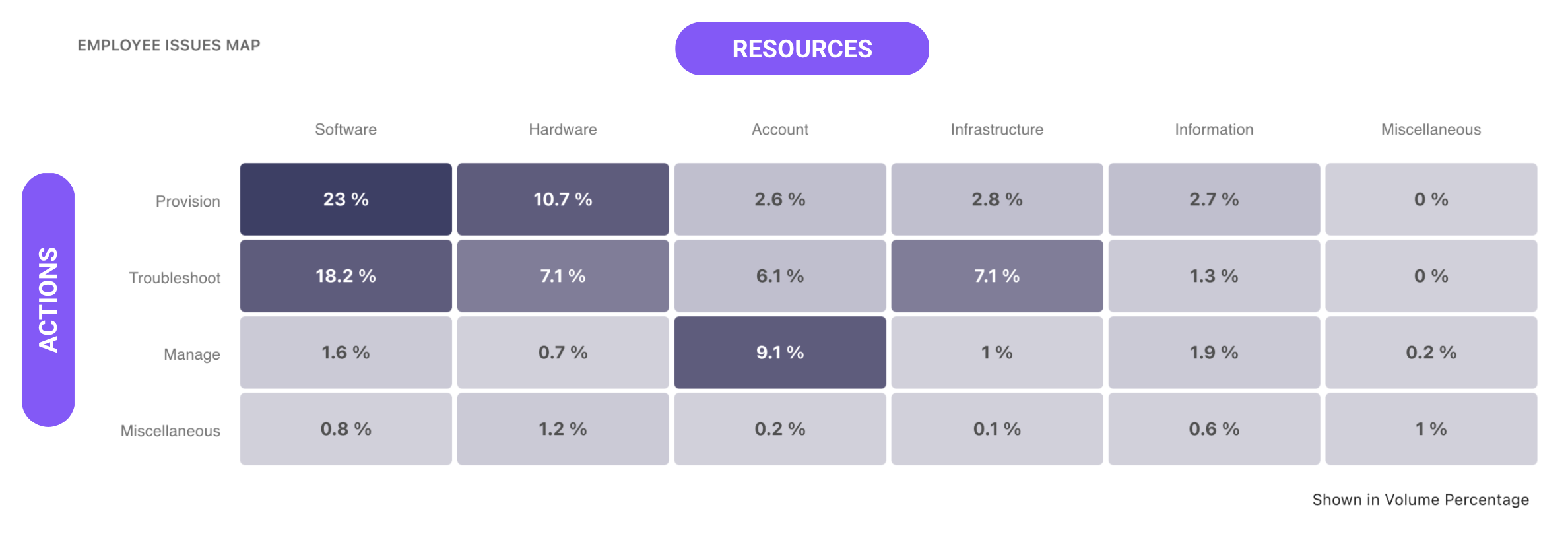
The issue heatmap is made up of two dimensions, Actions and Resources. Resources indicate the entity mentioned in the ticket employees need assistance with, and is displayed on the horizontal axis of the heatmap. Actions indicate what employees need assistance with in their tickets, and is displayed on the vertical axis of the heatmap.
Reading the Heatmap
A single cell in the heatmap represents a type of issue faced by your employees. For example, issues in Provisioning (action) Software (resource). The darker the cell, the more common and critical the issue type.
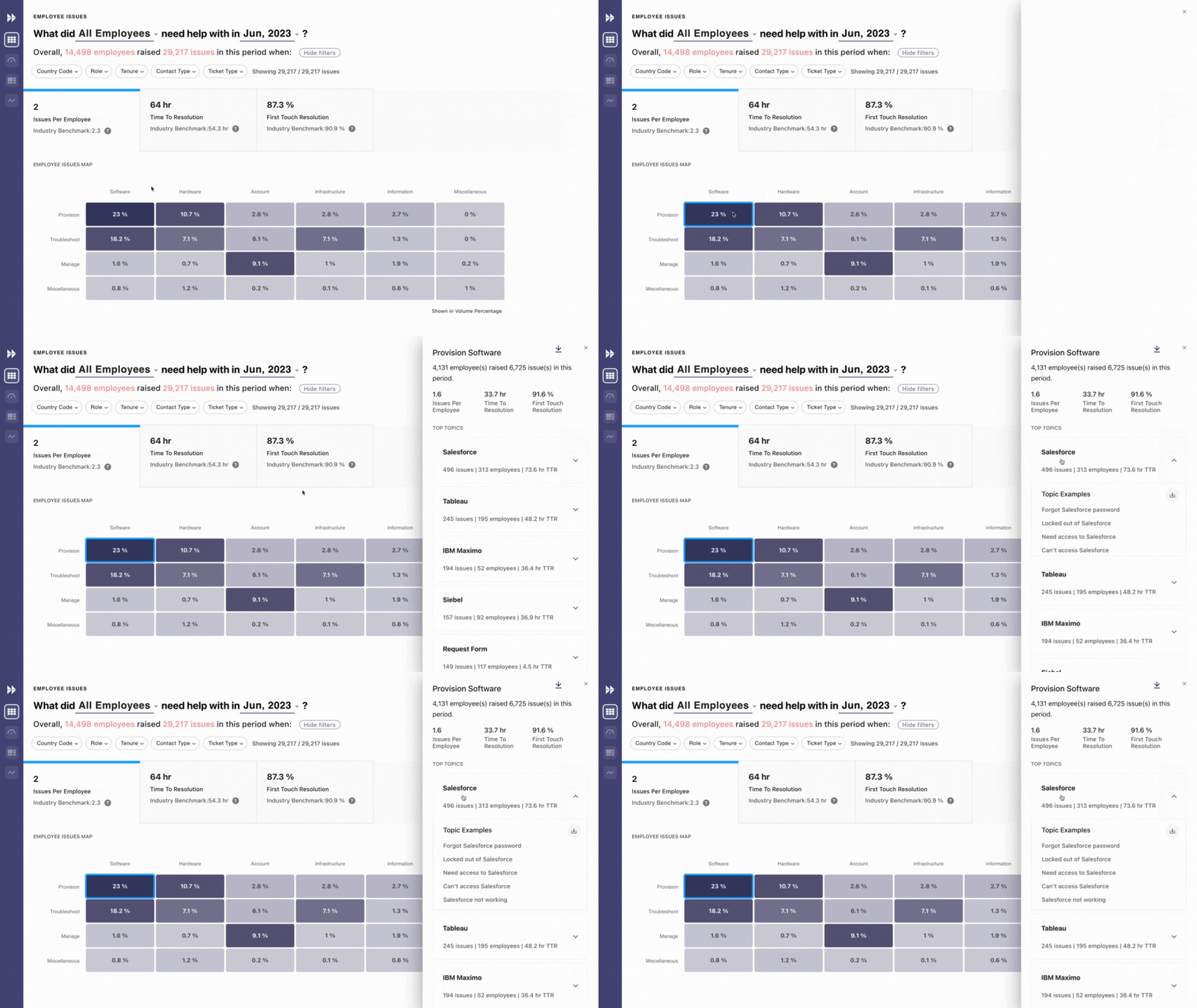
Clicking on a single cell will open an in-depth panel regarding that problem. You’ll see the three main metrics we monitor (issues per employee, time to resolution, and first touch resolution) specified for that issue type. You can also see top topics within that issue type and view some examples.
Resources
The resources we track are Software, Hardware, Infrastructure, Account, Information, and Miscellaneous.
Software
The Software resource refers to any software system like apps, cloud-based software, and internal tools. Examples of Software tickets include issues with a specific application, a problem with the cloud-based software, or a bug with an internal tool.
Hardware
The Hardware resource refers to anything to do with physical devices such as laptops, keyboards, etc. Examples of Hardware tickets include issues with a laptop not turning on, a broken keyboard, or a problem with a mouse.
Infrastructure
The Infrastructure resource refers to systems like VDI, Wi-Fi, Network, VPN, etc. Examples of Infrastructure tickets include Wi-Fi connection issues, VPN connection issues, and problems with the network.
Account
The Account resource refers to accounts like Okta, AD, DL & Email/Security Groups. Examples of Information tickets include resetting a password for an account, adding users to an existing DL, or creating a new DL.
Information
The Information resource refers to issues that mention data, ticket status checks, and documents, etc. Examples of Information tickets include requesting update of an existing ticket, and asking for a document to be uploaded.
Miscellaneous
The Miscellaneous resource refers to issues that don’t mention any resource specified above.
Actions
There are four main actions that employees seek help for in their tickets. These are Provision, Manage, Troubleshoot, and Miscellaneous.
Provision
The Provision action relates to issues with provisioning new resources like software, hardware, as well as new access requests to systems and reports. For example Provisioning tickets can include requests for help with: setting up a new laptop, requesting access to a new application, and requesting a new report.
Manage
The Manage action relates to issues with configuring access and permissions to existing systems and resources like software and documents. For example Management tickets can include requests for: upgrading or downgrading permission levels, resetting passwords, and unlocking accounts.
Troubleshoot
The Troubleshoot action relates to issues with diagnosing problems with systems, software, hardware, and accounts. Troubleshoot tickets are often seeking knowledge of policies, or guidance on operating and performing actions or tasks. For example, Troubleshooting tickets can include request for more information on: fixing a broken printer, diagnosing a slow computer, and investigating an account issue.
Miscellaneous
The Miscellaneous action relates to any issue where a clear action to be performed is not inferred by our ML systems.