
Configure User Identity [New Journey]
Configure User Identity [New Journey]
Old identity journey and migration steps
If your organization currently uses the old user identity journey, refer to Configure User Identity - Old Journey doc for more details.
If you want to migrate to the new revamped identity journey, follow the steps below.
Migration checklist
- Verify joining keys — ensure your joining keys are mapped to the
Moveworks Universal IDconstruct, which is standardized in the new journey. - New orgs are ready — all new organizations have the new journey enabled by default. If you encounter any issues, please contact your Moveworks Admin.
Directly switching without migration will break joining keys and will likely cause user ingestion to fail. Contact your Moveworks Admin for migration steps.
What’s available in the new identity journey
- Connector validation — test primary and secondary connectors before configuration.
- Pre-built source mappers — default mappers per system for seamless setup.
- JSON field editor — configure internal fields, such as user ID info, directly.
- DSL attribute mapping — validate and auto-complete mappings for supported systems.
- DSL testing for attributes — validate the values your attributes return from specific systems.
- Joining key testing — validate joining keys with DSL before saving.
- User preview — test with a sample user to verify the entire profile and confirm success before ingesting users.
Overview
Why identity configuration is critical for enabling Moveworks capabilities
The Moveworks AI Assistant always acts on a user’s behalf. To do that, it needs to know who they are in every system. Identity configuration is where the Assistant derives that knowledge from, and every downstream capability — ticketing, forms, knowledge — depends on it.
For example, take a simple user request: “My laptop won’t turn on after the macOS update, please raise an IT ticket.”
- The Assistant works out the intent: file a ticket.
- It looks up the person’s ITSM identity (ID) — their user record ID in ServiceNow or Jira. That is the account the ticket is raised under.
- It reads their department and location, so the ticket reaches the right team at the right site.
- It creates the ticket.
Without step 2 there is no requester to attach, and the ticket cannot be created at all. Without step 3, the routing destination is never set for the ticket.
Other patterns follow the same shape:
- “I need access to Salesforce.” The Assistant needs the user’s ID in your IDM, such as Okta, to initiate the request, and their manager’s ID to approve it.
- “What discount can I approve on this sales deal with Adobe?” The Assistant checks whether the user is part of the sales org using their ID, and only then surfaces the corresponding knowledge article on product discounts.
- “Who reports to me?” The manager relationship has to be resolved.
A complete user profile is what makes all of this possible. It tells the Assistant where the person exists in each system, what they are allowed to see, and how to reach them. Identity configuration is how Moveworks builds one such profile per person, filling the Moveworks user data dictionary for every ingested user.
High-level architecture of Moveworks user identity

How to start setting up identity configuration for your org
Before you begin
- Know your sources. Decide which system is your primary source of truth for users and their attributes, and which secondary sources you need for additional users or attributes.
- Create and authorize your connectors. Every source needs a working connector before you start.
- Decide your joining key. It can only be set once per configuration save. Changing it later requires resetting your configuration and re-ingesting all users.
The joining key is extremely important when you have multiple sources configured. It is the common identifier used to match and merge user profiles across different sources, via a left join on the primary source.
For example, John Doe exists in both MS Graph (primary source, joining key: SAM account name) and ServiceNow (secondary source, joining key: external_id). John’s SAM account name is jdoe.
- The left join matches on
jdoefrom MS Graph. - If ServiceNow’s
external_idis notjdoe, all attributes for John from ServiceNow are dropped. - If John’s SAM account name is empty or null in MS Graph, the user is excluded from ingestion entirely.
Steps to configure user identity
Step 1: Select sources
- Set a primary source connector.
- Set the secondary source connectors.
- Test and validate each source. Ensure issues are fixed at this step so they do not affect downstream user ingestion.
You will encounter one of the following scenarios for each source.
Test is successful — the connector is valid and you can proceed.

Test fails on a built-in connector — there is an underlying issue with the connector, such as a 403 access forbidden error. Test the connector with a users API call in the API Playground. If no APIs are found for a system, define the path in the API manually and test to see what it returns.

Test fails on an Identity Gateway (HTTP) connector — testing is not supported for Identity Gateway sources, but your user ingestion remains unaffected. Go to Agent Studio > HTTP Actions and test a sample HTTP action. Fix the connector until you get a 200 Success code in the action response. See Custom User Ingestion with Identity Gateway for the full setup guide.

Known limitation: connector testing in identity is not supported for HTTP connectors.
Connector testing is only supported for built-in connectors. If you bring users in through Identity Gateway using an HTTP connector, the connector is still fully supported for user ingestion, but you will not be able to test it on this screen. Reach out to your Moveworks Admin for more information.
Connector testing for on-prem systems
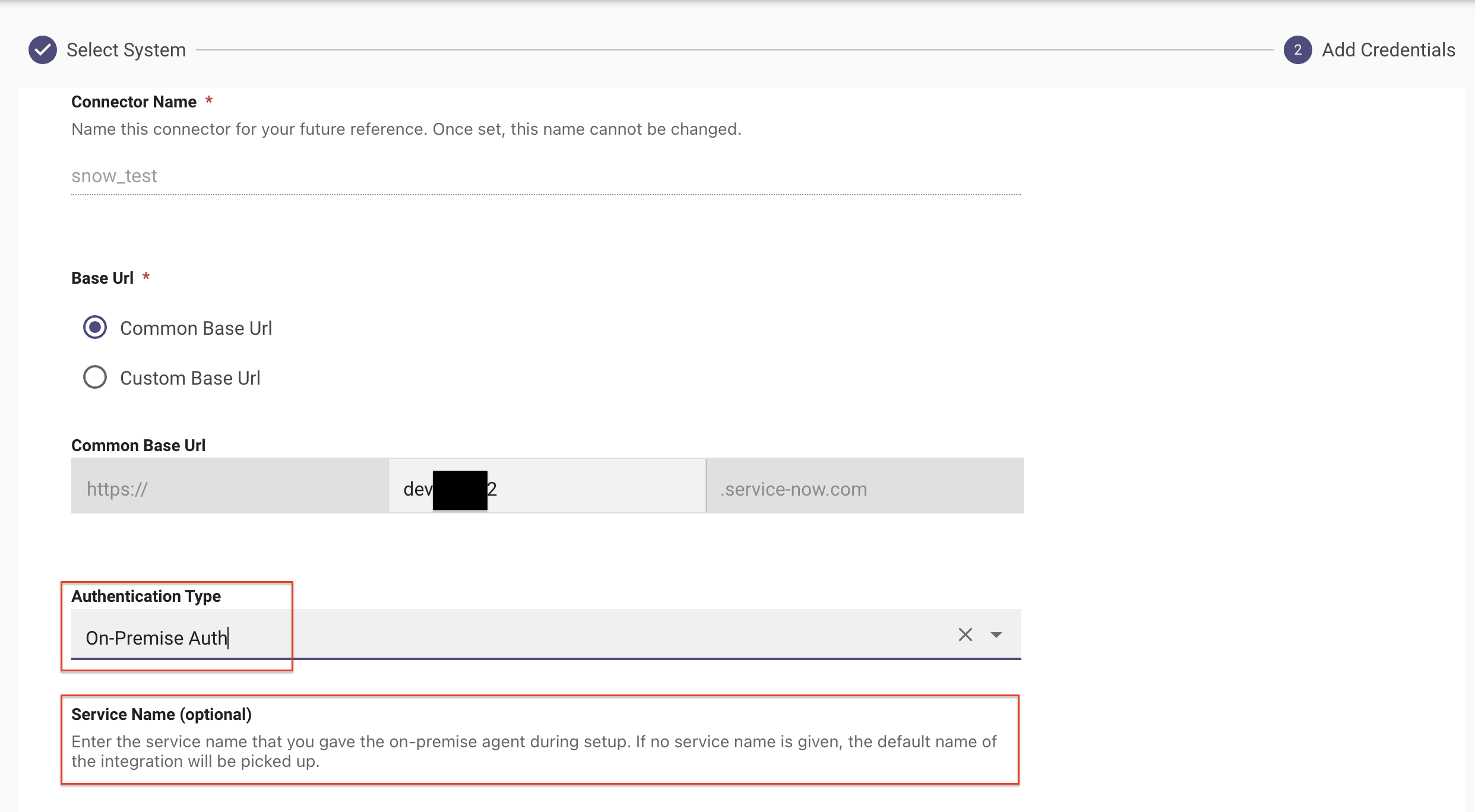
For on-prem agent setups, ensure the on-prem connector — ServiceNow, for example — is configured with the service_name field populated. This is not applicable to Active Directory.
When you click Test for an on-prem connector in the new identity journey, the system sends a validation call to the agent to confirm connectivity. You can also validate on-prem connectors via the API Playground.
Step 2: Configure source mapping
How to view and add attributes per source
This is where you map user attributes from each connector to the Moveworks user object. For each connected system, decide which of its attributes fill which Moveworks user fields.
Moveworks ships default mappings for every supported system, so most orgs start with a working configuration.
Use View attributes to see what is already mapped before you add anything.


To map additional attributes:
- Expand a source and click + ADD.
- Pick the Moveworks user field you want your attribute mapped to.
- Build the rule in the DSL builder. Use autocomplete to select the external attribute you want — it suggests the attributes that system actually returns.
- Test the rule live for a user and check the output.
- If it is your desired output, click SAVE.

How to test an attribute against a sample user
Click Edit against any attribute, then enter a user email to test the mapping against an existing user.


Known limitation: some built-in connectors do not support DSL testing.
There is a set of built-in systems for which DSL testing is not supported — Workday, for example. Your user ingestion will still be fully functional, but testing for these systems is affected on the Configure source mapping and Test with user screens. Contact your Moveworks Admin for more details.
Which internal fields you can map
Beyond the standard profile, you can also map a set of internal fields based on your requirements.
The JSON editor, and when you need it
Most fields take a DSL expression in the mapping. The user_id_info fields — channel_id_info, idm_id_info, and itsm_id_info — are the exception: they hold an array of entries rather than a single value, so they can only be defined through the JSON editor.
Moveworks ships defaults for each system. You can edit those defaults, and map new attributes per source based on what your configuration needs.
Example: routing ServiceNow users to the Moveworks Web Assistant
Say ServiceNow is a secondary source for ingesting users. Its channel_id_info is empty by default — reasonably, since ServiceNow is not a chat platform. If you want every user ingested from ServiceNow to be reachable through the Moveworks Web Assistant, you need to define this mapping explicitly. Add a channel_id_info entry for ServiceNow and define its JSON mapping for Moveworks Web Chat.
This is the general shape of the problem for cross-mapping use cases. When the surface you want to reach a user on is not the system you got them from, user_id_info is where you close the gap.


Internal user email field mapping
If you are defining a new mapping for the user_id_info.user_email field across any source, always enclose the DSL expression in []. The field expects values in this list format only.

How to add filters and processors
Open a source and click the filter icon. You get two tabs: Filters and Processors.

Filters decide which users get ingested
Filters narrow which users Moveworks pulls from a source, and declare which attributes the source returns for them. Without a filter you ingest every account the connector can see — people who have left the company, service accounts, external guests — and each one counts toward your user count.
Filters are source-specific. Pick the one built for your system, or use the Generic Source Filter if there is no dedicated one. Always set your filters upfront to ensure you ingest the right set of users to start with.
Example: MS Graph Source Filter
- Azure AD Group ID — only ingest members of that group. Useful when you want to start with one department.
- OData Filter Query — the default is
accountEnabled eq true, which skips accounts that have been switched off. Extend it toaccountEnabled eq true and userType eq 'Member'to also exclude external guest accounts, so only your active employees are ingested. - Attributes — Graph only returns the properties you ask for. Anything missing from this list arrives empty, however correct your mapping is.

MS Graph ships with a default filter and attribute list.
The Graph API only returns the properties you explicitly ask for. We populate this filter and attribute list so the out-of-the-box mappings are guaranteed to receive their inputs. Add more filters and attributes whenever your configuration needs them.
This attribute list controls what Microsoft Graph sends back — not what your mappings ask for. The two are edited in different places, so always ensure they are in sync:
- If you add a mapping that reads a Graph property not on this list, add that property to the list too. Otherwise the Graph API never returns the desired attributes.
- If you remove a property from this list, every mapping that reads it silently starts producing empty values. The mapping expression is still valid, but the field value arrives empty for your users.
Available filters
Processors fill in what cannot be derived from the source directly
Some fields cannot be mapped, because the source does not hold the exact user attribute value. Processors compute these values during ingestion.
Two common scenarios:
Resolving a manager. ServiceNow does not store your manager’s email address — it stores the manager’s sys ID. If you map that straight into manager_email, you end up with an ID instead of an email. So you map two things: each user’s own sys ID into internal_fields.manager_resolver, and their manager’s sys ID into manager_email. The Unified Resolve Manager Processor then looks up that sys ID against everyone being ingested, finds the person it belongs to, and replaces the ID with their email address. Approvals now reach a real inbox.
Deriving geocodes. No system gives you coordinates. You map country_code in source mapping, which holds a two-letter country code — DE for Germany, US for the United States. The User Geocode Processor reads that code during ingestion and works out the matching coordinates. This is what lets the Assistant apply German policy and route to the German support queue for a user in Germany, instead of treating the country as plain text it cannot act on.

How to view sample users
Click Sample Users to preview a set of users that will be ingested from this source.


No filters or processors are applied while viewing sample users.
The sample users screen shows a raw set of users and attributes that will be ingested from the target system. Filters and processors are not applied in this view.
Step 3: Configure override mapping
By default, every standard attribute on the final user profile comes only from your primary source. Override mapping is where you change that, one field at a time — either to take a field from a secondary system, or to fall back from one system to another when a value is empty.
Mapping an attribute on a secondary source in Step 2 is not enough. Until you add an override for that field here, the profile always keeps the primary source’s value. This is the most common reason a secondary attribute shows up empty.
For example, Workday is your primary source, but its office locations are out of date and ServiceNow has the current ones. Add an override for location pointing at ServiceNow — location now comes from ServiceNow, and every other field still comes from Workday.

You can override standard profile fields, internal fields, and custom attributes.
Not available in override mapping: user_tags and the user_id_info fields. These are source-mapping only and are auto-merged when the final user profile is created — set them in Step 2 only.
Geocodes: a special case
geocodes appears only in the override mapper, never in source mapping. This field is always derived from the country_code field present in the source mapper.
Geocodes turn “this user is in Germany” into coordinates the AI Assistant can reason about — so it can apply the right regional policy, route to the right regional support queue, surface the right office or holiday calendar, and answer location-dependent questions correctly. Without them, a user’s location is a plain string the Assistant cannot act on.

Step 4: Configure join key
Your joining key is the attribute that identifies the same person across all your systems. It is what turns several incomplete records into one complete profile.
For example, Workday is your primary source, with ServiceNow and Okta as secondary sources. Workday knows Jane’s department and manager, ServiceNow has her current office, and Okta has her login.
When the keys line up, the records merge. If all three sources return employee ID 40417 for Jane, Moveworks builds one profile with her manager, her office, and her login — enough for the Assistant to route her approval and answer questions about her office.
When a secondary source’s key does not match, data from that source drops out. If ServiceNow returns a different value, Jane still gets a profile from Workday, but her office is empty and anything that depends on her location stops working for her. Nothing looks broken. If the primary source’s key does not resolve, Jane gets no profile at all.
Pick an attribute whose value is the same in every system and does not change over time, or write a DSL rule to build the key from more than one attribute.

How to edit and test a joining key from a new source
Within the source, click Edit. Map the corresponding attribute and test with a user email. This validates that your source is not returning an incorrect or empty joining key.


Your joining key can only be set once. Choose it carefully.
Once a source is configured, its joining key is locked. Only newly connected secondary sources can still have their joining keys set and tested.
To change the joining key of an existing source after your configuration is saved, you have to reset your entire identity configuration, which requires offboarding your user roster and removing all ingested user data, roles, and permissions. Contact your Moveworks Admin for more details.
This is a rare scenario. Complete a thorough access-requirements review before you set the key and save your identity configuration.
Step 5: Validate final user profile and submit
This is where you dry run your identity configuration for sample users, before you save your changes.
Enter a user’s email address and click Show User Profile. This section tells you whether, for the given user email, the system was able to build a final user profile across multiple systems.
Configuration mistakes are invisible until users are already ingested, and by then fixing them means re-ingesting. This is the only place you see the finished profile pre-ingestion.


System attributes
System attributes appear per integration_id, based on the configuration set for all user_id_info fields across primary and secondary sources on the Configure source mapping screen. Click each toggle to view attribute-specific values.

How the test actually works
- Moveworks makes a fetch user by email API call against every connected source — Okta, MS Graph, and so on — in parallel, using the email address you typed.
- Each returned record is run through that source’s source mapping from Step 2, producing one mapped record per source.
- Those mapped records are joined on the joining key from Step 4, such as SAM account name, and merged into a single profile anchored on the primary source, exactly as real ingestion would.
- The merged result is what you see on screen.
The important consequence: the email only helps you locate the user. The joining key is what does the actual merging. When those two are different attributes, the test can fail even though real ingestion works fine — a single-user lookup returns fewer attributes than the full crawl does, so a source can come back with no joining key value at all.
Each source reports a merge status.
Where a field comes back empty, the screen tells you why under Sample Results.
Below is a sample scenario where the user test fails across multiple configured sources.
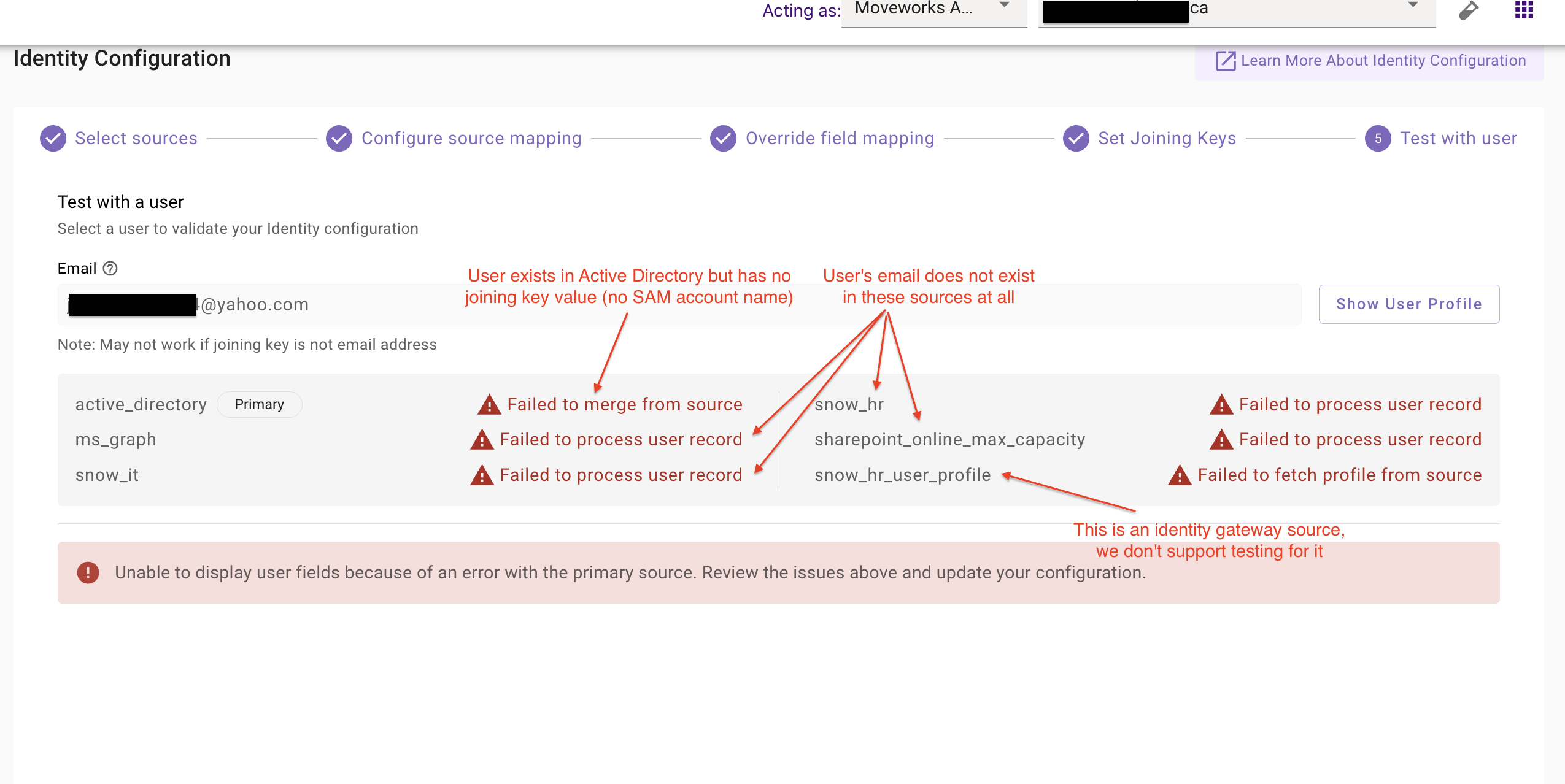
An error does not always mean something is wrong. The most common cause is simply that the person does not exist in that source. Before changing any configuration, re-run the test with a full-time employee who exists in every connected system.
If your joining key is not an email address, the Test with user screen may error out even though user ingestion succeeds. The test uses email to locate the user in the source, but the source may not return the attribute your joining key requires.
Manager resolver field and processor behaviour
internal_fields.manager_resolver does not appear in the final user profile. It exists only to configure how the manager relationship is expressed in your source system. Moveworks uses it to identify the manager, then populates the manager_email field with that person’s email address.
For manager_email on the test screen, the preview displays the raw mapped value, not the post-processed manager email. Because the preview performs only a single lookup per source and does not perform manager resolution, the displayed value may differ from your final ingested profile.
For example, in ServiceNow the manager field natively stores a manager sys ID. The test screen displays this sys ID under manager_email. After ingestion and post-processing, that field contains the actual manager email address. This difference is expected and does not indicate a mapping error.
Once you submit, ingestion begins in the next cycle. It usually takes 4 hours to get all users ingested for the first time. You can check status under the Imported Users tab.
FAQs
General
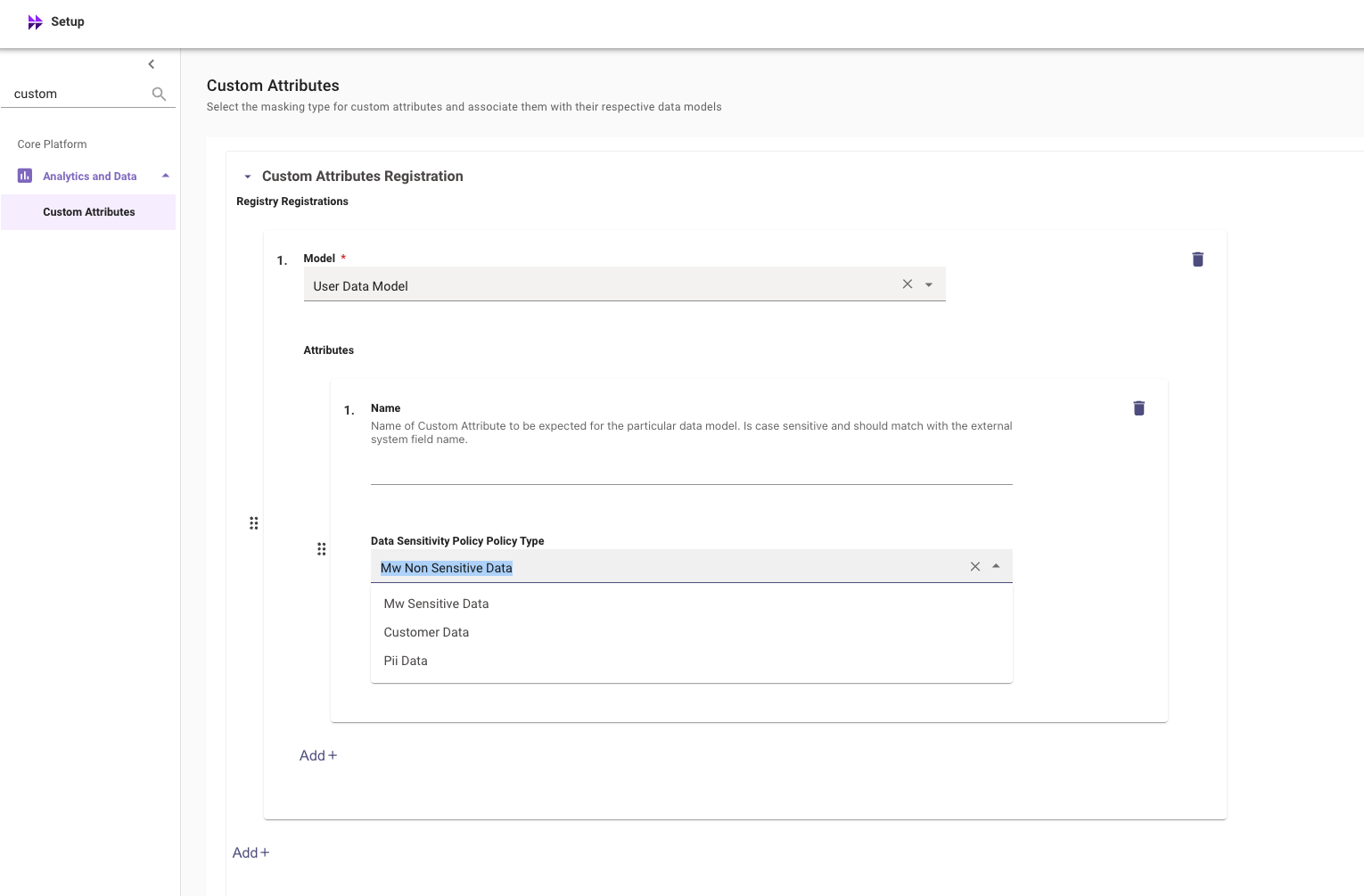
How do I create a custom attribute in the new journey?
Within Moveworks Setup, navigate to Core Platform > Analytics and Data > Custom Attributes, add your attribute, and it becomes available in the source mapping dropdown as custom_attributes.name.
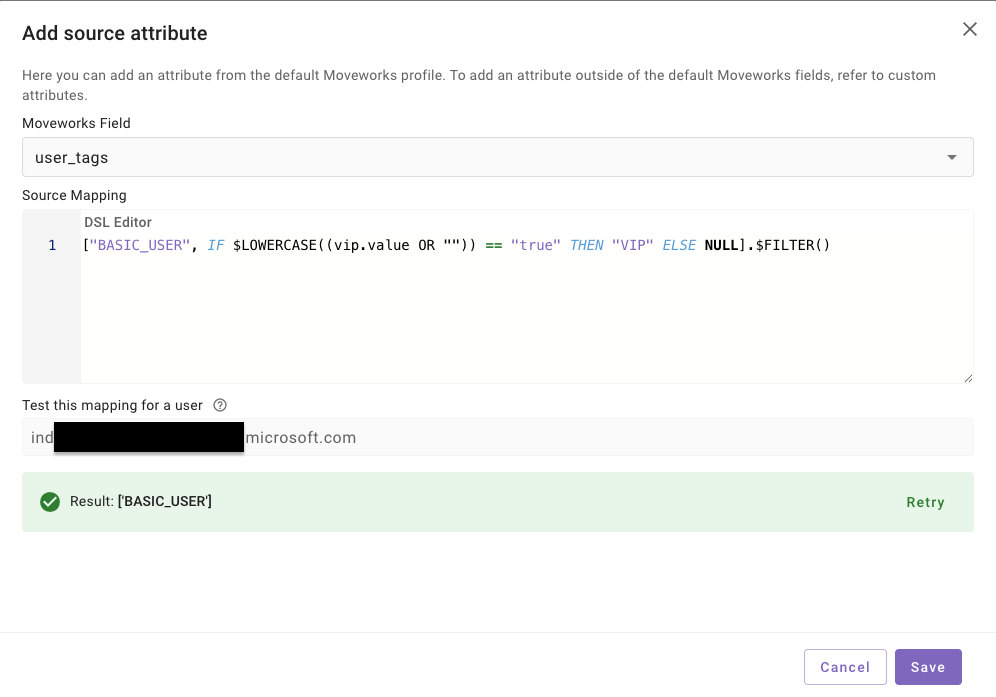
How do I add user tags?
In source mapping, click ADD, select user tags from the dropdown, then write and test your DSL rule. User tags are source-mapping only — they cannot be set in override mapping.
Which system wins when two sources disagree?
The primary source, always, unless you add an override for that specific field from a secondary source in Step 3.
Can I change my joining key later?
Yes, but it is not recommended. There is only one way to do it: offboard your entire existing user roster, then define a new identity configuration from scratch with the new joining key. Reach out to your Moveworks Admin for assistance.
Why is a field null for some users but not others?
Usually because the source did not return that attribute for those users. For MS Graph specifically, check that the property is in the source filter’s attribute list — the Graph API only returns properties you explicitly request, so a mapping can look correct and still produce nulls.
Can I use Identity Gateway to set up identity?
Yes, it is fully supported as a source. Two caveats: you cannot test the connector in Step 1, and its attributes will not show in the Step 5 preview.
How long does ingestion take?
The ingestion pipeline runs on a 4-hour frequency. Check the Imported Users tab for user data.
Can I add a new source after identity is already configured?
Yes. Existing sources keep their locked joining keys, and the new source gets its own joining key set when you add it.
Standard fields and internal fields
What is the difference between a standard field and an internal field?
Standard fields are the profile attributes you normally map — name, email, department, location, and so on. Internal fields usually hold identity plumbing that Moveworks uses to reach the user, rather than to describe them.
Which fields can I not override?
user_tags and the user_id_info fields. Set those in source mapping only.
The User ID Info fields
What is the user_id_info field used for?
It stores who the user is in all your connected systems — their chat handle, their ITSM record, and their login in downstream systems. Moveworks uses it to reach the user and to trim permissions.
channel_id_info is the chat platform identity, user_itsm_id_info is the identity in your ITSM system, and user_idm_id_info is the login used for auth and permission trimming in downstream systems.
Why do these fields use a JSON editor instead of the DSL builder?
Each one holds an array of entries — one per system — rather than a single value, so it is defined as a JSON fragment.
Why are they not available in override mapping?
Because they do not need it. Entries from every connected source are collected onto the profile automatically, so there is nothing to choose between.
Do I have to configure them from scratch?
No. Moveworks ships defaults per system. Add entries only when the surface you want to reach the user on is not the system you ingested them from — see the ServiceNow example in Step 2.
Joining keys
What makes a good joining key?
An attribute whose value is identical in every connected system and stable over time. Email address and employee ID are the usual choices.
Can each source have its own joining key rule?
Yes. You set it per source, so you can write a DSL rule to normalize the value or derive it from more than one attribute when systems store it differently.
Does the joining key value have to match exactly?
Matching is case-insensitive, so Ann.Smith@company.com and ann.smith@company.com will join. Anything else — a different prefix, a different domain, a stray space — will not.
My joining key attribute is mapped, but the key is still empty for some users. Why?
Either that user genuinely has no value for it, which is common for contractors and users without a mailbox, or the attribute is not in that source’s attribute list, so the source never returns it.
My joining key is not an email address. Does anything behave differently?
User ingestion works normally, but the Step 5 test looks users up by email, so it may not be able to validate your configuration.
Override mapping
When should I use override mapping?
When a secondary system is more accurate for a specific field, or when a field should be built from several systems with a fallback.
I mapped an attribute from a secondary source but it is not on the final profile. Why?
Source mapping only makes the attribute available. To get it onto the profile you also have to add an override for that field — otherwise the primary source’s value is kept. This is the most common reason a secondary attribute looks empty.
Can I combine values from more than one system into a single field?
Yes, and override mapping is the only place you can. Source mapping can only read from the one source you are editing.
Can I override a custom attribute?
Yes. Standard fields, internal fields, and custom attributes can all be overridden, except the user_id_info and user_tags fields, which are merged by default.
Does an override run if the secondary source has no record for that user?
The rule runs but produces nothing, so the field comes back empty. Write a fallback in the expression if you want the primary source’s value used instead.
Geocodes and derived fields
Is geocodes a standard field or a derived field?
Derived. No system returns geocodes natively in the shape Moveworks expects — it is computed during ingestion from the country_code field you mapped in source mapping.
Why does geocodes appear only in override mapping?
Because it is not read from a source, there is nothing to map in source mapping. For the same reason it does not appear in autocomplete — you add it to the override list directly.
What happens if I do not map country_code?
Geocodes cannot be derived, so location-dependent behavior — regional policy, regional routing, the right office or holiday calendar — will not work for those users.
Why is geocodes empty when I test a user?
Derived fields are computed during ingestion, not during the dry run, so an empty value in the preview does not mean the configuration is wrong. Confirm country_code is populated for the user instead.
Testing and validation
How does the final user profile test actually work?
Moveworks calls get-user-by-email on every connected source, runs each record through that source’s mapping, then merges them on the joining key anchored on the primary source — the same merge real ingestion performs.
Why did my test fail when the configuration looks correct?
Most often because the joining key is not email. The test looks the user up by email but merges on the joining key, so if a source’s get-user-by-email response does not return the attribute your joining key is built from, that source cannot match.
Which user should I test with?
A full-time employee who exists in every connected system. Contractors and users without a mailbox often lack a joining key value, which makes the test fail for reasons unrelated to your configuration.
One source is red but the rest look fine. Is my configuration broken?
Not necessarily. A secondary source failure is contained to that source’s attributes. Read the primary source’s row first — if that one is red, everything below it is downstream noise.
Why can systems like Workday ingest users but not support testing?
Some built-in systems cannot fetch a single user by email, and DSL testing, joining key testing, and the final profile review all depend on that call. Ingestion still works. Contact your Moveworks Admin for the current list of affected systems.
A source row is permanently red. Can I still save my configuration?
Yes. For sources that do not support fetching a user by email, the row will always be red and there is nothing to fix — validate those separately and save.
Identity Gateway
Why can I not test my Identity Gateway connector?
Connector testing only covers built-in connectors, and Identity Gateway uses an HTTP connector. Validate those connectors separately with an HTTP action within Agent Studio before you rely on them.
Identity Gateway attributes are missing from the final profile preview. Is ingestion broken?
No. The attributes land on the profile normally — they just are not shown on the preview screen.
Do Identity Gateway sources need a joining key like any other source?
Yes. They are treated as a normal source in the merge, so the same joining key rules and the same match or mismatch behavior apply.
Can Identity Gateway be my primary source?
Yes, but you lose both the connector pre-flight check and the profile preview for it — so validate the mapping carefully before you save.
Can I map internal fields for an Identity Gateway source?
Yes. The user_id_info fields work the same way as for any other source, including the JSON editor.
Why does my Identity Gateway source show 'Failed to fetch profile from source'?
Because it cannot be queried by email. This is a known limitation rather than an error in your configuration — the row will always show this status.