
Concierge & Ticketing Capabilities Overview
Overview
Concierge is a Moveworks plugin that equips the Moveworks AI Assistant with in-chat ticketing capabilities to expedite ticket resolution. It enables users to perform common ticket actions, such as adding comments and resolving tickets, directly within the chat.
In addition to ticket actions, Moveworks Concierge keeps users updated on their tickets by notifying them about significant state changes, new comments, or when their tickets are stale (with no activity).
Concierge features:
- Ticket Notifications — keep employees informed of key updates to their tickets
- Creating / Filing Tickets — allow users to raise new tickets to your service desk(s)
- Viewing Tickets — allow users to lookup details about their latest tickets
- Adding Comments to Tickets — allows users to respond to agents on their tickets
- Closing/Resolving Tickets — allows users to resolve their tickets when their issue is solved
- Reopening Tickets — allows users to reopen their tickets when their issue persists
Ticket notifications
Ticket updates
The Moveworks Assistant can notify users when key updates are made to a ticket. The key updates that the Moveworks Assistant will notify a user about are:
- New comment added to ticket
- Ticket marked as (waiting for user) accompanied by a comment
- Ticket marked as solved
New comment added to ticket
If a new comment is added to a ticket, even if there is not a state change, the Moveworks Assistant will notify the user that a comment has been added.
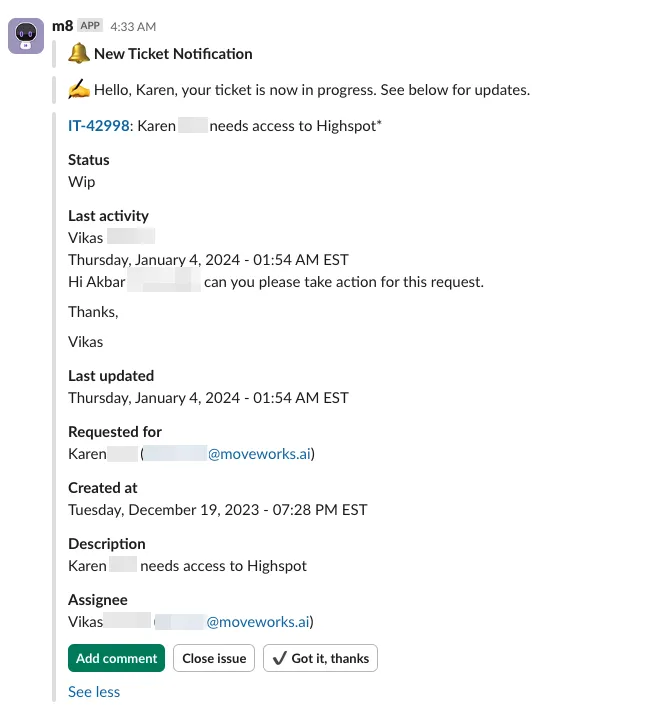
Note: Assignee field can be hidden if desired.
The Moveworks Assistant also leaves an audit note in the ticket comments, letting agents know the user has been notified.
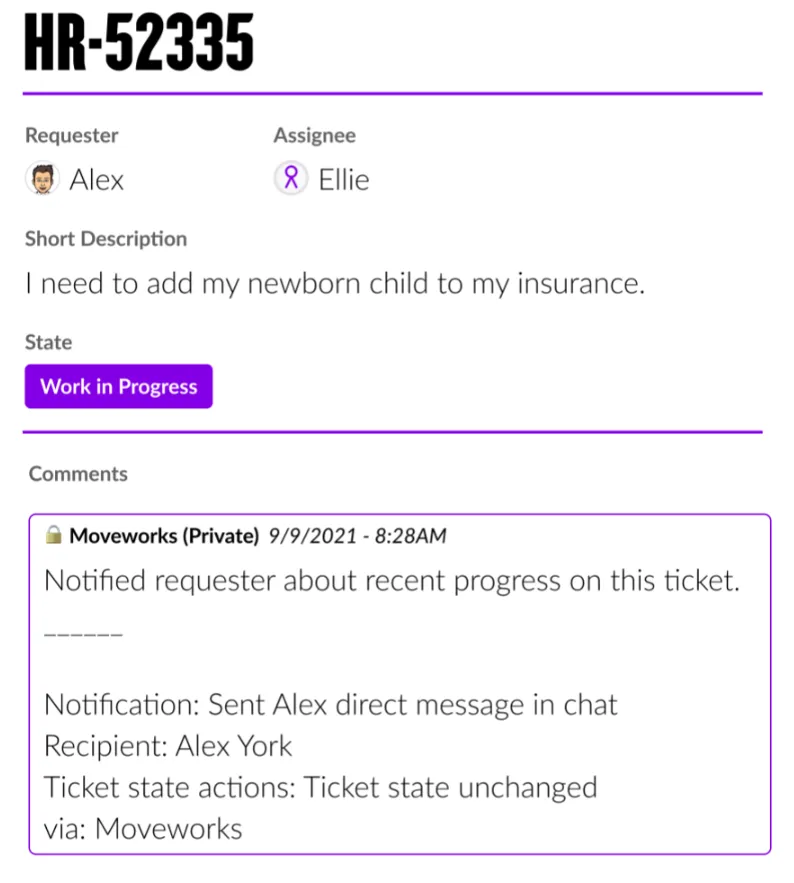
Additional Examples
Ticket resolved
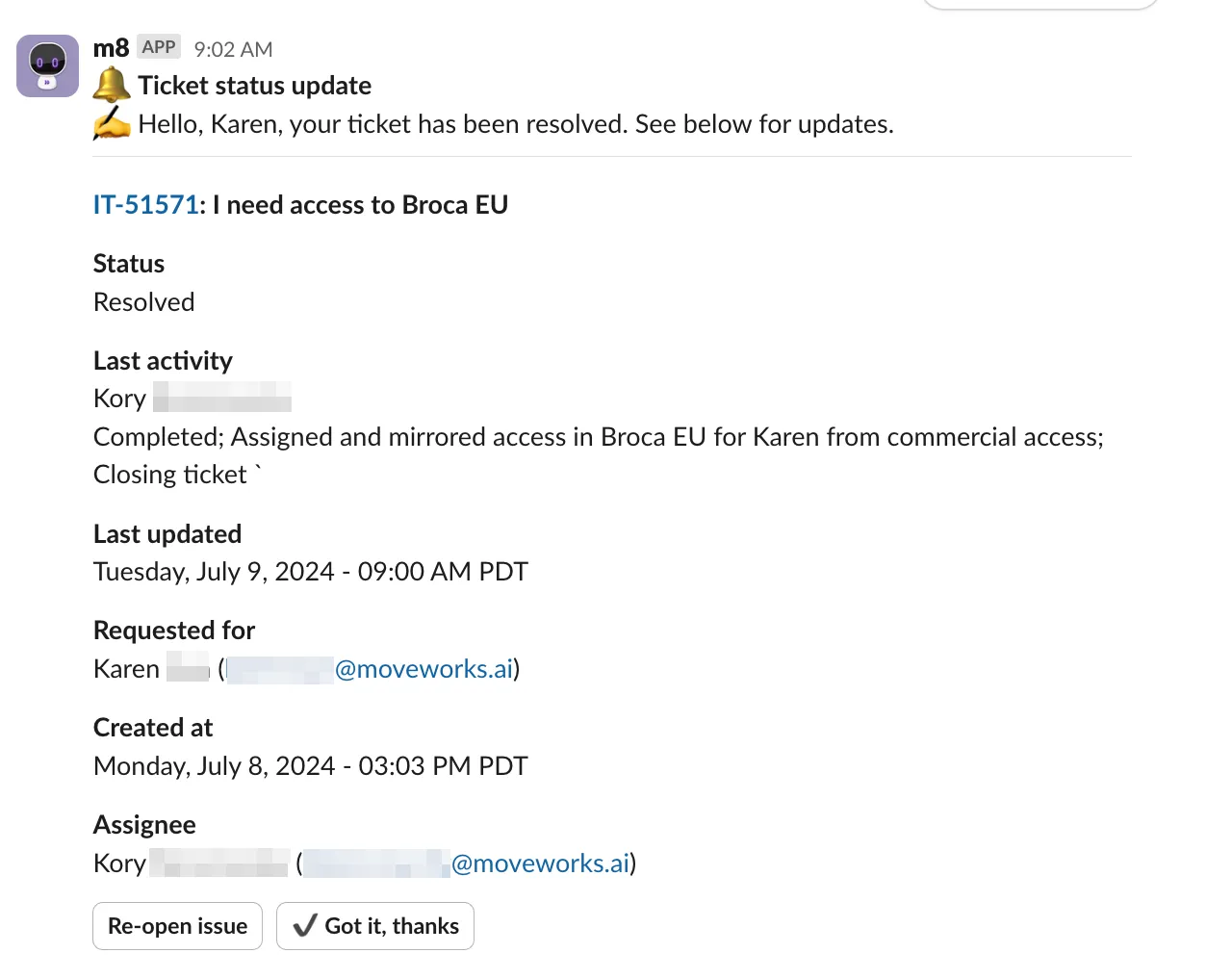
Ticket needs user input
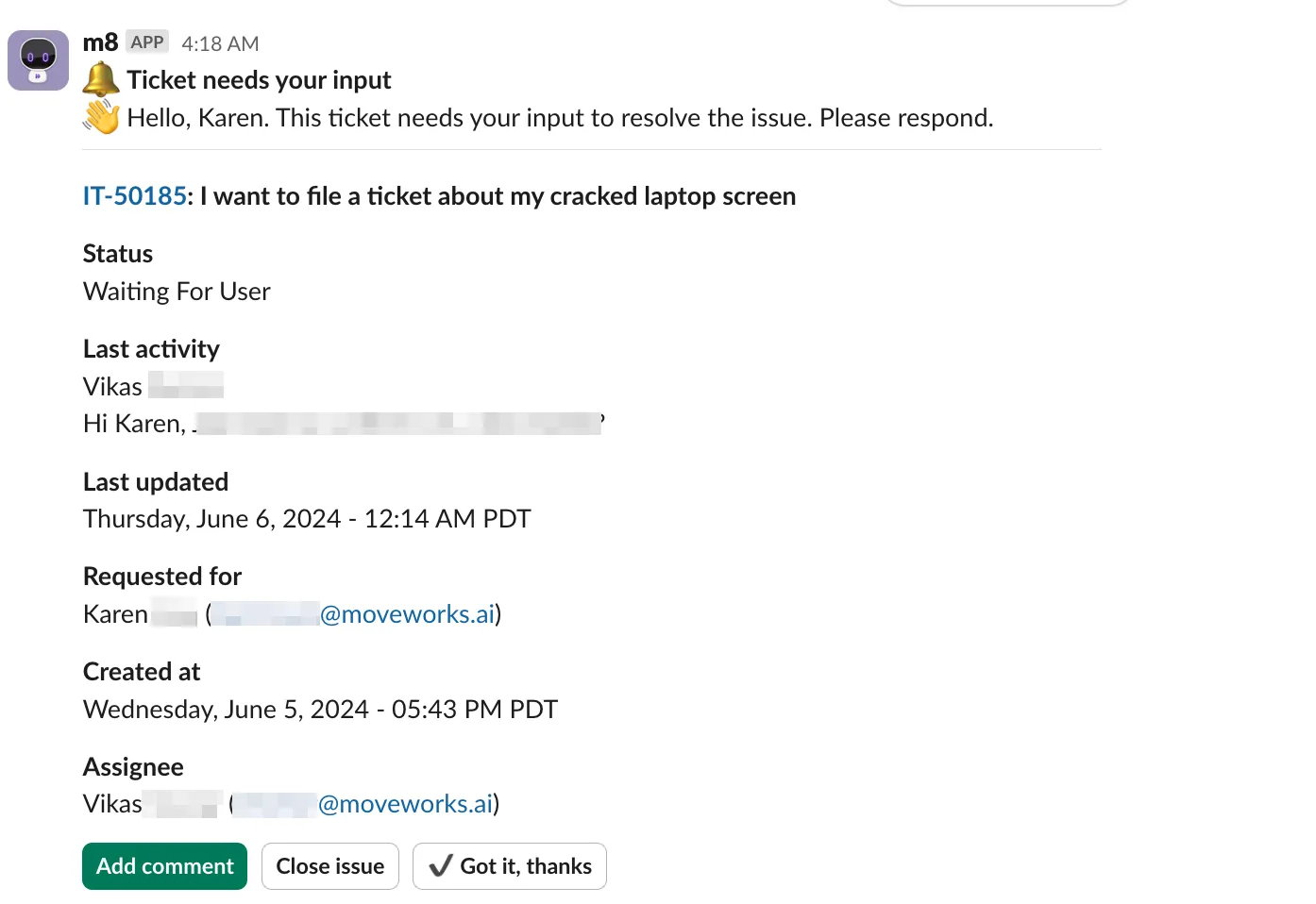
Significant status change to ticket
A significant status change occurs when:
- The ticket type is an Incident and the state is changed to
Resolved. - The ticket type is a requested item (RITM) and the state is changed to
Closed. - The ticket state is changed to
Waiting for User. - The ticket state is changed to
Canceled.
Ticket Nudge
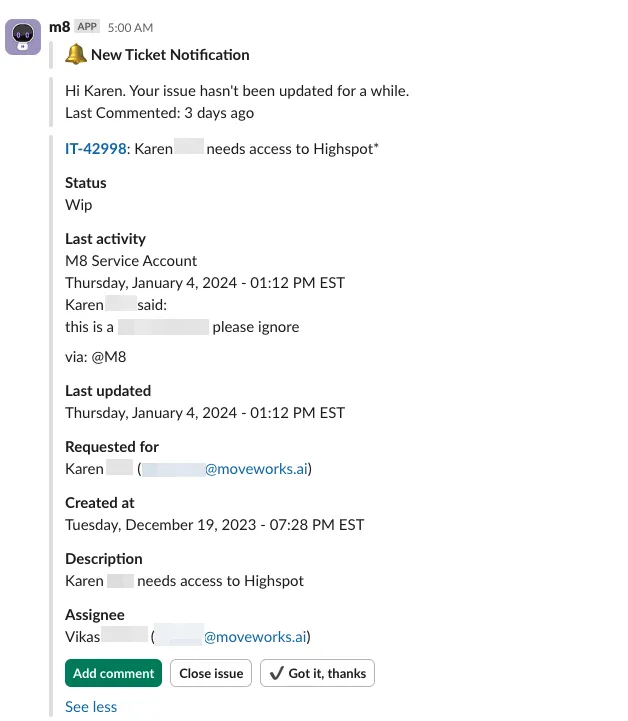
The Ticket Nudge skill ensures that tickets are not lost in the shuffle by reminding users of their open tickets. When a ticket’s state is New or In Progress with no new user-facing comments for a certain amount of days, the Moveworks Assistant will reach out to the user. The # of days with no new comments can be configured during implementation. By default the Moveworks Assistant will reach out to a user after three days with no update. The Moveworks Assistant will also reach out to a user with a Ticket Nudge a maximum of ten times by default. The amount of time with no update before a notification is sent and the maximum number of notifications a Moveworks Assistant sends is both configurable.
Ticket Nudge reach out
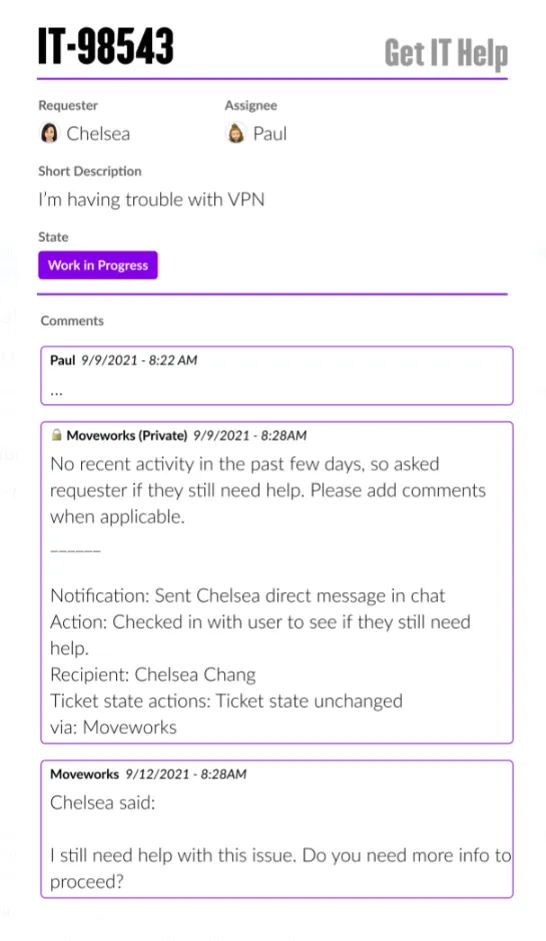
The Moveworks Assistant will also leave a comment in the ticket saying it has reached out to user due to a lack of recent activity on the ticket in the past few days.
Creating/Filing Tickets
Filing a ticket
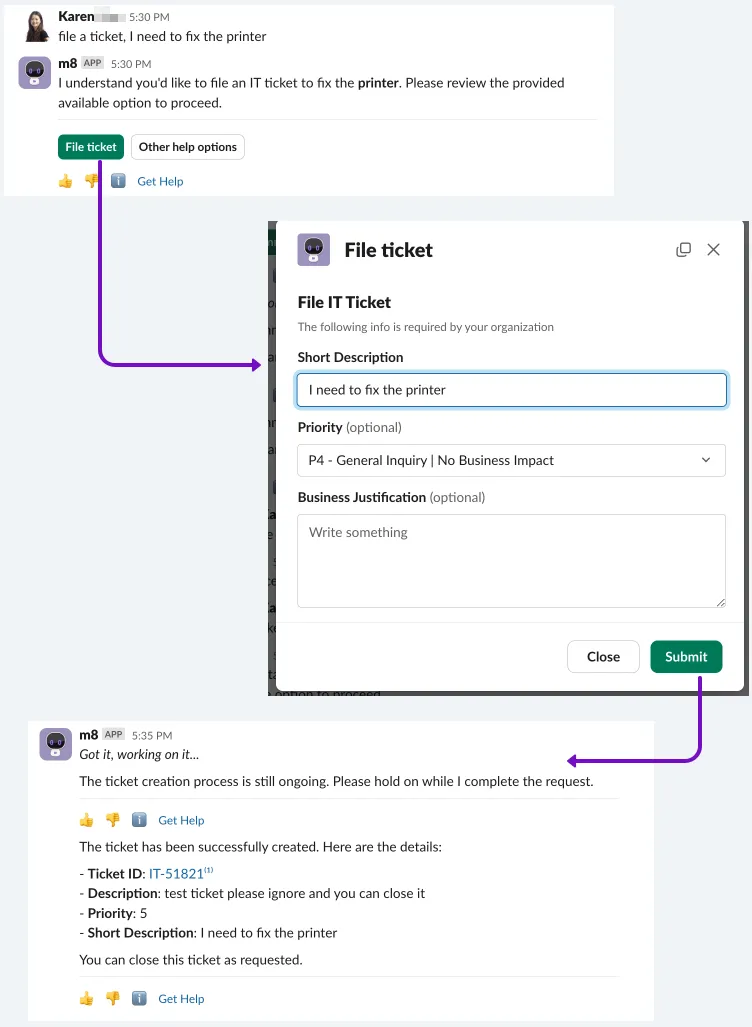
In-chat ticket filing
Users can file a ticket directly in chat by explicitly telling the Assistant that they would like to file a ticket.
Click on “Get Help”
Or, in any turn, users can choose to file a ticket about their current topic by clicking on the “Get Help” and browse all ticket filing/help options.
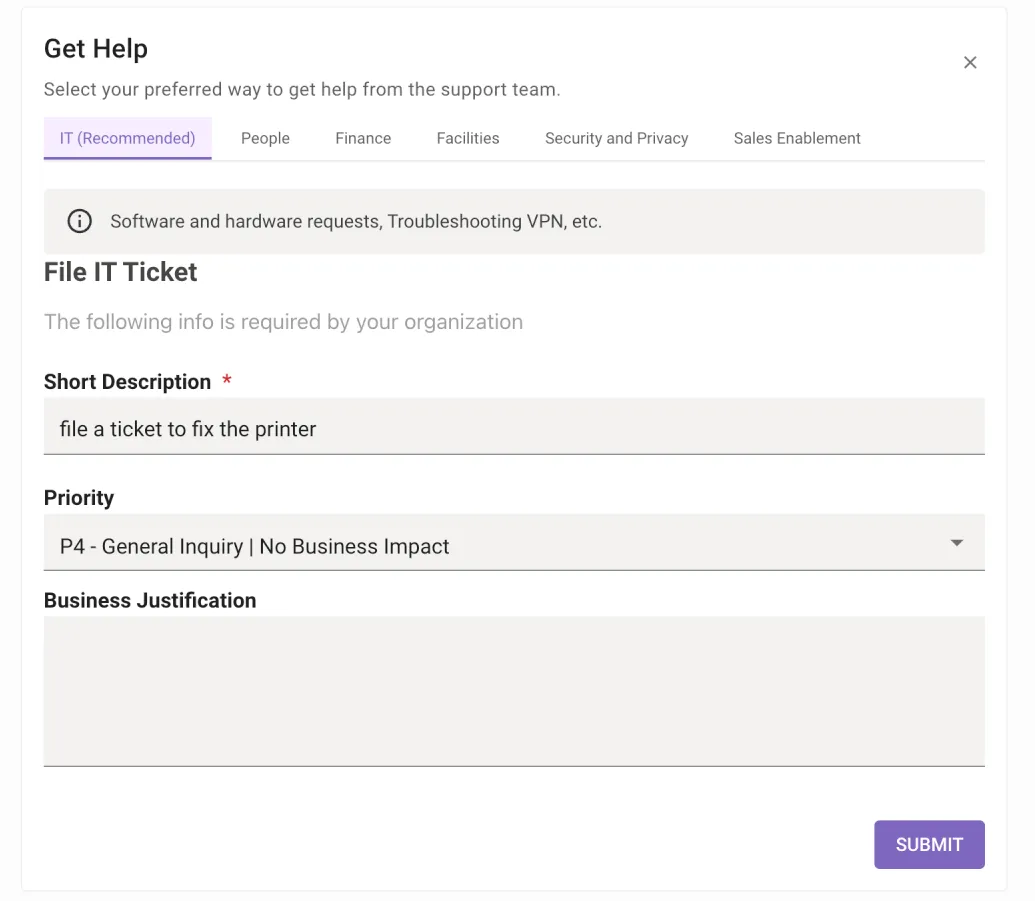
Supported systems: ServiceNow, Jira, Freshservice, Cherwell, Zendesk
For supported systems, users can add attachments to their ticket through the reference pop up page.
Each attachment can be at a maximum size of 5 MB. Moveworks will raise an error message to the user if the file is invalid. Multiple files can be selected by holding cmd or ctrl and clicking in the file selection window. If the total size of the files exceeds 5MB, Moveworks will attempt to upload it, but if your ticketing system denies the file, the Moveworks Assistant will still create the ticket without the too large file(s).
The following file types can be added as an attachment to a ticket: png, jpg, jpeg, pdf, text, csv, XLSX, XLSM, XLS, XLTX, and XLTM.
See Attachment Handling for more information on how Moveworks manages attachments.
It is not possible to make the long description or attachments mandatory. By default, the long description is a copy of the short description.
Rich Ticket Filing
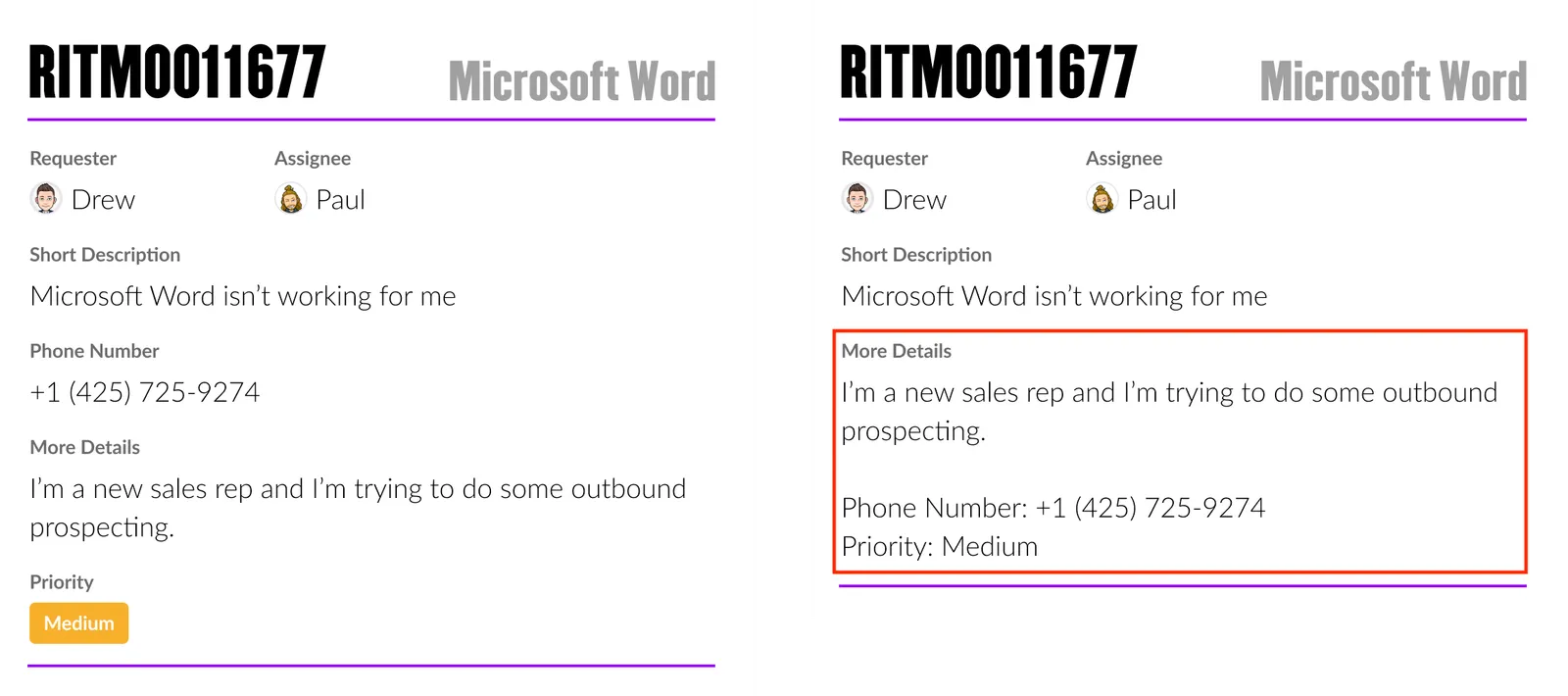
Moveworks Rich Ticket Filing gives users a convenient way to file detailed tickets so that service desk agents can better resolve their issues. This is done by configuring forms on a per domain basis, and serving the form to users when they file a ticket.
Rich Ticket Filing allows for
- Ticketing control — Customize the backstop fields users can fill in when filing a ticket in-chat.
- In-chat support — Users can file all their tickets without leaving chat.
- Domain customizability — Create different types of forms for each ticket domain.
- Additional control — Ability to autofill user attributes and to make fields mandatory.
Ticket Submission
By customizing the backstop fields users can fill in when filing a ticket, service desk agents will be better able to find the information they need to help resolve the user’s issue.
Viewing Tickets
The Assistant provides a much more flexible experience to look up your tickets. You can look up a ticket by
- Make a “check my ticket status” query
- Mention the ticket ID (”Show me ticket IT-12345”)
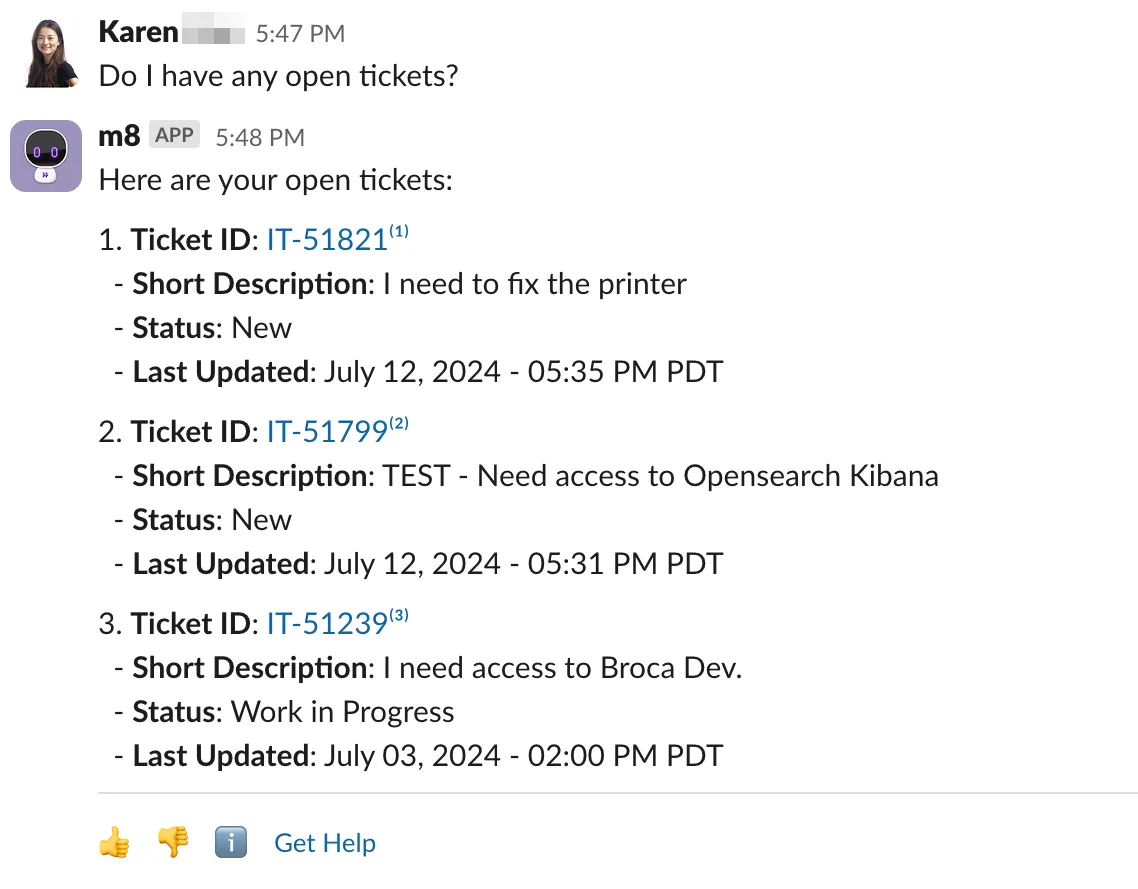
- Mention the ticket status (”Do I have any open tickets?”)
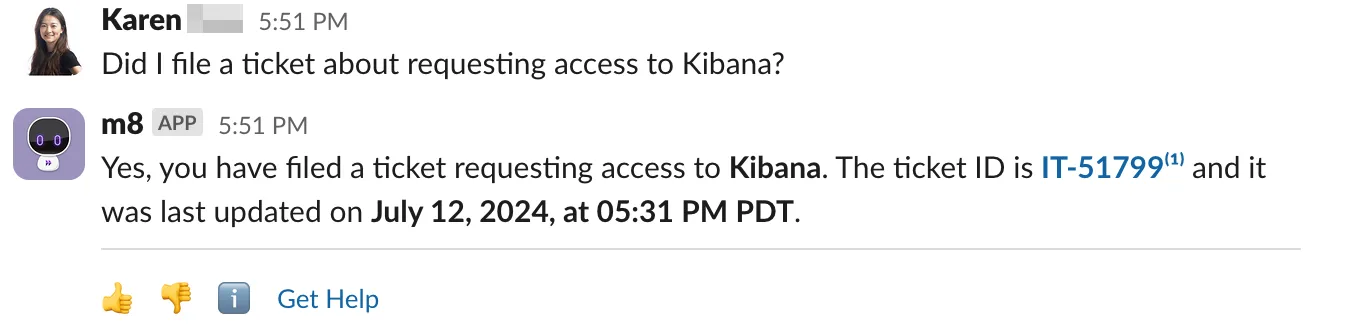
- Mention the subject matter/ description of the ticket (”Did I file a ticket about requesting access to Kibana?”)
A “check status” query
The examples below showcase different ways of querying a ticket.
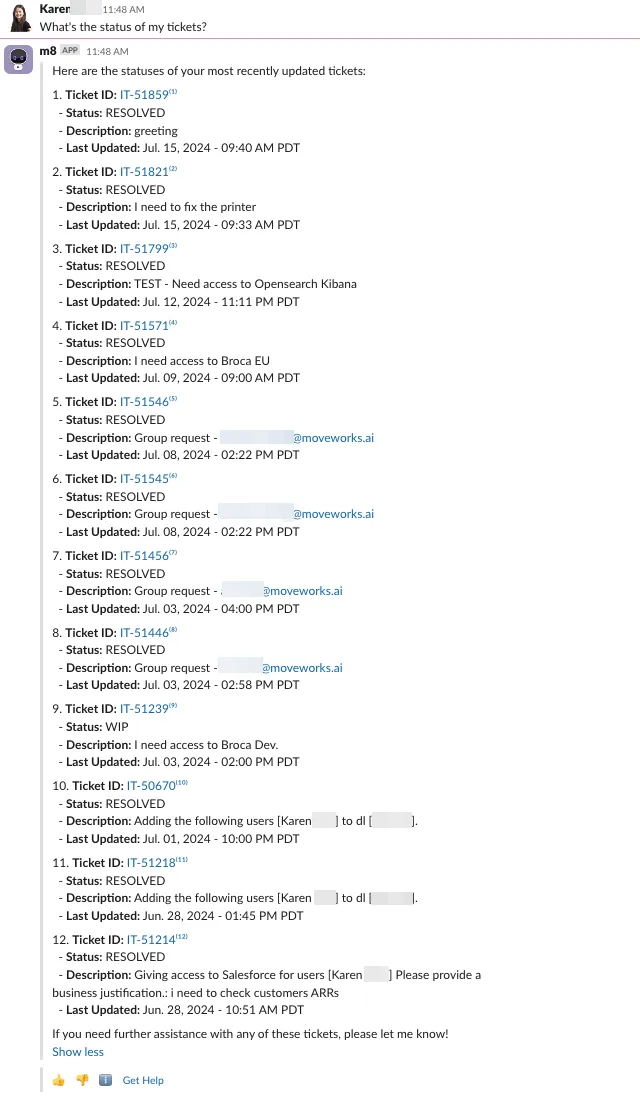
Users do not need to mention a specific ticket #, can simply message their intent to query a ticket, the Moveworks Assistant can recognize this intent in a wide variety of language patterns, such as “what’s the status of my tickets?”, “check status”, “show me my open tickets”, etc.
When the Moveworks Assistant receives such a message, it fetches the user’s tickets and displays them. The Moveworks Assistant will show tickets that are open first (new, WIP, pending, etc). After open tickets are displayed, then resolved or closed tickets (no more than 30 days old) will be shown.
There is not a definitive number of tickets that can be displayed in a “check ticket status” response. The number of tickets returned is dependent on the content/length of the ticket.
To see the full status update card of a ticket of interest in the list, the user can either respond with the number shown next to it in the list (i.e. 1, 2, 3, etc.), or the ticket number itself.
If the user is a watcher on a ticket, or was the opener but not the requestor, they must mention the ticket by ID.
Mentioning the ticket by ticket status
Querying the ticket by topic
Customize the “View all tickets” experience
Depending on the selection you make within the “view all tickets” experience, you may view details for each ticket via our Moveworks assistant experience or within your ITSM portal. When you are viewing all of your tickets, by default if users click on:
- The ticket ID number (yellow boxes): your employees will navigate over to your ITSMs website to view their ticket details
- The #s that appear as citations (green circles): your employees will see our Moveworks citation experience.
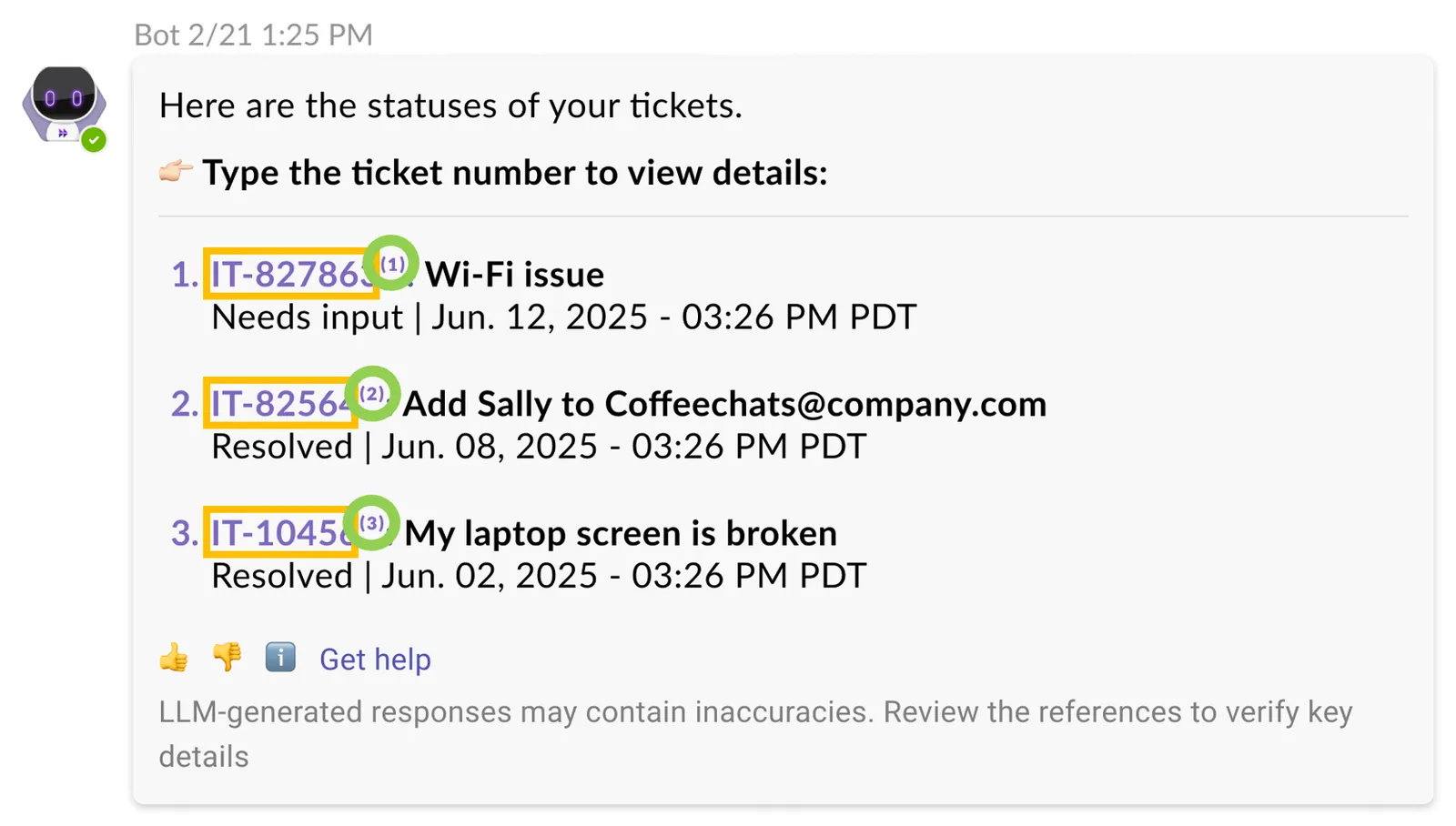
If you would like both of these destinations to remain within our Moveworks assistant experience, here’s how you can customize this experience.
- Navigate over to Moveworks Setup
- Under the “Ticketing Automation” section, select “Ticketing” -> “Concierge Settings” -> “Ticket Actions”
- Select the checkbox that says, “Show ticket details within the bot”
- Click Save and you’re done!
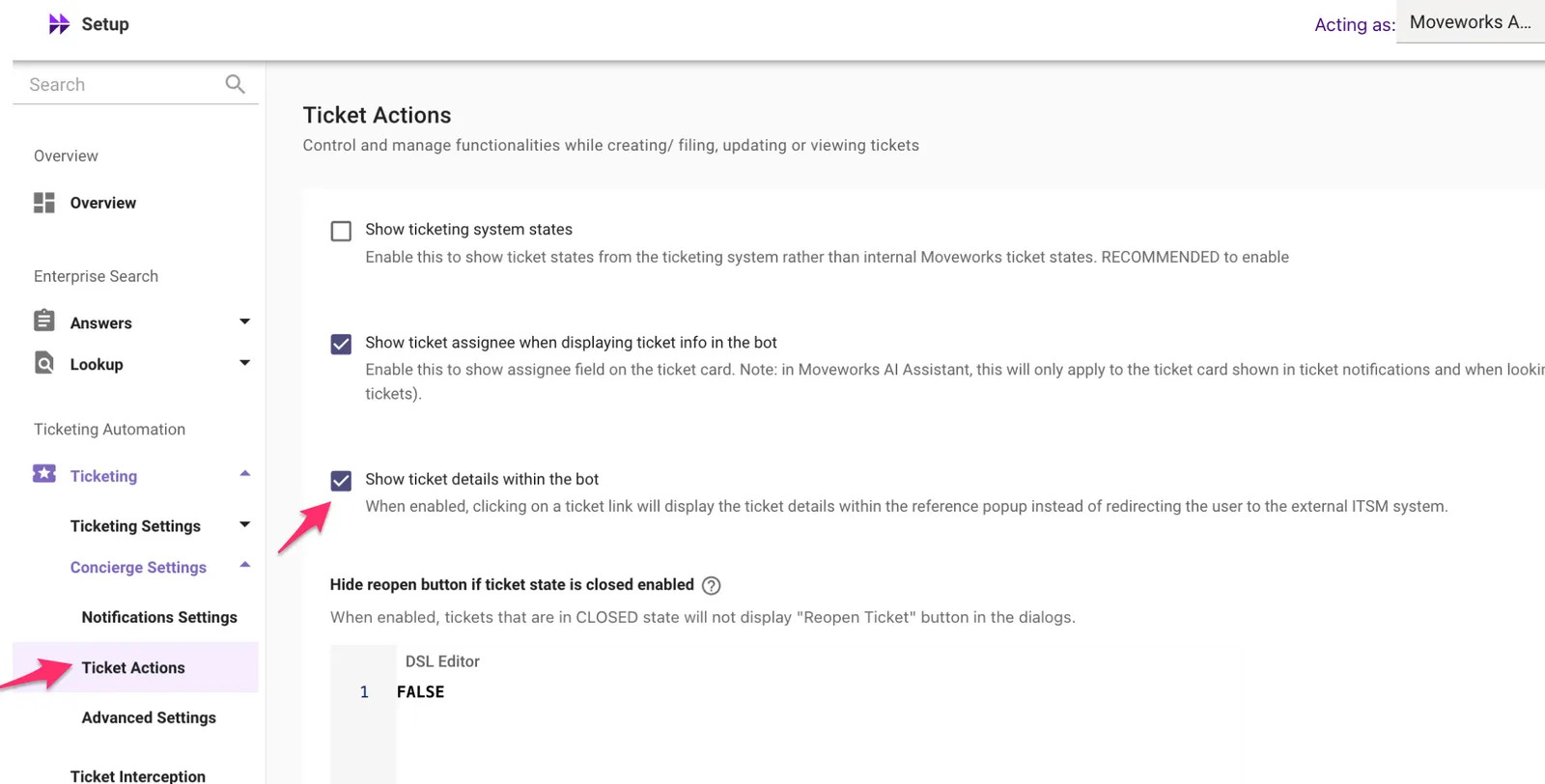
Once that’s done next time your employees click on a ticket ID number (yellow boxes) they will no longer navigate to your ITSM portal to view details for their tickets. This means anytime they want to view details about their ticket, those ticket details will be displayed within Moveworks assistant reference popup experience.
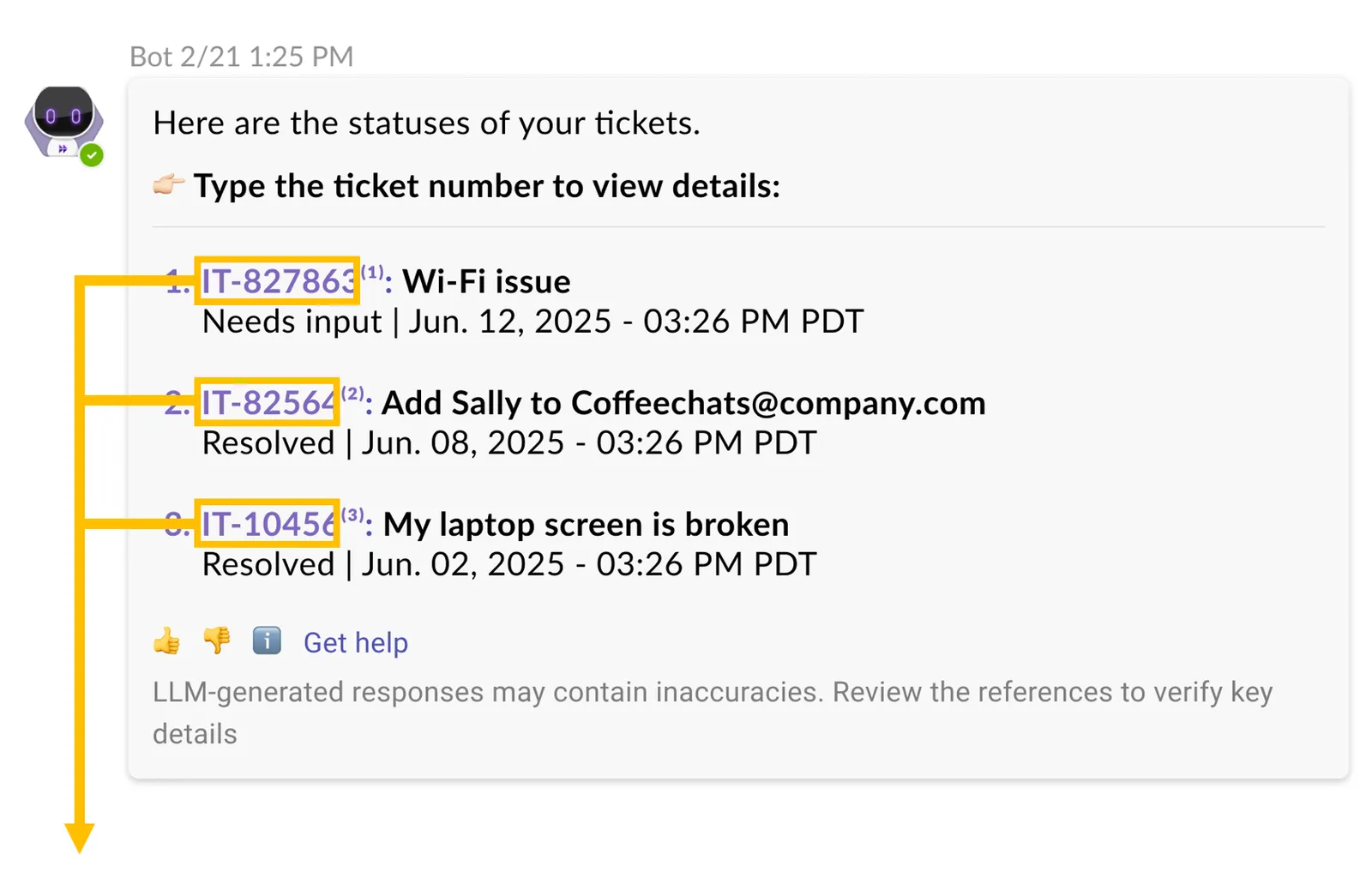
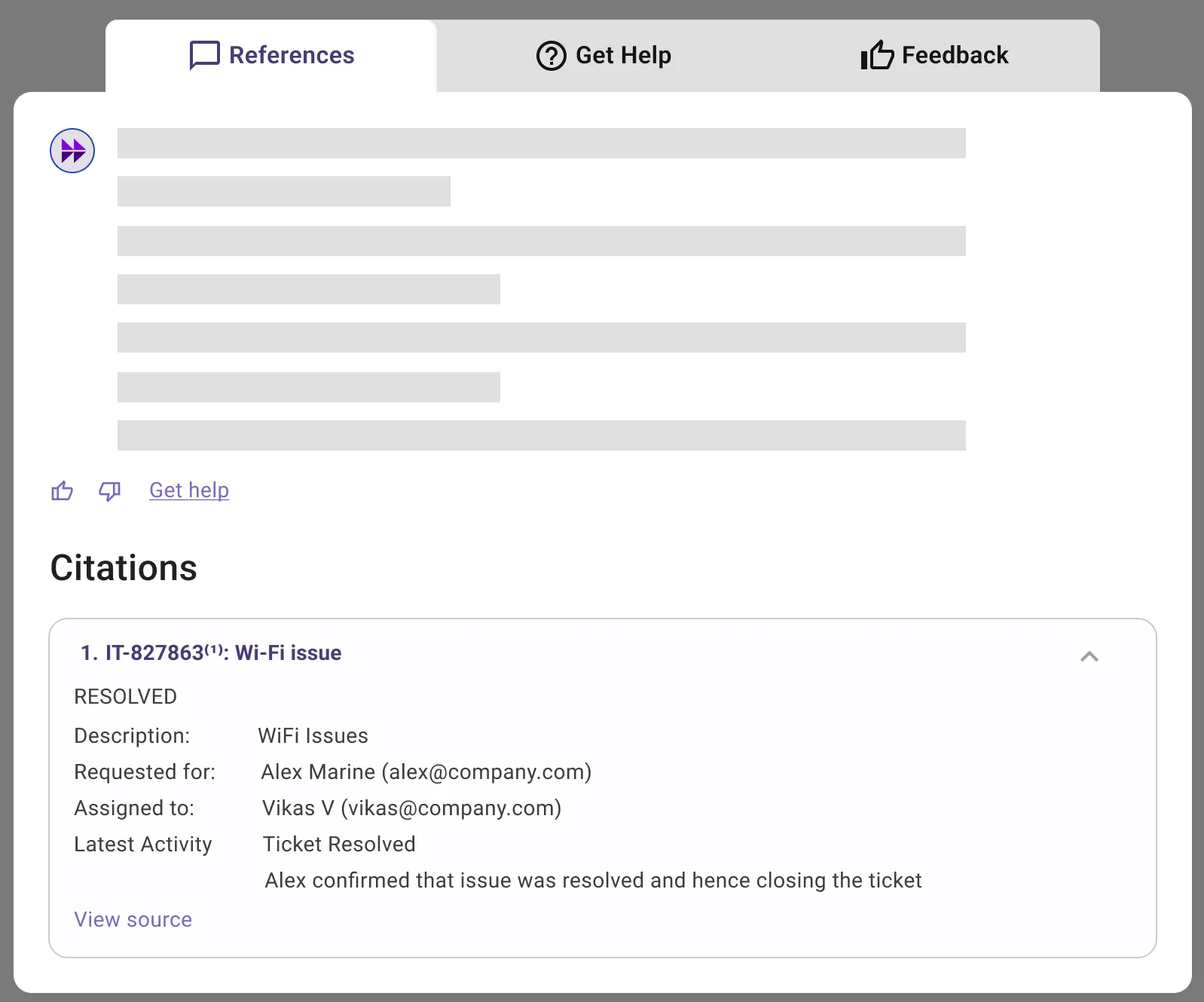
Adding Comments to Tickets
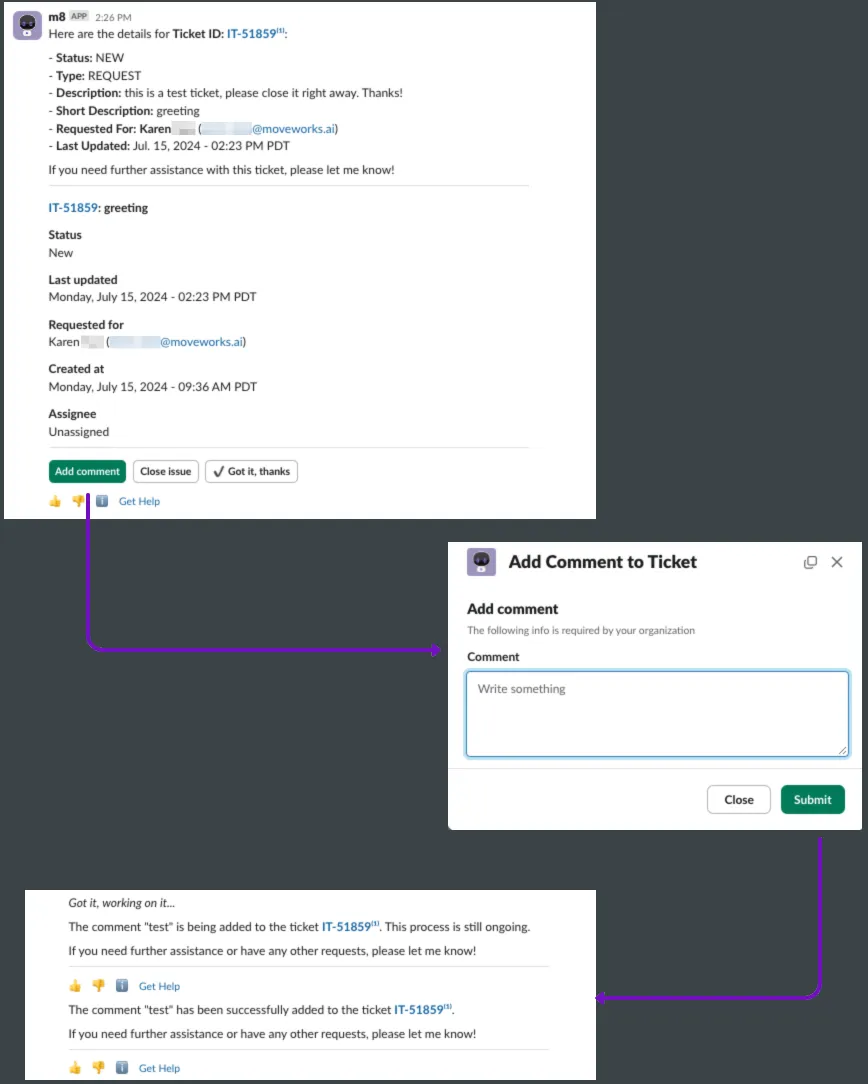
If a user wishes to add a comment to a ticket, they can click on Add Comment. If the user is on a supported system (Slack, Teams) a modal will appear to collect the comment.
Before adding the comment to the ticket, the Assistant will ask for the user’s final confirmation. If user wishes to change anything, they can click on “Edit Request” button to edit the comment.
When a comment is added to a ticket, it is attributed to Moveworks (Moveworks does not impersonate the user).
Note: Based on your ticketing system, this may cause users to get emails about their own comments. You should adjust email rules so this does not happen.
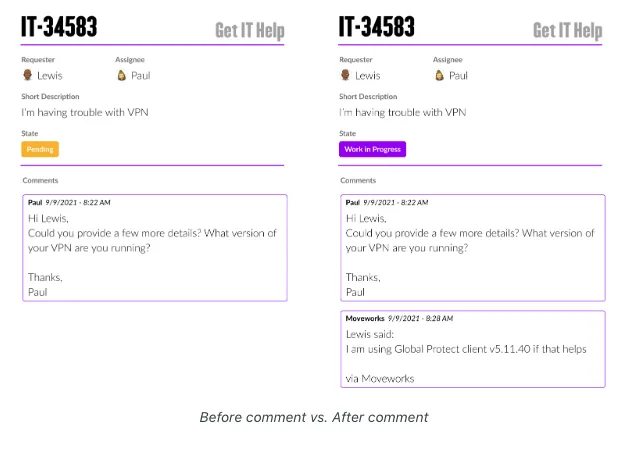
By default, if the current state of the ticket is Waiting For User / Pending, Moveworks will update the state to Work In Progress when leaving a comment on behalf of an employee.
You can disable this behavior based on the ticket type (e.g. incident, request, case, etc.)
Closing/Resolving Tickets
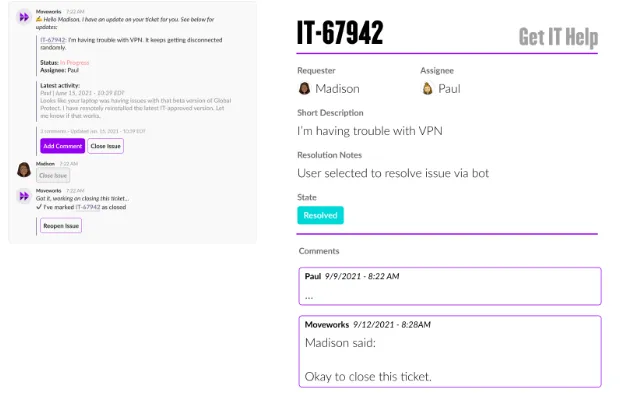
When a user wants to resolve a ticket they can do so in-chat by clicking on Close Issue, and Moveworks will mark the ticket as Resolved. There is no option to mark a ticket as Closed within Moveworks. Most ITSM platforms will set a ticket to closed after it is resolved for a certain amount of days.
If you do not want Moveworks to change the state of your tickets when an employee wants to resolve the ticket, instead Moveworks can leave a comment for the agent to resolve the ticket. You can configure this behavior based on the ticket type (e.g. incident, request, case, etc.)
Reopening Tickets
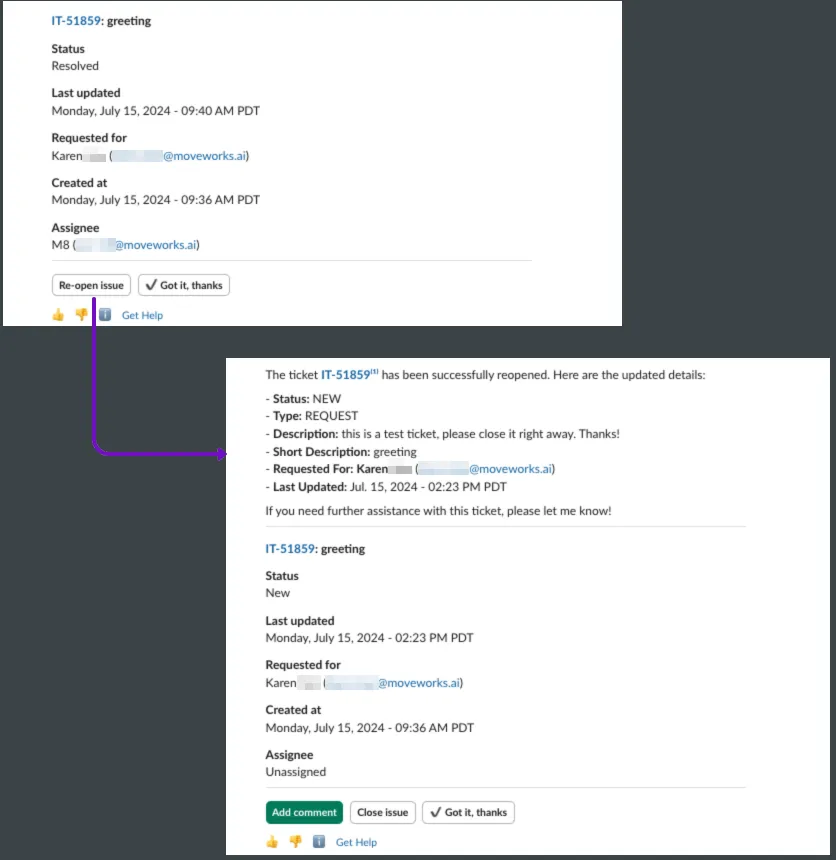
When employees want to reopen their resolved tickets, Moveworks will update the state of the ticket back to New. Moveworks will also give them the option to add a comment to the ticket.
If you would like to require a comment when an employee reopens a ticket, navigate to Moveworks Setup -> Ticket Actions -> Capture comment before reopening. Instead of immediately reopening the ticket, the assistant prompts the user to provide a reason or additional context for why they still need help.
When employees want to reopen their closed tickets, Moveworks will create a new ticket that references the previous ticket in the short description.
Note: The title of the new ticket will be Reopened: {previous short description}
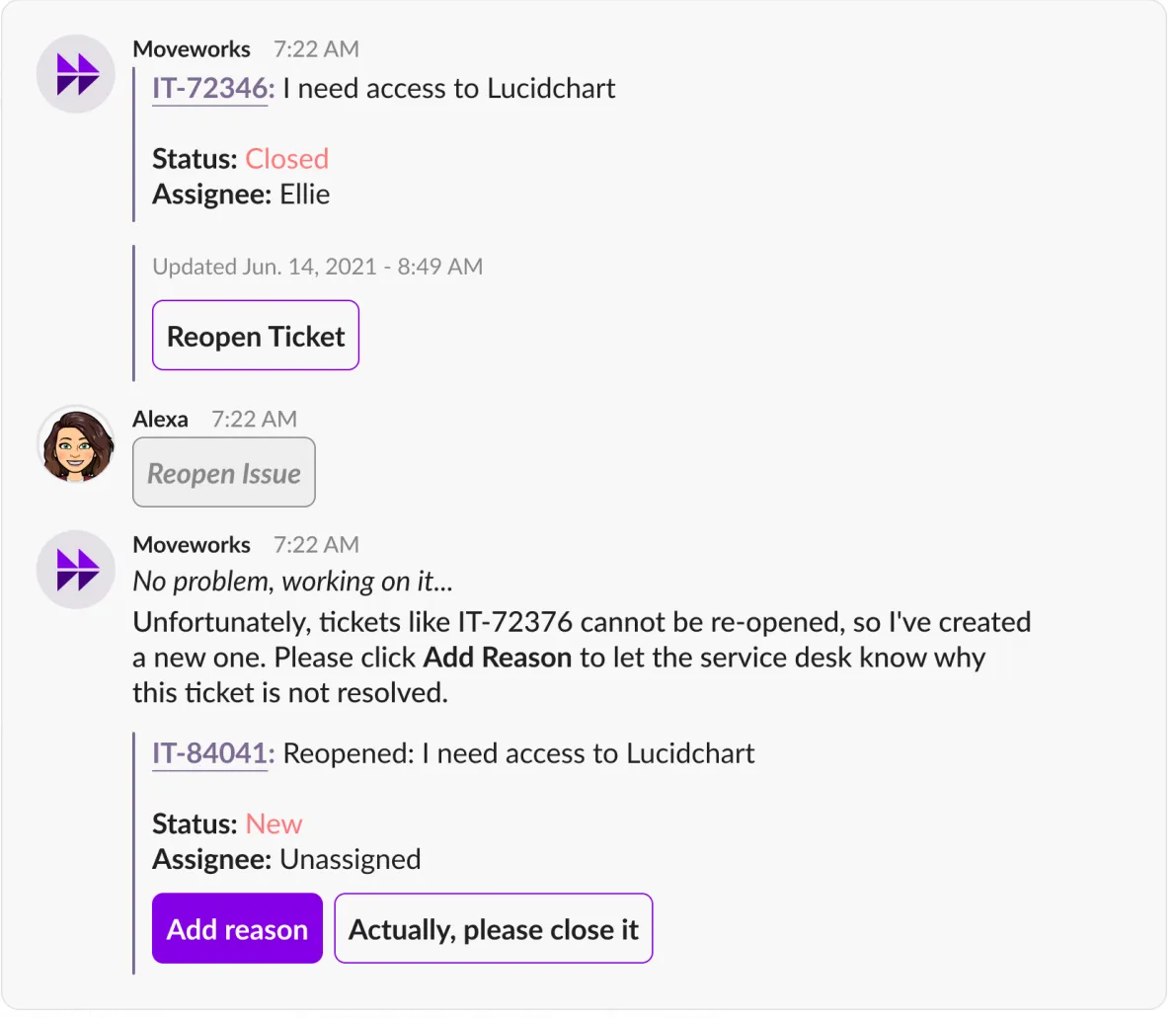
As shown, when the ticket is reopened, it will be unassigned from the current user, but any assignment groups will remain untouched.
FAQs
Q: When does the Moveworks AI Assistant not reach out on a ticket entering theResolved state?
- When tickets enter the
**Resolved**state, the Moveworks Assistant will reach out to the user in most cases. - However when a ticket’s state becomes
**Resolved**after being reopened again without any new user-facing comments, no notification will be sent. - If the Moveworks Assistant already notified the user that a ticket was
**Resolved**, it will not update the user that a ticket was**Resolved**again if it has been reopened, unless the ticket was resolved a second time with a user-facing comment from the Agent.
Q: Does the Moveworks Assistant alert employees when work notes or internal comments are added to the ticket?
- No, the Moveworks Assistant will only alert employees when a ticket has a user-facing comment and a State change.
Q: Will ticket assignees be updated via the Moveworks Assistant?
- No, currently only the requester of the ticket is updated via the Moveworks Assistant.
Q: If the user enters a ticket number that is older than 30 days, will they be able to look up the ticket?
- Yes, users can still look up the ticket with no time-restriction if they have the ticket number. The time restriction (30 days) only applies to when a user generically asks for the status of their open cases.
Q: Do I need to map every ticket status in order for a user to query their tickets?
- Yes, the ticketing Plugin requires Moveworks to have all ticket statuses mapped in order to identify and display the ticket to the end user when requested or updated
Q: Can the Moveworks Assistant Resolve Tickets which are Waiting on User ?
- In the case of Jira Service Desk as your Ticketing system, If you would like to Resolve a Ticket it is important to understand what state the ticket is in.
- If the ticket is in the state WAITING_FOR_USER then it can only transition to WIP (Work in Progress) post which it can be set to Resolved state.
- But if the ticket is in the state WAITING_FOR_USER and you try to resolve it, this will result in the ticket being WIP (Work in Progress) as this is a universal Jira rule for Default flows.
Q: Can I unsubscribe to notifications
A: No, granular notification controls are not available to end users in the Moveworks AI Assistant. However, an Admin can add a given user to the ticket filters, so that they do not receive concierge or nudge notifications.
Q: Why does the status given by the AI Assistant not match my ticketing system?
A: Matching ticket status in the ticketing system: currently, in ticket lookups, you might notice the ticket status does not match the ticket status in the ticketing system. We are working on supporting this configuration option.