
SSO Troubleshooting
Issues accessing the MyMoveworks homepage
Can’t see MyMoveworks tile in SSO provider
If you don’t see Moveworks in your list of SSO applications (e.g. in your Okta or Entra MyApps tiles), reach out to request access from your SSO/Identity team. Once they enable the app for you, you should be able to click the tile and login.
If your organization does not provide access to the application list view in your SSO provider, you can also directly navigate to https://my.moveworks.com and enter your email. This should redirect you to your SSO provider for authentication, after which, you should redirect back to MyMoveworks as a logged in user. If this still fails for you, look at the section below for a list of potential errors and how to troubleshoot them.
Can’t access MyMoveworks directly via your email
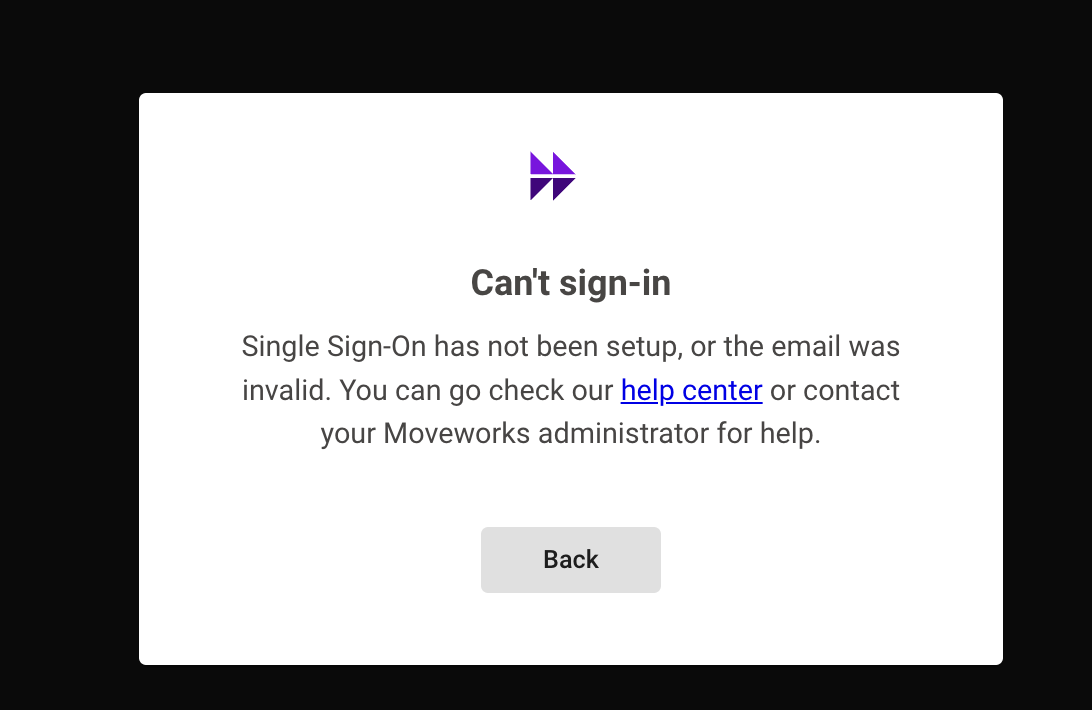
If you see an error like this, it means that your organization has not been set up for MyMoveworks access via SSO or the email you are using to log in is incorrect. This could be caused by a variety of reasons. Follow the steps below to figure out why:
Troubleshooting Steps:
- SSO Is not Setup: If you are currently implementing Moveworks, SSO must be configured before the login flow works. In these scenarios, check with your Moveworks Implementation Team on the status of SSO Setup.
- Confirm Valid Email: Confirm that the email for the user is valid by checking Moveworks Setup
- Navigate to Core Platform > User Identity > Imported Users
- Search for the user by their email or name under the Find Users section of the page.
- Unable to associate User to the appropriate Moveworks Tenant:
- Verify you are logging via the correct login URL:
- For non-US regions. It is recommended that you login from your region specific url for your tenant. e.g: EU would be https://my.am-eu-central.moveworks.com/ You can find the appropriate URL for your region on our documentation here.
- When you enter your email in the My Moveworks portal you should be redirected to your SSO provider for authentication. ⚠️ Email linkage will not work if you do not use the correct URL for your region
- Note: if you do not get redirected it may mean the email address you are using is not the primary email address associated with your tenant. In these scenarios, try logging in with the direct link.
- Verify you are logging via the correct login URL:
- If you continue to face issues, verify the email you are using is correct. Your primary email in Moveworks may be different from what you are expecting. If your email domain is incorrect, work with your Moveworks admin to find out the correct domain to log in with.
If you were successfully redirected to your SSO provider, and are now encountering an error such as the below after entering your SSO credentials:
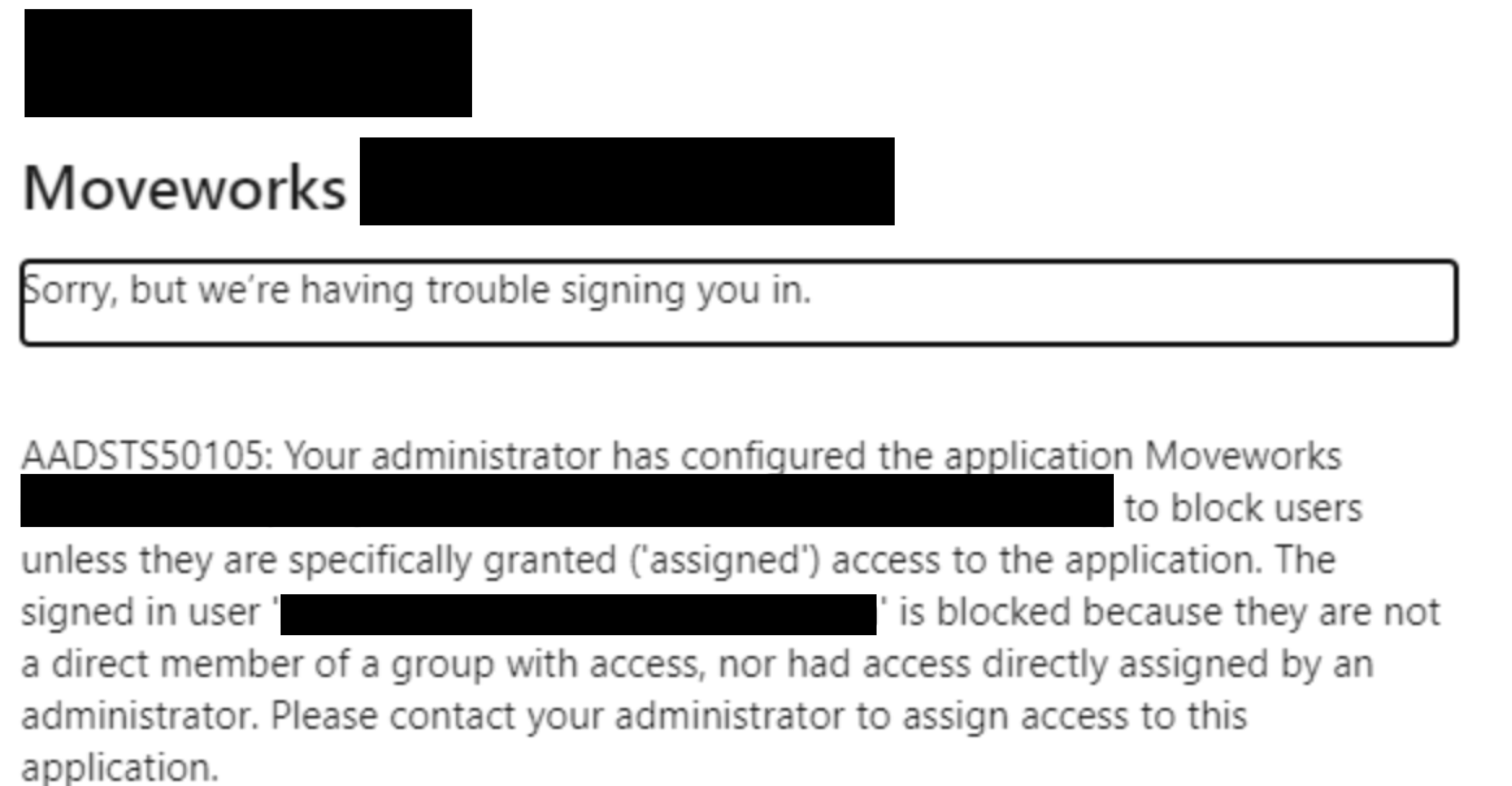
You may need to work with your SSO/Identity team to ensure the following:
- That you have been granted access to MyMoveworks in your SSO provider
- That there was no change to the SSO configuration for MyMoveworks by SSO/Identity team
If you need help troubleshooting these issues, reach out to Moveworks Support.
Issues accessing specific apps in MyMoveworks
If you’re able to access the MyMoveworks homepage but cannot access specific apps (such as Agent Studio, Employee Communications, Moveworks Setup etc.), reach out to your Org Admin to ensure you have the right Roles assigned to your account. If you’re unsure who your Org Admin is, reach out to your Moveworks Support.